
Chapter 13.9
Inspections, meters and unit equipment
A rental building is looked at, measured and furnished, and each of those leaves a record. This chapter walks the outside of the Galveston Building on a drive-by inspection that finds a sagging gutter, gives a tenant proper notice before an inspection inside the unit, writes the books' own inspection list and a quarterly safety check for the Riverside Fourplex, records a unit's appliances, and bills a tenant for the water the new submeter measured, after the software refuses to charge it without a rate.
When you finish this chapter you will be able to:
- Tell a periodic inspection from a drive-by, and read the Inspections list and the Today board.
- Walk an inspection, turn a poor item into a work order and file the report.
- Record a notice of entry, and explain why it needs an approved template.
- Keep the books' own inspection list and repeat an inspection on a schedule.
- Record a unit's appliances, add a meter and record its readings.
- Set a utility rate and post the charge the readings earn.
Two kinds of inspection
An inspection is a checklist with a result. A periodic inspection goes inside a unit: smoke alarms, leaks, filters, the state of the rooms. Because someone enters the tenant's home, the tenant must be told first. A drive-by inspection looks at the outside and the common areas and enters no unit, so no notice is needed.
Scheduling makes runs. A periodic inspection makes one run per unit, a drive-by one run for the property. Each run puts a task on the Today board for its inspector. On the run, each item is marked Good, Fair, Poor or Not applicable, with a note and a photo if needed. A poor item can make a task or a work order (Chapter 13.8); these are the run's follow-ups. Completing the run fixes its result, Pass, Needs work or Fail, and files a numbered condition report in the documents register.
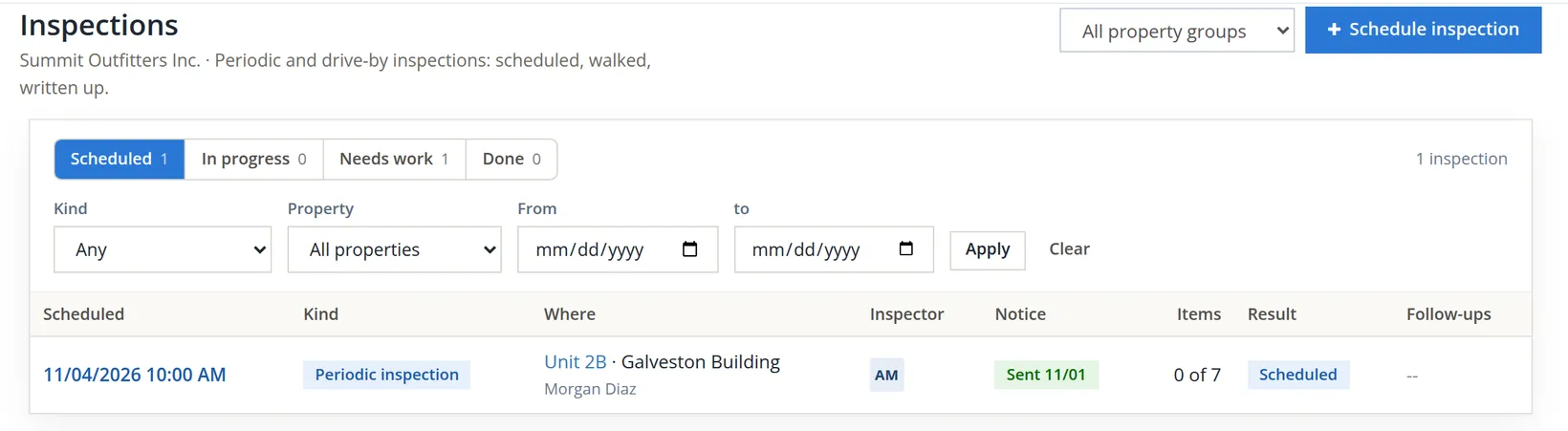
Open Maintenance → Inspections. The list is split into the four states a run passes through; the state tabs sit inside the filter card, and Apply runs the filters.
Walk a drive-by inspection
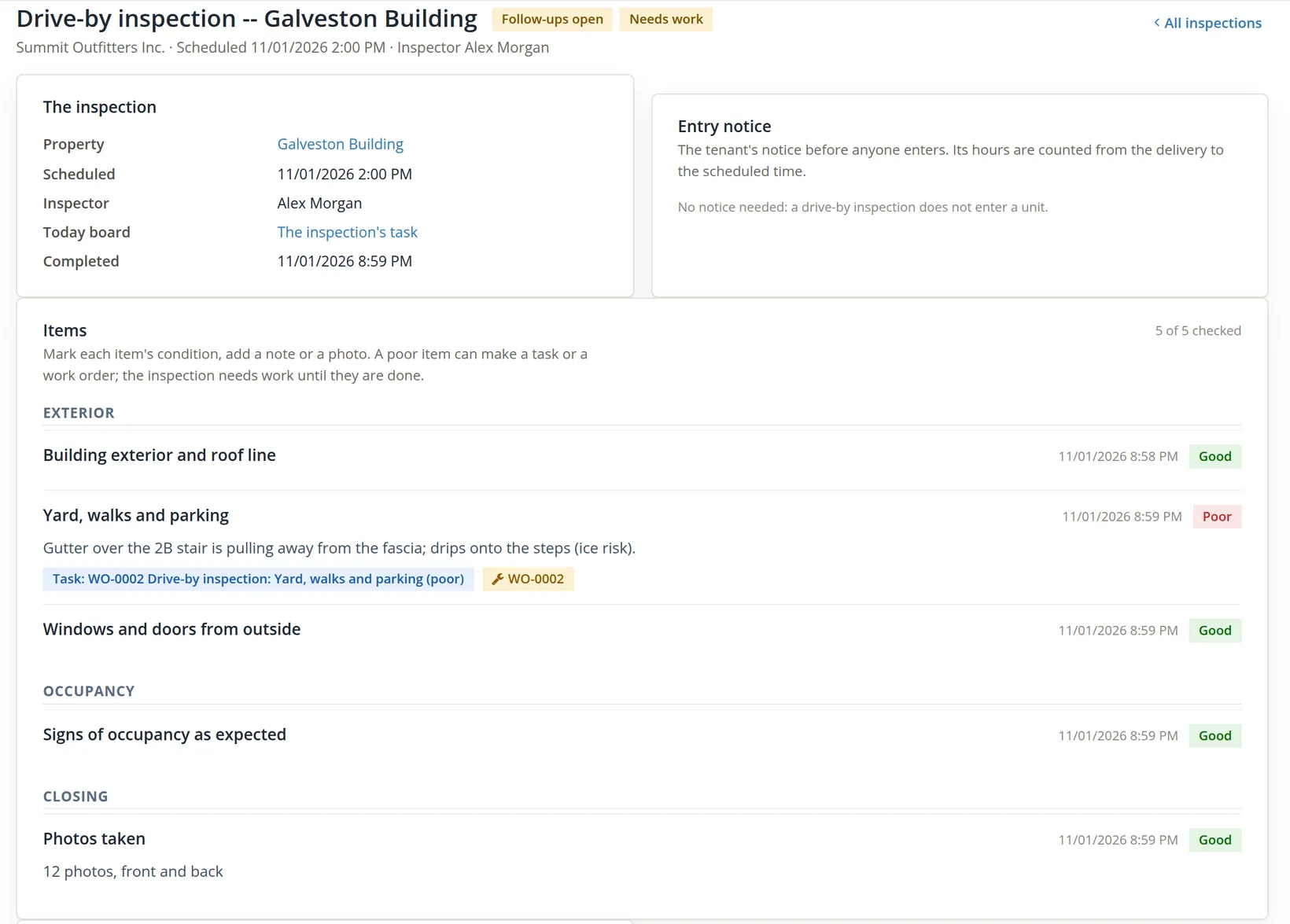
Maintenance → Inspections → Schedule inspection: kind Drive-by, the property, the inspector, the day and time. Summit scheduled the Galveston Building for November 1 at 2:00 pm; the manager walked it that evening, and each item carries the time it was saved.
- 1
Mark each item Good, Fair, Poor or Not applicable, and Save it
Each item has a note, a photo and its own Save button on the same line. Once a Poor item is saved, two buttons appear under it: Make a task and Make a work order.
- 2
Turn the poor item into a work order, then complete
Make a work order opened WO-0002, "Drive-by inspection: Yard, walks and parking (poor)", for the staff to schedule: "The inspection needs work until it closes." Under Complete the result is proposed from the items, Needs work; Complete and make the report files report D-000002.

Give notice before entering a unit
Summit scheduled the periodic inspection of 2B for 11/04/2026, 10:00 am, window 10 to 11. The inspection page shows the rule: "Required: 24 hours (default, unreviewed)", and warns that completing before the hours are given is refused.2 Sending is off for these books, so e-mail cannot go out; a notice handed over or mailed can still be recorded.
- 1
Send notice, choose Hand delivered, write a note, Record
The first try failed: "Nothing was sent. Template "Notice of entry" has no approved version (copy the system template to these books, review it and approve it, or ask staff to approve the system version)." The notice is a document, and documents render only from an approved template.
- 2
Approve the template: Settings → Property Management → Documents and messages → Templates
Find Notice of entry and click Copy, the row's main button (Preview is in the row's More menu). The copy belongs to the books; its body is plain text with merge fields such as the tenant's names, the unit's address and the entry date and window. Read the wording, change it if you like, then Approve v1 and confirm "Approve v1? Documents made from now on render from it." Summit did this once, on November 1; every later notice of entry renders from v1 without asking again.
- 3
Record the notice again
This time: "Notice recorded: 1 hand delivery to Morgan Diaz. N-000001 is on file." The page counts the hours from the delivery to the scheduled time.
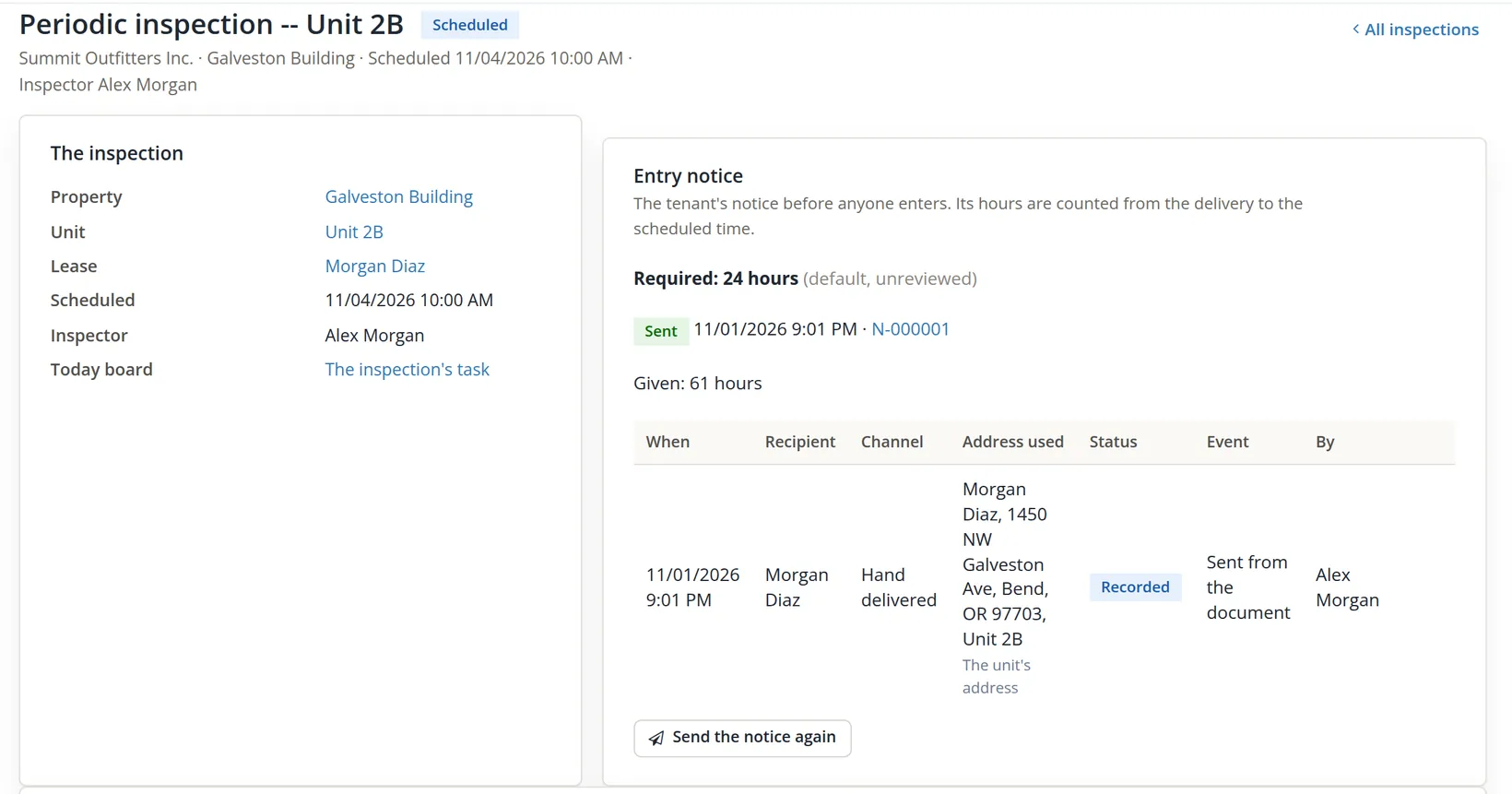
Check the arithmetic: from 9:01 pm on November 1 to 10:00 am on November 4 is 2 hours 59 minutes to midnight, 48 hours for November 2 and 3, and 10 hours on November 4: 2:59 + 48:00 + 10:00 = 60 hours 59 minutes, shown as 61 hours, well over the 24 required.
When an inspection is late
November 4 came and went: the manager was called to another building and 2B was not walked. Nothing on the Inspections list turns red, but the run's task does. Open Today: a task whose due day has passed moves into the Overdue lane at the top of the board.
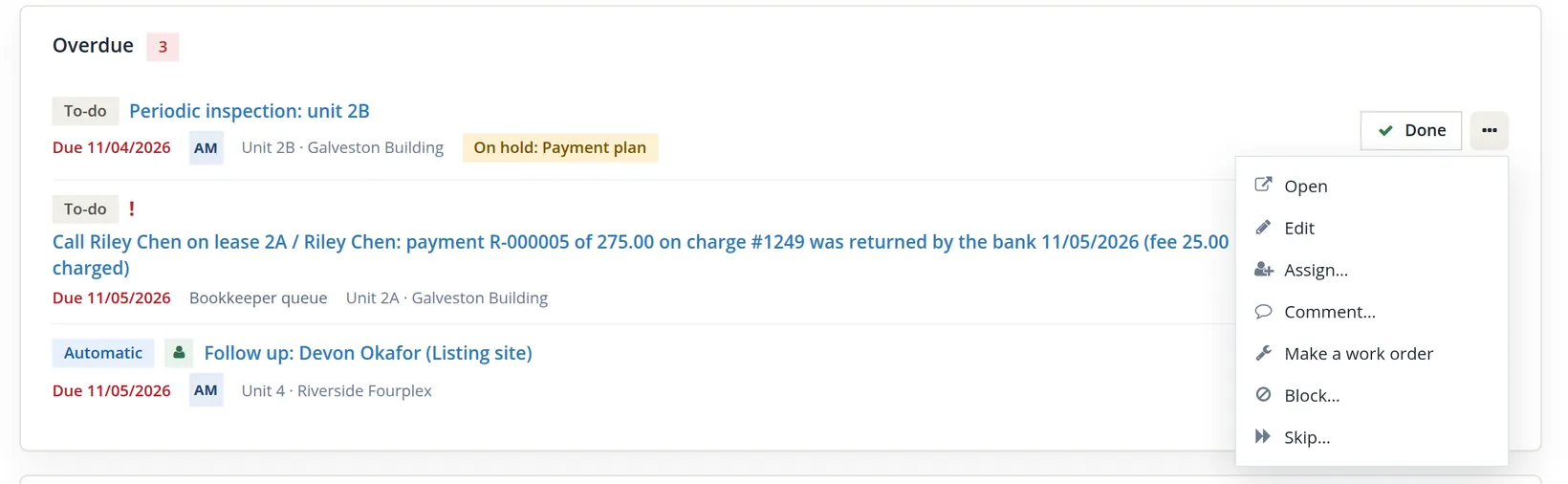
The run has no button to move it to another day: it keeps its 11/04 time, and its 61 hours of notice still count to that time.3 Morgan was told 10 to 11 on November 4, however, so Summit agrees a new time with Morgan and gives a fresh notice before anyone goes in. Until the run is completed, the overdue task stays on the board as a reminder; Chapter 13.10 works through the board itself.
Done on the Today row closes the task only. The inspection itself stays Scheduled, with no report, until its items are marked and it is completed on its own page.
Keep the books' own inspection list
The module ships one list for each kind: seven items for a periodic inspection (Safety, Systems, Rooms, Occupancy, Closing) and five for a drive-by. Summit wants the inspector inside a unit to read the date on the back of every smoke alarm, because an alarm older than ten years must be replaced. That is a change to the periodic list.
- 1
Open Settings → Property Management → Tasks and inspections → Inspections
The Property Management settings have a two-level menu: the sections in the first row, the pages of the open section in the second. The Inspection lists card shows both lists. While Use the module's list is ticked, the rows are greyed and ignored.
- 2
Untick Use the module's list under Periodic inspection
The module's seven rows become editable and are now the starting point of the books' own list.
- 3
Type the new item in a blank row, then move it into place
Area Safety, item Smoke alarms dated within 10 years (date on the back). Blank rows are ignored; Add item adds more. Drag the row by its handle, or use the arrows, to put it under Smoke and CO detectors tested; the × removes a row.
- 4
Save the lists
The page answers "Inspection lists saved. New runs take them; runs already started keep theirs."
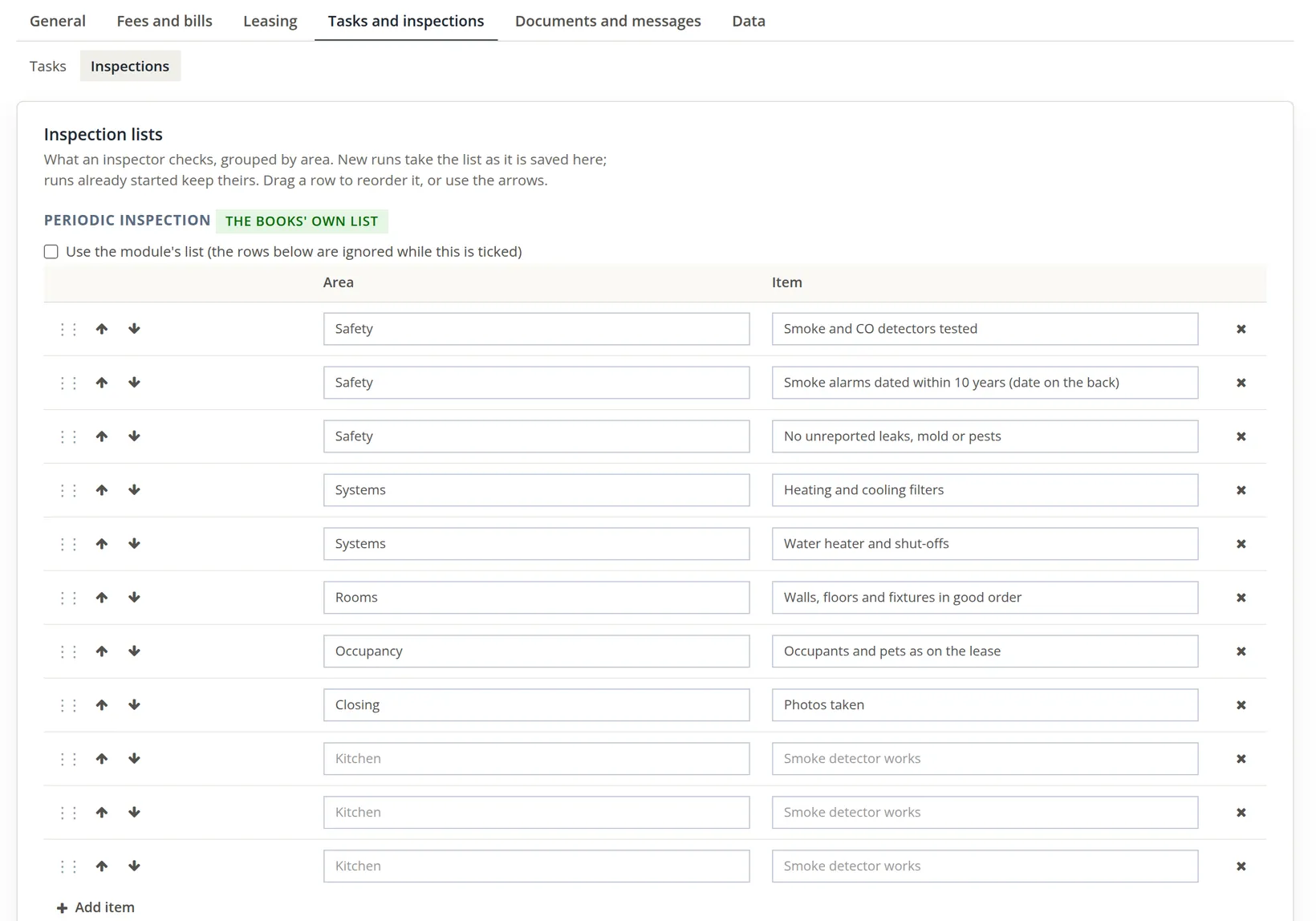
"Runs already started keep theirs" matters: the 2B run was made on November 1 with the seven-item list and keeps it, so its page still reads 0 of 7 checked. The next periodic run will have eight items.
Below the lists sit the Inspection app card, for a phone app that works offline (off for these books; the inspection page already works in a phone's browser), and the Portal card, which turns the tenant and owner portals on and off. The portal is covered in Chapter 13.13.
Repeat an inspection on a schedule
A smoke or carbon monoxide alarm that has quietly died protects nobody, and Summit's insurer wants every alarm tested each quarter. Rather than remember, Summit lets the module make the runs: a repeat is a recurring task that starts the inspection runs on each of its dates.
- 1
Maintenance → Inspections → Schedule inspection
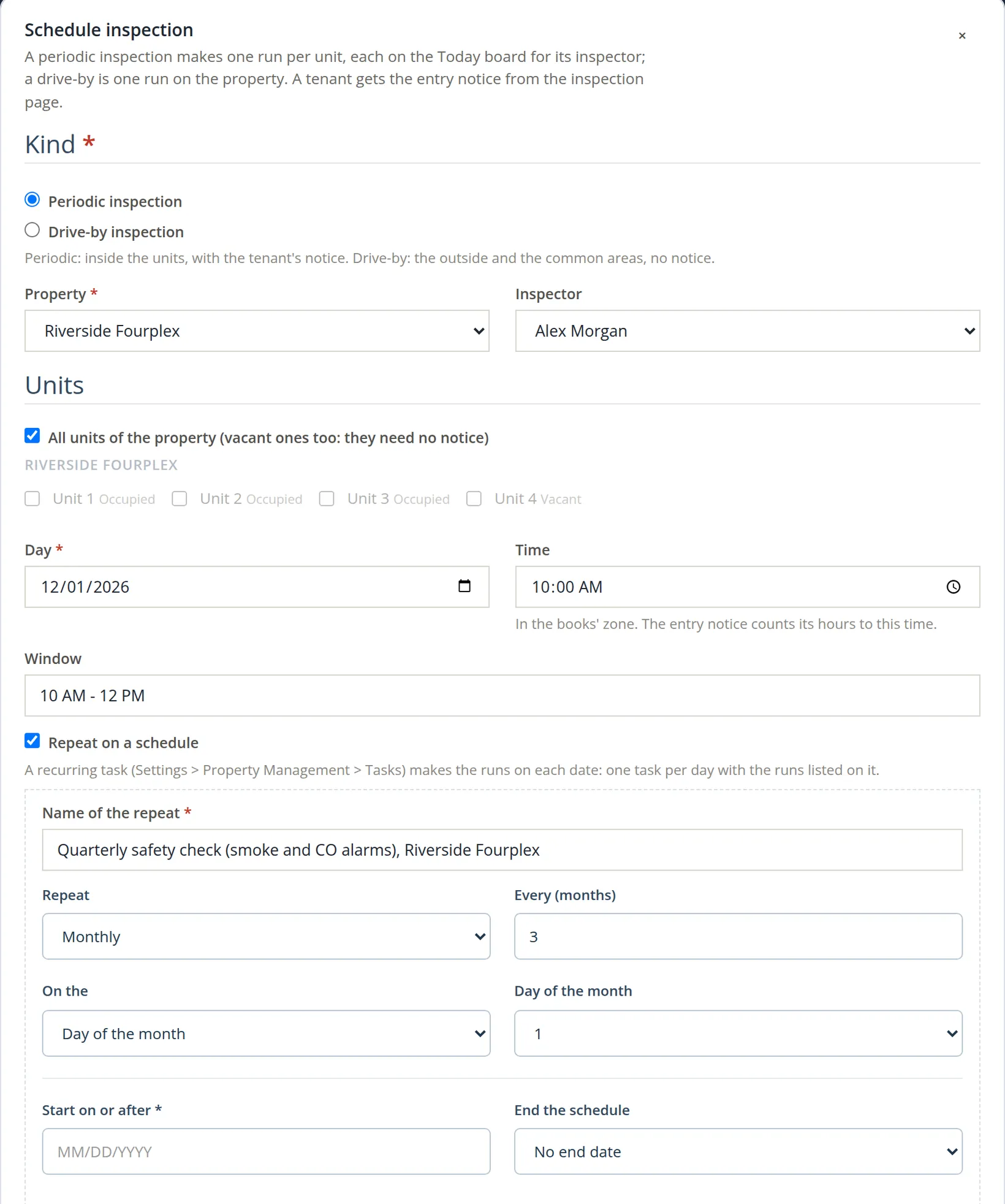
Kind Periodic inspection, property Riverside Fourplex, inspector Alex Morgan, and All units of the property ticked; vacant units are inspected too and need no notice. Day 12/01/2026, time 10:00 AM, window 10 AM - 12 PM; the window is printed in the notice.
- 2
Tick Repeat on a schedule and describe the schedule
Name the repeat Quarterly safety check (smoke and CO alarms), Riverside Fourplex. The schedule fields are the ones of the books' recurring tool (Chapter 14.1); the dialog proposes a quarter already: Monthly, every 3 months, on day 1 of the month. Leave Start on or after empty to start on the day above (its star belongs to the shared recurring form; the dialog's own note says empty means the day above), and End the schedule at No end date.
- 3
Schedule, then check the repeat under Settings
The answer: "Repeat saved: the first inspections are made on 12/01/2026. Run now on Settings > Tasks makes today's." No run exists yet; the Inspections list is unchanged. The repeat lives in Settings → Property Management → Tasks and inspections → Tasks, under Recurring tasks.
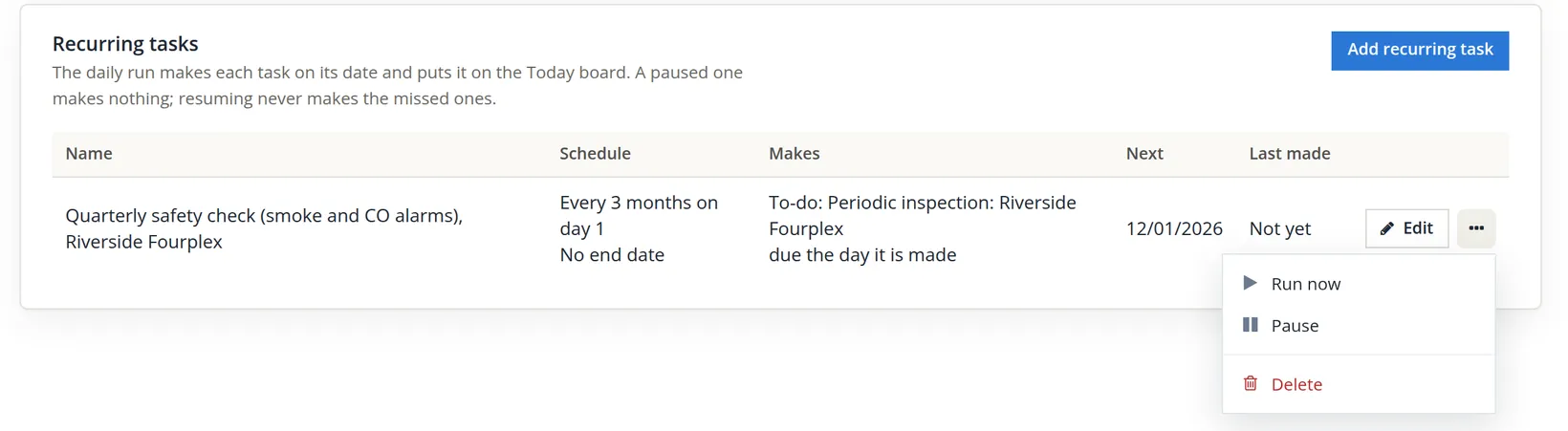
The dates follow from the rule: 12/01/2026, 03/01/2027, 06/01/2027, 09/01/2027, and so on. Those are the days the task and the runs are made. A run that enters an occupied unit is scheduled far enough ahead for the notice of entry: the required hours rounded up to whole days, plus one day. With the default 24 hours that is two days, so on December 1 the daily run makes the runs of the occupied units for 12/03/2026 at 10:00, and the run of a unit that is vacant that day for 12/01/2026 at 10:00. A drive-by keeps the day itself. The task is due the day of its last run (12/03), and its activity names each run's day, with (time for the notice of entry) beside the later ones. The same card is where the office adds plain recurring tasks with Add recurring task, such as a filter change; those make a task but no inspection (Chapter 13.10).
When the quarterly task appears on December 1, open each occupied unit's run and record its notice that day (Procedure B). A notice sent on the 1st gives the tenants about two days before the 10:00 visit on the 3rd, more than the 24 hours required. A run completed on a shorter notice asks for a reason.4
The unit page: lease, meters, inventory and inspections
Every unit has a page that gathers what belongs to it. Open Properties and people → Units and click the unit, or Open unit on the property's Units tab. The facts of the unit (class, beds, baths, size, market rent) are kept on the property's Units tab; the page only shows them. Below come the lease in force, the listing, the Meters card, the Inventory card, the custom fields and the unit's inspections.
The inventory is the list of appliances and fixtures in the unit, each with its make, model, serial, the day it was installed, its cost and its warranty. On the Inventory card click Add asset:
| Field | Smoke detector | Refrigerator |
|---|---|---|
| Where (required; filled in with the unit you are on) | Unit 1 | Unit 1 |
| Kind (13 choices, Refrigerator to Smoke detector and Other) | Smoke detector | Refrigerator |
| Make, Model | Kidde, 10-year sealed battery, photoelectric | Whirlpool, WRT318FZDW |
| Serial | -- | K21458803 |
| Installed on | 12/15/2025 | 06/14/2022 |
| Purchase amount | -- | 849.00 |
| Warranty until | -- | 06/30/2027 |
| Notes | Hallway outside the bedrooms; replace the whole alarm by 12/2035 | Extended parts and labor warranty |
Each Add asset opens the new asset's own page with "... added to unit 1."; the manual and the warranty document are attached there once it is saved. A warranty date puts a reminder on the Today board for Maintenance 30 days before it ends.
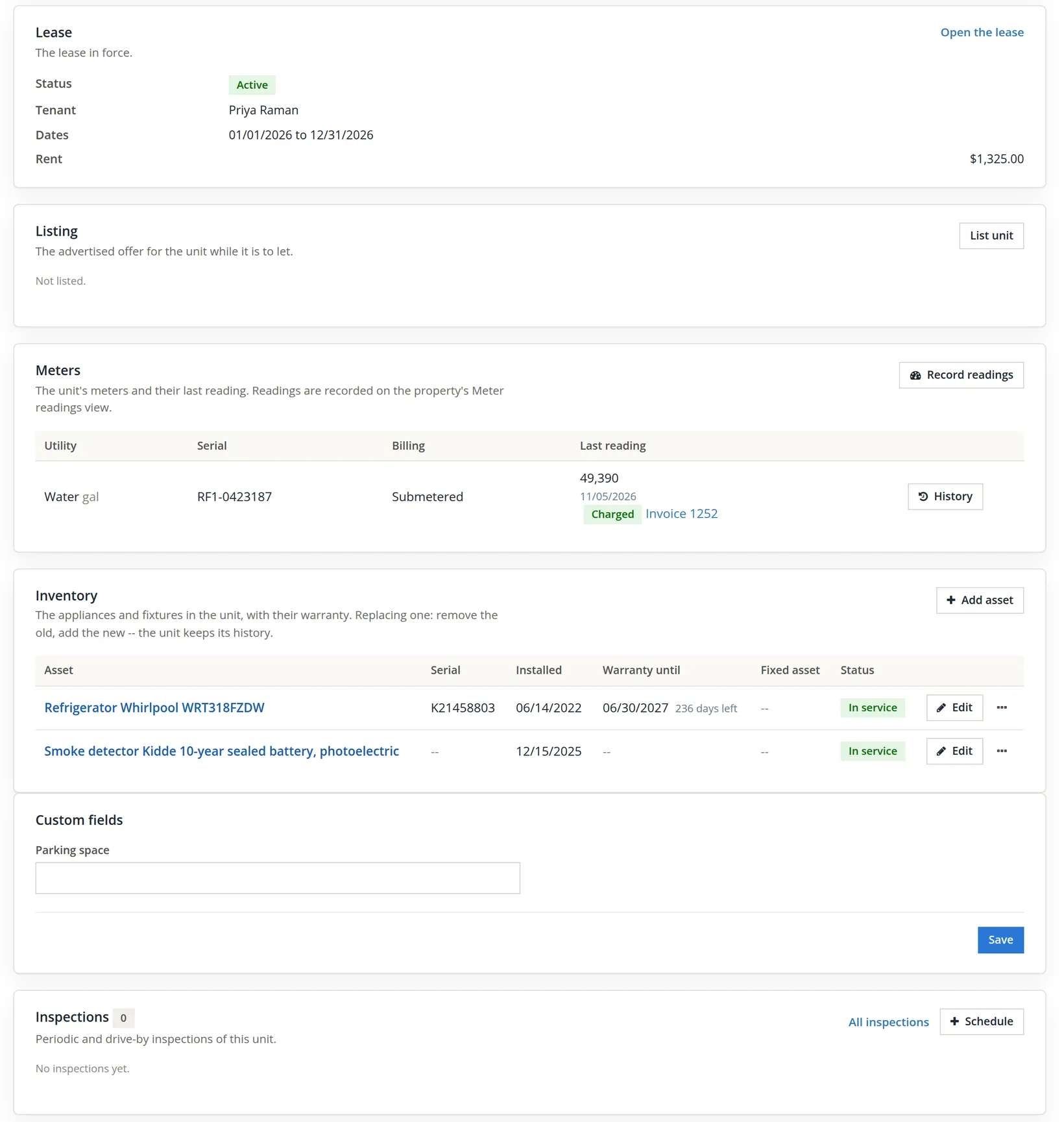
The 236 days: from November 6, 2026 to June 30, 2027 is 24 days of November, then 31 + 31 + 28 + 31 + 30 + 31 + 30 for December to June: 24 + 212 = 236. The count drops by one each day.
The property's own Inventory tab holds the building's assets (the roof, a boiler, a shared water heater) and a By unit table, which now reads Unit 1, 2 in service, next warranty to end 06/30/2027.
When the refrigerator dies, do not edit its row into the new one. Choose Remove... from the old one's More menu (it asks for the day and the reason) and add the new. The unit keeps its history, and a work order that named the old refrigerator still points at it.5
How utility billing works
When the landlord pays the water bill but each unit has its own submeter, the tenant can be billed for what the meter measured. Three things must be in place, and the module checks each before it charges a cent:
| Piece | Where | What it holds |
|---|---|---|
| A rate | Settings → Property Management → Fees and bills → Utilities (the books), or the property's Settings tab (one property) | Price per unit of measure, a base per reading, the income account, the days it is in force. A property's own rate comes first. |
| A meter | The property's Units tab → Meter readings | The unit, the utility, the unit of measure, submetered or information only, serial, multiplier, dial max, read day. |
| Readings | The same view, one read date at a time | The dial value on a day. The first reading is the start and is never charged. |
Each later reading stores its consumption at save: (value − previous value) × multiplier. A charge run then turns every recorded reading with consumption into a line on its lease's invoice: consumption × rate + base, rounded once to the cent. The interval runs from the day after the previous reading to the read day; if two leases covered it, the amount is shared by their days. One invoice is made per lease per run, to the lease's primary tenant.
| Utility charge posts | Debit | Credit |
|---|---|---|
| Water for unit 1, invoice 1252 | Accounts Receivable $13.02 | Revenue:Riverside Fourplex:Tenant Reimbursements $13.02 |
Add the meter and record two readings
- 1
Open the property, then Units → Meter readings → Add meter
Properties and people → Properties → Riverside Fourplex. The Units tab has two views, Units and Meter readings. Fill in the dialog:
Field Entered Why Where Unit 1 A unit's meter is charged to its lease; Common meter of the property is recorded only. Utility, Unit of measure Water, gal The unit of measure is preset from the utility and shown with every figure. Billing Submetered So the readings are charged. Serial RF1-0423187 Serials must differ between water meters of one property. Multiplier 1 The dial reads gallons. Dial max 999999 A six-dial meter; blank would mean it never rolls over. Read day 1 The Today board asks for a reading from the 1st; it is due on the 6th and stays, at high priority, until a reading is saved. Add meter answers "Meter added. Record its start reading in the grid below: the first reading is never charged."
- 2
Record the start reading on its own day
In the Readings card set the read date to 11/01/2026 and click Show; the grid has one row per active meter. The plumber's photo of the dial says 48,210. Type it, add the note Start reading at installation, and Save all: "1 reading saved." The meter's row now says Recorded, Start reading.
- 3
Record the next reading on 11/05/2026
Change the read date to 11/05/2026 and Show. Type the new value, 49390; the consumption is worked out as you type. Then Save all.
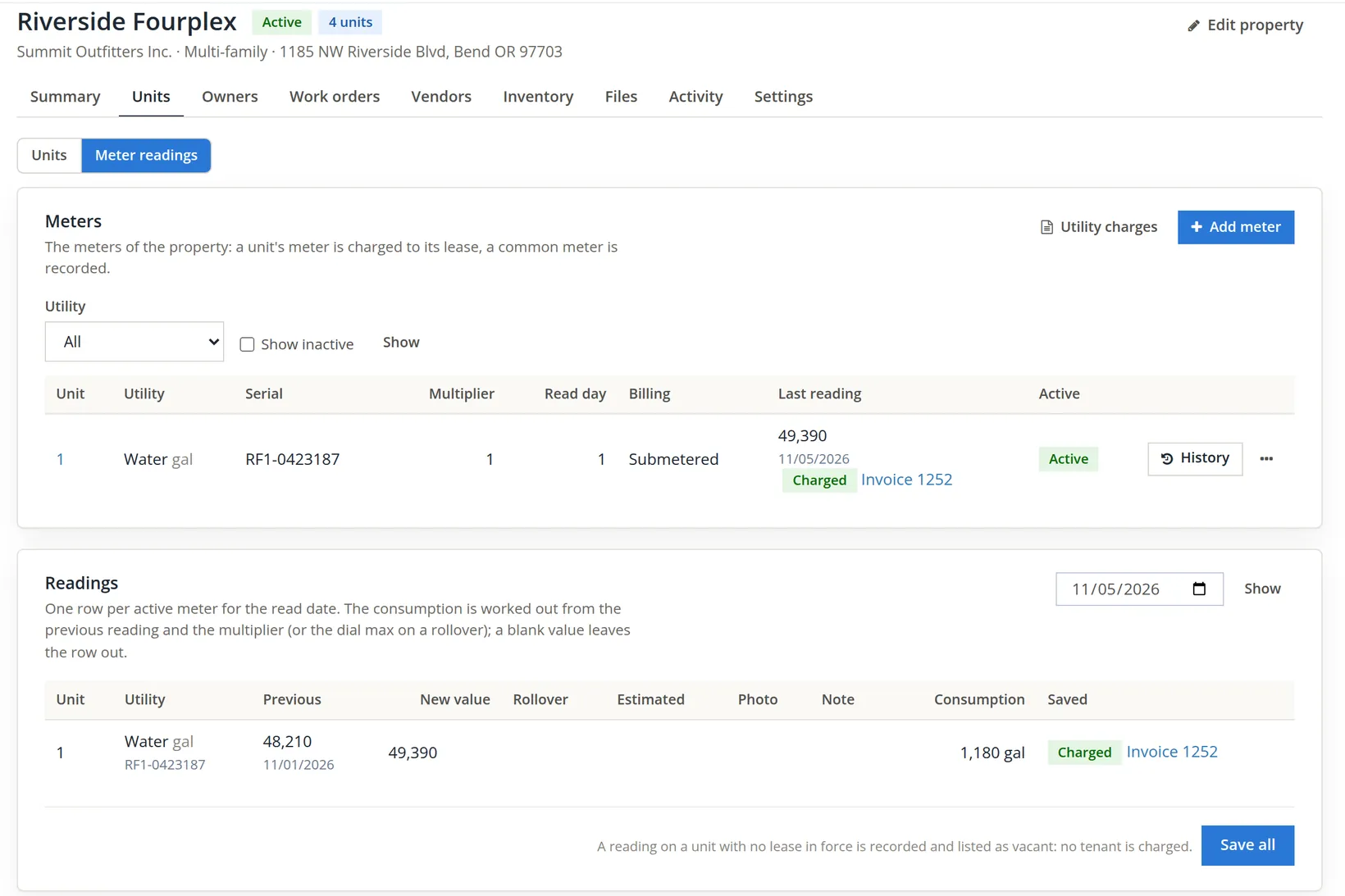
Check the arithmetic: (49,390 − 48,210) × 1 = 1,180 gallons in four days, about 295 gallons a day for a two-bedroom household. Right after Save all the row shows Recorded with a Void button until the reading is charged (the figure shows it already Charged): a recorded reading can be voided with a reason, and the next reading's consumption is then worked out again from the one before.
A reading dated on or before the meter's last one is refused ("The last reading of this meter is dated ... a new reading comes after it."), and so is a value below the previous one, unless the dials rolled over and Rollover is ticked. A consumption more than three times the meter's recent average is saved with a High usage warning: check for a leak or a typing error before charging it.
Charge the water, and fix the missing rate
- 1
Utility charges, through 11/05/2026, Preview
On the Meter readings view click Utility charges. The property is fixed to the one you are on; Through defaults to today. Preview asks for the plan and writes nothing.
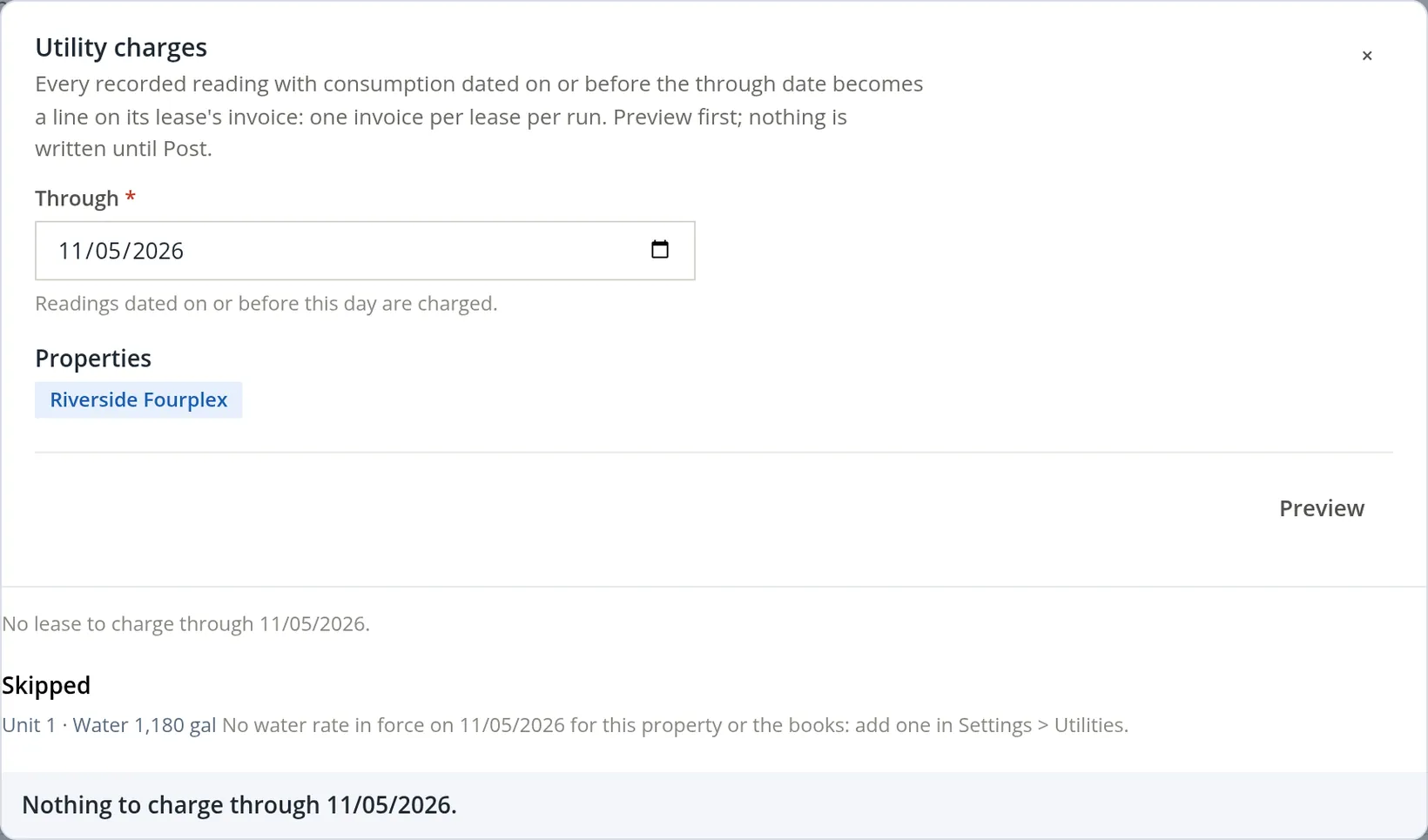 Utilities; Nothing to charge through 11/05/2026" loading="lazy">
Summit set up the meter before the price. The module does not guess: a reading with no rate in force on its read day, no income account, or a lease with no primary tenant is listed as skipped with its reason, and a lease on a hold that stops charges is listed as held. The reading stays recorded and waits.
- 2
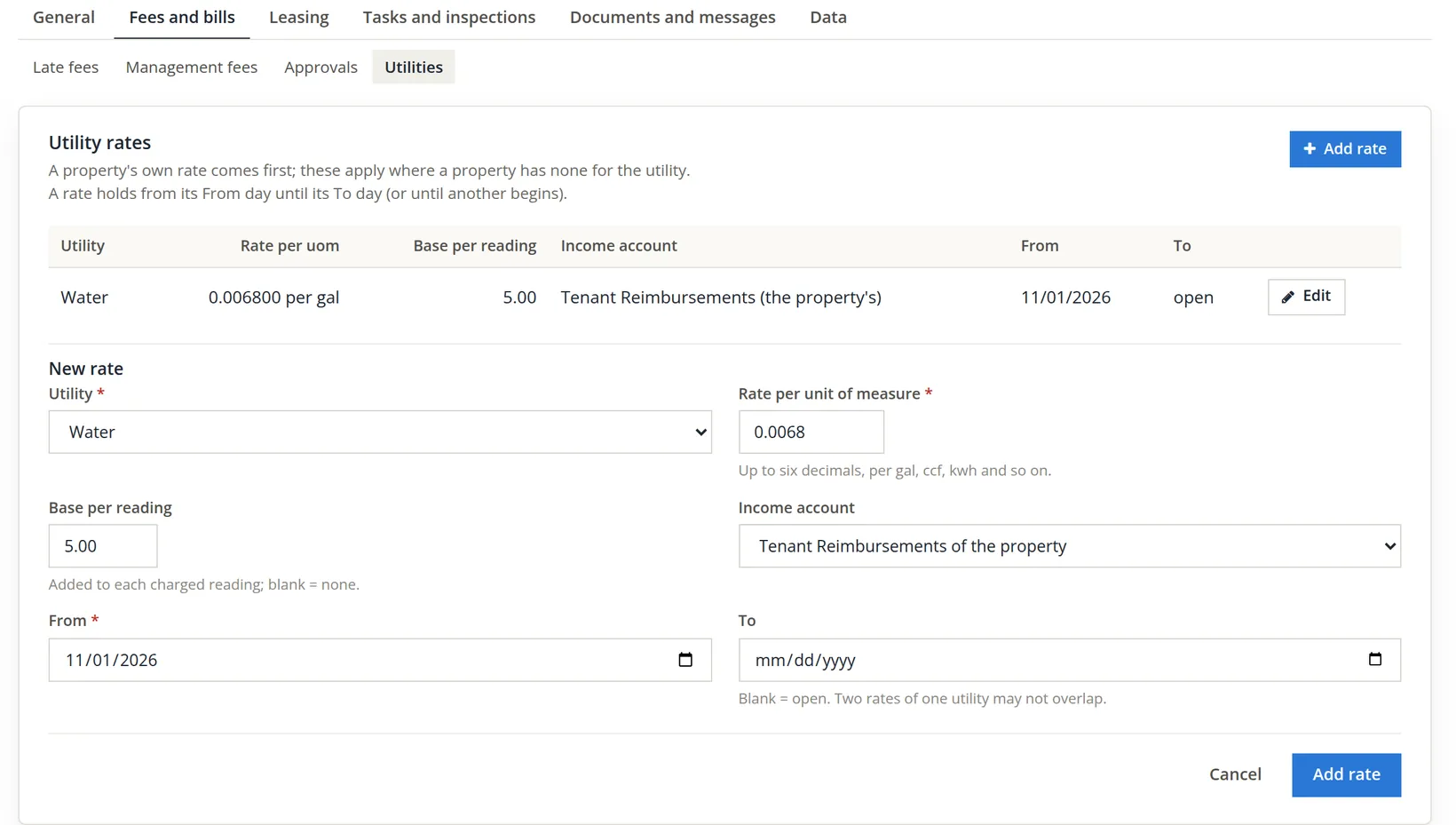
Add the water rate: Settings → Property Management → Fees and bills → Utilities → Add rate
The city charges Summit about $6.80 per 1,000 gallons, and the lease adds a $5.00 billing fee per reading. Utility Water; rate per unit of measure 0.0068 (up to six decimals); base per reading 5.00; income account left at Tenant Reimbursements of the property, so each property's charges land in its own account; from 11/01/2026, the day the meters went in; to left blank. A rate entered here is the books' rate for every property without one of its own.
- 3
Preview again, check the line, then Post 1 invoice
Back on the Meter readings view, Utility charges and Preview once more.
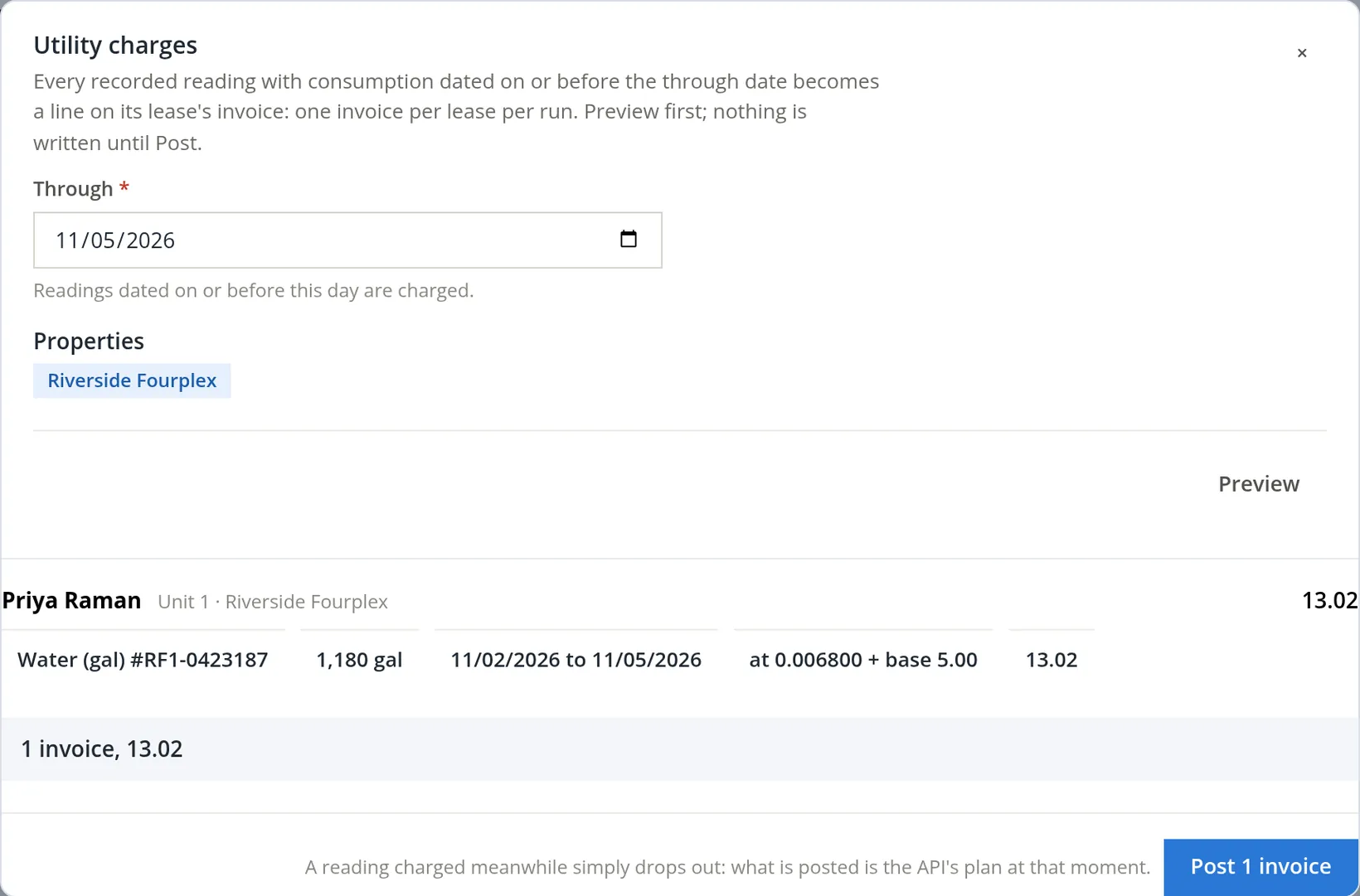
Check the arithmetic: 1,180 × $0.006800 = $8.024; plus the $5.00 base = $13.024, rounded half up once at the cent: $13.02.6 Post 1 invoice answers "1 utility invoice posted, 13.02." with a link to invoice 1252. The reading and the meter both change to Charged, Invoice 1252, as the unit page showed in Section 3.
On the lease's Financials tab the ledger now begins with 11/05/2026, Invoice 1252, Utility, "Utility charges, November 2026", $13.02, and its line reads "Water 1,180 gal, 2026-11-02 to 2026-11-05 at 0.006800 + base 5.00"; a charge posted from November 6 writes the days as 11/02/2026 to 11/05/2026. The invoice is dated the through date and is an ordinary sales invoice of the module (Chapter 2.1), locked against editing like rent. This edition has no Void button for it: the lease's Financials tab offers Mark returned (NSF) on payments only, the invoice page's Void in the lease link leads back there, and a charged reading cannot be voided ("void that invoice on the lease first"). Check the preview before you post.7
With a read day of 1, the Today board asks Maintenance to read the water meter of 1 from the 1st of each month until a reading is saved, and asks the bookkeeper to post utility charges once readings have waited five days uncharged. The Meter Readings report (Chapter 13.17) lists every reading, its consumption and its invoice.
Inspections and meters hygiene
- [x] Every occupied unit's tenant has a recorded notice of entry, with enough hours, before a periodic inspection.
- [x] The notice of entry template has an approved version.
- [x] Poor inspection items have a task or work order; every walked inspection is completed with a report.
- [x] Overdue inspection tasks on the Today board are walked or re-noticed, not just marked Done.
- [x] The inspection lists say what your inspectors really check; recurring inspections are listed under Settings → Tasks and inspections → Tasks.
- [x] Each unit's appliances are on its Inventory card, with warranties; replaced items are removed, not overwritten.
- [x] Every submetered meter has a start reading, and a rate is in force from its first read day.
- [x] Utility charges are previewed, skipped lines resolved, then posted.
Check your understanding
1. What is the difference between a drive-by and a periodic inspection?
Answer
A drive-by stays outside and in the common areas, makes one run for the property and needs no notice; a periodic inspection enters the units, makes one run per unit and needs the tenant's notice first.
2. Recording an entry notice fails because the template has no approved version. What do you do?
Answer
Copy the system template under Settings → Property Management → Documents and messages → Templates, review it, approve the version, then record the notice again.
3. You add an item to the periodic list and save. Does the 2B run, made on November 1, get the new item?
Answer
No. New runs take the list as it is saved; runs already started keep theirs.
4. Where do you find, pause or run now the quarterly safety check you set up from the Schedule inspection dialog?
Answer
Under Settings → Property Management → Tasks and inspections → Tasks, in the Recurring tasks card: Edit on the row, and Run now, Pause and Delete in its More menu.
5. The Utility charges preview lists a reading under "Skipped: No water rate in force". What has to happen before it can be charged?
Answer
A water rate in force on the reading's day, for the property or the books (Settings → Property Management → Fees and bills → Utilities). Then preview again and post.
6. A meter read 48,210 on 11/01 and 49,390 on 11/05; the rate is 0.0068 a gallon plus 5.00 a reading. What is the charge, and why is the 11/01 reading not charged?
Answer
1,180 × 0.0068 = 8.024, plus 5.00 = 13.024, so $13.02. The 11/01 reading is the meter's first, its start: there is nothing before it to measure from.
Notes
- The run page counts 2 follow-ups for one action: the work order, and the Today-board task that carries it. The Inspections list counts the same pair as 1 open. ↑
- The 24 hours is the module's default and is marked unreviewed. Notice periods for entry are set by state law and lease, and differ between routine and emergency entry. This chapter is not legal advice. ↑
- The inspection page offers no way to change a run's day or time or to cancel it. A run that will be walked late is completed late; its notice hours are counted to the original scheduled time. ↑
- Completing a periodic run on an occupied unit whose recorded notice gives fewer hours than required is refused unless a reason for the shorter notice is given (the module keeps it on the unit's and the lease's history). Since November 2026 the recurring runs of occupied units are scheduled ahead for the notice; earlier printings of this chapter said they fell on the day itself. ↑
- On a property Summit owns, the asset's page can link the item to the books' asset register, or make a fixed asset from it, so that depreciation runs as in Chapter 10.1. On a managed property the appliances belong to the owner and the link is refused; the inventory itself works the same. ↑
- The module multiplies and adds in exact decimals and rounds only the final amount, half up, so a run of many readings never drifts by a cent from what each line shows. ↑
- Invoice 1252 stays open until Priya pays it. The $1,325.00 shown on the same ledger as "Credit OB-CAE706 ... (credit)" is not a prepayment: the opening-balance import made it a customer credit, and nothing applies it by itself (Chapter 13.2). A real overpayment received on a lease is a prepayment, and the lease policy applies it to the next scheduled charge when that charge posts (Chapter 13.5). A utility charge is not a scheduled charge, so a prepayment would not be taken by it either. ↑