
Chapter 13.3
Listings, prospects and applicants
An empty unit costs money every day it stays empty, and the person who fills it will live with you for years. This chapter follows a vacancy from the advertisement to the decision: the listing and its public page, the leads who call about it, the showing, the application with its fee, the applicant's screening consent given on their own phone, and the decision made under written rental criteria. Along the way the software refuses four things that would have gone wrong later, and each refusal is explained and fixed.
When you finish this chapter you will be able to:
- Set up the Leasing settings: lead priority, the application fee and its account, the rental criteria and the applicant checklist.
- List a vacant unit, post the listing and put it on a public page.
- Record a lead as a prospect, schedule a showing and record its outcome.
- Turn a prospect into an applicant, enter the application and invoice the application fee.
- Approve the screening authorization and get an applicant's consent through a one-time link.
- Explain why every decision needs approved rental criteria, and when the adverse-action letter is made.
The leasing pipeline
Letting a unit is a funnel. Many people see an advertisement, some call, a few come to look, one or two apply, and one signs a lease. Each step has its own record in BizBooks360, under Property Management → Leasing in the sidebar, and each record hands over to the next, so nothing is typed twice:
| Step | Record and page | What it holds | Hands over to |
|---|---|---|---|
| Advertise | Listing (Listings) | The offer: rent, deposit, available date, contact, fee, description, amenities | A public page and the listing feed |
| Answer a lead | Prospect (Prospects) | Who called, from where, what they want, who follows them up | Showings, then an applicant |
| Show the unit | Showing (on the prospect) | Day, time, unit, who showed it, the outcome | The prospect's history |
| Apply | Applicant A-000001 (Applicants) | The application, the checklist, the fee, the screening consent, the evaluation, the decision | A draft lease (Chapter 13.4) |
Two rules run through the whole chapter. First, treat everyone the same way. A listing states its terms; a prospect's facts never sort or hide them; every application is judged against one written set of rental criteria, the version in force on the day it was received. Second, get consent before you screen. No screening report may be attached to an applicant until the applicant has agreed to it, and the books keep a record of exactly what the applicant agreed to.1
Set up the Leasing settings
Open Settings → Property Management, then the Leasing tab, the third of six (General, Fees and bills, Leasing, Tasks and inspections, Documents and messages, Data). The tab has five cards: Pipeline priority, Application fee, Renewal defaults (Chapter 13.7), Rental criteria and Applicant checklist. Each card has its own Save button and saves only itself.
- 1
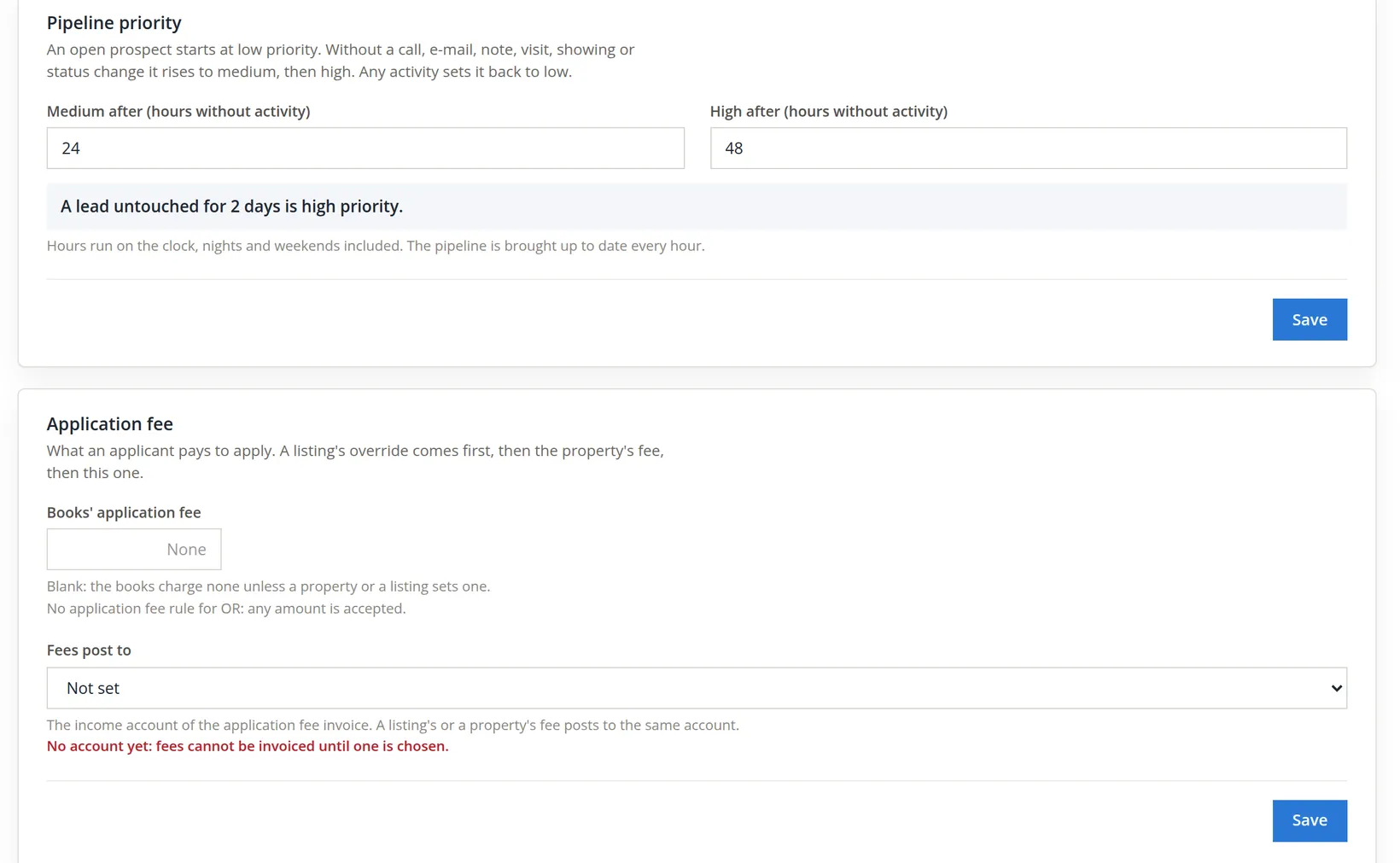
Leave the pipeline priority at 24 and 48 hours
An open prospect starts at Low. With no call, e-mail, note, visit, showing or status change it rises to Medium, then High; any activity sets it back to Low. The hours run around the clock, nights and weekends included, and the pipeline is brought up to date every hour. Two days is a sensible limit for a small office: a lead who hears nothing for two days has usually rented elsewhere.
- 2
Decide where the application fee is set
The fee an applicant pays is found in this order: the listing's override, then the property's fee (on the property's Settings tab), then the books' fee on this card. Summit charges $40.00 for unit 4 only, so it leaves the books' fee empty and puts the override on the unit 4 listing (Procedure B). The line under the field names the state's cap, if the books hold one: "No application fee rule for OR: any amount is accepted." Whatever level sets the amount, every fee posts to the one account chosen in Fees post to. Summit meant to choose it now and did not; Procedure D shows what happened.
- 3
Write the rental criteria and click Save as draft
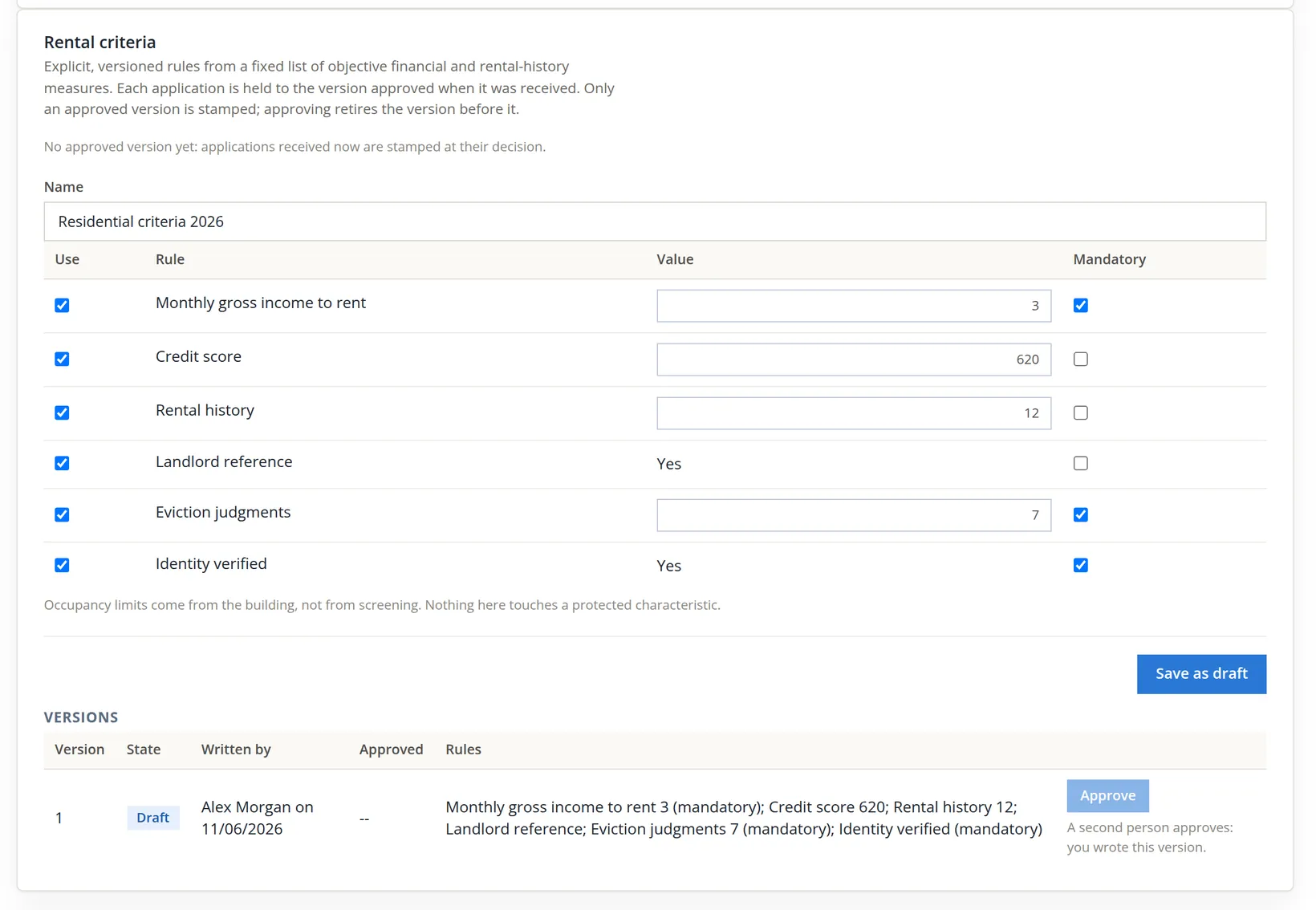
The criteria are a fixed list of six objective measures. For each, tick Use, give the value and tick Mandatory if failing it should suggest a rejection. Summit named the set Residential criteria 2026 and used all six:
Rule Value Mandatory Meaning Monthly gross income to rent 3 Yes Income at least three times the rent Credit score 620 No A lower score is weighed, not decisive Rental history 12 No Months of rental history Landlord reference Yes No A satisfactory reference Eviction judgments 7 Yes None in the last 7 years Identity verified Yes Yes The applicant's identity is confirmed If no rule is ticked, the save is refused: "Use at least one rule: tick it and give its value." A good save answers "Saved as a draft version. A second person approves it; only an approved version is stamped on applications."
- 4
A second person approves the draft
Rental criteria decide who gets a home, so the software insists on two people: the one who wrote a version can never approve it, and the server refuses it even if the button is forced ("A second person approves: you wrote version 1 of the rental criteria, so someone else with the settings right approves it."). The second person, a manager or the owner holding the Property settings edit right, opens the same tab, reads the rules in the Versions table and clicks Approve on version 1. The note at the top then reads "Version 1, approved by ..., is in force." Approving a later version retires the one before it; an application keeps the version that was in force when it was received.
In Summit the second person was the books' owner, who approved version 1 that evening; the note then read "Version 1, approved by" the owner "on 11/05/2026, is in force." Until that moment no applicant could be decided, as Procedure F shows.
- 5
Adjust the applicant checklist and click Save checklist
The checklist is copied onto each applicant when the applicant is made, in three groups: Application, Screening and Move-in. Items marked System (application received, fee received or waived, consent recorded, report received, lease drafted, sent, executed, deposit collected, renters insurance) tick themselves when they happen; the others are ticked by a person, who is stamped with the time. Summit added one item to the Application group, Photo ID checked against the application. The page answers "Applicant checklist saved: new applicants get it; an applicant keeps the list it started with."
List the vacant units
- 1
Open Leasing → Listings, tab Unlisted, and click List unit on unit 4
The Unlisted tab shows every unit of the books with its status, lease end and market rent, so you can list a unit before its tenant leaves. Summit's eight units were all there; only unit 4 and S1 were vacant. The same List unit button is on the property's Units tab (Chapter 13.1).
- 2
Fill in the Listing card
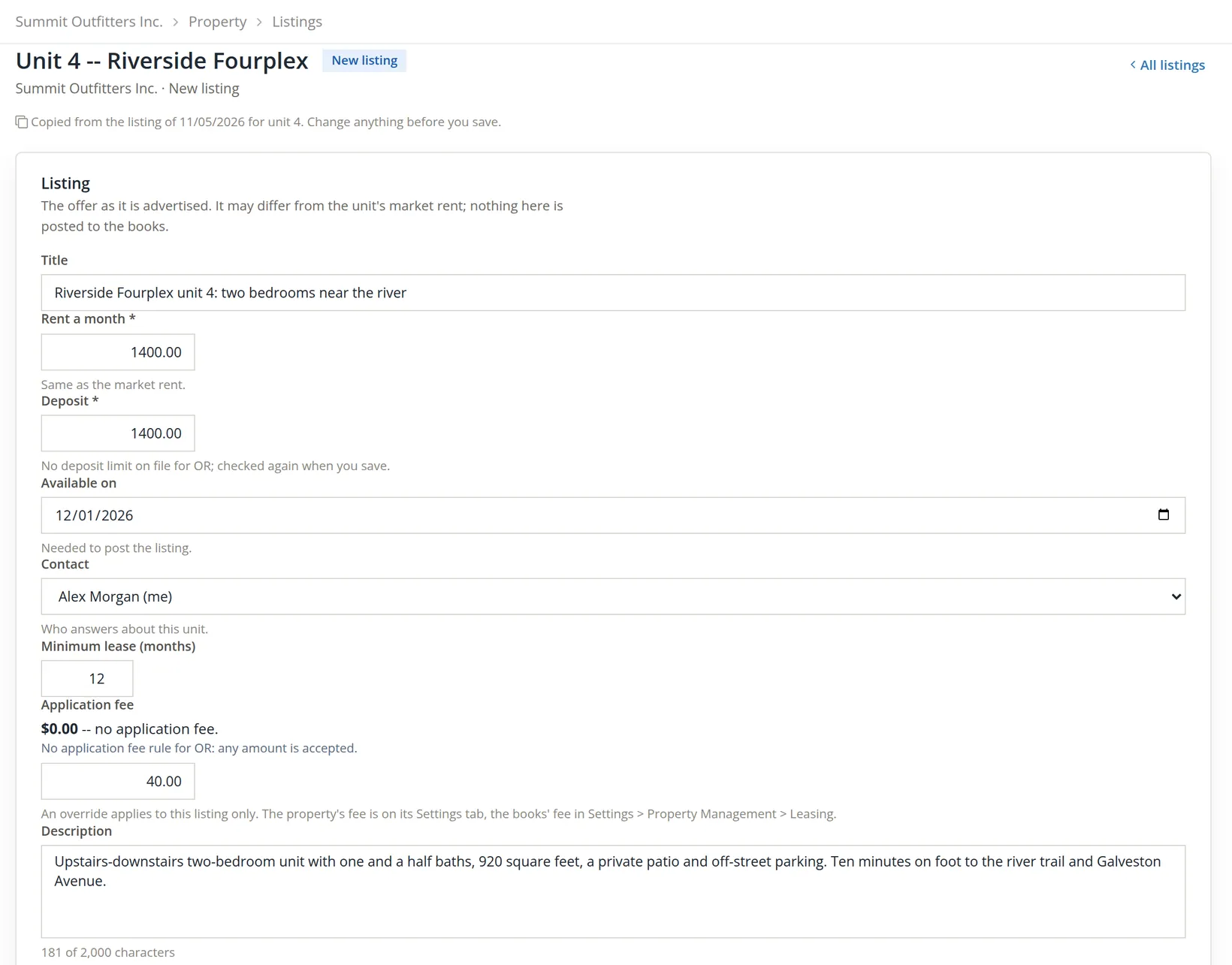
The rent and deposit start at the unit's market rent; the listing may advertise something else, and nothing here posts to the books. The deposit is checked against the state's deposit limit, if the books hold one, when you save. Available on is optional for a draft but "Needed to post the listing."
- 3
Tick the amenities, the property facts and what the rent includes; type the lease terms
The Unit card shows the unit's own beds (2), baths (1.5) and size (920 sq ft); change those on the property's Units tab, not here. Summit ticked Dishwasher, Washer and dryer hookups, Vinyl plank floors and Patio; for the property Off-street parking and the year built, 1978; Included in rent: water, sewer and trash. The property facts are kept for the next listing of the same building. The lease terms are the listing's words only: "12-month lease, rent due on the 1st. Deposit equal to one month's rent. No smoking."
- 4
Click Save draft, read the page, then Post listing
The draft answers "Listing saved as a draft. Post it when it is ready." and now shows the fee line "$40.00 -- this listing's override." The header now carries the listing's status chip, the link Copy text, which gives the whole listing as plain text for a site you post to by hand, a ... menu with the rarer actions, and the next step as the one blue button at the right. Post listing answers "Listed. The unit shows as listed on the Listings page, the property's Units tab and the vacancy report." Photos are added after the first save; they belong to the unit and come back for its next listing.
- 5
In the Syndication card, tick Show in the feed and on a public page and click Save syndication
The card is there only while the books' Listings service is switched on.3 Opting in puts the listing on a public page and in the books' listing feed, which listing sites read; with Push to left at None, nothing is sent anywhere, the sites come and fetch it.
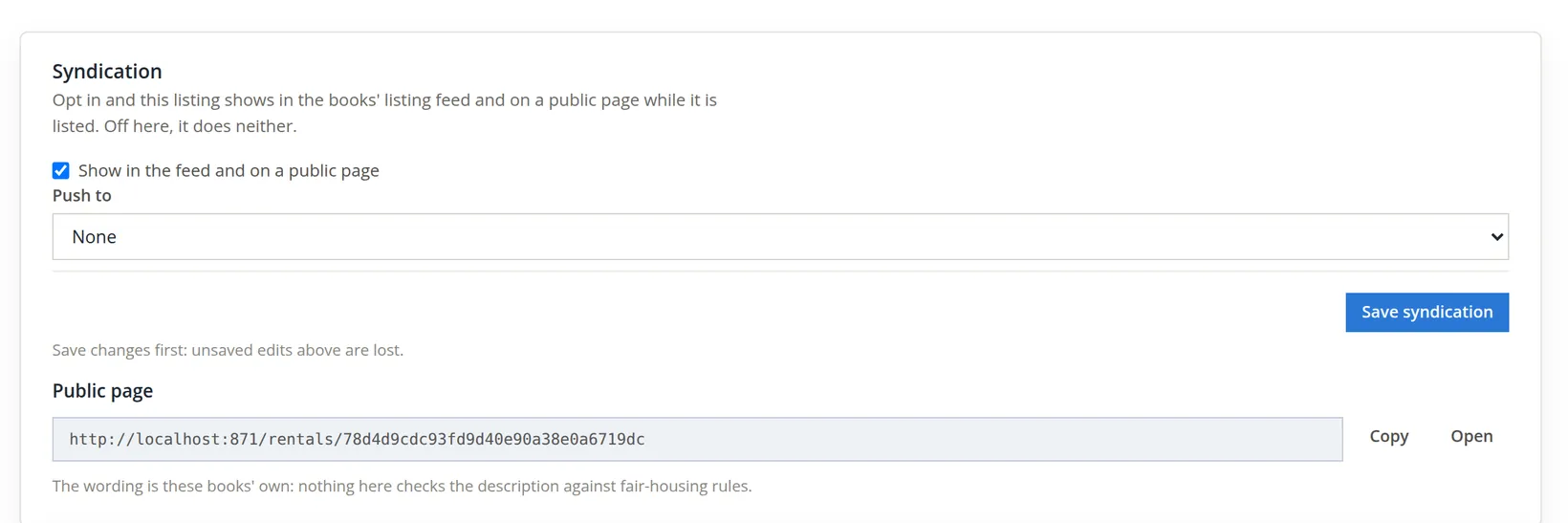
The public page shows the title, the address, the rent, beds, baths, size, available date, deposit, the $40.00 application fee, the minimum lease, the description, the amenities, what the rent includes, the lease terms and how to reach the office (the books' name and phone). It shows no tenant, no balance and no internal note. If the books have no phone or e-mail, the card warns that a visitor would have no way to reach the office.
- 6
List storage room S1 the same way
Summit listed S1 at $125.00 with a $125.00 deposit, available 11/09/2026, minimum lease 1 month, no fee override and no syndication. With no fee at the listing, the property or the books, S1 charges no application fee.
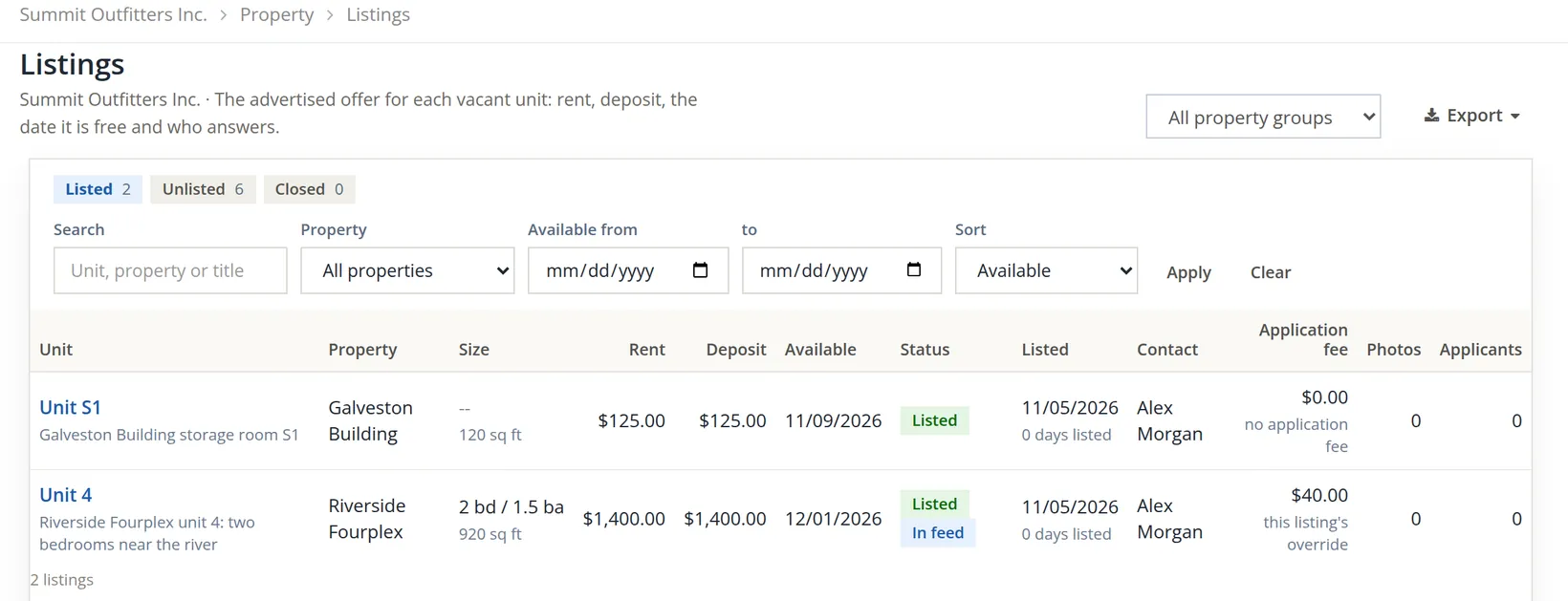
When the unit is let, the listing is closed from its page: the ... menu in the header, then Close listing... with a reason. A closed listing leaves the feed and its public page is gone; the button at the right then reads List the unit again. A new listing of the same unit starts as a copy of the last one ("Copied from the listing of 11/05/2026 for unit 4. Change anything before you save.").
Record the leads and show the unit
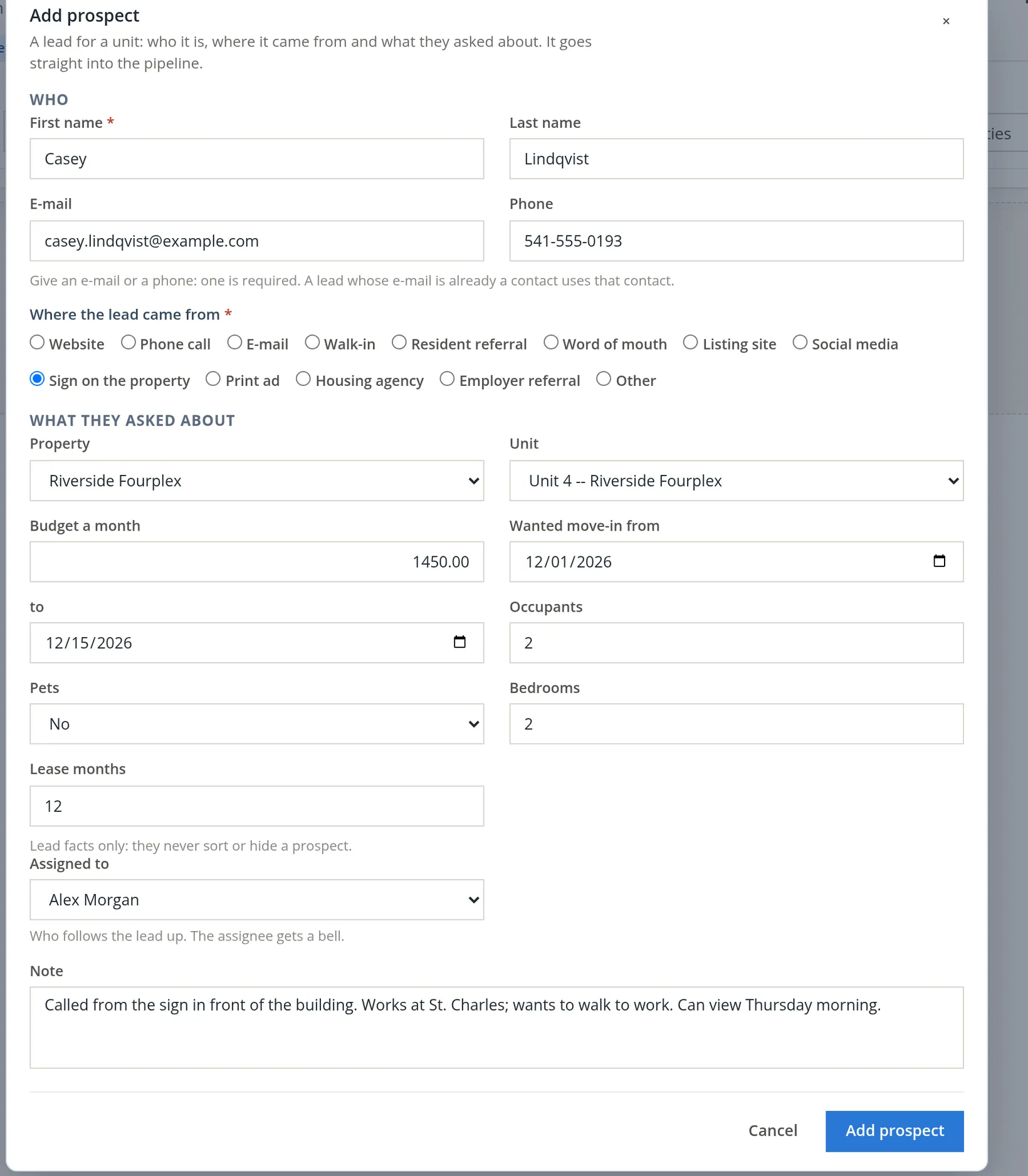
At 9 a.m. Casey Lindqvist called the number on the sign in front of the Riverside Fourplex. An hour later Devon Okafor wrote through a listing site. Both asked about unit 4.
- 1
Open Leasing → Prospects and click Add prospect
Give an e-mail or a phone; one is required. If the e-mail already belongs to a contact of the books, the dialog offers that contact, with a Not the same person button if it is not. Where the lead came from is required: it is how the Leasing Funnel report (Chapter 13.14) tells you which advertising works.
- 2
Add Devon Okafor the same way, source Listing site
Each save answers "Prospect added: ..." and returns to the Pipeline: one column per staff member (yours first, as Me), plus Unassigned for the Leasing queue. Each card shows the name, the priority chip and idle hours, the unit, the source and the next showing; its ... menu assigns, schedules a showing, logs a call or closes the prospect with a reason. The List tab shows the same prospects as a table you can filter and export.
- 3
Open Casey's page and click Schedule showing, at the head of the Showings card
Choose the unit, the date and time (in the books' time zone, here Pacific), the length (30 minutes by default) and who shows it. The same person cannot show the same unit twice at once: an overlapping showing is refused. Summit booked Casey at 10:00 and Devon at 11:00 on November 5. A pending showing sits on the Today board (Chapter 13.10) on its day, then until its outcome is recorded. Scheduling the first showing moves a new prospect to In progress and starts its idle clock again.
- 4
After the visit, click Record outcome, choose Shown, add a note and save
The outcomes are Shown, No show and Canceled. Recording the outcome is activity too, so it resets the idle clock once more.
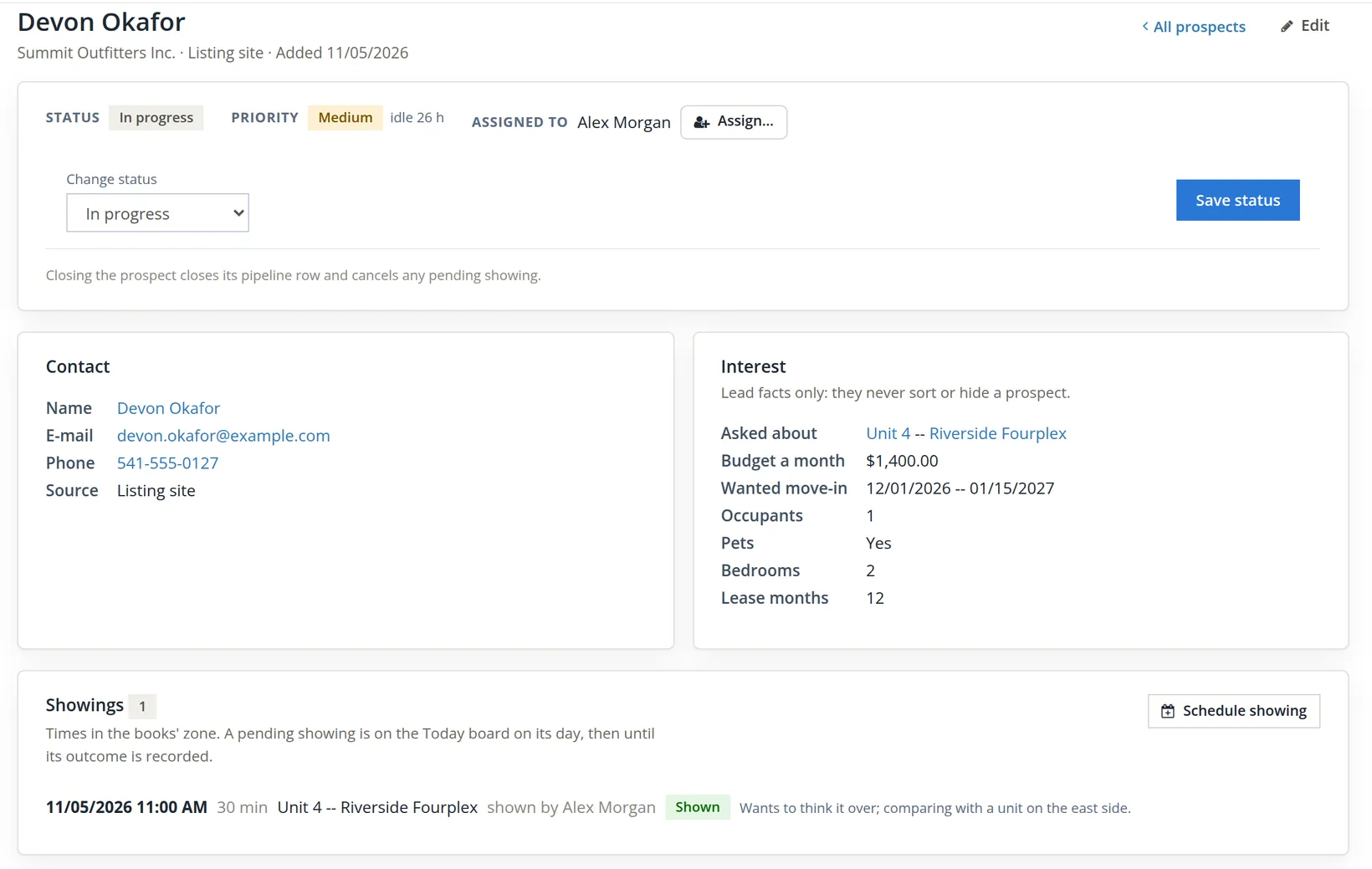
Devon's showing went the other way: "Wants to think it over; comparing with a unit on the east side." Devon stays an open prospect in Alex's column. Nobody called Devon back, so the card turned Medium on Friday evening, as pictured, and turns High on Saturday evening unless someone calls, which is the pipeline doing its job.
Take the application and invoice the fee
- 1
On Casey's prospect page, check Unit applied for and click Convert to applicant
The applicant is made with Casey's contact and the unit, and numbered: "Applicant A-000001 made from the prospect. Enter the application, then mark it received." The prospect stays in progress until a lease is executed. A paper application from someone who never was a prospect starts from Leasing → Applicants → New applicant instead (Procedure E, step 6).
- 2
On the Application tab, type the application and click Save application
The form is fixed: the applicant, up to three rental-history rows, employment and income, other income, occupants, pets, assistance animals (kept apart from pets: "never a pet, never a fee"), vehicles, references, an emergency contact and the agreement (the day and the name as signed, needed before the application is received). Casey has worked at St. Charles Medical Center since May 2023 at $5,200.00 a month gross, has rented for over six years, and will live with one other person. The card warns: "Never type a full taxpayer number or a date of birth here: those go to the screening service."
- 3
Click Mark received
Receiving stamps the day and time, a fingerprint (SHA-256) of the answers and the rental criteria version in force. Edits after this are kept in the application's history. Because no criteria version was approved yet, Summit's page answered "Application received 11/05/2026 5:02 PM; no approved criteria yet: the version is stamped at the decision."
- 4
On the Summary tab, find the Application fee card and click Invoice fee
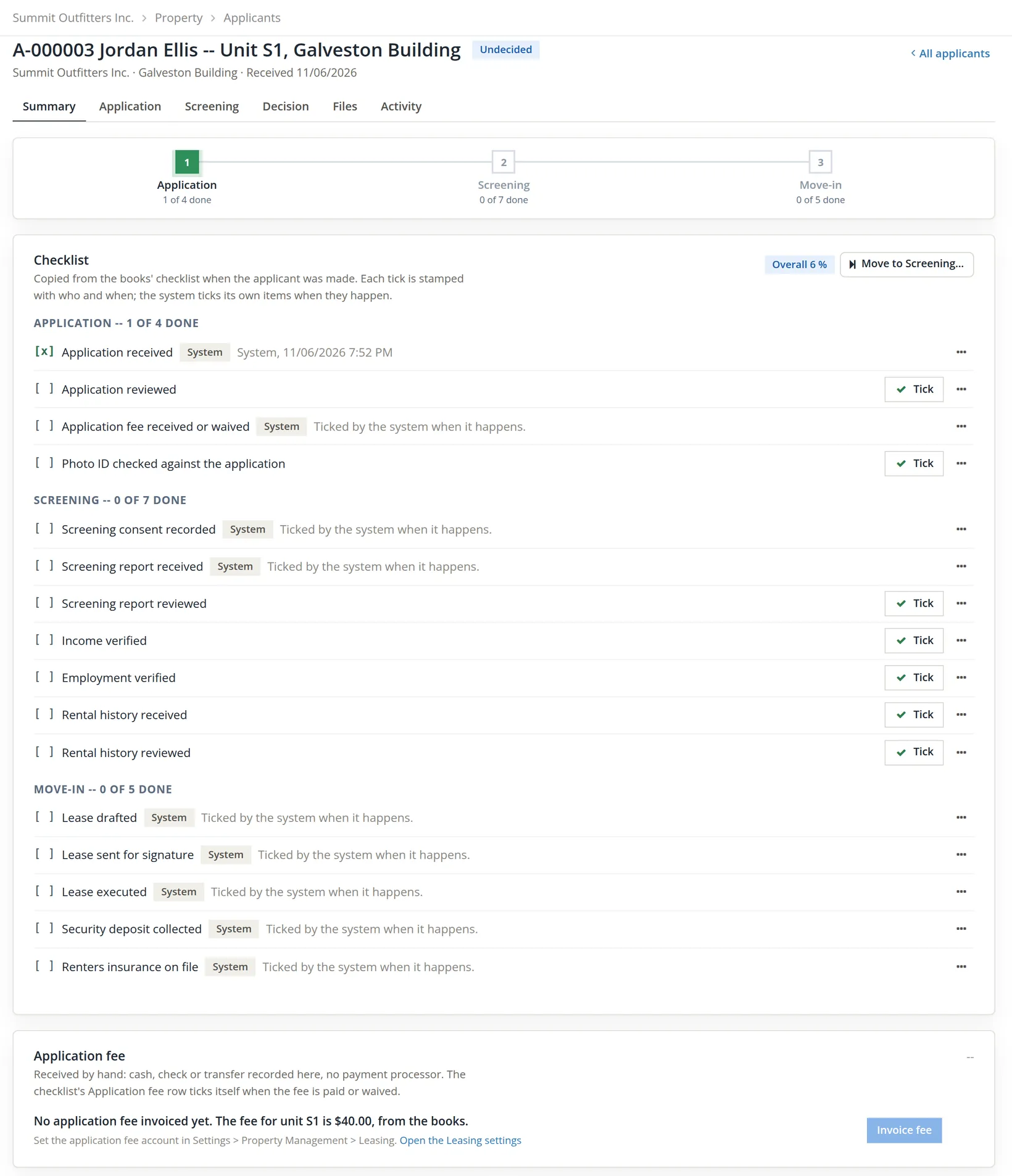
This is where the software caught Summit's mistake. The button was greyed out, with the line "Set the application fee account in Settings > Property Management > Leasing."
 Property Management > Leasing, with a link Open the Leasing settings" loading="lazy">
The refusal is right. An invoice needs an income account for its line, and Summit had skipped Fees post to in Procedure A. Had the software guessed an account, $40.00 fees would have landed somewhere nobody looks, and the Schedule E figures for the building would have been wrong at year end.
- 5
Fix it: click Open the Leasing settings, choose the fee account and click Save
The picker lists the books' income accounts. The right choice for Summit is Revenue:Riverside Fourplex:Late & Other Tenant Fees, the fee account of the only building that charges one. The card answers "Application fee saved" and names the account ("... posting to Revenue:Riverside Fourplex:Late & Other Tenant Fees."), and the red warning under the picker gives way to "Fees post to Revenue:Riverside Fourplex:Late & Other Tenant Fees." Books that charge fees at several properties are better served by one account of their own, such as Revenue:Application Fees, added in the chart of accounts first (Chapter 5.1).
- 6
Once the account is set: Invoice fee, then Receive payment
Invoice fee makes one sales invoice to the applicant (who becomes a customer), dated and due today, for the fee found in Procedure A's order, with the books' Application fee service item on the fee account. For Jordan the page answered "Application fee $40.00 invoiced, #1258. Receive it by hand here, or waive it." and the card now read "Fee $40.00 invoiced #1258 on 11/06/2026; $40.00 open.", with Receive payment, Waive and Open invoice.
Receive payment records the money by hand: amount (a part is allowed), method, date received, check number or reference, the bank it goes into (Deposit to, the books' operating bank unless you choose another) and a memo; the receipt is numbered on save. There is no card processor. Waive needs a reason of at least five characters and posts a customer credit for the open amount.
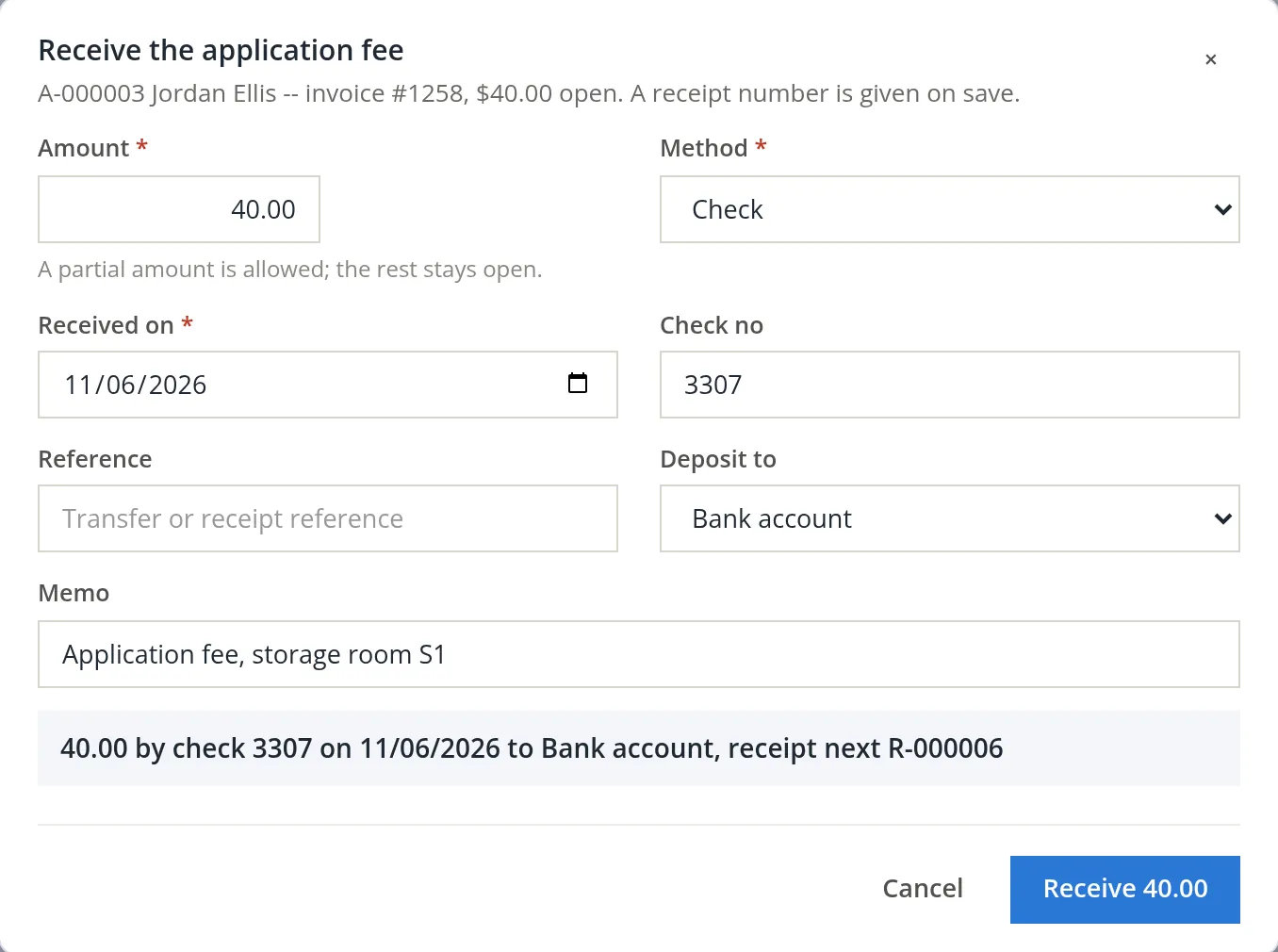
The save answered "Application fee paid $40.00 by check 3307, receipt R-000006. The checklist's Application fee row is ticked." The card turned Paid ("Paid 11/06/2026 by check 3307, receipt R-000006."), and Application fee received or waived was ticked by System, bringing the Application stage to 2 of 4. The item ticks itself the moment the balance is zero, whether the money came in here or on the ordinary Receive Payment page (Chapter 2.3). Casey's own fee was not invoiced on November 5, which is why Casey's rows below show no fee.
Get the screening consent
Summit uses an outside screening service. The service needs the applicant's written authorization before it prepares a report, and the books need proof of that authorization before they keep the report. The Screening tab handles both: a one-time link the applicant opens on their own device, or a signed paper form you record by hand (Record consent).
- 1
On the Screening tab, click Send consent link and fill in the dialog
Tick the reports to authorize (Credit, Eviction, Identity, Income) and name the screening service: the applicant sees its name, address, phone and website on the page. Choose how the link goes. E-mail is greyed out when the books' sending is off, as it is in Summit; I will hand them the link shows the link once, for you to give the applicant. A new link cancels any earlier link not yet used.
- 2
Click Send the link
The first time, Summit's attempt was refused.
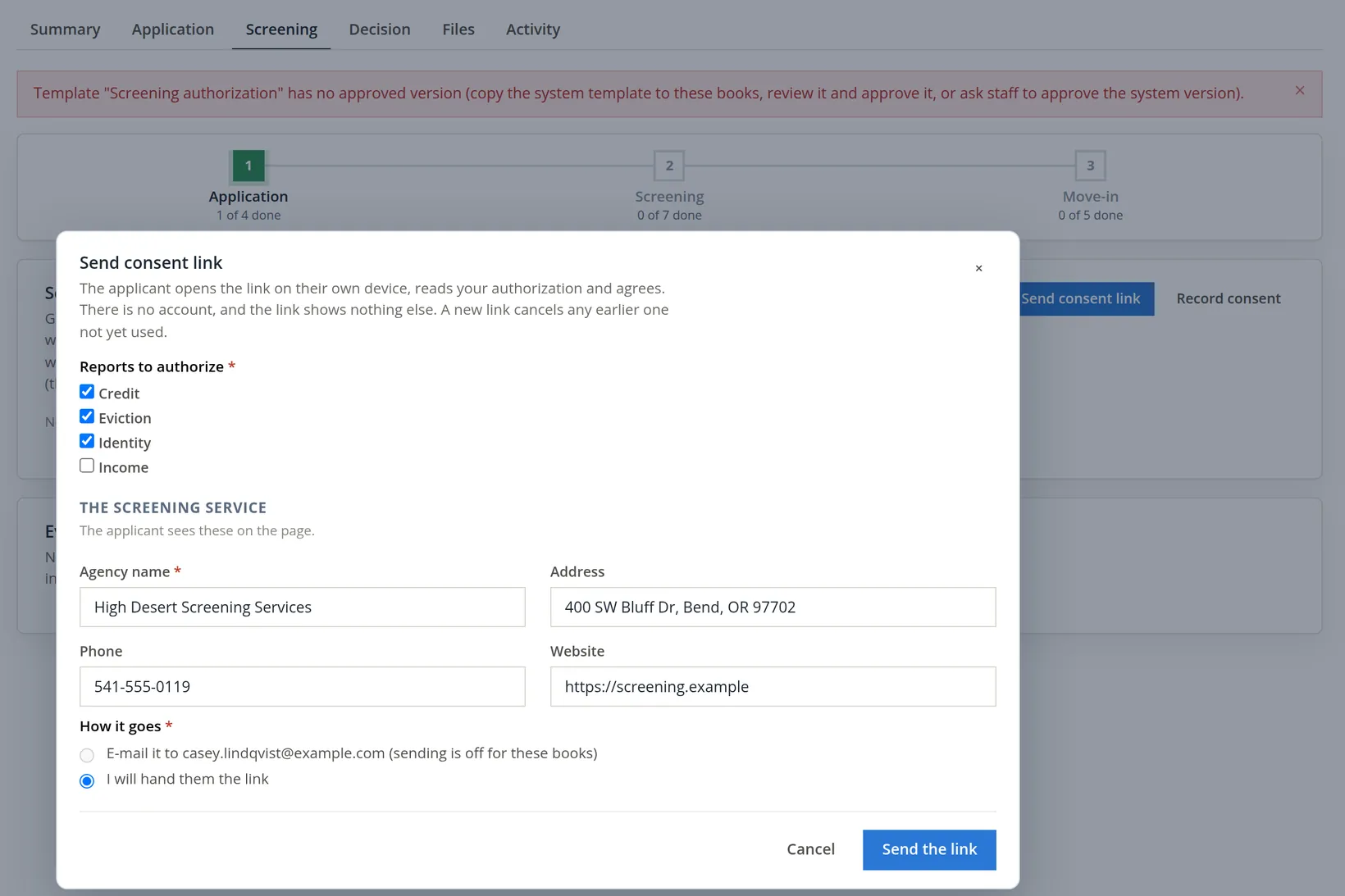
Again the refusal protects you. The page the applicant opens shows your authorization text and records that the applicant agreed to it. BizBooks360 ships the template with no legal wording at all (its body reads "Write your screening authorization here."), so a link sent now would have asked for consent to nothing. The software will not make a link that can only dead-end.
- 3
Open Settings → Property Management → Templates and click Copy on Screening authorization
A system template cannot be edited or approved by the books; the copy belongs to the books, and from then on the module renders the books' approved copy. The page answers "Screening authorization is now these books' own copy. Edit its wording, then approve the draft; documents render from the approved version only." (Chapter 13.9 approves the notice-of-entry template the same way.)
- 4
Write the authorization, click Save draft v1, then Approve v1 and confirm
Only two merge fields reach this page:
{{books.name}}and{{today}}. The Every merge field list shows lease and tenant fields too, but a link refuses to open if the text asks for anything else, because the applicant must not see facts about the unit or other people. The confirm box reads "Approve v1? Documents made from now on render from it." Summit later reworded one sentence (version 1 ended a sentence with the books' name, which itself ends in "Inc.", so the page read "Inc.."), saved version 2 and approved it at 5:09 PM; version 1 became Retired. A consent given before the change keeps the text that was shown to the applicant.6
- 5
Back on Casey's Screening tab, send the link again, by hand
This time the page answers "The link is ready: copy it below." and shows a card "Hand this link to Casey Lindqvist. It works once and for 72 hours. It is shown only now: copy it before you leave this page." The link is the books' address, applicant-consent/ and a 64-character token.7 Copy it now with Copy: only a fingerprint of the token is stored, so nothing can show it again. Hand it over in person, by text message or in your own e-mail. Below the card, the consent list still reads "No consent recorded yet: no report can be attached until one is."
- 6
The applicant opens the link, types their name, ticks the box and clicks Give my consent
The page needs no account and shows nothing but the books' name, the applicant's first name, the reports, the screening service and the approved authorization. Casey agreed at 5:08 PM. The second applicant of the day, Reese Harmon, applied on paper for storage room S1 (entered with New applicant, unit S1, then the Application tab and Mark received, as A-000002); Summit asked Reese for an eviction and an identity report only, and Reese's page is shown below.
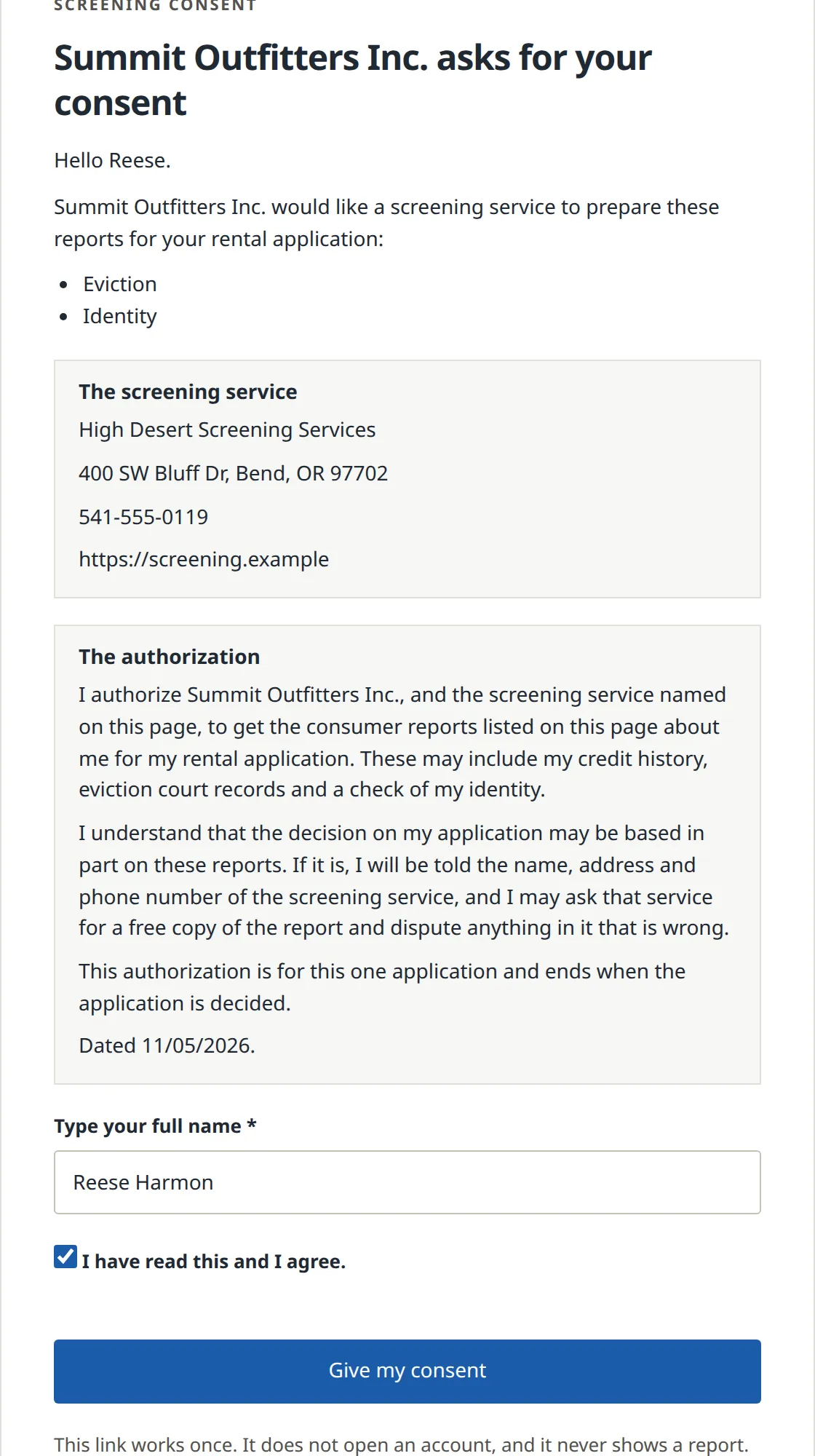
After the click the page thanks the applicant ("Thank you, Casey. Your consent was recorded and Summit Outfitters Inc. can see it. This link no longer works."); opening the link again shows "This link cannot be opened." On Casey's Screening tab the consent now reads "Given by a link handed over by Alex Morgan, typed as Casey Lindqvist" with the reports and the service, and the checklist item Screening consent recorded is ticked by System. The consent row records the text shown, its fingerprint, the time and the device address. If the authorization is changed between opening and agreeing, the agreement is refused and the page shows the new text to read again.
- 7
When the service sends its report, attach it to the consent with Attach report
BizBooks360 does not order screening reports in this release: no screening service is connected (Settings → Property Management → General, Outside services, row Screening, state Not connected: "No screening service is connected. Screening stays outside these books and its consent and result are recorded by hand."). The Screening tab therefore shows no order button, and an order sent to the module is refused: "No screening service is connected for these books: attach the report the outside service sends to the applicant's consent." You order the report on the service's own website, then attach the PDF it sends. One report per consent; the checklist's Screening report received ticks itself. Reports are kept for the books' screening retention (two years from the decision unless Settings > Documents says otherwise), then removed; the consent record stays.
Evaluate and decide
The decision is the last step of the application and the first step of the lease. It is recorded once (a later change is a reconsideration with a reason, never an edit), it stamps the criteria version it was made under, and a rejection or an approval with conditions makes the adverse-action letter in the same moment.
Summit tried to approve Casey before the owner had approved the criteria. The Decision tab refused and said why: "No rental criteria version is approved: a decision needs the criteria it is made under. Approve one first." That refusal is the reason for the two-person rule in Procedure A: a decision without written criteria cannot show later that Casey was treated the way every other applicant is treated. With version 1 approved, the decisions went as follows.
- 1
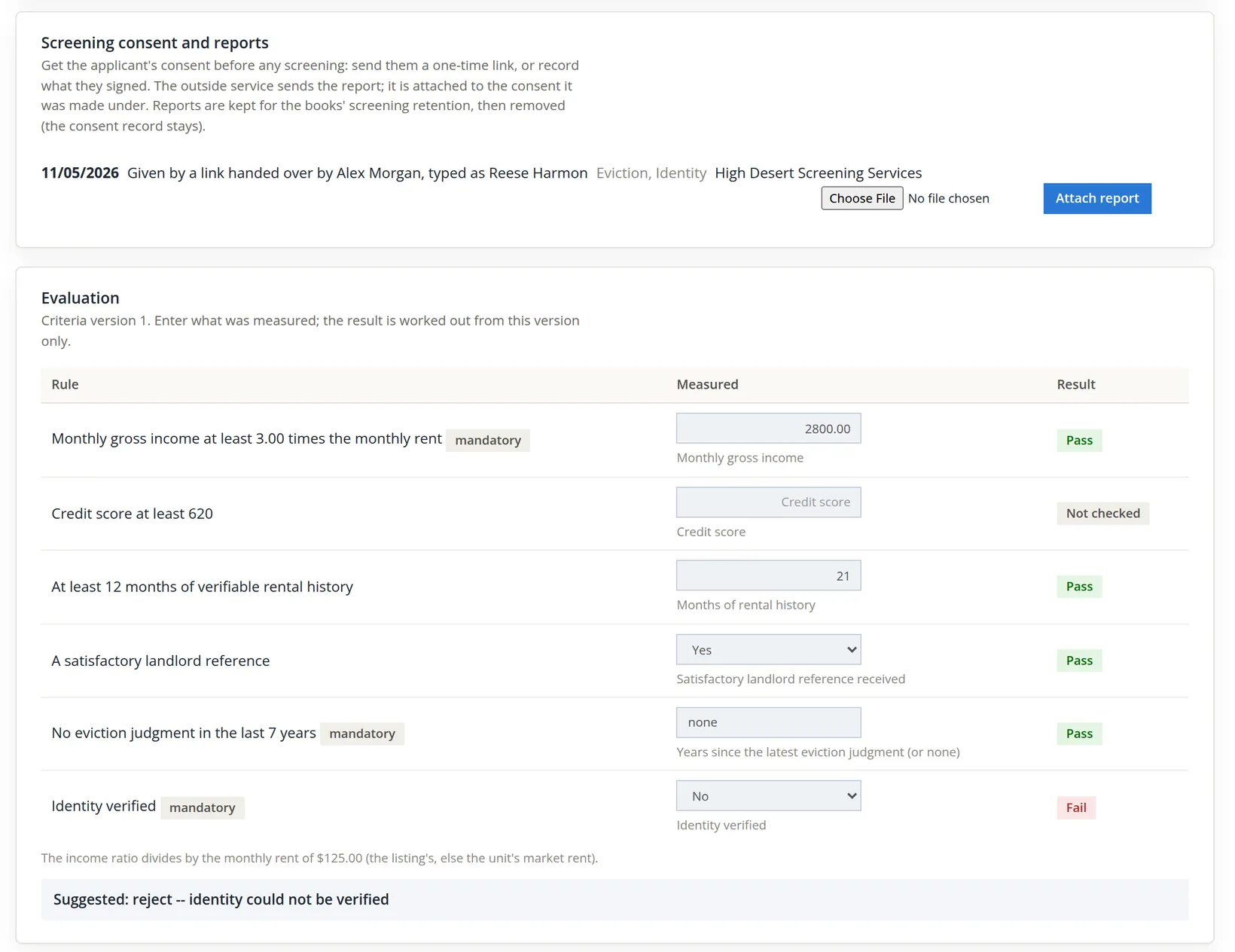
On the Screening tab, fill in the Evaluation card and click Save evaluation
The card lists the rules of the stamped criteria version. You type what was measured, from the application and the screening report, and the card works out each result and suggests a decision. Income is typed as the monthly gross income; the card divides it by the listing's rent (else the unit's market rent). For Casey: $5,200.00 against $1,400.00 is 3.71 times the rent, a pass; credit score 712, 74 months of rental history, a satisfactory reference, no eviction judgment (typed none), identity verified: every rule passes and the card suggests "approve -- meets the rental criteria." Reese's identity rule is No for a plainer reason: at the counter the office could not match the ID Reese showed to the name and address on the application, and no report was attached to Reese's consent (see the caution below).
- 2
On the Decision tab, choose the decision and the reason and click Decide
The decisions are Approved, Deferred, Rejected and Canceled; each allows only some of the twelve reason codes (Meets the rental criteria only with Approved, Identity could not be verified with Rejected or Deferred). Deciding against the suggestion (approving with a mandatory rule failed, or rejecting with every mandatory rule passed) needs an internal note. Summit chose Rejected, Identity could not be verified for Reese, and the decision was refused once more.
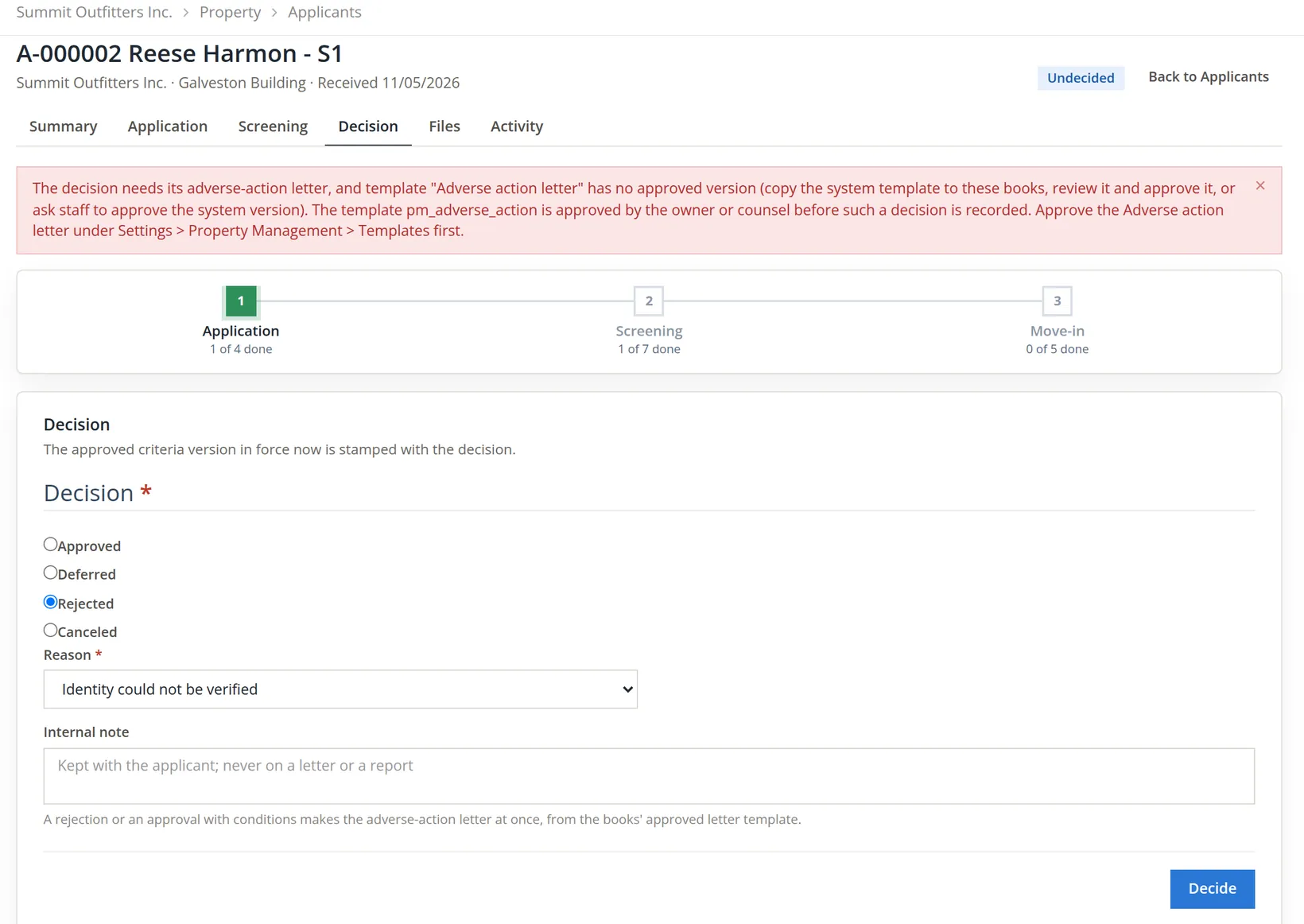 Property Management > Templates first. Below, the Decision card with Rejected chosen, Reason Identity could not be verified, an empty internal note and the Decide button" loading="lazy">
A rejection without its letter would leave the applicant without the reason and without the name of the service whose report was used, which is exactly what the letter is for. So the decision and the letter are one step, and the software refuses the first without the second.
- 3
Approve the letter template, then decide again
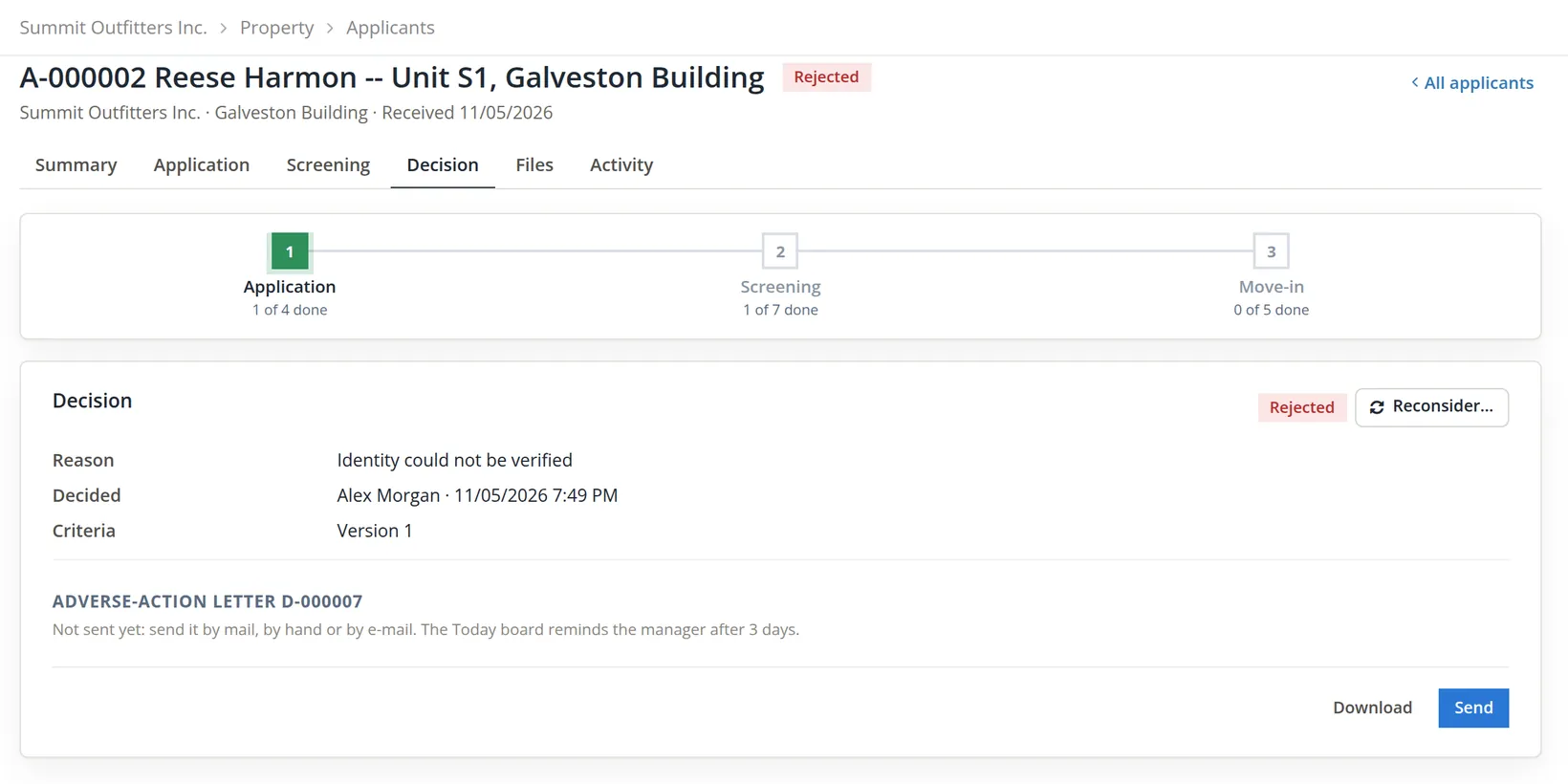
In Settings → Property Management → Templates, click Copy on Adverse action letter and approve the books' copy as in Procedure E, step 4 (have counsel read it first). Its body names the unit and address, the criteria version, the decision, the reason and the screening service. Back on Reese's Decision tab, Decide now answers "Decided: rejected. The adverse-action letter D-000007 is ready: download it or send it." Casey was approved the same way: Approved, Meets the rental criteria, answered "Decided: approved." Both decisions were stamped 11/05/2026 7:49 PM under criteria version 1.
- 4
Download the letter, check it and give it to the applicant
The letter is a numbered, fingerprinted document of the register (Communication → Documents), kept until 11/05/2033.
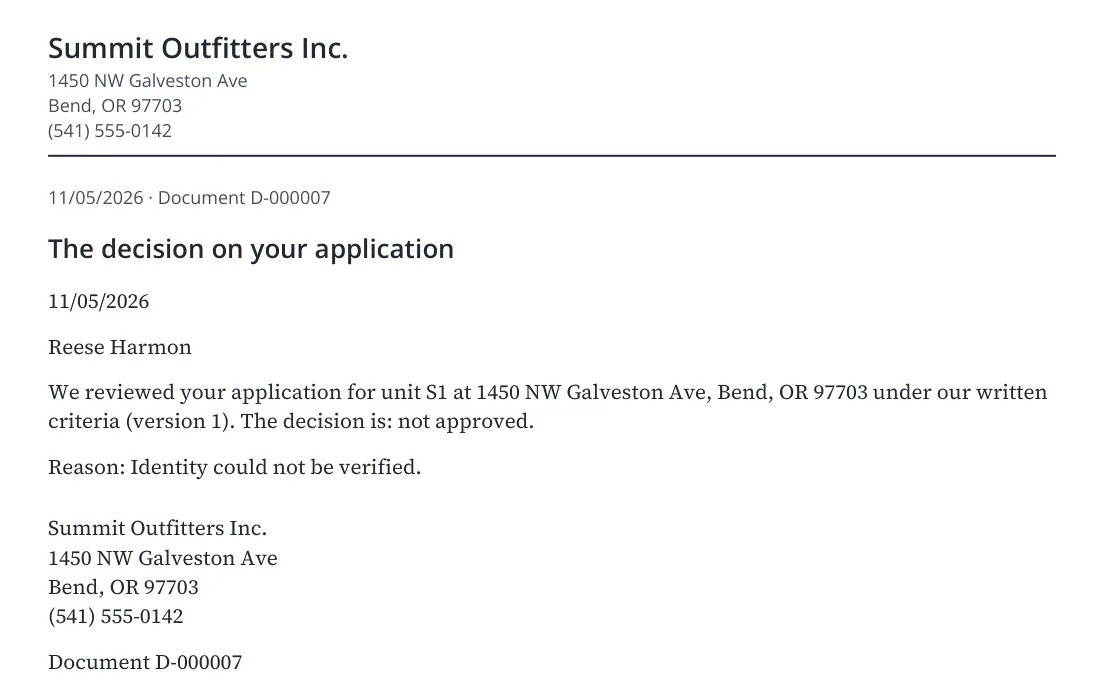
Look at what Reese's letter does not say: it names no screening service. The letter names the service only from a consent that has its report attached, and in the sample books no report file was attached. A letter that turns someone down on the strength of a report must say whose report it was and that the applicant may get a free copy and dispute it.1 Attach the service's report to the consent (Procedure E, step 7) before you click Decide; if you did not, attach it and use Reconsider to make a new letter.
Recording the delivery is the last step. Send opens the letter's document page, whose Send card reads "Send D-000007 to the applicant, or record that it went out by mail or by hand." It lists Reese as the recipient (name, Applicant A-000002, e-mail and the address on file, with boxes for a mailing address) and offers the channels E-mail (greyed while the books' sending is off), Mail, Hand delivered, Text (only with consent) and Portal (not for an applicant, who has no portal sign-in). Choose the channel, add a note and any evidence, and click Record. Summit handed the printed letter to Reese at the office counter but noted it only on the applicant's Activity tab, so the Applicants list keeps showing not sent and Today will remind the manager after three days. Hand delivered on the Send card would have cleared both.
- 5
For an approval, move in
Casey's Decision tab now shows a Move in card: "Approved: make the draft lease from the application (the unit, the dates, the rent, the deposit and the household filled in), or add the household to a lease that already exists." Chapter 13.4 continues from there with Casey's draft lease from December 1, 2026.
Where things stand
At the end of November 5 Summit's leasing pages read as follows:
| Page | What it shows |
|---|---|
| Listings | Unit 4 listed and in the feed at $1,400.00 from 12/01/2026, fee $40.00; S1 listed at $125.00 from 11/09/2026, no fee |
| Prospects | Casey Lindqvist (sign) and Devon Okafor (listing site), both in progress, one showing each, shown |
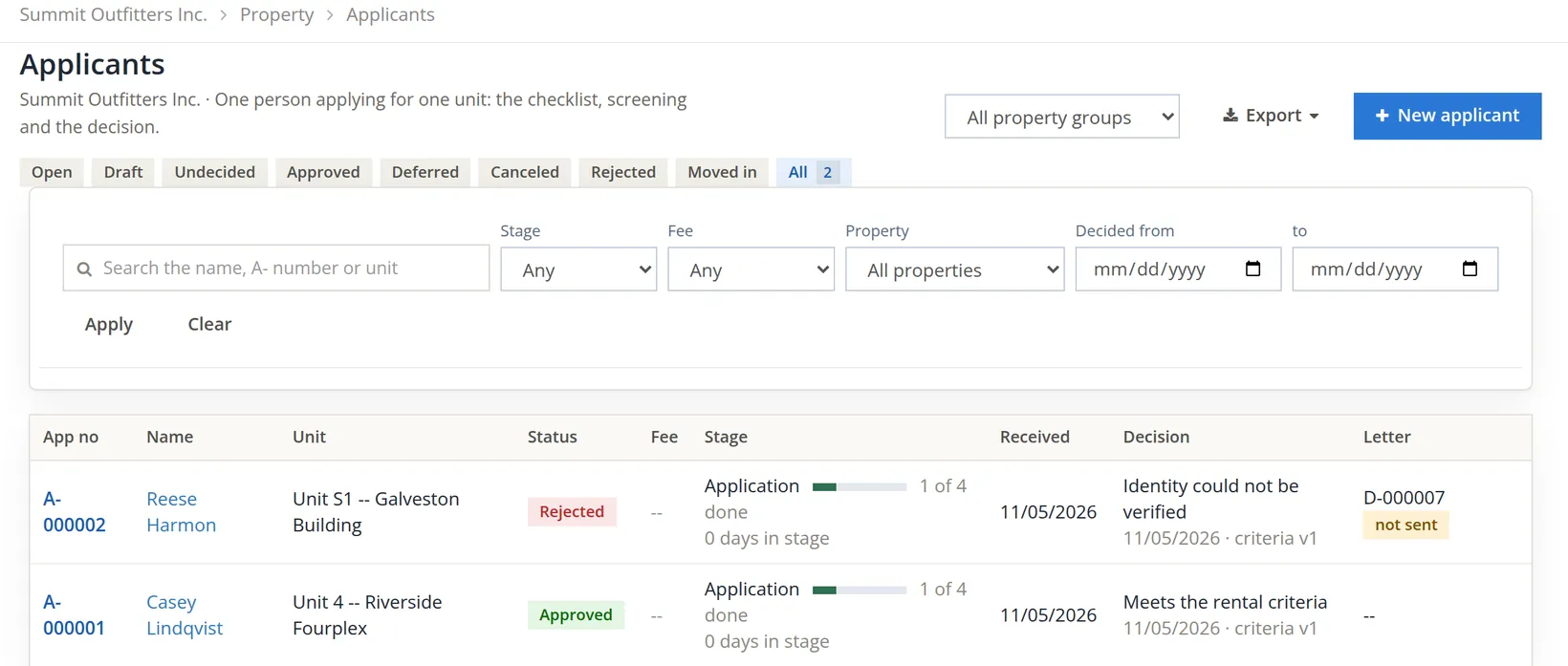
| Applicants | A-000001 Casey Lindqvist, unit 4: approved 11/05/2026, Meets the rental criteria, ready for a draft lease. A-000002 Reese Harmon, S1: rejected 11/05/2026, Identity could not be verified, letter D-000007 handed over but not recorded on its Send card (shown as not sent) |
| Settings > Leasing | Criteria version 1 approved by the books' owner and in force; checklist with the photo ID item; no fee account chosen yet (Procedure D) |
| Settings > Templates | The books' Screening authorization (v2) and Adverse action letter (v1), approved |
The Leasing Funnel and Applicant Pipeline reports (Chapter 13.14) count prospects by source, showings, applications and decisions over any period. If a source brings calls but never applications, stop paying for it. If applications stall at Undecided, the bottleneck is the office, not the market.
Letting a vacant unit
- [x] Rental criteria written, saved as a draft and approved by a second person before the first application is decided.
- [x] Application fee amount set at the right level (listing, property or books) and a fee account chosen in Fees post to.
- [x] Screening authorization and Adverse action letter templates copied, worded and approved.
- [x] Listing posted with an available date; syndication on only if the office can answer the calls it brings.
- [x] Every lead entered as a prospect with its source, assigned, and no prospect left at High priority.
- [x] Every showing closed with an outcome.
- [x] Application typed without taxpayer numbers or dates of birth, then marked received.
- [x] Consent recorded before any report is ordered or attached.
- [x] Screening report attached to the consent before the decision, so the letter names the service.
- [x] Decision recorded with its reason; adverse-action letter given to the applicant within three days and the delivery recorded on the letter's Send card.
Check your understanding
1. Unit 4's listing says $40.00, the property says nothing and the books' fee is $30.00. What does Casey pay, and to which account does it post?
Answer
$40.00: the listing's override comes first, then the property's fee, then the books' fee. Every fee, whichever level set it, posts to the one account chosen in Fees post to.
2. Alex wrote the rental criteria. Why can Alex not approve them, and what happens to applications in the meantime?
Answer
The author of a version never approves it; a second person with the settings right does. Applications can still be entered and received (the version is then stamped at the decision), but no decision can be recorded until a version is approved.
3. Why did the first Send consent link fail, and what would have happened if it had not?
Answer
The Screening authorization template had no approved version. The system text is a placeholder with no legal wording, so the applicant would have been asked to agree to nothing; the link would only ever dead-end.
4. You closed the browser tab before copying the consent link. Can you get it back?
Answer
No. Only a fingerprint of the token is stored and the link is shown once. Send a new link; it cancels the earlier unused one.
5. Devon has not been called for 50 hours. What does the pipeline show, and what puts it back?
Answer
High priority (past the 48-hour limit). Any activity, a call, e-mail, note, visit, showing or status change, sets it back to Low.
6. Can BizBooks360 order Reese's identity report from a screening company?
Answer
Not in this release: no screening service is connected, so orders are refused. Order the report from the service directly and attach the file it sends to Reese's consent.
7. Reese's rejection was refused the first time, and the letter that came out later named no screening service. Why, in each case?
Answer
The first time, the Adverse action letter template had no approved version, and a rejection cannot be recorded without its letter. The letter names the service only from a consent with its report attached; no report had been attached to Reese's consent.
Notes
- Tenant screening is regulated: in the United States the federal Fair Housing Act and Fair Credit Reporting Act, and state and city rules on application fees, criteria and notices. The software's wording and rules are not legal advice; have counsel review your criteria, your authorization text and your adverse-action letter. ↑
- The picture was taken on November 5. The version dates it shows (11/06/2026) were printed in UTC by the release of that day; the Versions table and the consent rows now show the date in the books' time zone, here 11/05/2026. ↑
- The switch is in Settings → Property Management → General, card Outside services, row Listings: On for these books, Save outside services. While it is off there is no feed, no public page and nothing is pushed; a listing's opt-in is kept and takes effect again when it is switched on. Summit switched it on for the pictures of Procedure B and off again afterwards. The Listings row's Generate feed URL makes the address listing sites read; it is shown only once. ↑
- Casey's fee was not invoiced on November 5, and unit 4's listing has since closed, so Casey's card can no longer show the fee. To picture this step and the next, Summit took a paper application from Jordan Ellis for storage room S1 on November 6 (A-000003) and, for that hour only, set a $40.00 fee at the books' level, then chose the fee account; hence "from the books". Both settings were cleared again afterwards, so the Leasing tab of the sample books shows no books' fee and no fee account. ↑
- In this edition every choice in the Deposit to picker of this dialog reads Bank account; the one chosen when the dialog opens is the books' operating bank. Leave it, or check the receipt's bank on the invoice afterwards. Reported for correction. ↑
- The consent stores the version of the text, the text as shown and its SHA-256 fingerprint. Casey consented under version 1; Reese, whose page is pictured, under version 2. ↑
- The link is built from the brand's address of the books. In these sample books it points at another test server, so the pictures were taken by opening the same path on the books' own address. ↑