
Chapter 13.10
Today, tasks and notifications
A property office runs on small promises: call the owner back, cut the spare keys, get the bids, fix the handrail. This chapter follows Summit's property manager through one session at the desk. They read the Today board lane by lane, write the calls of the day down as tasks, hand one to themselves, park one that is waiting on someone else, turn a tenant's complaint into a work order, push two jobs back to Monday, November 16, after the software refuses to move an automatic item with them, close a call with a comment, and then read the bell.
When you finish this chapter you will be able to:
- Read the Today board: its four lanes, its role switch, and the difference between a task and an automatic item.
- Keep the task categories, and know where recurring tasks live.
- Add a task with the right kind, due date, queue and links.
- Assign, block, comment on, finish and skip a task, and turn one into a work order.
- Find any task on the Tasks page and act on several at once, and explain why automatic items refuse a new date.
- Read the bell and set your own notification choices.
The desk: one board, one list, one bell
Everything the office has to do lands in one place, the Today board (Property Management → Today). It holds two kinds of row. A task is written by a person: a call to return, a request from a tenant or an owner, a to-do. An automatic item is written by the module itself, mostly by the daily run overnight: a lease ending soon, a prospect to follow up, a month to close. Both look alike on the board, but only tasks can be edited, assigned, blocked or commented on. An automatic item can only be opened, marked done or skipped.
Every row ends the same way: a main step when the row has one (a blue Call, for example), a Done button, and a More menu, the three dots, that holds everything else. The subject opens the row's drawer (Procedure E); Open in the More menu goes to the page where the work is done. The board is also reached from the Today board button of the Property Management overview (click Property Management at the head of its menu) and from the dashboard's Property Management today card, which counts the same rows and says how many of them are blocked.
The board sorts every open row into four lanes by its due date, counted on the books' calendar:
| Lane | What it holds |
|---|---|
| Overdue | Due before today. The due date shows in red. |
| Today | Due today. |
| This week | Due in the next six days. |
| Later | Due after that, or with no due date at all (a work order's row, for example). |
Within a lane, rows run by due date and, on the same day, high priority first. The role switch at the top filters the board by role queue: Bookkeeper, Leasing, Manager and Maintenance show the rows of that queue; Mine shows only the rows assigned to you; All shows everything, and the number at the right of the switch counts the rows shown. A task that nobody has taken belongs to its queue; an assigned task stays in its queue too, with the person's initials beside it.
Here is the top of the board on Friday evening. Read the rows that came from other chapters first; the rows Alex wrote are explained in the procedures that follow.
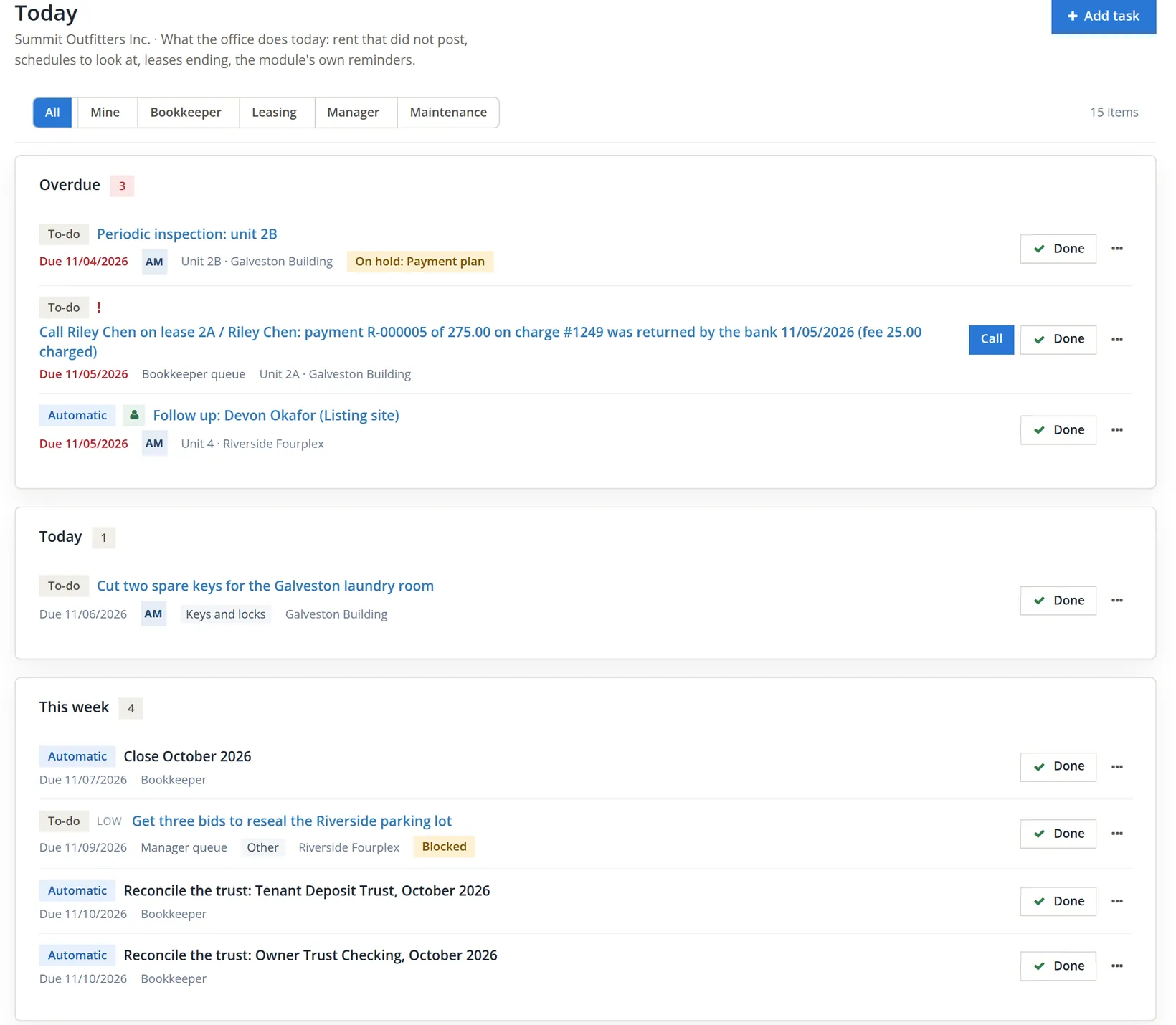
Read the rows before touching them. The 2B inspection 3 was scheduled for November 4 in Chapter 13.9 and has not been walked: the manager was called to another building that day, and Summit is agreeing a new time with the tenant (Chapter 13.9). Open in its More menu goes to the inspection page (the subject opens the task's drawer), where the run is walked and completed. Done on the board would only close the reminder and leave the inspection open, so Alex leaves the row where it is; it will keep ageing until the inspection is done, and the Tasks Aging report (Chapter 13.17) will show it. The yellow On hold: Payment plan chip 4 comes from the 2B lease, which is on the payment plan of Chapter 13.6; it does not cancel the inspection.
The call to Riley Chen 5 was written by the module when Riley's check came back from the bank (Chapter 13.5). It sits in the Bookkeeper queue, so it is the bookkeeper's call, not Alex's. The prospect follow-up 6 is an automatic item from the leasing work of Chapter 13.3, assigned to Alex (the AM chip), so it also comes under Mine; it was due on Thursday, 11/05, so on Friday it sits in Overdue, still waiting for the call. Close October 2026 and the two trust reconciliations 8 are month-end rows for the bookkeeper (Chapter 13.12).1 Further down, in Later, WO-0002 is the gutter work order from the drive-by inspection (Chapters 13.8 and 13.9); a work order's row has no due date.
Marking an automatic item Done or Skip is remembered: the daily run will not write the same item again. Mark it done only when the work it asks for is really done, and give a reason when you skip it (the reason is kept with the item).
What puts rows on the board
The module writes rows for you as things happen. Most are automatic items; a few, such as the returned-payment call, the inspection runs and the work orders, are written as to-dos so that they can be assigned and commented on. Most lead straight to the page where the work is done: through a step button on the row (such as Call) or through Open in the More menu. The table lists the ones a Summit-sized office meets, and the chapter that covers each.
| Row | It opens | Chapter |
|---|---|---|
| Rent or a schedule that did not post; a paused schedule | the recurring schedule | 14.1 |
| Unit is vacant and not listed; prospect follow-up; showing | List unit; the prospect | 13.3 |
| Move-in check; move-out deadline (red Deadline chip) | the lease | 13.4, 13.7 |
| Returned payment: call the tenant | Call (the lease) | 13.5 |
| Notice served on a tenant about to run out | the lease's collections card | 13.6 |
| Lease ending within 120 days | Open renewal | 13.7 |
| Work order; vendor insurance or license ending; warranty ending | the order; Open vendor; Open asset | 13.8, 13.9 |
| Inspection run; meter to read; utility charges due | the run; Record the reading; Utility charges | 13.9 |
| Trust money in the wrong bank | Transfer (names the amount and both banks) | 13.11 |
| Post management fees; pay out; close the month; reconcile the trust | Post fees; Pay out; the close | 13.12 |
Tasks come from people: the Add task button here and on the Tasks page, the Make a task button of a poor inspection item, the recurring tasks of Settings, and requests that tenants send from the portal (Chapter 13.13).
Keep the task categories
A category says what a task is about, so the list can be filtered and the Tasks Aging report can count by it. Five come with the module. Summit hands out and loses keys often enough to want its own category.
- 1
Settings → Property Management → Tasks and inspections → Tasks
The Property Management settings have a two-level menu: six sections in the first row (General, Fees and bills, Leasing, Tasks and inspections, Documents and messages, Data) and the pages of the open section in the second. The Categories card lists each category, how many tasks use it, and whether tenants and owners may choose it when they send a request from the portal.
- 2
Type the name in New category and click Add category
Alex types Keys and locks. The page answers "Category added: Keys and locks." A new category is Staff only: it does not appear on the portal until you choose Offer on the portal from the row's More menu.
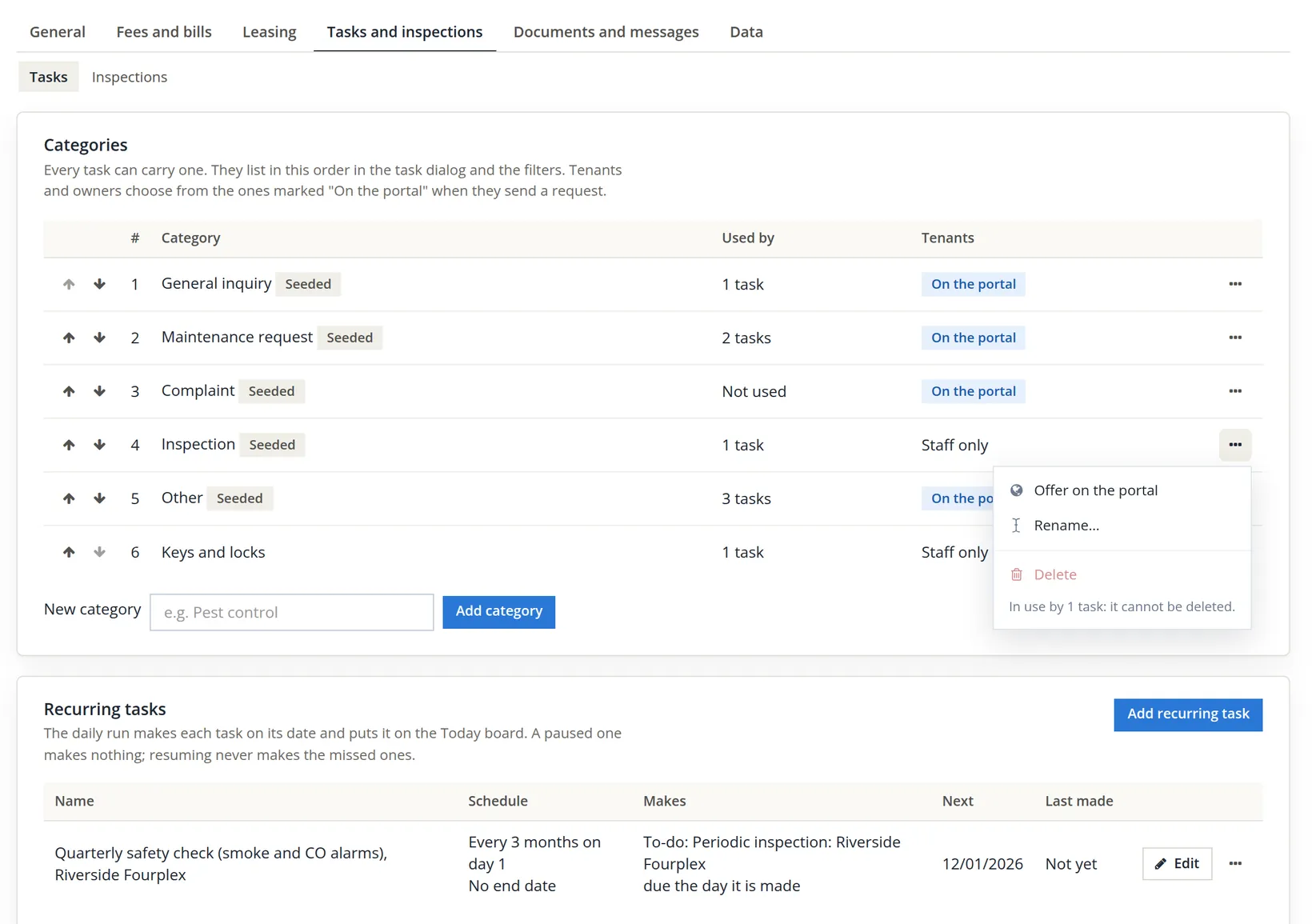
The arrows set the order in which the categories list in the task dialog and the filters. Each row's More menu holds Offer on the portal (or Stop offering on the portal), Rename... and Delete. Rename... opens a field with Save and changes the name on every task that carries it. A category in use cannot be deleted, and neither can the last one left.
The Recurring tasks card below makes a task on a schedule (a filter change every quarter, a safety check) and puts it on the board on its date. Each row has Edit, and a More menu with Run now, Pause (or Resume) and Delete. Chapter 13.9 sets one up; nothing more is needed here.
Add a task
Dana Whitfield left a voicemail on Tuesday about the gutters at Juniper Cottage, and nobody wrote it down. Alex writes it down now, with the date it was really due.
- 1
On the Today board, click Add task
The dialog opens with today as the due date, General inquiry as the category and the Manager queue chosen.
- 2
Fill in the subject, kind, due date, queue and links, then Add task
Subject, kind and due date are required. Everything else helps someone else pick the task up.
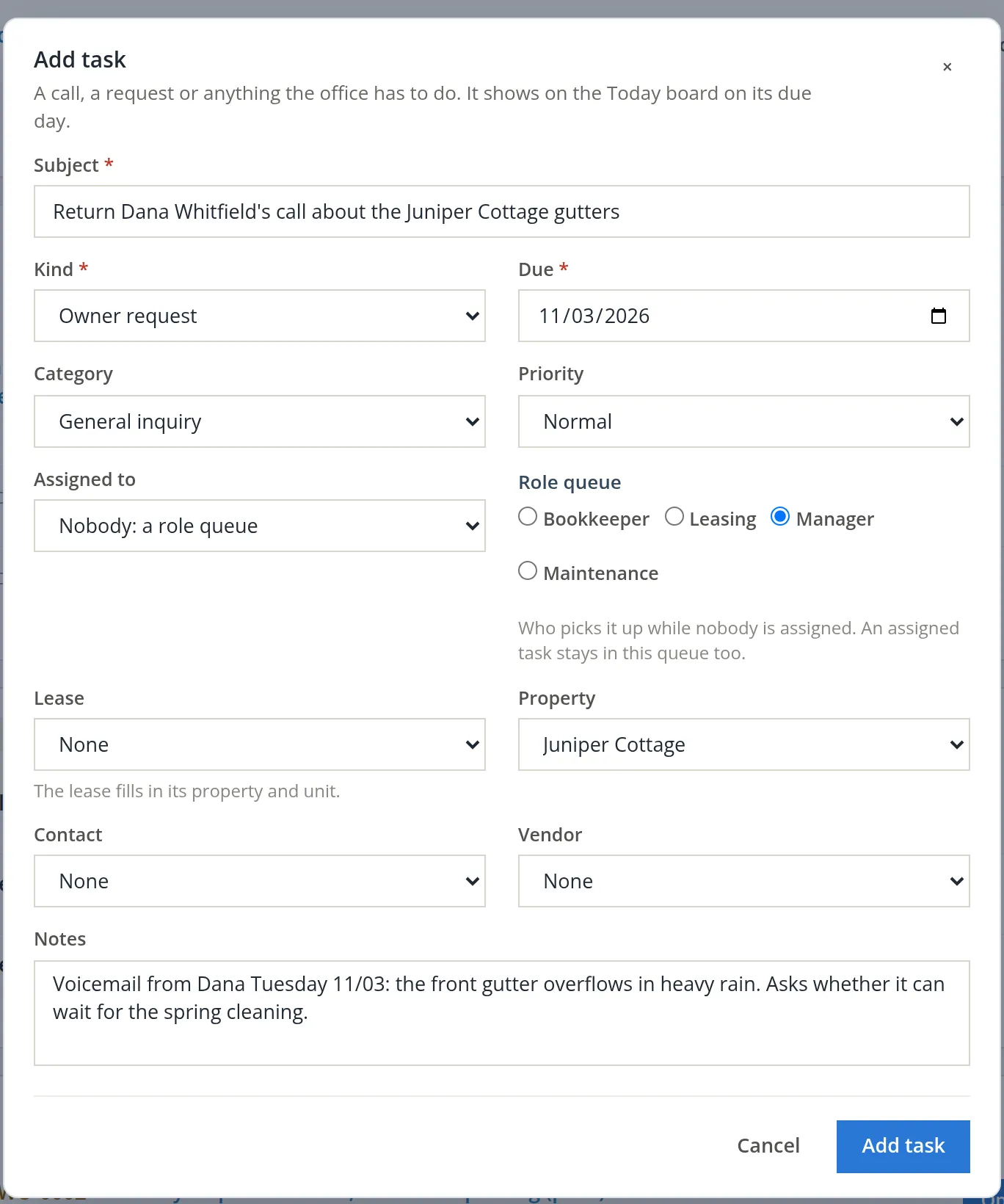
| Field | What it means |
|---|---|
| Kind | To-do (the office's own work), Contact request (someone asked to be called), Resident request (from a tenant) or Owner request (from an owner). Requests show a yellow chip. |
| Due | Any date, past or future. It decides the lane. |
| Priority | High shows a red !, low a grey LOW; high rows come first on their day. |
| Assigned to / Role queue | A member of the books, or nobody. The queue is who picks it up while nobody has it. |
| Lease, Property, Contact, Vendor | Links shown in the task's drawer. A lease fills in its property and unit; the task then also appears on that lease. |
The page answers "Task added: Return Dana Whitfield's call about the Juniper Cottage gutters." Alex adds four more for the calls and notes of the day, and later one for the chimney sweep. A task writes nothing to the books: no journal, no invoice.
| Task | Kind | Due | Queue, priority | Category |
|---|---|---|---|---|
| Return Dana Whitfield's call about the Juniper Cottage gutters | Owner request | 11/03 | Manager, normal | General inquiry |
| Cut two spare keys for the Galveston laundry room | To-do | 11/06 | Manager, normal | Keys and locks |
| Loose handrail on the Galveston rear stairwell | Resident request | 11/05 | Maintenance, high | Maintenance request |
| Get three bids to reseal the Riverside parking lot | To-do | 11/09 | Manager, low | Other |
| Order furnace filters for the December filter change (Riverside Fourplex) | To-do | 11/09 | Maintenance, low | Other |
| Book the chimney sweep for Juniper Cottage | To-do | 11/09 | Manager, low | Other |
The call to Dana now heads the Overdue lane, two days late, although it is 0 days old. Keep the two ideas apart: a task is overdue when its due date has passed, and its age counts the days since it was made. Age cannot be backdated. The 2B inspection, made on November 1, is 4 days old; everything Alex types today is 0.
The Tasks Aging report measures how long the office takes, from the day a task is made. A call written down two days late hides two days of waiting. Add the task while the caller is still on the line.
Work the lanes: assign, block, make a work order
Each task row has a Done button, a main step when there is one (Call on the returned-payment row), and a More menu, the three dots, with Open, Edit, Assign..., Comment..., Make a work order, Block... and Skip... (a work order's own row has no Make a work order). The items with three dots open a small form inside the menu.
- 1
Take a task: More, Assign..., choose the person, Assign
The spare keys are Alex's job tomorrow morning. On the row of Cut two spare keys for the Galveston laundry room, Alex opens the More menu, clicks Assign..., chooses Alex Morgan under Assign to and clicks the blue Assign.
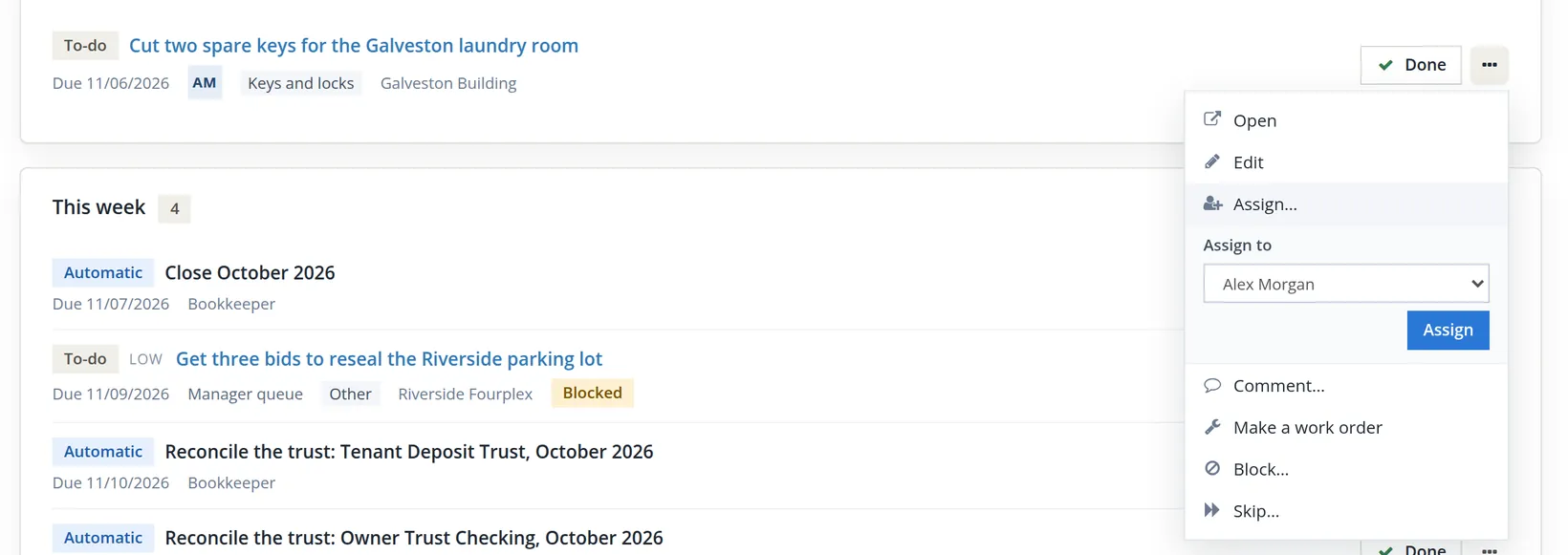
The page answers "Assigned to Alex Morgan." The row now shows AM instead of Manager queue, and the task appears under Mine on the role switch. Mine on the board counts every open row assigned to you, automatic items included (for Alex, four rows: the 2B inspection, the Devon Okafor follow-up, the keys and, later, Riley's faucet request), while the Mine tab of the Tasks page counts tasks only. When you give a task to someone else, the bell rings for them (Section 3). When you take a task yourself, no bell rings: you already know.
- 2
Park a task that waits on someone else: More, Block..., say why, Block it
Alex asked two paving contractors for bids this week and cannot move until they answer. On the parking-lot row, Alex opens the More menu, clicks Block... and types under Why it is blocked Waiting on bids from two paving contractors (asked 11/05). A reason is required; it is kept with the task.
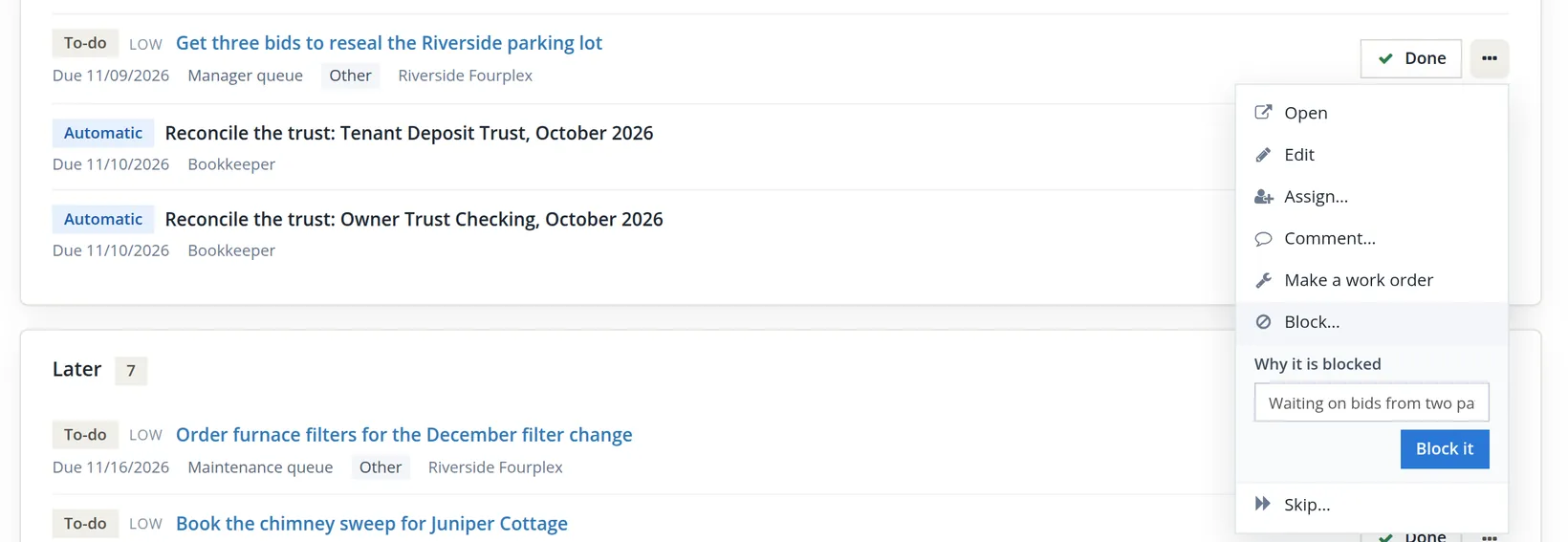
The page answers "Blocked. Unblock it when it can go on." The task stays on the Today board, in its lane, with a yellow Blocked chip, and it is still counted on the role switch and on the dashboard's card. Its More menu now offers Unblock instead of Block.... The reason shows when you point at the chip, and as a Blocked: line at the top of the task's drawer. The Tasks page also lists every blocked task under its Blocked tab.2
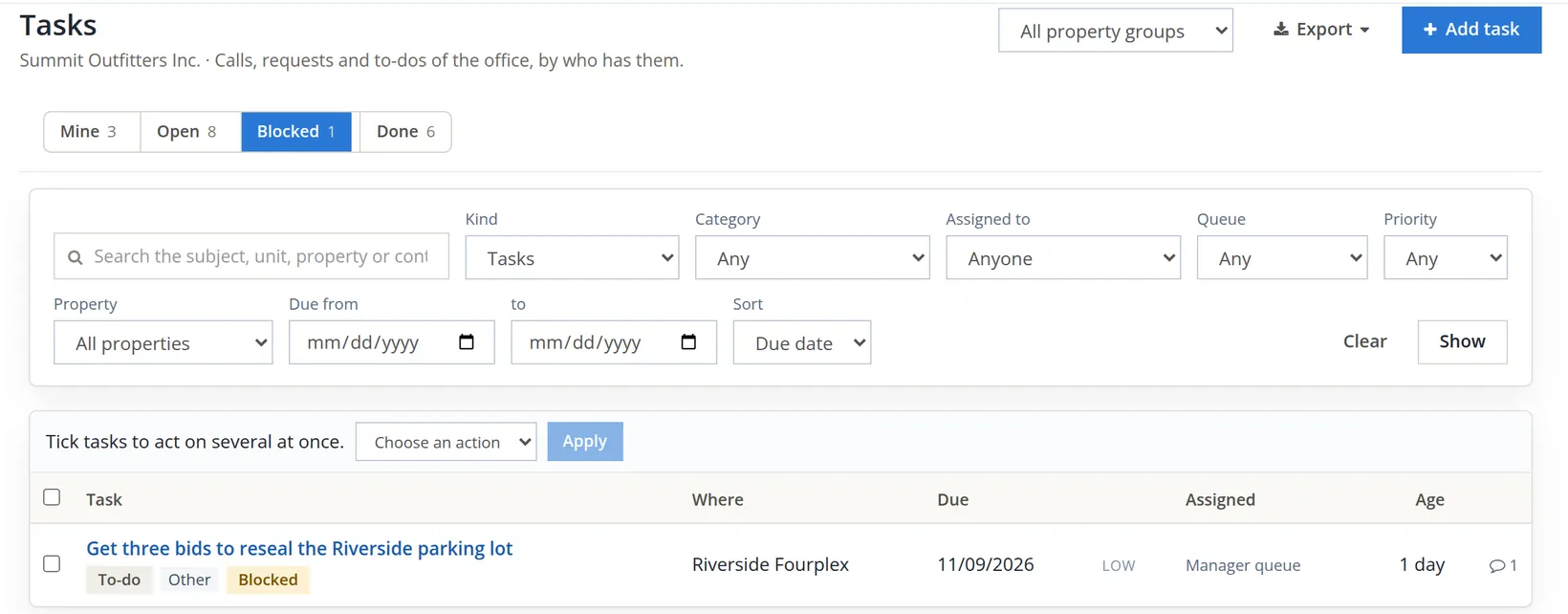
A blocked row stays on the board, but it is easy to read past a yellow chip day after day. Look at the Blocked tab once a week and chase what the tasks wait on. When the bids arrive, choose Unblock from the row's More menu or from its drawer: "Unblocked: the task is open again."
- 3
Turn a repair into a work order: Make a work order
The loose handrail needs someone with tools, a record of the work and perhaps a bill. That is a work order (Chapter 13.8). On the handrail row Alex opens the More menu and clicks Make a work order. The New work order form opens with the task's subject, property and priority already in it.
- 4
Add the trade and notes, keep the vendor on Staff, then Open work order
Summit's handyman will do it, so the vendor stays Staff (no vendor). The Open work order button is at the foot of the form, below the Lines card. Requested by stays Nobody: the office; the tenant who reported it is named in the task's notes.
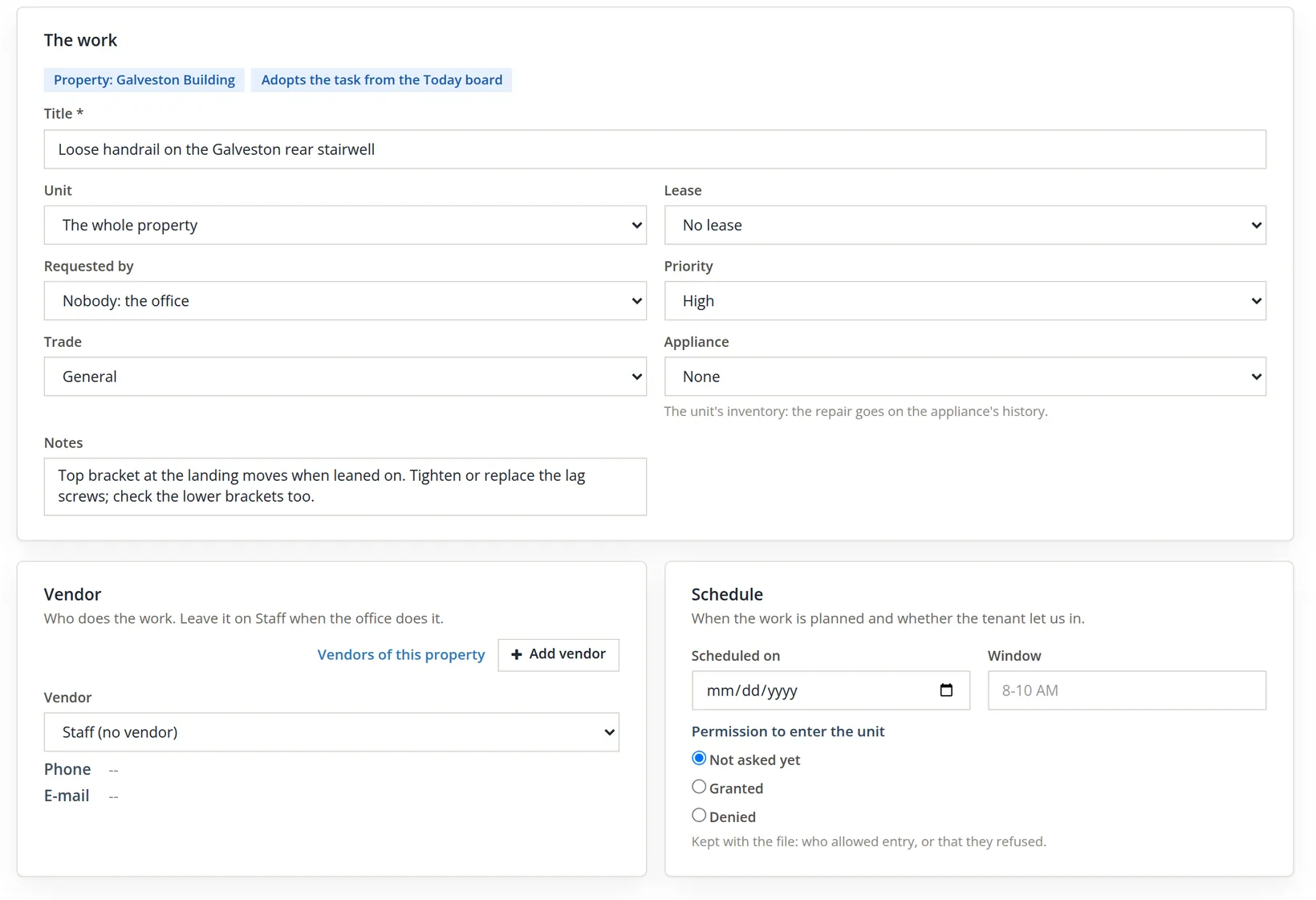
The page answers "Work order WO-0006 is open. It is on the Today board for Maintenance." The task itself becomes the order's row: its subject now starts with WO-0006 and carries the wrench mark, its due date is cleared, so it moves to the Later lane, and it closes when the work order is closed. The task's drawer has the same Make a work order in its More menu, and once the order exists the drawer links to it.
The Tasks page, and a bulk action refused
The board shows what is open now. The Tasks page (Property Management → Tasks) shows every task, open or not, with filters and a selection bar for acting on many at once.
| Control | Use |
|---|---|
| Tabs Mine, Open, Blocked, Done | Which tasks, by state; each tab shows its count. Open lists open tasks only; blocked ones are under Blocked. |
| Search | Subject, unit, property or contact; the list narrows as you type. |
| Kind | Tasks (the default: every kind a person writes), one kind, Rule rows (automatic items only) or Everything. |
| Category, Assigned to, Queue, Priority, Property, Due from / to, Sort | Narrow the list; Nobody (a role queue) finds unassigned tasks. All sit in one filter card under the tabs, with Clear and Show at its right. |
| Property group picker, Export | Limit to a group (Chapter 13.1); download the list as it is filtered. |
The low-priority jobs (filters and the chimney sweep) cannot be started this week. Alex wants them due on Monday 11/16, and, while at it, wants the Devon Okafor follow-up moved to the same Monday, because Devon asked to be called after the weekend.
- 1
Set Kind to Everything and tick the rows
Alex ticks the furnace filters, the chimney sweep and Follow up: Devon Okafor (Listing site).
- 2
Choose Set due date, the date, and Apply
The bar already warns "3 selected (rule rows are only marked done)". Alex applies anyway.
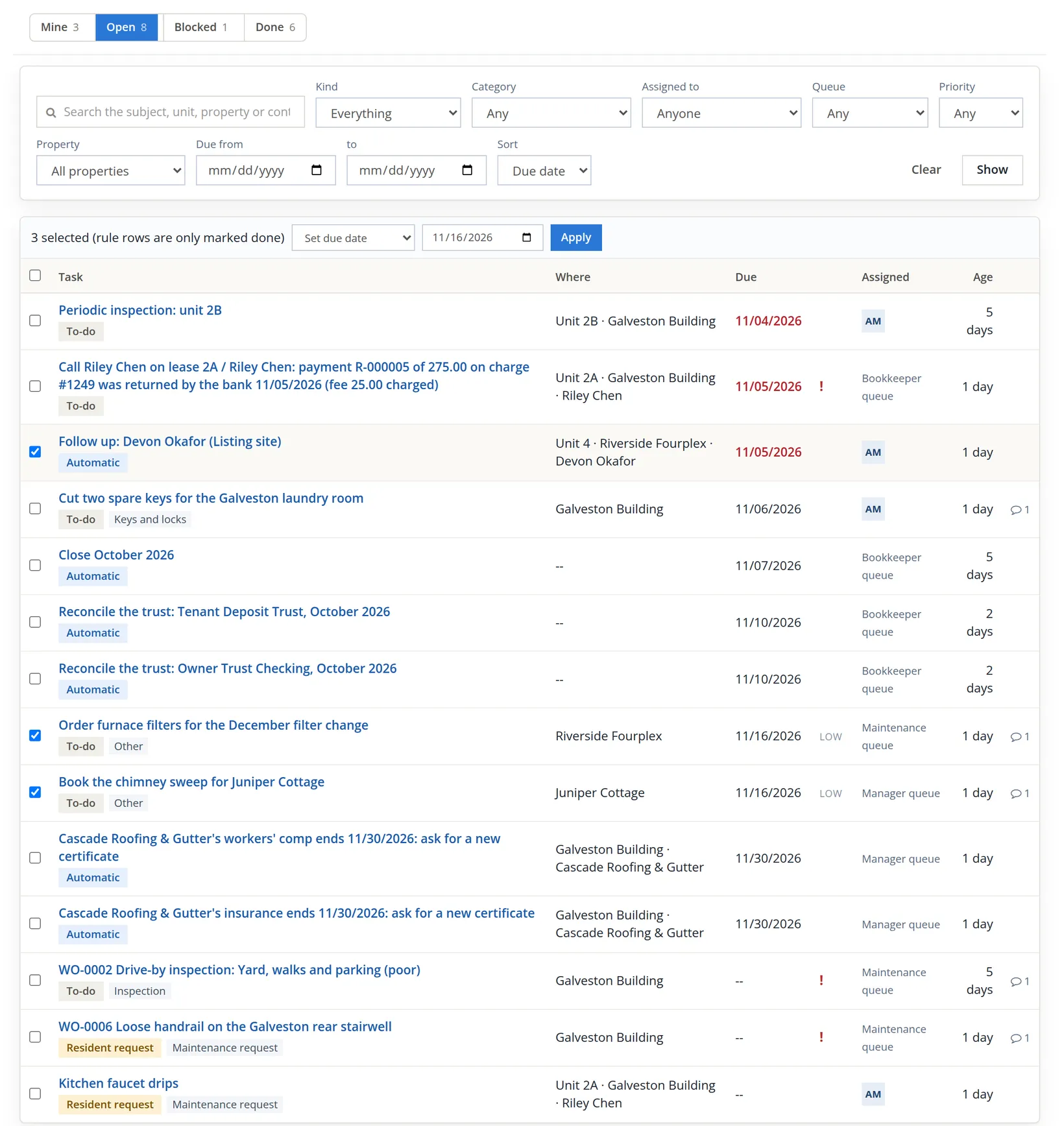
The page comes back with a red message, and the selection is gone: nothing is ticked and the action is reset.
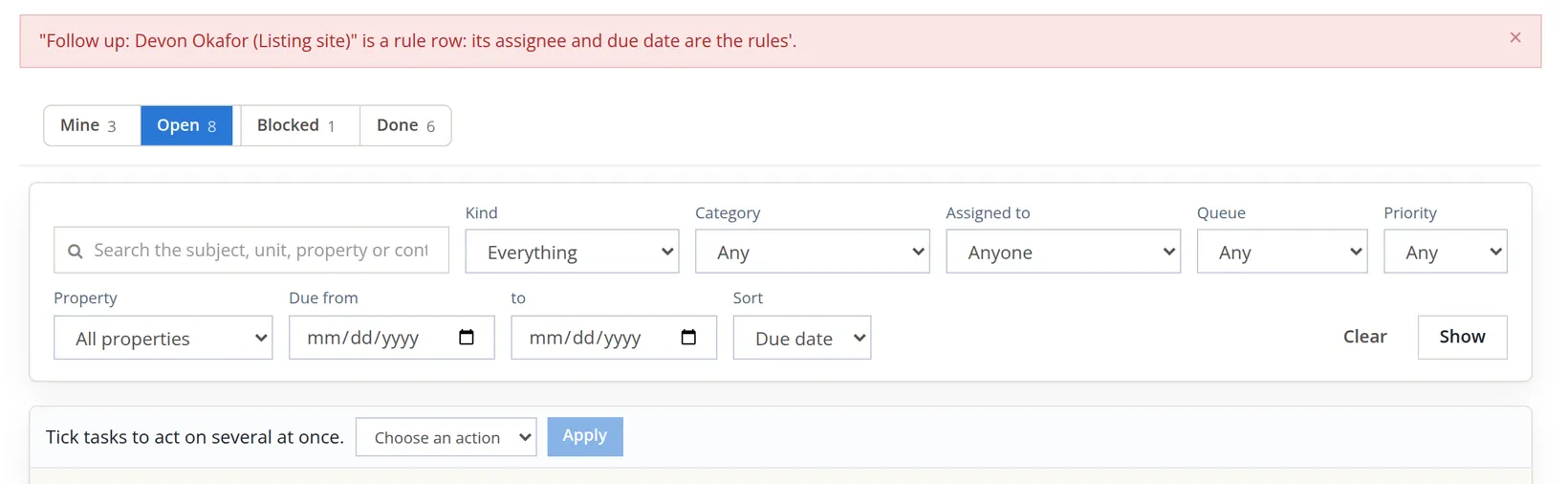
The software refused the whole action and changed nothing, not even the two tasks: a bulk action is all or nothing. An automatic item's due date and assignee come from the rule that wrote it, so they cannot be moved by hand; the only bulk action open to it is Mark done. The follow-up stays where it is; Alex will either make the call or skip the row with the reason Devon asked to be called after the weekend.
- 3
Tick the two tasks again, choose Set due date and 11/16/2026, then Apply
This time the automatic row stays unticked. The page answers "2 tasks now due 11/16/2026." Both move to the Later lane of the board.
The selection bar offers three actions, on up to 200 tasks at a time: Reassign (to a member, or back to the role queue), Mark done and Set due date. Only open and blocked rows have a tick box. Each task's history records the change with (bulk) after it.
Because Mark done is allowed on rule rows, a ticked automatic item is closed with the tasks, and the daily run will not write it again. Filter Kind back to Tasks before a bulk Mark done unless you mean it.
The drawer: comment, then finish
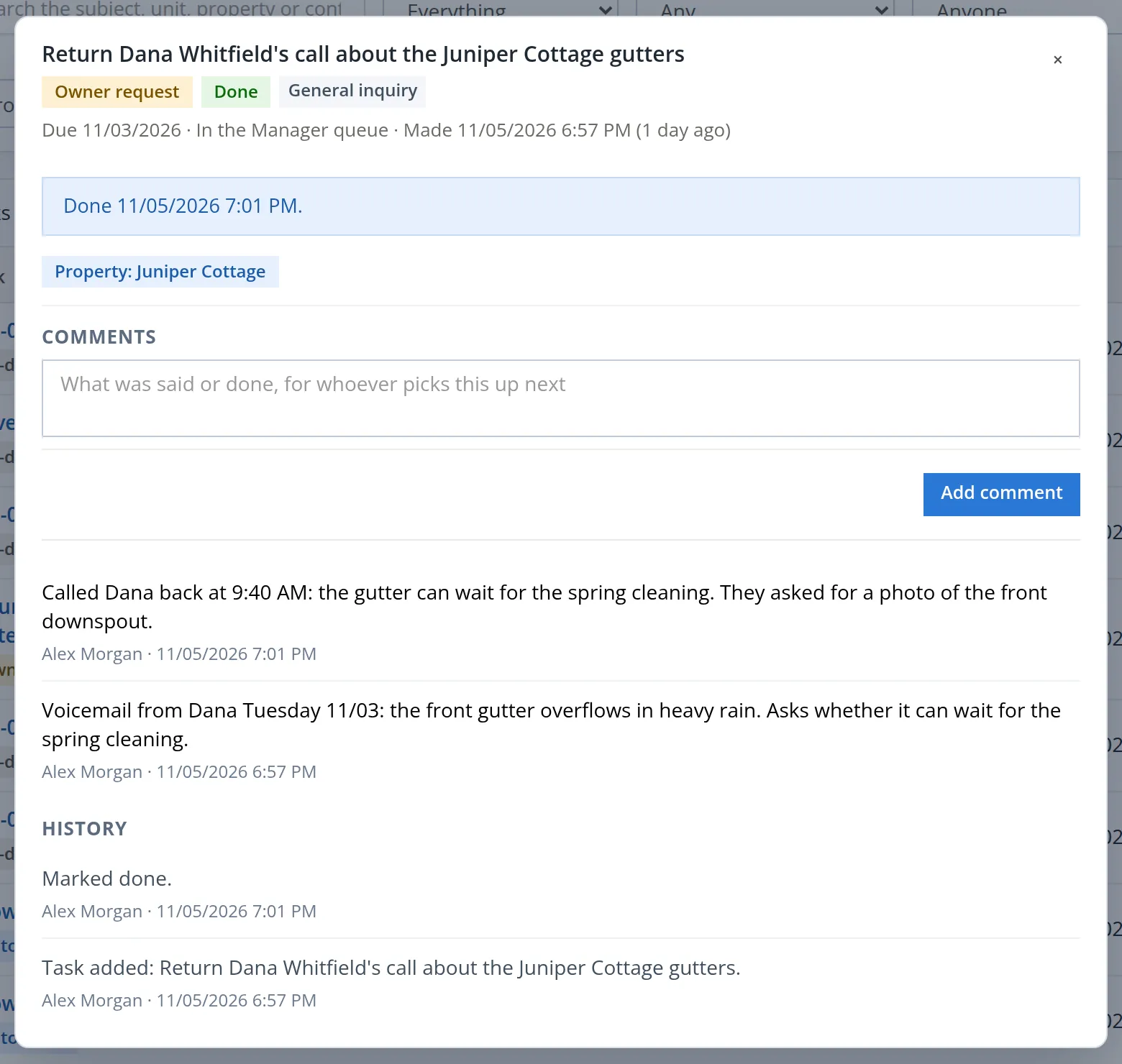
Alex called Dana back from the car at 9:40 this morning and never logged it. Now it goes on the record.
- 1
Click the task's subject to open its drawer
The drawer shows the task's chips (kind, state, category), a line with its due date, who has it and when it was made, its links, a Done button and a More menu, its comments and its history. Comments and history lines run the full width of the drawer, with the author and the time below each.
- 2
Type the comment and click Add comment
Alex writes what was said and what Dana wants next. The page answers "Comment added."
The stamp on a comment is the moment it was typed (7:01 PM), not the moment of the call. That is why Alex put the time of the call in the text. Comments are for colleagues: on a task that came from the tenant portal, the drawer has a separate Reply to the requester box, and only that reply is shown to the tenant.
- 3
Click Done
The page answers "Done." The task leaves the board and joins the Done tab, where it keeps its comments and history.
On an open task the drawer carries the same actions as the board's row.
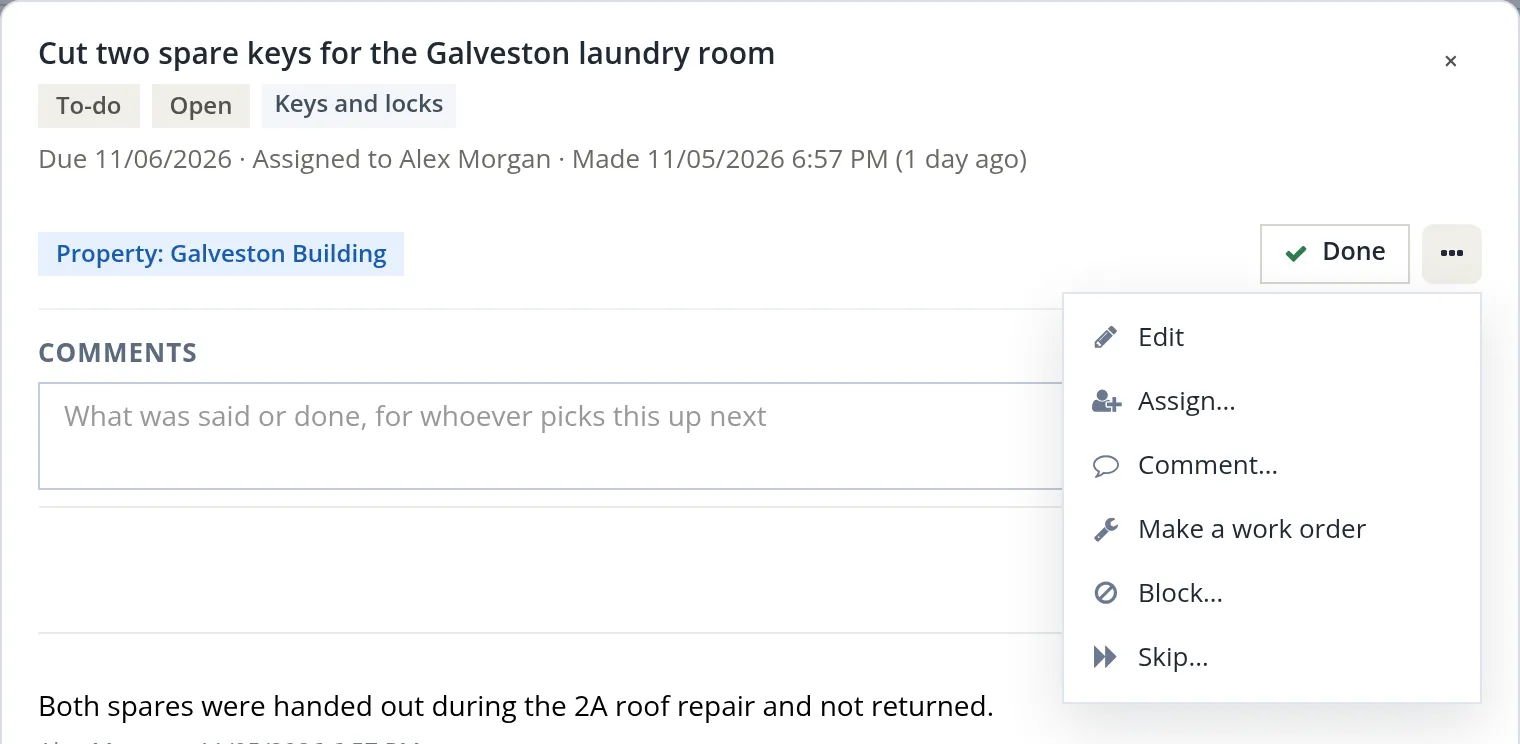
Skip... is the other way to close a task: it asks why (the reason is kept) and is right for work that will not happen, a duplicate, or a request withdrawn. Edit opens the task dialog again, with an Add a comment box for the reason of the change; every edit is kept in the history. Comment... in the board's More menu adds a one-line comment without opening the drawer: type in What was said or done and click Add comment.
The bell and your own notifications
While Alex worked, Riley Chen sent a maintenance request from the tenant portal (Chapter 13.13), and the badge on the bell went up by one. The bell, in the top bar of every page (Chapter 1.3), gathers what is waiting for you. Property Management adds its own group, usually at the top.
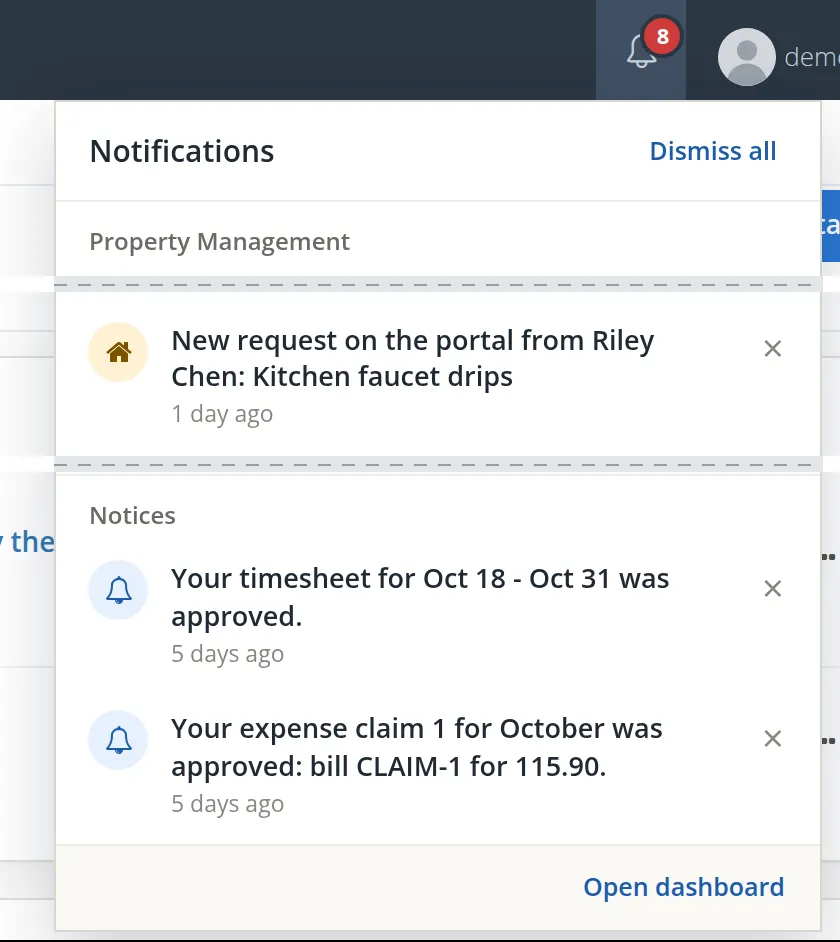
Riley's request is a resident request on the board's Later lane, assigned to Alex, and it is handled in Chapter 13.13; Alex leaves it for the morning. A line put away stays away. The other Property Management lines come from the events in My notifications: a task someone gives you, a prospect someone gives you, a bill of yours approved or rejected, a notice about to run out, a move-out deadline, a vendor's insurance ending, a signature, an application, a failed delivery.
- 1
Settings → Property Management → Documents and messages → My notifications
Every member of the books has this page, and the choices are your own, for these books only.
- 2
Tick or clear Bell and E-mail for each event, then Save my notifications
Alex keeps the defaults: the bell on for everything, e-mail off.
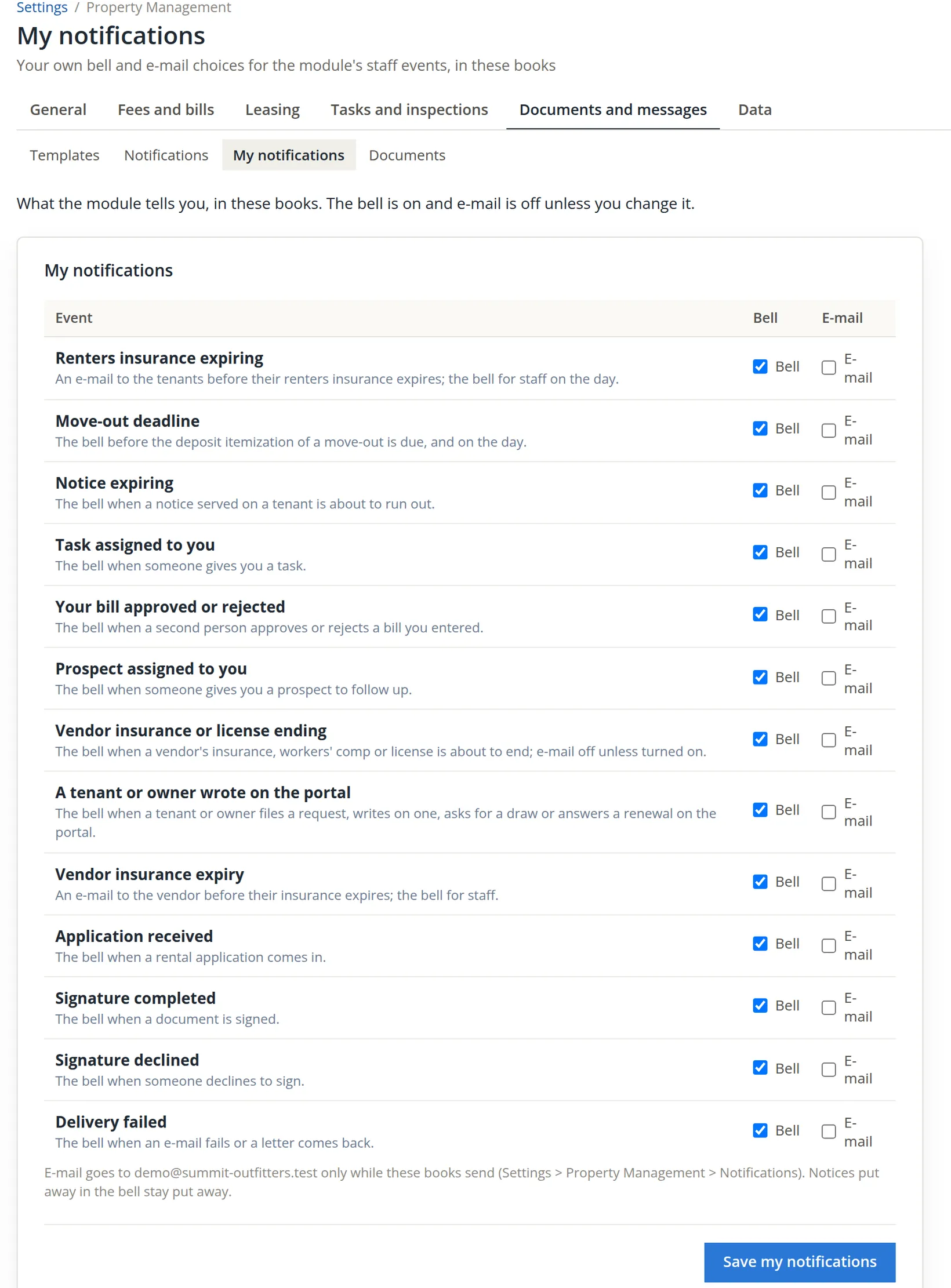
E-mail needs two switches: yours here, and the books' own sending switch under Settings → Property Management → Documents and messages → Notifications. Summit's sending is off, so even a ticked E-mail box sends nothing yet; the bell works regardless.
A task assigned to a colleague rings their bell with a link to their Mine view; a task left in a queue rings nobody's. Assign the urgent ones.
The board at the end of the session
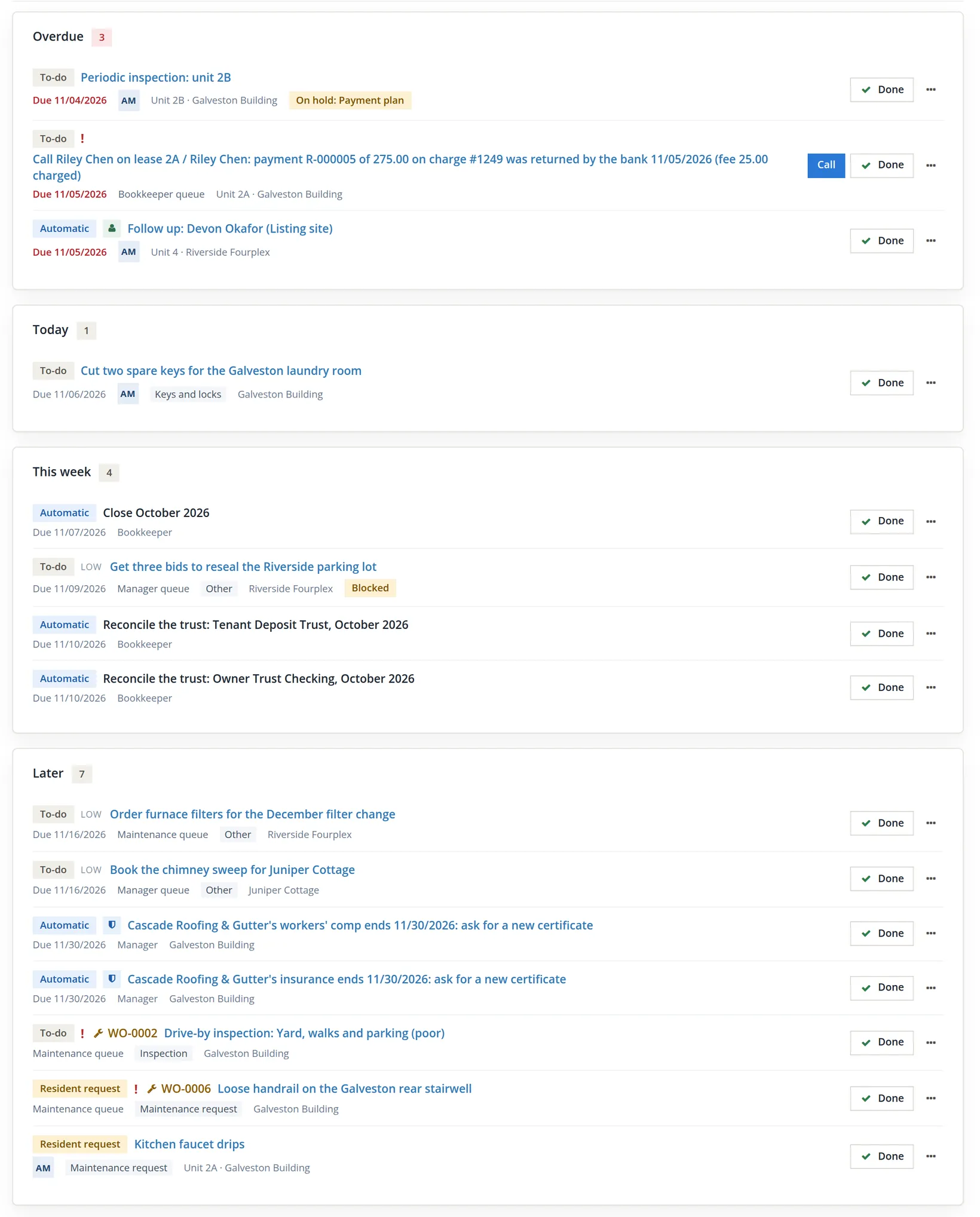
Read it as the result of the session. On the board are the spare keys (now AM), the parking-lot bids with their Blocked chip, the filters and the chimney sweep in Later, WO-0006 with its wrench mark, and Riley's portal request. Only one task Alex wrote is not on it: the Dana call, done, on the Done tab. Every row that came from other chapters is still there, and nothing that belongs to another person's queue was marked done. The Later lane also holds two automatic reminders that Cascade Roofing & Gutter's insurance and workers' comp end on 11/30/2026 (Chapter 13.8).
Run Reports → Tasks Aging Report (Chapter 13.17) as of 11/06/2026 and it lists nine open tasks, all in the 0-7 days bucket: three assigned to Alex Morgan (the keys, Riley's faucet request and the 2B inspection, 5 days old), one in the Bookkeeper queue (Riley's returned-payment call), three in the Maintenance queue (WO-0002, 5 days; WO-0006; the filters) and two in the Manager queue (the bids and the chimney sweep). Automatic items are not tasks and are left out. The blocked task is counted, and the report's statement marks it blocked.
A daily desk routine
- [x] Read the board from Overdue down, and open each row before deciding what to do with it.
- [x] Rows of another queue are left for that queue, or assigned to the right person.
- [x] Every call and request is written down as a task the day it comes in, with the right kind and property.
- [x] Repairs that need a person, materials or a bill are work orders, not to-dos.
- [x] Tasks waiting on someone else are blocked with a reason; the Blocked tab is checked weekly and the tasks chased.
- [x] Calls are closed with a comment that says what was agreed, then marked Done.
- [x] Automatic items are marked Done only when the work they ask for is really done.
- [x] Bulk Mark done is run with Kind set to Tasks unless automatic items are meant.
- [x] The bell is cleared, and My notifications says how each event should reach you.
Check your understanding
1. What can you do to an automatic item, and what can you do only to a task?
Answer
An automatic item can be opened, marked done or skipped. Only a task can also be edited, assigned, blocked, commented on or turned into a work order.
2. A task typed in today with a due date of last Tuesday: which lane does it go to, and how old is it?
Answer
The Overdue lane, because its due date has passed; it is 0 days old, because age counts from the day it was made.
3. You blocked a task. Where do you see it, and how do you make it open again?
Answer
It stays on the Today board in its lane with a yellow Blocked chip, and it is also listed on the Tasks page under the Blocked tab. Choose Unblock from its More menu or its drawer: "Unblocked: the task is open again."
4. You tick two tasks and one automatic item and choose Set due date. What happens?
Answer
Nothing is changed: the action is refused because an automatic item's due date and assignee belong to its rule. Tick only the tasks again (the page comes back with nothing ticked) and apply.
5. What happens to a task when you click Make a work order and open the order?
Answer
The work order adopts it: the task becomes the order's row on the board (its subject starts with the WO number, its due date is cleared) and it closes when the order is closed. No second row is made.
6. You assign a task to yourself and nothing appears under your bell. Is something broken?
Answer
No. Taking a task yourself rings no bell; the bell rings when someone else gives you the task (if Task assigned to you has Bell ticked).
7. Why should you not click Done on the overdue 2B inspection row to make the board look clean?
Answer
Done closes only the reminder: the inspection itself stays open and unwalked, and the daily run will not remind you again. Walk and complete the inspection on its own page (Chapter 13.9).
Notes
- Summit's property management starts on 11/01/2026, so the module makes no month-end, trust or owner-statement rows for October, and Trust reconciliation starts with November. The three October rows in the figures were written before that rule was in the module; the daily run closes them. Summit leaves them for the bookkeeper. ↑
- Since November 2026 a blocked task stays on the Today board. Earlier printings of this chapter said it left the board. ↑
- The two cut lines read Cascade Roofing & Gutter's insurance (and workers' comp) ends 11/30/2026: ask for a new certificate. In this edition the bell prints each apostrophe in them as the code '; the lines still open the right page. ↑