
Chapter 1.3
Finding Your Way Around
The parts of the screen that never change: the left menu, the find boxes, the bell, and the toolbar every list page shares. Learn them once and every other chapter gets easier.
When you finish this chapter you will be able to:
- Name the parts of a BizBooks360 page and say what each is for.
- Reach any page from the left menu, including the groups and sub-groups of the large areas, or find a report, setting or Property Management page by typing.
- Read and clear the notices under the bell.
- Use the search, filters, tabs, tick boxes and export buttons on any list.
- Work from a phone.
Contents
The anatomy of a page
Every page in BizBooks360 is built from the same parts, in the same places. The Invoices page below is typical.
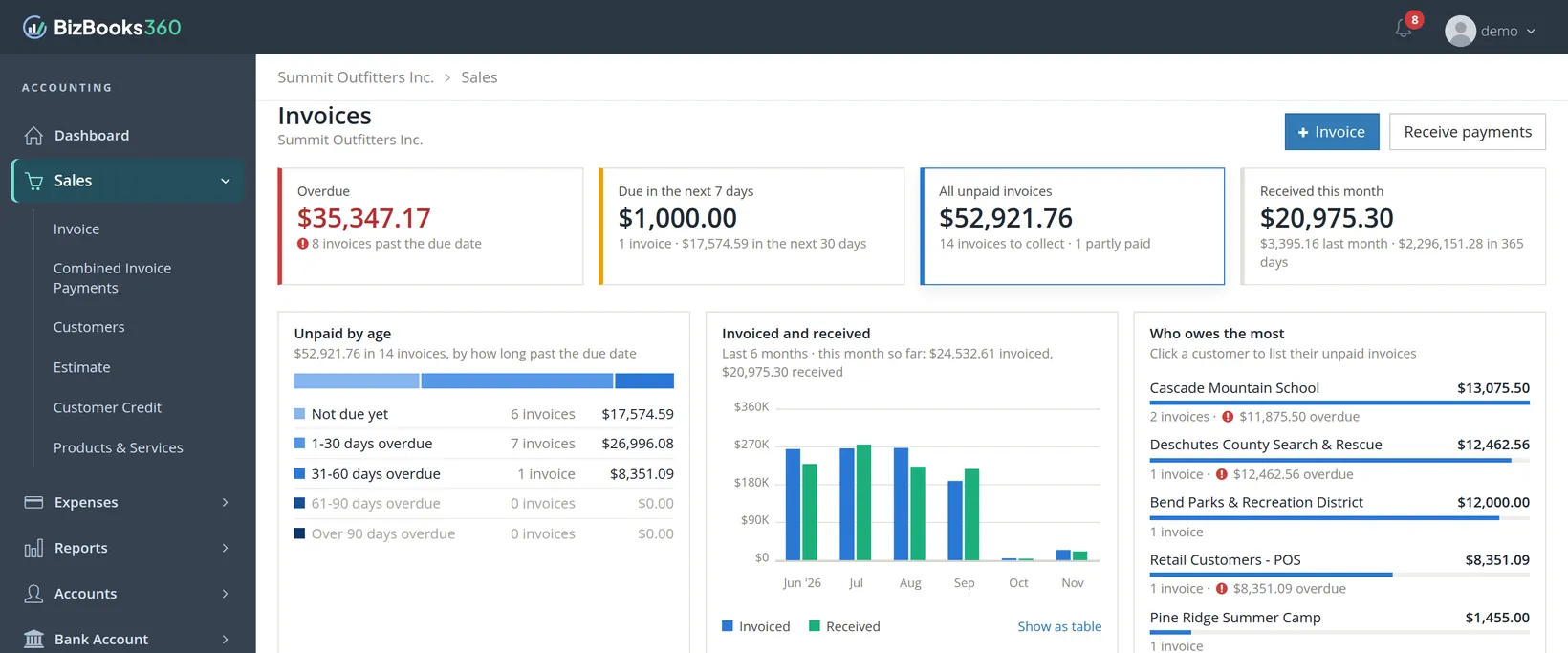
| Part | What it does |
|---|---|
| A Logo | Click it to go to the Dashboard of the company you are in. |
| B Menu area | The area you are in is highlighted, with a bar on its left edge. Click an area to fold it open. |
| C Menu pages | The pages inside the open area. |
| D Breadcrumb | The company first, then the page. Click the company name to go back to its Dashboard. |
| E Title | The page, with the company's name under it as a second reminder of whose books these are. |
| F Action buttons | The main things to do from this page. The blue one, with a +, creates something new. |
| G Bell | Notices waiting for you, with a red count. Section 4. |
| H Your name | Switch company, send feedback, change password, log out (Chapter 1.1). |
| I Summary cards | The figures that matter most on this page. On Invoices: overdue, due soon, all unpaid, and received this month. |
On list pages, clicking a summary card filters the list to what it counts. In the Who owes the most chart, clicking a customer lists only their unpaid invoices. Show as table under a chart gives the same figures as numbers you can read aloud or copy.
The left menu
The left menu lists the major areas of the books in a fixed order, from daily work at the top to settings and tools at the bottom.
- 1
Click an area to open it
An area with an arrow (›) folds open to show its pages, and the arrow turns down. Clicking the name also takes you to the area's main page. Areas without an arrow, such as Budget and Fixed assets, are a single page.
- 2
Click a page
The page opens and stays highlighted in the menu, so you can always see where you are.
- 3
In the large areas, use the groups
Reports, Settings and Property Management hold dozens of pages. They open as groups, each with the number of pages it holds, such as Financial statements 6. Click a group to open it and click it again to fold it shut. A group that holds a single page, such as Settings at the foot of the Property Management menu, has no count: it is a plain link to that page.
- 4
Open a sub-group the same way
Two report groups are so large that they are split again. Timekeeping 19 opens to four sub-groups and Property management 31 to six, each with its own count. Click a sub-group to see its reports.
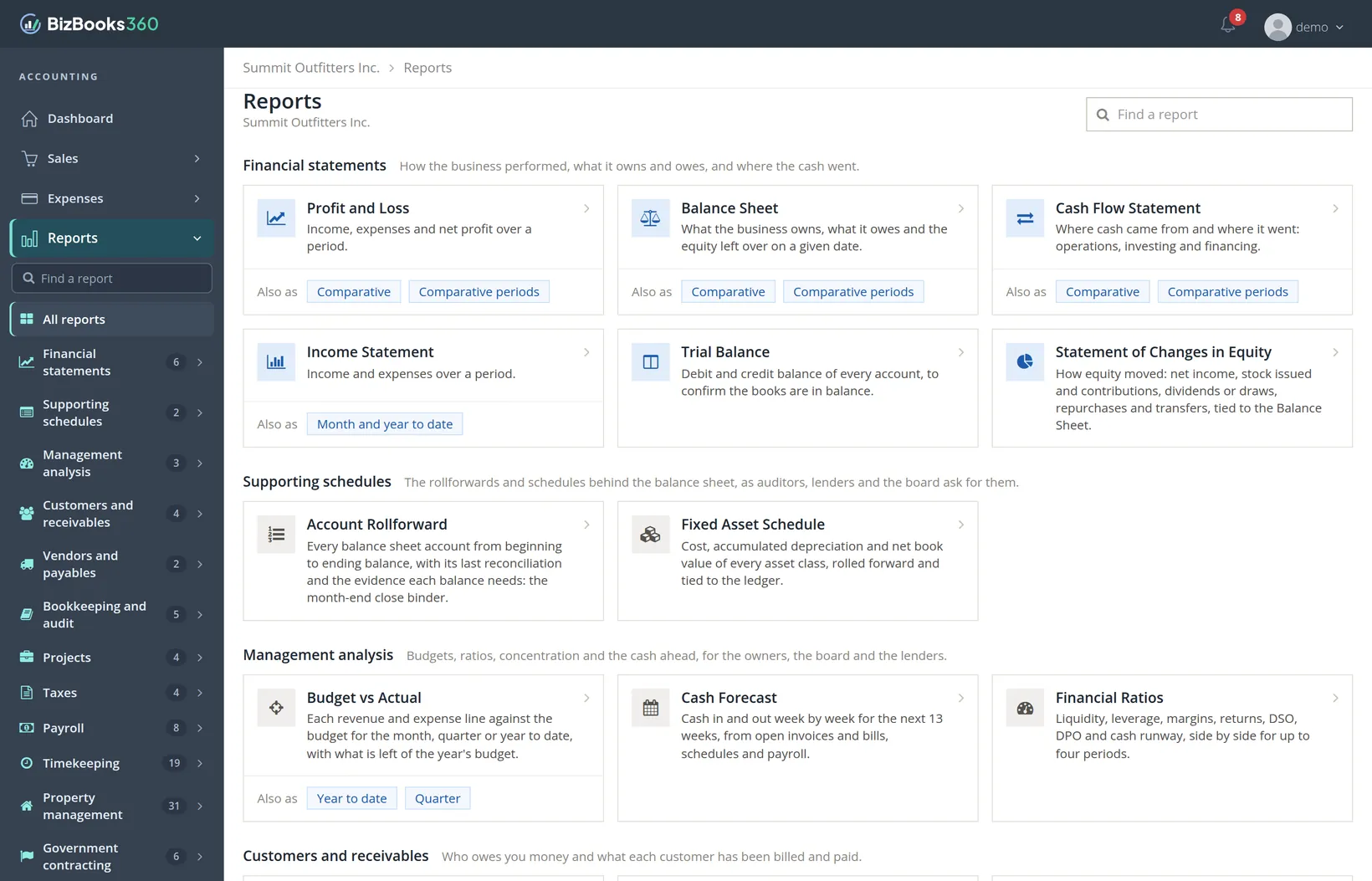
The Reports menu is the largest in the book. Below Find a report and All reports (the Reports page itself) come twelve groups, in this order in the sample company:
| Report group | Pages | What is in it |
|---|---|---|
| Financial statements | 6 | Profit and Loss, Balance Sheet, Cash Flow Statement, Income Statement, Trial Balance, Statement of Changes in Equity |
| Supporting schedules | 2 | Account Rollforward, Fixed Asset Schedule |
| Management analysis | 3 | Budget vs Actual, Cash Forecast, Financial Ratios |
| Customers and receivables | 4 | Aged Receivables, Account Statement, Transaction List by Customer, Sales Analysis |
| Vendors and payables | 2 | Aged Payables, Vendor Spend Analysis |
| Bookkeeping and audit | 5 | Transaction Journal, Bank Reconciliations, Audit History, General Ledger, Books Health |
| Projects | 4 | Project Status Report, Project Funding and Billing Summary, Projects Summary, Project Transactions |
| Taxes | 4 | Tax Report, Rental Properties, 1099 Issuance, Foreign Accounts |
| Payroll | 8 | Payroll Register, Employee Earnings, Hours Worked, Payroll Deductions, Payroll Tax Liability, Form 941 Worksheet, W-2 Summary, Employer Payroll Totals |
| Timekeeping | 19 | Four sub-groups: Timesheets and hours 5, Labor cost and payroll 5, Projects and billing 5, Controls and audit 4 |
| Property management | 31 | Six sub-groups: Leasing and occupancy 6, Tenant charges and payments 7, Notices and compliance 4, Owners and trust 7, Report packets 2, Maintenance and vendors 5 |
| Government contracting | 6 | SF 1408 Readiness, Cost Accounting Structure, Unallowable Costs, Direct and Indirect Consistency, Segregation of Duties, Subledger Ties |
Government contracting is the last group; below it the menu goes on with Accounts. Chapter 6.1 explains how to run a report once you have found it.
Projects and Property Management
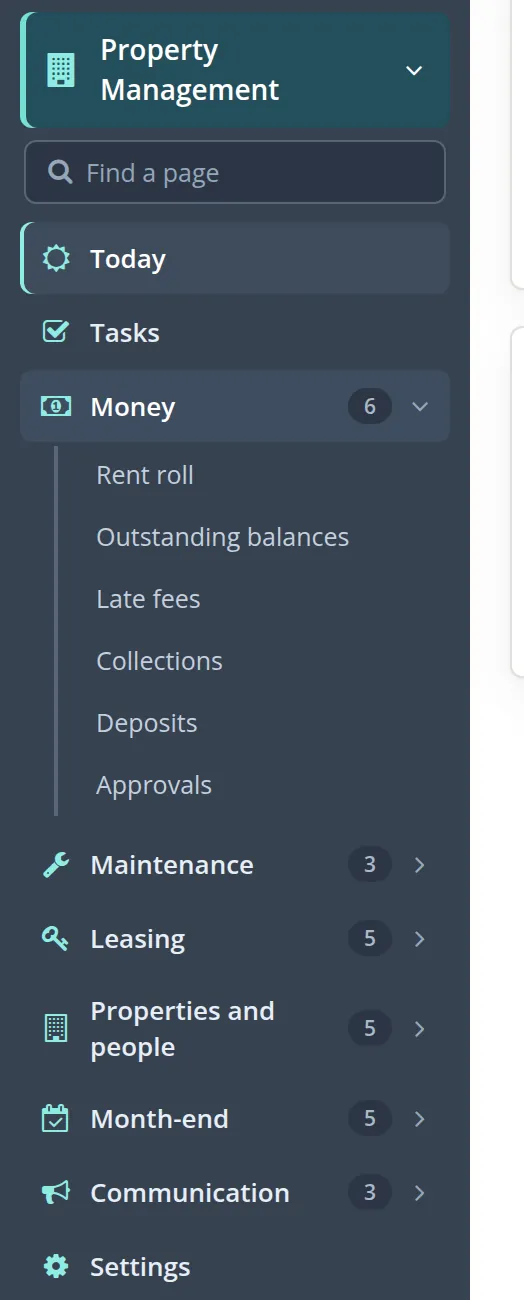
Projects also folds out, but it is short enough to need no groups: the project list itself, four project reports and Project setup, the settings page where cost elements are mapped (Volume 7). Property Management, when the company uses it, opens like Reports: a find box of its own, Today and Tasks as loose rows, then six groups and its settings page (Volume 13).
Finding a page by typing
When you know what you want but not where it is, type. Three menus have a find box at the top: Reports (Find a report), Settings (Find a setting) and Property Management (Find a page). The shorter menus, Projects among them, have none.
- 1
Open the area, then click in its find box
- 2
Type a word or two
Matches appear as you type, each with its group underneath in grey, so you learn where it lives. For a report inside a sub-group the grey line names both, as in Property management -- Tenant charges and payments. Typing
agedfinds three reports: Aged Receivables, Aged Payables and Outstanding Balances (whose description says each balance is aged by due date). The box matches the start of a word, soagedfinds the word aged but not the letters inside managed.3 Typingtaxin Settings finds Sales tax, Tax groups, and the pages where tax IDs and tax accounts are set. - 3
Click the match
To start again, clear the box. If a word finds too much, add a second:
aged receivablesleaves one match, because every word you type must appear.
The bell
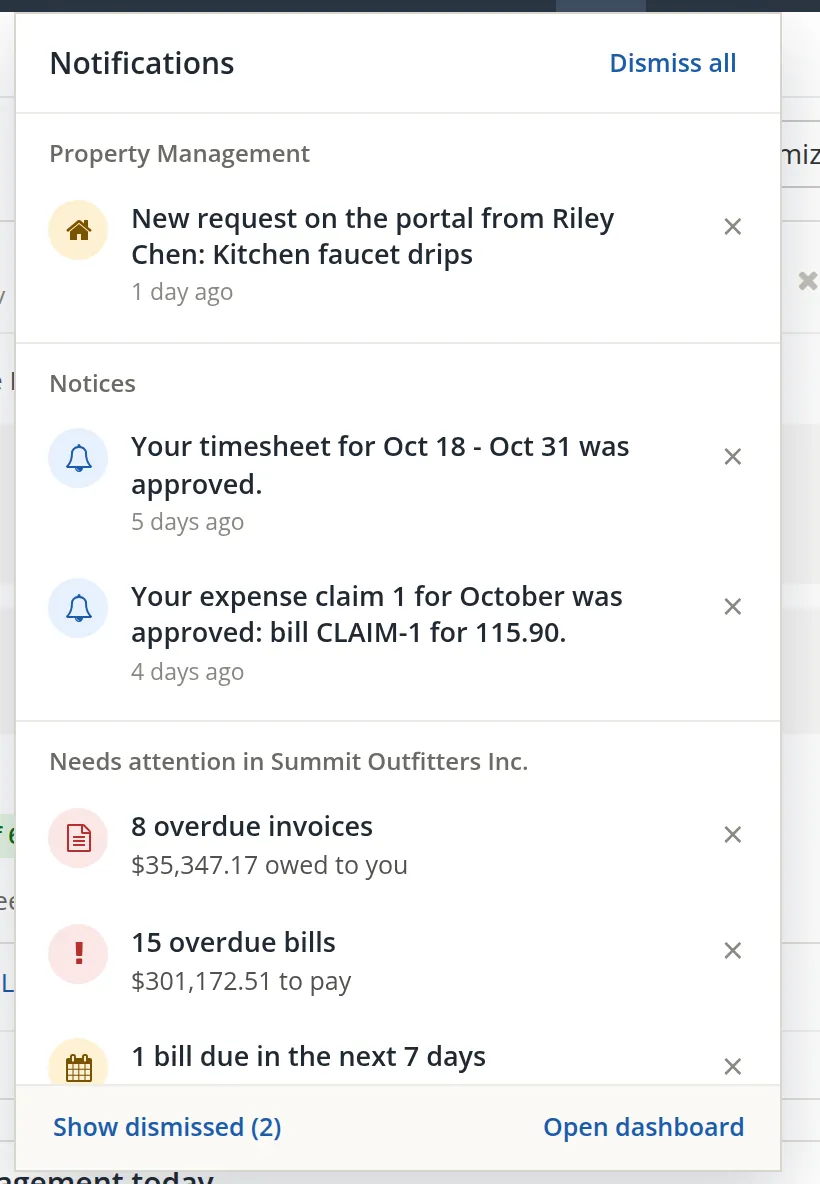
The bell gathers what is waiting for you: things that need attention in the books, invitations to other companies, reminders such as depreciation that is due, and notices from BizBooks360. The red number is how many lines are waiting.
- 1
Click the bell
Lines are grouped under headings such as Property Management, Notices 5 (messages addressed to you, such as an approved timesheet or expense claim, each with its age), Invitations, Reminders and Needs attention in Summit Outfitters Inc. A heading appears only when it has lines, and the order can change from day to day. A long panel scrolls between the heading and the foot.
- 2
Act on a line, or put it away
Click a line 1 to go to it. Click × 2 to dismiss it. An invitation has its own Accept and Decline buttons instead.
- 3
Bring back something you dismissed
When anything has been put away, Show dismissed 6 at the bottom of the panel shows the dismissed lines, and each has a Restore button.
Working any list
Invoices, bills, customers, vendors, products, journal entries, deposits: most of BizBooks360 is lists, and every list has the same tools. Learn them on one list and you know them all.
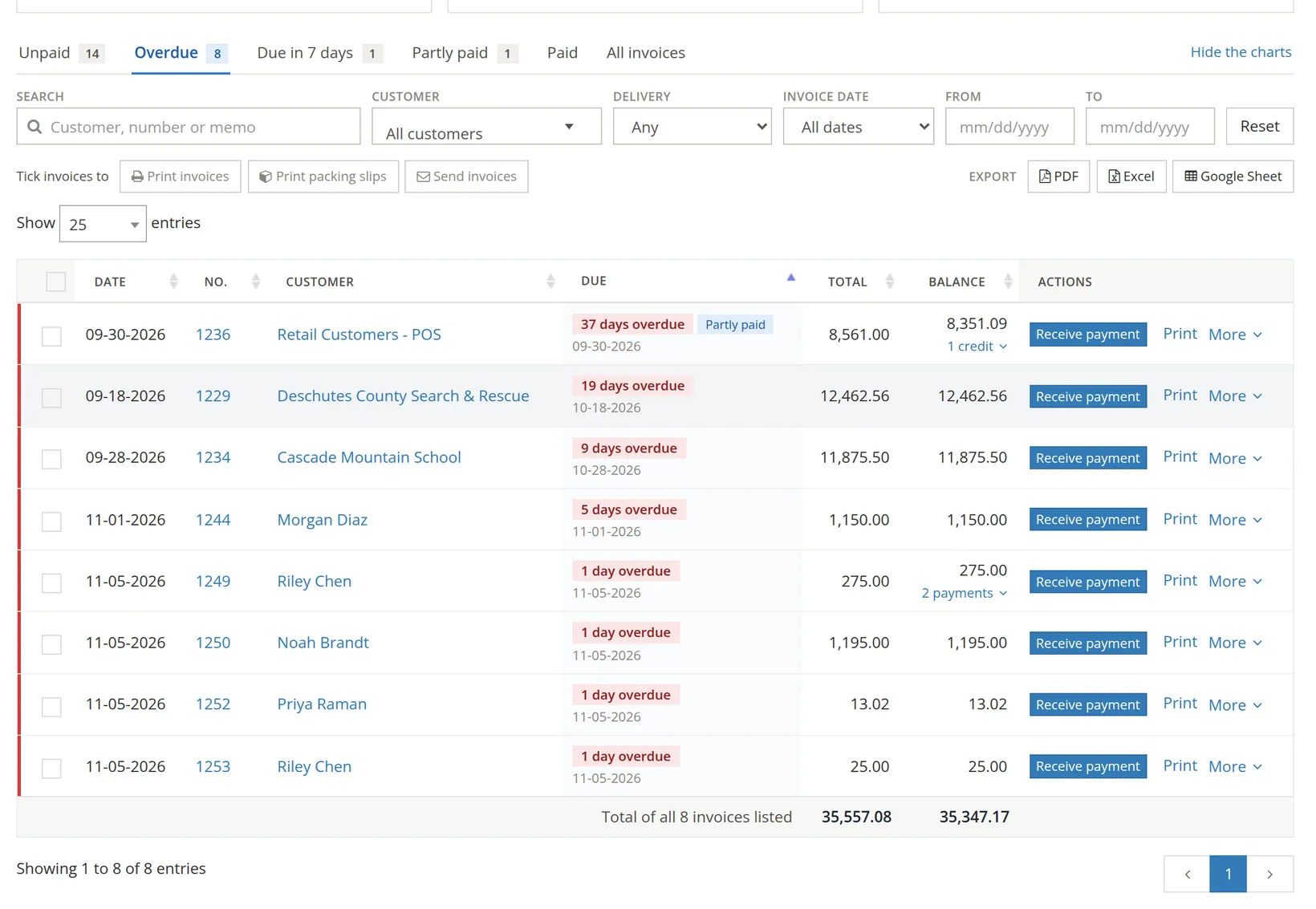
- 1
Pick a tab 1
Tabs are ready-made views, each with a count: Unpaid 14, Overdue 8, Due in 7 days 1. The figure shows the Overdue tab picked. The last tab, here All invoices, removes the view. Hide the charts 2 folds the summary away to give the list more room.
- 2
Search and filter 3 4 5
The search box matches names, numbers and memos as you type. The boxes beside it narrow by customer, delivery, a date range or your own From and To dates. Reset 6 clears every filter at once.
- 3
Sort and page
Click a column heading to sort by it, and again to reverse. The small arrow shows which column is sorted. Show 25 entries 9 sets how many rows fit on a page; the page numbers 12 move between pages.
- 4
Act on one row 11
The Actions column holds the next step for that row, such as Receive payment or Print, and More holds the rest. Click the number or name to open the record.
- 5
Act on many rows 10 7
Tick rows on the left, or the box in the heading to tick every row on the page. The batch buttons 7 wake up and the toolbar counts what you ticked. Clear unticks them all.
- 6
Export 8
PDF, Excel or Google Sheet export the list as it is filtered: what you see is what you get.5

Your accountant asks for "all invoices to Cascade Mountain School this year". Choose the customer, set the dates, check the count on screen, then click Excel. Exporting everything and filtering in a spreadsheet throws away the checking BizBooks360 already did.
On a phone
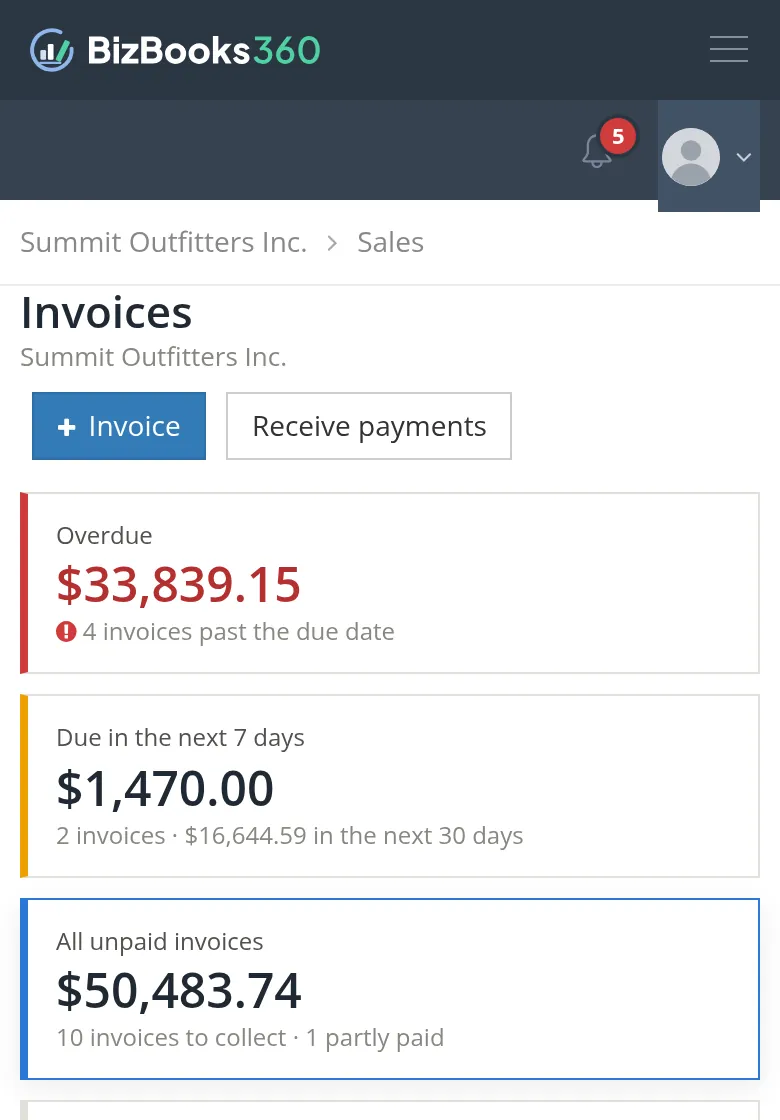
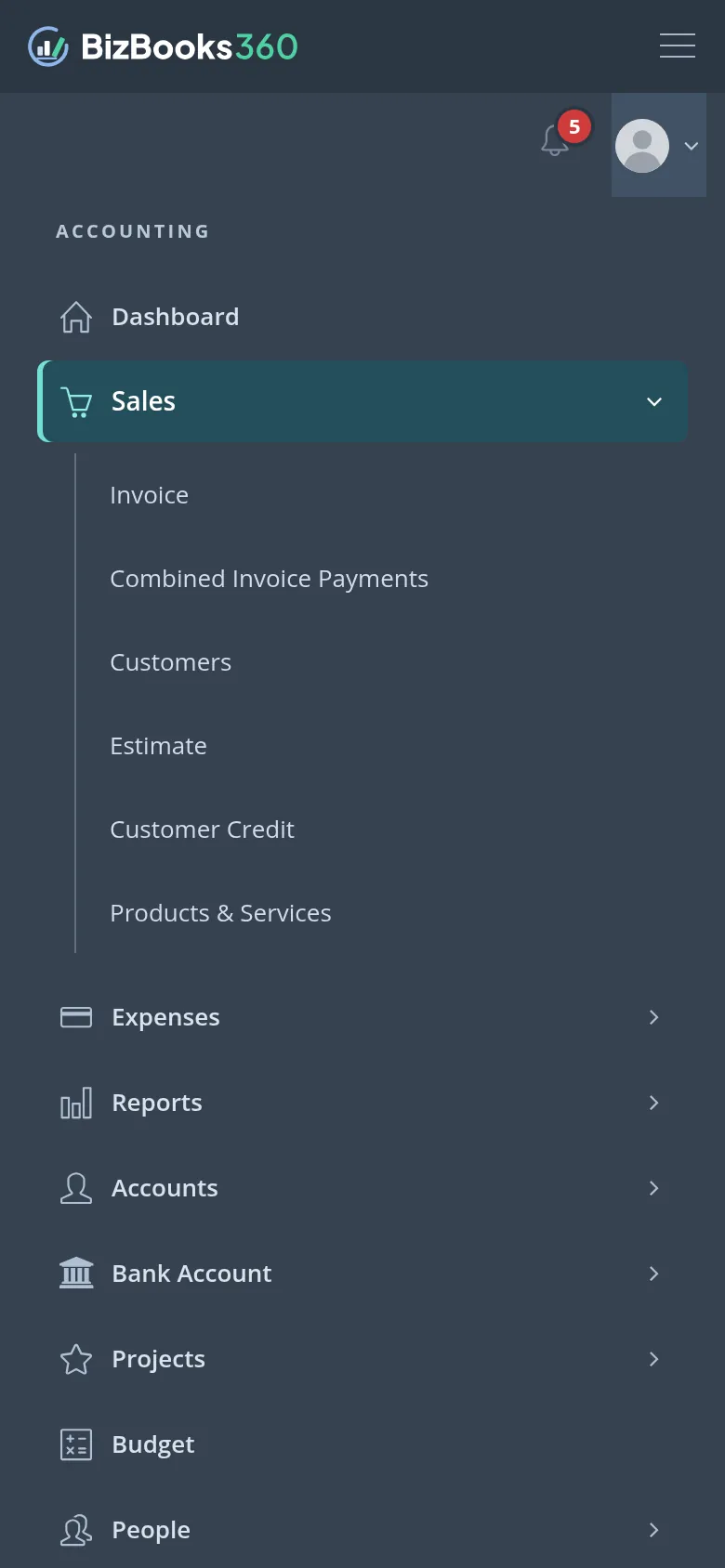
BizBooks360 rearranges itself on a narrow screen. The left menu hides behind the menu button 1 at the top right; the bell and your name sit just below 2. Cards and lists stack into one column.
Where things live: a map of the menu
The table lists every top-level entry of the left menu, in the order the menu shows them, and what folds out under each. It was taken from the sample company; your menu shows only the areas your company uses and your permissions allow.
| Menu entry | What folds out under it | Volume |
|---|---|---|
| Dashboard | A single page: the state of the business at a glance | 1 |
| Sales | Invoice, Combined Invoice Payments, Customers, Estimate, Customer Credit, Products & Services | 2 |
| Expenses | Expenses (bills, expenses and checks), Combined Bill Payments, Vendors | 3 |
| Reports | Find a report, All reports, twelve report groups (two with sub-groups); see the table in Section 2 | 6 |
| Accounts | Search, Journal Entry, Journal Entries, Chart of Accounts | 5 |
| Bank Account | Bank Account (registers, statements, reconciling), Check Register, Deposit Slips, Transfer Funds | 4 |
| Projects | Projects, Projects Summary, Project Status Report, Project Transactions, Project Funding and Billing Summary, Project setup | 7 |
| Budget | A single page: plans to compare against actual results | 8 |
| People | All Contacts, Vendors, Customers, Employees, Timekeeping people, Merge contacts | 9 |
| Timekeeping, Payroll | Their own entries, placed here, when the company uses the module and your permissions include it6 | 12, 11 |
| Property Management | Find a page, Today, Tasks, then the groups Money (6), Maintenance (3), Leasing (5), Properties and people (5), Month-end (5), Communication (3), and Settings | 13 |
| Fixed assets | A single page: equipment and vehicles, and their depreciation | 10 |
| Settings | Find a setting, Overview, the groups Company (5), Accounting (4), Closing and books (2), Users and plan (2), Your account (2), then under Modules: Projects (7), Timekeeping (6), Property Management (14) | 15 |
| Tools | Rules, Recurring Transactions, Attachment Manager, Merge Duplicate Entries, Backup & Restore | 14 |
Inside Property Management
The six groups follow the work of a property office, and each has its chapter in Volume 13:
| Group | Pages | Chapter |
|---|---|---|
| loose rows | Today, Tasks | 13.10 |
| Money | Rent roll, Outstanding balances, Late fees, Collections, Deposits, Approvals | 13.4 to 13.6, 13.8 |
| Maintenance | Work orders, Inspections, Vendors | 13.8, 13.9 |
| Leasing | Listings, Prospects, Applicants, Draft leases, Renewals | 13.3, 13.4, 13.7 |
| Properties and people | Properties, Units, Tenants, Owners, Property groups | 13.1, 13.11 |
| Month-end | Management fees, Trust reconciliation, Owner statements, Month-end close, Report packs | 13.12, 13.18 |
| Communication | Announcements, Documents, Portal access | 13.13 |
The property management reports live under Reports, not here (Chapters 13.14 to 13.18).
Check your understanding
1. You need the setting for sales tax rates but do not know which group it is in. What is the quickest way?
Answer
Open Settings and type tax in Find a setting, then click Sales tax.
2. Where on every page can you check which company you are working in?
Answer
In the breadcrumb at the top, and under the page title.
3. You dismissed "4 overdue invoices" from the bell. A week later it is back. Why?
Answer
Something changed, such as another invoice becoming overdue. A dismissed line returns when its situation changes.
4. You filter the invoice list to one customer and click Excel. What is in the file?
Answer
Only that customer's invoices, as filtered on screen.
5. A colleague says Payroll is missing from their menu but you can see it in yours. Name two possible reasons.
Answer
They may be in a different company where payroll is not switched on, or their permissions may not include payroll.
6. Typing aged in Find a report lists Outstanding Balances, whose name has no word starting with aged. Where does it live in the menu, and why did it match?
Answer
Reports → Property management → Tenant charges and payments, as its grey group line says. It matched because the box also searches each report's one-line description, and that description says each balance is aged by due date: the typed word starts a word there.
Notes
- Notes give background, exceptions and the reasons behind a rule. You can follow every procedure without them. ↑
- Which areas a company uses is set by its owner. What each person may open within those areas is set in Settings → Users and permissions (Chapter 15.7). A person with no permissions in a company can look but not change anything. ↑
- The find box searches each page's name, its one-line description, a short list of related words kept with it, and its group. A page is listed only when every word you type begins a word somewhere in that text. ↑
- The bell reads its lines when a page loads and again when you open it, if what it has is more than half a minute old. It never checks on a timer in the background. ↑
- Exports respect the tab, search and filters. To send only certain rows, filter down to them first. ↑
- The practice user's menu in the sample company does not include the Timekeeping or Payroll entries, although the Timekeeping and Payroll report groups appear under Reports. Which entries a person sees depends on the modules the company uses and on that person's permissions. A company may also hide an entry under Settings → Menus and words. ↑