
Chapter 1.1
Signing In and Choosing a Company
How to get into BizBooks360 safely, open the right set of books, move between companies, and get back in when you have forgotten your password.
When you finish this chapter you will be able to:
- Sign in, and decide when to tick Remember me.
- Respond to the two-step verification recommendation, and open books whose owner requires two-step sign-in.
- Choose a company, find one quickly, switch to another without signing out, and read the Access ended notice.
- Recover a forgotten password or username on your own.
- Sign out properly on a shared computer.
Contents
- 1Before you begin
- 2The path from sign-in to your books
- AProcedure A: sign in
- BProcedure B: the two-step recommendation
- CProcedure C: choose a company
- DProcedure D: switch company or sign out
- EProcedure E: when you forget
- 3New to BizBooks360: creating an account
- 4Common problems and how to fix them
- 5Check your understanding
- 6Quick reference card
- §Notes
Before you begin
BizBooks360 runs in your web browser. There is nothing to install. You need three things:
- The address of your BizBooks360 site, saved as a bookmark.
- Your username, which you chose when you created your account or accepted an invitation. It is not always your e-mail address.
- Your password. At least 10 characters, with an uppercase letter, a lowercase letter, a number and a symbol.2
Type the address once and bookmark it. Then use the bookmark every time. A message that says "your books are locked, sign in here" and carries its own link is the oldest trick in the book. Your bookmark cannot be faked.
The path from sign-in to your books
Signing in proves who you are. Choosing a company decides which books you are working in. These are two separate steps. Your one sign-in may open the books of several businesses: your own, a client's, a second company you run. Every page you see after that shows the books you chose until you switch.
Sign in
- 1
Open your bookmark
The sign-in page says Welcome back.
- 2
Type your username 1
Usernames are not case-sensitive, but they must be spelled exactly.
- 3
Type your password 2
The password shows as dots. Click Show 3 to see what you typed, which helps when a key sticks or Caps Lock is on. Click Hide afterwards.
- 4
Decide about Remember me 4
Tick it only on a computer that is yours alone. It keeps you signed in on this browser for three days, and each visit renews the three days.3 Leave it clear on a shared or public computer.
- 5
Click Sign in 6
If two-step verification is on for your sign-in, the next page asks for a six-digit code. Type the code from your authenticator app, or the one sent to your e-mail. You have ten minutes to enter it.4
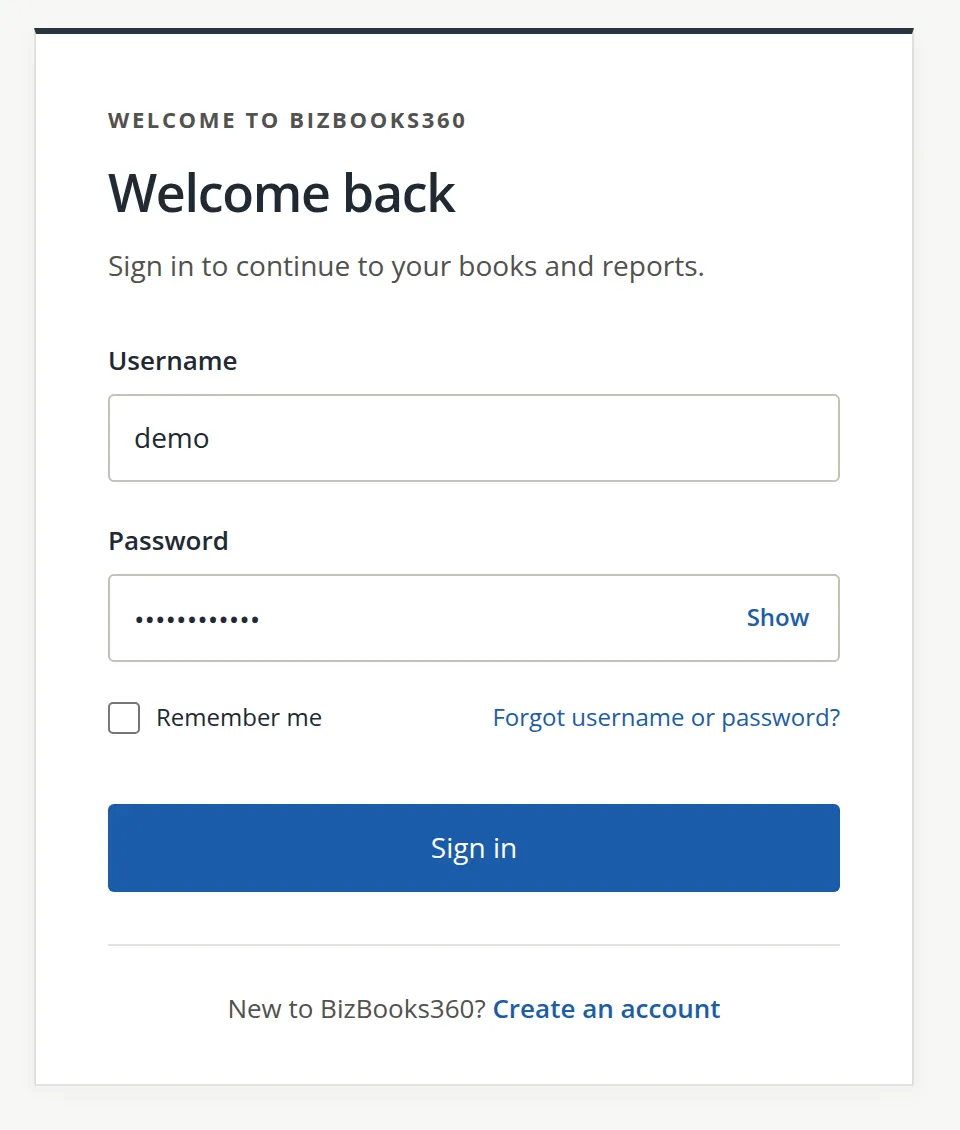
After four wrong passwords in a row, BizBooks360 locks that username for 15 minutes, even if the next try is right.5 If you are not sure of your password after two tries, stop and use Forgot username or password? instead of guessing.
The two-step recommendation
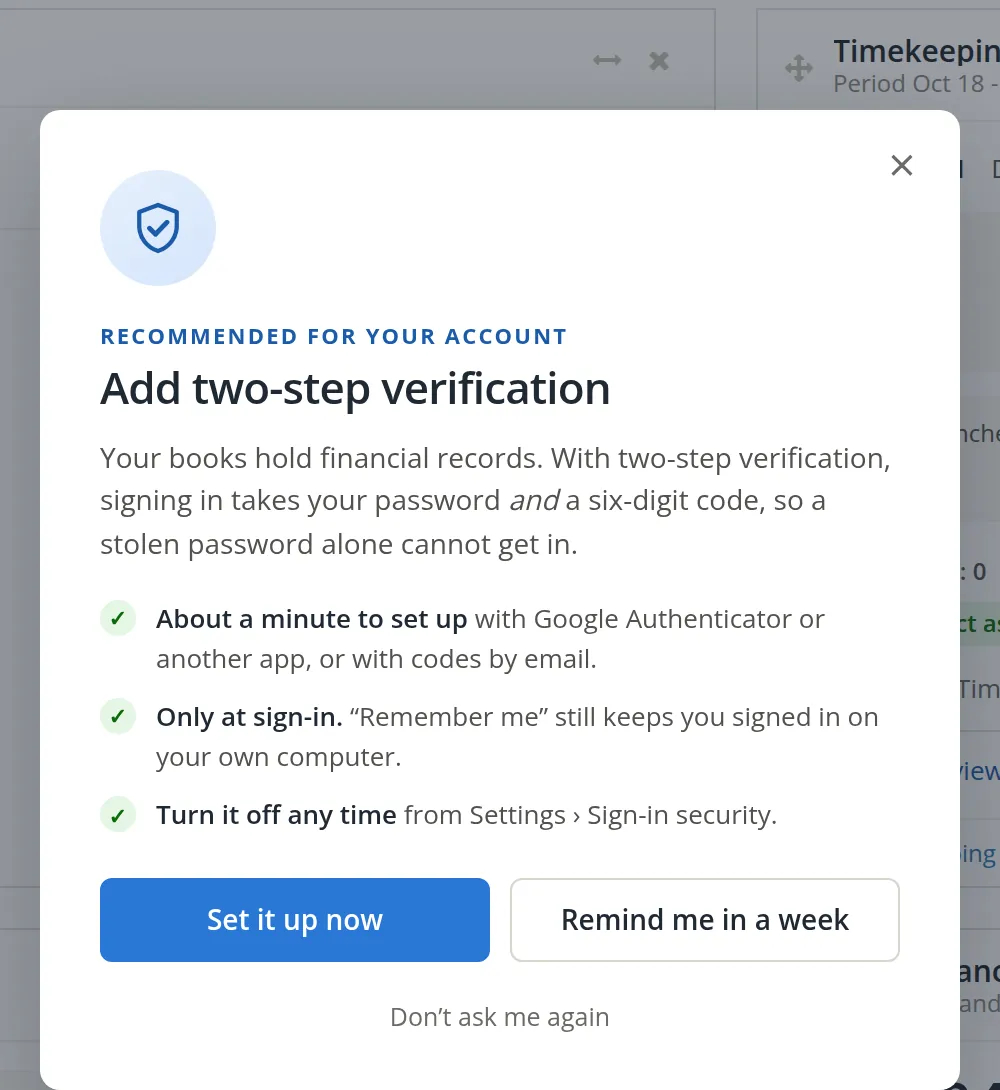
Until you turn on two-step verification, BizBooks360 shows this recommendation after you sign in. Your books hold bank details and payroll figures, so it is worth the minute it takes.
- 1
To turn it on now, click Set it up now 1
You will scan a code with an authenticator app such as Google Authenticator, or choose codes by e-mail. The full procedure is in Chapter 15.9, Your profile and sign-in security.
- 2
To be reminded later, click Remind me in a week 2
The recommendation goes away and comes back in seven days.
- 3
To stop the reminders, click Don't ask me again 3
You can still turn two-step verification on at any time from Settings → Sign-in security.
Two-step verification asks for a code only when you sign in. It does not ask on every page. On your own computer, two-step verification plus Remember me costs you one code every few days.
When the books require two-step sign-in
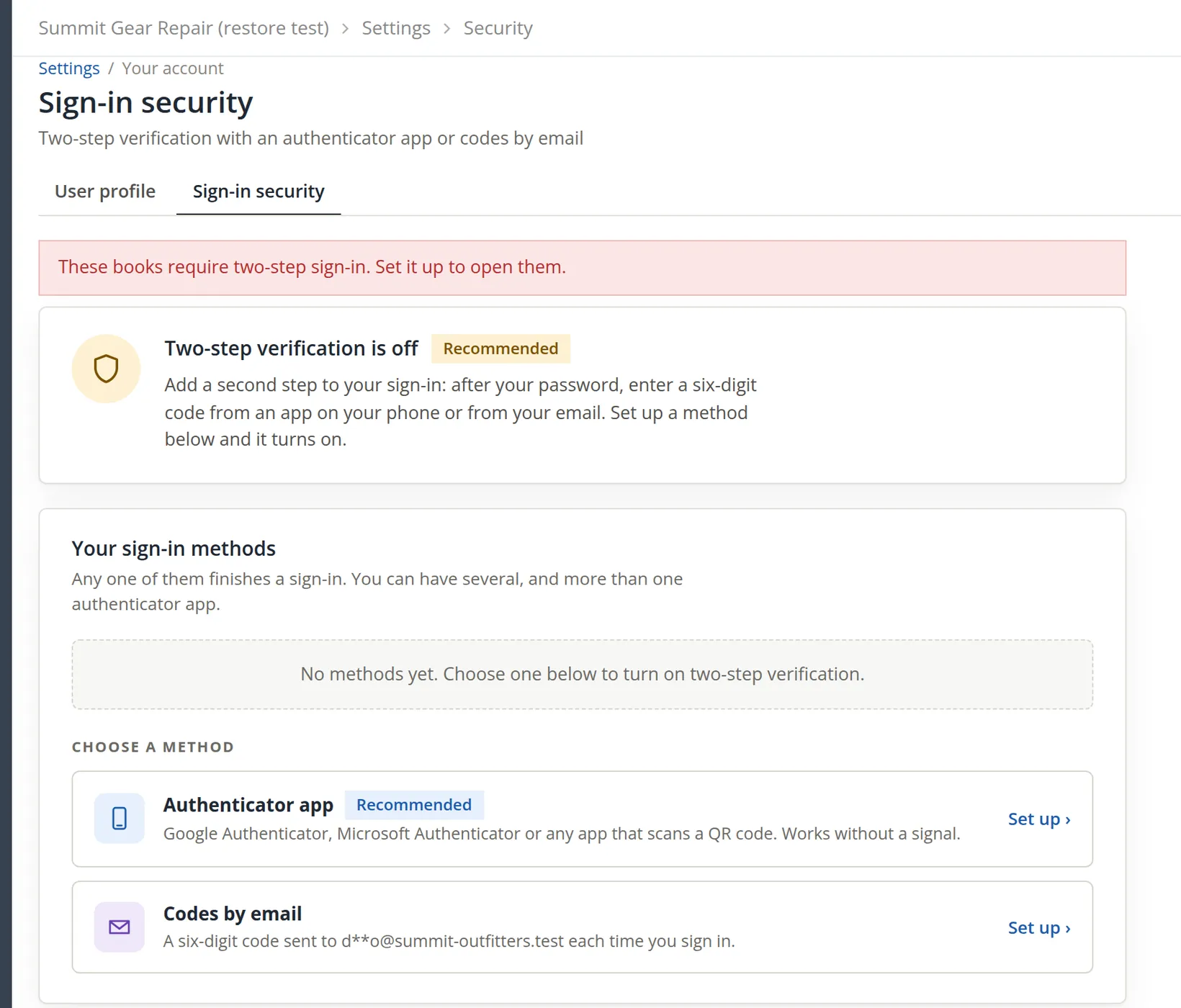
For some books two-step verification is not a recommendation but a rule. The owner can require it for everyone with access to the books, and it is always required while the books' government contract controls are on.6 If you open such books without two-step verification, BizBooks360 does not show the Dashboard. It opens Settings → Sign-in security instead, with a red message.
- 1
Read the message 2
Until two-step verification is on, every other page of these books brings you back here. The company list (Switch Company), the bell and Log Out still work, so you can open other books meanwhile.
- 2
Set up a method 3
Click Set up beside Authenticator app or Codes by email and follow the steps in Chapter 15.9. When a method is set up, two-step verification is on and the books open normally.
Choose a company
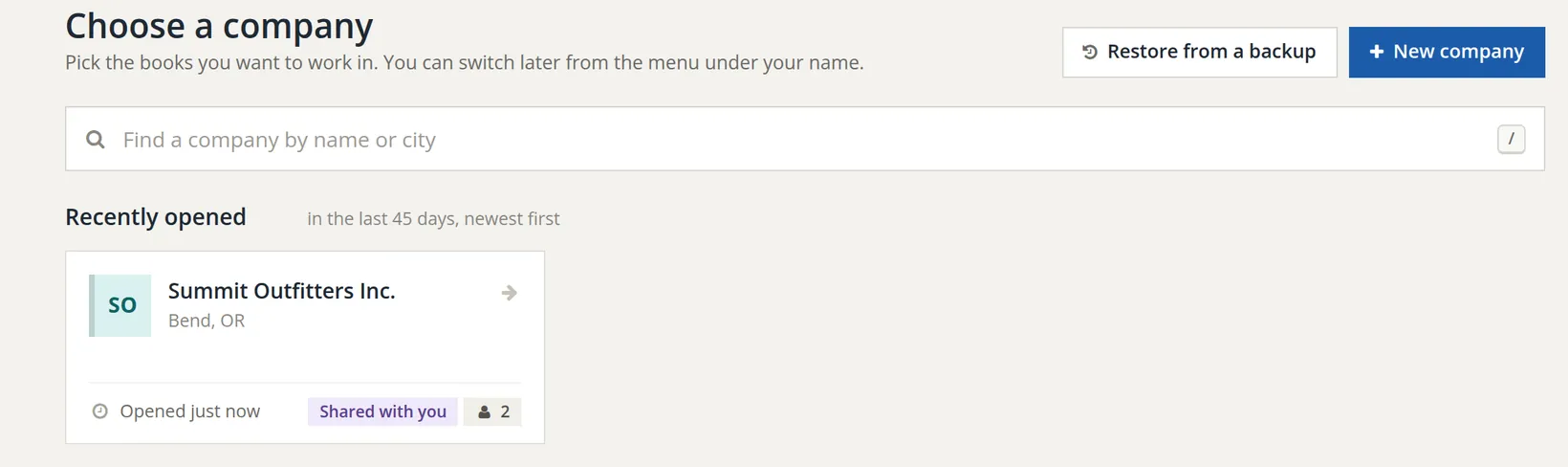
After sign-in you see Choose a company. Each card is one set of books, showing the company name, its city, when you last opened it, and whether it is yours or Shared with you.8
- 1
Find the company
Recently opened companies come first, newest at the top. If you have many, type part of the name or the city in the search box A. The list narrows as you type.
- 2
Click its card D
BizBooks360 opens that company's Dashboard. The company's name now appears at the top of every page, so you always know whose books you are in. If the books require two-step sign-in and yours is off, you land on Sign-in security instead (Procedure B).
The "Access ended" notice
An owner can give someone access until a set day, as is usual for an outside auditor. When that day passes, the books leave your list of cards. For 90 days afterwards the company list shows a section headed Access ended, with a count, and one line for each such company: "Your access to (the books) ended on (the date)." and "Ask the owner to extend it." There is no card to click. Only the owner can give the access back, by choosing a later end day.9
On the company list, press / to jump to the search box, type a few letters, and press Enter to open the highlighted company.
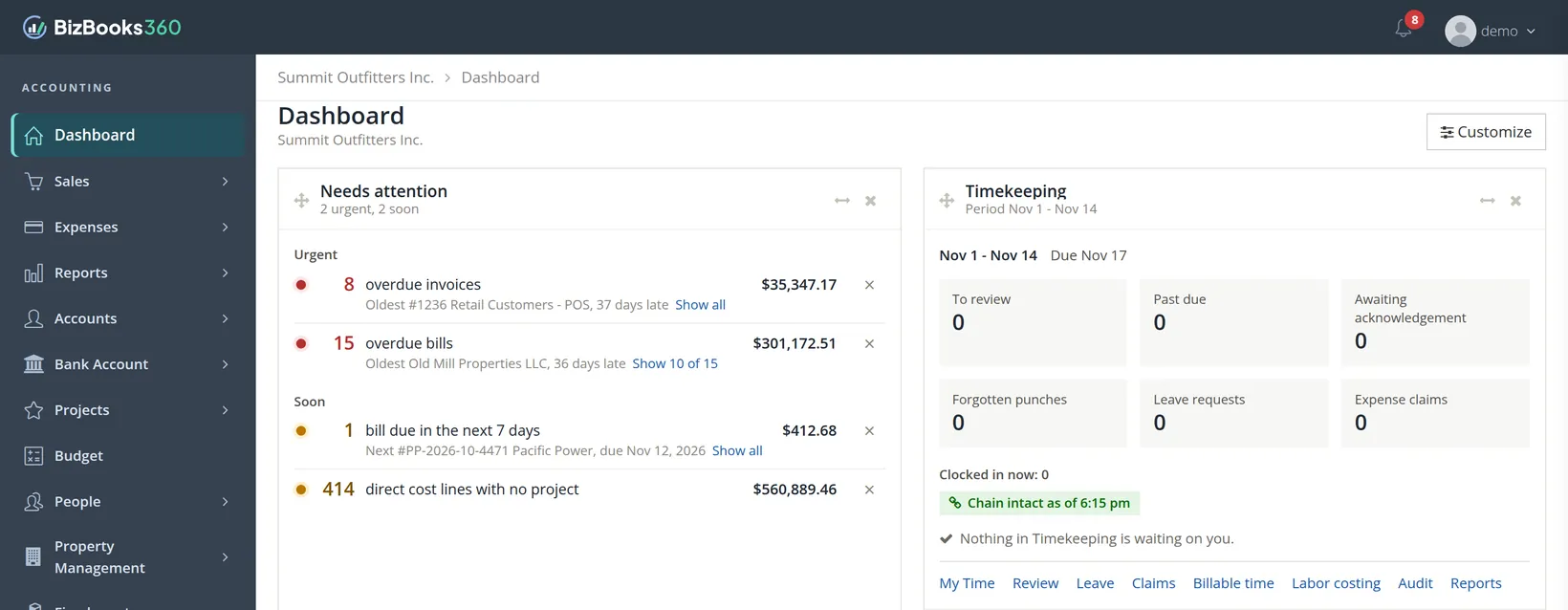
Switch company or sign out
Everything about you, as opposed to the books, lives in the menu under your name at the top right of every page.
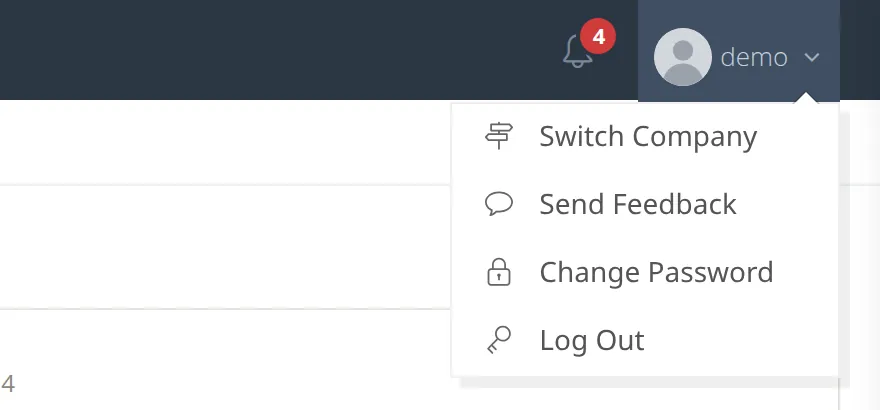
- 1
To change company, choose Switch Company 2
You return to the company list (Procedure C) and stay signed in. Anything unsaved on the page you leave is lost, so save first.
- 2
To report a problem, choose Send Feedback 3
A short form goes to the BizBooks360 team. Say which page you were on and what you expected.
- 3
To change your password, choose Change Password 4
You type the current password once and the new one twice. You stay signed in on this computer afterwards.
- 4
To finish, choose Log Out 5
You return to the sign-in page. Logging out also ends Remember me on this browser.
Closing the browser tab leaves the session alive, and with Remember me it stays alive for days. On any computer that is not yours, always use Log Out.
When you forget your password or username
You can recover both on your own, without calling anyone. Click Forgot username or password? on the sign-in page.
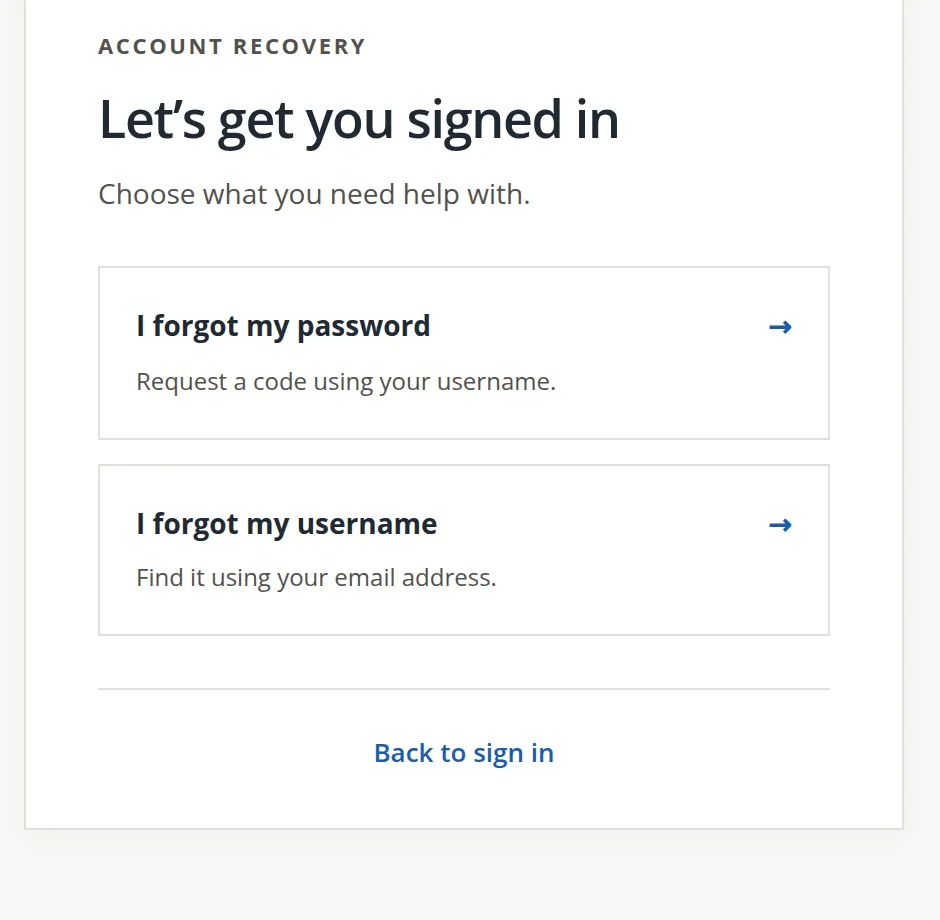
Forgotten password
- 1
Click I forgot my password A
- 2
Type your username and click Send reset code
BizBooks360 e-mails a code to the address on your account.
- 3
Enter the code, then a new password twice
Use the code promptly. An old code, or one already used, is refused with the message "The code or recovery link is invalid or expired." Request a new one if that happens.
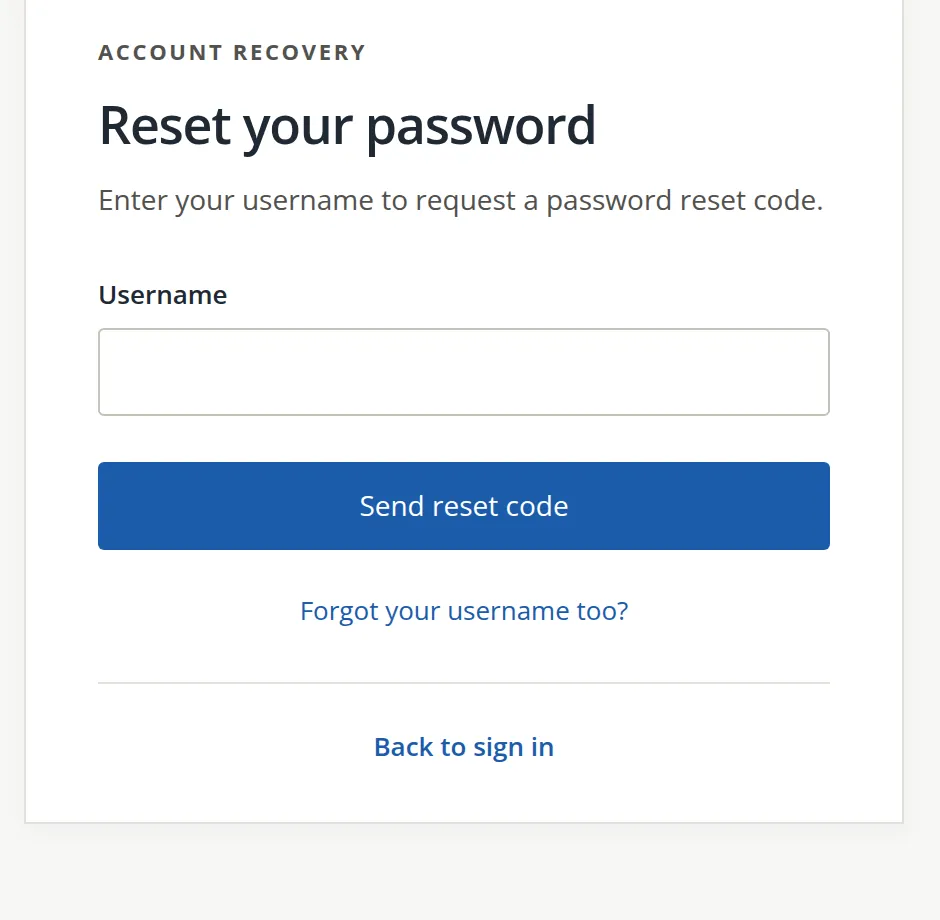
Forgotten username
Click I forgot my username B and type the e-mail address on your account. Your username is sent to that address.
- Wait two minutes, then look in the spam or junk folder.
- Make sure you used the address on this account. Many people have a work and a personal address.
- If you were invited by someone else, ask them which address they used.
New to BizBooks360: creating an account
There are two ways to get a sign-in.
| Your situation | What to do |
|---|---|
| Someone invited you to their books | Open the invitation e-mail and follow its link. Use it within 8 hours or ask them to send another.11 You create your username and password there, and the company appears in your list as Shared with you. |
| You are starting your own books | Click Create an account on the sign-in page and follow the three stages below. |
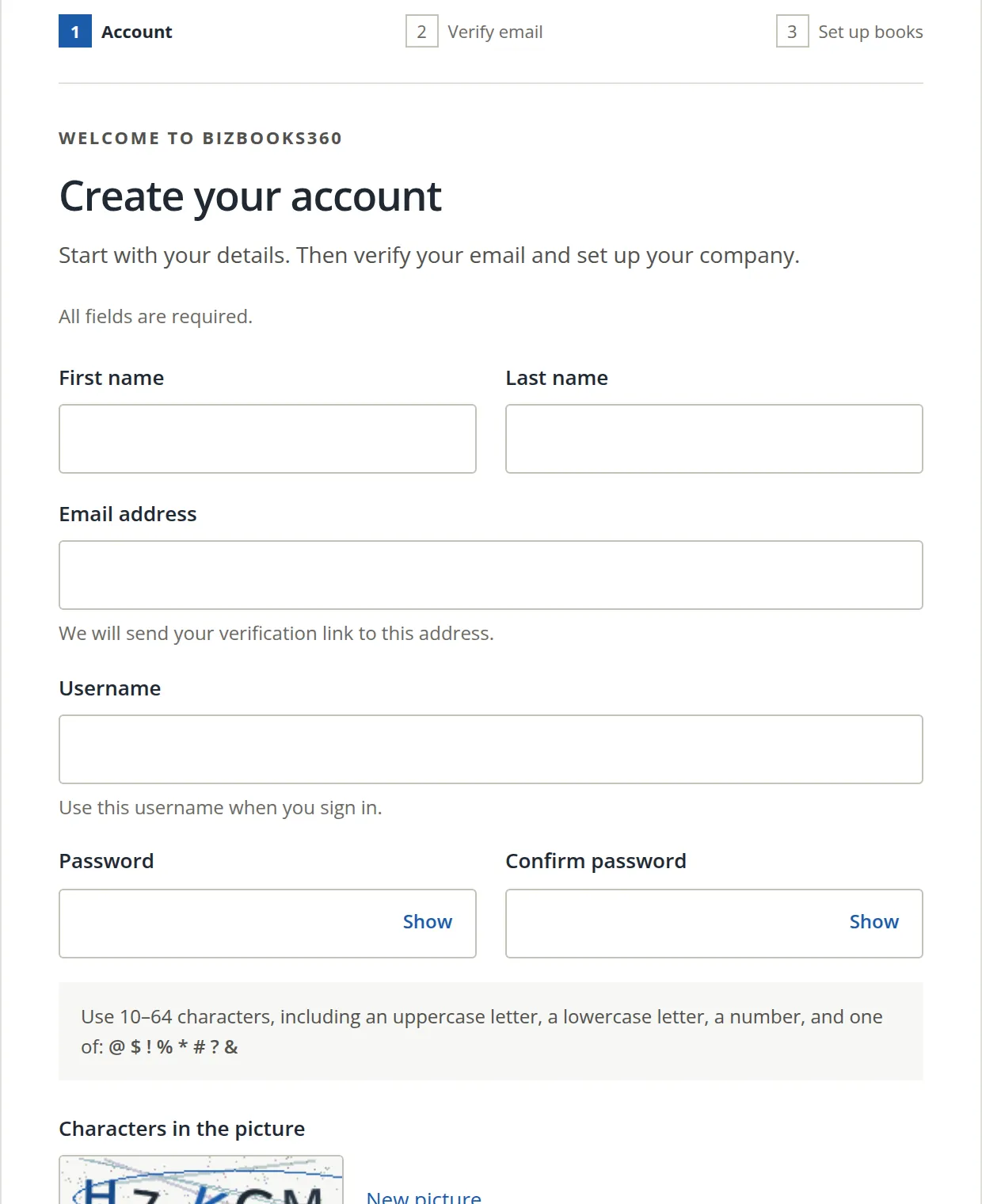
- 1
Account
Fill in your name, e-mail address, a username and a password twice, then type the characters from the picture. The picture check keeps automated sign-ups out.
- 2
Verify e-mail
BizBooks360 sends a link to the address you gave. Click it to prove the address is yours.
- 3
Set up books
Name your company and answer a few questions about it. Chapter 1.2 walks through this page.
Common problems and how to fix them
| What you see | Likely cause | What to do |
|---|---|---|
| "Please enter valid username" or a red message after Sign in | A typo, Caps Lock, or the wrong account | Click Show to check the password. Try once more, then use recovery. |
| "Your account has been locked" | Too many wrong passwords | Wait 15 minutes. Use Forgot username or password? meanwhile. |
| "That code is not right, or it has expired" | An old two-step code, or the phone clock is off | Use the newest code. Set the phone's time to automatic. |
| "Your sign-in timed out" | More than 10 minutes passed on the code page | Sign in again from the start. |
| A company you expect is missing from the list | Access was never given, was removed, or reached its end day | If it is listed under Access ended, ask the owner to extend it. Otherwise ask the owner to invite you (Chapter 15.7). |
| "These books require two-step sign-in. Set it up to open them." | The owner requires two-step verification for these books, and yours is off | Set up a method on that page (Procedure B, Chapter 15.9). Your other books stay open meanwhile. |
| You keep being asked to sign in | The browser is blocking or clearing cookies | Allow cookies for the BizBooks360 address. |
Check your understanding
1. You run two businesses and also keep your sister's books. How many sign-ins do you need?
Answer
One. A single sign-in can open any number of companies. You pick which one on the company list and switch with Switch Company.
2. You are at a library computer. Should you tick Remember me?
Answer
No. Leave it clear, and finish with Log Out. Closing the tab is not enough.
3. You typed your password wrong twice and are unsure of it. What is the best next move?
Answer
Stop guessing and use Forgot username or password?. Two more wrong tries make four, which locks the username for 15 minutes.
4. Can support tell you your old password?
Answer
No. Passwords are stored so that no one can read them back. You reset it with a code sent to your e-mail.
5. What does two-step verification protect against that a strong password does not?
Answer
A password that has leaked or been stolen. Without the six-digit code from your phone or e-mail, the stolen password alone cannot get in.
6. You click a client's company card and land on Sign-in security with a red message instead of the Dashboard. What happened, and what do you do?
Answer
The client's books require two-step sign-in and yours is off. Set up an authenticator app or codes by e-mail on that page; once a method is on, the books open normally.
Quick reference card
Sign in
- Open your bookmark.
- Username, then password.
- Remember me only on your own computer.
- Sign in, then the code if asked.
- Click the company card.
Switch or leave
- Save your work.
- Click your name, top right.
- Switch Company to change books.
- Log Out to finish.
Forgot something
- Forgot username or password?
- Password: username, then the e-mailed code.
- Username: your e-mail address.
- Check spam after two minutes.
Notes
- Notes give background, exceptions and the reasons behind a rule. You can follow every procedure without them. ↑
- The full rule shown on the sign-up page: 10 to 64 characters, including an uppercase letter, a lowercase letter, a number, and one of
@ $ ! % * # ? &. A short sentence you can remember, such asTents-sleep-4!with a symbol from that list, is stronger than a scrambled word. ↑ - The three days slide: each time you use BizBooks360 the clock starts again. A sign-in used only by an employee to enter time, with no two-step verification, is remembered for 30 days so that time entry on a shop computer stays quick. ↑
- The code page waits ten minutes. After five wrong codes the sign-in is stopped and you wait 15 minutes before starting again. ↑
- The lock is on the username, not on your computer, so trying from another computer does not help. It opens by itself after 15 minutes. ↑
- The owner's switch is Require two-step sign-in for everyone with access to these books, under Settings → Access review. The owner must turn on two-step verification for their own sign-in before the switch can be saved, so an owner is never locked out by their own rule. ↑
- This picture comes from Summit Gear Repair (restore test), a throwaway practice copy owned by the practice user, where the rule was switched on for one picture and then switched off again. The page looks the same in any books. ↑
- The practice user in these pictures can also open several test copies of the sample company. They were hidden from the picture so the list matches what a new user sees. ↑
- The section lists books whose end day passed in the last 90 days and that you cannot reach through another invitation. The owner sets and changes end days under Settings → Users and permissions (Chapter 15.7). The practice user in these pictures has no ended access, so the section is not pictured. ↑
- Passwords are kept only as a one-way scramble, called a hash. BizBooks360 can check that what you type matches the scramble, but it cannot turn the scramble back into your password. ↑
- Invitations expire after 8 hours so that an old e-mail found later cannot be used to get into the books. ↑