
Chapter 15.7
Users and permissions
How the owner of a set of books lets other people in: inviting them, choosing a role, fine-tuning what each person may list, view, create, edit and delete, and, one day, handing the books on.
When you finish this chapter you will be able to:
- Explain the difference between the owner and a member of a set of books.
- Invite a person with a role that fits their job, and follow the invitation.
- Read the permission matrix and change it, by role or by hand.
- Remove access, or end it on a date, and know what offering ownership does.
- Invite an external auditor whose access ends on its own, and record a quarterly access review.
- Apply the principle of least privilege to a small business.
Owners, members and least privilege
Every set of books has exactly one owner, the person who created them or to whom they were handed. The owner has every permission and is the only person who manages access: inviting, changing permissions, removing people, deleting the books and handing them on. Everyone else with access is a member, who signs in with their own user name and password and can do only what their permissions allow.
A good rule for choosing those permissions is least privilege: give each person what their job needs, and no more. A bookkeeper enters bills and invoices; they do not need to close the books or change the chart of accounts. A lender reviewing the business needs to read reports; they need no rights to change anything. Least privilege is not about distrust. It limits the damage a slip, a stolen password or a misunderstanding can do, and it makes the audit trail easier to read.
| Role | What the page says it is for |
|---|---|
| Viewer | Sees everything and changes nothing. For an outside reviewer, a lender or family. |
| Bookkeeper | Day-to-day entry: contacts, sales, expenses, banking, products, projects, journal entries and reports. No settings, closing, assets or payroll. |
| Accountant | Everything a bookkeeper does, plus the accounting settings, closing the books, assets, the budget and a view of payroll. |
| Payroll | A payroll clerk: the payroll pages, and the contacts (employees) to list, view and add. |
| Employee | Keeps their own time, leave and expenses; sees nothing else. |
| Stakeholder | Sees hours and spend on the projects they are named on. |
| Auditor | Reads everything in Timekeeping, the audit history and the labor accounts; changes nothing. |
| External auditor | Reads the ledger, every report, the journal, the audit history and the attachments; no payroll detail; changes nothing. Access ends on a date you choose. |
Employee, Stakeholder and Auditor are Timekeeping roles (Volume 12). An auditor or a stakeholder never gets Create, Edit or Delete, whatever is ticked: the save refuses it. External auditor is different: it reaches the whole books, read-only, for an outside firm auditing the accounts, and it always comes with an end date.2
Invite a person
- 1
Settings → Users and plan → Users and permissions
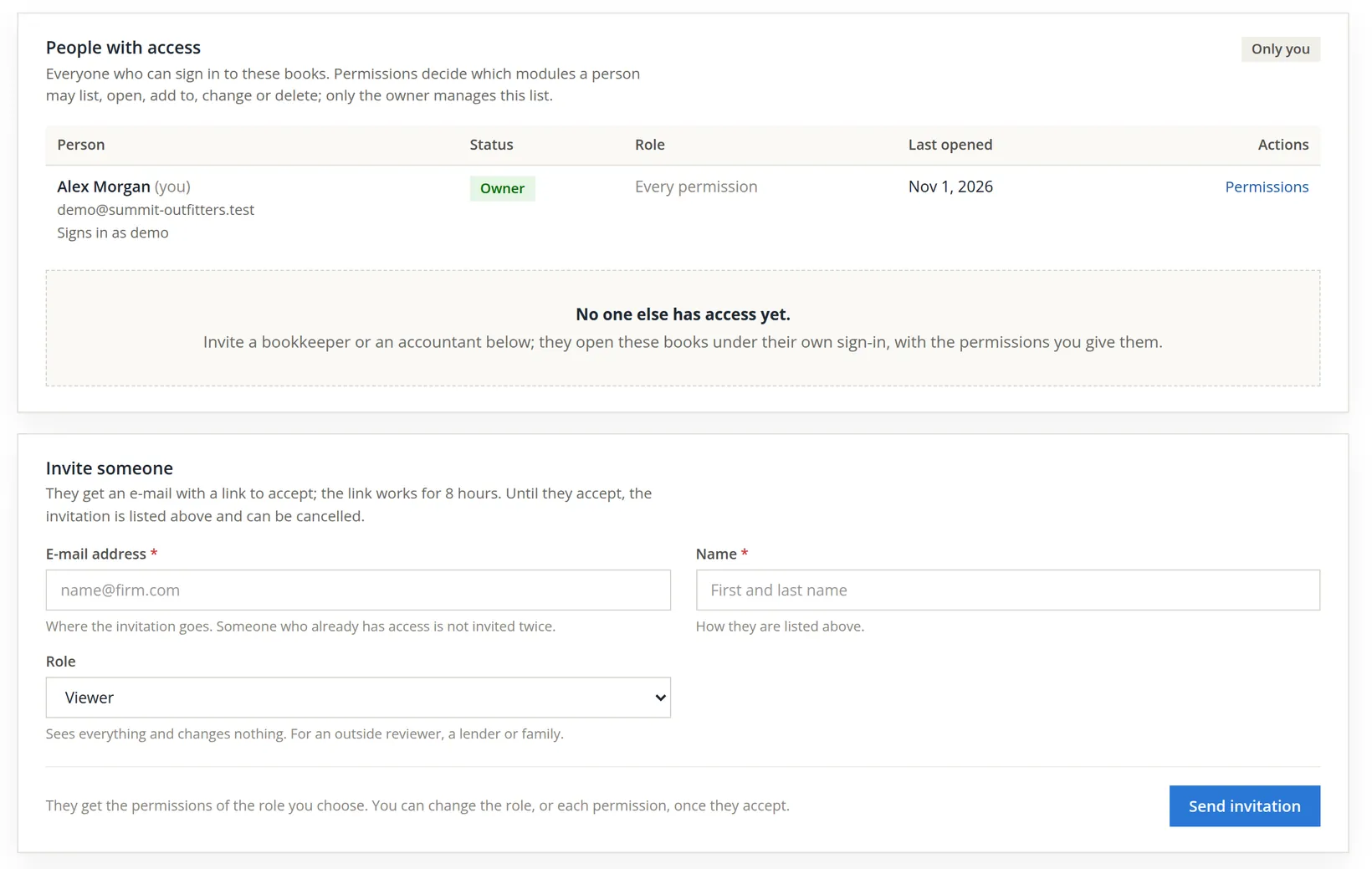
The owner sees three tabs: Users and permissions, Access review (the last procedure of this chapter) and API keys (Chapter 15.8). A member who opens this page sees only a note: Only the owner of these books manages who has access and what each person may do. Ask them to change your permissions.
- 2
Enter the person's e-mail address and name
The invitation goes to the e-mail address; the name is how they are listed. Someone who already has access is not invited twice.
An address that cannot be right
Copying from a business card, the owner typed a full stop where the @ belongs and clicked Send invitation before filling in the name.
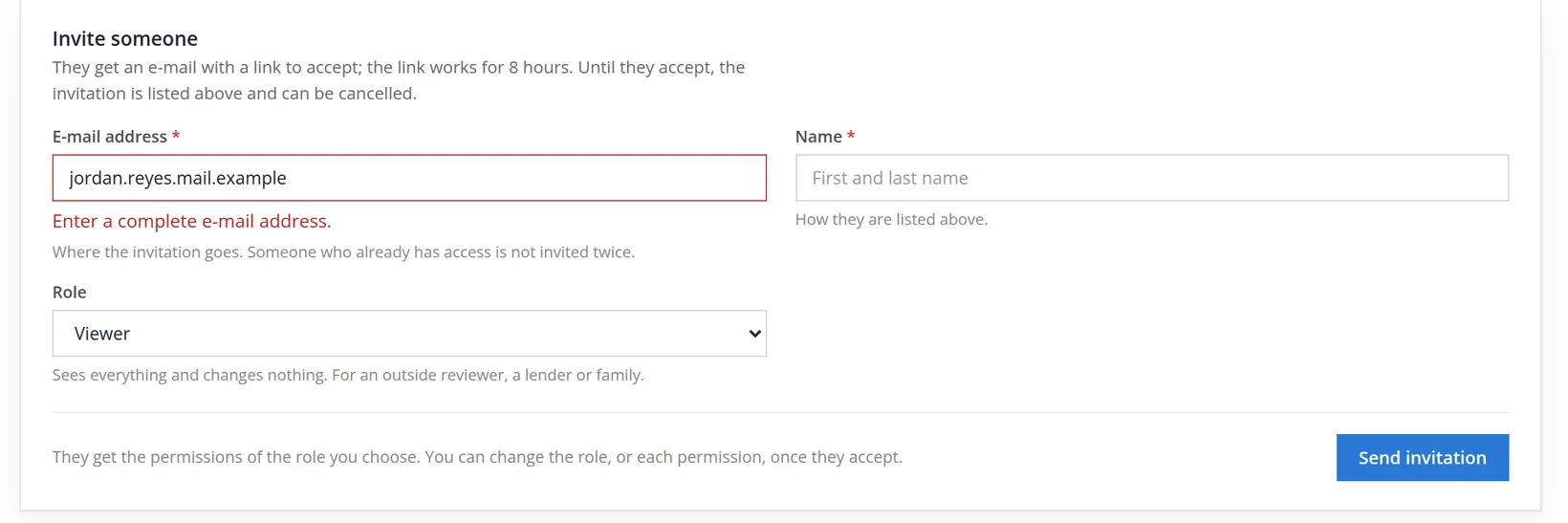
The owner corrected the address to jordan.reyes@mail.example and typed the name Jordan Reyes. They left the role on Viewer, meaning to fix it later; as you will see, that is allowed, but it is the slower road.
- 3
Choose the role, then Send invitation
The person gets the role's permissions when they accept. The help line under the list repeats what the chosen role is for. The list offers eight roles; one of them asks for one more field.
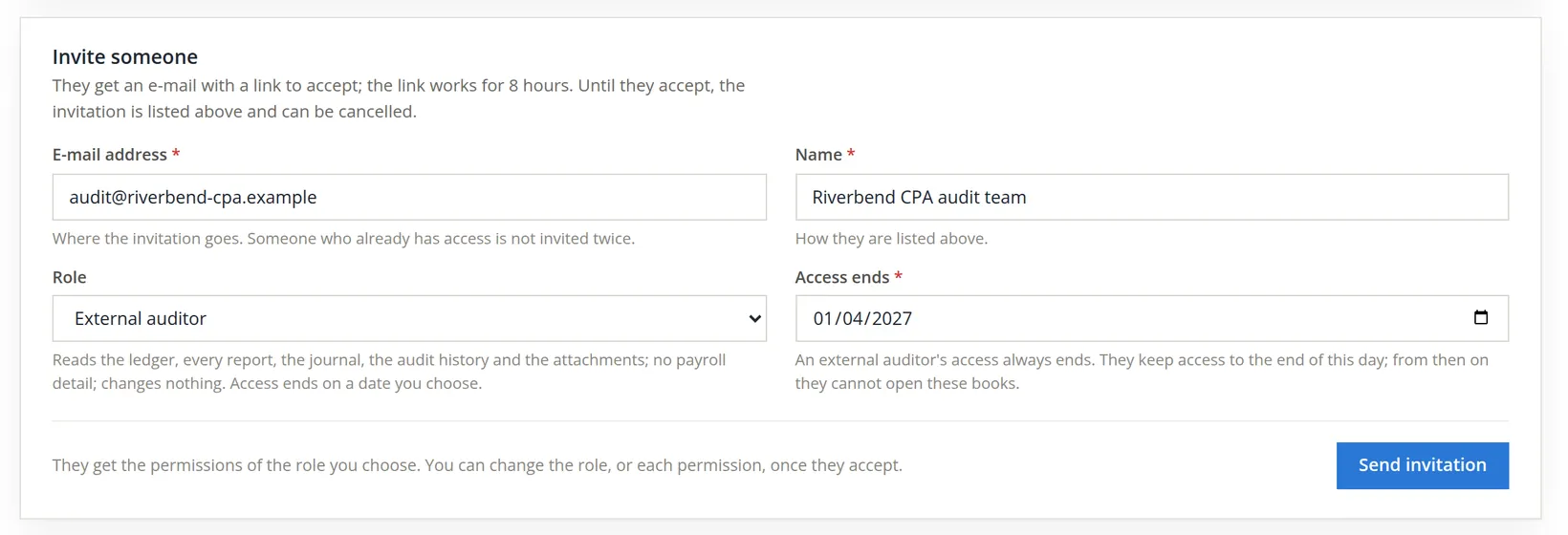
When the year-end audit comes, the owner will invite the audit firm with the role External auditor. Choosing it reveals Access ends, a date that cannot be left empty: the form offers a day 60 days ahead and refuses a day before today on the books' clock. The auditors keep access to the end of that day; from then on they cannot open these books, without anyone having to remember to remove them.
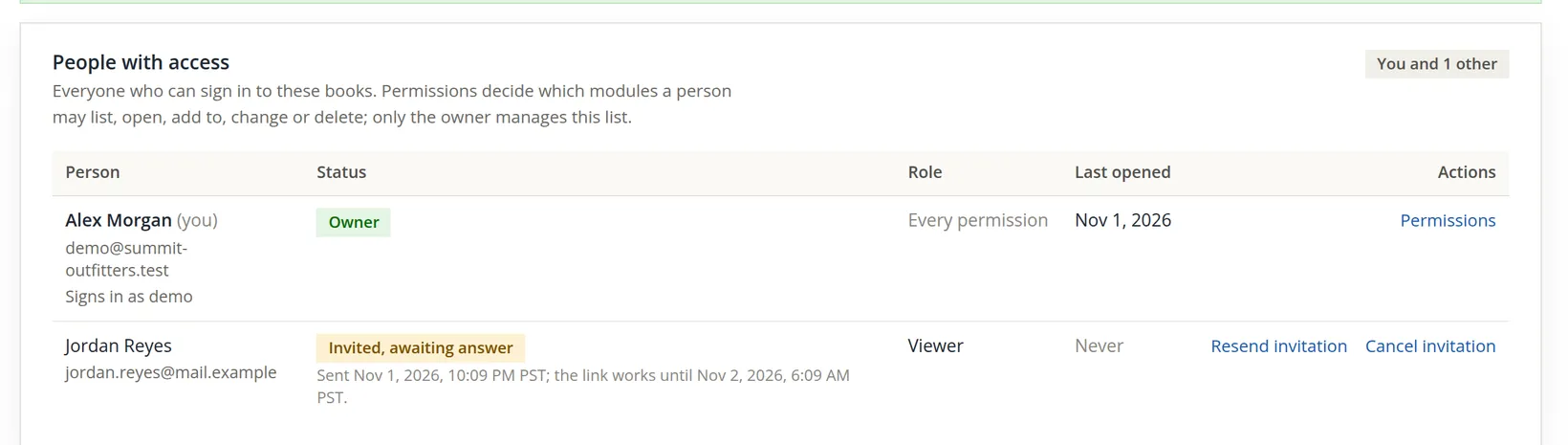
The person follows the link in the e-mail, signs in or signs up, and accepts. If they decline, the row says so and offers Remove; if eight hours pass, the row shows the link has run out and offers Resend invitation and Remove.
The link works for only eight hours. Send the invitation when the person is expecting it, and tell them to look in their spam folder if it does not arrive.
Change a member's role
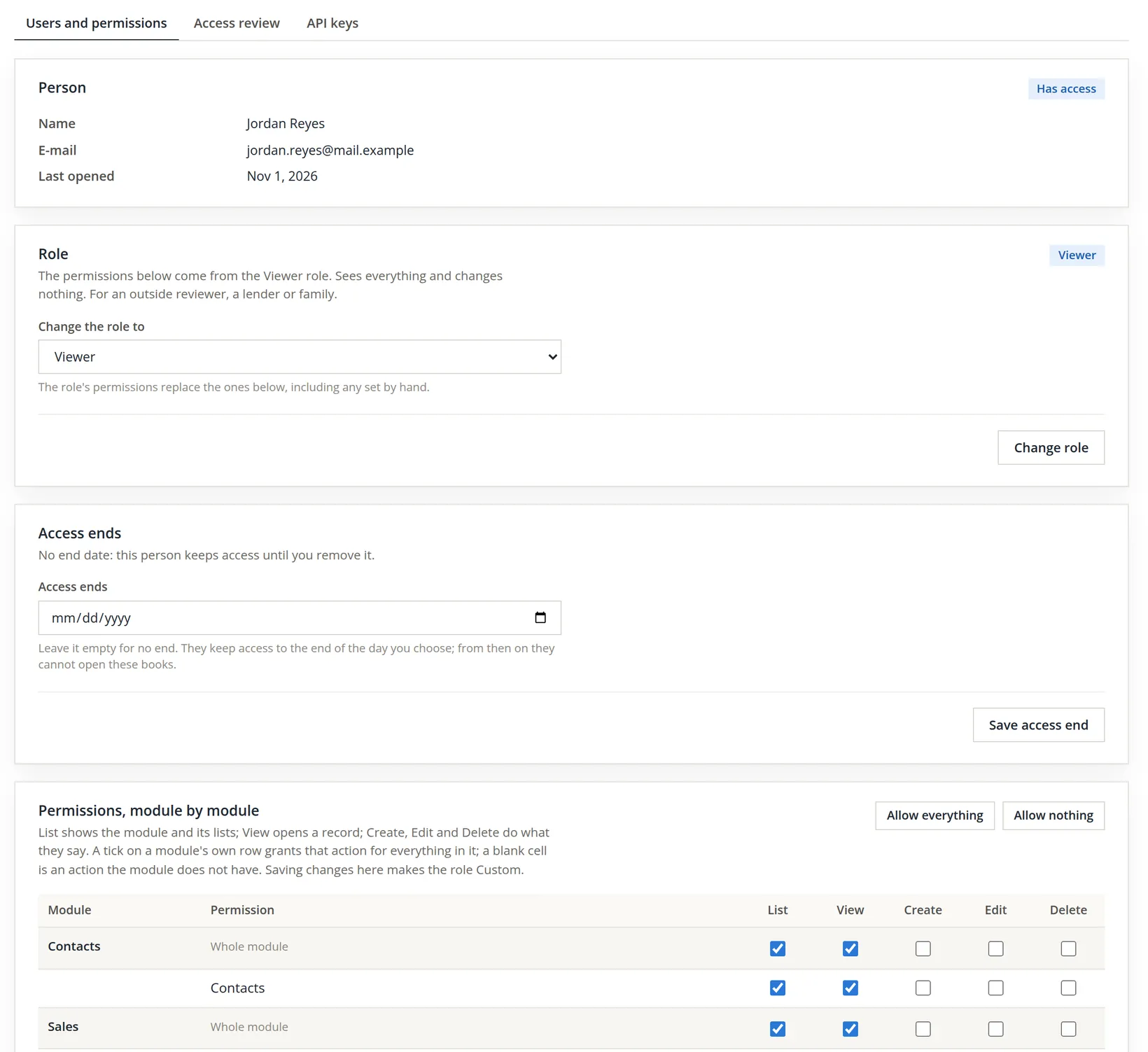
Once Jordan Reyes accepted, the row changed.

- 1
Click Permissions on the person's row
The page has four cards: the person, their role, the day their access ends, and the permissions module by module.
- 2
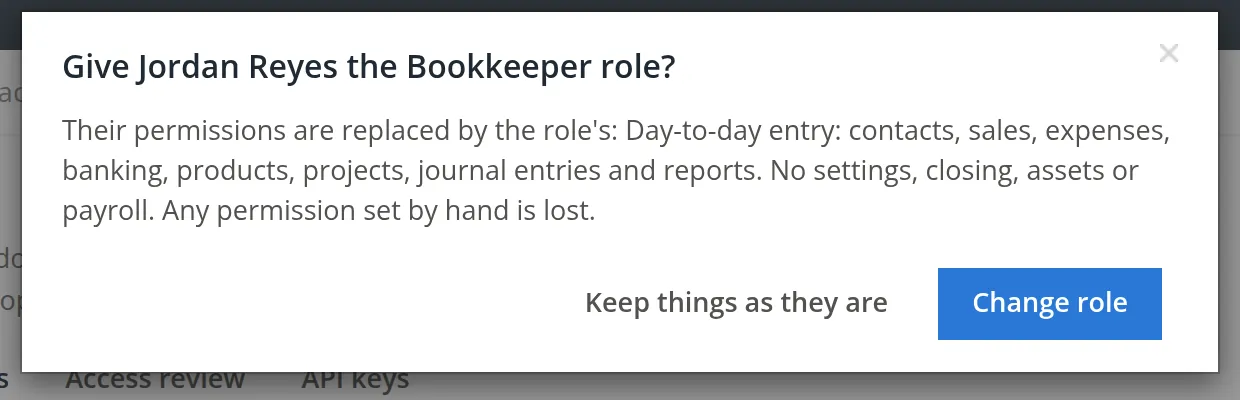
Choose Bookkeeper and click Change role
A question names the person and the role, and warns what is lost.

Fine-tune permissions by hand
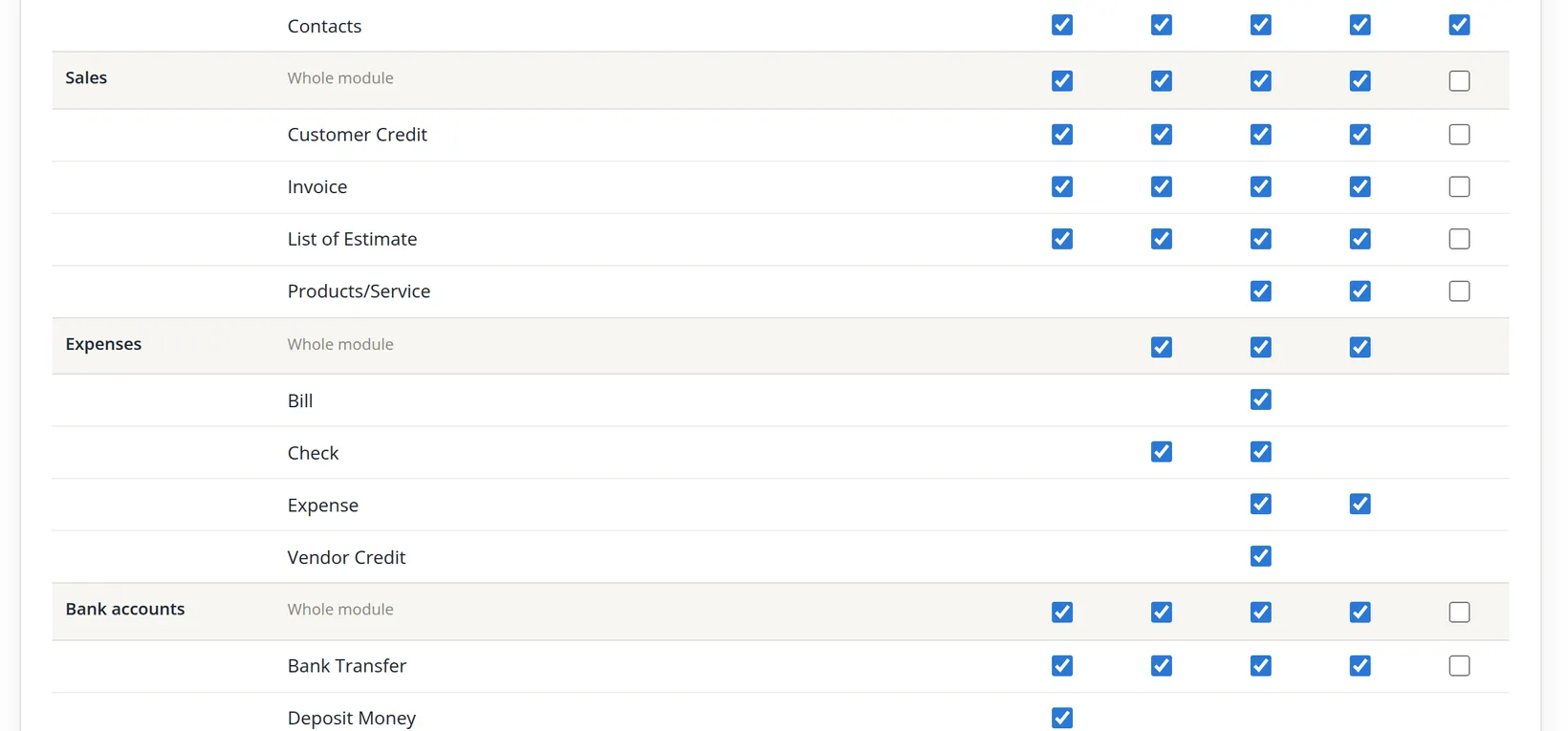
The owner wants Jordan to correct mistakes with credit notes and voids, not by deleting invoices or transfers, so that every correction leaves a trail. The Bookkeeper role allows Delete in Sales and on bank transfers. The owner takes it away.
Reading the matrix. Each module (Contacts, Sales, Expenses...) has a Whole module row and a row per permission inside it. A tick on the module's own row grants that action for everything in it; a blank cell, with no box, is an action the module does not have.
Delete is enforced by the server. An unticked Delete box does more than hide a button. The server checks the document's delete right on every route that can delete it: from the document lists in the app, or by a program calling the books directly. (The Journal page never deletes an invoice, bill or check: it sends you to the document's own page.) With Delete off on the Invoice row, Jordan cannot delete an invoice by any route; the refusal reads, for example, You do not have permission to delete this invoice. Each such delete that is allowed is written to Audit History (Chapter 6.7), so even a delete leaves a trail.3
The Expenses rows have no Delete box. Bill, Check, Expense and Vendor Credit still have a delete right, but it is not ticked on its own row: it travels with another box. For Expense it follows the Edit box, so unticking Edit also takes away deleting expenses. For Check it comes with the role and also needs the View box. For Bill and Vendor Credit it comes with the role and cannot be changed by hand. A Bookkeeper or an Accountant may therefore delete bills, checks, expenses and vendor credits, and Jordan still may after this edit; a Viewer may not. By hand the owner can take away only two of these: deleting expenses (untick Edit on Expense) and deleting checks (untick View on Check), and those boxes take editing expenses and opening checks with them. Bills and vendor credits have no box at all; to keep a person from deleting them, give that person a role without delete.
- 3
Untick the boxes, then Save permissions
Unticking Delete on the Sales module row clears Delete on every Sales permission at once. Bank Transfer was unticked on its own row.

Choosing a role replaces every permission, including those set by hand. If you later change Jordan to Accountant, Delete comes back with it; untick it again.
The owner's row also has a Permissions link. The page warns that taking away a module's List permission there hides that module from you too. Leave your own permissions alone.

Removing access and handing the books on
Removing access. When a person leaves, click Remove access on their row the same day. The entries they made stay in the books; only their ability to open these books ends. Access is per set of books: removing a person here does not remove them from other books, including copies and restored companies, which carry the people with them (Chapters 15.6 and 14.3).
Ending access on a date. When you know in advance that someone's work ends, a seasonal helper or a consultant on a fixed engagement, open their page and fill in the Access ends card instead. Press Save access end: Access end saved. From the end of that day this person can no longer open these books. The list then shows Access ends and the date under their name, and after that day Access ended. Empty the box and save to take the end date away (Access end removed. This person keeps access until you remove it.). For an external auditor the date cannot be emptied while the role holds.
Handing the books on. The card at the foot of the page offers ownership to a member.
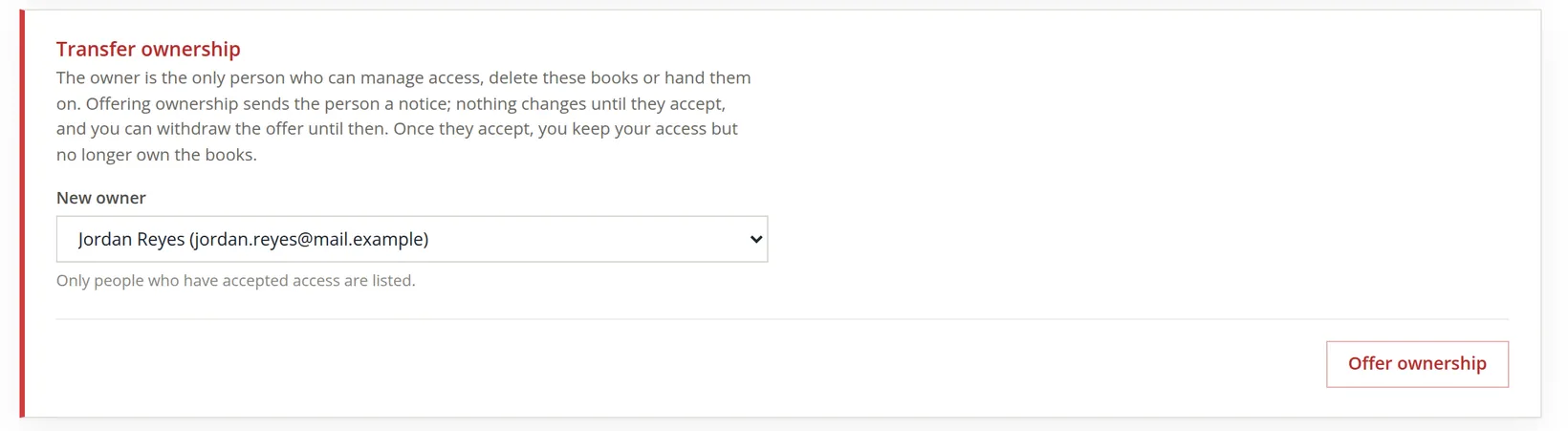
Ownership is offered when a business is sold, or when an accountant who set up the books hands them to the client. It was not offered in this story.
Review access once a quarter
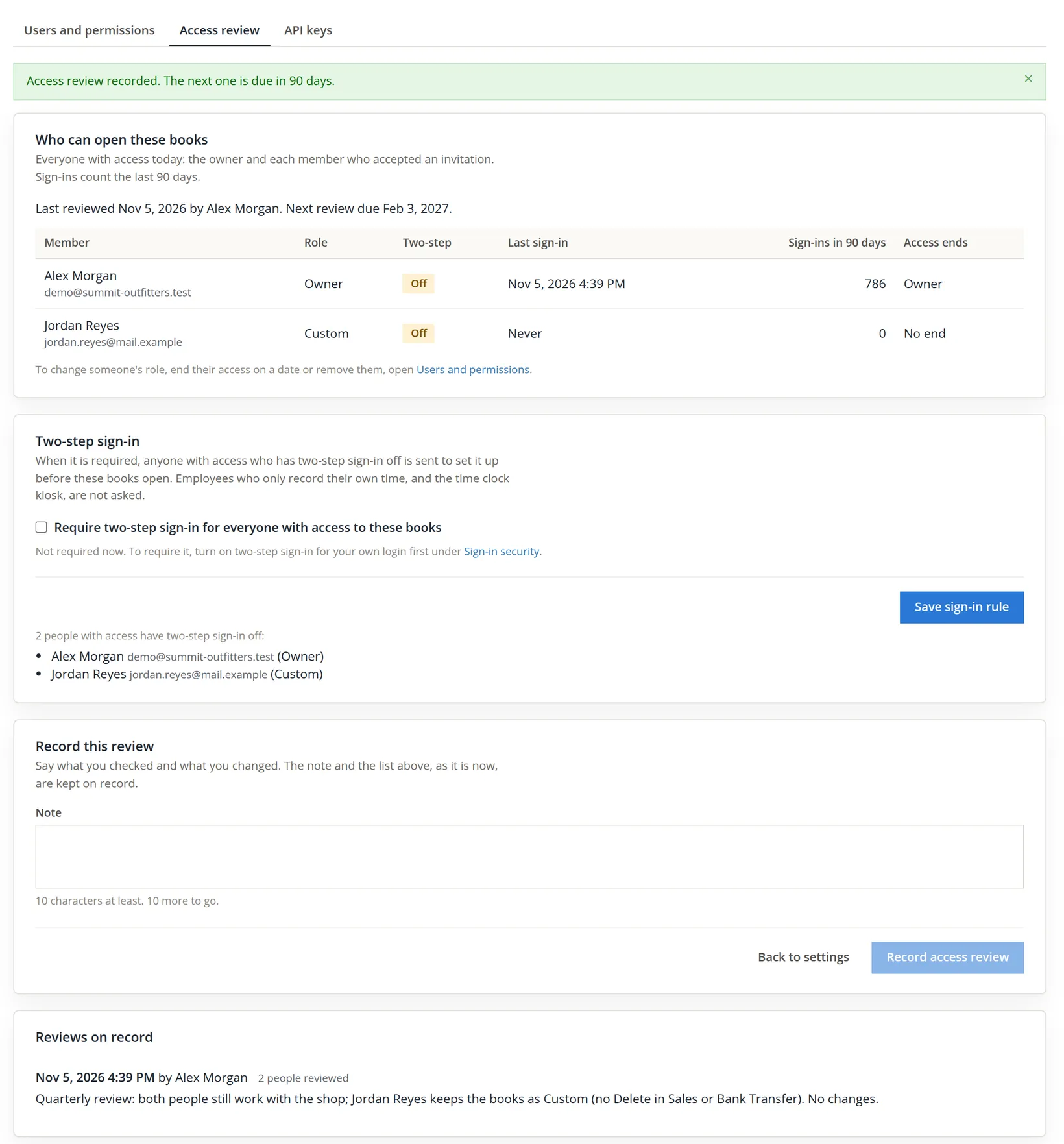
People come and go faster than anyone remembers to update a list. The Access review tab puts everyone who can open the books on one page, with what an auditor would ask about: their role, whether two-step sign-in protects their login (Chapter 15.9), when they last signed in, how often they signed in over the last 90 days, and when their access ends. Before the first review the page says No access review is on record yet, with a yellow Not reviewed tag.
- 1
Read the list
Open Settings → Users and plan → Access review. For each person ask: do they still work with the business, does the role fit the job, and should their access end on a date? Fix anything on Users and permissions first; the link under the table goes there.
- 2
Decide on two-step sign-in
The Two-step sign-in card can require two-step sign-in for everyone with access: anyone who has it off is sent to set it up before the books open. The owner must turn it on for their own login first; until then the rule is refused. In the practice books both people still have it off, and the card lists them.
- 3
Record the review
In Note write what you checked and what you changed (10 characters at least), then press Record access review. The banner says Access review recorded. The next one is due in 90 days. The note and the list as it stood are kept under Reviews on record.
Access review, once a quarter
- [x] Everyone listed still works with the business.
- [x] Each role fits the person's job; Custom roles are understood.
- [x] No pending or expired invitations are left lying about.
- [x] Closing and re-opening periods are limited to the right people (Chapter 15.5).
- [x] Anyone whose work ends on a known day has an Access ends date; every external auditor has one.
- [x] Copies and restored companies have been checked too.
- [x] The review is recorded on the Access review page, with a note of what changed.
Check your understanding
1. Your lender wants to read the reports each quarter. Which role?
Answer
Viewer: sees everything and changes nothing.
2. An invitation was sent yesterday morning and not answered. What does the row show, and what can you do?
Answer
That the link ran out after eight hours; Resend invitation or Remove.
3. You untick one box for a Bookkeeper and save. What is their role called now?
Answer
Custom.
4. When does a permission change take effect?
Answer
From the next page the person opens.
5. Can you offer ownership to someone whose invitation is still pending?
Answer
No. Only people who have accepted access are listed as possible new owners.
6. The audit firm's engagement ends on March 31. What does the invitation need, and what happens on April 1?
Answer
The role External auditor and an Access ends date of March 31. They keep access to the end of that day; from April 1 they cannot open the books.
Notes
- The practice user is a member, not the owner, of Summit Outfitters Inc., where this page shows only the owner's note, so the pictures come from the practice copy the user owns. Jordan Reyes cannot answer an e-mail, so to show the screens that follow an acceptance, the invitation was marked as accepted directly in the practice copy's records, as the person's own acceptance would have done. Everything after that was done on the page as shown. For the revised pictures of November 2026, Jordan's role was set back to Viewer and the steps repeated on the page, ending with the same Custom permissions; one access review was recorded, and the external-auditor invitation was filled in but never sent. ↑
- Since November 2026: the External auditor role, the Access ends card and the Access review tab are new in this edition. ↑
- Since November 2026. Before then a member's Delete was checked by the page only. Now the server checks the document's delete right on every route that can delete the document. ↑
- Because the acceptance was recorded by hand, the Last opened column shows the day of the invitation for Jordan Reyes. For a real member it shows the last day they opened the books. ↑