
Chapter 15.6
Copying books
How to start a second, separate set of books from the ones you keep: a full copy for a sandbox or a what-if, or a date range for a year split. What travels with the copy, what stays behind, and how to read the copy's progress and notes.
When you finish this chapter you will be able to:
- Say when a copy of the books is the right tool, and when a backup (Chapter 14.3) is.
- Choose between a copy of everything and a copy of a date range, and explain what opening balances do.
- Start a copy, follow its progress, and read the notes the copy leaves.
- List what a copy carries over, including the people who may open the books, and what it leaves behind.
- Open the new books and confirm that they agree with the original.
What a copy is
A copy is a new, independent set of books that starts as a duplicate of the books you have open. From the moment it is made, the two sets live apart. Nothing you enter in the copy reaches the original, and nothing entered later in the original reaches the copy. The original is not changed by the copy in any way.
Three situations call for one:
| Purpose | Example | Choice on the page |
|---|---|---|
| Sandbox | Rehearse a year-end close, try a new chart of accounts, train a new bookkeeper | Copy everything |
| What-if | Post a planned loan or a price change and read the reports, then throw the copy away | Copy everything |
| Year split | Start fresh books for a new fiscal year, or hand one year to an auditor | Copy a date range, with opening balances |
A copy is not a backup. A backup (Chapter 14.3) is a file you keep outside BizBooks360 so that you can bring the books back after a disaster. A copy is a second live set of books inside BizBooks360, ready to work in today. In fact the copy is made by the same engine: BizBooks360 makes a backup of your books in the background and at once restores it as new books. That is why the progress list speaks of preparing the copy and then creating the new books.
Who may copy
Only the owner of a set of books can copy it and see the copies made from it. A member, even one with every permission ticked, opens the page and finds a notice instead of the form. The rule protects the owner: a copy carries every figure, contact and tax number in the books, so making one is like taking the whole filing cabinet home.
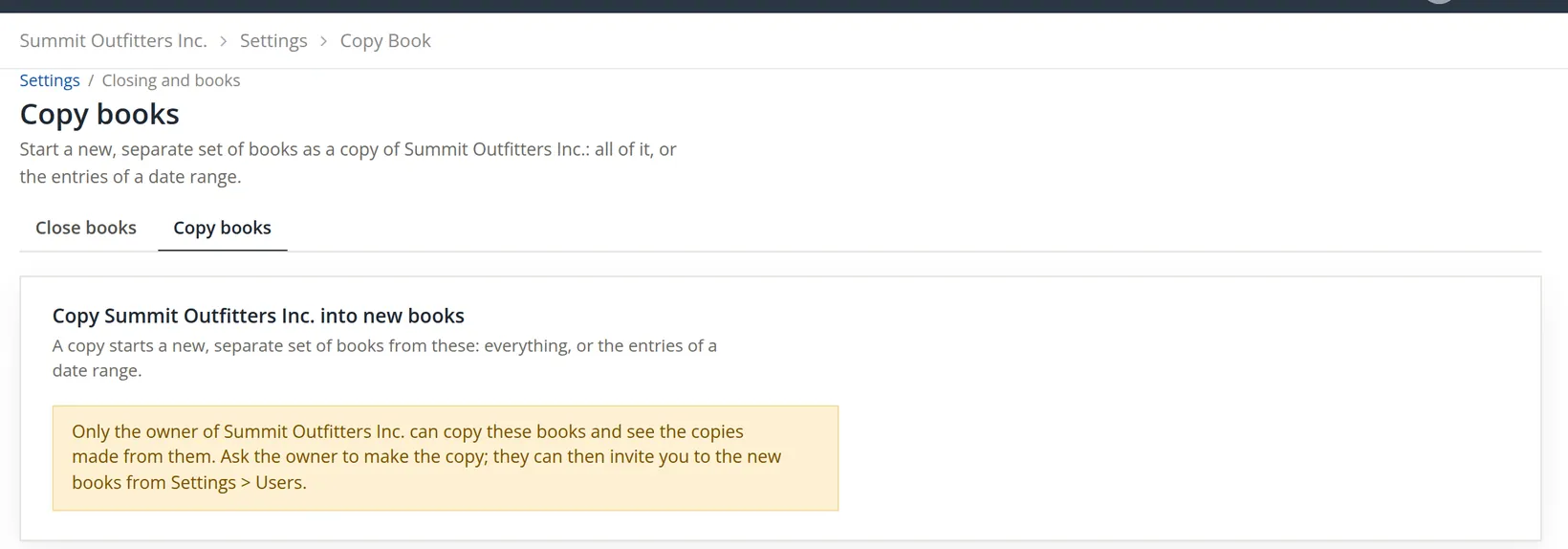
If you are a member and need a copy, ask the owner. Once they have made it, they can invite you to it as described in Chapter 15.7.
What travels, and what stays behind
The foot of the Copy books page lists exactly what the new books receive. It has four groups: Copied, With a date range, Not copied and The new books start with. It is worth reading once, because two things surprise people: the copy brings the people with it, and it leaves behind every number, login and switch that should never be duplicated by accident, from the bank feeds to employees' Social Security numbers.
| Copied | Not copied |
|---|---|
| Company details (address, tax ID, entity type, accounting method, logo), under the new name | Bank feed connections: link the bank again in the new books |
| The chart of accounts, bank account details, closed accounts and system default accounts | API keys: the new books make their own (Chapter 15.8) |
| Contacts with their projects, notes and attachments; tax groups and 1099 exclusions | The backups, the copies and the activity log (audit history) of the original: the copy starts a log of its own |
| Products, services, bundles and sales tax items, with their categories | E-mails and prints waiting to be sent (the "to send" marks stay; nothing goes out by itself) |
| Invoices, estimates, bills, checks, expenses, payments, credits, deposits and transfers | Employee portal logins and invitations not yet accepted |
| Every journal entry, so every balance agrees with the original | Employees' Social Security numbers (the last four digits come along) and direct deposit bank numbers: type them again in Payroll → Employees before the next pay run or W-2 |
| Closed periods, reconciliations, bank rules, budgets, departments, recurring transactions, journal templates | Tax agency portal logins (Payroll → Taxes → Where To Pay) and rental owners' EFT bank details (each owner's 1099 tab) |
| Fixed assets with depreciation taken; currencies and exchange rates | Timekeeping kiosk PINs and the links of people to logins (Timekeeping → People), and QuickBooks connections |
| Payroll: employees, pay rates, paychecks, tax payments and settings, and the timesheets (payroll itself starts switched off: see Step 7) | The contents of payroll files that hold a Social Security number or a check: they stay listed, and open only in the original books |
| Saved reports, the dashboard layout and account view settings | Switches the new books start with off: payroll; Property Management with its e-mail sending, inspection app, outside services and listings feed; the Assistant; and Timekeeping when the new books are not entitled to it |
| How the books were set up (the setup checklist and the accounts it made) and their menus and words (Chapter 15.2)2 | Under government contract controls, the runs of record of closed months (the earned and billed figures their statements reported)3 |
| The people who may open the books, with the same permissions |
The new books also start with the original's fiscal year end, closing period, accounting method and closed periods. If the copy needs a closed period re-opened, do it on Close books in the copy (Chapter 15.5).
Everyone who may open the original may open the copy, with the same permissions. If the copy is a what-if you do not want your staff to read, open the copy straight away and remove them from it (Chapter 15.7). Removing them from the copy does not remove them from the original.
Make a practice copy
The owner of Summit Gear Repair wants a full copy named Summit Gear Repair (practice copy).
- 1
Open the books you want to copy, then the page
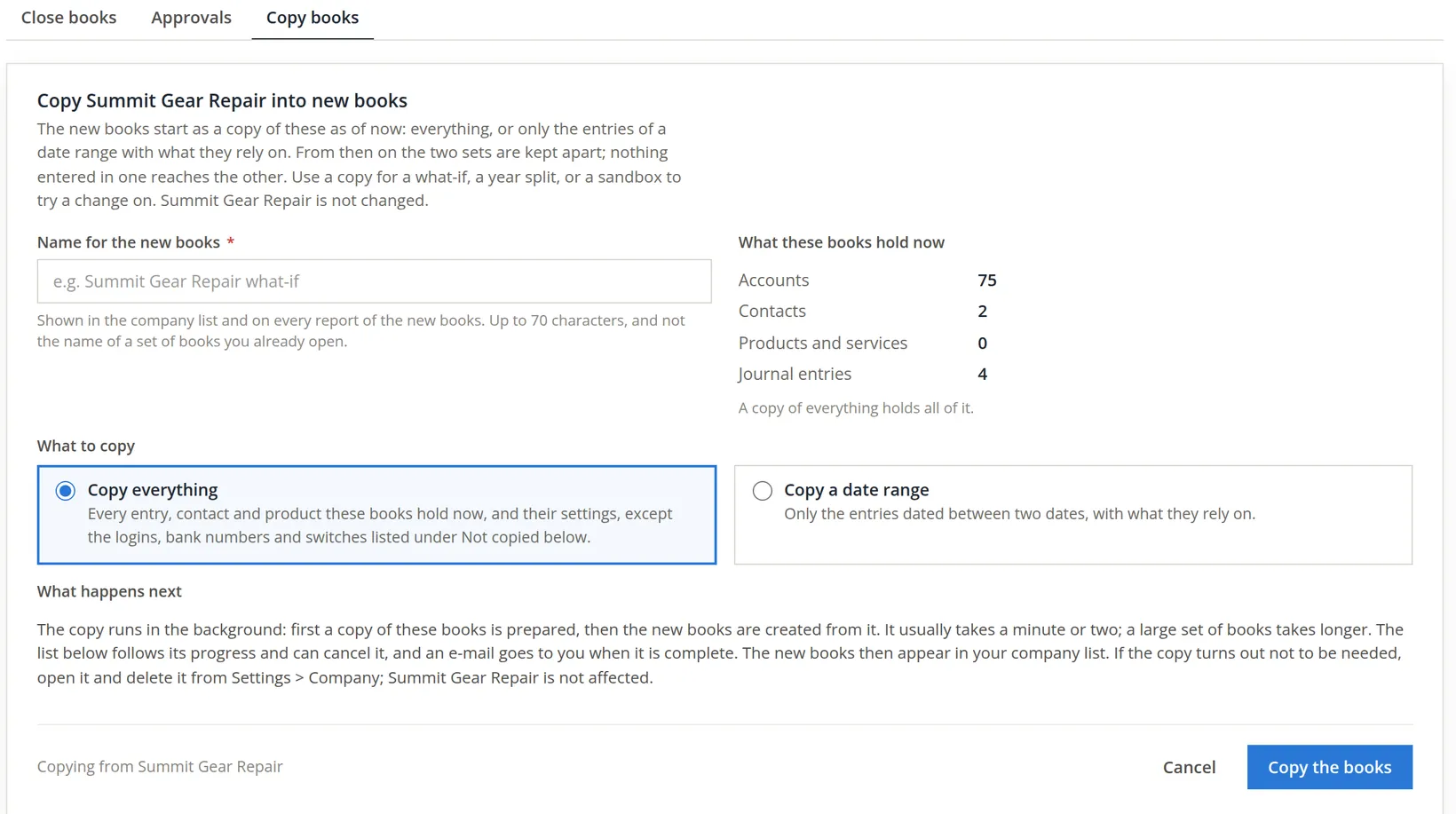
Settings → Closing and books → Copy books. The page also sits on a tab beside Close books and Approvals. Check the company name in the heading: the copy is always of the books you have open.
- 2
Name the new books
The name appears in the company list and on every report of the new books, so make it say what the books are for. It may be up to 70 characters, and it must differ from the name of any books you already own. A suffix in brackets, such as (practice copy) or (FY2027), keeps the family together in the company list.
- 3
Choose what to copy
For a sandbox, keep Copy everything. For a year split, choose Copy a date range: a panel opens with From and To dates and a Carry opening balances box. An empty From means "from the start"; an empty To means "up to today, and anything dated later".
Two slips the page refuses
The owner first meant to copy only October and typed the dates the wrong way round. The page checked the range before it started anything.
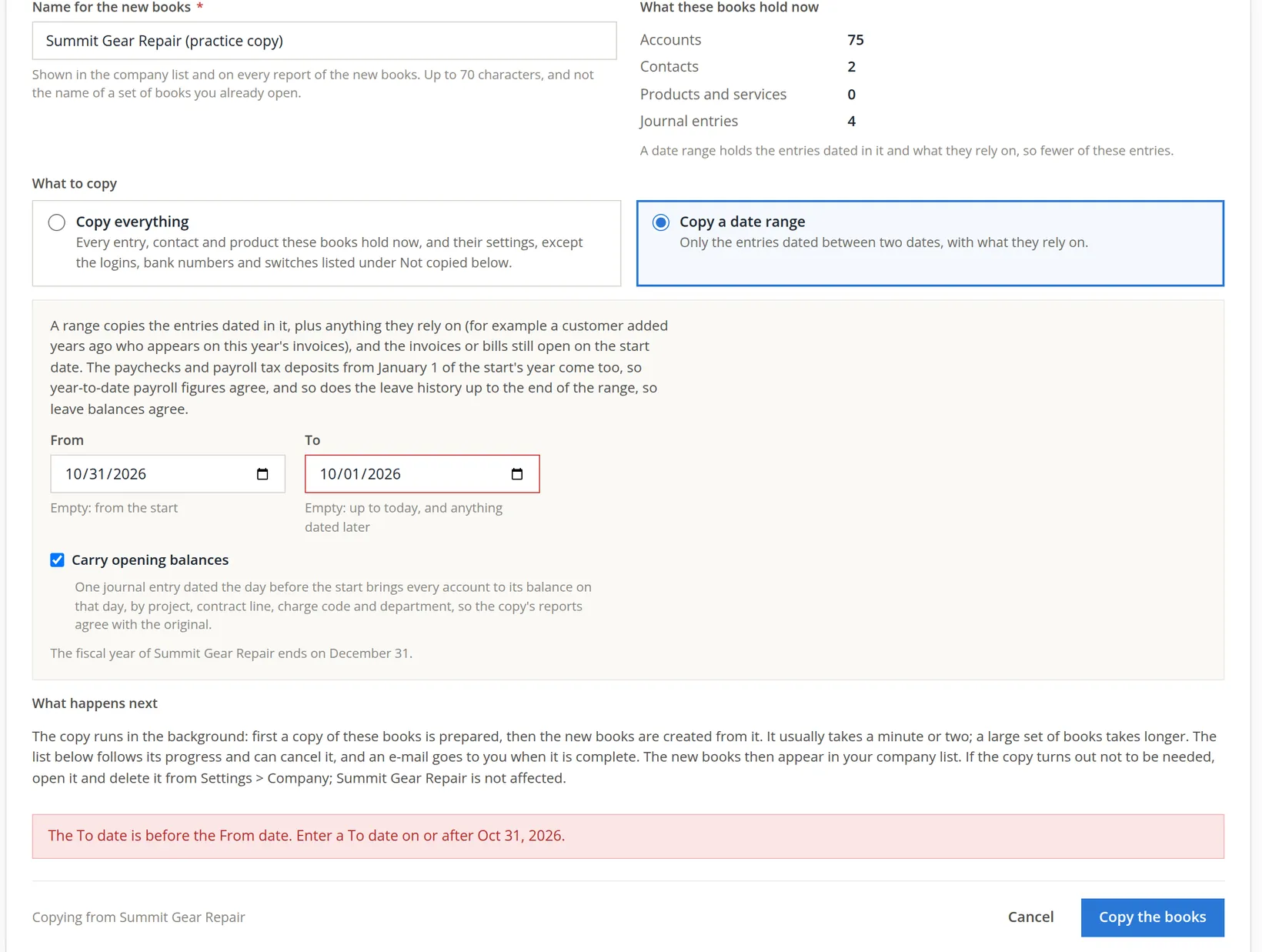
On reflection a practice close needs the whole ledger, so the owner switched back to Copy everything. In the hurry the name box now held just Summit Gear Repair, the name of the original. That was refused too.
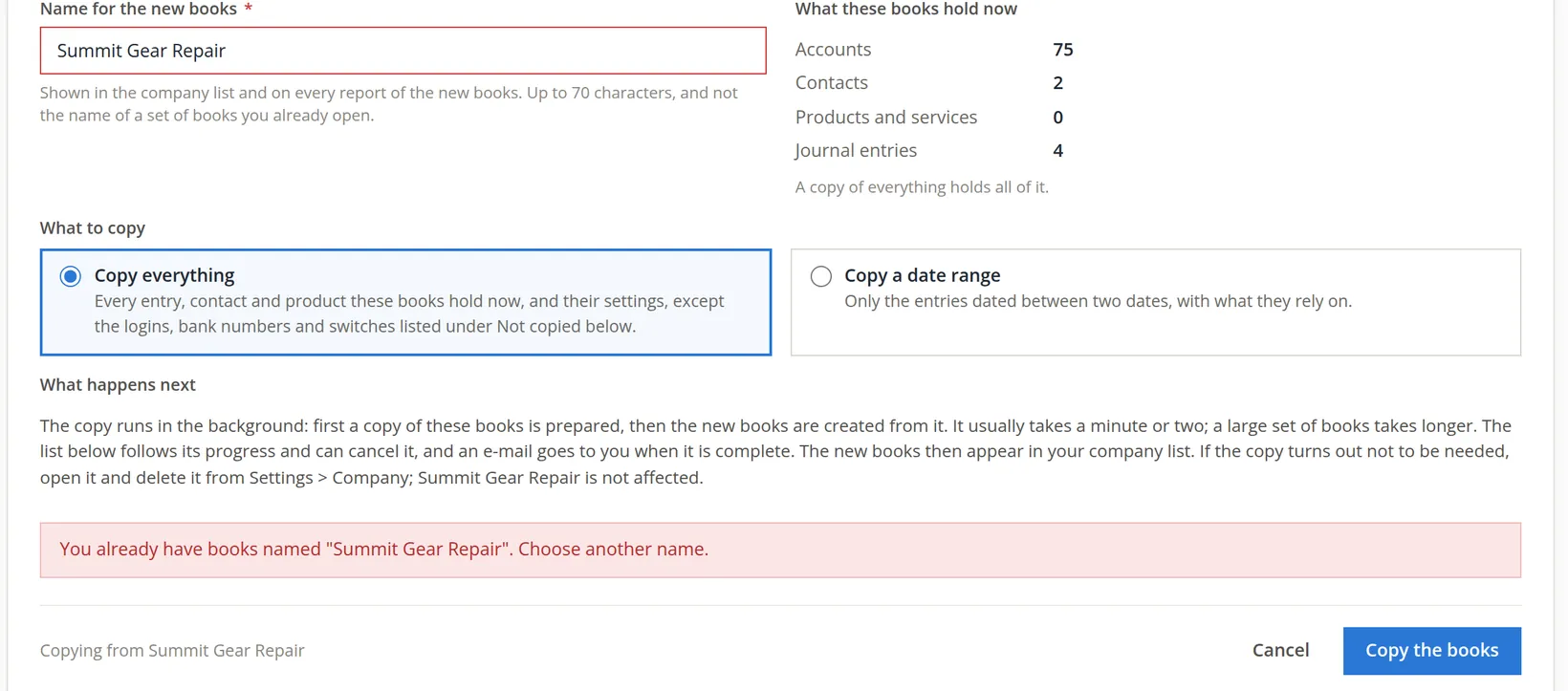
Both checks run before the copy starts, so a refused copy costs nothing: no half-made books appear in your list. Fix the field the message names and click Copy the books again.
Start and follow the copy
- 4
Correct the name and click Copy the books
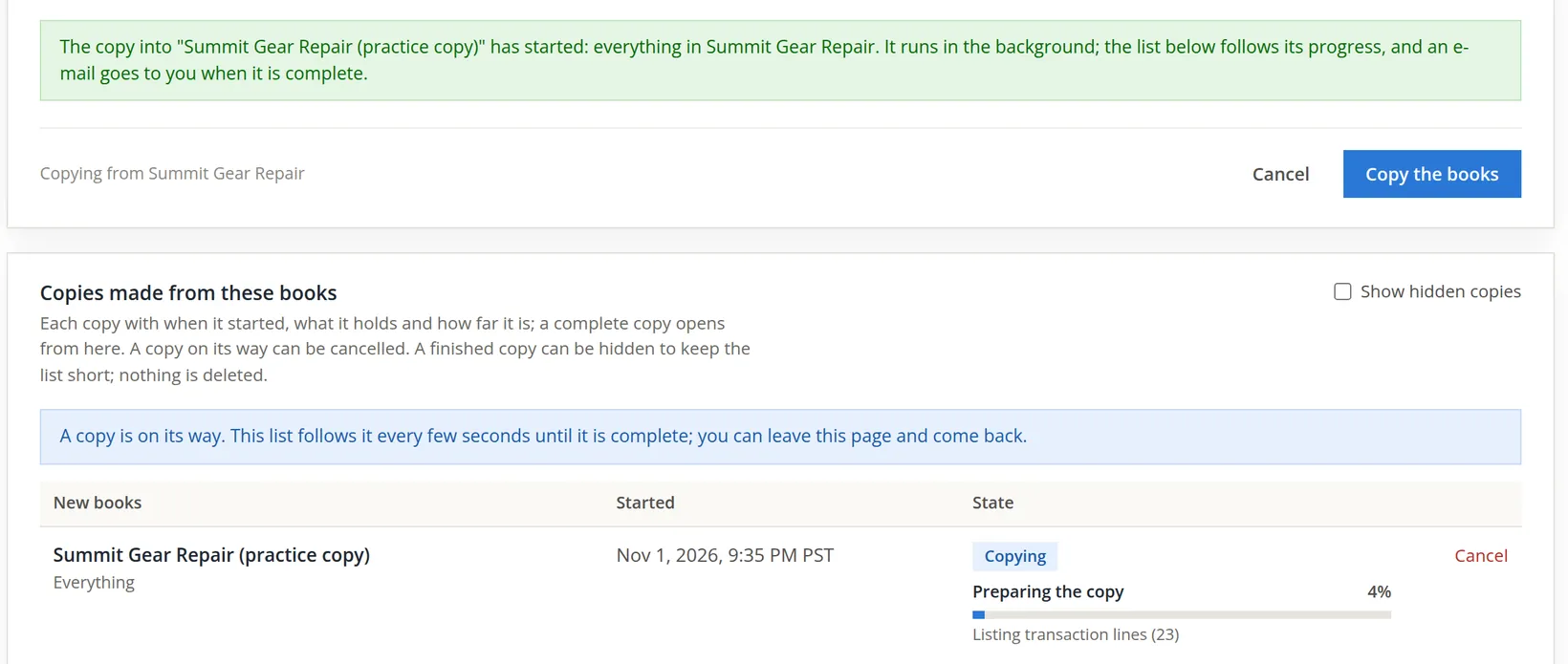
With the name Summit Gear Repair (practice copy) and Copy everything, the copy started at once.
- 5
Wait for Complete
The copy runs in two stages: Preparing the copy (a backup of the original) and Creating the new books (a restore of that backup as new books). Summit Gear Repair is small, and the whole copy took eleven seconds. Large books take longer; the page says a minute or two is usual.

- 6
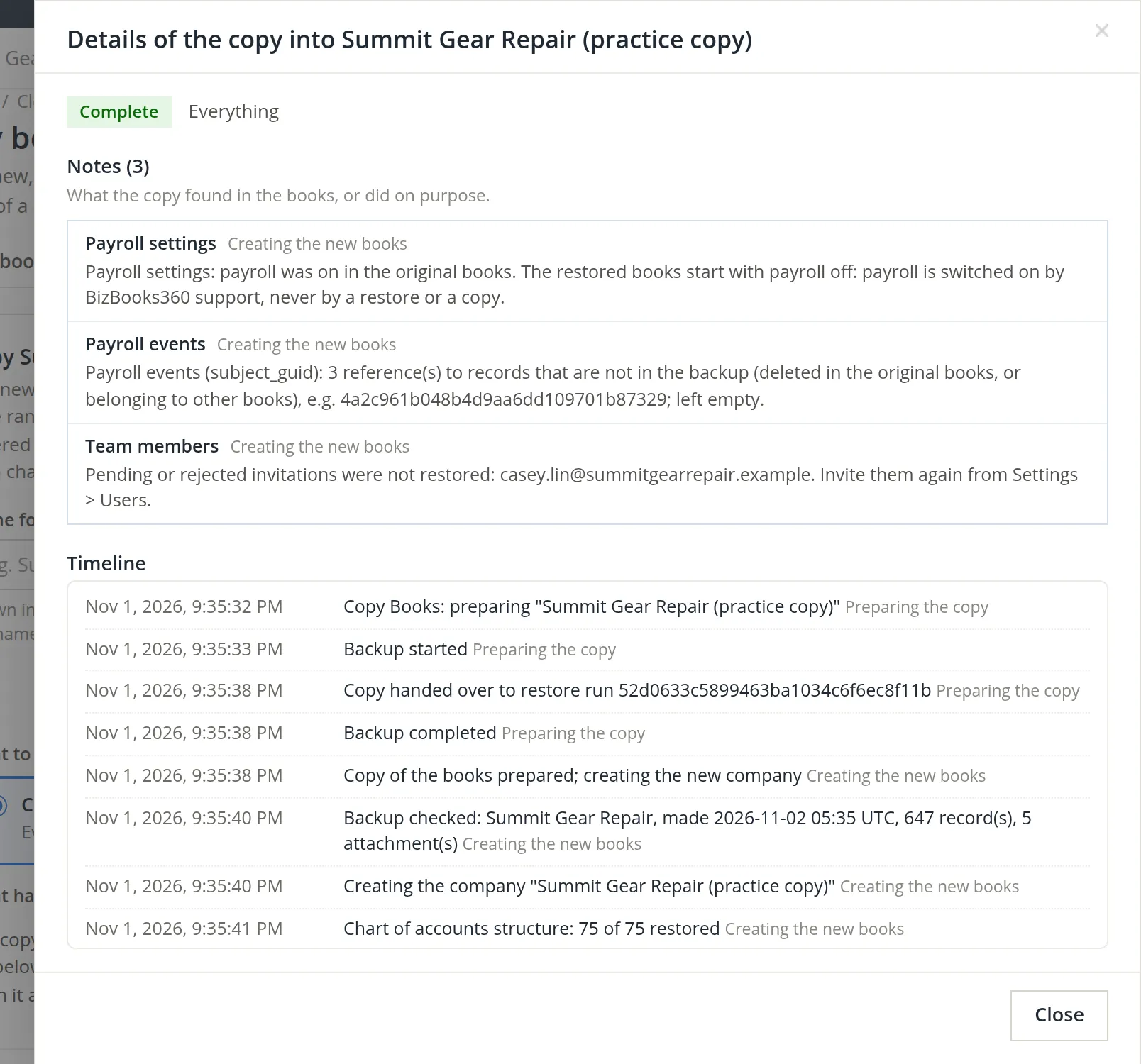
Read the notes: click Details
Notes are not errors. They record decisions the copy made so that you are not surprised later. A copy made now also writes a note for each kind of value it left behind on purpose, but only when the original held that value (a copy never takes QuickBooks connections at all, so it never notes them), naming the page where it is set again: the same list a restore reports (Chapter 14.3). If something could not be copied exactly as it was, the window shows a separate Warnings section above the notes; read those first.
- 7
Act on the notes
For this practice copy, payroll being off is welcome: no one should run a real pay run from a sandbox. In a copy meant for real work, such as a new fiscal year, ask support to switch payroll on, re-invite anyone whose invitation was pending, and work through every other note: the numbers, logins and switches each one names.
Open and check the new books
- 8
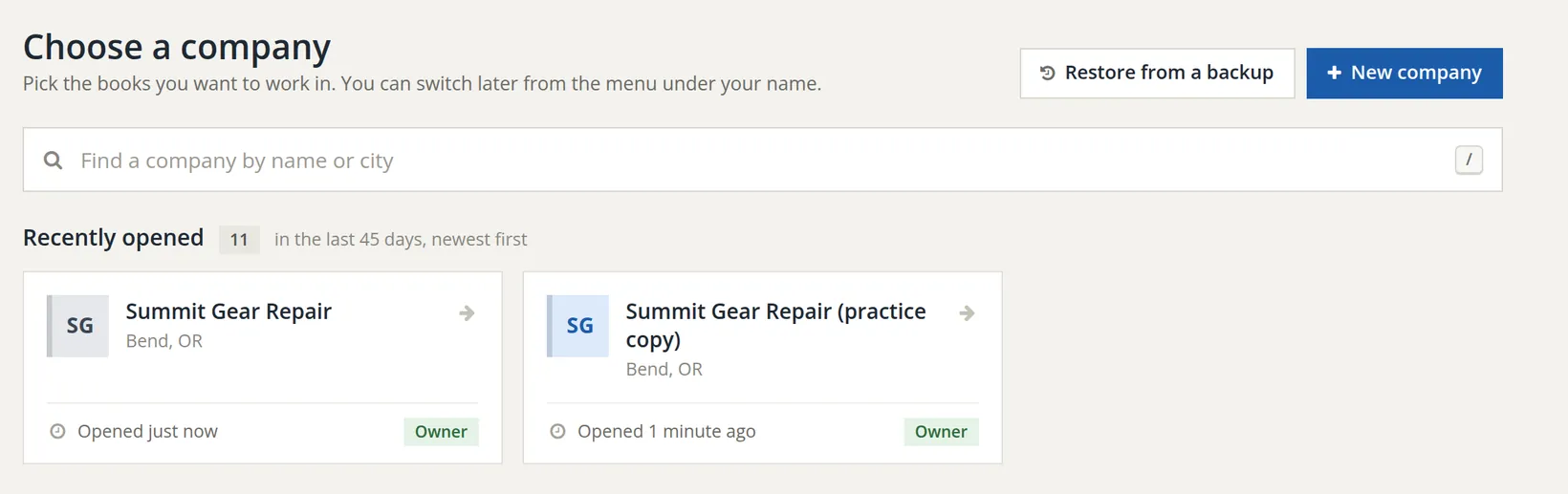
Click Open the new books, or find them in the company list
The new books also appear under Switch Company in the menu under your name. You are their owner.
- 9
Compare a few figures with the original
Open the dashboard and one or two reports in each set of books and compare. A copy of everything must agree to the cent.
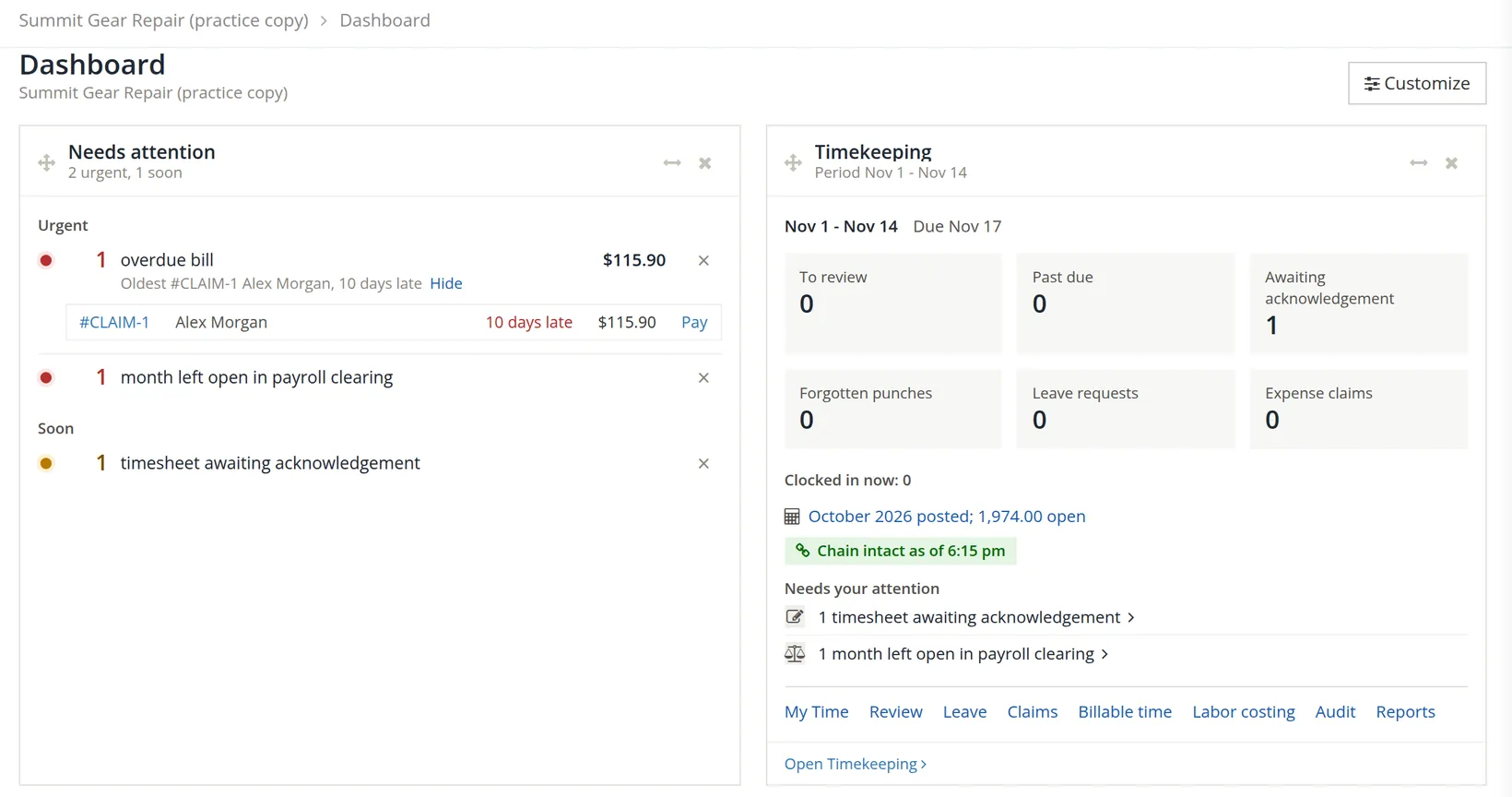
Reading this example. The original held 4 journal entries in 75 accounts; the copy holds the same 4 entries in 75 accounts (the timeline reported "75 of 75 restored"). Because every journal entry is copied with its splits, each account balance in the copy equals the balance in the original on the day of the copy. From now on they diverge: the close rehearsed in Chapter 15.5 is posted only in the practice copy.
Open the copy and delete it from Settings → Company (Chapter 15.1). The original is not affected. Do check the heading first: deleting is the one place where opening the wrong books matters.
Date-range copies and opening balances
Suppose a business wants new books for fiscal 2027 that start on January 1, 2027. It copies a range with From 01/01/2027 and ticks Carry opening balances. The copy then holds:
- the whole setup (chart of accounts, settings, budgets, people);
- every entry dated on or after January 1, 2027;
- the invoices, bills and credits still open on January 1, so that receivables and payables agree with the original;
- the leave history up to the end of the range, so leave balances agree (a range that starts in the middle of a year also brings that year's paychecks and payroll tax deposits from January 1, so year-to-date payroll agrees; this one starts on January 1, so there are none to bring);
- one opening journal entry dated December 31, 2026, the day before the start, that brings every account to its balance on that day, split by project, contract line, charge code and department, so project reports agree too.
Without the opening entry, the copy's balance sheet would start from zero and disagree with the original. With it, the trial balance of the copy on January 1 equals the trial balance of the original on the same day. The page refuses a start date whose day-before cannot be stored: the start must fall between 01/03/1970 and 01/19/2038.6
Before you work in a copy
- [x] You copied from the right books: the heading named them.
- [x] The name says what the copy is for.
- [x] The row reads Complete, and you read the notes in Details.
- [x] People who should not see the copy have been removed from it.
- [x] If the copy is for real work: bank feeds re-linked, Social Security and direct deposit numbers typed again, logins, PINs and connections set again, and the switches it needs turned on (payroll from support, Property Management, and the Assistant once the books are entitled to it and the owner has read its data notice).
- [x] The dashboard heading of the copy names the copy before you enter anything.
Check your understanding
1. A member with every permission opens Copy books. What do they see?
Answer
A notice that only the owner can copy the books; the form is not shown. They should ask the owner, who can invite them to the copy.
2. You enter a sale in the copy. Does it appear in the original?
Answer
No. After the copy is made the two sets of books are kept apart in both directions.
3. Name two things you must set up again in a copy meant for real work.
Answer
Any two of: bank feed connections; payroll, which starts off until support switches it on; employees' Social Security and direct deposit numbers; tax agency logins and owners' EFT details; kiosk PINs and QuickBooks connections; Property Management, which starts off, and the Assistant, which the owner turns on in Settings → Assistant once the books are entitled to it. API keys and pending invitations must also be made again. The copy's Details window lists each one with its page.
4. Why tick Carry opening balances on a date-range copy?
Answer
So one entry dated the day before the start brings every account to its balance on that day, and the copy's reports agree with the original.
5. Your copy is a what-if about pay rises. Who else can read it?
Answer
Everyone who may open the original, with the same permissions, until you remove them from the copy.
Notes
- The practice user is a member, not the owner, of Summit Outfitters Inc., so Copy books there shows only the owner's notice (first figure). The practice user owns Summit Gear Repair, so the copy was made there. The copy, Summit Gear Repair (practice copy), is also the book used for the backup and restore in Chapter 14.3 and the invited user in Chapter 15.7; the close of Chapter 15.5 is now rehearsed in a second copy made the same way, Summit Gear Repair (month-end practice). ↑
- From the backup engine's notes, November 2026: restored and copied books keep the kind of business chosen at setup, the accounts the setup made for each role, the setup checklist with its changes, and Settings → Menus and words, so rental books still say "tenants" and a government contractor keeps its Projects and Pools menus. The page's own Copied list does not name these. ↑
- From the backup engine's notes: the runs of record are left out of backups and copies "for now", so the copy's next statement of a closed month records that day's figures. They concern only projects kept under government contract controls (Volume 7). ↑
- The timeline shows times in the company's time zone (Pacific for this Oregon shop), but the line "Backup checked ... made 2026-11-02 05:35 UTC" quotes the backup file's own stamp, which is in Coordinated Universal Time: 05:35 UTC on November 2 is 9:35 PM Pacific on November 1. ↑
- The list also holds books that other owners share with the practice user; they are trimmed from the picture. The counter beside Recently opened still counts them. ↑
- From the page's own rule: the opening entry is dated the day before the start date, and the books can store post dates only within that window. A range copy of a single closed year is a convenient way to give an outside accountant their own books to work in without access to yours. ↑