
Chapter 15.9
Your profile and sign-in security
The settings that belong to you rather than to a set of books: your name and picture, the user name and e-mail you sign in with, your password, two-step verification and the Google link. How to change each one safely, and the checks that stop a slip.
When you finish this chapter you will be able to:
- Tell your own settings from the settings of the books you work in.
- Update your name, picture, address and phone, and know what a user name or e-mail change does to your sign-in.
- Choose and set a strong password, and know what changing it does to your other devices.
- Explain two-step verification and start setting up a method.
You, not the books
Most of Settings belongs to a set of books: its fiscal year, its accounts, its users. The two pages under Settings → Your account belong to you. Whatever books you have open, they show and change the same things, and a change follows you into every set of books you work in.
| Page | Holds |
|---|---|
| User profile | Name, user name, e-mail, picture, address and phone; links to the password, two-step and Google cards |
| Sign-in security | Two-step verification: your methods, set up and removed |
Shortcuts sit in the menu under your name at the top right.
Update your profile
- 1
Settings → Your account → User profile
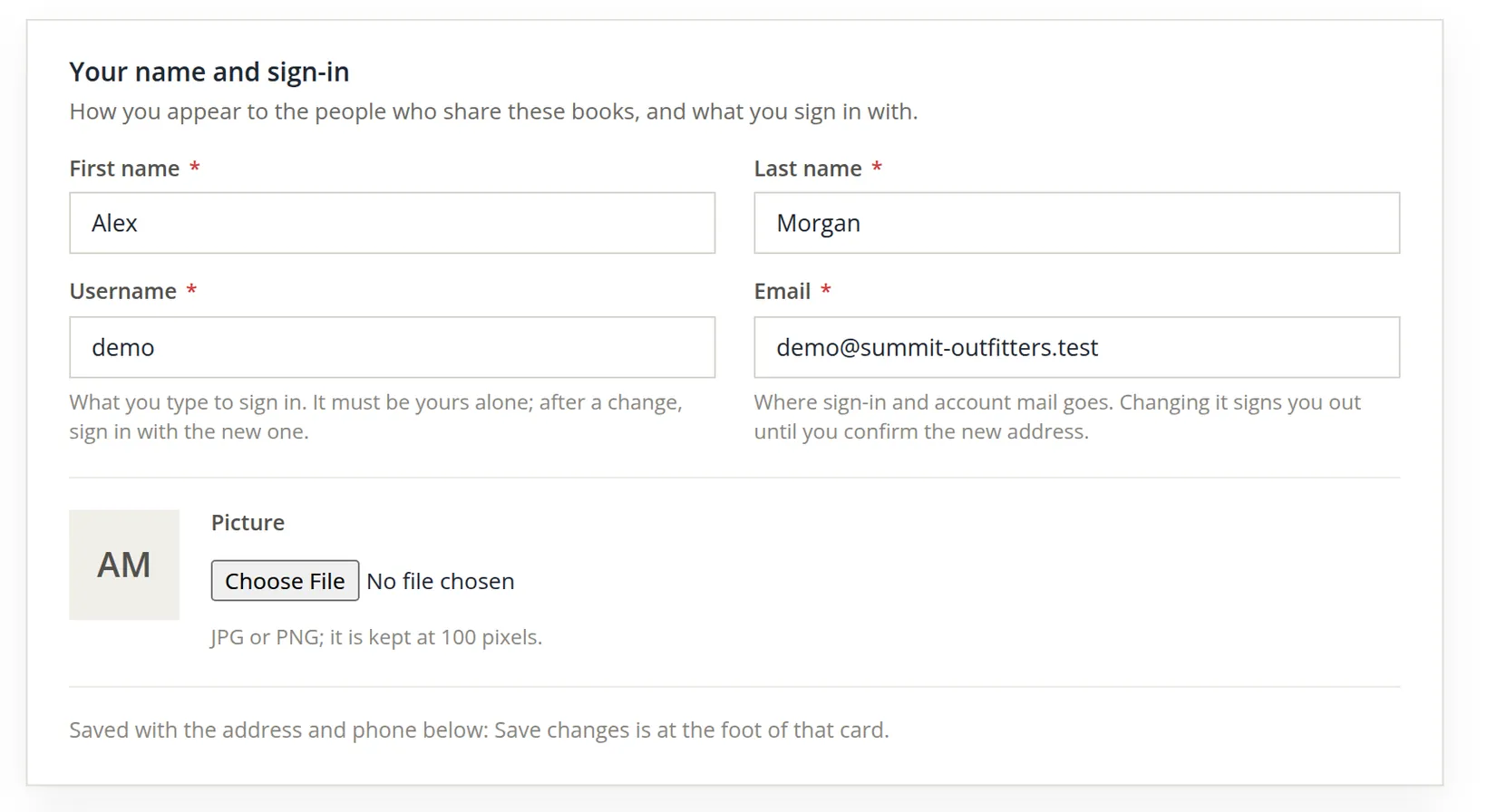
The first card says how you appear to the people who share your books, and what you sign in with.
- 2
Make your changes, then Save changes at the foot of Address and phone
One button saves the name, sign-in, picture, address and phone together. The address and phone are your own, so people can reach you; the company's address is on the Company page (Chapter 15.1).
Change them only on purpose. A new user name takes effect at your next sign-in, and a new e-mail address signs you out until you click the link sent to it. Type the new address twice in your head before saving: if it is wrong, the confirmation goes nowhere.
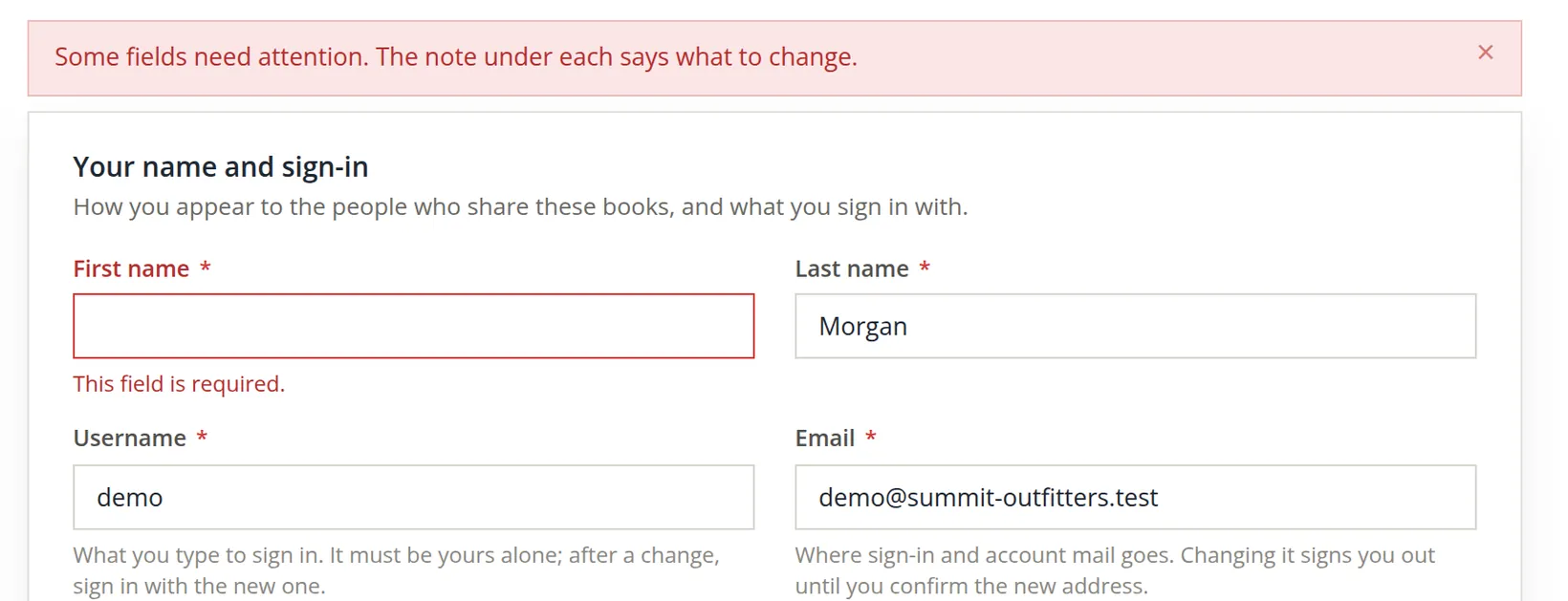
A required field left empty
Meaning to retype their first name, Alex cleared the box and clicked Save changes before typing.
Change your password
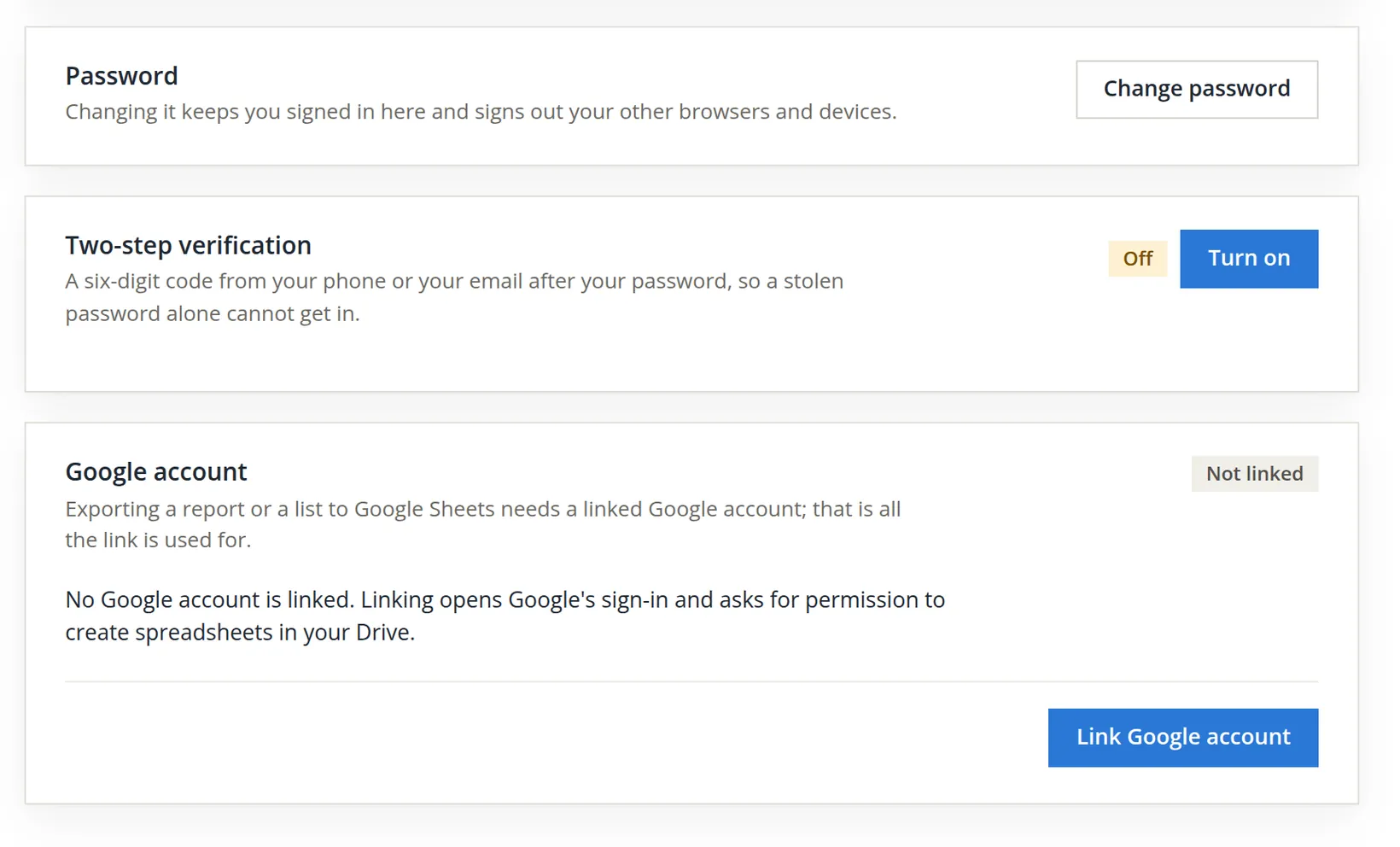
Your password is the same on every set of books you open. A strong password is long and unique: used for BizBooks360 and nowhere else. A password manager makes that easy.
- 1
Click Change password and type your current password
It proves the person at the keyboard is you. If you have forgotten it, the Forgot it? link under the box leads to a password reset.
- 2
Type the new password, and watch the rules turn green
It needs 10 to 64 characters, an uppercase letter, a lowercase letter, a number and one of @ $ ! % * # ? &. Each rule is ticked off as you type; the bar under the box fills as they are met. It must also differ from the current one.
- 3
Type it again, then Change password
Two entries that differ
In the second box Alex swapped two digits, typing 2062 for 2026. Had the page accepted it, Alex would have set a password they did not know.
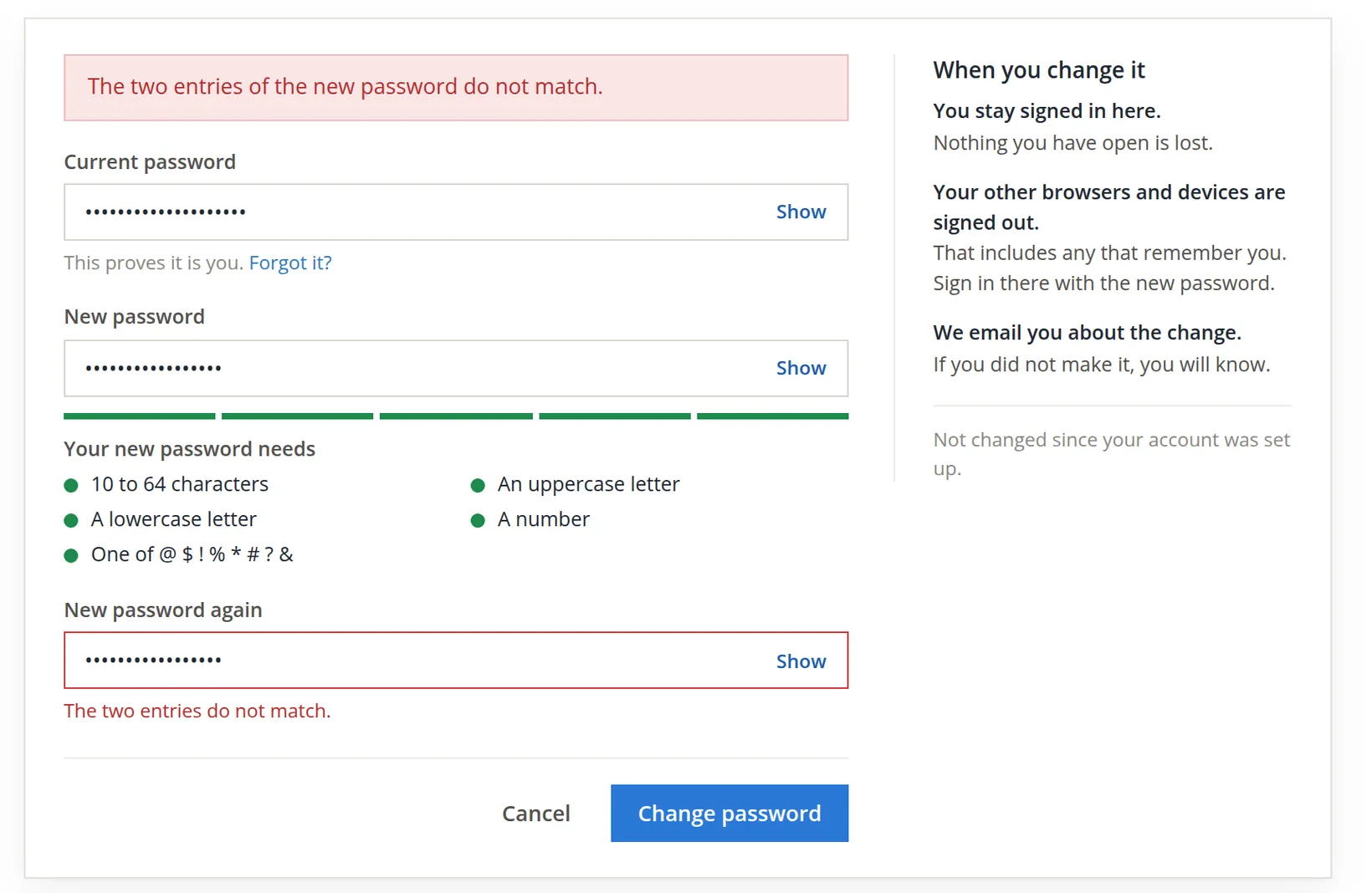
Alex clicked Cancel. On a real change, the side panel says what to expect: you stay signed in where you are and nothing you have open is lost; your other browsers and devices, including any that remember you, are signed out and need the new password; and an e-mail tells you about the change, so that if you did not make it, you will know.
Each box has a Show button. On a private screen, show the new password once before saving and read it: it is the quickest way to catch a swapped digit.
Two-step verification
A password can be guessed, reused elsewhere or stolen. Two-step verification adds a second question at sign-in: a six-digit code from something you have. A thief with your password alone cannot get in. For anyone who can see a business's bank accounts and payroll, it is the single most useful protection there is.
| Method | How the code arrives | Good to know |
|---|---|---|
| Authenticator app (recommended) | An app on your phone, such as Google Authenticator or Microsoft Authenticator, scans a QR code once and then shows codes | Works without a phone signal; you can add more than one app |
| Codes by email | A code is e-mailed to you at each sign-in | Only as safe as your e-mail account |
You can have several methods; any one of them finishes a sign-in. Setting up the first method is what turns two-step verification on.
The owner of a set of books can require two-step sign-in for everyone with access (Settings → Users and plan → Access review, Chapter 15.7). If you open such books while your two-step verification is off, every page of those books sends you here, and a red line at the top of Sign-in security reads These books require two-step sign-in. Set it up to open them. It stays until you set up a method; then the books open as usual. People with the Employee role, who only record their own time, and the time clock kiosk are not asked.
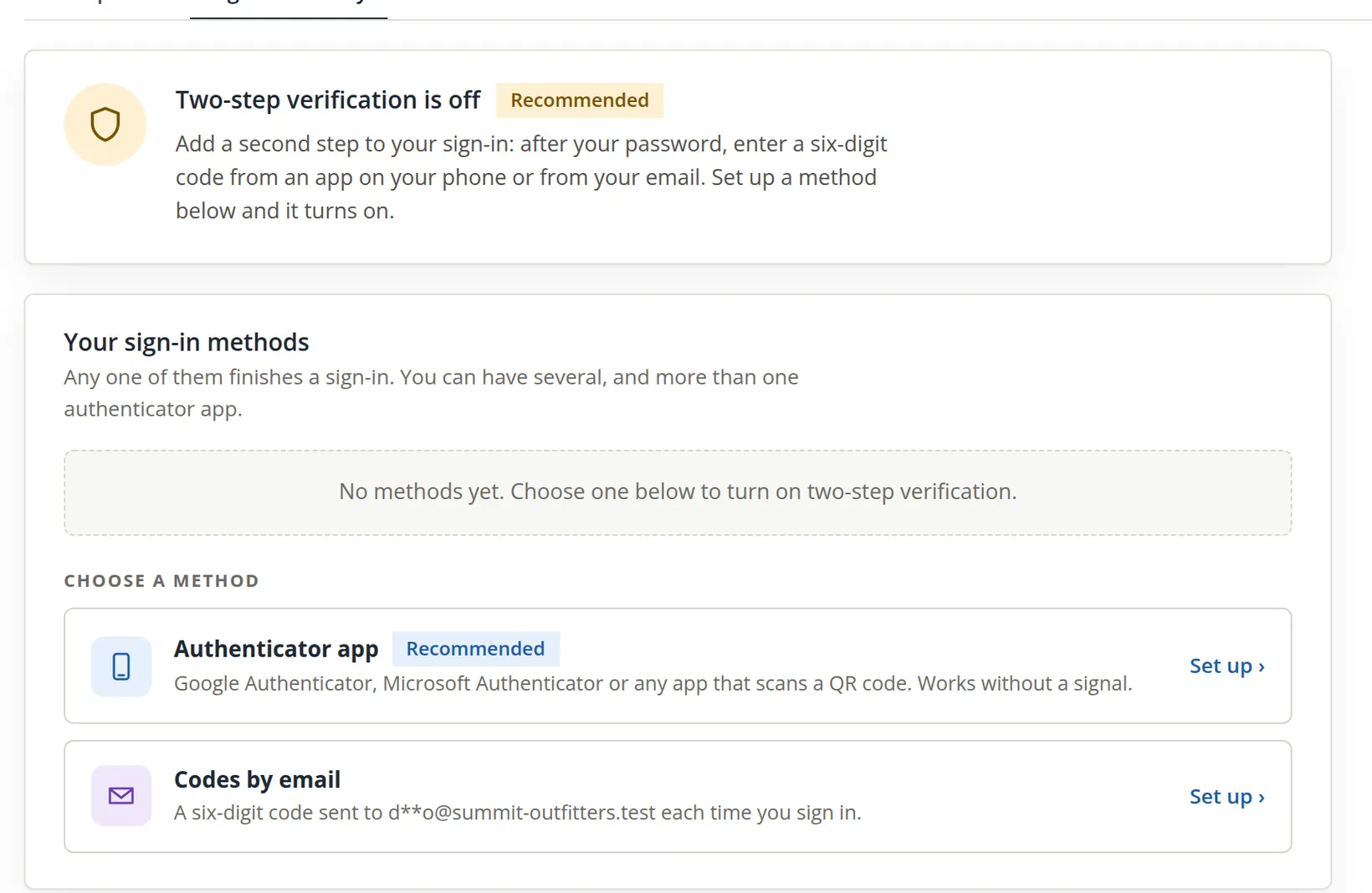
- 1
Click Set up beside a method
The authenticator setup has three steps: Confirm, Scan and Verify. If a set of books sent you here, set up a method now: those books stay closed to you until you do.
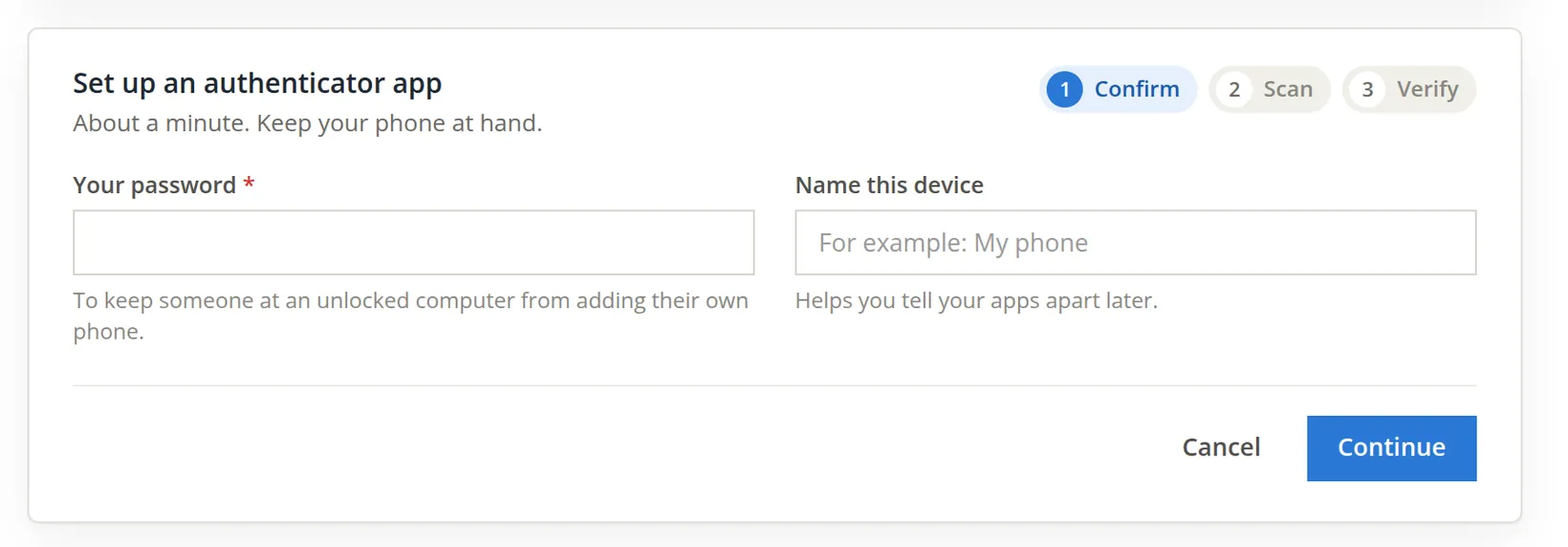
- 2
Scan the QR code with the app, then type the code it shows
The method is added only when the code is verified, and two-step verification is then on.
- 3
Keep the backup codes the page offers
After the first method is set up, the page offers backup codes for the day your phone is lost. Print them or store them in your password manager, away from the phone.
Add the authenticator on the new phone before you wipe the old one. Removing a method, or turning two-step verification off, asks for your password.
Your account, once a year
- [x] Name and e-mail are current; the e-mail is one you read.
- [x] The password is long, unique and in a password manager.
- [x] Two-step verification is on, with at least one authenticator app.
- [x] Backup codes are stored away from the phone.
- [x] The Google link is there only if you export to Google Sheets.
Check your understanding
1. You change your name on User profile while working in one set of books. Where does the new name show?
Answer
In every set of books you work in: the profile belongs to you, not to the books.
2. What happens right after you change your e-mail address?
Answer
You are signed out until you confirm the new address from the e-mail sent to it.
3. You change your password on the office computer. What happens on your laptop at home?
Answer
It is signed out, even if it remembered you, and needs the new password.
4. Why does setting up an authenticator ask for your password again?
Answer
To stop someone at a computer you left signed in from adding their own phone.
Notes
- The practice user's sign-in is shared by everyone who works on this manual, so its password, user name and e-mail were not changed, and two-step verification was not turned on. The pictures show the forms and their checks; every change was refused by the page or cancelled. ↑
- The steps after Continue (the QR code and the verification) are described from the page's own labels; they were not completed, so that two-step verification stayed off on the shared practice sign-in. ↑