
Chapter 15.3
Default Accounts
The map behind every automatic posting: where an invoice, a payment, a stock sale, sales tax, a deposit, a fixed asset and the year-end close land in the chart of accounts.
When you finish this chapter you will be able to:
- Explain what a default account is and why the books need one for each automatic posting.
- Read the page's state tags: Not set, Chosen, not saved yet, Not in this list, Not made yet.
- Fill the empty postings, knowing which accounts the save will create, and avoid creating a second account for something the chart already holds.
- Say which defaults are set on other pages (payroll) and which the books keep for themselves.
Why defaults exist
When you save an invoice you choose a customer, products and amounts. You do not choose the debit to Accounts Receivable, the credit to revenue, the credit to sales tax payable, or the cost-of-goods entry for the stock that left the shelf. The books write those lines for you, and they need to know which accounts to use. A default account is that standing instruction: "post this kind of line here unless told otherwise".
A worked example shows how many lines depend on defaults. Summit sells two backpacks at $239.00 to a customer in Vancouver, Washington, with 8.7% tax, and each backpack cost $120.00:2
| Line written by the books | Debit | Credit | Default used |
|---|---|---|---|
| Accounts Receivable | 519.59 | Accounts receivable | |
| Product Sales (2 × 239.00) | 478.00 | Revenue (or the product's own) | |
| Sales tax payable (478.00 × 8.7%) | 41.59 | Sales tax payable (or the rate's own) | |
| Cost of goods sold (2 × 120.00) | 240.00 | Cost of goods sold (or the product's own) | |
| Merchandise Inventory | 240.00 | Inventory asset (or the product's own) | |
| Totals | 759.59 | 759.59 |
Most defaults are starting points: a product, a tax rate or a payment can name its own account, and that wins. The default is what is used when nothing more specific is given.
Reading the page
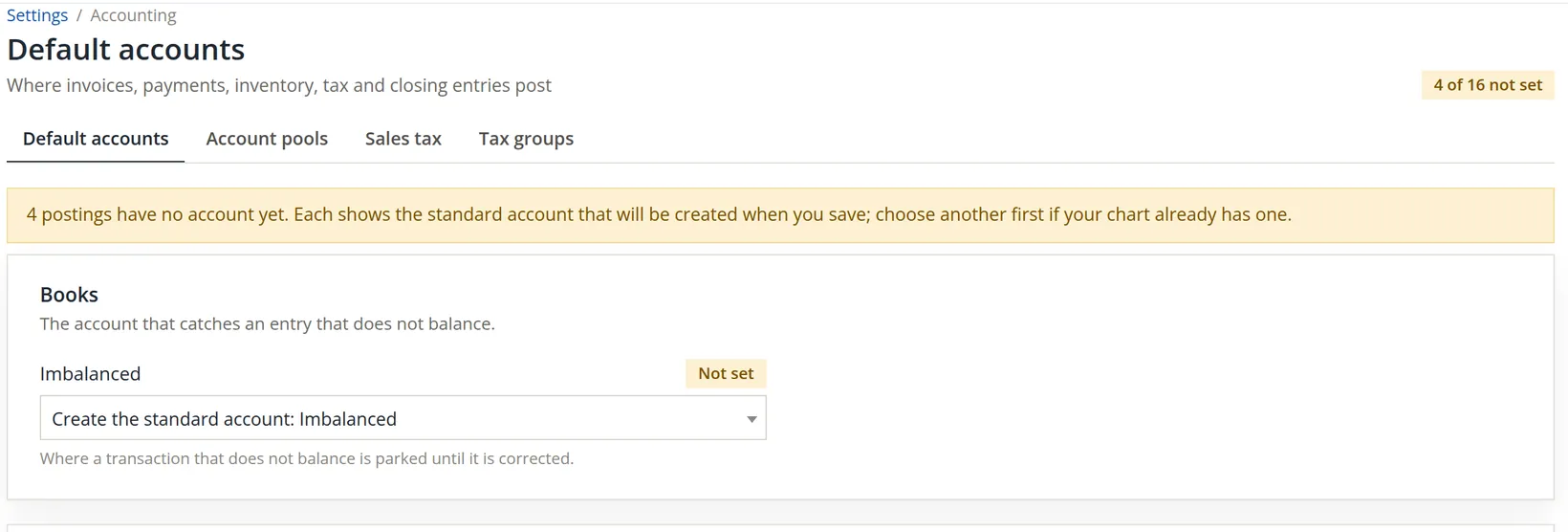
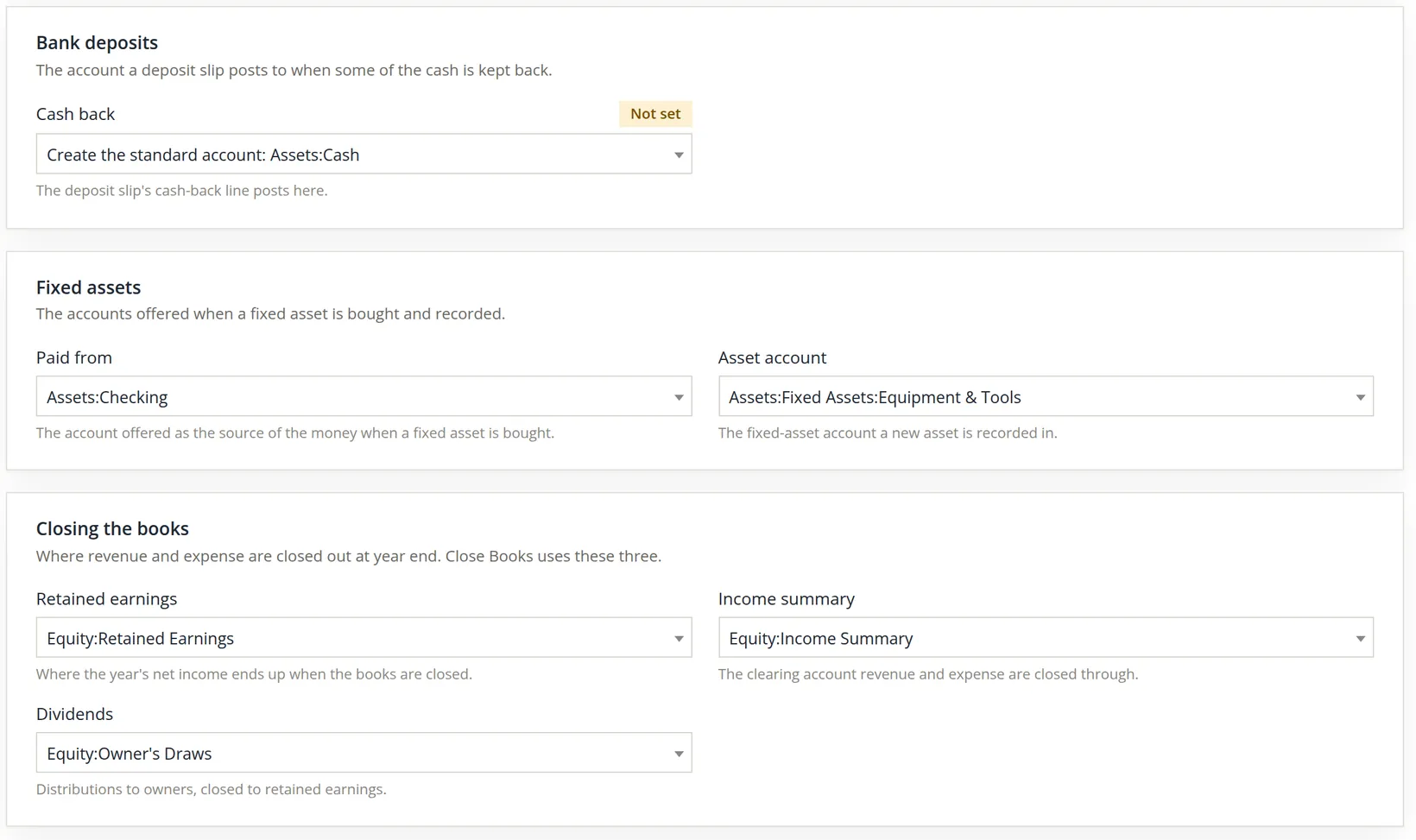
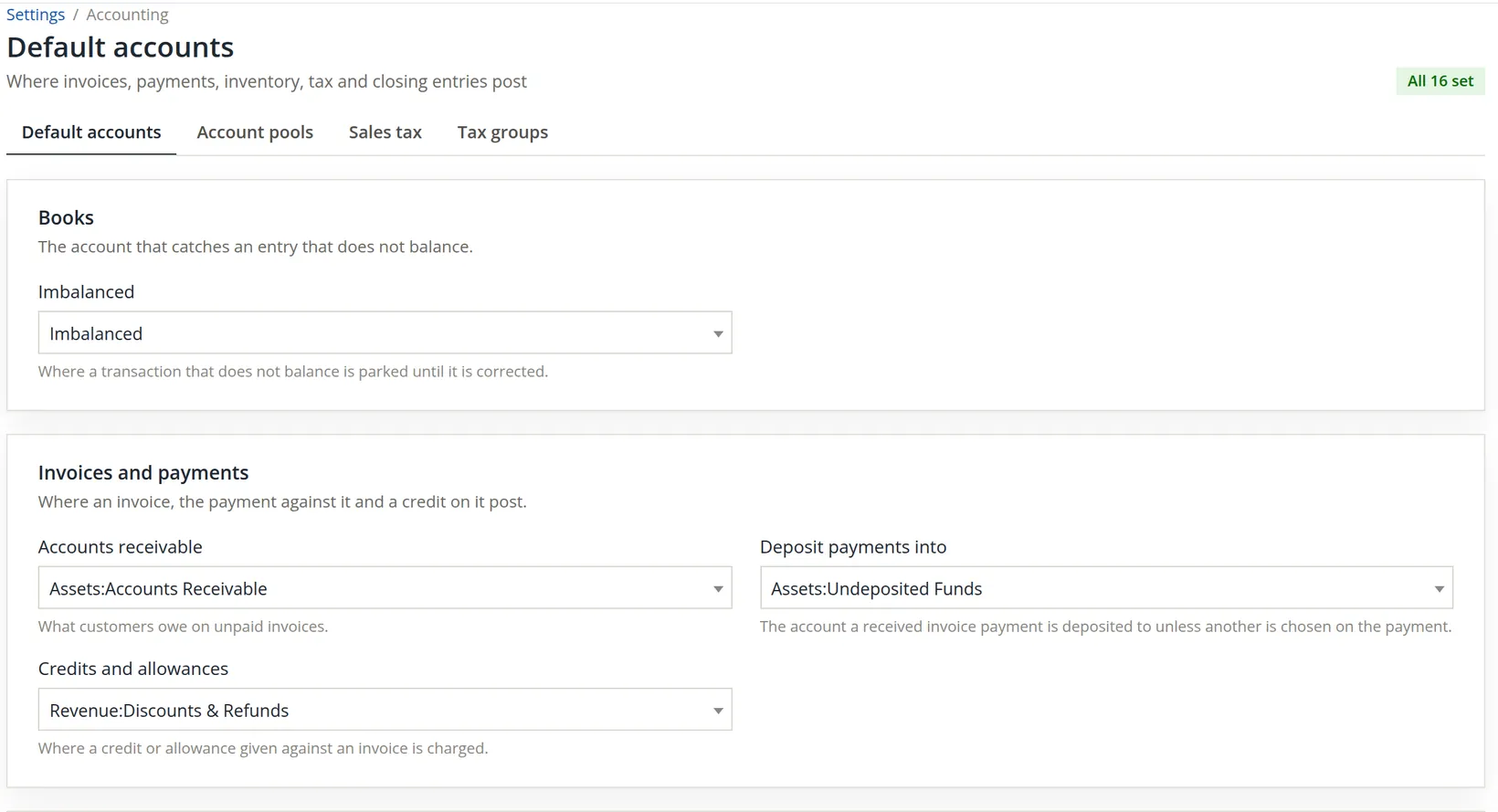
Settings → Accounting → Default accounts. Sixteen postings are arranged in cards in the order of the work: the books, the sales cycle, sales tax, banking, fixed assets and the year end. Two read-only cards follow.
| Tag | Meaning | What to do |
|---|---|---|
| Not set | No account yet. The picker shows the standard account that will be created on save. | Keep the standard one, or choose an account your chart already has. |
| Chosen, not saved yet | You picked an account; nothing is stored until Save changes. | Finish the page, then save. |
| Not in this list | The stored account is not of the kind this picker lists. It is kept exactly as stored, so a save does not quietly move the posting. | Leave it unless you mean to move the posting. |
| Not made yet | (Read-only card) An account the books will find or make the first time it is needed. | Nothing. |
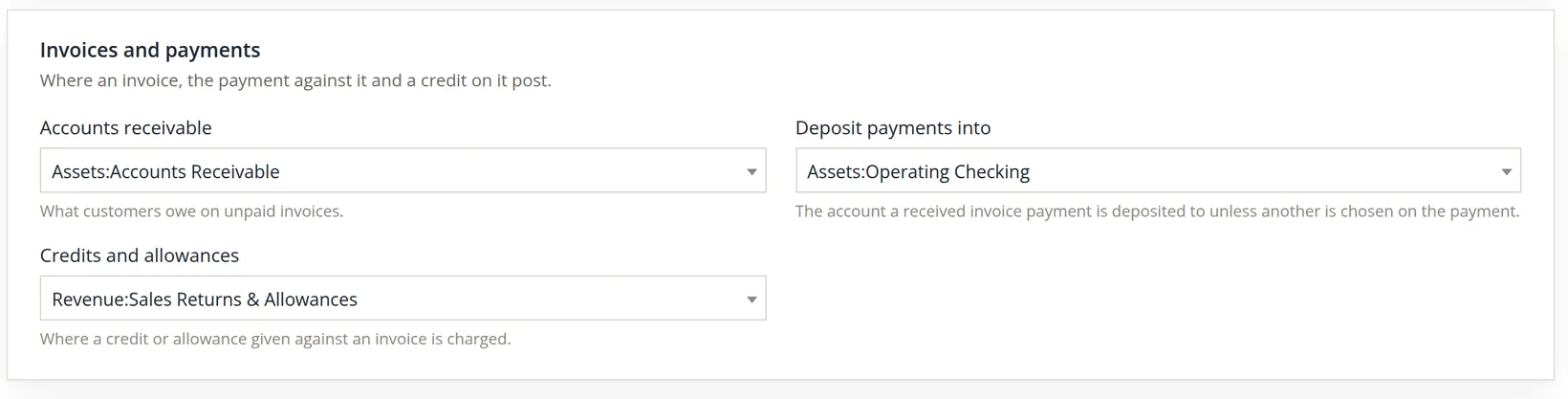
Two pickers on this card list exactly the accounts the books can post to for that purpose. Deposit payments into lists the accounts a received payment can go into: Undeposited Funds, and the bank and cash accounts, trust bank accounts included. The help line under it says the same: "Undeposited Funds, or the bank or cash account a received invoice payment goes into unless another is chosen on the payment." Its standard account, for books that have none, is Assets:Undeposited Funds.3 Credits and allowances lists the accounts a credit on an invoice can be given from: expenses, discounts and write-offs, so a contra-revenue account such as Sales Returns & Allowances is offered.
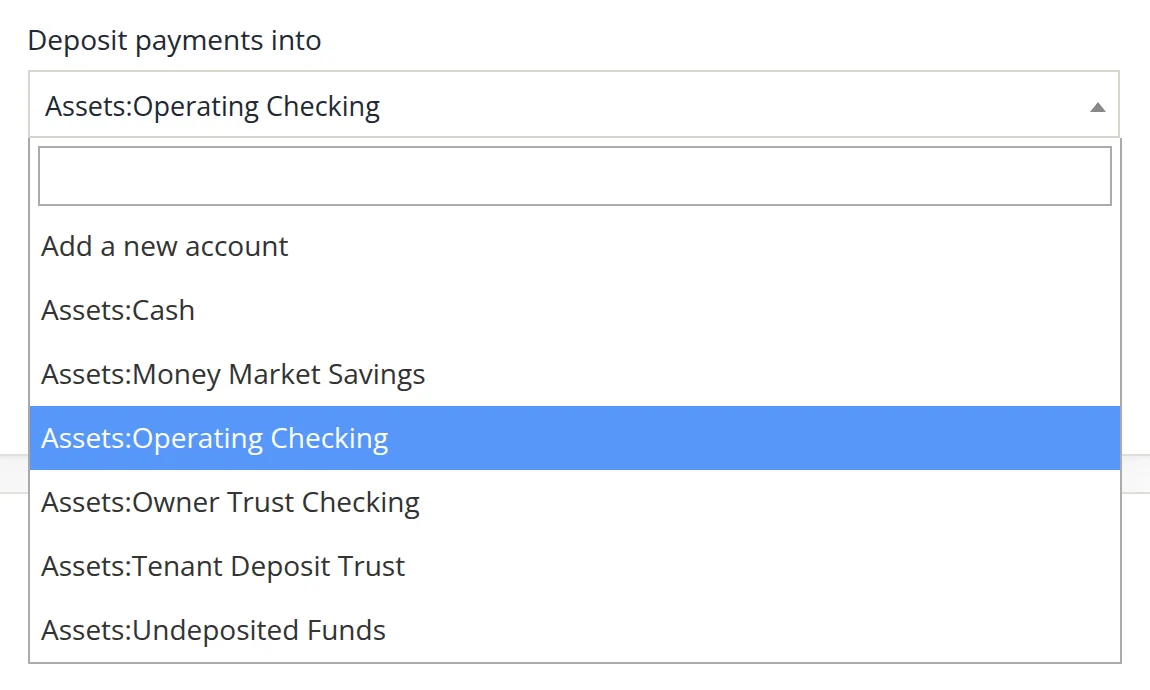
Choose Undeposited Funds when payments are gathered and taken to the bank together, so that one deposit slip moves them to the bank and the bank statement matches the slip. Choose the bank itself when each payment reaches the bank on its own. Whichever you choose, it is only the starting point: each payment can still name another account.
Give sales tax an account
- 1
Open the Sales tax payable picker
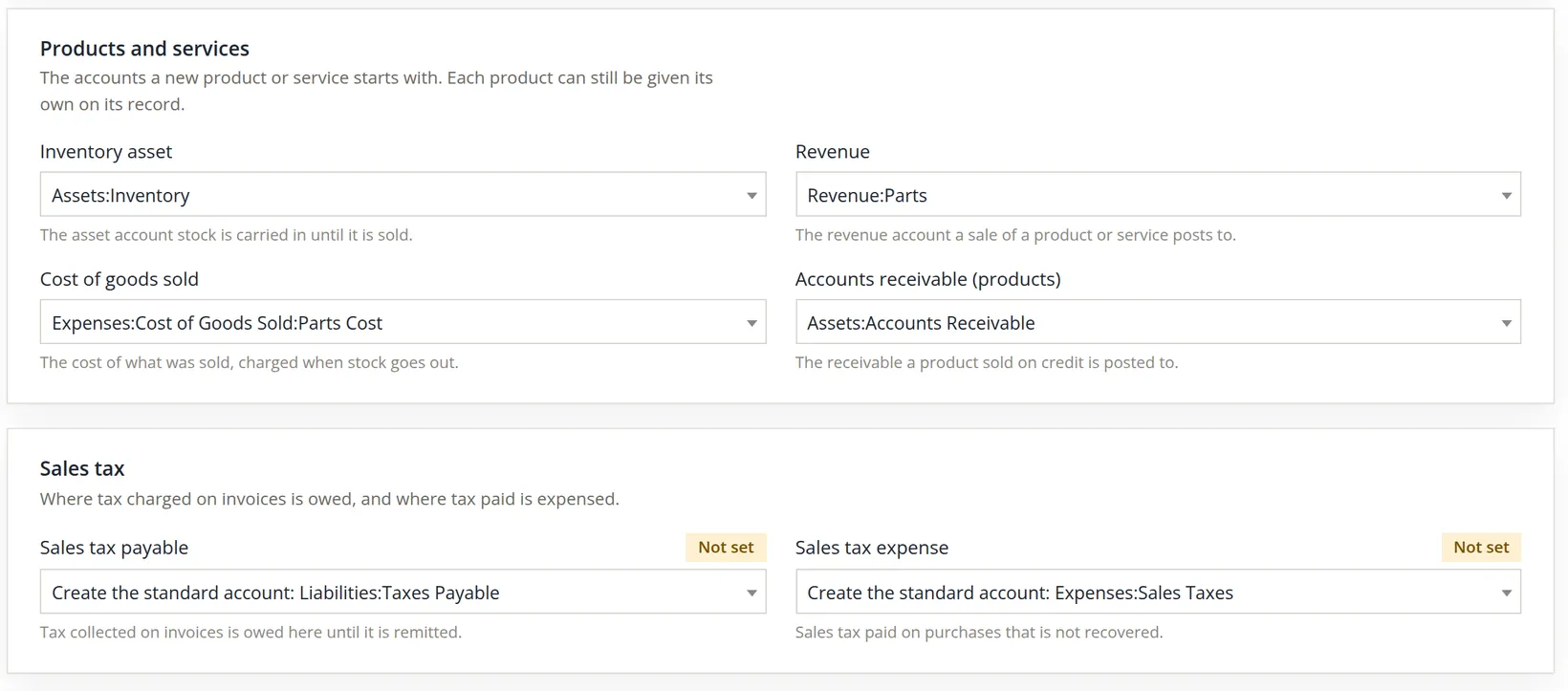
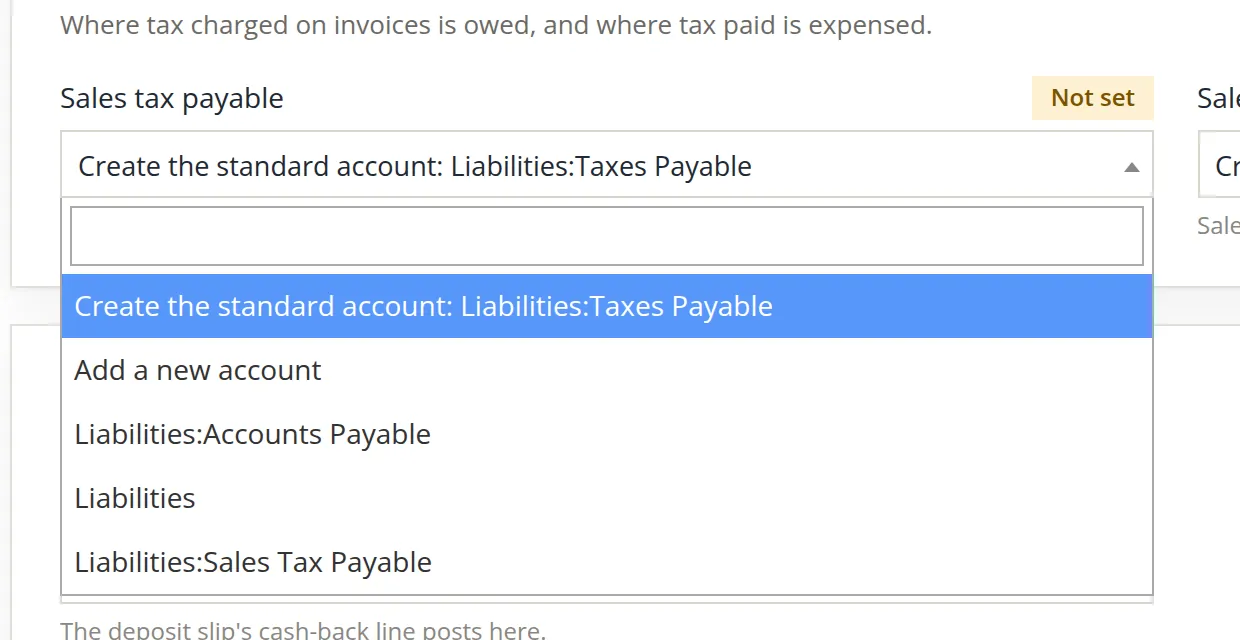
On the Sales tax card, click the Sales tax payable picker. It offers, in order: the standard account the save would create, Add a new account (a dialog for an account of your own design), and every existing account of the right kind. Read the whole list before accepting the first line. In the practice books the chart already holds Liabilities:Sales Tax Payable; keeping Create the standard account: Liabilities:Taxes Payable would make a second liability for the same tax, and the two would split the balance between them. The bookkeeper chose Liabilities:Sales Tax Payable.
- 2
Check every other Not set posting before you save
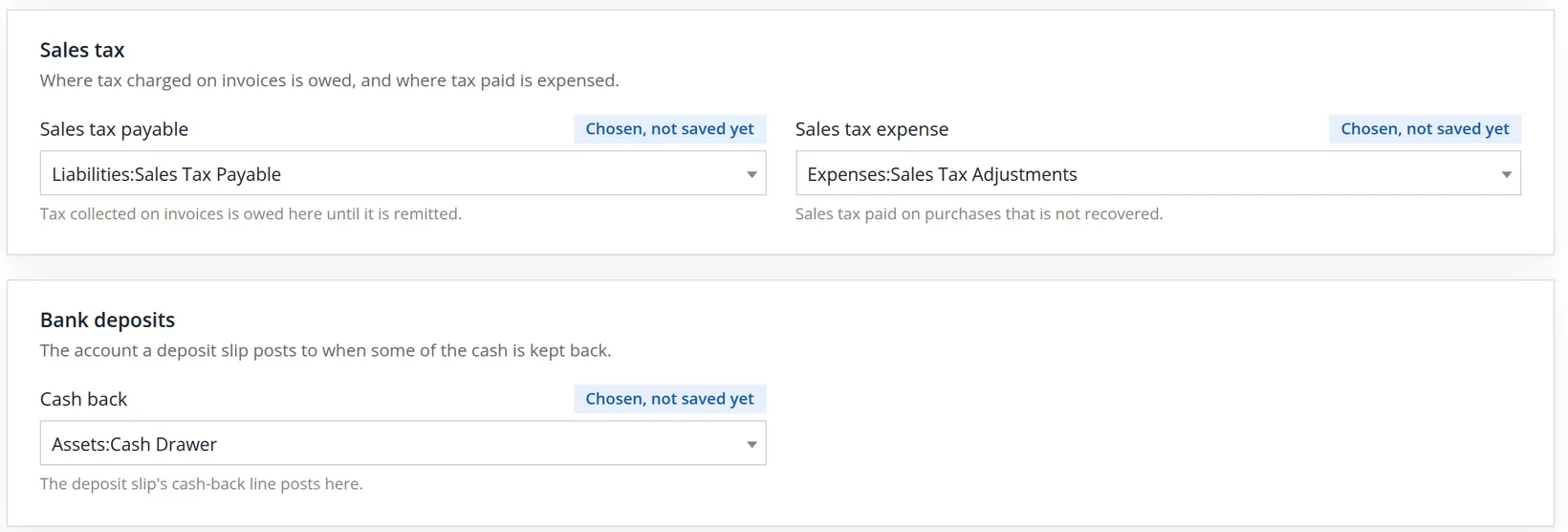
One save covers the whole page, and every posting still showing Create the standard account gets its standard account in that same save. The account is made only if the chart has no account with exactly that path; if one exists, the save uses it. The practice books had four: Imbalanced, Sales tax payable, Sales tax expense and Cash back. Before saving, the bookkeeper checked the chart for an existing account for each (Chapter 5.1) and found one every time: Imbalanced, Expenses:Sales Tax Adjustments and Assets:Cash Drawer, besides the sales tax liability. Each posting chosen this way is tagged Chosen, not saved yet.
- 3
Save
Press Save changes at the foot of the editable cards. The page reloads and the tag reads All 16 set. Because every posting named an account the chart already had, the save created no account. Had the four standard lines been kept, the save would have used the existing Imbalanced, whose path matches exactly, and made three new accounts, Liabilities:Taxes Payable, Expenses:Sales Taxes and Assets:Cash, each with a zero balance, next to the Sales Tax Payable, Sales Tax Adjustments and Cash Drawer already there.

A default points to an account, not to a name. If your accountant prefers "Sales Tax Payable -- State" you can rename or renumber the account in the chart of accounts (Chapter 5.1) and the default follows it.
Pointing a posting to another account affects entries saved from then on. Entries already saved stay where they were posted. If you need last month's lines moved as well, that is a journal entry (Chapter 5.2), and a conversation with your accountant first. Change defaults between periods, not in the middle of one.
The two read-only cards
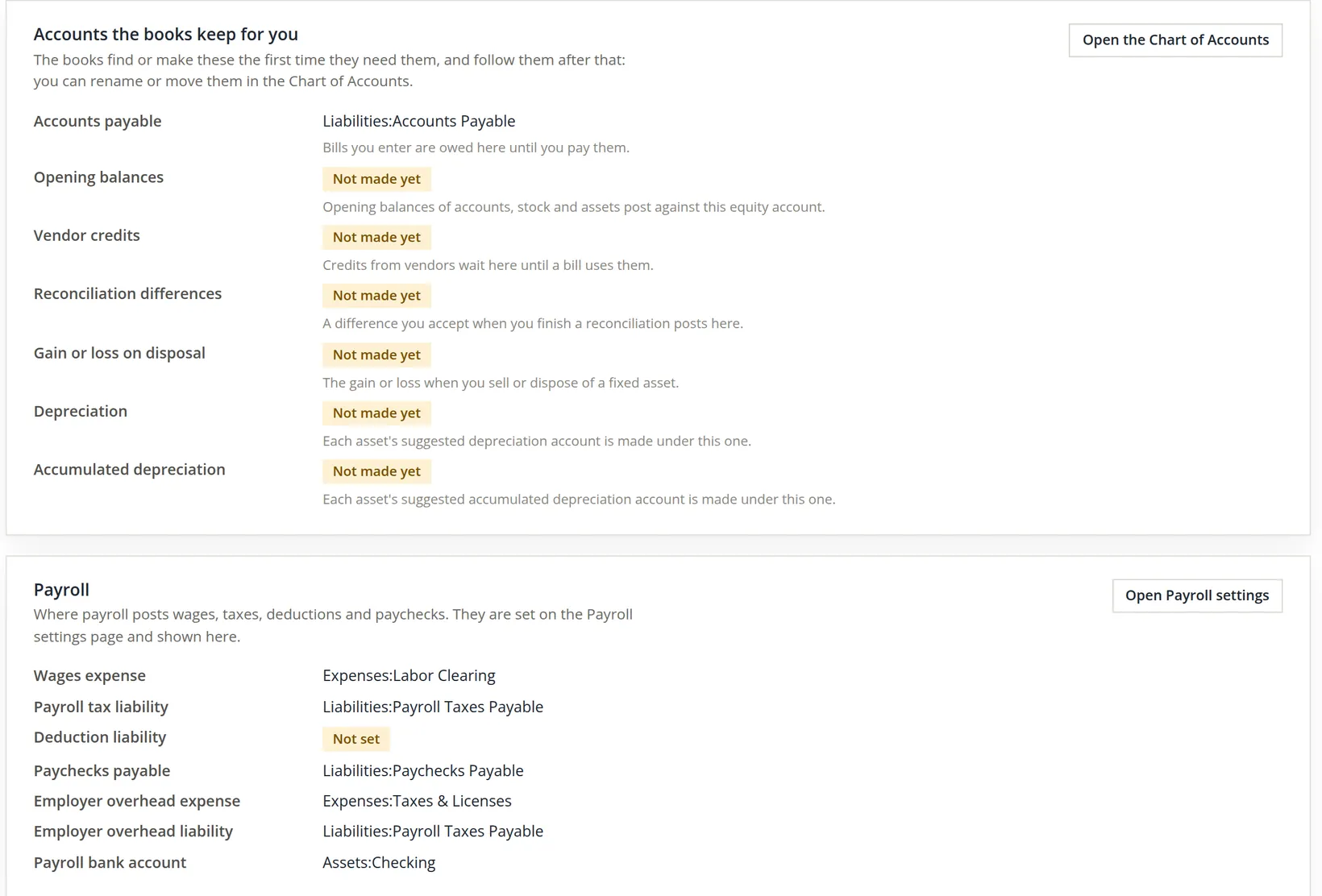
Accounts the books keep for you lists seven accounts the books find or make the first time they need them: accounts payable, opening balances, vendor credits, reconciliation differences, gain or loss on disposal, depreciation and accumulated depreciation. You cannot choose them here, but you can rename or move them in the chart of accounts and the books follow.
Payroll shows the seven accounts payroll posts to. They are chosen on the Payroll settings page (Chapter 11.1) and only shown here, so that the whole map is on one page. In Summit, where payroll is off, all seven read Not set. The picture below comes from Summit Gear Repair, where payroll runs.
Defaults in order
- [x] The head of the page reads All 16 set, or you know why a posting is left empty.
- [x] Before saving, every Create the standard account was checked against the chart for an existing account, so no posting gets a duplicate.
- [x] Every Not in this list tag is understood and left alone on purpose.
- [x] Sales tax payable is set before the first taxable invoice.
- [x] Payroll accounts are set on the Payroll settings page, not looked for here.
- [x] Any change was made at the start of a period, and noted for the accountant.
Check your understanding
1. In the worked example, why is the debit to Accounts Receivable $519.59?
Answer
It is what the customer owes: $478.00 of goods plus $41.59 of tax.
2. The page reads 3 of 16 not set and you change only the revenue account, then save. How many accounts may the save create?
Answer
Up to three: one for each posting still showing Create the standard account, and fewer if the chart already holds an account with exactly that path, which the save uses instead.
3. A posting shows Not in this list. Will saving the page move the posting?
Answer
No. The stored account is kept as it is.
4. The chart already holds Liabilities:Sales Tax Payable, and Sales tax payable reads Not set. What happens if you save without touching it?
Answer
The save creates the standard account Liabilities:Taxes Payable, a second liability for the same tax. Choose the existing account first.
5. Where do you change the account wages post to?
Answer
On the Payroll settings page; this page only shows it.
Notes
- Summit's own postings were all filled before this edition was revised, so its page cannot show the empty state. For the pictures, the four postings of Summit Gear Repair (practice copy) were emptied, and the procedure chose the four accounts those books had before, so they ended exactly as they started. Nothing was changed in Summit. ↑
- The 8.7% rate and the $120.00 cost are figures for the example. Washington's combined rate depends on the delivery address and changes from time to time; look it up with the Washington Department of Revenue. Not tax advice. ↑
- Since November 2026. Before then the Deposit payments into picker listed only revenue, liability and equity accounts (its standard account was Revenue:Service), so a stored bank read Not in this list, and Credits and allowances listed expense accounts only. ↑