
Chapter 2.1
Writing a Sales Invoice
A step-by-step guide to billing a customer: what to gather, how to fill in each part of the invoice, how to send it, and what happens in your books when you do.
When you finish this manual you will be able to:
- Explain what an invoice records, and where it sits between an estimate and a payment.
- Create an invoice with products, quantities, terms and a due date.
- Send the invoice by e-mail or open it as a PDF to print.
- Find the invoice afterwards, read its status, and know the next step.
Contents
Before you begin
An invoice is a request for payment, and the customer will read every word of it. Gather these facts before you open BizBooks360.
- Who to bill. The customer's name and the e-mail address their bills should go to.
- What was sold. Each product or service, how many, and at what price.
- The terms you agreed. When payment is due: on receipt, in 15, 30 or 60 days.
- Their reference. A purchase order or job number the customer wants quoted.
Everything you sell belongs in Sales → Products & Services, with its description, price and income account. Once it is there, choosing it on an invoice fills the description and rate for you, and the sale lands in the right income account every time.2
The life of an invoice
An invoice is one stage in a short story that begins with a quote and ends with money in the bank. This manual covers the middle two boxes.
What happens in the books
You never type debits and credits on an invoice; BizBooks360 writes them when you save. When you issue an invoice, two things become true at once: you have earned the income, and the customer owes you the money.3
So Accounts Receivable (what customers owe) is debited by the total, and each line's income account is credited with that line's amount. In the sample, rentals go to Equipment Rentals and the clinic and the trip go to Guided Trips & Clinics.
Write the invoice
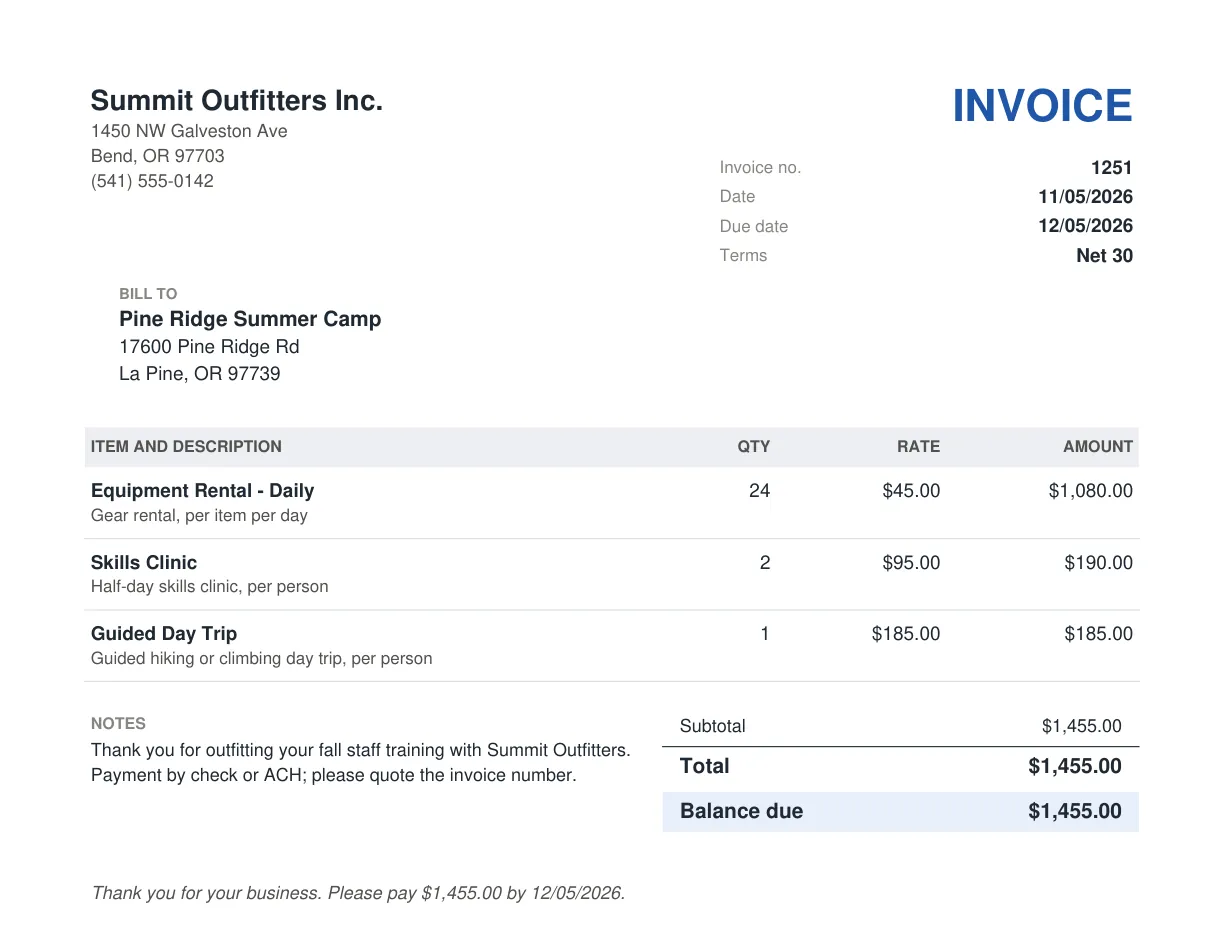
Example used below: Pine Ridge Summer Camp rented 24 days of gear for its fall staff training, took two skills clinics and one guided day trip. Total $1,455.00, payment due in 30 days.

- 1
Open a new invoice
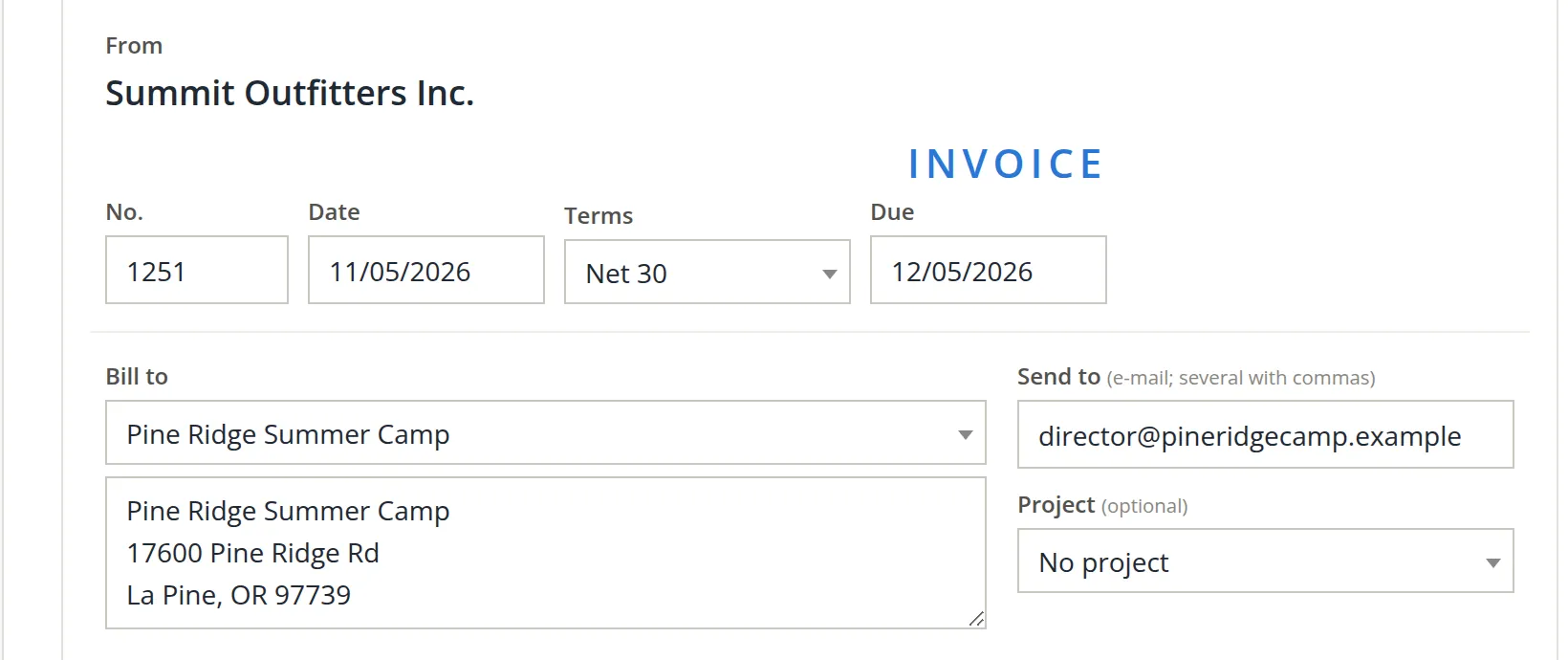
Click Sales A, then + Invoice B. The form opens looking like a paper invoice, with your company's name at the top under From.
- 2
Number 1 and date 2
BizBooks360 proposes the next number in sequence, here 1251. Keep it.5 Set the date to the day the goods were delivered or the work was done.
- 3
Terms 3 and due date 4
Choose the terms you agreed: Due on receipt, Net 15, Net 30 or Net 60. The due date fills itself in: Net 30 from 11/05/2026 makes it 12/05/2026.6
- 4
Bill to 5
Type the first letters of the customer and press Tab. Their name and address fill the address box 6 exactly as they will print. Change the box only if this invoice must show a different address. A new customer? Choose + Add a new customer at the top of the list.
- 5
Send to 7 and project 8
Send to fills with the customer's e-mail address. Add more addresses separated by commas, for example their accounts payable office. Project is optional and ties the sale to a job. When the project's contract is split into contract lines, each invoice line also gets a Contract line list, for the line of the contract it bills (Chapter 7.1).
Once you choose a customer, the This customer panel says whether they already owe you anything, and Their latest invoices lists recent ones. Click Use the same lines under an old invoice to copy its lines into this one.
- 6
Choose the product or service 9
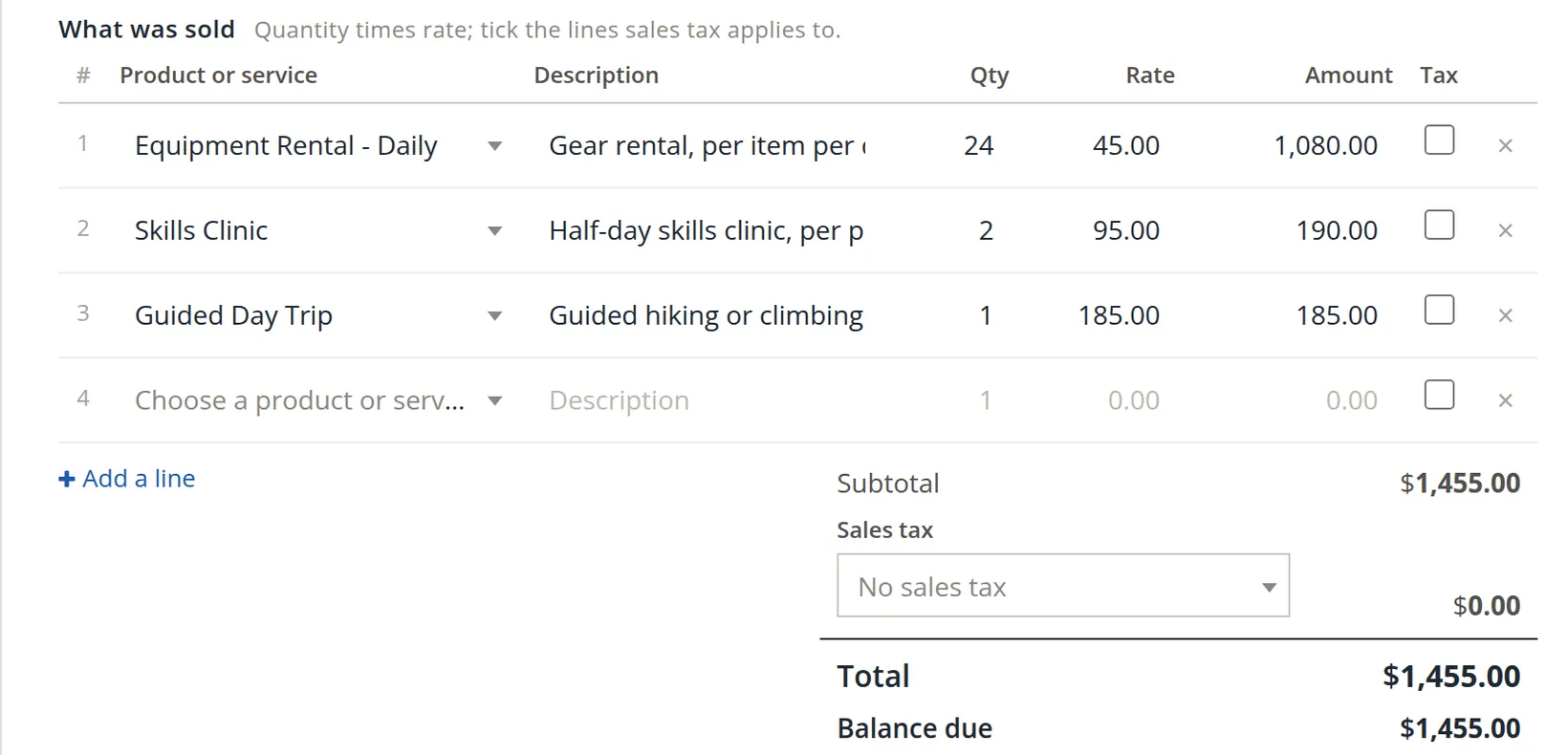
On line 1, type the first letters of the item, here Equipment Rental - Daily, and press Tab. The description ("Gear rental, per item per day") and the rate ($45.00) come from your price list. You may edit the description for this invoice.
- 7
Enter the quantity 10
Type 24 for 24 rental days. The amount becomes 24 × 45.00 = 1,080.00. If you know the amount but not the rate, type the amount and BizBooks360 works out the rate.
- 8
Add the other lines 11
Fill line 2 (Skills Clinic × 2) and line 3 (Guided Day Trip × 1). A new blank line appears each time you fill the last one, or click + Add a line. Blank lines are ignored when you save.
- 9
Sales tax 12
If the sale is taxable, choose the tax rate under Sales tax and tick the Tax box on each line it applies to. Summit Outfitters is in Oregon, so the invoice keeps No sales tax.7
- 10
Check the totals 13
Read Subtotal, Total and Balance due. Balance due is lower than the total only if a payment or a customer credit is applied. Compare the total with your order or quote before you go on.
- 11
Message 14 and private note 15
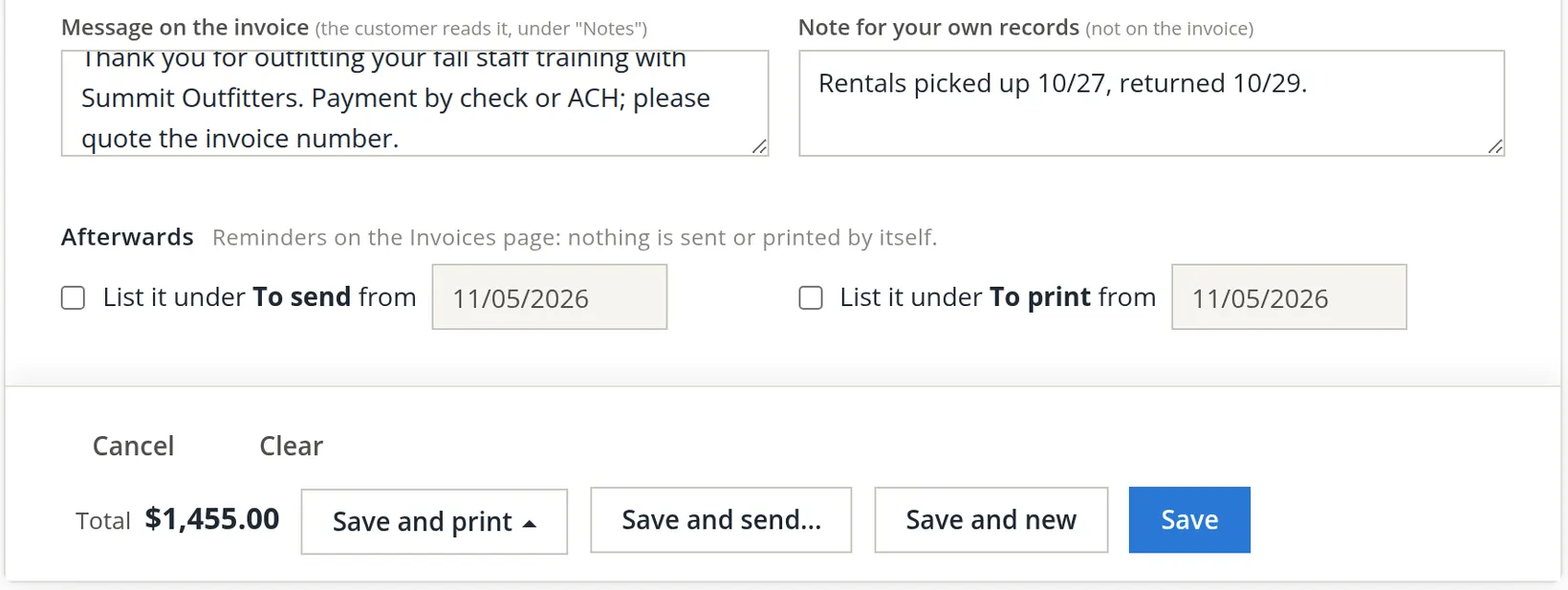
Message on the invoice prints under "Notes" for the customer to read: a thank-you, how to pay, a purchase order number. Note for your own records never appears on the invoice.
- 12
Reminders, if you want them 16
Under Afterwards, tick List it under To send or To print to put the invoice on a to-do list on the Invoices page from a chosen date. Nothing is sent or printed by itself.
- 13
Save, choosing what happens next
- Save 19: saves and returns to the Invoices list. Save and new starts the next invoice.
- Save and send... 18: saves, then opens the e-mail page (next section). Nothing is sent until you press Send there.
- Save and print 17: a small menu (Figure 7) saves, then opens the invoice as a PDF, or the packing slip.8
E-mail the invoice to the customer
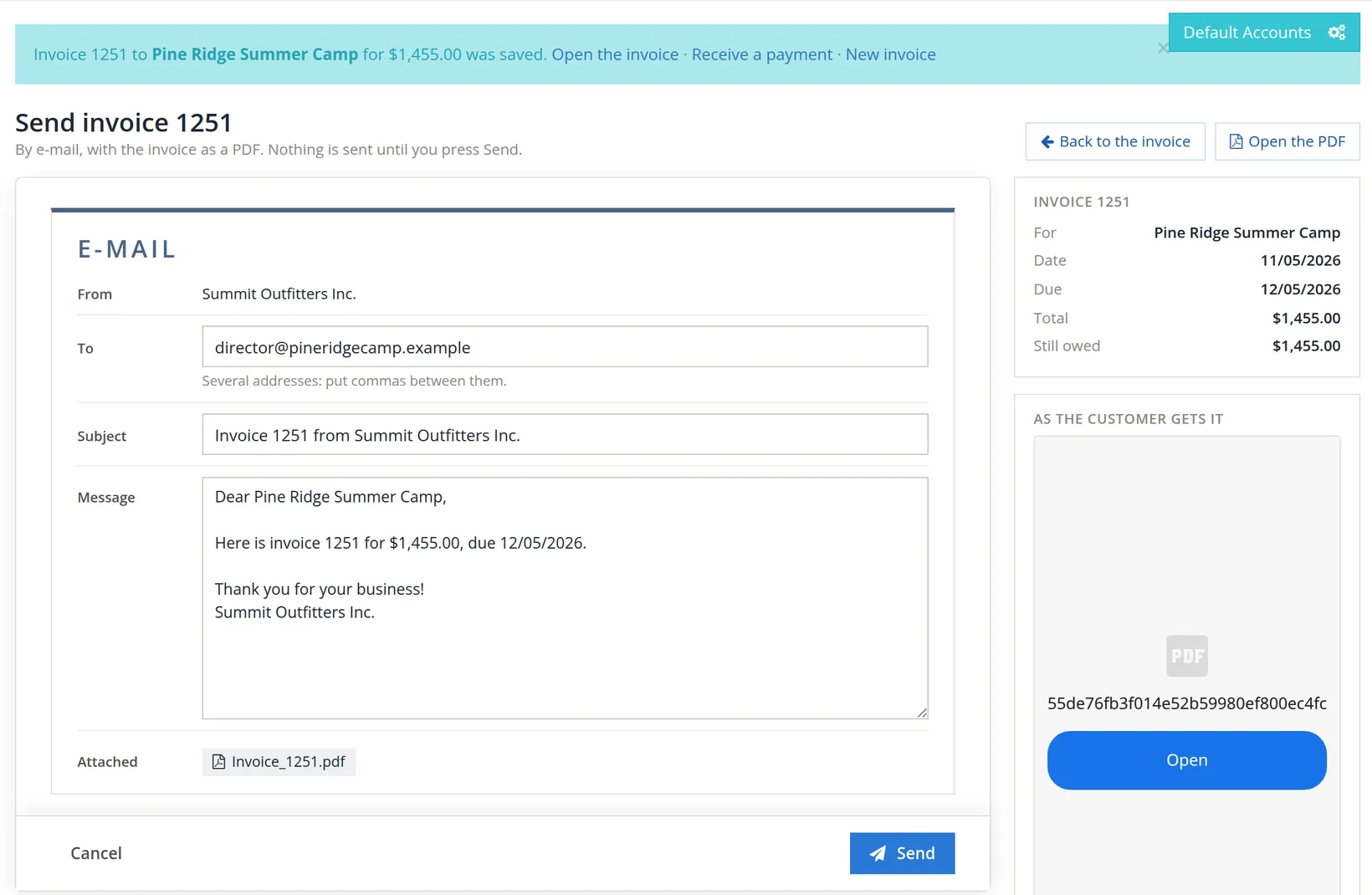
After Save and send..., a blue bar confirms the save ("Invoice 1251 to Pine Ridge Summer Camp for $1,455.00 was saved.") and the Send invoice 1251 page opens with the e-mail ready to go. A column on the right sums up the invoice (customer, dates, total, still owed) and offers the PDF as the customer will get it.
- 14
Check the address A and subject B
The address comes from Send to on the invoice. Several addresses are fine; put commas between them.
- 15
Read the message C
BizBooks360 writes a short, polite message with the number, amount and due date. Edit it if you like. The invoice itself travels as a PDF attachment D.
- 16
Send E
Click Send. You return to the invoice, and a message confirms "Invoice 1251 was sent to director@pineridgecamp.example."
The clock on the terms starts at the invoice date, not the day the work was done. A sale invoiced a week late is usually paid a week late. Make invoicing part of finishing the job.
After you save: finding and following up
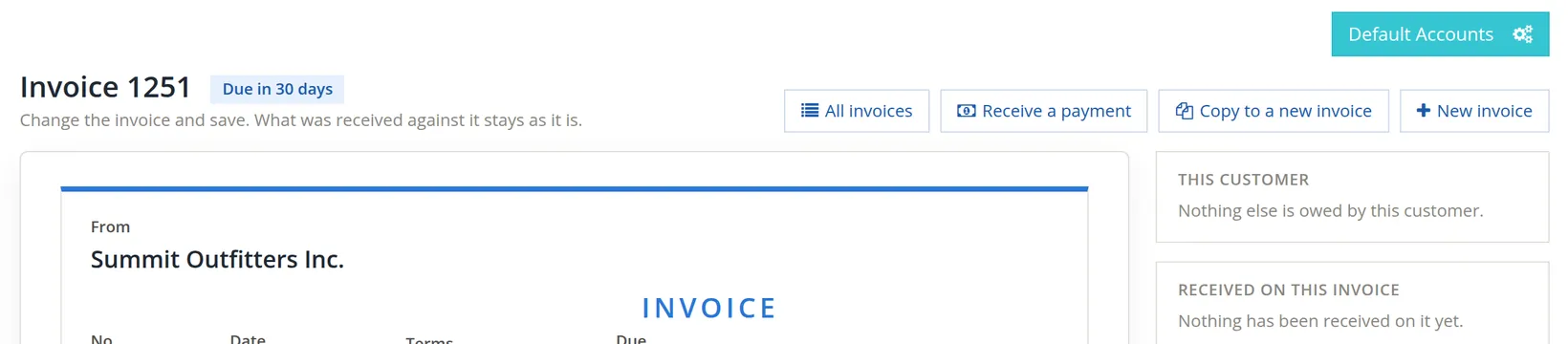
A saved invoice opens with its number as the title and a status tag, here Due in 30 days. The buttons along the top lead to the next jobs: Receive a payment when the money arrives, or Copy to a new invoice for a repeat order.
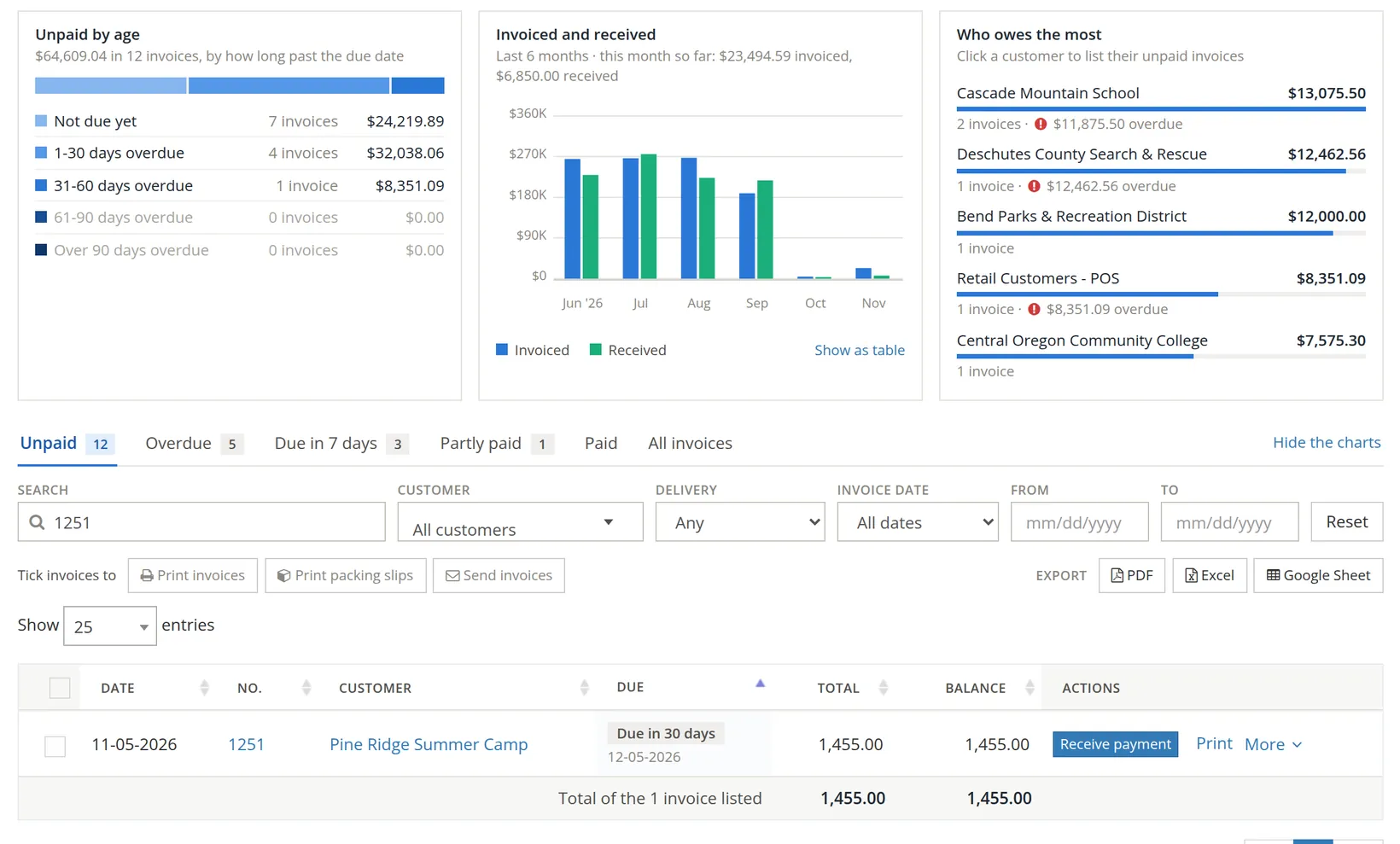
Every invoice is also listed on the Sales page. The charts above the list show what is owed by age and who owes the most.9
An open invoice offers both Delete and Void. Once a customer has seen an invoice, void it instead of deleting it: a voided invoice stays on file, readable but unchangeable, so the number sequence has no unexplained gap.10 Both buttons ask you to confirm, with a box for the reason. An invoice with money received on it cannot be voided or deleted until those payments are deleted first; BizBooks360 says so.
Closed books. If the books are closed through a date, an invoice dated in the closed period opens read-only when you click it: a warning says it is in a closed period, "It can be read here, not changed", and Save, Delete and Void are hidden. To change it, open it from the Invoices list as the warning says, through the row's More menu and View / Edit (clicking the invoice number opens the same read-only page); saving it there opens a box, This entry is in closed books, that asks for a reason (at least 10 characters) and your password, and the change goes through only after Save in closed books. Deleting it from the list asks the same in a box titled This invoice is in closed books, with the button Delete in closed books.11
Common mistakes and how to fix them
To correct a saved invoice, open it from the Invoices list, change it and click Save changes. Payments already received against it stay as they are.
| Mistake | What you will notice | The fix |
|---|---|---|
| Wrong customer | The right customer says they never got a bill; another one did. | Not sent yet: change Bill to and save. Already sent: void it and write a new one. |
| Today's date instead of the delivery date | Income in the wrong month; due date off. | Change the date; the due date follows the terms. |
| Same sale invoiced twice | Two invoices for one job; the customer pays one. | Void the duplicate. |
| Tax box ticked on a non-taxable line | Tax on the total that you should not collect. | Untick the line's Tax box and save. |
| Private remarks typed in the message | The customer reads your internal note. | Move it to Note for your own records, then send again. |
Working faster with the keyboard
The invoice form shows a Quicker by keyboard panel at the bottom right. These are its shortcuts.
| Keys | What they do |
|---|---|
| Ctrl + S | Save the invoice. |
| Ctrl + Alt + S | Save and start the next one. |
| Ctrl + Alt + P | Save and open the PDF. |
| Tab in a list | Take the highlighted match and move on. |
| Enter on an amount | Go to the next line. ↑ ↓ move between lines. |
| t y + - in a date | Today, yesterday, one day on, one day back. 10/4 is enough for this year. |
Check your understanding
Answer each question in your head, then open the answer.
1. An invoice dated 10/31/2026 has terms of Net 30. When is it due?
Answer
11/30/2026, thirty days after the invoice date. BizBooks360 fills it in.
2. Where do a line's description and rate come from when you choose a product?
Answer
From the item in Sales → Products & Services. You can still edit them on this invoice.
3. You want the customer to see "PO 5521" on the invoice. Which box?
Answer
Message on the invoice. The note for your own records is never shown to the customer.
4. You clicked "Save and send..." by mistake. Has the customer received anything?
Answer
No. The invoice is saved, but nothing is sent until you press Send on the send page. Click Cancel there.
5. Which account is debited when invoice 1251 is saved, and by how much?
Answer
Accounts Receivable, by $1,455.00. Equipment Rentals ($1,080.00) and Guided Trips & Clinics ($375.00) are credited.
Quick reference card
The whole manual on one screen. Keep it open beside BizBooks360 until the steps are habit.
New invoice
- Sales → + Invoice
- Keep the number; set the date of the sale
- Terms; the due date follows
- Bill to: the customer
- Check Send to e-mail
- Lines: product, quantity
- Sales tax, if any
- Check the total
To the customer
- Message for the customer
- Save and send...
- Check To, Subject, Message
- Send
- Or: Save and print → PDF
Five-second review
- Right customer and e-mail?
- Right date and terms?
- Quantities and rates right?
- Tax only where it applies?
- Nothing private in the message?
Notes
- The pictures show the fictional practice company Summit Outfitters Inc. Invoice 1251 was created, saved and e-mailed there. The customer's address uses the reserved
.exampledomain, so no message reached a real inbox. ↑ - Each product or service carries an income account. In the sample, Equipment Rental - Daily posts to Equipment Rentals, while Skills Clinic and Guided Day Trip post to Guided Trips & Clinics. That is how Figure 2 knows where each line goes. ↑
- This is accrual accounting: income is recorded when it is earned, not when the cash arrives. If your accountant reports on a cash basis, the same invoice counts as income on the day it is paid. Entering invoices correctly serves both views. ↑
- The + Invoice button appears only if your sign-in is allowed to create invoices. If it is missing, ask the owner of the books for that permission. ↑
- Unique, sequential invoice numbers make every sale traceable. A gap in the sequence is one of the first things an auditor or tax examiner asks about. ↑
- "Net 30" means the full amount is due 30 days after the invoice date. You may also see terms such as "2/10 net 30": a 2% discount if paid within 10 days, otherwise the full amount in 30. ↑
- Oregon is one of five states with no statewide sales tax (with Alaska, Delaware, Montana and New Hampshire), though some places in Alaska charge a local one. Sales tax rules differ by state and by product; ask your tax adviser which of your sales are taxable. ↑
- A packing slip goes in the box with the goods so the customer can check what was shipped. Print it with Save, then open the packing slip, or for many invoices at once with Print packing slips on the Invoices list. ↑
- The Unpaid by age chart is an accounts receivable aging: unpaid invoices grouped by how far past due they are. The older the group, the harder the money is to collect, so follow up on the 31-60 day group before it ages further. ↑
- Keep a copy of every invoice you issue. The IRS generally expects business records to be kept for at least three years, and longer in some cases (IRS Publication 583). A voided invoice is part of that record. ↑
- Since November 2026. Closing the books, and why it protects figures already reported, is explained in Chapter 15.5. The reason box of a delete or a void is optional in most books, and whatever you type is kept with the deleted entry. A deleted or voided invoice also leaves an event in Reports → Bookkeeping and audit → Audit History (Chapter 6.7). With government contract controls switched on, a reason of at least 10 characters is required. ↑