
Chapter 2.6
Customers: Records, Accounts and Statements
How to add a customer, what each part of their record does on later invoices, how to read a customer's account at a glance, and how to send them a statement.
When you finish this chapter you will be able to:
- Find any customer and see at a glance who owes what.
- Add a customer, and choose the details that save time on every invoice.
- Read a customer's account page: balances, ageing, open invoices.
- Produce a statement for any period and send it as a PDF.
Contents
The Customers page
Sales → Customers lists everyone you sell to, with what they owe. Three cards sum it up: what customers owe you, how much is overdue, and how many customers you have.
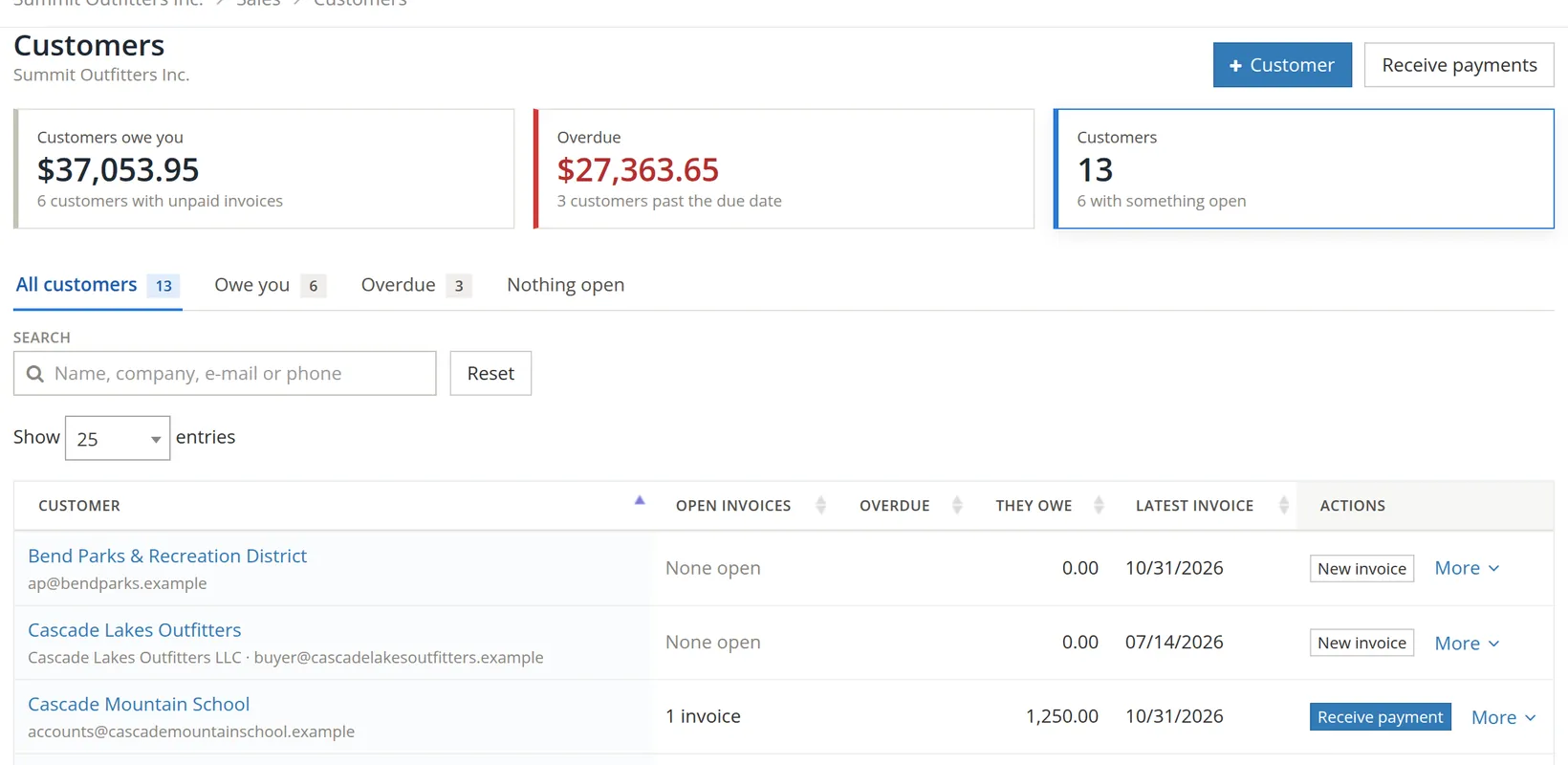
Click Overdue and sort by Overdue, largest first. Call the top three before you send any reminders: a phone call on the biggest balances collects more than a dozen e-mails on the small ones.
Add a customer
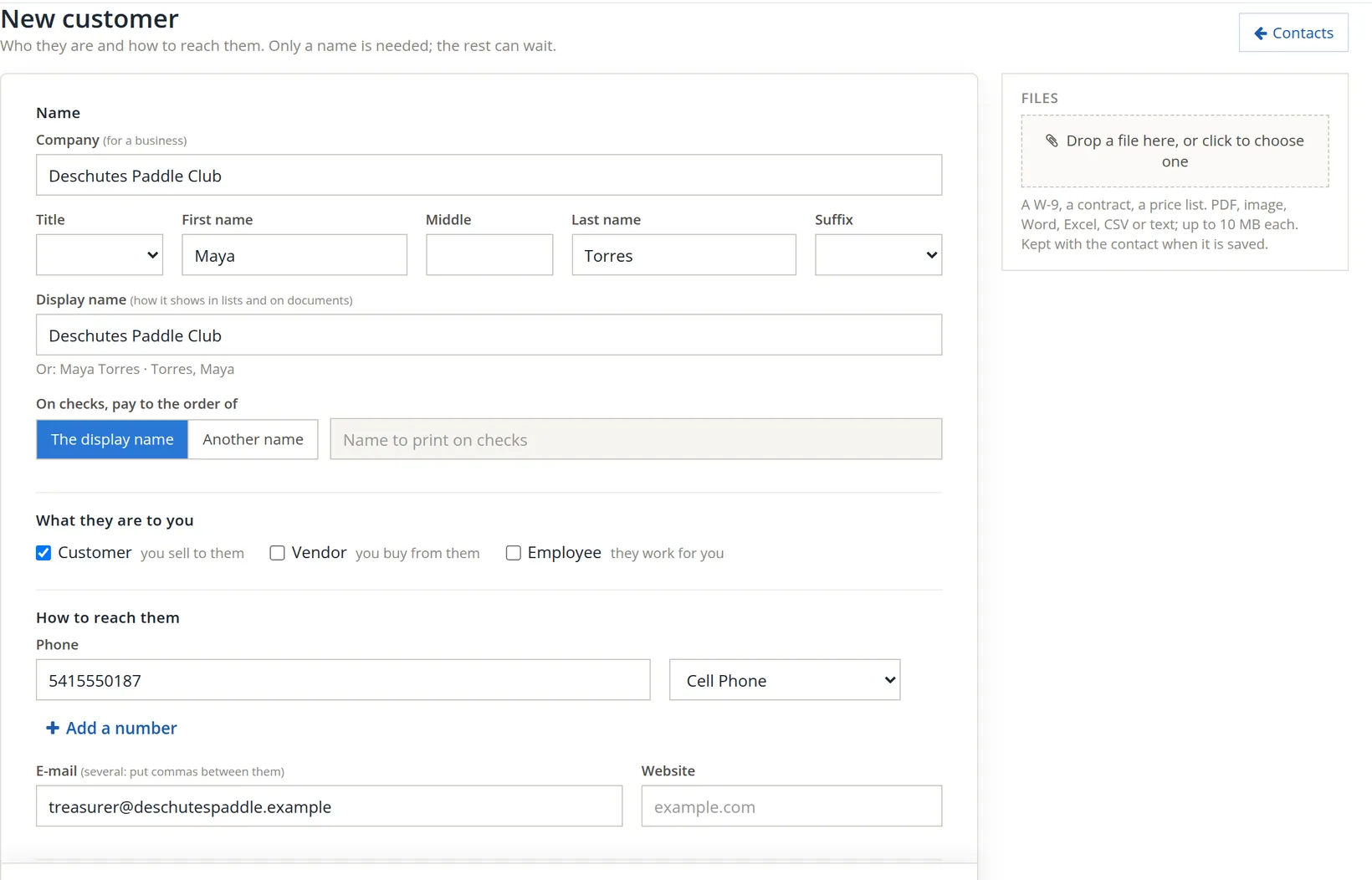
Click + Customer. BizBooks360 opens the Contacts page on its Customers tab; there, click + Contact. BizBooks360 keeps one list of contacts for everyone you deal with, so the form is the contact form, opened with Customer already ticked. Only a name is required; but the few extra details below save time on every invoice.2
- 1
Type the company 1, and a person if there is one 2
For a business, the company name. For a private person, leave Company blank and use the name boxes.
- 2
Check the display name 3
It fills in from the company, with other forms suggested underneath ("Or: Maya Torres · Torres, Maya"). Use the name the customer would recognise on an invoice.
- 3
Leave On checks, pay to the order of 4 as the display name
Choose Another name only if a check you write to them must carry a different legal name.
- 4
Confirm Customer is ticked 5
Tick Vendor too if you also buy from them; one record then serves both.
- 5
Add a phone 6 and the billing e-mail 7
The e-mail is where invoices and statements are sent. Several addresses can go in, separated by commas: the treasurer and the office, for example.
- 6
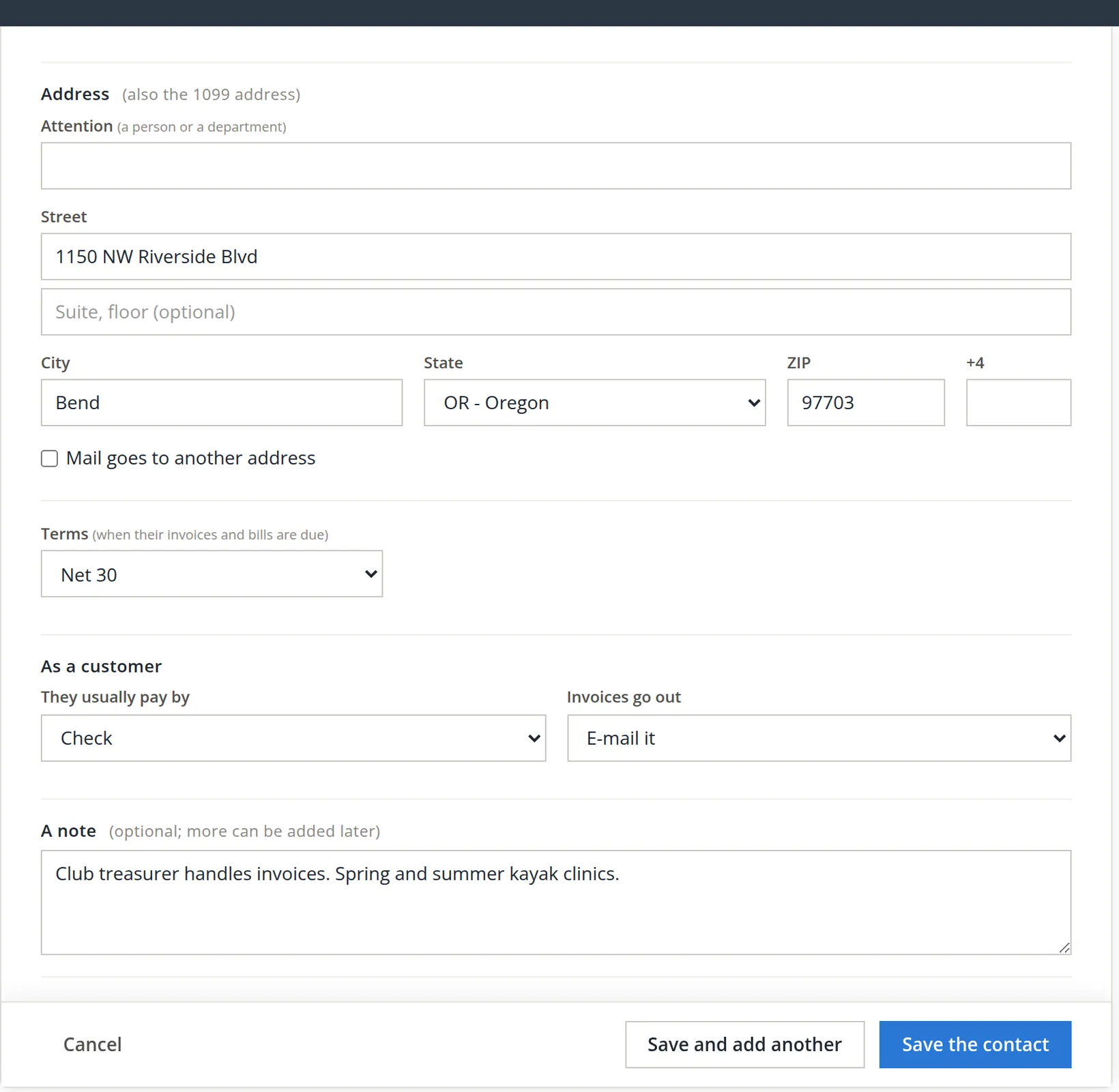
Type the address 1 2
It prints on invoices and statements. Tick Mail goes to another address 3 if their post goes somewhere else.
- 7
Set their terms 4
New invoices to this customer start with these terms, so the due date is right without thinking.
- 8
Say how they usually pay 5 and how invoices go out 6
These save a choice on every payment and invoice. "E-mail it" means their invoices are ready to send.
- 9
Add a note 7 and save 8
The note is dated and kept on the contact. More notes can be added later. Files such as a tax-exemption certificate or a contract can be dropped in the Files panel.
A customer's account
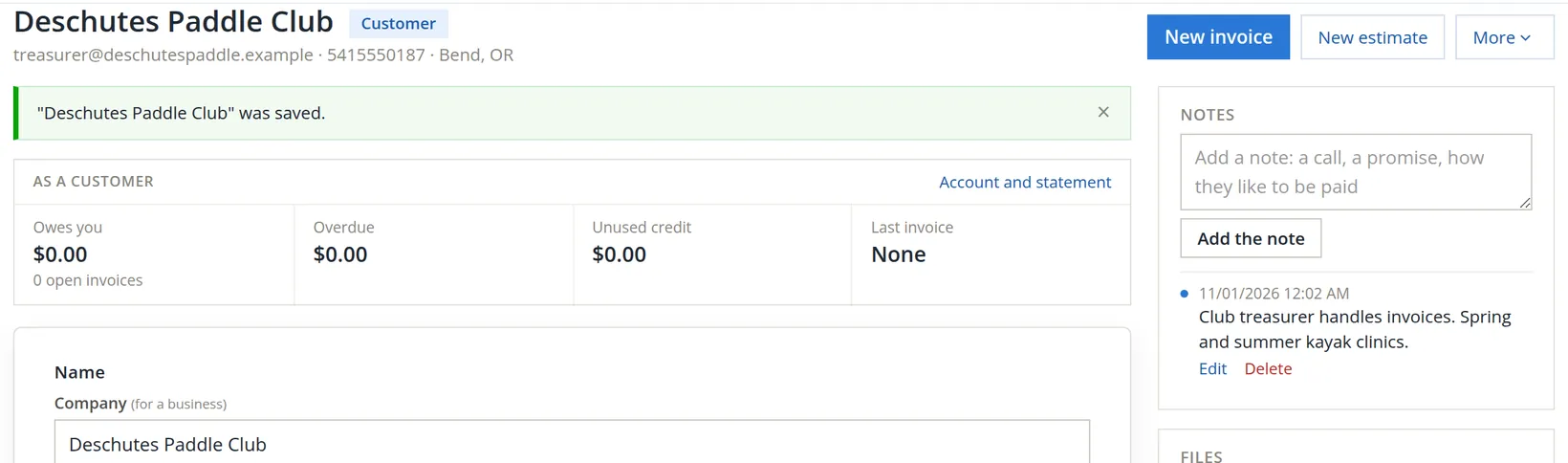
Click a customer's name on the Customers page. Their account page answers every question a customer might phone about.
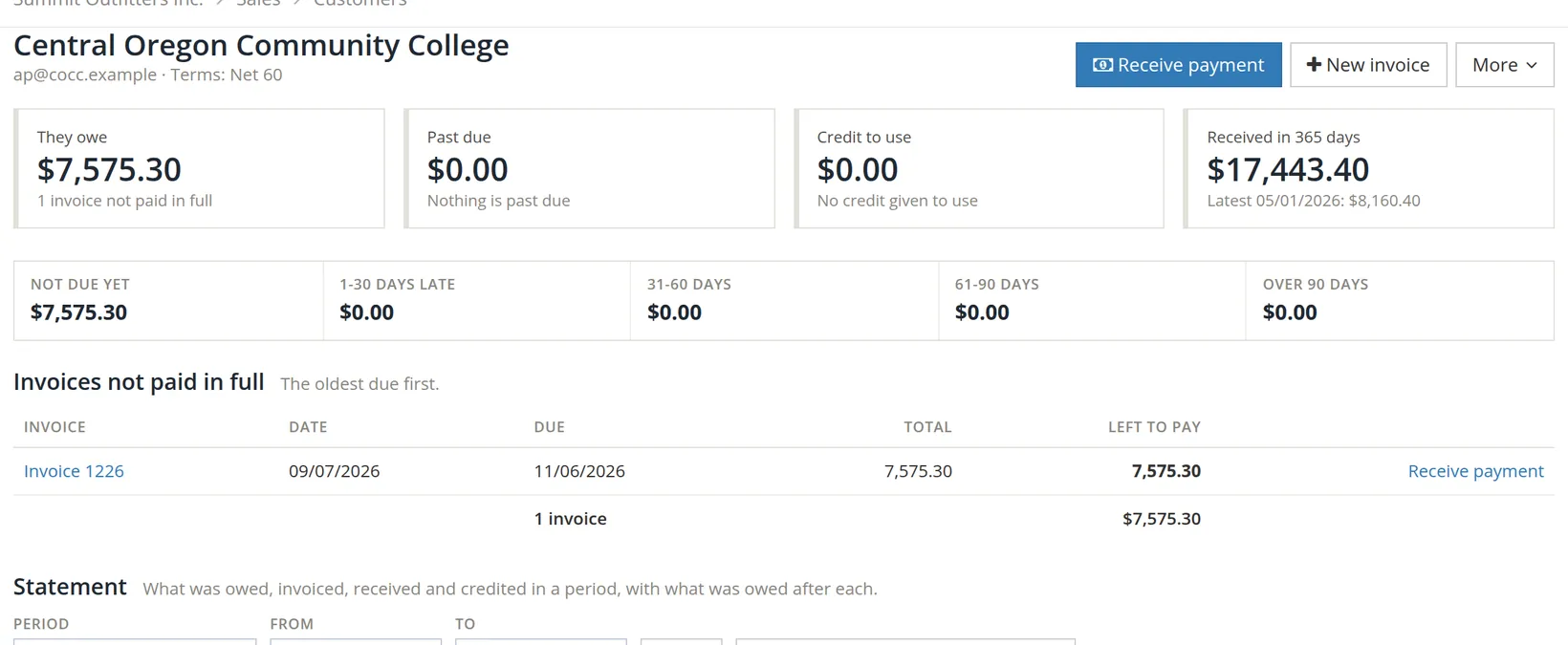
| Part | What it tells you |
|---|---|
| They owe | The total of their unpaid invoices. |
| Past due | How much of that is late. |
| Credit to use | Customer credit waiting to be used (Chapter 2.5). |
| Received in 365 days | How much they paid in the past year, and their latest payment. A quick measure of how much the customer matters. |
| Ageing strip | What they owe split into not due yet, 1–30, 31–60, 61–90 and over 90 days late. |
| Invoices not paid in full | Each one, with a Receive payment link. |
The More menu holds the rest: New estimate, Give credit, Their invoices, Their estimates, Their credits, and Contact details to edit the record.
Send a statement
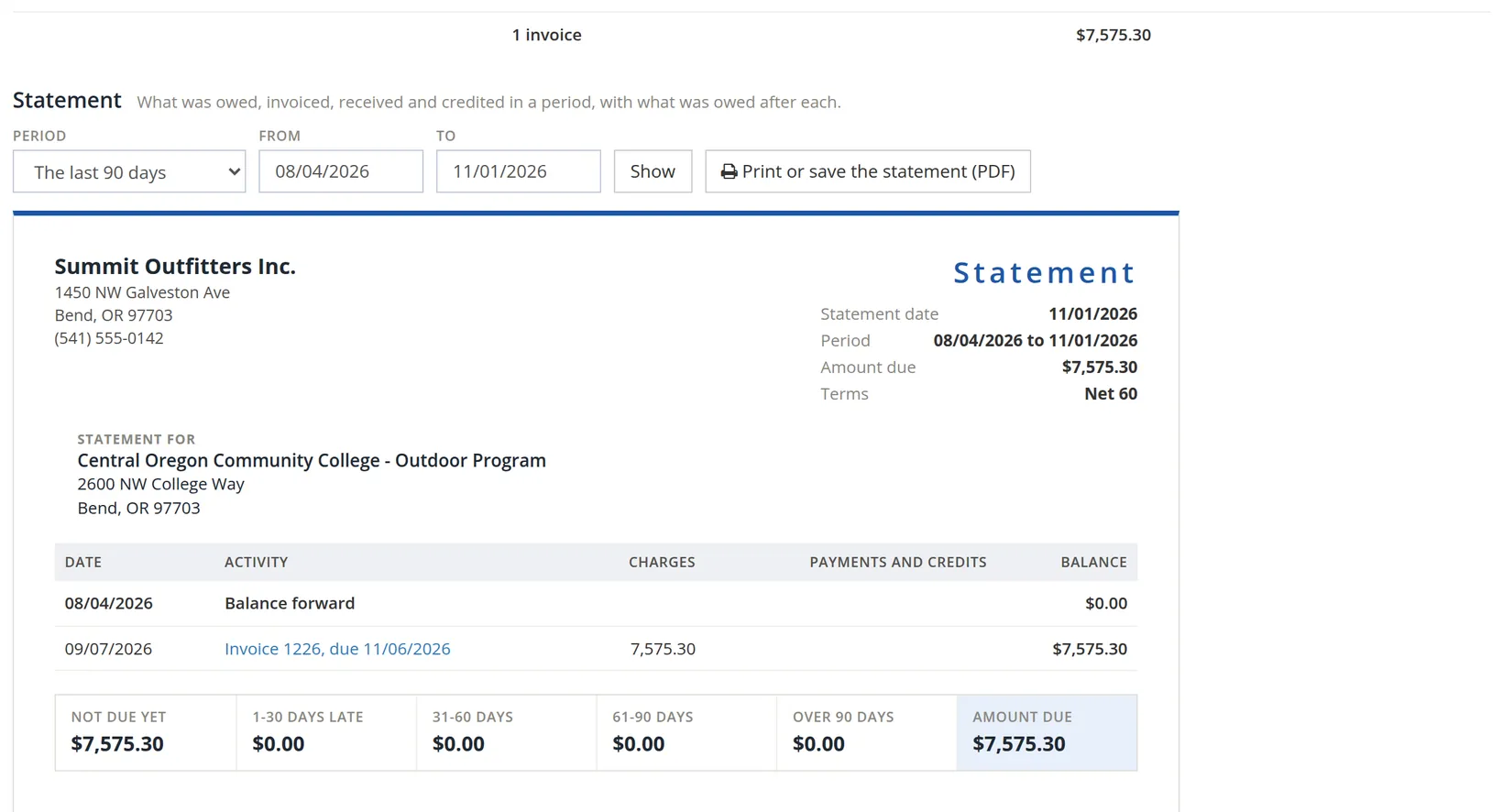
A statement lists everything that happened on a customer's account in a period, and ends with what they owe. Send one when a customer asks "what do we owe you?", when several invoices are open, or every month to customers who buy often.
- 1
Choose the period 1
The last 90 days, this month, last month, this year, last year, since the first invoice, or Dates of my own in From and To 2.
- 2
Click Show 3
The statement below redraws: a balance carried forward from before the period, each invoice, payment and credit in date order with the running balance, and an ageing strip ending in Amount due.
- 3
Click Print or save the statement (PDF) 4
Print it, or save the PDF and attach it to an e-mail to the customer.
When a customer disputes a balance, send the statement for Since the first invoice. Every charge and payment is on one page, and the difference is usually found in minutes: a payment sent to the wrong invoice, or a credit never claimed.
Keeping customer records clean
- Search before you add. "Bend Parks" and "Bend Parks & Recreation District" as two customers split one account in two.
- Duplicates happen anyway. People → Merge contacts combines them, history and all (Chapter 9.2).
- Customers you no longer serve can be made inactive from People (Chapter 9.1). They leave the lists but keep their history.
- One billing e-mail per role. Use the customer's accounts-payable address rather than one person's, so invoices still arrive when that person leaves.
Check your understanding
1. What is the only detail BizBooks360 requires for a new customer?
Answer
A name. Everything else can be added later.
2. You set a customer's terms to Net 30. What changes?
Answer
New invoices to them start with Net 30 terms and a due date 30 days after the invoice date.
3. A customer also supplies you with parts. Do you need two records?
Answer
No. Tick both Customer and Vendor on one contact.
4. A customer says they owe nothing; your list says $7,575.30. Which statement period do you send?
Answer
Since the first invoice, so every charge and payment is visible.