
Chapter 9.2
Merging Contacts
How a business ends up with the same supplier twice, why it matters at tax time, and how to fold the two records into one: every bill, payment, note and file moved to the contact you keep, and the extra one deleted.
When you finish this chapter you will be able to:
- Explain how duplicate contacts arise and what they cost.
- Find possible duplicates and say why the books think two contacts are alike.
- Compare two contacts and choose, field by field, what the kept contact keeps.
- Merge them, and check that the documents moved.
- Set aside two contacts that only look alike.
How duplicates happen, and why they matter
Duplicates are rarely careless. A bill arrives from "Crooked River Climbing Guides", the clerk searches for exactly that, sees nothing obvious, and adds a contact. The search box would have found the existing one by phone or town, but the name on the invoice did not include "LLC", and the clerk was in a hurry.
The cost appears later, in three places:
| Where | What goes wrong |
|---|---|
| Forms 1099 | The new contact was saved without Receives a 1099 or a tax ID. Payments to it are left off the guides' 1099, so the form under-reports what Summit paid them. |
| Balances | What you owe the guides is split between two contacts; neither page shows the whole. |
| History | Notes, files and documents are spread over two records; the next person reads only one. |
A merge fixes all three at once. You choose the contact to keep and the one to merge into it. Every record that names the merged contact (bills, invoices, payments, ledger entries, projects, time sheets, notes, files, bank rules) is moved to the kept one, and the merged contact is deleted.2 Amounts and accounts do not change: only the name the records carry.
The duplicate is made
From the Vendors tab of the Contacts page, the clerk clicks + Contact; the form opens as New vendor with Vendor ticked. They type the name as it appears on the guides' bill, the phone number with brackets and a dash, and the billing address from the bill's footer.
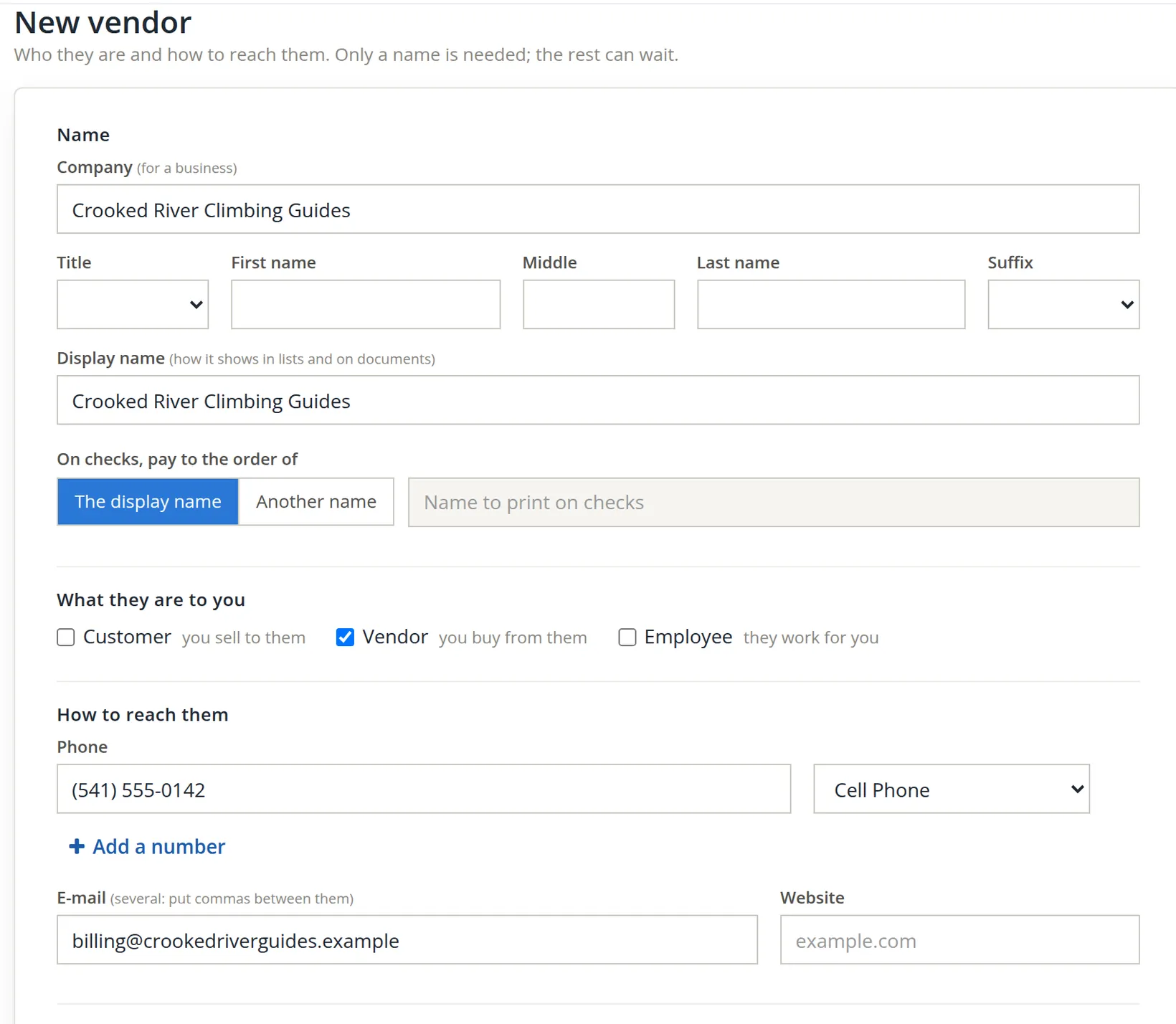
Why no warning? The form's live check (Chapter 9.1) looks for a contact with exactly the same name or company, the same e-mail, the same first and last name, or the same tax ID. "Crooked River Climbing Guides" is not exactly "Crooked River Climbing Guides LLC", the e-mail differs, and there is no tax ID yet, so the check finds nothing.3 The contact saves, as a vendor with no 1099 tag.
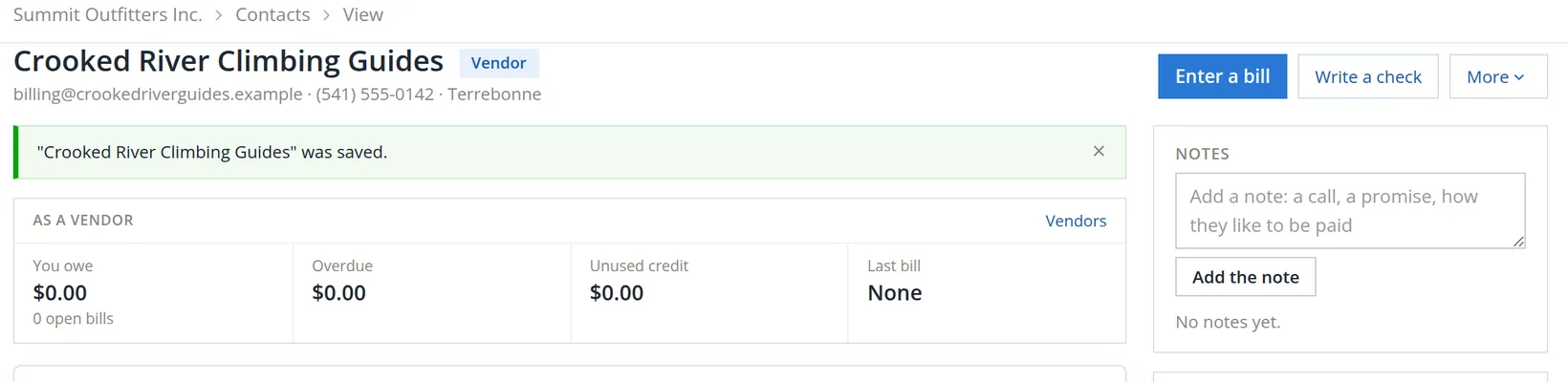
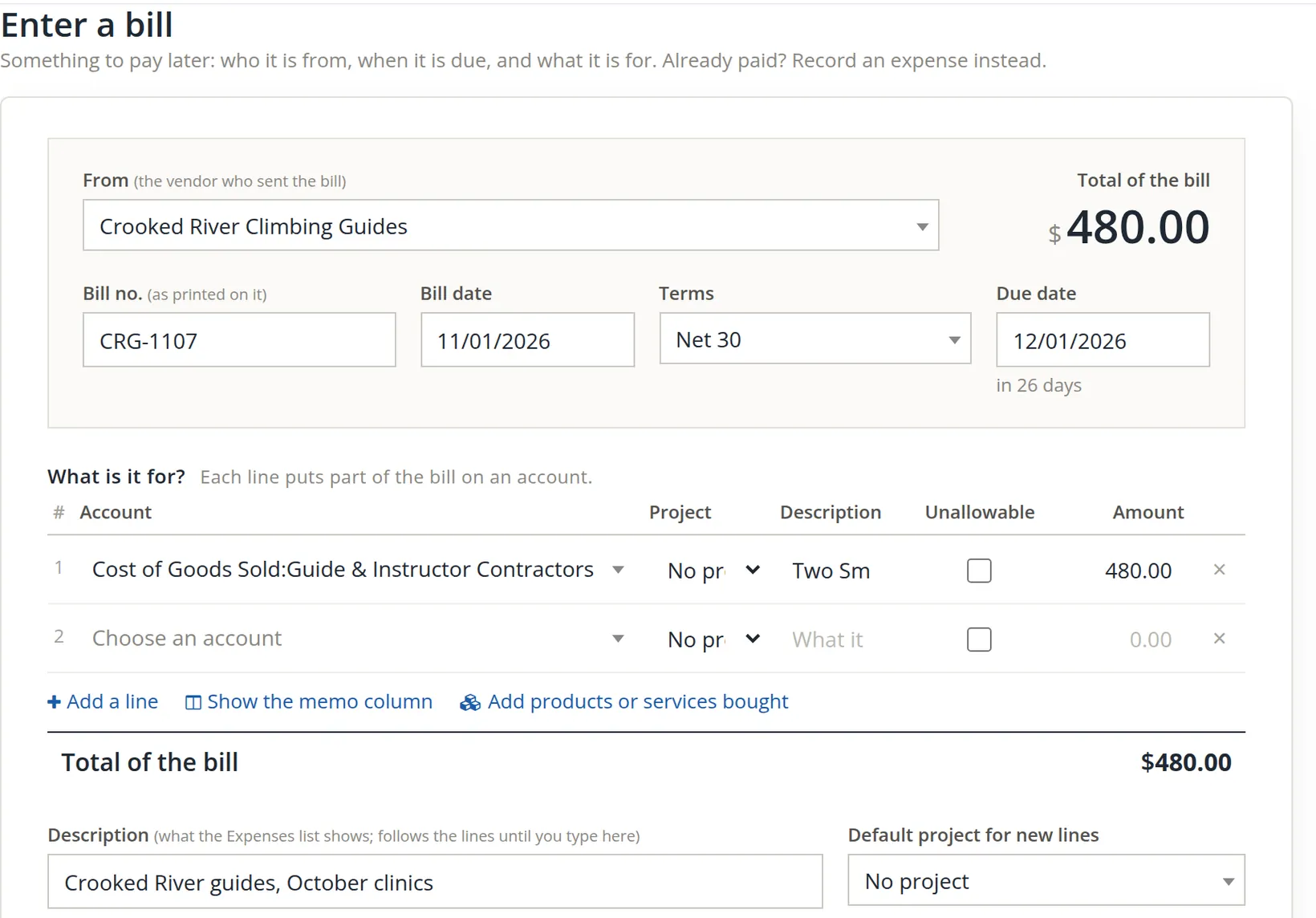
The clerk then enters the guides' bill against it: bill CRG-1107 dated 11/01/2026, two clinics at $240.00 each, 2 × 240.00 = $480.00, to Cost of Goods Sold: Guide & Instructor Contractors (Chapter 3.2 covers bills).
The books notice
The live check missed the duplicate; the list did not. The Contacts page compares every pair of contacts more loosely: it ignores capitals, punctuation and filler words such as LLC, Inc, Co and The, and compares phone numbers by their digits only.4 Back on People → All Contacts, the Possible duplicates card has turned amber.

Look at the Possible duplicates card before you pay bills and before you run the 1099s. A zero there means no vendor's payments are split across two records.
Choose the two contacts
The card, the Merge duplicates button and People → Merge contacts all open the same page.
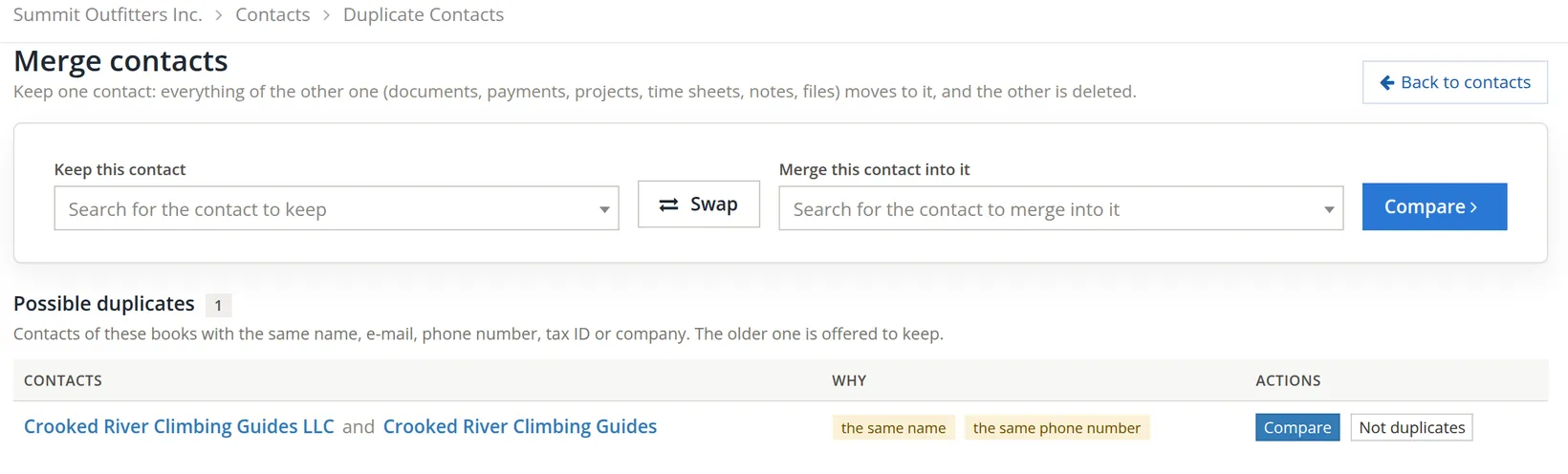
- 1
Use the list of possible duplicates, or pick the two yourself
Each pair lists the older contact first, and the older one is offered as the one to keep, because it usually carries the history. For a pair the books did not find, search for each contact in the two pickers (inactive contacts are included) and click Compare.
- 2
Click Compare on the Crooked River pair
Nothing is changed yet. The next page only compares.
You can also start from a contact's own page: More → Merge with another contact opens this page with that contact as the one to keep, and lists the contacts that look like it.
Compare, choose, merge
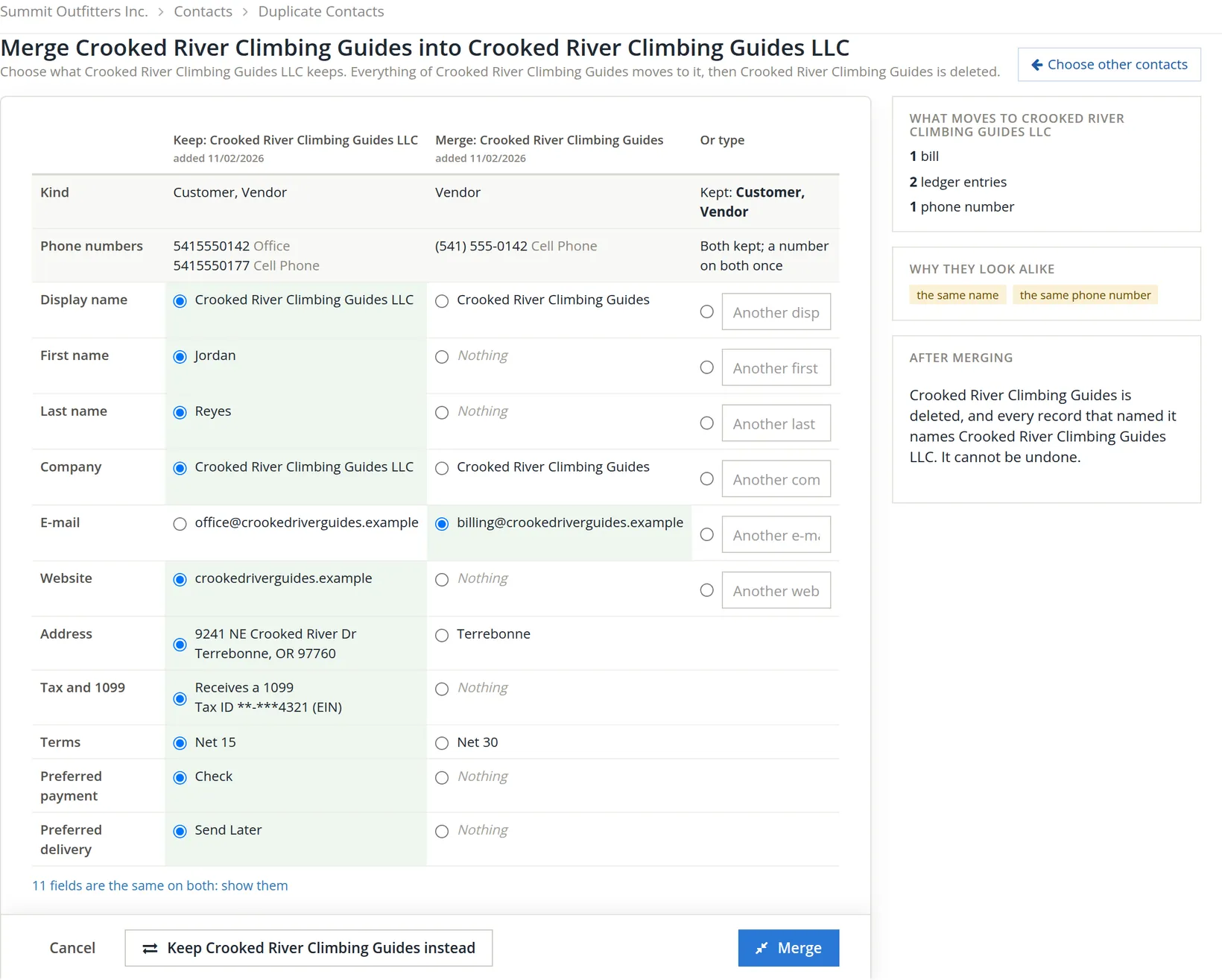
The comparison puts the two contacts side by side. For each field that differs, a round button chooses whose value the kept contact ends up with; some fields also have an Or type box for a third value. Where only one side has a value, that side is chosen for you.
- 1
Check that the right contact is kept
Keep the contact with the 1099 details, the tax ID and the longer history. If the page offers the wrong one, click Keep ... instead; the page swaps sides.
- 2
Go down the rows that differ
For Summit, everything stays with the LLC except the e-mail: the guides asked that bills and statements go to their billing address, so we chose it. The terms stay Net 15, which the bill's default Net 30 had got wrong.
- 3
Read the three cards on the right
What moves counts the records that will change hands. Why they look alike repeats the reasons. After merging states plainly that the merged contact is deleted and that this cannot be undone.
- 4
Click Merge, then Merge again
A last question repeats what will happen. Not now leaves both contacts as they are.
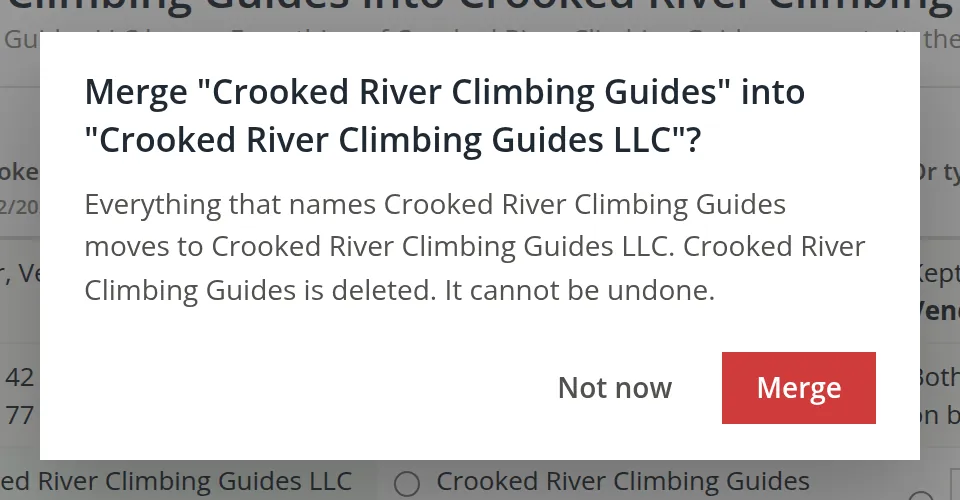
There is no unmerge. If you merge the wrong pair, the only way back is to add a new contact and move each document to it by hand. Read the two names in the question before you click.
Check the result
After the merge, BizBooks360 opens the kept contact.
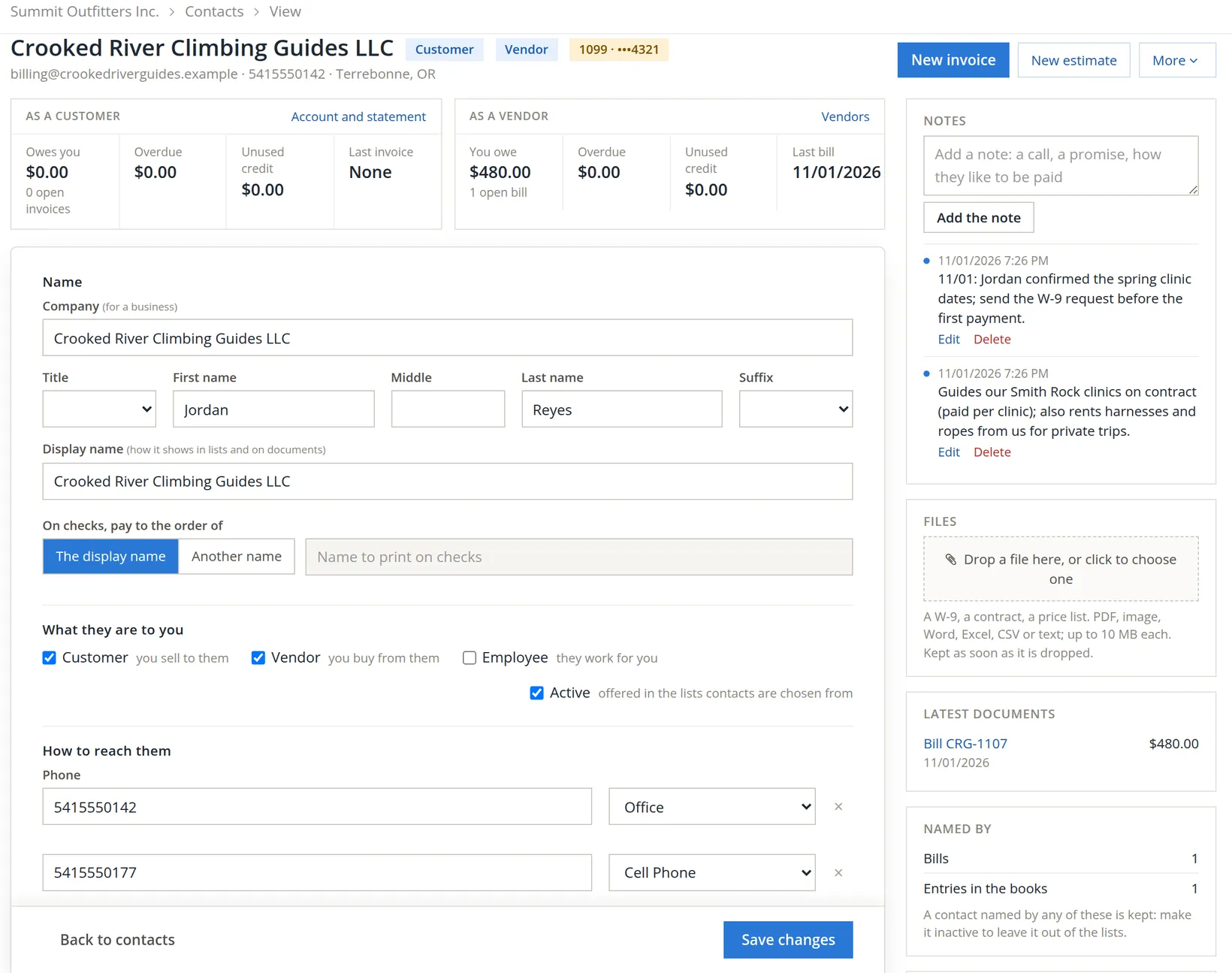
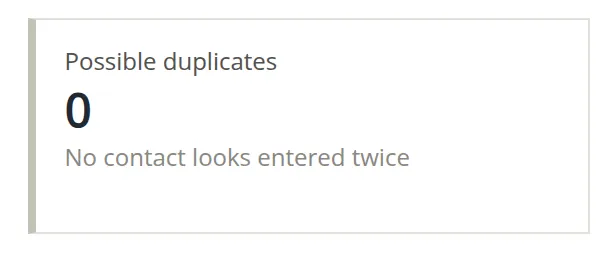
The $480.00 now sits under the 1099 vendor, so it will count toward the guides' Form 1099 (Chapter 6.9). Both phone numbers of the LLC are kept, and the duplicate's number, the same digits as the office line, was not added a second time. Back on the Contacts page, the card is at zero again.
When two contacts only look alike
Two different people can share a name, and two companies can share a switchboard. When the books list a pair that is not one contact, click Not duplicates. The second contact is set aside: it is no longer listed with possible duplicates, and the card's count drops. Set-aside contacts are listed at the foot of the Merge contacts page under Set aside as not duplicates, each with Bring back in case you change your mind.
| Situation | What to do |
|---|---|
| Same business entered twice | Merge, keeping the older or better-documented record. |
| Two branches of one company billed separately | Not duplicates; keep both, with different display names. |
| A person who left one employer for another | Not duplicates; make the old contact inactive (Chapter 9.1). |
| Both contacts have payroll records | They cannot be merged either way; make the one no longer used inactive.5 |
Teach the habit of searching the Contacts page by phone number or town before adding anyone. The search finds "Crooked River Climbing Guides LLC" whatever the bill calls them.
Before you click Merge
- [x] The two contacts really are one business or person (address, phone, tax ID agree).
- [x] The contact kept is the one with the 1099 details and the longer history.
- [x] Each differing row is chosen on purpose, especially e-mail, terms and tax ID.
- [x] What moves looks right: the documents you expect, no surprises.
- [x] Afterwards: the kept contact shows the moved documents, and the Possible duplicates card has dropped.
Check your understanding
1. Why did the form not warn about "Crooked River Climbing Guides" when the list later did?
Answer
The form's live check needs an exact name, e-mail, person or tax ID match. The list's duplicate finder ignores filler words like "LLC" and compares phone digits, so it found the same name and the same phone number.
2. What happens to bill CRG-1107 when the duplicate is merged into the LLC?
Answer
It moves to the LLC with its ledger entries; amount and account are unchanged. It now counts toward the LLC's 1099.
3. The duplicate is a vendor only; the kept contact is a customer and vendor. What is the kept contact after the merge?
Answer
Customer and Vendor: kinds are added together, never removed.
4. Two contacts named "Pat Kim" are different people. What do you do?
Answer
Click Not duplicates. The pair is set aside and can be brought back later.
Notes
- The guides, their bill and the duplicate were made for this chapter in the Summit Outfitters practice books. Merging needs the contact rights to change and to delete contacts, because the merged contact is deleted. ↑
- The page's own summary: "Keep one contact: everything of the other one (documents, payments, projects, time sheets, notes, files) moves to it, and the other is deleted." ↑
- The live check compares the typed name with the stored display name and company after trimming spaces and ignoring capitals; a word more or less is a different name to it. It also matches any one of several comma-separated e-mail addresses. ↑
- The pair finder's reasons are: the same name, the same first and last name, the same e-mail, the same phone number (the last 10 digits of numbers with at least 7), the same tax ID, and the same company. A value shared by more than 25 contacts, such as a placeholder e-mail, is ignored. The users of the books are never listed. ↑
- Payroll records stay with their employee, so a contact with paychecks cannot be merged into another. If only one of the two has payroll, keep that one and merge the other into it; the page says so when it refuses. If the books' periods are closed, the comparison also warns that the moved documents of those periods will carry the kept contact's name in reports and 1099s. ↑