
Chapter 9.1
Contacts
One list for everyone the business deals with: customers, vendors and employees. How to find a contact, add one that is several things at once, read the contact's page, keep notes on it, and retire a contact without losing its history.
When you finish this chapter you will be able to:
- Explain why BizBooks360 keeps one contact list rather than separate customer and vendor lists.
- Find any contact by name, e-mail, phone or town, and read the list's totals.
- Add a contact who is both a customer and a vendor, with several phone numbers and 1099 details.
- Read the contact page: balances, notes, files, latest documents, "Named by" and history.
- Make a contact inactive, bring it back, and know when a contact can be deleted.
One list for everyone
Many bookkeeping programs keep a customer list and a separate vendor list. When the same business sells to you and buys from you, it is entered twice, its address is typed twice, and nobody can see at a glance that the two records are one relationship. BizBooks360 keeps a single contact for each person or business, and marks what that contact is to you with kinds: Customer, Vendor, Employee. A contact may carry any combination.
The Customers page (Chapter 2.6) and the Vendors page (Chapter 3.5) are two views of this same list, each focused on money: what customers owe you, what you owe vendors. The People menu shows the whole list and everything that belongs to a contact whatever its kind: names, numbers, addresses, notes, files, history, and the switch that retires a contact.
| Kind | What it unlocks on the contact | Where it is offered |
|---|---|---|
| Customer | Terms; how they usually pay; how invoices go out; the As a customer balance panel | Invoices, estimates, payments, customer credits |
| Vendor | Terms; the 1099 and tax ID section; account and business numbers; the As a vendor panel | Bills, checks, expenses, vendor credits |
| Employee | An employee number and the Timekeeping line | Payroll and Timekeeping, where those modules are switched on |
The Contacts page
Open People → All Contacts (or press Alt-N from any page). The page opens on everyone, sorted by name.
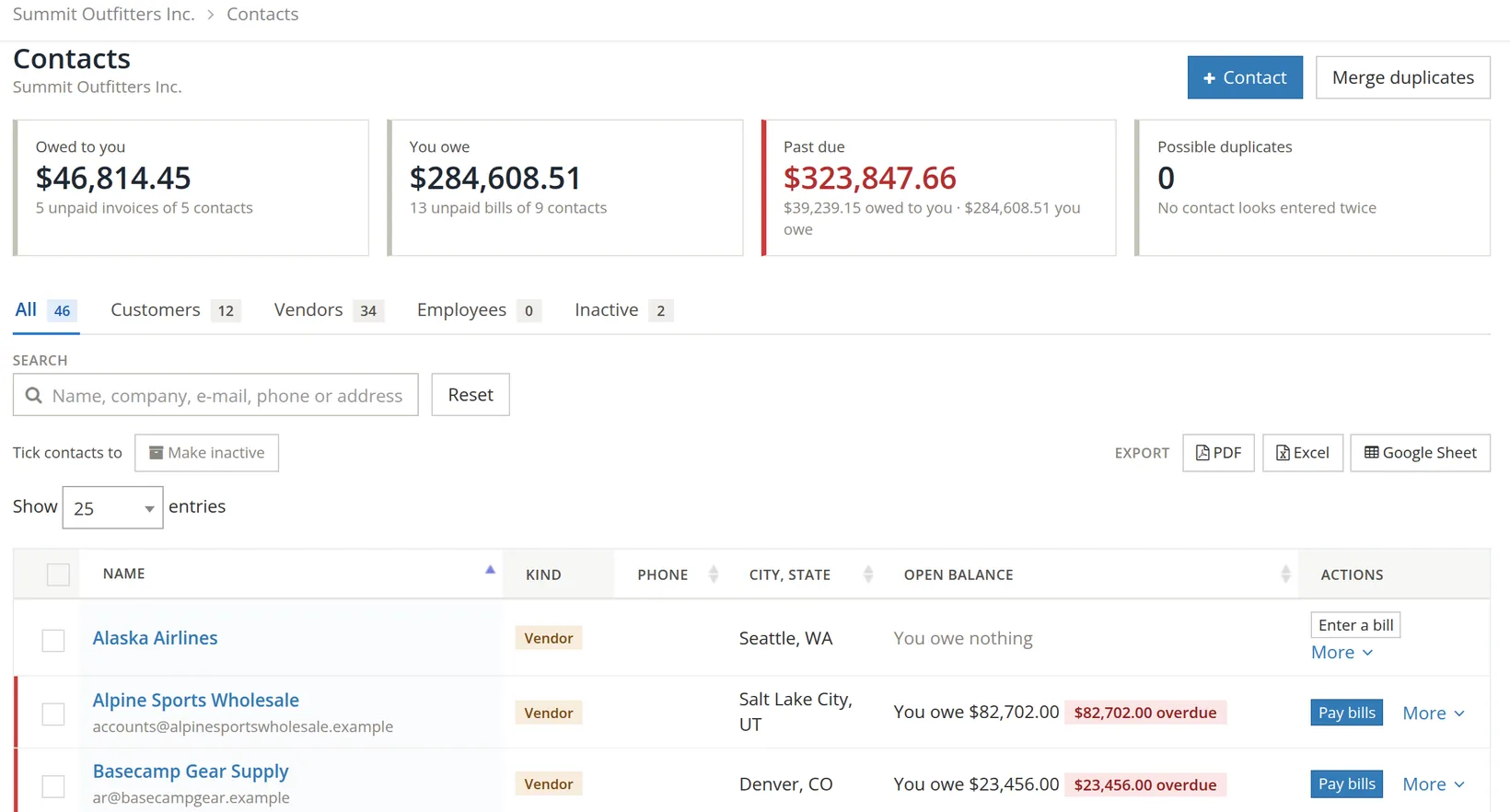
The four cards sum up the whole list. Owed to you is every unpaid invoice; You owe every unpaid bill; Past due the late part of both, split underneath into what is owed to you and what you owe. In the picture, $39,239.15 of customer money and $284,608.51 of vendor bills are late: $39,239.15 + $284,608.51 = $323,847.66. Click a card to open the invoices or bills behind it.
Each row shows the kind as a coloured tag, the main phone (with +1 when there are more numbers), the town, and the open balance in plain words: You owe $82,702.00 with the overdue part in red, or Owes you nothing. A red bar at the left edge marks a row with anything overdue. The button in Actions changes with the balance: Pay bills for a vendor you owe, Enter a bill for one you do not; Receive payment or New invoice for a customer.
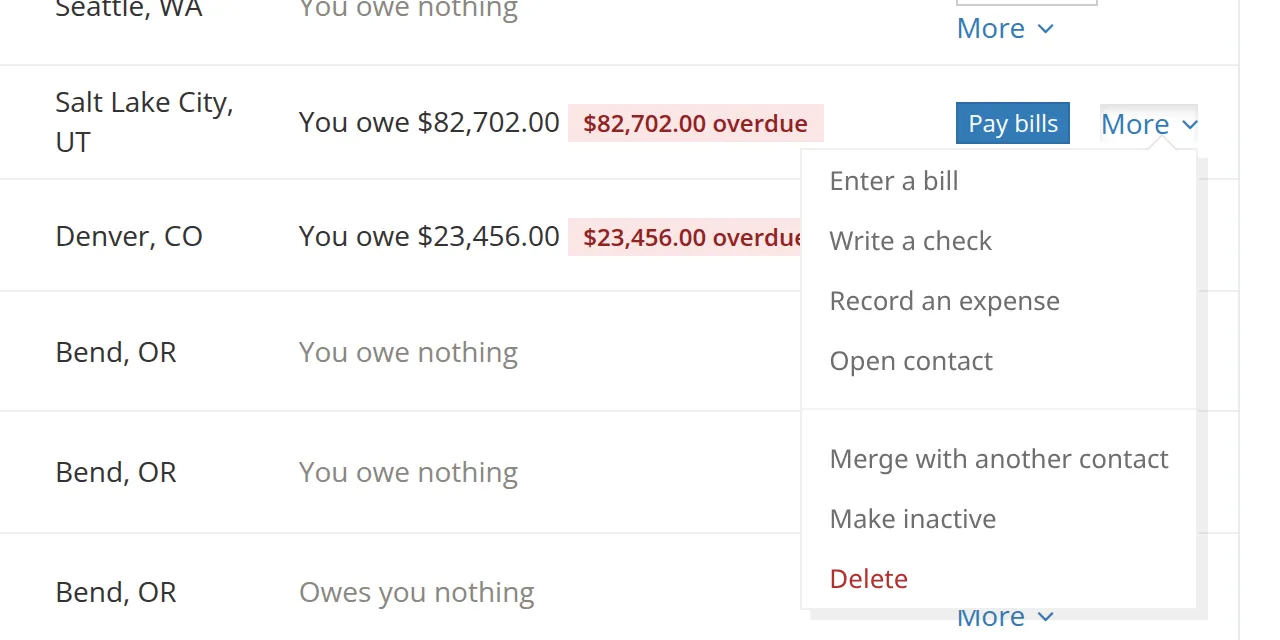
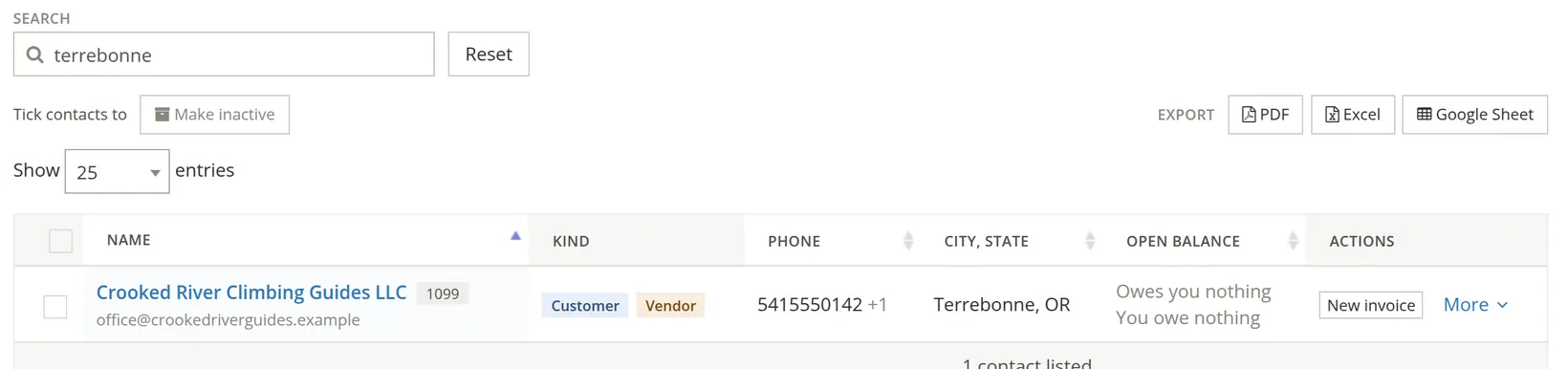
The search box matches the name, the company, the e-mail address, a phone number and the address. When a caller says "this is the climbing school out in Terrebonne", type the town. The export buttons send the rows you are looking at, search included, to PDF, Excel or a Google Sheet.
Add a contact who is two things at once
Open People → All Contacts and click + Contact at the top right of the page. From the All tab the form opens with Customer already ticked; from the Vendors tab it opens with Vendor ticked.2 Only a name is required. The rest can wait, but a few details saved now save time on every document later.
- 1
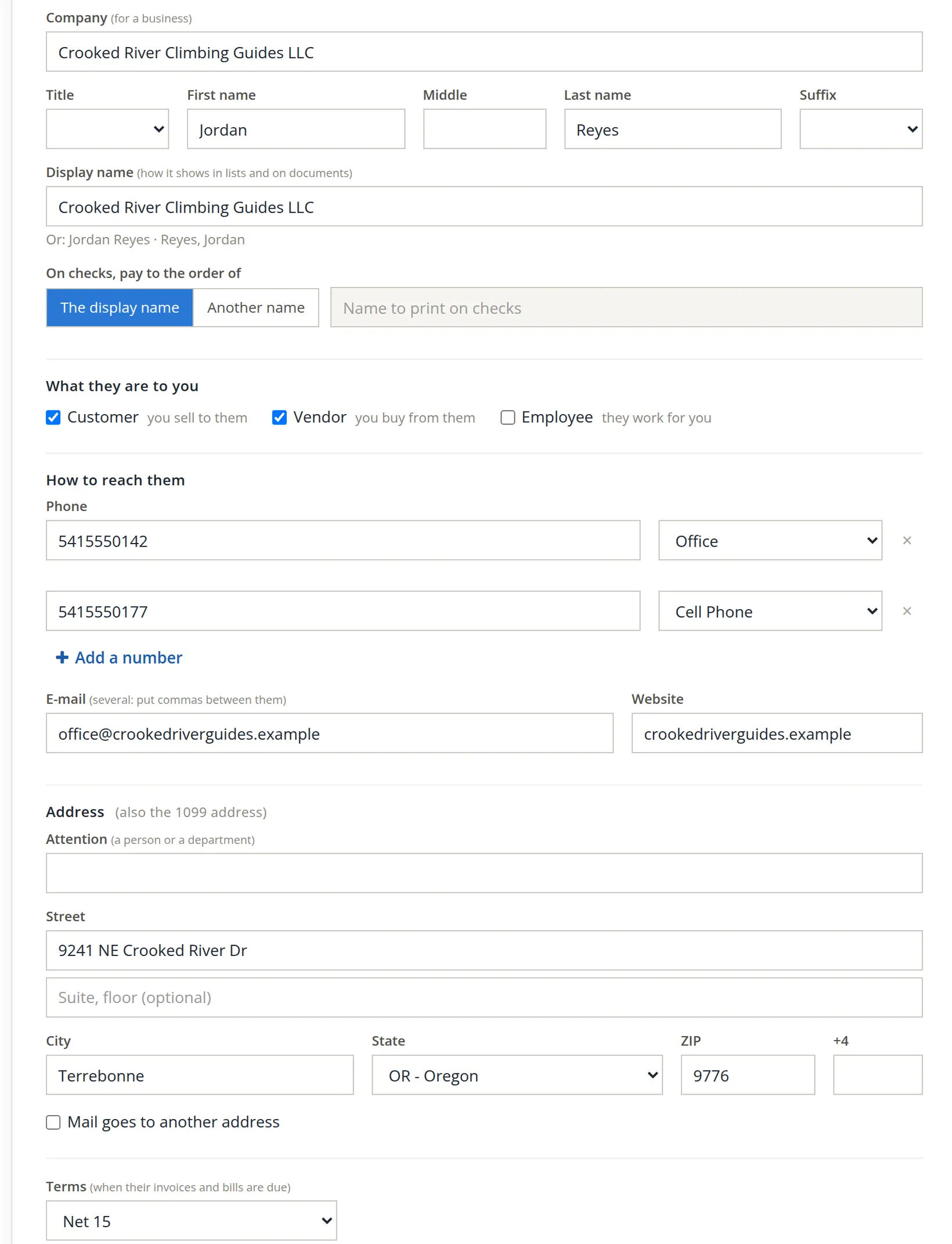
Type the company 1 and a person, if there is one 2
For a business, type its legal name in Company. Add the person you deal with in the name boxes. For a private person, leave Company empty.
- 2
Check the display name 3
It fills in from the company. Other forms are suggested underneath ("Or: Jordan Reyes · Reyes, Jordan"). Choose the name your staff will look for in a list. As you type, BizBooks360 also checks for a contact that looks the same and says so under the box; Chapter 9.2 shows that warning.
- 3
Tick every kind that applies 4
The guides are a Customer (they rent gear) and a Vendor (Summit pays them per clinic). Ticking Vendor opens the vendor and 1099 section further down.
- 4
Add the phone numbers 5 6
Each number has a kind: Cell Phone, Fax, Home, Land Line, Office, or Other kind... for one you name yourself. Add a number adds a row; the × removes one. The first number is the one the list shows.
- 5
Type the e-mail 7, website and address 8
Several e-mail addresses may go in one box, separated by commas. The street address is also the address printed on Forms 1099, which is why the section heading says so. Tick Mail goes to another address if post goes elsewhere.
- 6
Set the terms 9
Terms apply in both directions: new invoices to this contact and new bills from it start with these terms. Summit agreed Net 15 with the guides.
The form catches two mistakes
Our first attempt went wrong in two ways that happen every day. The ZIP was typed as 9776, one digit short, and Receives a 1099 was ticked before the guides' W-9 had been opened, so there was no tax ID. Clicking Save the contact saved nothing and listed both problems at the top, with the ZIP box outlined in red.

The checks the form makes before it saves are worth knowing, because each one stops a later problem: a statement that cannot be posted, a 1099 that cannot be filed.
| Check | Message |
|---|---|
| A name of some kind | Give the contact a name: a company, a first and last name, or a display name. |
| E-mail addresses | This is not an e-mail address: ... |
| Phone numbers: at least 7 digits or letters | This is not a phone number: ... |
| ZIP and ZIP+4 | ZIP: 5 digits (and 4 more for ZIP+4). |
| Tax ID length | A tax ID (EIN or SSN) has 9 digits. |
| 1099 without a tax ID | A contact who receives a 1099 needs a tax ID: give the EIN or SSN. |
| "Another name" on checks left empty | Give the name to print on checks, or print the display name. |
- 7
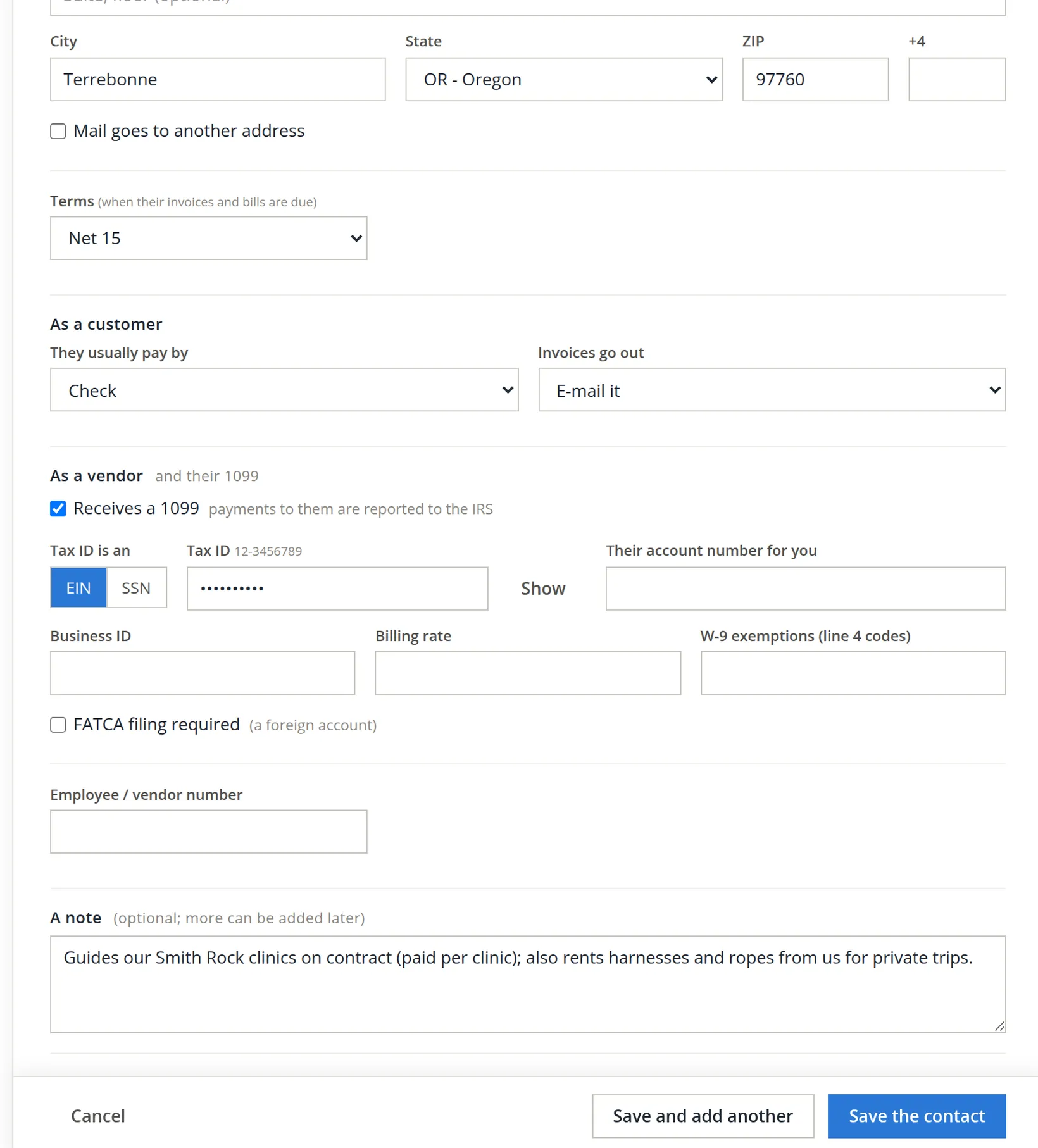
Correct the ZIP and give the tax ID
Choose EIN for a business or SSN for a person, then type the nine digits from the W-9.3 The other vendor boxes are optional: their account number for you, a business ID, a billing rate, the W-9 exemption codes, and an employee or vendor number.
- 8
Fill in the customer preferences
They usually pay by Check and Invoices go out E-mail it. These pre-fill the payment and invoice screens for this contact.
- 9
Write a first note, then save
The note is kept on the contact with the date. Save the contact opens the new contact's page; Save and add another (Ctrl+Alt+S) clears the form for the next one.
The contact's page
Every contact has one page. The top answers "who is this and where do we stand"; the form below holds the details; the cards on the right hold everything that gathers over time.
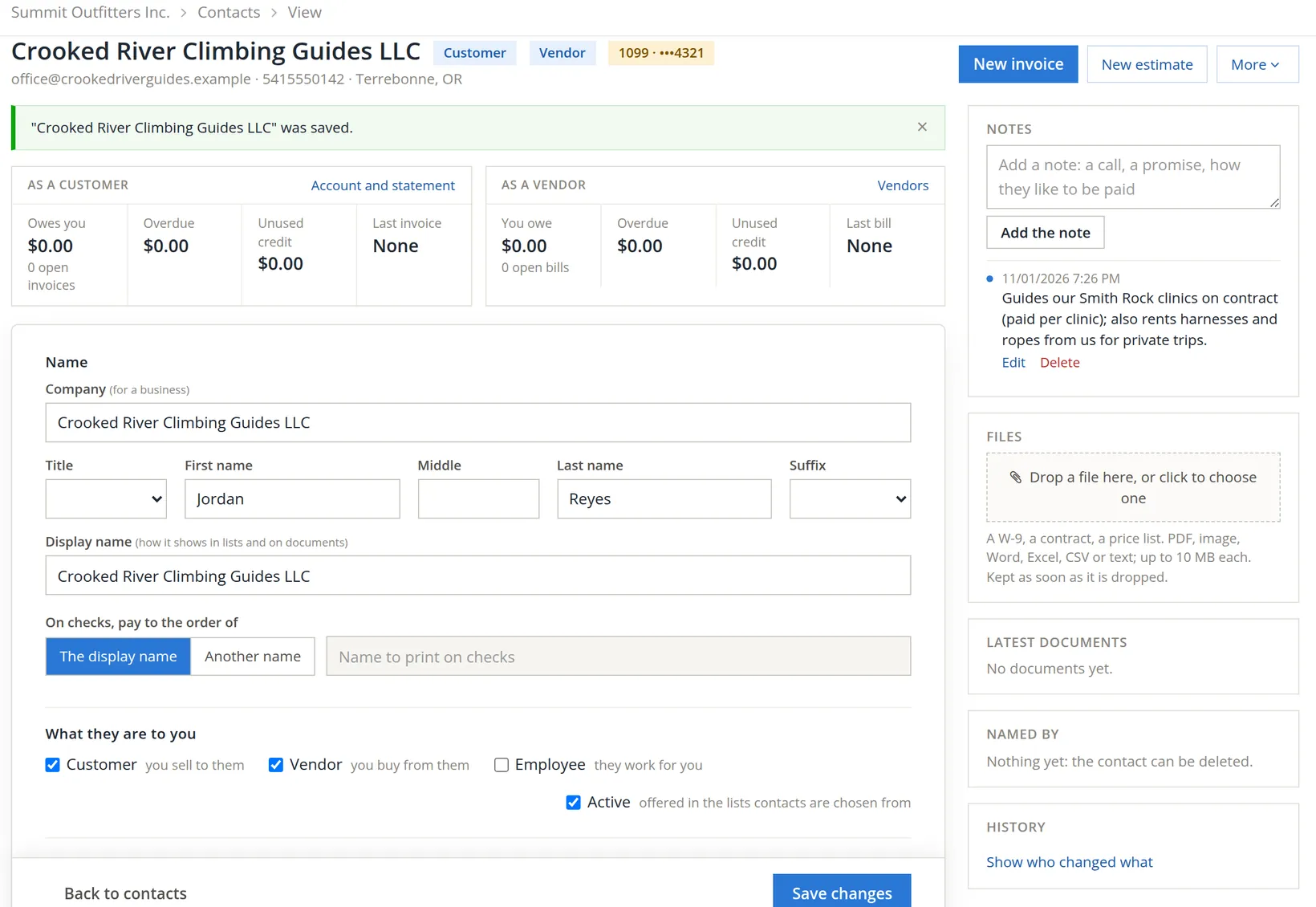
Because the guides are both kinds, the page shows two balance panels side by side. Later, when Summit has invoiced a rental and owes for a clinic, both will carry figures, and you can see the net position without running two reports. To settle one against the other, see the credits in Chapters 2.5 and 3.4.
| Card | What it holds |
|---|---|
| Notes | Dated notes, newest first. Each can be edited or deleted. Use them for calls, promises and preferences. |
| Files | A W-9, a contract, a price list: PDF, image, Word, Excel, CSV or text, up to 10 MB each, kept as soon as dropped (Chapter 14.2). |
| Latest documents | The contact's most recent invoices, bills, checks and so on, each a link. |
| Named by | How many documents and ledger entries mention the contact. While it says "Nothing yet", the contact can be deleted. |
| History | Who added or changed the contact and when, read from the activity log. Only those who may read the books' audit log see this card. |
Keep notes and read the history
- 1
Type in the Notes box and click Add the note
The note appears at the top of the list with today's date. Start it with the date of the conversation if it happened earlier.
- 2
Click Show who changed what in History
The card lists the recorded events for the contact, with tick boxes to narrow it by kind of event. If the page has no History card at all, your permissions do not include the audit log.4
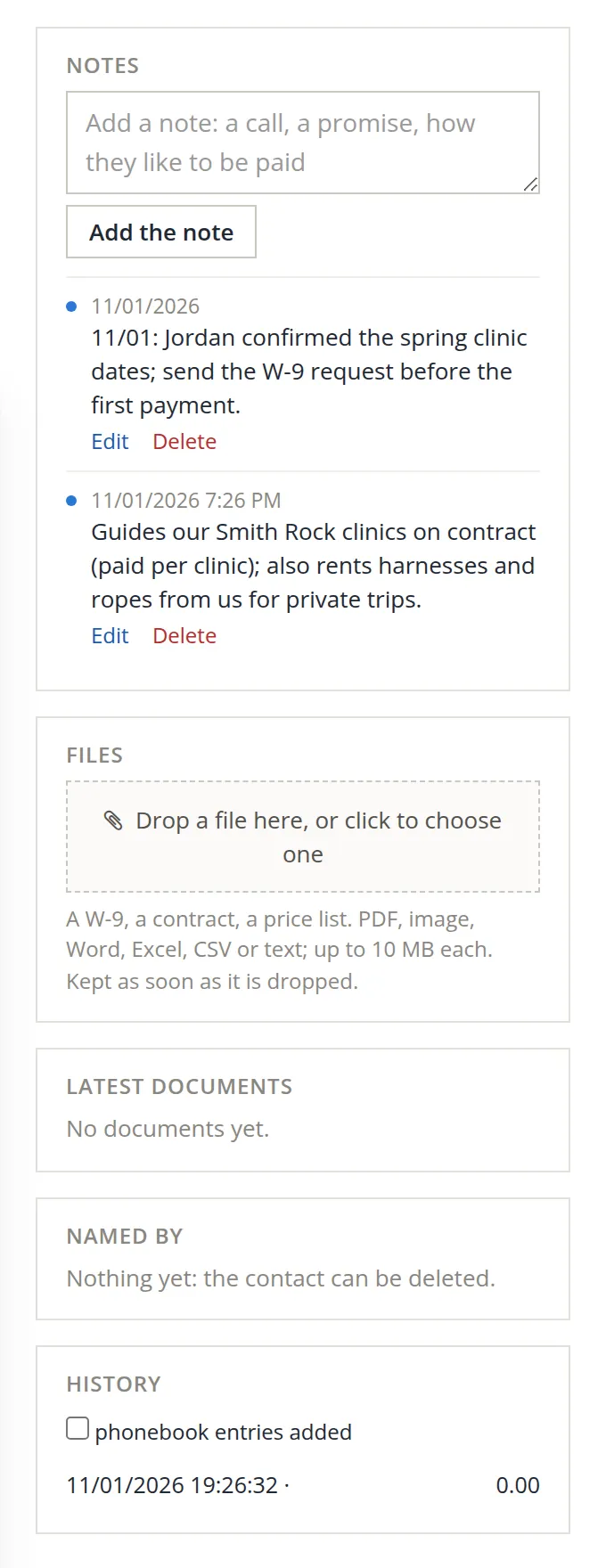
Write notes for a colleague who has never met the contact: "Jordan confirmed the spring clinic dates; send the W-9 request before the first payment" tells them what to do next. "Spoke to Jordan" does not.
The More menu
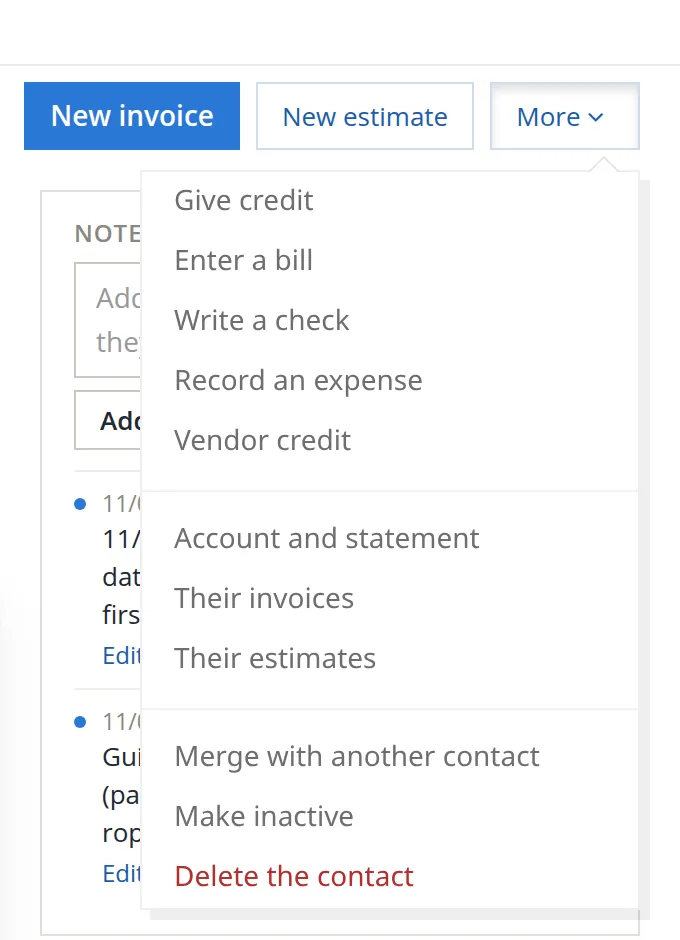
The More menu at the top of the page gathers every action for the contact, grouped by kind. It is the fastest way to start a document already addressed to them.
Retire a contact: make it inactive
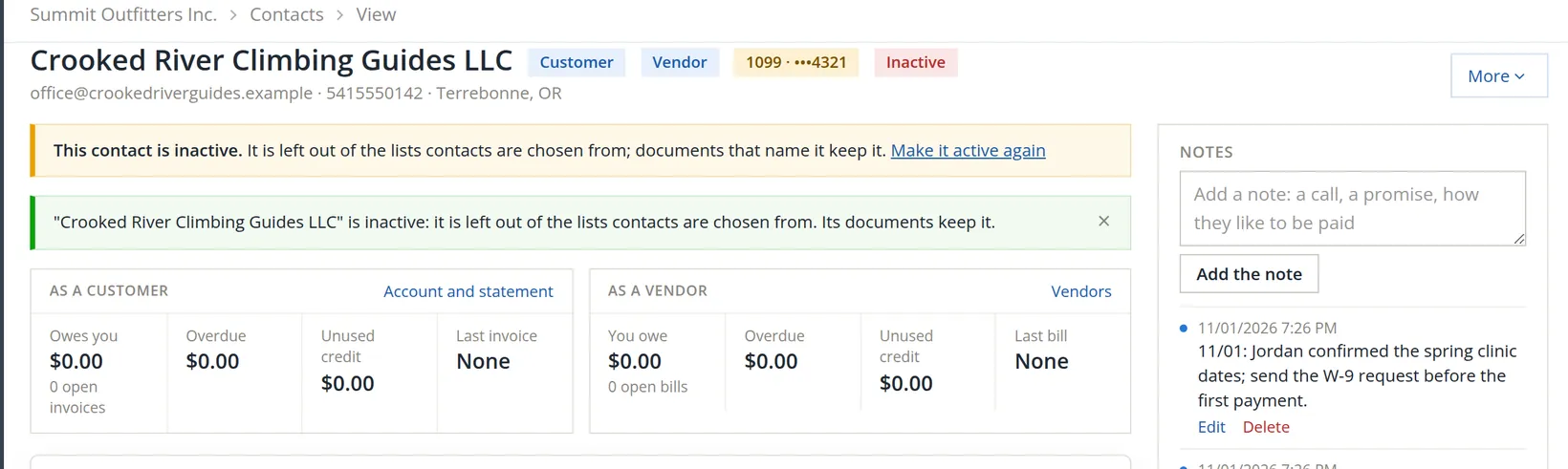
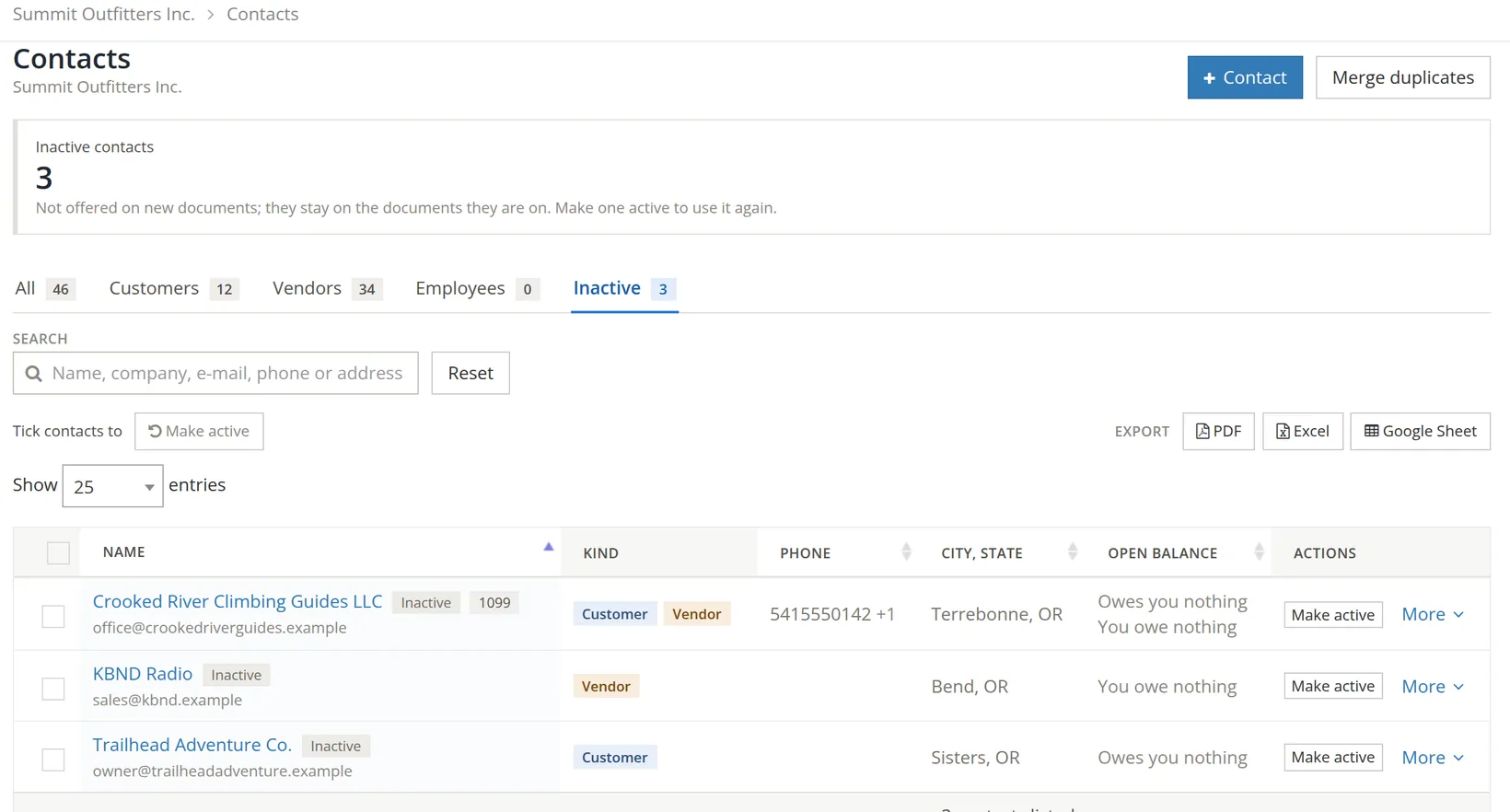
Contacts are not deleted when a relationship ends: their invoices, bills and 1099s still name them. Instead, a contact is made inactive. It drops out of the pickers on new documents, so nobody bills the old supplier by mistake, but every past document still shows it.
- 1
On the contact's page, More → Make inactive
There is no second question: the change is made at once and is undone just as easily. From the list, use the row's More menu, or tick several rows and use Make inactive on the bar.
- 2
To bring it back, click Make it active again
Or Make active on the Inactive tab. We did so at once: the guides are very much in business. The Active tick on the form does the same thing when you save the form.
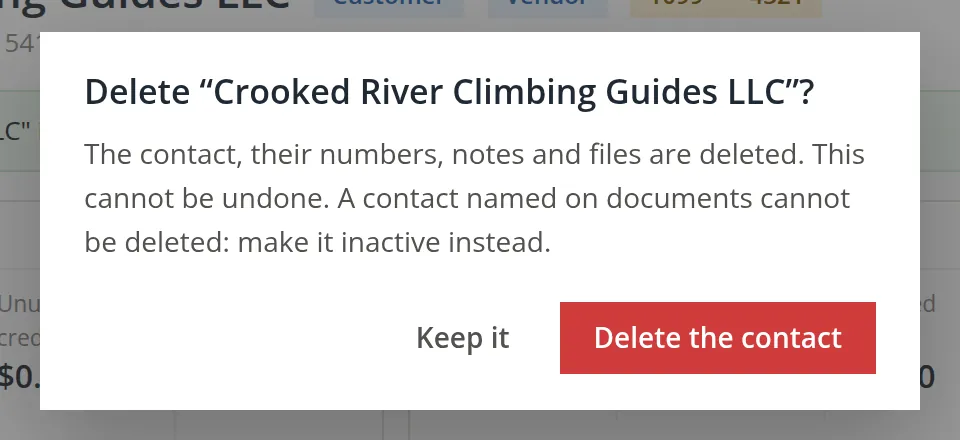
Delete the contact removes the contact with its numbers, notes and files, and cannot be undone. It is meant for a contact added by mistake. A contact named on any document cannot be deleted; the app refuses and offers Make inactive instead.
Finding the contact again
Back on the Contacts page, typing terrebonne in the search box finds the guides by their town.
Search before you add; tick every kind on one contact rather than adding a second; make inactive rather than delete; and watch the Possible duplicates card. When it shows a number, Chapter 9.2 explains how to merge.
A complete contact
- [x] Searched the list first: the contact was not already there.
- [x] Company, person and a display name staff will recognise.
- [x] Every kind that applies is ticked on the one contact.
- [x] Phone numbers with their kinds, and the billing e-mail.
- [x] Street address with a 5-digit ZIP (it is also the 1099 address).
- [x] Terms set.
- [x] For a 1099 vendor: Receives a 1099 ticked, EIN or SSN from the W-9, W-9 filed in Files.
- [x] A first note saying why the contact was added.
Check your understanding
1. A business both buys from you and sells to you. How many contacts should it have?
Answer
One, with both Customer and Vendor ticked. Its page then shows both balances.
2. You tick Receives a 1099 and click Save, and nothing is saved. Why?
Answer
A contact who receives a 1099 needs a tax ID. Give the EIN or SSN from their W-9, then save.
3. A supplier closed last year. They have bills in the books. Delete or make inactive?
Answer
Make inactive. A contact named on documents cannot be deleted, and inactive keeps it on every past document while leaving it out of the pickers.
4. Where do you see whether a contact can still be deleted?
Answer
In the Named by card. "Nothing yet: the contact can be deleted" means no document or entry mentions it.
5. You click + Contact from the All tab to add a supplier. What must you change before saving?
Answer
Untick Customer, which is ticked by default there, and tick Vendor. Or start from the Vendors tab, where Vendor is ticked instead.
Notes
- Crooked River Climbing Guides LLC, its people, address, e-mail and tax ID are invented for the sample company. The pictures were taken by a practice user who is a member of Summit Outfitters Inc.; that user's name may appear in history lists. ↑
- The form decides the starting kind from where it was opened: from the Vendors tab it ticks Vendor, from the Employees tab Employee, and otherwise Customer. Check the ticks before saving. ↑
- The tax ID is shown masked once saved; only its last four digits appear in the 1099 tag. Revealing the full number on a saved contact may ask for a reason, and the read is logged. Forms 1099 are covered in Chapter 6.9. ↑
- The History card reads the activity log, which records who changed what only where logging is switched on. If it is off, the card says that nothing is recorded. Since November 2026 the card is drawn only for those who may read the books' audit log: the owner of the books, BizBooks360 staff, and members whose permissions list or view Audit History (Chapter 6.7). The practice user has that permission, which is why the pictures show the card. ↑