
Chapter 8.1
Budgets
How to write down what you expect the year to bring, account by account and month by month, then hold the books up against it: build a budget from last year's actuals, correct what has changed, and read the variances as the year unfolds.
When you finish this chapter you will be able to:
- Explain what a budget is for and what it is not.
- Choose a starting point: zero, a past year, a five-year average or a profit target.
- Create a monthly budget and change a whole row in one step.
- Compare the budget with actual results and say which variances are favorable.
- Find, export and delete budgets in the register.
What a budget is
A budget is a plan expressed in the accounts of the books: so much revenue in each income account, so much cost in each expense account, for each month of the year. It does two jobs. Before the year, it forces the questions an owner should ask: what will rent be, how many guides will we need in July, can we afford the new van? During the year, it is the yardstick: each month's actual figures are compared with the plan, and the differences, the variances, point to where to look.
A budget is not a forecast of the bank balance (the dashboard's cash forecast does that, Chapter 1.4) and it never touches the ledger. The page says so twice: creating or saving a budget never posts a transaction.
| Starting point | What it fills in | Good for |
|---|---|---|
| Start from zero | Nothing; you type every figure | A new business, or a deliberate rethink |
| Copy a selected year | The actual amounts of a completed year you choose | Planning from a typical year that was not the last one |
| Use last year's actuals | Last year's figures, month by month | A steady business with a seasonal pattern (Summit) |
| Average five years | The average of each month across the last five completed years | Smoothing out one unusual year |
| Plan toward a profit target | Expenses (typed, last year's or a five-year average) plus the revenue needed for a monthly profit you choose | Asking "what must we sell?" |
The budget register
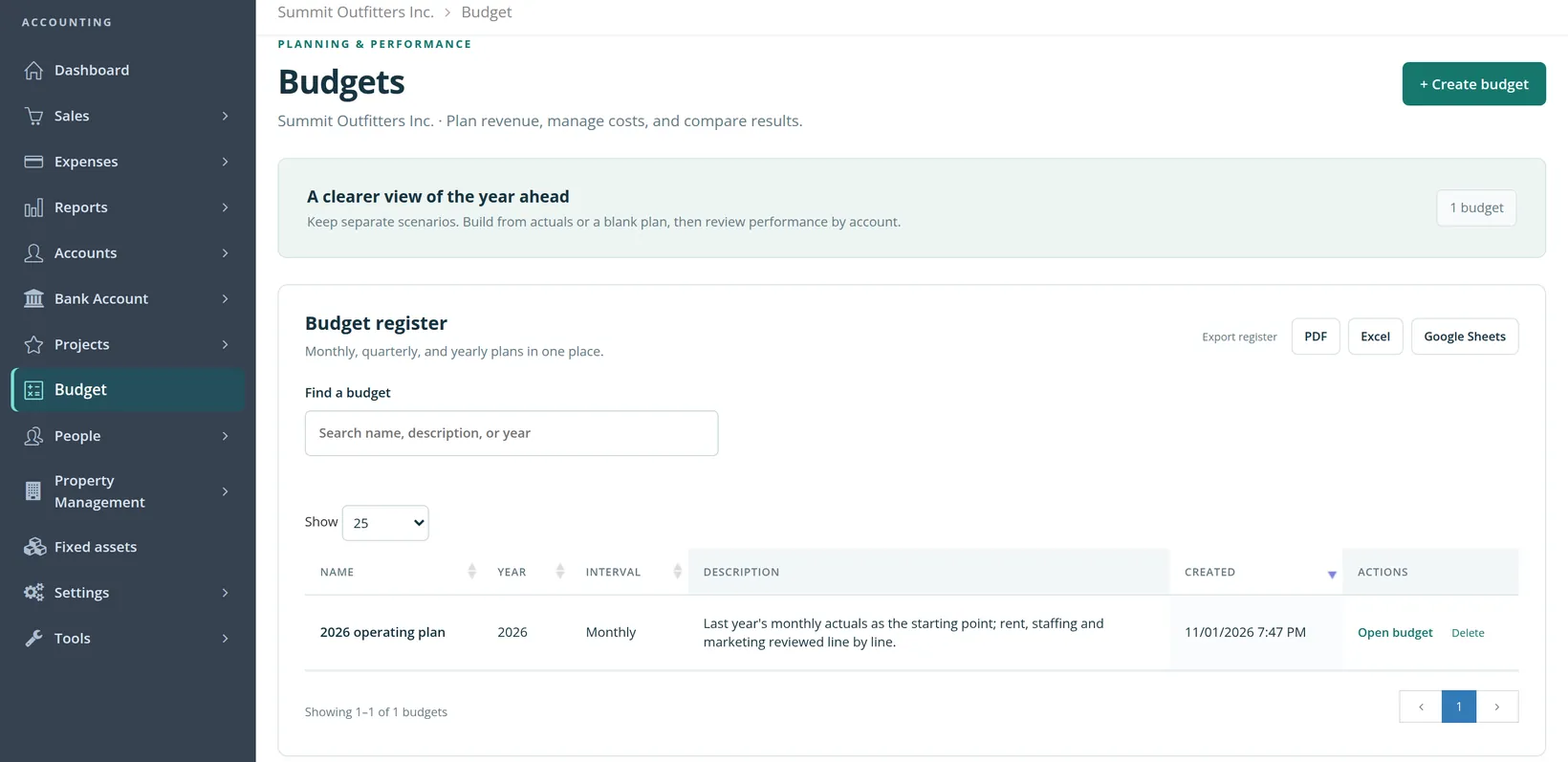
Click Budget in the left menu. The page lists every budget of the company. You may keep several for the same year, for example a cautious plan and a growth plan, because each is a separate scenario.
Create a budget from last year
- 1
Click + Create budget and name the plan
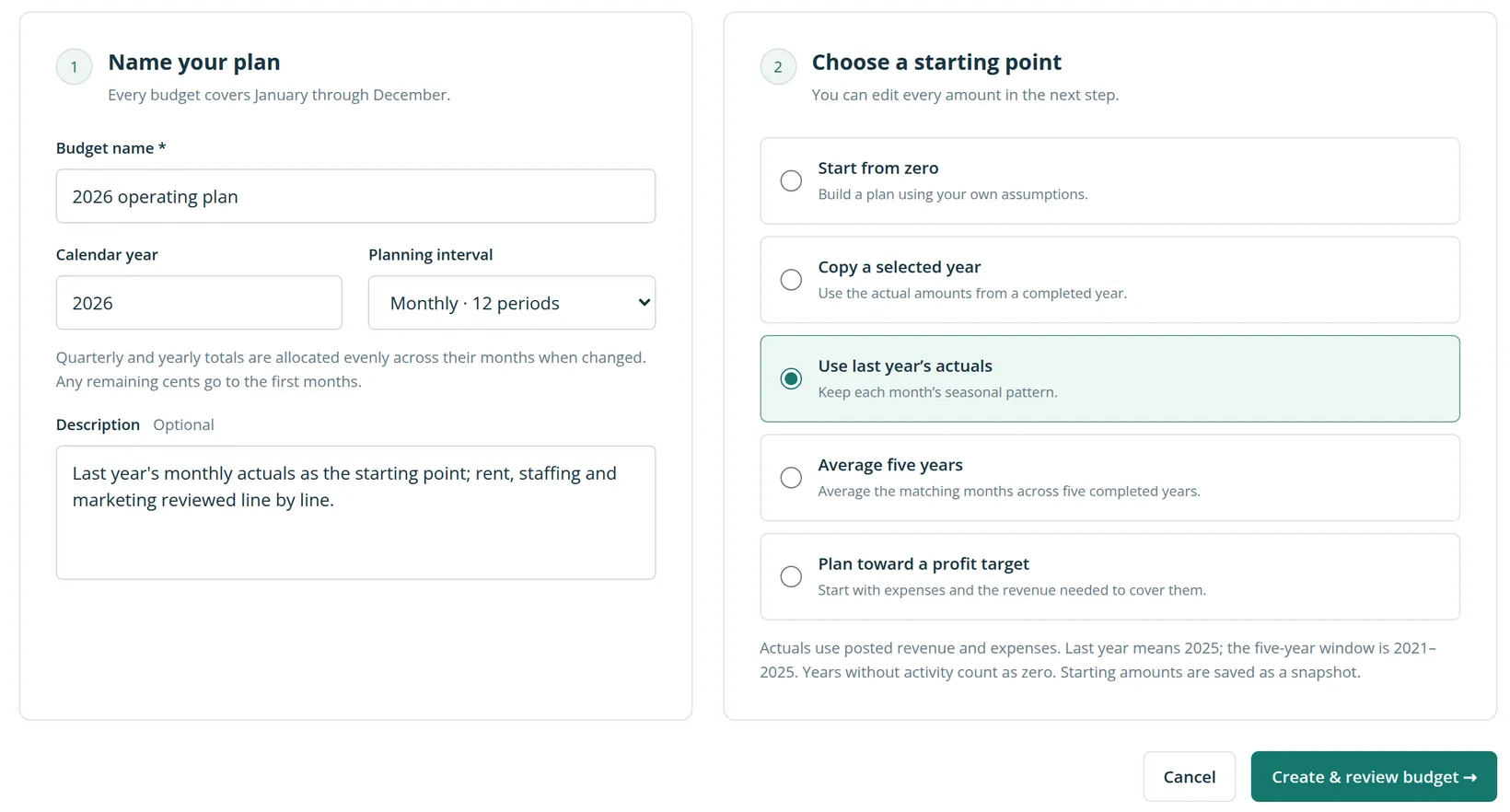
Give it a name that says which scenario it is, the Calendar year and the Planning interval. Every budget covers January through December.2 Monthly gives twelve columns; quarterly and yearly totals are spread evenly over their months, with any odd cents in the first months.
- 2
Write down the assumptions in Description
A budget without its assumptions cannot be defended in June. One or two sentences will do.
- 3
Choose the starting point, then Create & review budget
Summit chose Use last year's actuals: its seasons repeat, so last year's month-by-month pattern is a fair first draft. The note under the choices says which years are used.
The workspace opens with every income and expense account filled in from 2025. The three cards at the top total the plan: planned revenue $2,383,828.08, planned expenses $2,240,964.55, planned net profit $142,863.53. That profit is exactly Summit's 2025 net income, as it should be when the plan is a copy of 2025.
Check the copy against what has changed
A copy of last year is only a first draft. Two kinds of line need attention: costs whose terms have changed, and one-off items that will not recur. The quickest way to find the first kind is to let this year's figures speak.
- 1
Tick Compare with actuals
Under each budget figure appear the actual amount, the variance and the percentage used. Green marks a favorable variance, red an unfavorable one. Ticking the box also marks the plan Unsaved changes, although nothing was edited; leaving without saving loses nothing.
- 2
Search for the line you want to check
Type part of an account or category name in Find an account or category. The search matches any part of the full account name, so type enough to single the line out: Expenses:Rent finds Summit's rent expense alone, while plain Rent also finds the rent income accounts of the properties Summit manages and the equipment rentals it earns. The totals still include every account.
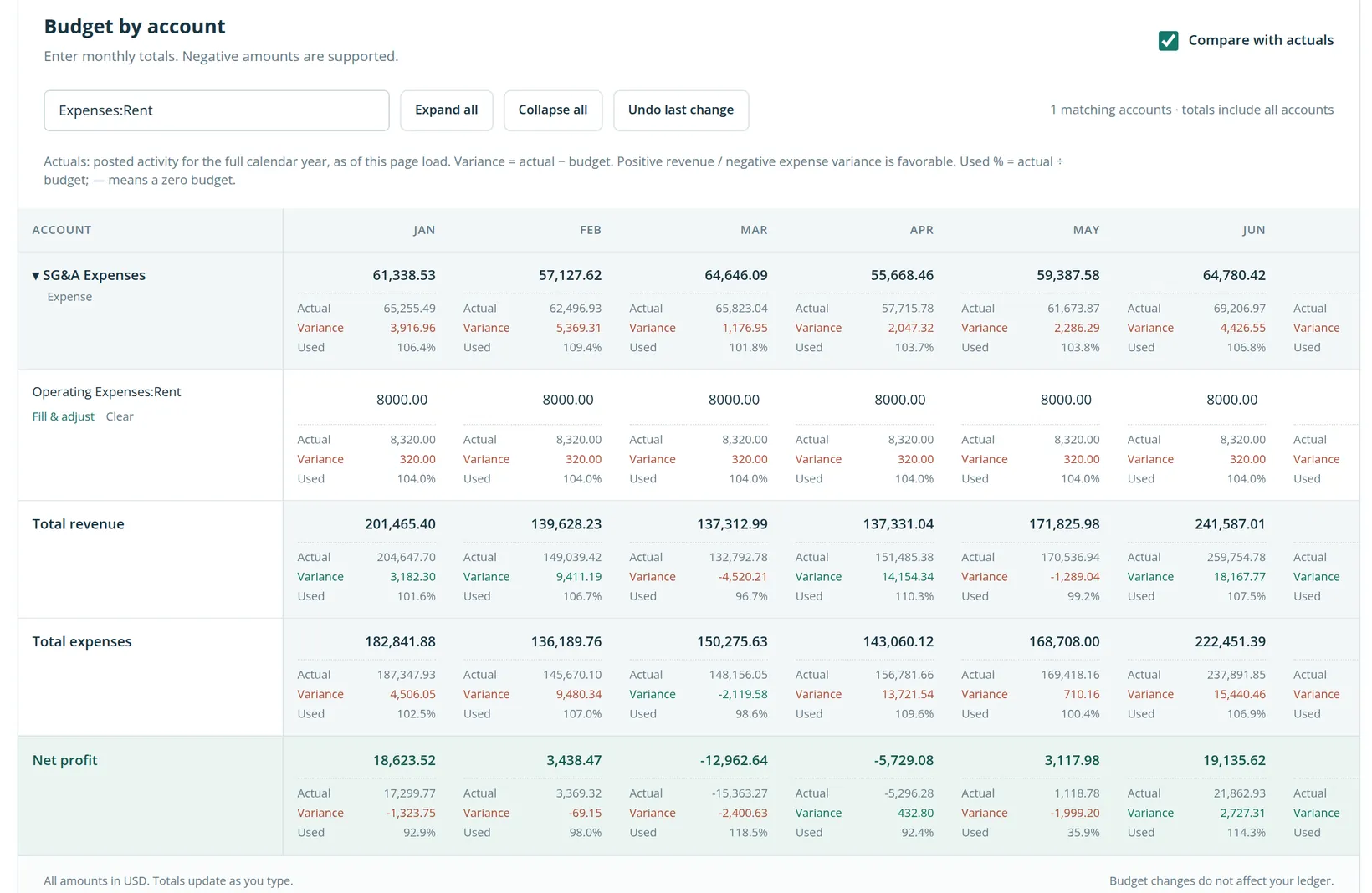
The mistake the comparison caught. Every month of 2026 so far shows rent $320.00 over budget. Summit's rent went up 4% from January: 8,000.00 × 1.04 = 8,320.00. The copy of 2025 could not know that. Left alone, the budget would understate rent by 12 × 320.00 = $3,840.00 for the year and report a red variance every month that means nothing.
- 3
Click Fill & adjust under the account
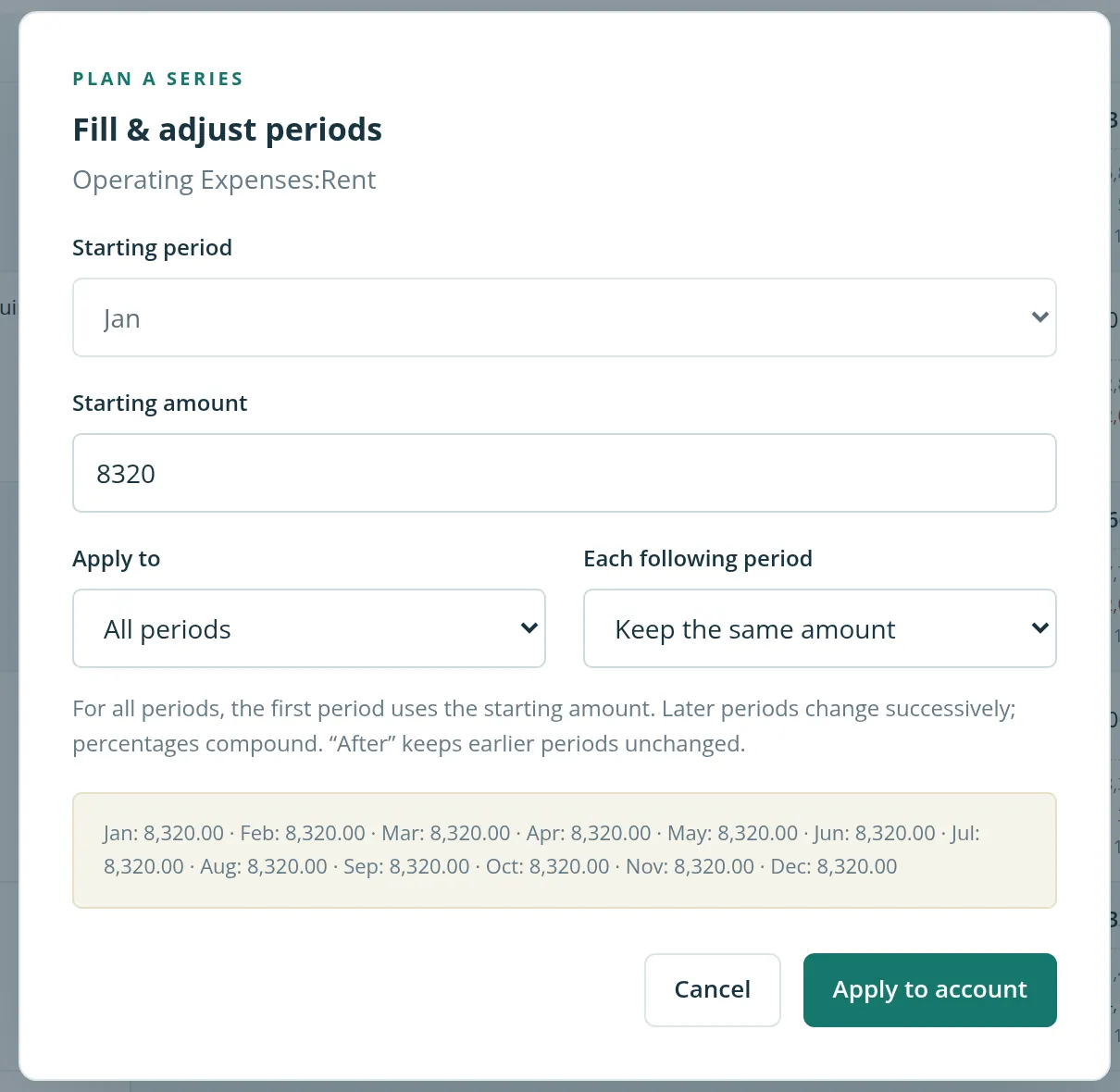
Set the starting period to Jan, the starting amount to 8320, apply to All periods and keep the same amount for each following period. The preview lists every month before anything changes.
To plan sales that grow 2% a month from a January figure, choose Increase, Percentage and 2. Percentages compound: February is January × 1.02, March is February × 1.02, and so on.
- 4
Clear the one-off items
In June 2025 Summit sold an asset at a gain of $9,500.00, and the copy put that gain into June 2026 as well. Search Gain on Sale and click Clear under the account; its months drop to 0.00.
- 5
Click Save budget
Until you do, the header reads Unsaved changes and Undo last change takes back the last edit. After saving it reads All changes saved.
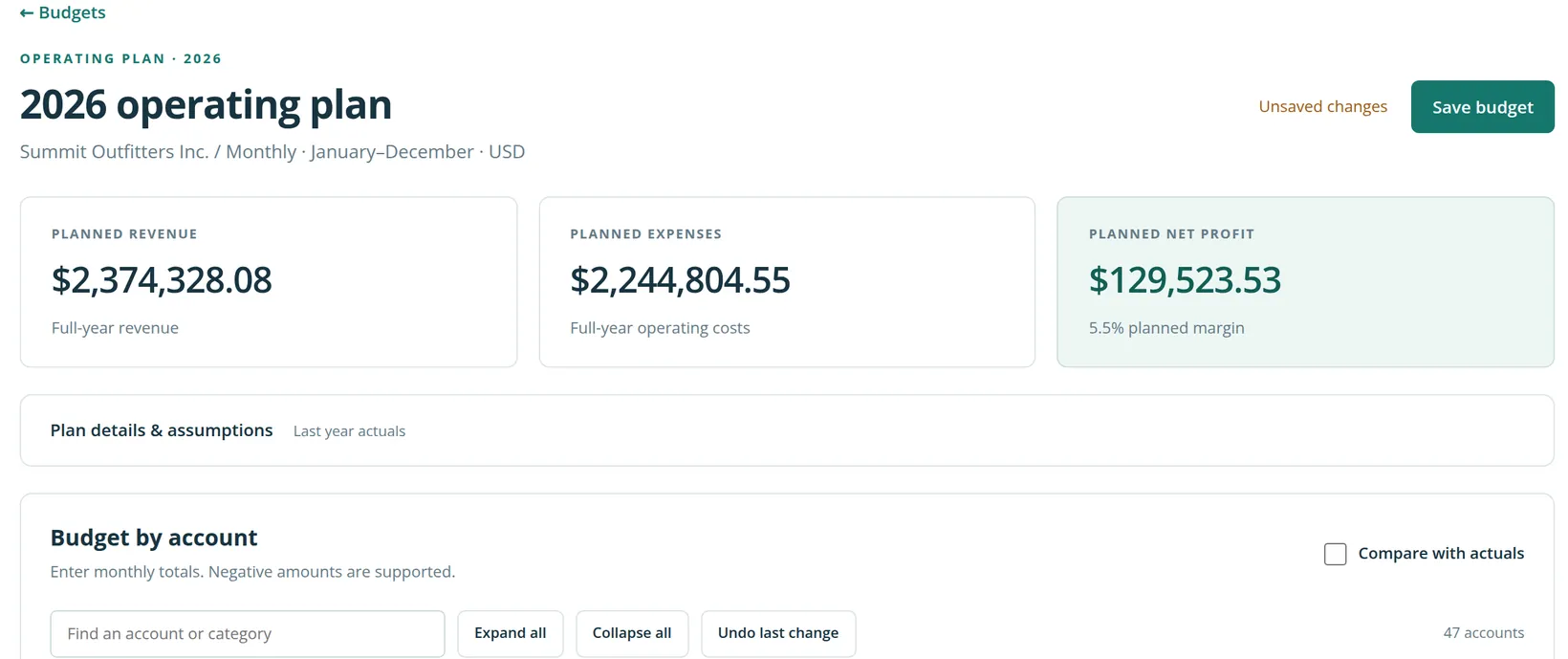
The cards move with every edit. Check them against the two changes:
| Revenue | Expenses | Net profit | |
|---|---|---|---|
| Copy of 2025 | 2,383,828.08 | 2,240,964.55 | 142,863.53 |
| Rent at 8,320.00 a month | +3,840.00 | (3,840.00) | |
| No gain on sale of assets | (9,500.00) | (9,500.00) | |
| 2026 operating plan | 2,374,328.08 | 2,244,804.55 | 129,523.53 |
The margin is 129,523.53 ÷ 2,374,328.08 = 5.5%, as the card says.
Read budget against actual during the year
- 1
Open the budget, tick Compare with actuals and click Collapse all
Each category becomes one line, which is the right level for a monthly review. Scroll the table sideways to the FULL YEAR column.
- 2
Read each line from right to left
First the full year: how much of the plan is used. Then the months: where the difference arose.
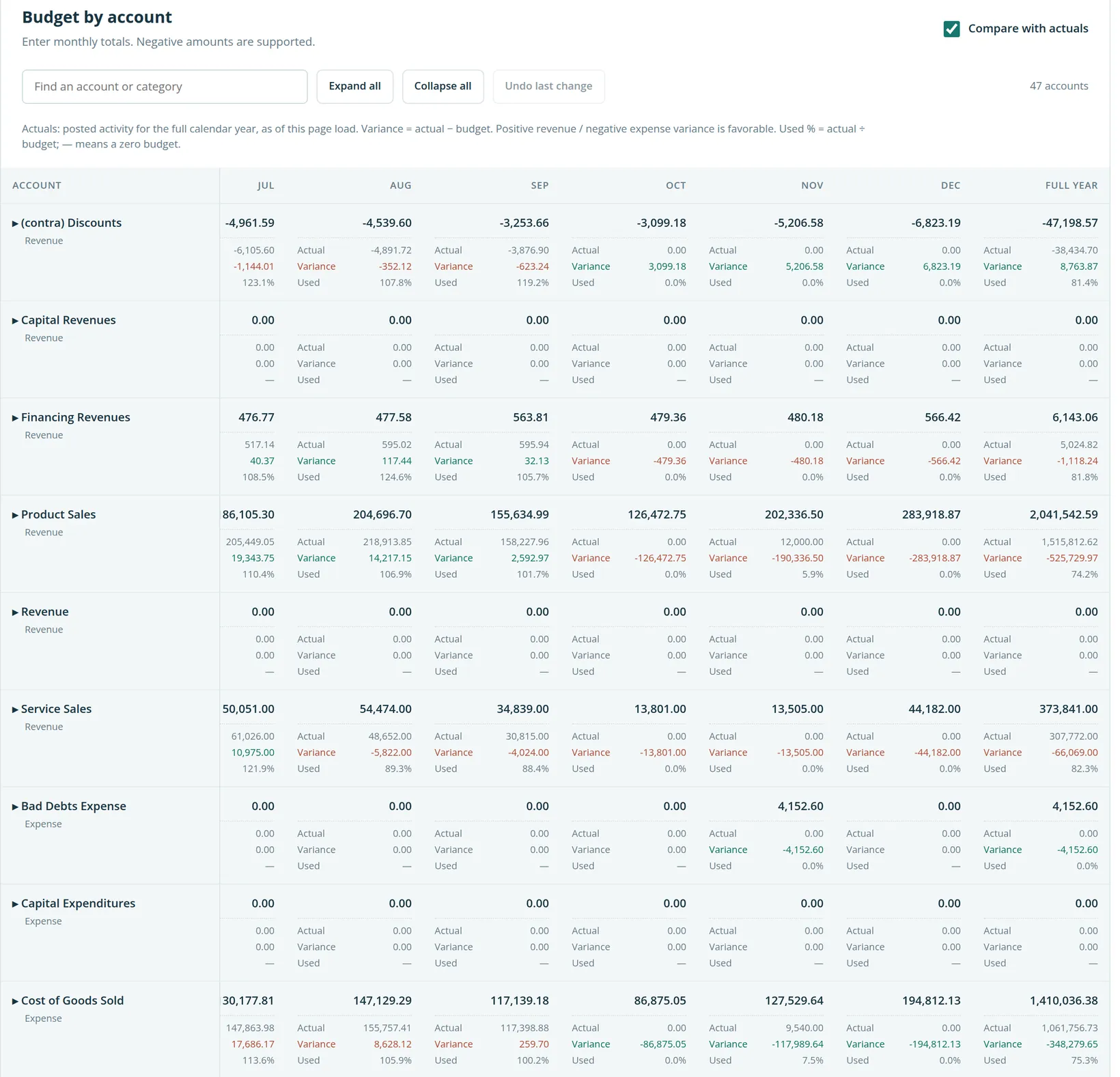
Reading it. The pictures were taken on November 1 with the books posted through September.1 Nine months are 9 ÷ 12 = 75% of the year, so a line near 75% used is on plan. Product sales at 74.2% are on plan; at the foot of the table, total revenue stood at 75.4% and total expenses at 75.7%. Service sales ran ahead in summer (July: 61,026.00 actual against 50,051.00 planned, a favorable 10,975.00) and behind in August and September. Months that have not happened show their whole budget as variance; ignore them until they close.
| Line | Variance (actual − budget) | Meaning |
|---|---|---|
| Revenue | Positive | Favorable: more sold than planned (green) |
| Revenue | Negative | Unfavorable (red) |
| Expense | Negative | Favorable: spent less than planned (green) |
| Expense | Positive | Unfavorable (red) |
Cost of goods sold over budget in a month of strong sales is good news. Read expense variances next to the revenue they support, and ask why before you cut.
The actuals are read when the page loads, for the whole calendar year. A bill posted this morning is already in them; reload the page after a batch of entries.
For the board pack. The workspace is where you change the plan. For a comparison to print or send, open Reports → Budget vs Actual (under Management analysis on the All reports page), choose the budget, here 2026 operating plan, and a month, a quarter, the year to date, the full year or a range of months. It sets each revenue and expense line against the budget, with what is left of the year's budget, and exports to Excel, PDF or Google Sheets (Chapter 6.1 covers running reports).
Planning toward a profit target
The last starting point turns the question round. Choose Plan toward a profit target, pick how the expenses start (typed, last year's, or a five-year average) and enter the Desired monthly profit as a whole amount. The budget starts with the expenses, plus the revenue needed to cover them and the target, placed in the first revenue account. In the workspace a bar shows the monthly target, and Apply profit target moves the required revenue to the account you choose. Then spread it over the real revenue accounts with Fill & adjust.
A budget you can use
- [x] The description states the assumptions.
- [x] Known changes are in: leases, wage rates, loan payments, price increases.
- [x] Last year's one-off items (asset sales, insurance claims, write-offs) are cleared.
- [x] Planned net profit has been checked against the arithmetic of your changes.
- [x] Each month, budget against actual is read with Compare with actuals, by category first.
Check your understanding
1. Does saving a budget change the Profit and Loss?
Answer
No. Budgets never post transactions; the Profit and Loss shows only the books.
2. Rent is budgeted at $8,000 and was $8,320. Is the variance favorable?
Answer
No. Variance = 8,320 − 8,000 = +320 on an expense, which is unfavorable (red).
3. How do you set a monthly figure that grows 2% a month?
Answer
Fill & adjust: the starting amount in January, all periods, increase by a percentage of 2. The increases compound.
4. Why clear the gain on sale of assets?
Answer
It came from a one-off sale in 2025. Copying it would plan $9,500 of income that will not recur.
Notes
- The practice user, Alex Morgan, is a member of Summit Outfitters Inc. and created this budget. Actual figures are read live, so they change as entries are posted; the ones quoted are those on the screen when the pictures were taken. ↑
- The page states it: "Every budget covers January through December." A company whose fiscal year ends in another month can still budget by calendar year and compare the months it needs. ↑