
Chapter 6.1
Finding and Running Reports
The controls every BizBooks360 report shares: choosing the period and basis, comparing periods, showing percentages, drilling from any figure to the entries behind it, and exporting or printing the result.
When you finish this chapter you will be able to:
- Find any report from the Reports page or by typing.
- Change a report's period, basis, columns and percentages.
- Tap a figure to see the postings that make it, and check that they agree.
- Export to PDF, Excel or Google Sheets, and save a report you run often.
- Act on a report's review notices.
Contents
Finding a report
Click Reports in the left menu. The entry folds open with a Find a report box, All reports, which opens the Reports page, and one row per group of reports, each with the number of reports in it. Click a group's row to fold it open and choose a report from its list. The Reports page shows the same groups: each has a heading, one line saying what the group is for, and a card per report. Each card says what the report shows, and some offer other forms underneath (Also as Comparative).
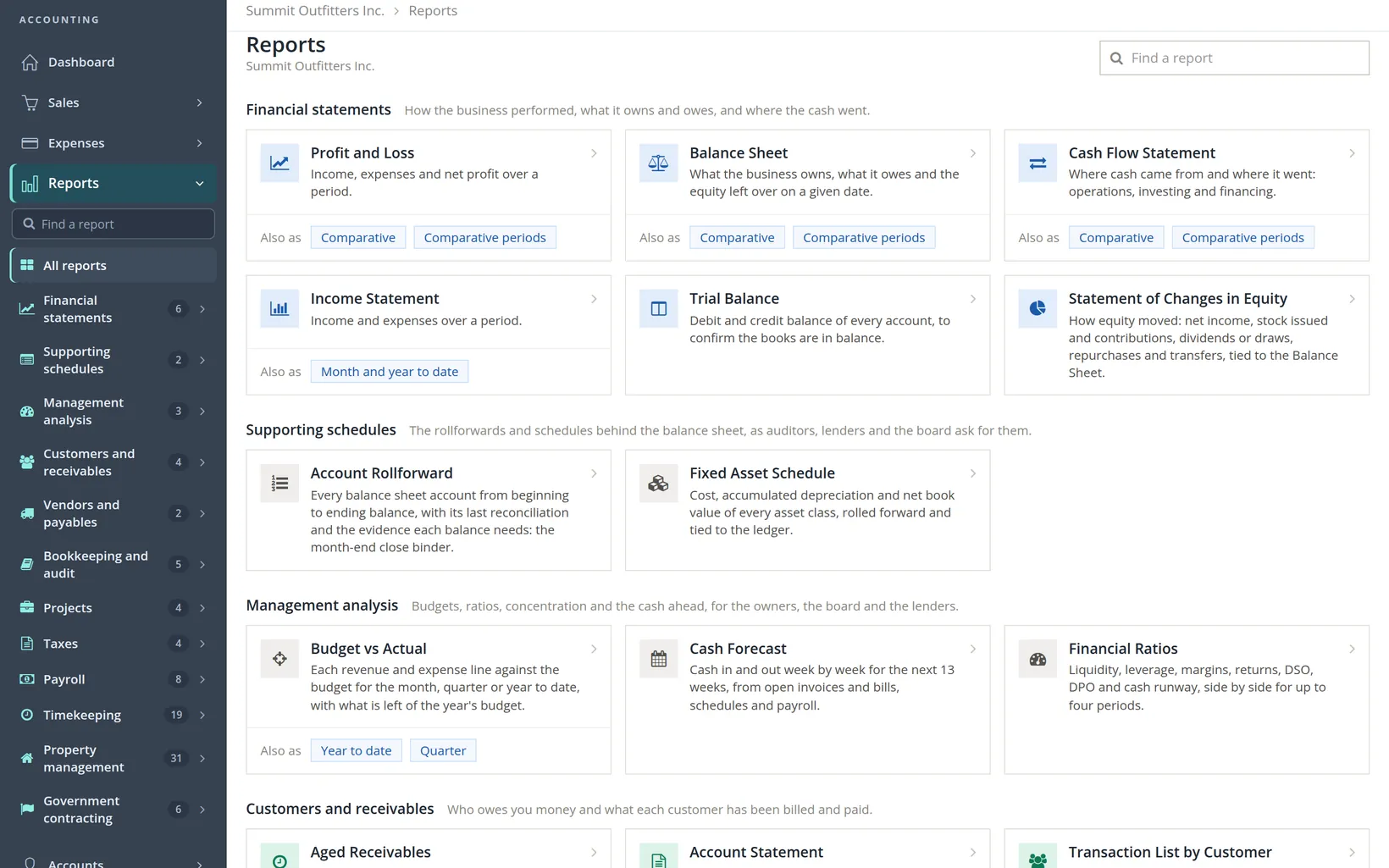
Both Find a report boxes match the start of each word you type: aged finds Aged Receivables, Aged Payables and Outstanding Balances (whose description says aged by due date), but not a report that merely contains managed.
Reports are grouped by the question they answer. Summit shows twelve groups; a thirteenth, Other reports, appears only in books where some report has no group of its own. Use this table to find the group, and the chapter that explains the report.
| Group | Question | Reports | Chapter |
|---|---|---|---|
| Financial statements | Did we make money? What do we own and owe? Where did the cash go? Do the books balance? | Profit and Loss, Income Statement; Balance Sheet; Cash Flow Statement; Trial Balance; Statement of Changes in Equity | 6.2; 6.3; 6.4; 6.5; below |
| Supporting schedules | What stands behind each balance? | Account Rollforward, Fixed Asset Schedule | below |
| Management analysis | Are we on plan, how healthy are we, and what cash is ahead? | Budget vs Actual, Cash Forecast, Financial Ratios | below |
| Customers and receivables | Who owes us, and for how long? What do we sell, and to whom? | Aged Receivables, Account Statement, Transaction List by Customer; Sales Analysis | 6.6; below |
| Vendors and payables | Whom do we owe, and where does the money go? | Aged Payables, Vendor Spend Analysis | below |
| Bookkeeping and audit | What changed, and who changed it? Are the books fit to report? | Transaction Journal, Audit History; Bank Reconciliations; General Ledger, Books Health | 6.7; 6.10; below |
| Projects | What did each job bring in against what it cost? | Project Status Report, Project Funding and Billing Summary, Projects Summary, Project Transactions | 7.3 |
| Taxes | What goes on the tax returns? | Tax Report; 1099 NEC/MISC (1099 Issuance in the menu); Rental Properties; Foreign Accounts | 6.8; 6.9; 13.16; below |
| Payroll | What was paid, withheld and owed? | Eight reports, from the Payroll Register to the W-2 Summary | 11.4 |
| Timekeeping | What time was kept, and what did it cost? | 19 reports in four subgroups: Timesheets and hours; Labor cost and payroll; Projects and billing; Controls and audit | 12.4 |
| Property management | Who rents what, who owes what, and what is each owner due? | 31 cards in six subgroups (below) | 13.14 to 13.18 |
| Government contracting | Is the accounting system ready for a government contract audit? | SF 1408 Readiness, Cost Accounting Structure, Unallowable Costs, Direct and Indirect Consistency, Segregation of Duties, Subledger Ties | below |
Subgroups. Timekeeping and Property management are large enough to be divided again. On the Reports page each subgroup is a subheading with its own cards; in the menu each subgroup is a row of its own that folds open. When a report is open, the menu opens its group and subgroup and highlights it, so you can see where you are. The menu's Find a report box names each match's group, and the subgroup as well, for example Property management -- Owners and trust.
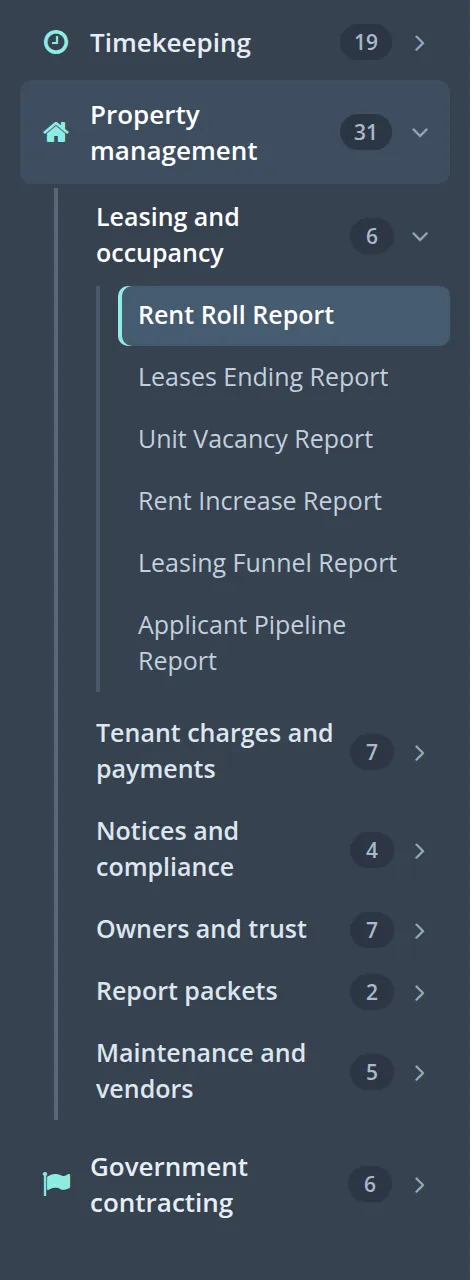
The property management reports have chapters of their own in Volume 13, one per subgroup or pair of subgroups:
| Property management subgroup | Reports | Chapter |
|---|---|---|
| Leasing and occupancy | 6: Rent Roll Report, Leases Ending Report, Unit Vacancy Report, Rent Increase Report, Leasing Funnel Report, Applicant Pipeline Report | 13.14 |
| Tenant charges and payments | 7: Outstanding Balances, Tenant Statement, Late Fees Report, Rent Paid Report, Credits Issued Report, Charges By Account Report, Prepayments Held Report | 13.15 |
| Notices and compliance | 4: Renters Insurance Report, Effective Policy Report, Collections Report, Deliveries Report | 13.15 |
| Owners and trust | 7: Close Checklist Report, Management Fee Income Report, Owner Statement Report, Owner Balances Report, Trust Reconciliation Report, Fee and Draw Register, Owner 1099 Worksheet | 13.16 |
| Report packets | 2: Lender Package, Report packs | 13.18 |
| Maintenance and vendors | 5: Work Orders Report, Tasks Aging Report, Meter Readings Report, Unpaid Bills by Property, Vendor Compliance Report | 13.17 |
Reports without a chapter of their own. The reports marked below in the first table are newer. The twelve outside Government contracting use the controls described in this chapter: a period or date, Apply, a figure you can click to see what is behind it, and Excel, PDF, Google Sheets and Print. The six Government contracting reports are simpler pages: at most a date or period with Apply or Show the period, and Excel and PDF downloads, three of them with Print as well (Segregation of Duties has only Print), with no Google Sheets and no drill-down from the figures themselves (some offer links to the detail instead). What each is for:
| Report | Group | What it is for |
|---|---|---|
| Statement of Changes in Equity | Financial statements | How equity moved over the period: net income, stock issued and contributions, dividends or draws, tied to the Balance Sheet. The page is headed Statement of Changes in Stockholders' Equity. |
| Account Rollforward | Supporting schedules | Every balance sheet account from beginning to ending balance, with its last reconciliation and the evidence each balance needs: the month-end close binder. |
| Fixed Asset Schedule | Supporting schedules | Cost, accumulated depreciation and net book value by asset class, rolled forward and tied to the ledger. The register itself is in Chapter 10.1. |
| Budget vs Actual | Management analysis | Each revenue and expense line against the budget (Chapter 8.1) for a month, a quarter or the year to date, with what is left of the year's budget. Also as Year to date and Quarter. |
| Cash Forecast | Management analysis | The 13-Week Cash Forecast: cash in and out week by week, from open invoices and bills, schedules and payroll, with the lowest week ahead. |
| Financial Ratios | Management analysis | Liquidity, leverage, margins, returns, days sales and days payables outstanding and cash runway, for up to four periods side by side, with a short What to watch summary. |
| Sales Analysis | Customers and receivables | Net sales by customer, by product or service and by month, against the prior period, with revenue concentration. |
| Aged Payables | Vendors and payables | Unpaid bills by vendor and how long each has been open, with the cash due in the next 7, 14 and 30 days. It reads like Aged Receivables (Chapter 6.6). |
| Vendor Spend Analysis | Vendors and payables | What was spent with and paid to each vendor against last year, with concentration, 1099 flags and the tie to total expenses. |
| General Ledger | Bookkeeping and audit | Every account's opening balance, each line of the period with its offsetting account, and the closing balance, tied to the trial balance. |
| Books Health | Bookkeeping and audit | The close review: sixteen tests (abnormal balances, uncleared items, unbalanced or late entries, manual journals, possible duplicates), each passed, for review or failed, with Mark reviewed. |
| Foreign Accounts | Taxes | The FBAR (FinCEN Form 114) and Form 8938 worksheet: each account held outside the United States at its highest US Dollar value in the year, and the currency exposure. |
| SF 1408 Readiness | Government contracting | Each SF 1408 accounting system question with a verdict and the evidence from your books. |
| Cost Accounting Structure | Government contracting | Every account with its cost class, element, pool and the rates it feeds, to print for a surveyor. |
| Unallowable Costs | Government contracting | Unallowable cost by FAR cost principle, each line with its reason, who flagged it and the screening answer, tied to Schedule G. |
| Direct and Indirect Consistency | Government contracting | Vendors and items charged both as a direct and as an indirect cost in the period, to review for consistent treatment. |
| Segregation of Duties | Government contracting | The people whose rights combine duties a second person should check, such as paying vendors and reconciling the bank, pair by pair. It is information, not a failure. |
| Subledger Ties | Government contracting | Each subledger (receivables, payables, fixed assets, inventory, payroll and labor clearing) against its control account on a date. |
A group is shown only when it has reports for these books. Property management appears when that module is switched on, and Rental Properties under Taxes only in books with rental property. Government contracting appears only in books kept for government contracts, such as books with a contract project. Elsewhere SF 1408 Readiness and Cost Accounting Structure are not offered, and the other four move: Unallowable Costs and Direct and Indirect Consistency to Projects, Subledger Ties and Segregation of Duties to Bookkeeping and audit. If a report is not where this table says, type its name in Find a report.1
The parts of a report
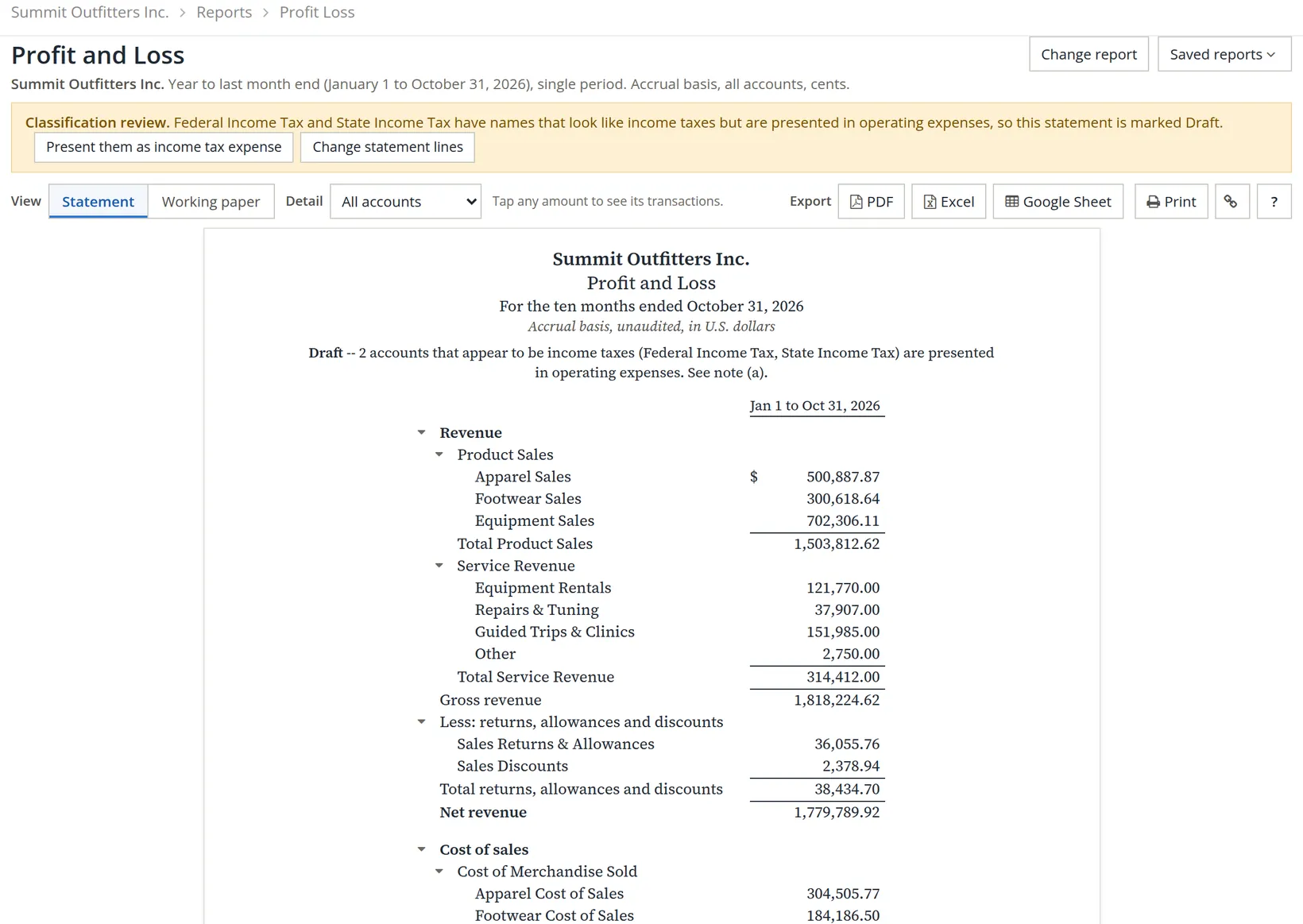
| Part | What it does |
|---|---|
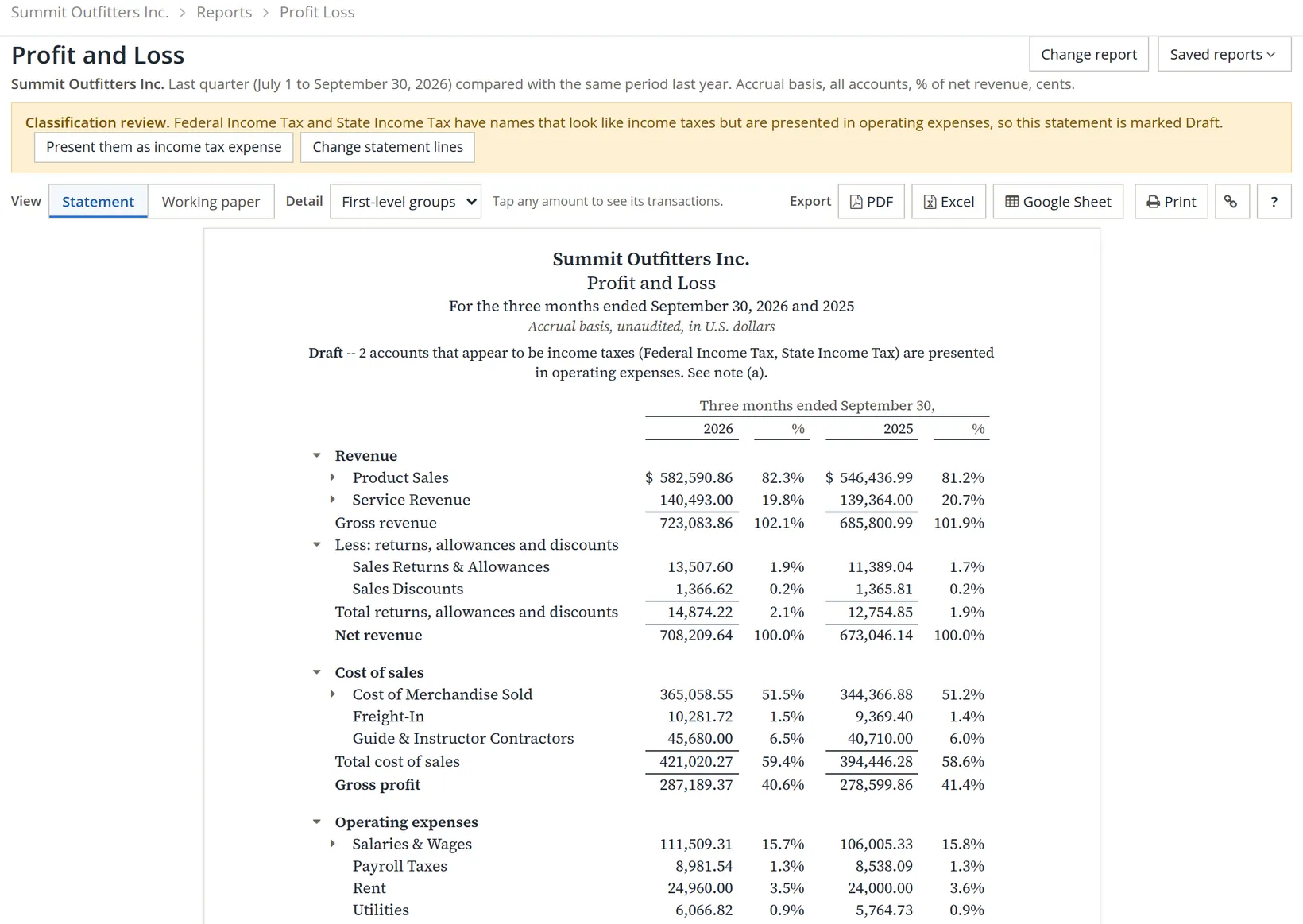
| 1 Change report | Opens the options (Procedure A). The line under the title always says, in words, what is shown: period, basis, accounts, rounding. |
| 2 Saved reports | Reports saved with their options, to run again in one click. |
| 3 Review notices | Problems the report found in the books, with a button to fix each. Here: two income tax accounts filed as operating expenses, so the statement is marked Draft. |
| 4 5 Statement or Working paper | The presentation for readers, or a working view for accountants with account numbers and references. |
| 6 Detail | Statement lines only, first-level groups, or every account. |
| 7 Tap any amount | Every figure is a link to the postings behind it (Procedure B). |
| 8 9 Export and Print | PDF, Excel, Google Sheet, or the browser's print. |
| 10 Triangles | Fold or unfold a group. |
When the period runs up to today, a line under the report's heading says so, for example Period in progress: transactions dated through November 5, 2026. The figures will change as the rest of the period is entered.
A report that says Draft is telling you the books have something to fix before the figures should be relied on. Summit's notice offers Present them as income tax expense: one click moves the two tax accounts below operating income, where a reader expects them.
Change what the report shows
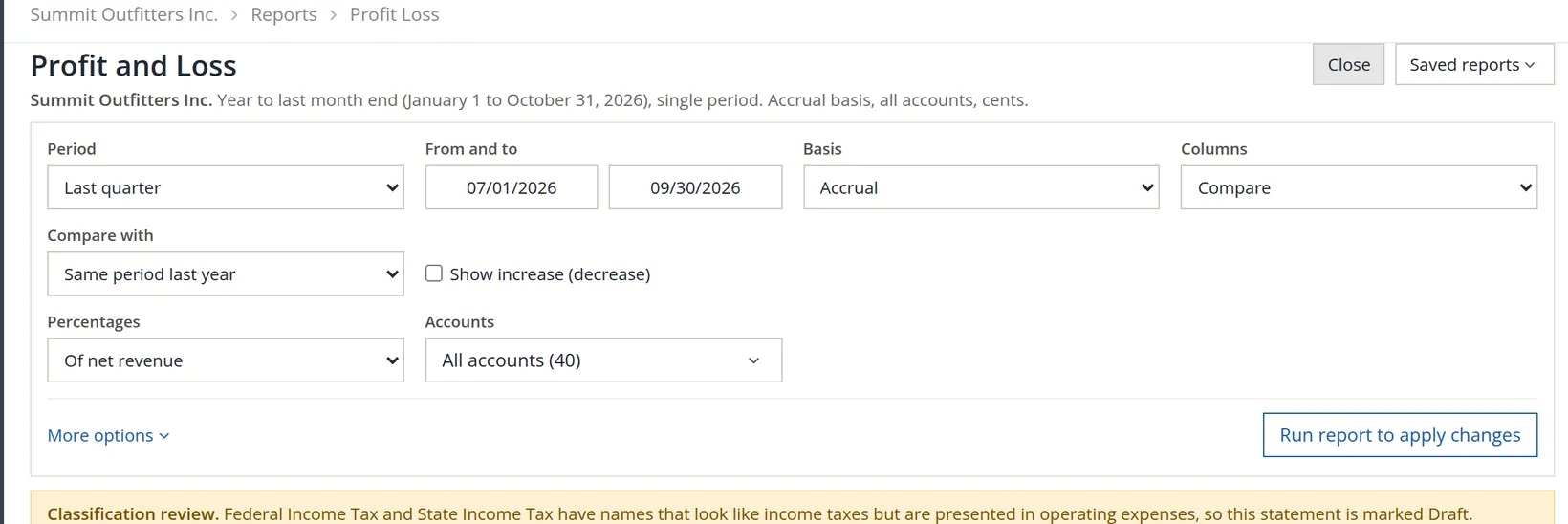
Click Change report. The options open above the report.
- 1
Choose the period 1
This month, this quarter, this fiscal year, year to last month end, year to date, last month, last quarter, last fiscal year, last 12 months, all dates, or custom dates 2 3.
- 2
Choose the basis 4
Accrual (income when invoiced), cash (income when paid), or receipts and payments. See Chapter 1.2, Section 4.
- 3
Choose the columns
Single period; Compare with the same period last year, the prior period or another period 5, optionally with the increase or decrease 6; Trend (month by month); or Month and year to date.
- 4
Optionally, percentages 7 and accounts 8
Percentages of net revenue (or of each line's section) turn every line into a share of sales, the easiest way to compare two periods of different size. More options 9 holds the report name, rounding, hidden accounts and zero lines.
- 5
Click Run report to apply changes 10
From a figure to its entries
Click any amount on a report. A listing opens with every posting behind that figure, and a check at the top that they add up to it.
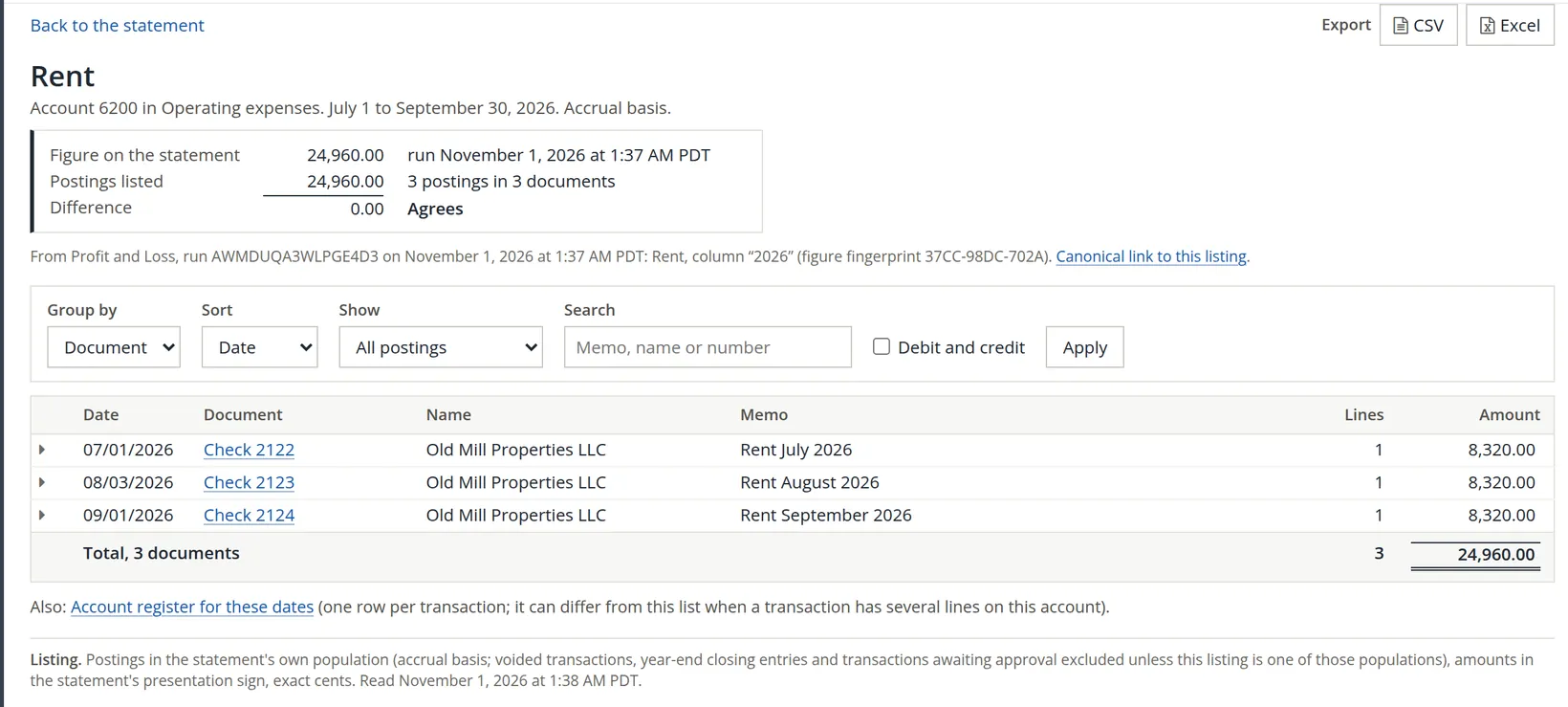
When an owner, lender or auditor asks "what is in this number?", the drill-down answers in one click, and shows it ties to the cent. Export it to Excel and attach it to your reply.
Exporting, printing and saving
- PDF for sending to people; Excel for working with the figures; Google Sheet to share a live copy; Print for paper.
- Saved reports keeps the options of a report you run often (for example "Q3 vs last year, % of revenue") under a name.
- The address in the browser holds the options too, so a bookmarked report opens exactly as it was.
Check your understanding
1. How do you compare this quarter with the same quarter last year?
Answer
Change report: period This quarter, columns Compare, compare with Same period last year; Run report.
2. What does "Agrees" on a drill-down mean?
Answer
The postings listed add up exactly to the figure on the statement.
3. A report is marked Draft. What should you do?
Answer
Read the review notice and fix what it names, usually with the button beside it, before relying on the figures.
Notes
- The company's owner also sees an Audit package card in Government contracting (or, when that group is not shown, in an Other reports group that appears for it). Members do not see it. ↑