
Chapter 5.6
Finding and Merging Duplicate Entries
How BizBooks360 finds entries recorded twice (typed once and imported again, or entered by two people), how to compare them side by side, and how to keep one and remove the other.
When you finish this chapter you will be able to:
- Search an account for look-alike entries.
- Compare a pair and choose what the kept entry takes from each.
- Merge the pair, or set it aside as not duplicates.
Find the pairs
Tools → Merge Duplicate Entries, or Merge duplicate entries in the ··· menu of a register or of the Journal entries list (Chapter 5.2).
- 1
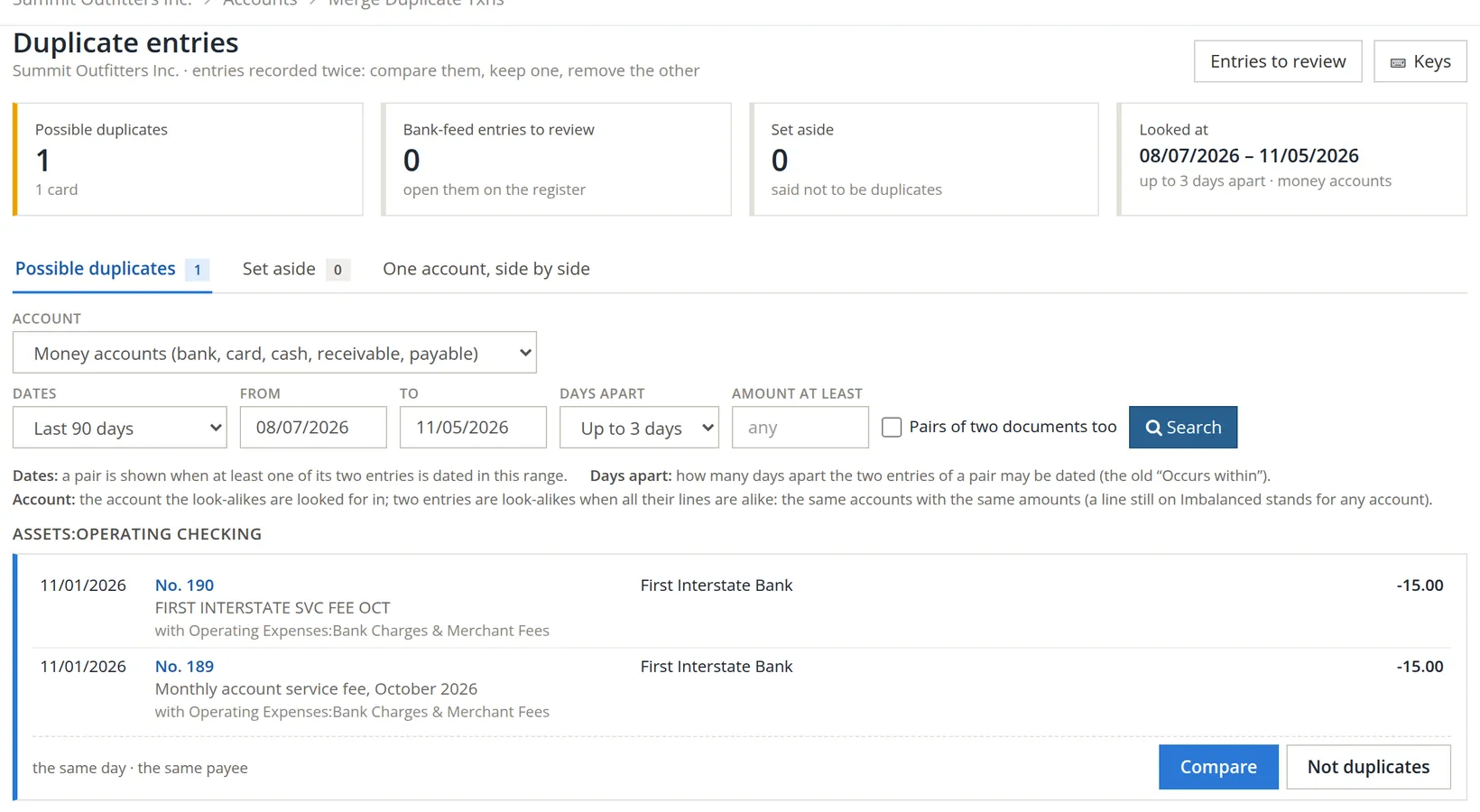
Choose the account, dates and how far apart 2 3
The account starts at Money accounts (bank, card, cash, receivable, payable), where most duplicates land, so you need to change it only to look at one account or at Every account. Two entries are look-alikes when all their lines match: the same accounts and the same amounts. Days apart sets how far apart their dates may be; up to 3 days catches a typed entry and its bank posting.
- 2
Click Search 4
The cards 1 count possible duplicates and pairs already set aside. Each pair is a card 7 with both entries and why they look alike ("the same day, the same payee").
- 3
For each pair: Compare 5 or Not duplicates 6
Two genuine $15 charges on the same day happen; Not duplicates sets them aside so they are not shown again.
Compare and merge
- 1
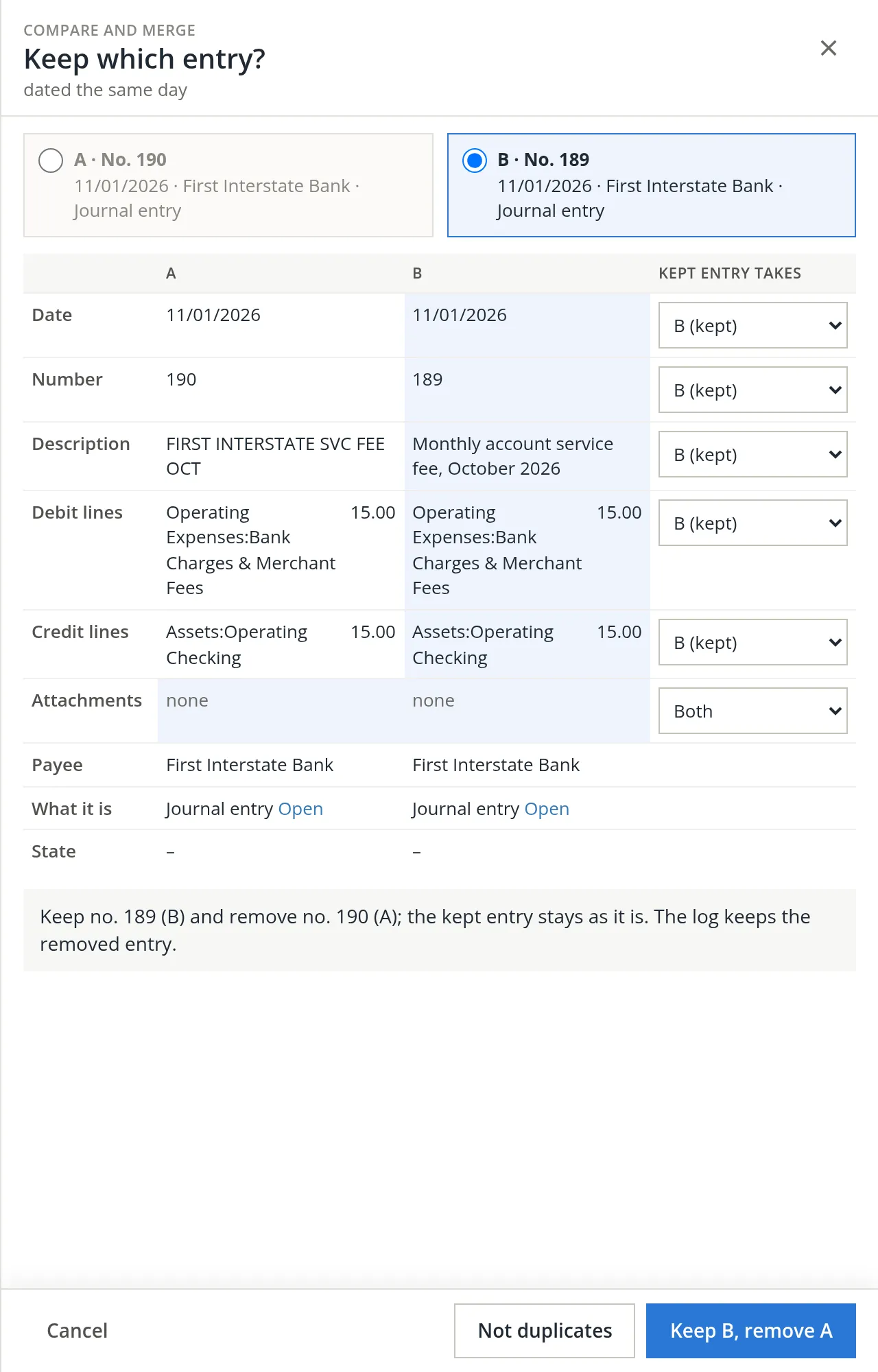
Choose which entry to keep 1
Usually the one with the clearer description, or the one linked to a document. BizBooks360 proposes one by these rules, in order: an entry that belongs to a document, then an approved entry, then one that did not come from a bank feed, then a reconciled one, then one with a printed check, and when the two are level, the one recorded first. Here both are ordinary entries typed into the register, level on every rule, so it proposes B, no. 189, because it was recorded first. Summit keeps it: it also has the clearer description.
- 2
Choose what the kept entry takes 2
Row by row: the date, number, description, lines and attachments of A or of B. For the description you can also choose Both, B first (the kept entry's text first); for attachments, Both.
- 3
Click the merge button 4, and confirm
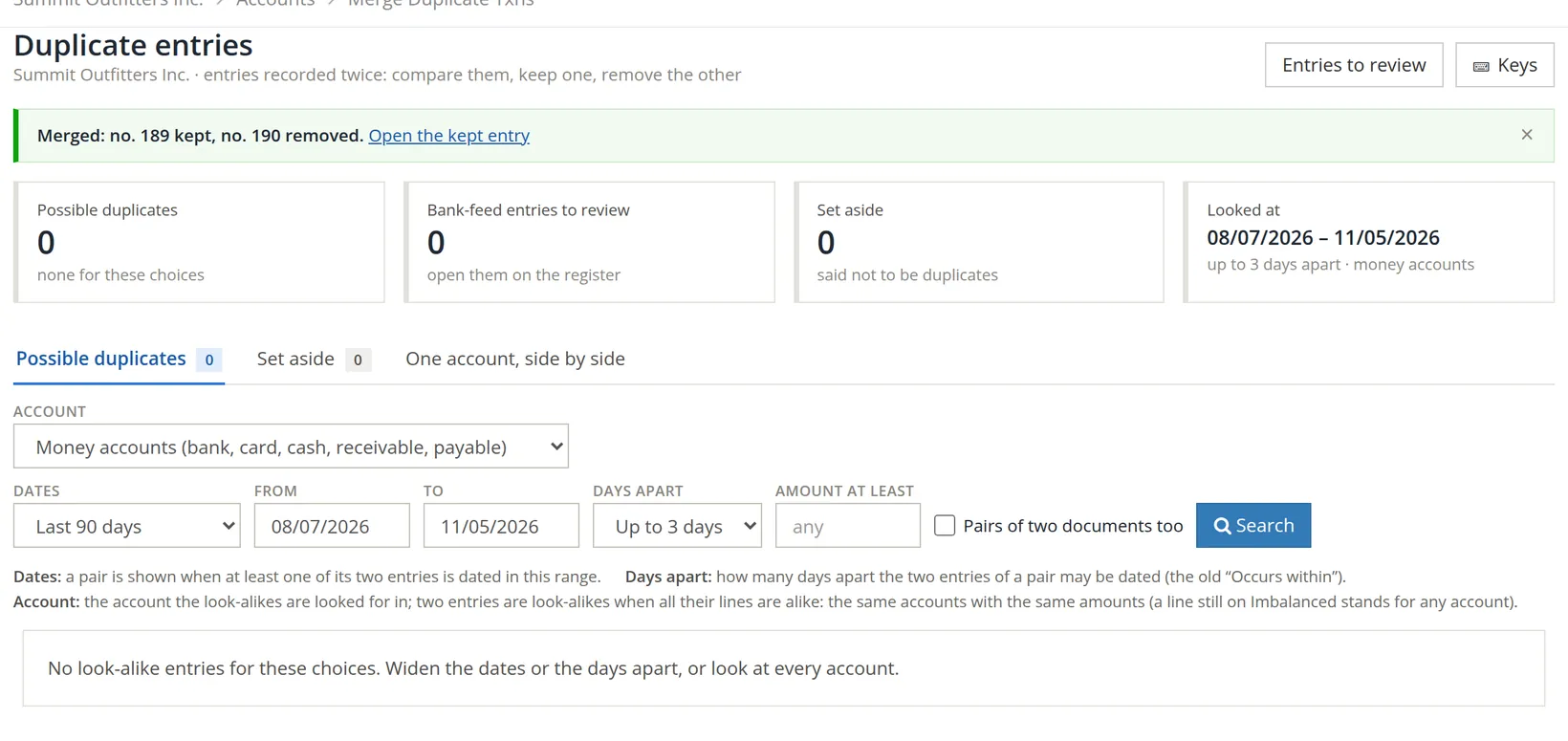
The button names your choice: here Keep B, remove A. The confirmation repeats what will happen. The removed entry is kept in the activity log, and listed under Deleted entries with the reason "Merged into the entry kept" (Chapter 5.2). Not duplicates 3 sets the pair aside instead. If either entry is dated inside the closed period, or an account on it is closed through that date, or the kept entry would take a date there, the panel says so and the merge asks for a reason and your password before it goes ahead.1
Decide, for each account, whether entries are typed or imported, not both. If you import statements, enter only documents (invoices, bills, checks) by hand, and let the import's duplicate check untick lines you already have.
Check your understanding
1. Two $15.00 fees on the same day are both genuine. What do you click?
Answer
Not duplicates, so the pair is set aside.
2. Is the removed entry gone without trace?
Answer
No. The activity log keeps it, and Deleted entries lists it with who removed it, when and why.
Notes
- Since November 2026 this is the shared Reason and Your password dialog used wherever closed books are changed; it replaced the merge's own password box. Summit's books are not closed, so the pair in this chapter merged without it. ↑