
Chapter 4.2
The Account Register
How to read an account's register, the running list of everything that went in and out, and how to add, open, find and correct entries in it without leaving the page.
When you finish this chapter you will be able to:
- Read every column of a register, including the cleared state.
- Filter a register to find one entry among hundreds.
- Record a simple entry with the quick-entry row.
- Open, split, copy or void an entry from its row.
Contents
Reading the register
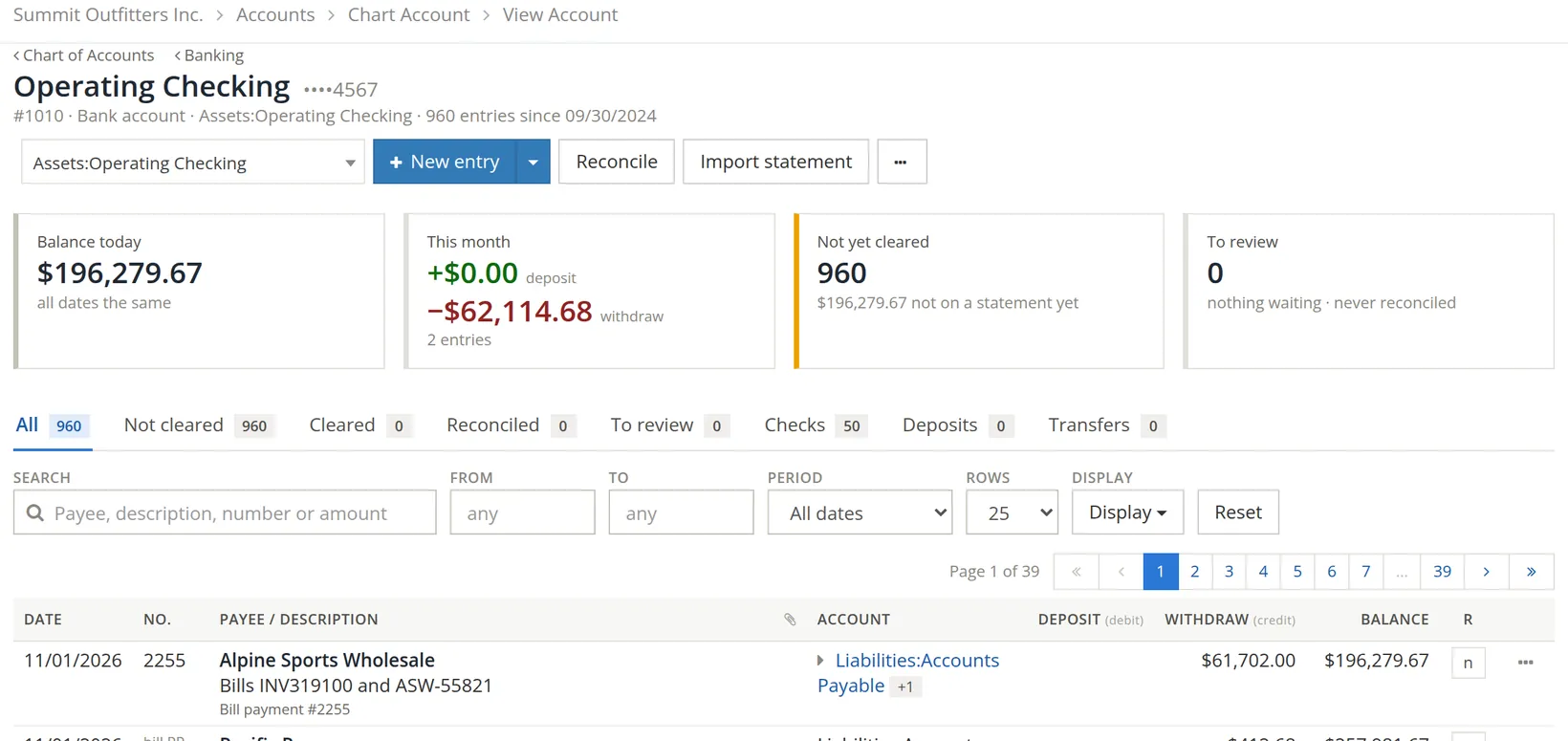
| Part | What it is |
|---|---|
| 1 Account switcher | Jump to another account's register without going back. |
| 2 New entry | The quick-entry row (Procedure A). Its arrow also offers a journal entry, a check, a deposit or a transfer for this account. |
| 3 4 Reconcile, Import statement | Chapters 4.4 and 4.3. |
| 5 … | The register's other tools (Section 4). |
| A Cards | Balance today; this month's deposits and withdrawals; entries not yet cleared; imported entries to review. |
| 6 Tabs | All, Not cleared, Cleared, Reconciled, To review, Checks, Deposits, Transfers. |
| 7 Display | Compact or comfortable rows, wrapped or cut text, one or two lines per entry. |
| 9 Account | The other side of the entry. A small arrow and +1 mean it has several lines: click to open them. |
| Deposit, Withdraw, Balance | Money in, money out, and the running balance after each entry. |
| 8 R | The cleared state: n not cleared, c cleared (seen on the statement), or reconciled once a finished reconciliation includes it. |
| 10 ··· | The row menu (Section 3). |
Finding an entry
Combine the tools above the list: pick a tab, type in Search (payee, description, number or amount), and narrow the dates with Period or From and To. Reset clears them all.
Customers and vendors forget names but quote amounts. Typing 1250 finds every entry for $1,250.00, which is usually faster than scrolling through months.
A quick entry
For simple items that have no form of their own (bank fees, interest, a small refund), type them straight into the register. Click New entry, or press N. A row opens under the list.

- 1
Date 1 and check number 2
The date starts at today; + and − move it a day, T sets today. Leave the check number empty unless it really was a check.
- 2
Payee 3, description 4, optional memo 5
- 3
The other account 6
Where the money came from or went: Bank Charges & Merchant Fees for a bank fee.
- 4
Deposit 7 or Withdraw 8
Balance after 9 shows the result before you save. Set R 10 to c if the item is already on the statement.
- 5
Press Enter or click Save
The entry is saved and numbered ("Entry saved as no. 183"), shown highlighted in the list, and a fresh row opens for the next one. Split… divides one amount over several accounts.
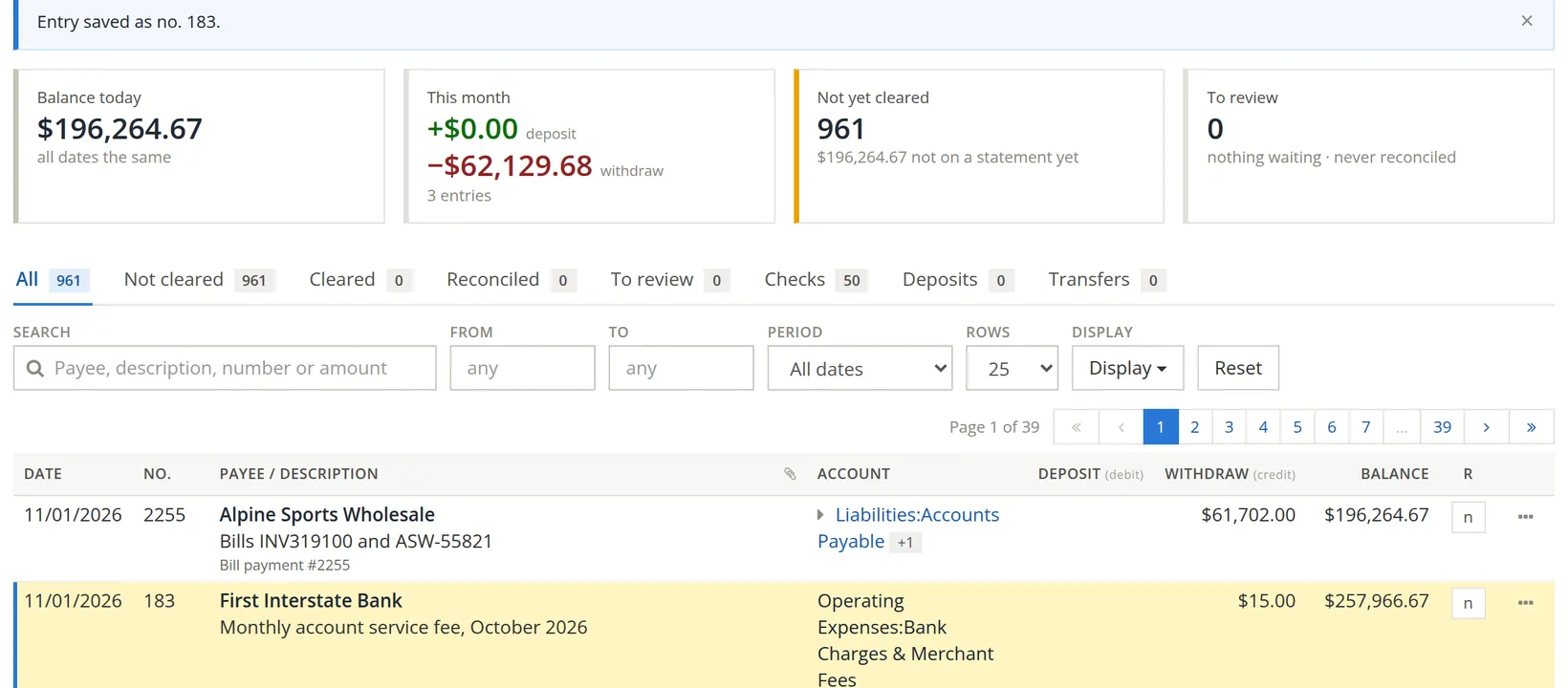
Customer payments, bills and checks to vendors belong on their own forms (Volumes 2 and 3), so invoices are paid and bills closed. The quick-entry row is for items with no invoice or bill behind them.
Working with a row
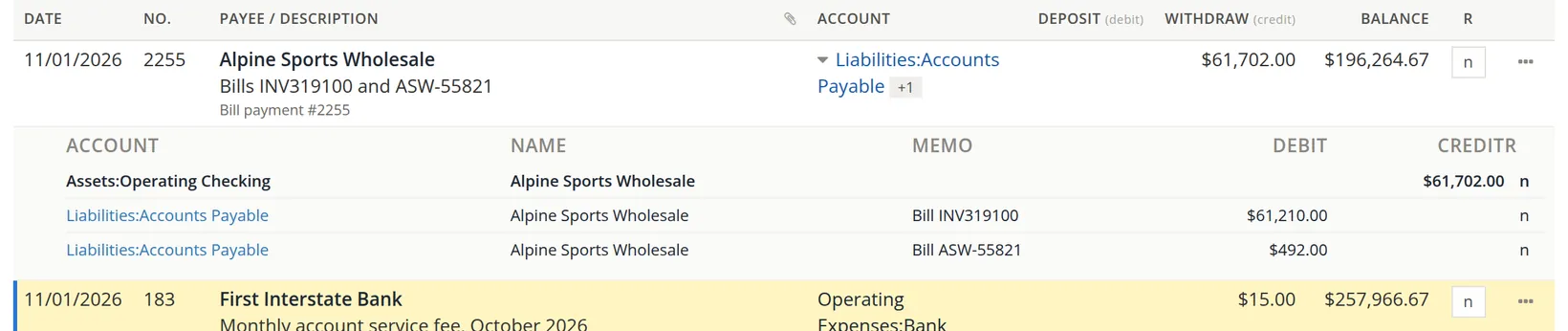
Open the lines. Click the account with the small arrow to see every line of a split entry: here check 2255 paid two bills.
The row menu (···) opens the entry, or the form behind it (the bill payment, invoice payment or expense), copies its description, or voids it.
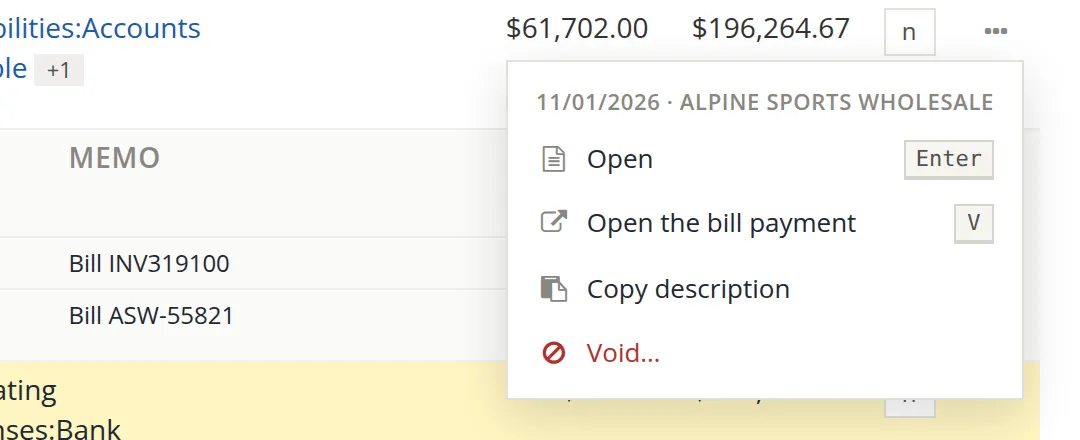
A void keeps the entry on record at zero with its date and number, so a check number never goes missing from the sequence and the audit history tells the story.
The register's other tools
The ··· button beside Import statement holds:
- Edit account, Add sub-account (Chapter 5.1).
- Excel, Google Sheet, CSV of this view, Print this register (PDF): exports of exactly what is filtered on screen.
- Transaction journal report for the account (Chapter 6.7).
- Rules editor, New rule, Export and Import rules (Chapter 4.8).
- Check and deposit slip setup, Bank feed (Plaid), Merge duplicate entries (Chapters 3.1, 4.3, 5.6).
- Keyboard keys: the full list of shortcuts.
Check your understanding
1. A row's R column shows n. What does that mean?
Answer
Not cleared: it has not yet been matched to the bank statement.
2. The bank charged a $15.00 fee. Which form do you use?
Answer
A quick entry in the register: withdraw 15.00 to Bank Charges & Merchant Fees.
3. A customer's payment arrived. Should you enter it in the register?
Answer
No. Use Receive payment (Chapter 2.3) so the invoice is marked paid.
Notes
- Every account has a register, not only bank accounts: Accounts Receivable, Utilities, Merchandise Inventory. The page is the same. ↑