
Chapter 4.1
Bank Accounts and the Banking Page
How to read the Banking page, the hub for every bank, cash and credit card account, and how to add a new bank account or credit card with its opening balance.
When you finish this chapter you will be able to:
- Read the four cards and the Needs attention list on the Banking page.
- Find any account's register, and every banking task from its More menu.
- Add a bank account or a credit card, with the right type, number and opening balance.
Contents
The Banking page
Click Bank Account in the left menu.
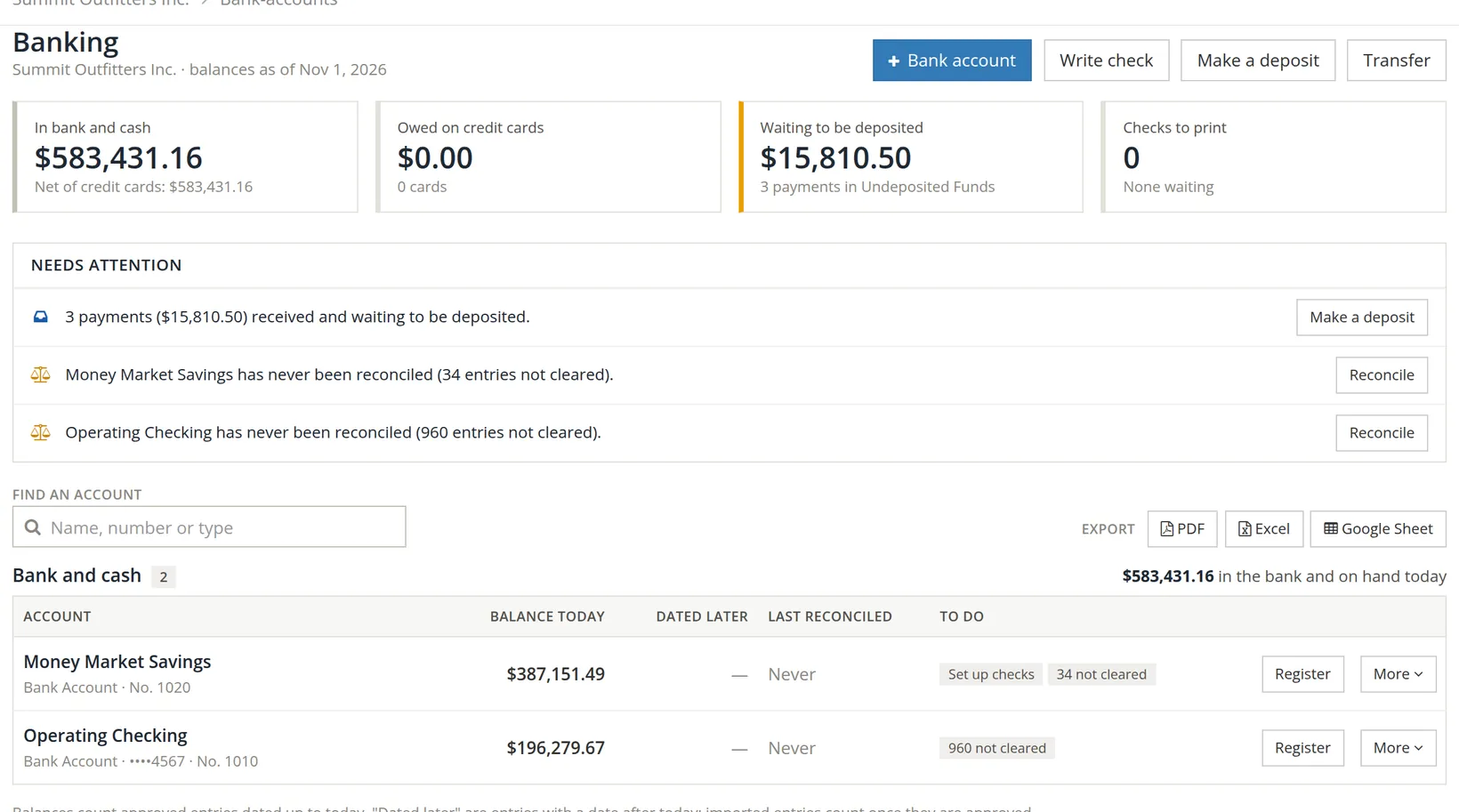
| Part | What it tells you |
|---|---|
| 1 In bank and cash | All bank and cash accounts together, with the total net of what is owed on cards. |
| 2 Owed on credit cards | What the business owes on its cards today. |
| 3 Waiting to be deposited | Payments received into Undeposited Funds and not yet taken to the bank. Click it to make the deposit (Chapter 4.6). |
| 4 Checks to print | Checks saved with "print later" (Chapter 4.5). |
| 5 Needs attention | Deposits to make, accounts never or long not reconciled, imported entries to review, each with its button. |
| 6 Find an account | Type a name, number or type to narrow the list. |
| 7 Register | Opens the account's register (Chapter 4.2). |
| 8 To do | Tags such as 34 not cleared (entries not yet matched to a statement) and Set up checks. |
Both of Summit's accounts say Never under Last reconciled, with 960 entries not cleared in checking. Until they are reconciled (Chapter 4.4), the $583,431.16 at the top is what the books say, not what the bank has confirmed.
Every banking task, and where it is
Each account's More menu gathers every task for that account. The buttons at the top of the page (Write check, Make a deposit, Transfer) start the same tasks without choosing the account first.
| Menu item | What it does | Chapter |
|---|---|---|
| View account | The register: every entry and the running balance | 4.2 |
| Write a check, Print checks | Write one check; print those waiting | 3.1, 4.5 |
| Deposit money | Take received payments to the bank | 4.6 |
| Transfer funds | Move money between your own accounts | 4.7 |
| Reconcile account | Match the books to the statement | 4.4 |
| Import a statement | Load a CSV, OFX or QFX file from the bank | 4.3 |
| Bank feed (Plaid) | Connect the bank to bring entries in automatically | 4.3 |
| Check and deposit slip setup | Bank details and layout for printing | 3.1, 4.5 |
Add a bank account or credit card
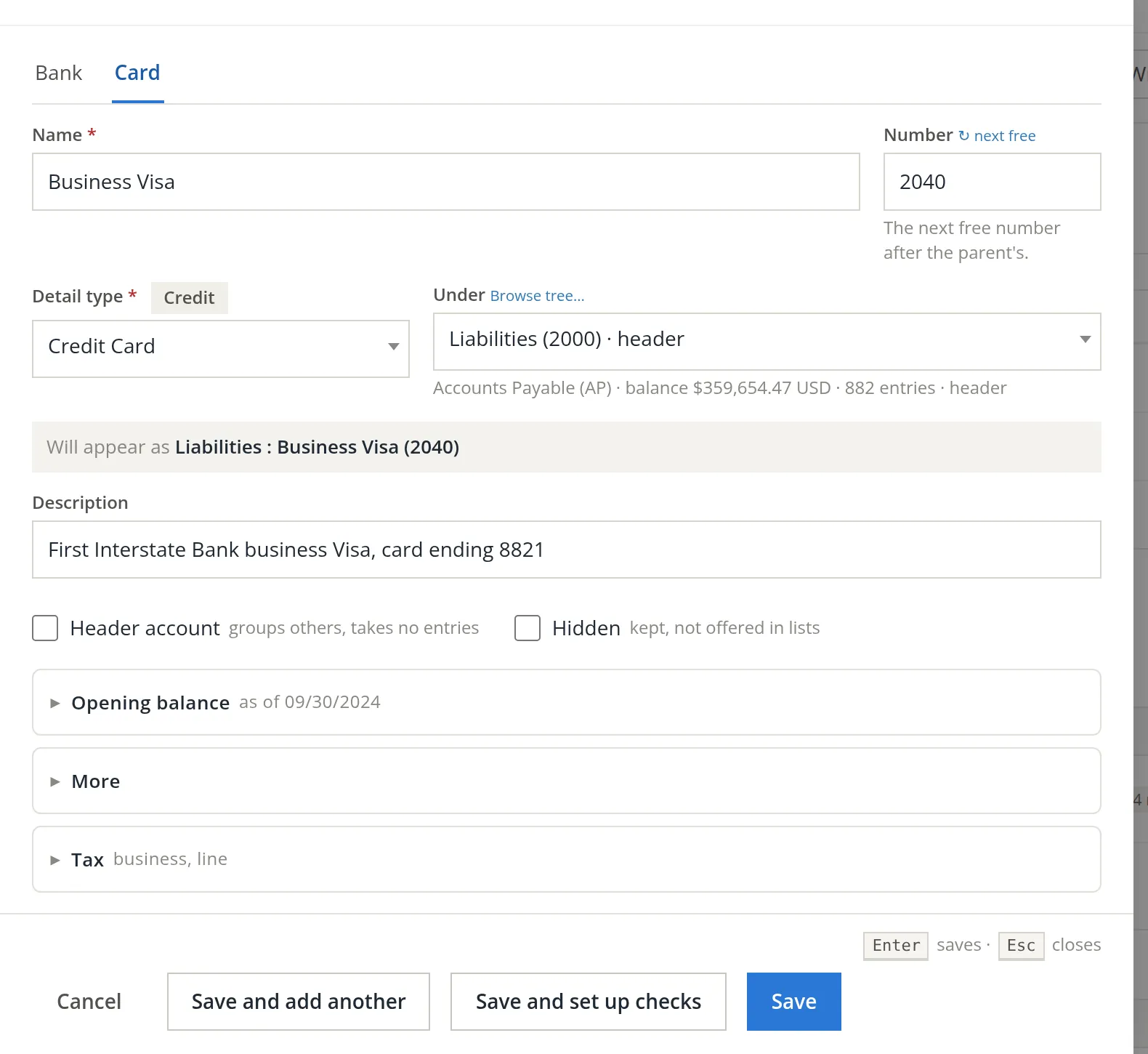
Click + Bank account. A dialog opens.
- 1
Choose Bank or Card 1
A bank account is an asset (money you have). A credit card is a liability (money you owe).
- 2
Name it 2
The Card tab puts "Credit Card" in the box for you. Select it all and type over it, or the words run together.2 A good name says whose card or account it is: "Business Visa", "Payroll Checking".
- 3
Check the number 3
BizBooks360 offers the next free number in the group. next free fetches it again if you changed your mind.
- 4
Check the detail type 4 and parent 5
For a card: Credit Card, under Liabilities. For a bank: Bank Account, under Assets. The grey line 6 shows where it will sit in the chart of accounts.
- 5
Describe it 7
The bank and the last four digits, so the right statement is never in doubt.
- 6
Enter the opening balance 8
Open Opening balance and type the balance and its date. Section 3 explains which balance to use. A brand-new account or card has none.
- 7
Save 9
For a checking account you will print checks from, use Save and set up checks instead (Chapter 3.1). Save and add another keeps the dialog open.

Getting the opening balance right
The opening balance is the balance on the day before your books start, taken from a bank statement, not from your checkbook.
- Books start January 1? Use the ending balance on the December statement.
- Checks written but not yet cleared on that day are entered separately as transactions, so they can clear when they show on a later statement.
- For a card, the opening balance is what you owed on the statement at that date.
Right after adding an account and its first month of entries, reconcile that month (Chapter 4.4). If the opening balance is wrong, you find out in week one, not in March.
Check your understanding
1. Is a credit card account an asset or a liability?
Answer
A liability: money the business owes.
2. "Waiting to be deposited: $15,810.50". Where is that money in the books?
Answer
In Undeposited Funds, until a deposit moves it to the bank.
3. Your books start January 1. Which balance is the opening balance of checking?
Answer
The ending balance on the December bank statement, with uncleared checks entered separately.