
Chapter 4.3
Importing a Bank or Card Statement
How to bring a month of bank or credit card activity into BizBooks360 from a CSV file in three steps (upload, map the columns, review and apply) instead of typing every line.
When you finish this chapter you will be able to:
- Download a statement in a form BizBooks360 reads.
- Upload it and confirm the separator and header row.
- Map the columns, and get the sign of the amounts right.
- Give every line an account, and a project where it belongs to one, and apply the import.
Contents
Before you begin
- Download a CSV. On the bank's website, choose the account, the dates, and "CSV" or "Comma separated". An Excel file is saved as CSV first.
- Pick dates that do not overlap what is already in the register. If they do, BizBooks360 unticks rows it already has (same day, same amount, same number).
- Open the right account first. Start from that account's Import statement button, or More → Import a statement on the Banking page.
If your bank is supported, More → Bank feed (Plaid) brings entries in automatically every day. Entries brought in by a feed wait under To review in the register until you approve them. CSV import is for banks without a feed, and for history.
Upload
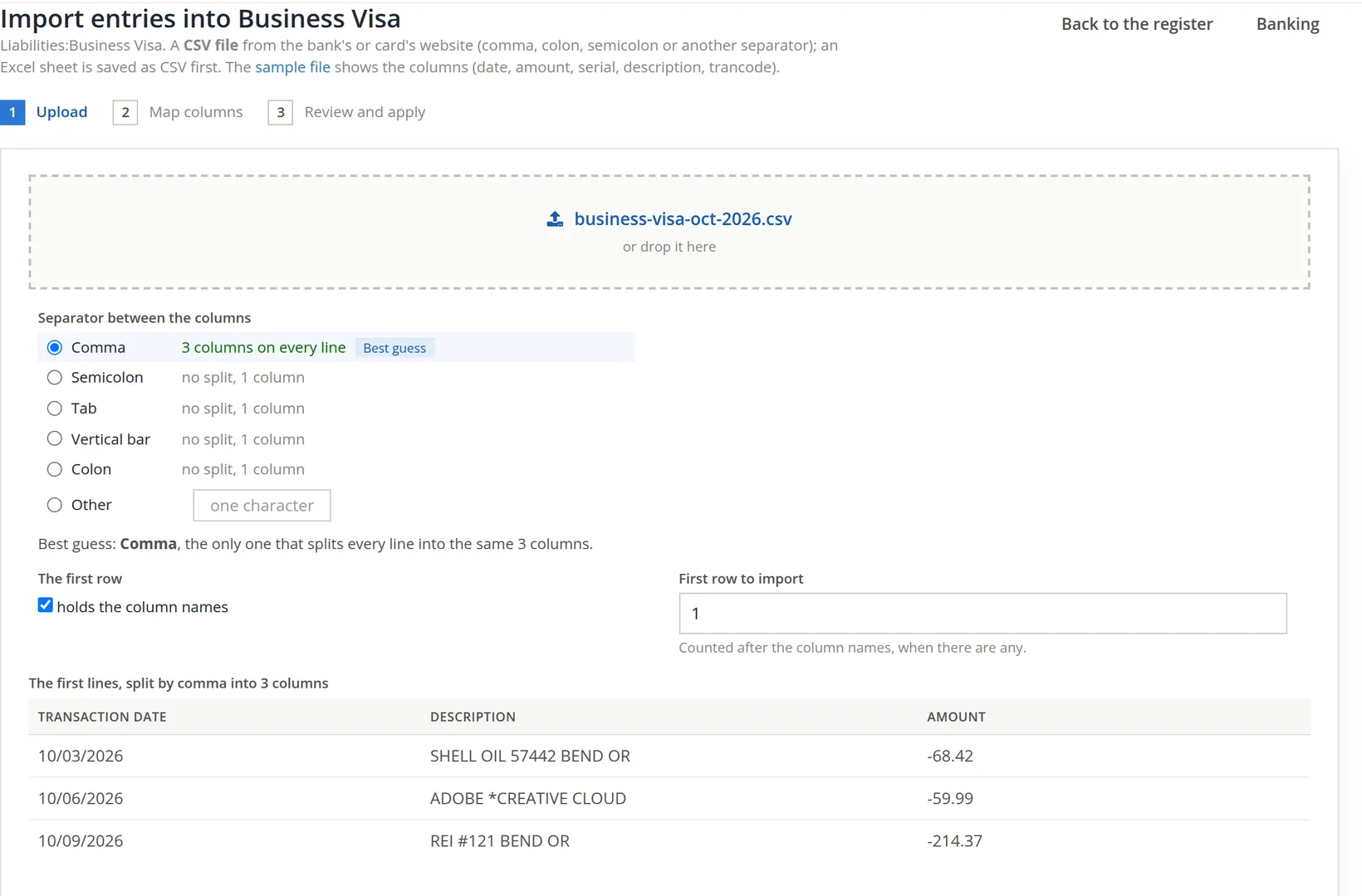
- 1
Choose the file, or drop it on the box 1
- 2
Check the separator 2
BizBooks360 tries each one and marks the Best guess: the one that splits every line into the same number of columns. Accept it unless the preview looks wrong.
- 3
Confirm the header row 3 and the first row 4
Tick holds the column names if the first line is headings. Raise First row to import to skip lines above the transactions, such as an opening-balance line.
- 4
Read the preview 5, then Continue
Nothing is written to the books until step 3.
Map the columns
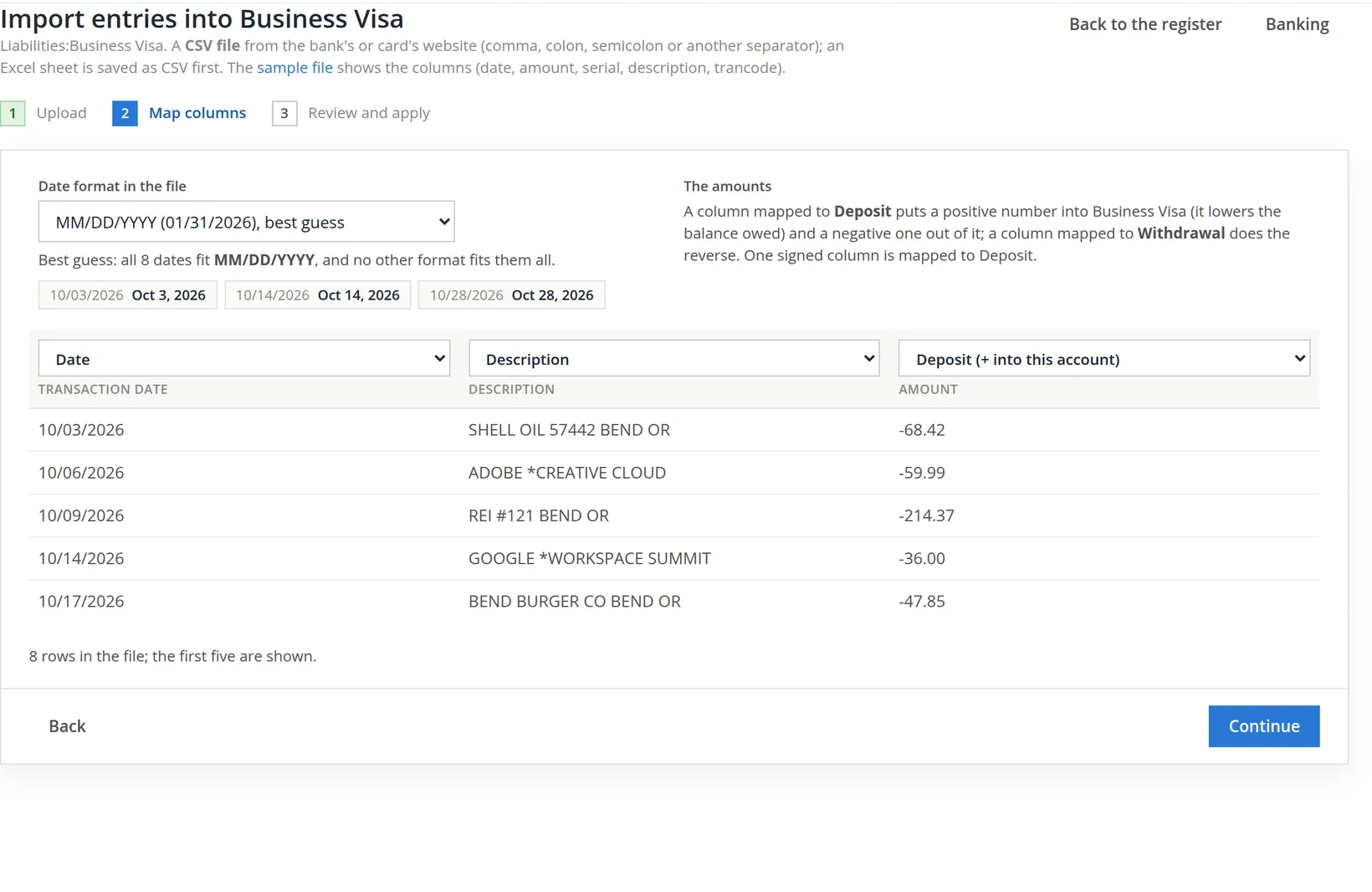
- 1
Check the date format 1
BizBooks360 picks the format every date fits and shows three samples as it reads them 2. "10/03/2026 reads as Oct 3, 2026" confirms month first, not day first.
- 2
Say what each column is 4
Date, Description, Number, Memo, Deposit, Withdrawal, or skip.
- 3
Get the amounts right 3 5
A single signed column goes to Deposit: positive numbers come into the account, negative ones go out. Files with separate debit and credit columns map one to Deposit and the other to Withdrawal.
- 4
Continue 6
For a card, "into the account" means paying it down. A charge must come in as a negative amount, raising what you owe. If the preview in step 3 shows charges as payments, go back and map the amount to Withdrawal instead.
Review and apply
Every line of the file is a row with its date, amount, description, an optional payee and number, and the account it should go to. Rows are ticked to be imported. In books that keep projects or unallowable-cost flags, as Summit's do, each row also has a Project and flag cell, and the Problems column at the far right says what still needs fixing. The table is wide: on a screen narrower than about 1,600 pixels it scrolls sideways, so slide it to the right to read the problems.
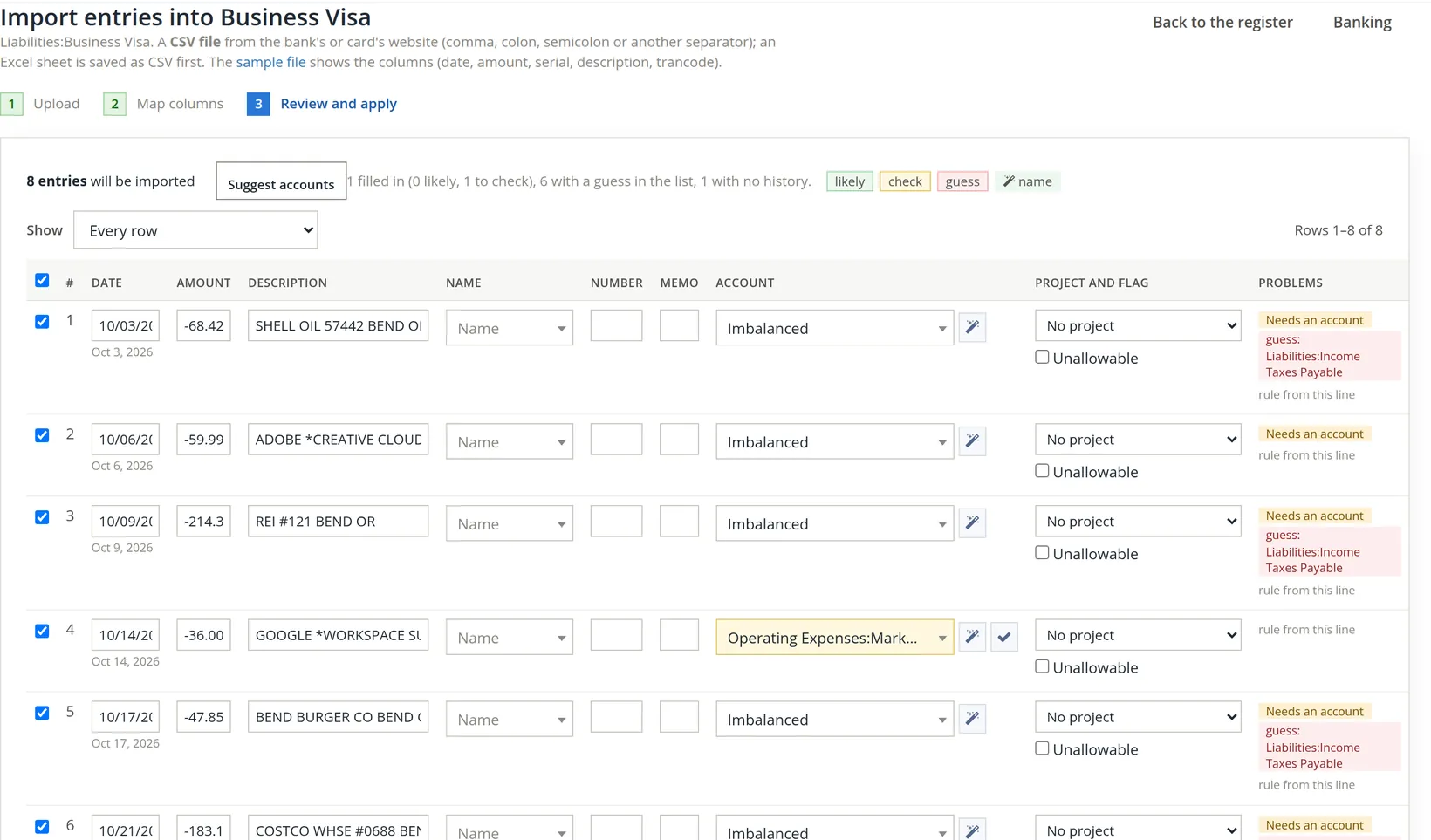
- 1
Click Suggest accounts
BizBooks360 fills accounts from similar descriptions already in these books, and from your bank rules (Chapter 4.8). Each suggestion is marked likely, check or guess.
- 2
Choose an account for every row the suggestions did not settle
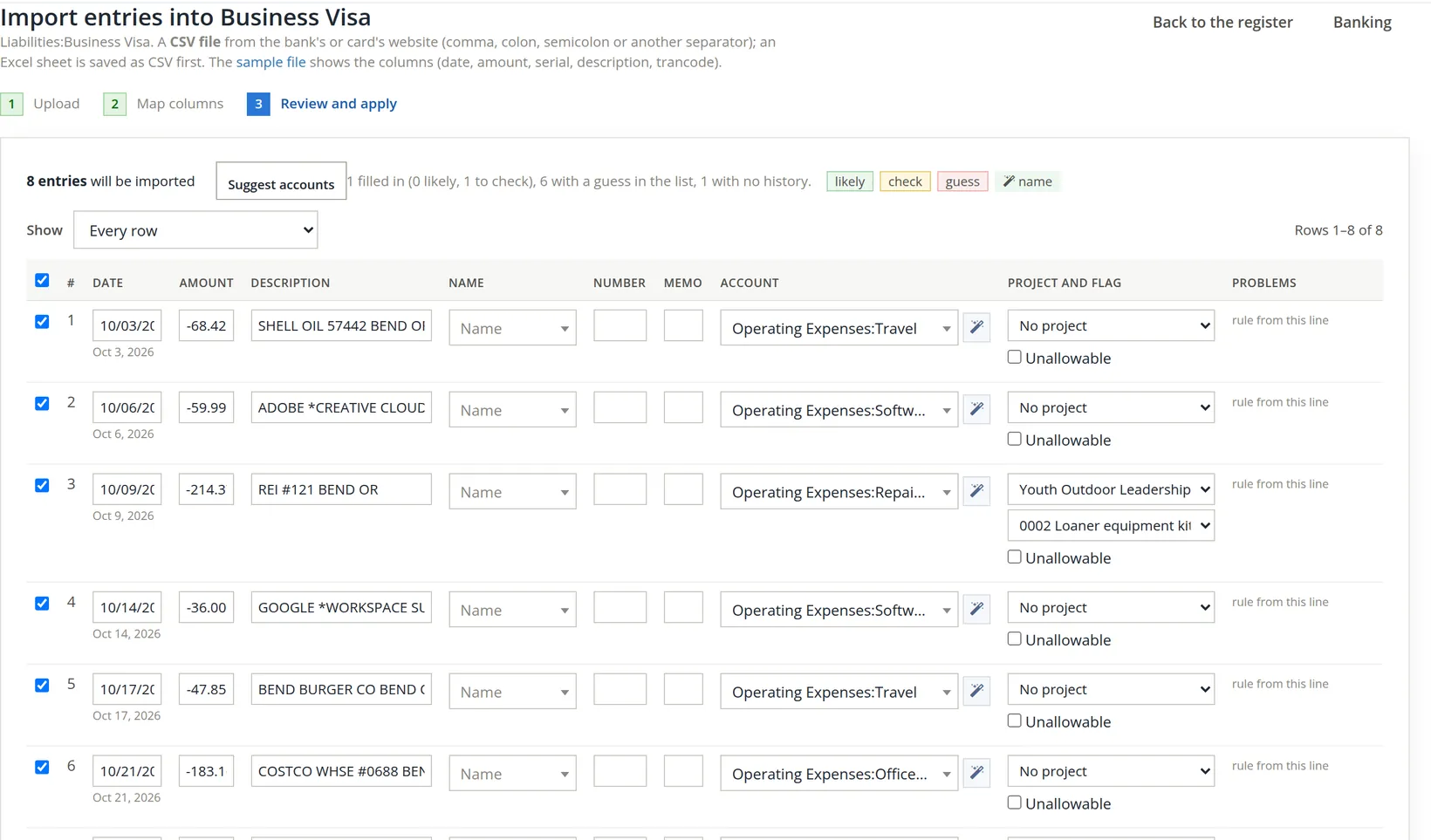
Read every guess. On an account with no history, like this new card, the guesses are weak: one charge was filled in as online advertising, and the rest were left on Imbalanced, six of them with a guess of income taxes payable. In Summit's chart the fuel and the lunch go to Travel, Adobe and Google to Software & Subscriptions, the Costco supplies and the postage to Office Expenses, and the REI gear to Repairs & Maintenance.
- 3
Name the project where a row belongs to one
The $214.37 at REI bought loaner gear for the Youth Outdoor Leadership Program, a contract Summit tracks as a project (Chapter 7.1). Choose the project in the row's Project and flag cell 1. A project with contract lines then shows a Contract line picker 2: here 0002 Loaner equipment kits. Tick Unallowable 3 only for a cost that may not be billed to a government contract; it then asks why (10 characters or more) and, optionally, the FAR principle. The other seven charges are overhead, so they keep No project.
- 4
Check the direct costs: Show → Direct lines without a project
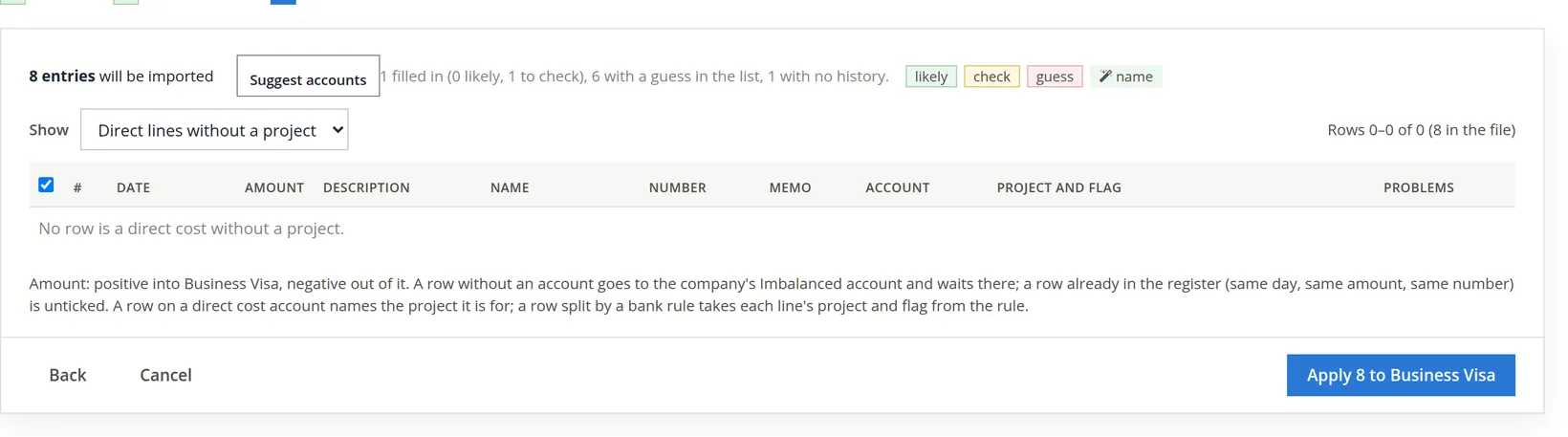
Some accounts are marked in the books as direct costs: costs that belong to one project, such as instructor contractors or equipment sold on a contract. A row on such an account should name its project. This choice of the Show list 2 lists only the direct rows that have none. Summit's card charges are all overhead, so it answers "No row is a direct cost without a project" 3. The note under the table 4 repeats the rule. If the books are set to refuse such rows, a direct row with no project is marked Needs project and the whole file is refused until you name one.
- 5
Untick rows you do not want, then Apply 1
The button says how many and where: Apply 8 to Business Visa.
The rule from this line link under each row makes a bank rule from it, so next month "SHELL OIL" goes to Travel by itself (Chapter 4.8). Ten minutes of rules on the first import saves an hour every month after.
After the import
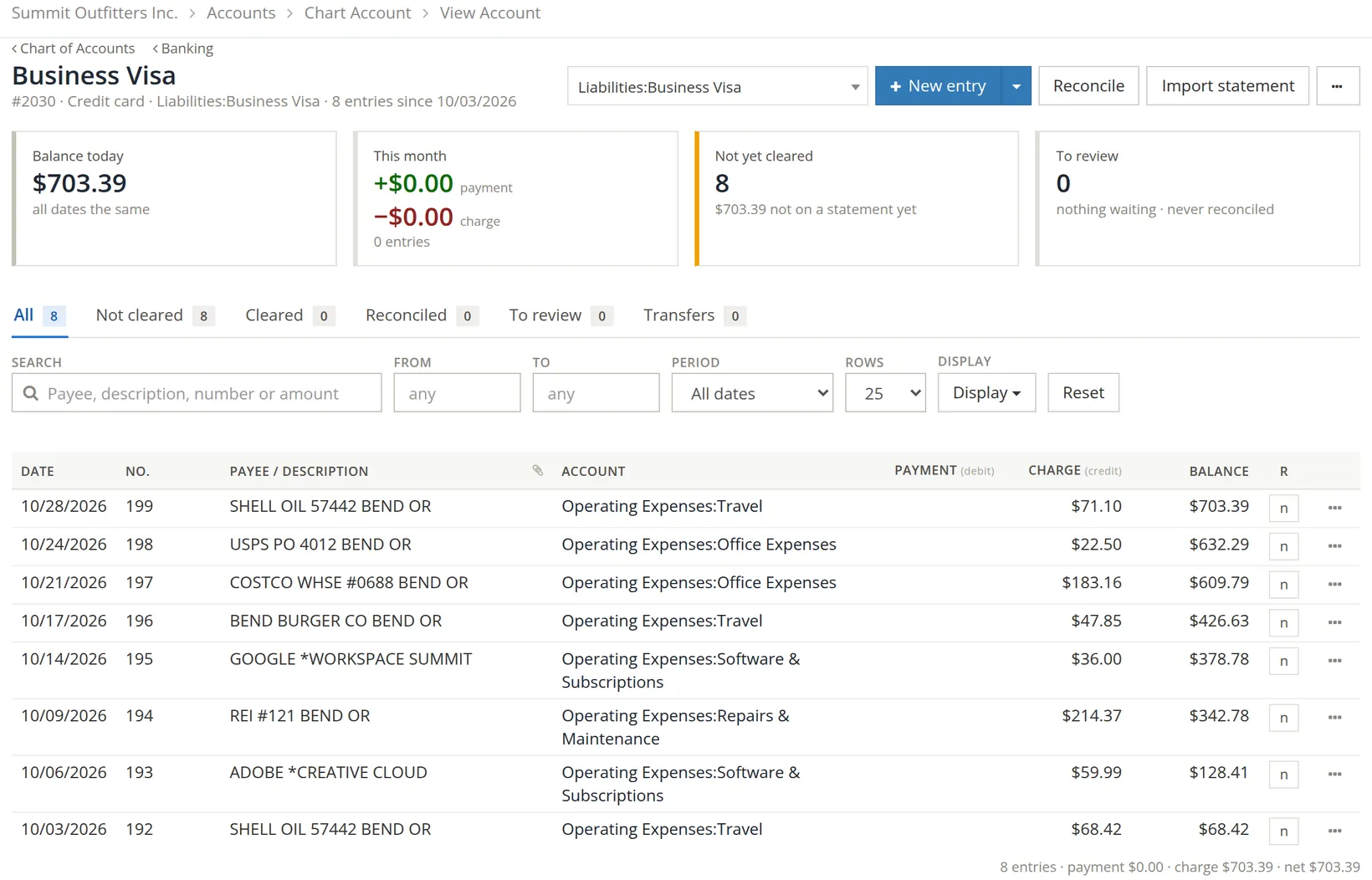
The entries are written in the background a few seconds after you apply. Open the account's register: the new entries appear in date order, not yet cleared, ready to reconcile against the same statement (Chapter 4.4). If the import fails, nothing of it is written, and the register shows a red notice saying so, with a Dismiss link; fix the problem it names and import the statement again.1
Common mistakes and how to fix them
| Mistake | What happens | Fix |
|---|---|---|
| Wrong account opened before importing | The entries land in the wrong register. | Void or delete them there and import again into the right account. |
| Day and month swapped | October 3 becomes March 10. | Choose the right date format in step 2; check the samples. |
| Amounts with the wrong sign | Charges show as payments. | Map the column to the other side in step 2. |
| Rows left without an account | They go to Imbalanced. | Open each one in the register and give it its account. |
| Importing a payment you already recorded (a customer's ACH, a bill payment) | Counted twice. | Untick it in step 3; the original entry will clear against the statement. |
| A direct-cost row left without a project | Its cost is missing from the project's reports; in books set to refuse, the row reads Needs project and the file is not imported. | Choose the project (and contract line) in step 3; use Show → Direct lines without a project to find them. |
Check your understanding
1. Is anything written to the books when you click Continue on step 1?
Answer
No. Only Apply on step 3 writes entries.
2. A card CSV shows a charge as -68.42 in one Amount column. Which mapping is right?
Answer
Deposit. A negative amount goes out of the card account, raising what is owed.
3. Where do rows without an account end up?
Answer
In the Imbalanced account, waiting for you to fix them.
Notes
- Since November 2026 any member whose access lets them change the books can import a statement, not only the company's owner. Earlier, a member's import was accepted on screen but nothing was written; that no longer happens, and a failed import is now reported on the register. ↑