
Chapter 3.1
Recording an Expense and Writing a Check
A step-by-step guide to the two everyday ways money leaves your business, with the reason behind each step, the screens you will see, and the habits that keep your books clean.
When you finish this manual you will be able to:
- Decide whether a payment belongs on an Expense, a Check, or a Bill.
- Record an expense that is already paid, split across more than one account.
- Set up a bank account for check printing, then write a check, printed by BizBooks360 or written by hand, and find it again in the Check Register.
- Explain what each entry does to your books in debit and credit terms.
Contents
- 1Before you begin
- 2Choose the right form
- 3What happens in the books
- AProcedure A: Record an expense
- SBefore Procedure B: set up check printing
- BProcedure B: Write a check
- 4After you save: the Check Register
- 5Common mistakes and how to fix them
- 6Working faster with the keyboard
- 7Check your understanding
- 8Quick reference card
- §Notes
Before you begin
Bookkeeping goes faster when the paperwork is gathered first. Before you open BizBooks360, collect these four facts from the receipt, invoice or bank statement in front of you.
- Who was paid. The vendor's name as it appears on the receipt.
- Which account the money left. Your checking account, a savings account, or a company credit card.
- When it was paid. The date on the receipt, not the date you happen to be typing it in.
- What it was for, and how much. If one receipt covers two kinds of things, note each amount separately.
Keep a single "to enter" folder (paper or phone) and work through it once a week. Small, regular sessions are far more accurate than a year-end pile, because you still remember what each purchase was for.
Choose the right form
BizBooks360 has three forms for money going out. Picking the right one is the most important decision in this manual, because each form tells your books a different story about when and how the money moved.3 Ask two questions, in this order.
| Situation | Form | Why |
|---|---|---|
| Printer paper bought with the company debit card | Expense | Paid at the counter, not by check. |
| Rent paid with paper check no. 2124 | Check | A paper check from the bank account. |
| Accountant's invoice, due in 30 days | Bill | Not paid yet. You owe it. |
| Paying that accountant's invoice a month later | Pay the bill | The bill already recorded the cost. See the caution below. |
If you already entered a bill for a purchase, pay that bill instead of writing a new check or expense. Otherwise the cost lands in your books twice and the bill stays "unpaid". BizBooks360 helps: when you pick a payee who has open bills, the right-hand panel lists them under Bills from this payee and warns you.
What happens in the books
You never type debits and credits in these forms. BizBooks360 writes them for you. Still, knowing what happens underneath will help you catch mistakes, so here is the theory in one picture.
Every entry has two sides that must be equal.4 The lines you fill in (what it was for) are debited: each expense account goes up. The account the money came from is credited: your bank balance goes down by the total.
Record an expense
Use this when the purchase is already paid by card, cash, debit, bank transfer or online. Example used below: a $109.55 Staples receipt, paid with the company debit card, for printer supplies ($86.40) and cleaning supplies ($23.15).
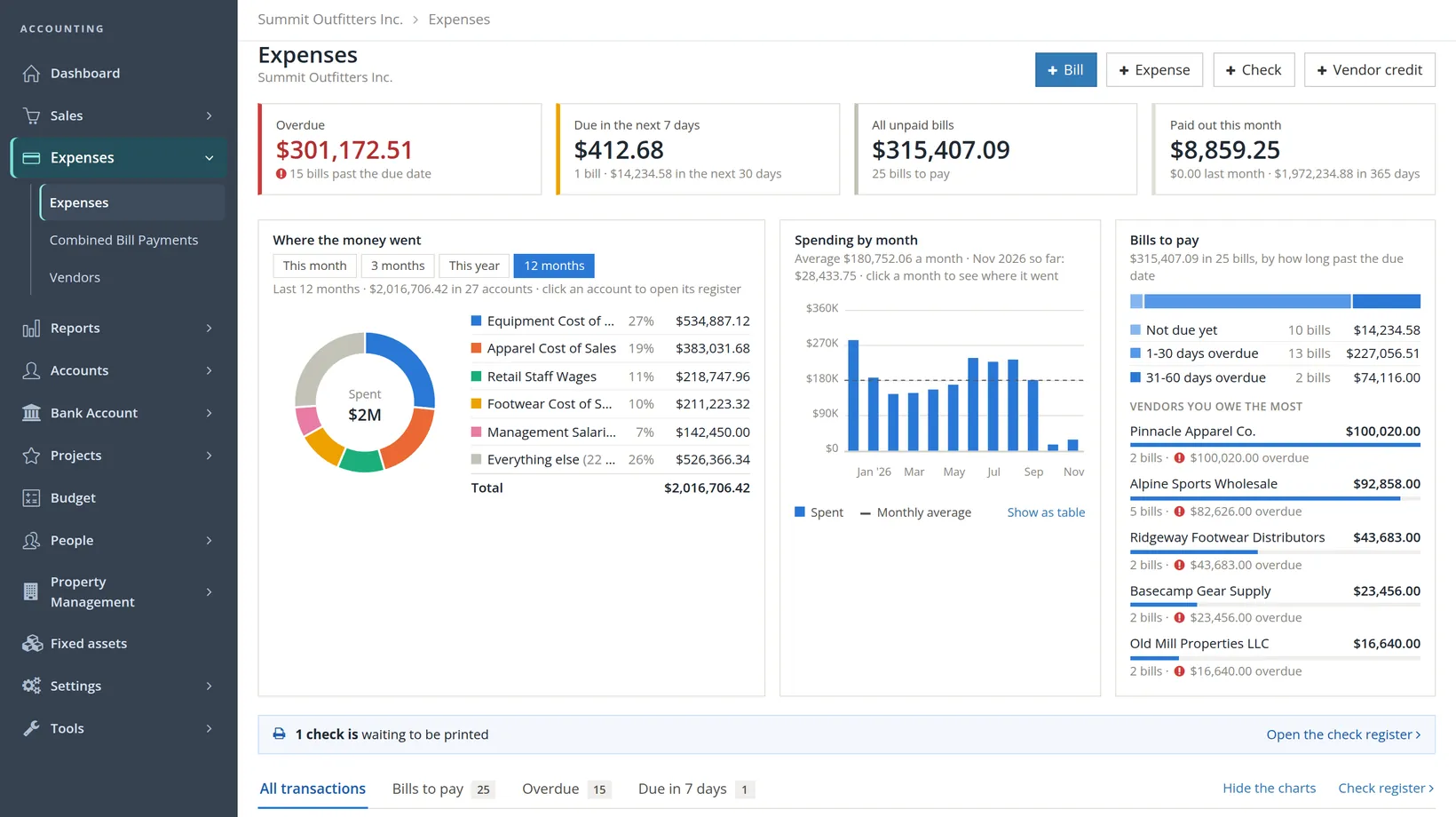
Between the cards and the list sit three charts D. Where the money went splits your spending by expense account for This month, 3 months, This year or 12 months; click an account to open its register. Spending by month draws a bar for each month with the monthly average as a dashed line (Show as table gives the numbers). Bills to pay sorts the unpaid bills by how long they are past due and names the vendors you owe the most; click one to list that vendor's unpaid bills. If you only want the list, click Hide the charts E; the link becomes Show the charts, and BizBooks360 remembers the choice in this browser.
When a check has been saved but not yet printed, a strip above the tabs says so, here 1 check is waiting to be printed F, and its Open the check register link takes you to the Check Register to print it (Section 4). The strip is gone once nothing waits.
- A1
Open a new expense
Click Expenses in the left menu A, then + Expense B. A blank Record an expense form opens. Today's date and a bank account are already filled in; change them in the next steps if needed.
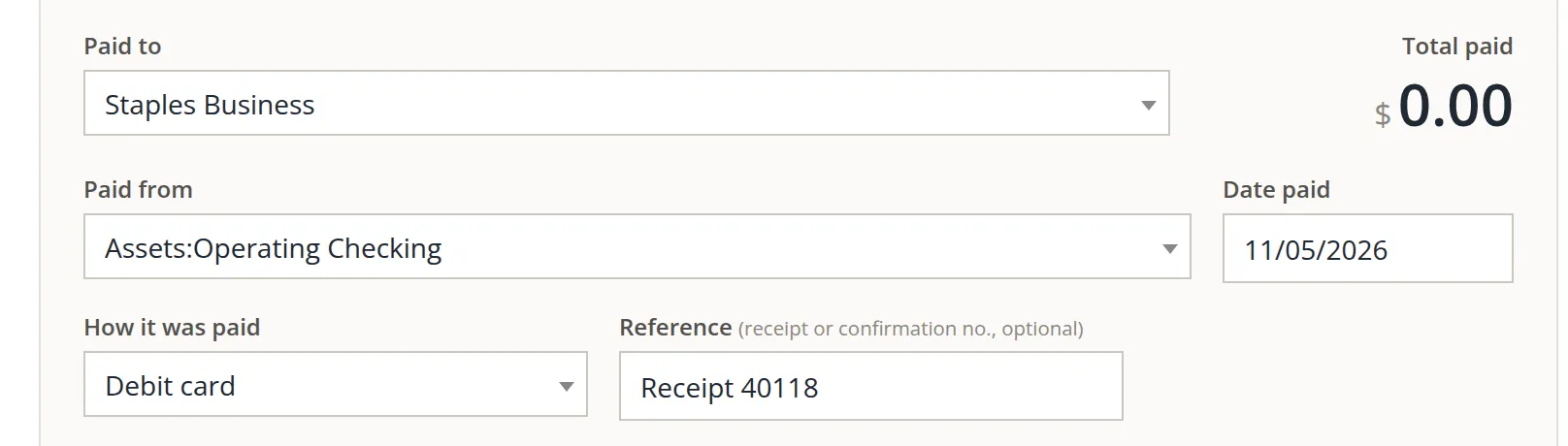
- A2
Who was paid: Paid to 1
Click the box and type the first letters of the vendor, here Sta. Press Tab or Enter to take the match. If the vendor is new, choose + Add a new vendor at the top of the list and save the short contact form.
- A3
Where the money came from: Paid from 2 and Date paid 3
Pick the account the money actually left. A debit card or bank transfer comes out of a bank account such as Operating Checking. A company credit card purchase comes out of that credit card account. For the date, use the date on the receipt.
- A4
How it was paid 4 and Reference 5
Choose the method: Cash, Check, Credit card, Debit card, Payment platform, ACH, EFT, Wire or Other. BizBooks360 suggests the method you used last time on this account. In Reference, type the receipt or confirmation number. It is optional but makes the entry easy to find later.
Once you choose a vendor you have paid before, BizBooks360 proposes that vendor's usual account on the first line, shown in light italic type until you accept it. The right-hand panel, Lately with this payee, lists past entries. Click Use the same lines to copy a previous entry's accounts in one click.
- A5
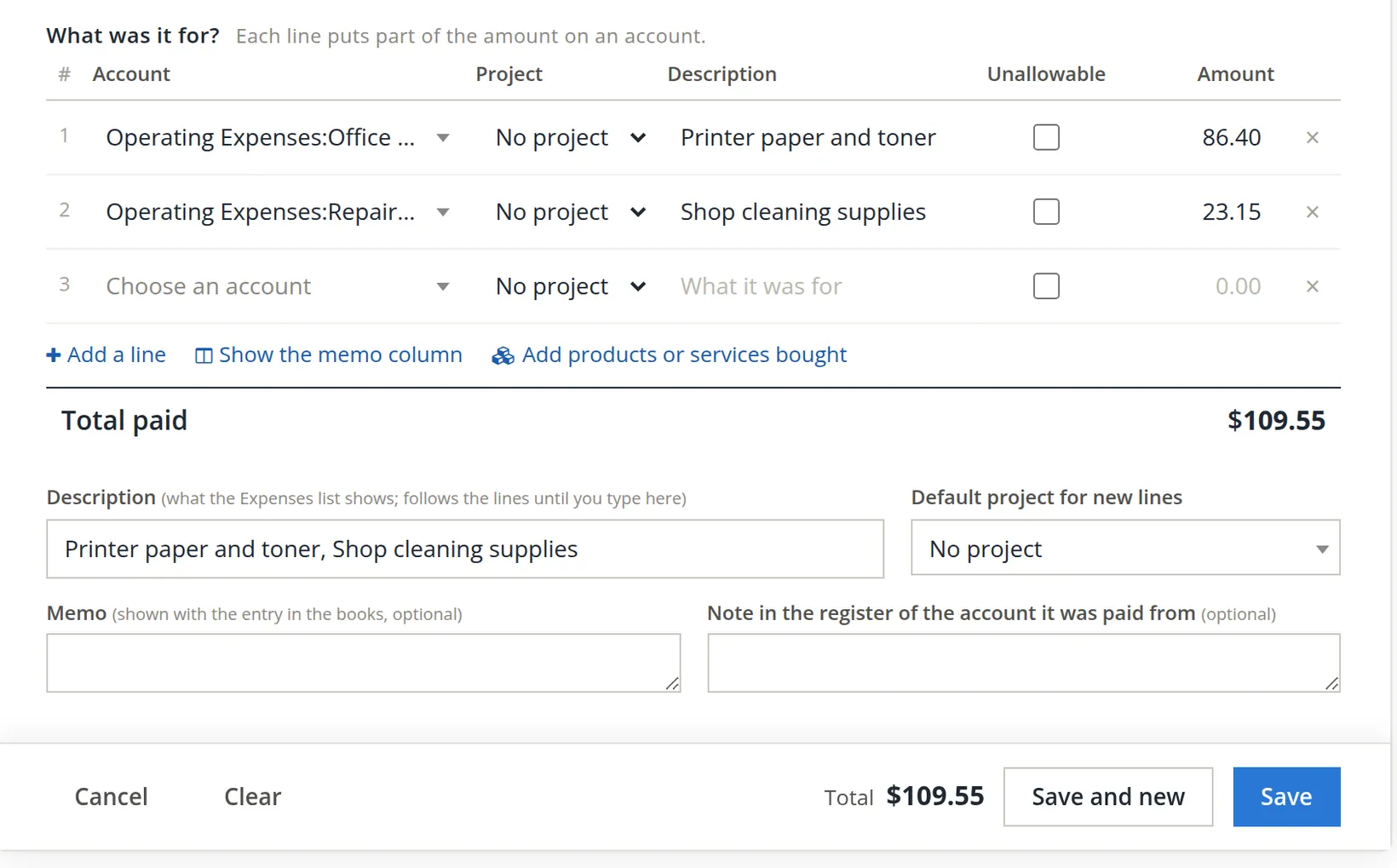
Say what it was for: the lines 6 to 10
Under What was it for?, fill one line per kind of purchase:
- 6 Account: the expense category, such as Operating Expenses:Office Expenses. On a 1,440-pixel screen a long name is cut short in the box (Operating Expenses:Office ...); the whole account is kept, and opening the list shows it in full.
- 7 Project: the job this part of the cost belongs to, or No project. This column appears when your books have projects; each line can name its own.
- 8 Description: a few plain words, such as "Printer paper and toner". A short description like this shows whole; a longer one is cut off at the edge of the box, so click into it to read or change all of the text.
- 9 Unallowable: leave it unticked unless the cost may not be billed to a government contract. A ticked line asks why (10 characters or more) and is kept apart from the project's direct costs.6
- 10 Amount: the part of the receipt that belongs on this account.
If a line is on an account your books treat as a direct cost (such as Cost of Goods Sold:Freight-In) and has no project, BizBooks360 asks before saving whether to save it anyway, or refuses, depending on the books' setting. Office supplies and an accountant's fee are not direct costs, so the samples here save without the question; Chapter 3.2, Procedure B, shows it.
Need another row? Click + Add a line 11. A new blank line also appears by itself as you fill the last one.
- A6
Check the total
Total paid adds up your lines. Compare it with the bottom line of the receipt. If they differ, a line is missing or mistyped. Fix it now; it is much harder to find later.
- A7
Optional details 12
Description is what the Expenses list shows. It copies your line descriptions until you type your own. Default project for new lines fills the Project column of every line you add after choosing it, which saves time when a whole receipt belongs to one job; a line can still name another project. Memo and the note in the register are for your own reminders.
- A8
Attach the receipt
In the Attachments panel on the right, drop the receipt photo or PDF, or click to choose a file. Each file can be up to 10 MB.7
- A9
Save 13
Click Save. To enter the next receipt straight away, click Save and new instead. BizBooks360 returns to the Expenses list, where the new entry sits at the top with the type Expense (Figure 6). The bank account's balance is now $109.55 lower.

Choosing the wrong Paid from account is the most common cause of a bank reconciliation that will not balance. If the purchase was on the credit card, the expense must come from the credit card account, not from checking.
Set up check printing (once per bank account)
BizBooks360 can print checks on blank or pre-printed check paper. Before it can, it needs to know what goes on the check: your bank's name and address, the routing and account numbers, and the next check number. You do this once for each bank account. If you only ever write checks by hand, skip to Procedure B.
- S1
Open the setup page
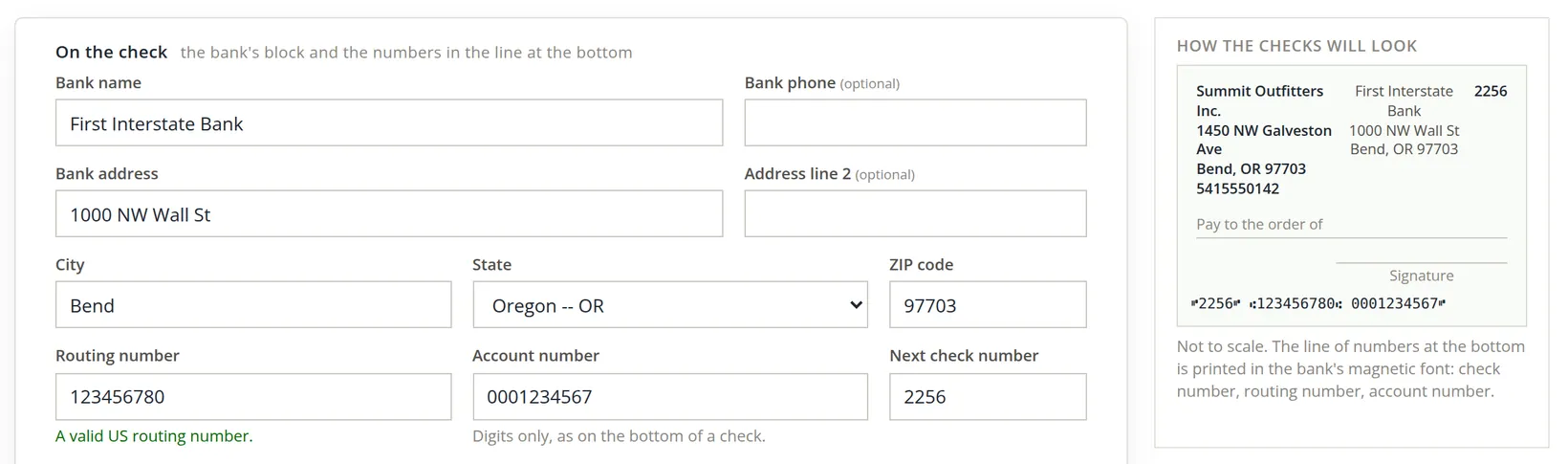
On the Write a check form, an account that is not ready opens the check on Written by hand and says "This account is not set up for printing checks: a check on it is written by hand." The bank panel at the right says "Not set up for printing checks." Both carry a Set it up link. Click it. The page is titled Checks and deposit slips for your account.
- S2
The bank's block 1
Type the bank's name, phone, street address, city, state and ZIP code. They print at the top center of each check.
- S3
Routing 2, account 3 and next check number 4
Copy the numbers exactly. BizBooks360 tests the routing number as you type and answers "A valid US routing number."8 For Next check number, use the number printed on the first sheet of check paper you will load.
- S4
Paper 6 and position 7
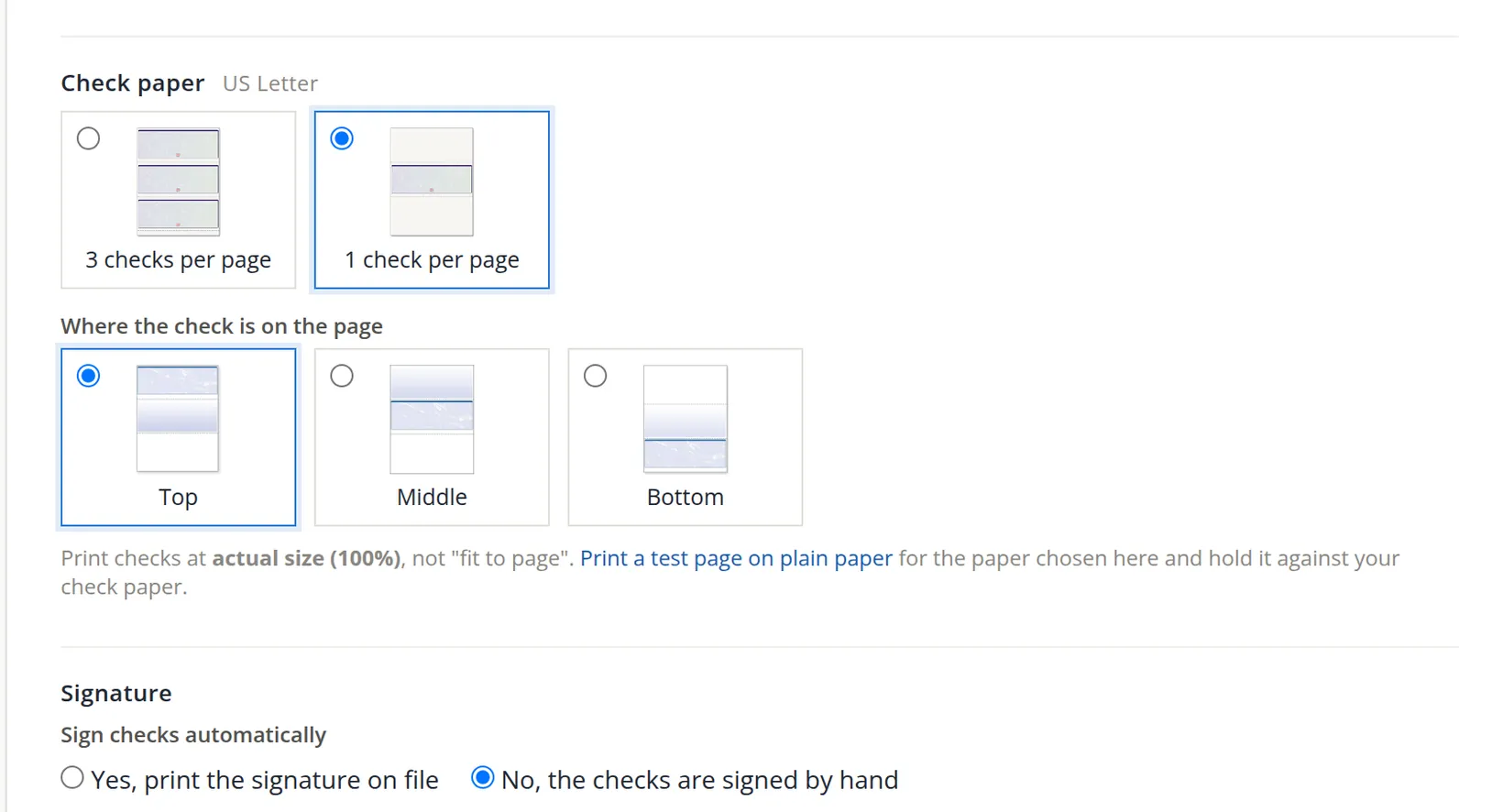
Match the check paper you bought: 3 checks per page, or 1 check per page with the check at the Top, Middle or Bottom (the rest of the page is a stub for your records).
- S5
Signature 8, then Save
Choose No, the checks are signed by hand, or Yes, print the signature on file and type, draw or upload a signature. Check the company block at the bottom of the page, then click Save.
Click Print a test page on plain paper, hold it against a sheet of check paper up to the light, and see that everything lands in its box. Always print at actual size (100%), never "fit to page". Ten cents of plain paper saves a sheet of check stock.9
Write a check
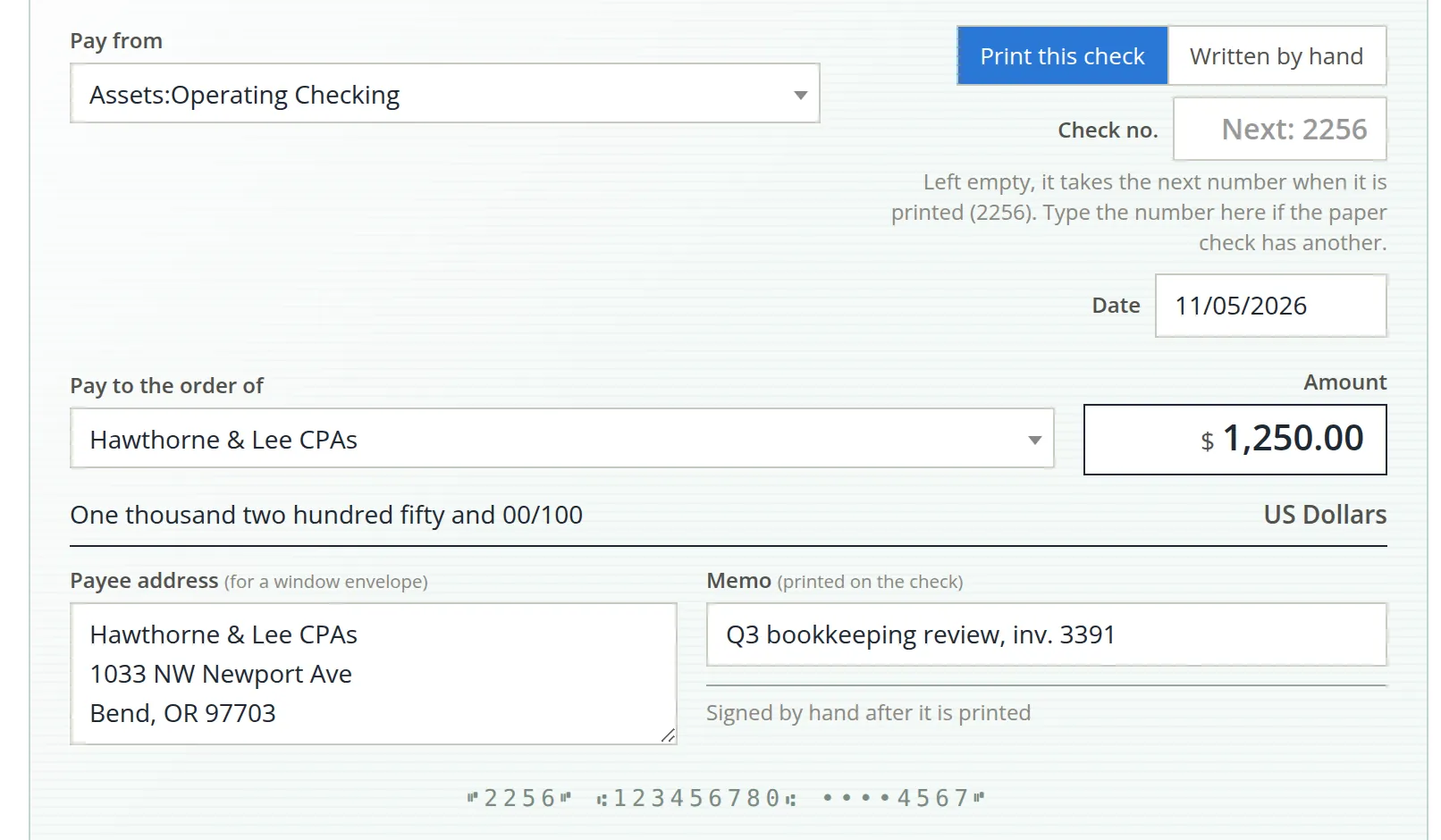
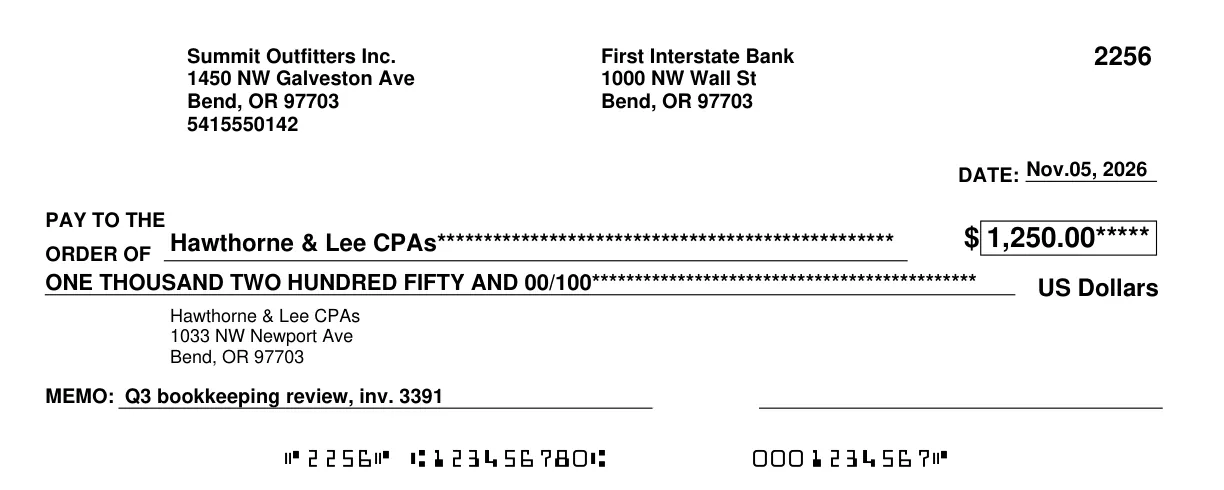
Use this when you pay with a paper check from a bank account. The form is drawn like a real check, so you fill it in the same order you would fill in paper. Example used below: check no. 2256 for $1,250.00 to Hawthorne & Lee CPAs for a quarterly bookkeeping review, printed by BizBooks360.
- B1
Open a new check
Click Expenses, then + Check (C in Figure 3). The Write a check form opens.
- B2
Choose the bank: Pay from 1
Bank accounts are offered here (with the books' Imbalanced holding account, which is not for checks), because only a bank account can write checks. The Bank account panel at the right shows the balance now, the balance after this check, and the next printed check number (Figure 10).
- B3
Printed or by hand 2, and the number 3
- Print this check: leave Check no. empty. It shows Next: 2256 and takes that number when the check prints. Type a number only if the paper in the printer starts at a different one.
- Written by hand: you wrote, or will write, a check from your checkbook. Type its number exactly as printed on the paper.
- B4
Date 4
The date that will appear on the check.
- B5
Pay to the order of 5
Choose the payee as in step A2. Their mailing address fills Payee address 8 from the contact. It prints on the check under the amount in words, where a window envelope shows it, so check it before you print.
- B6
Memo 9
The memo prints on the check, so the payee sees it. Use it for something that helps them apply your payment: an invoice or account number. Keep private remarks for Notes (step B8).
- B7
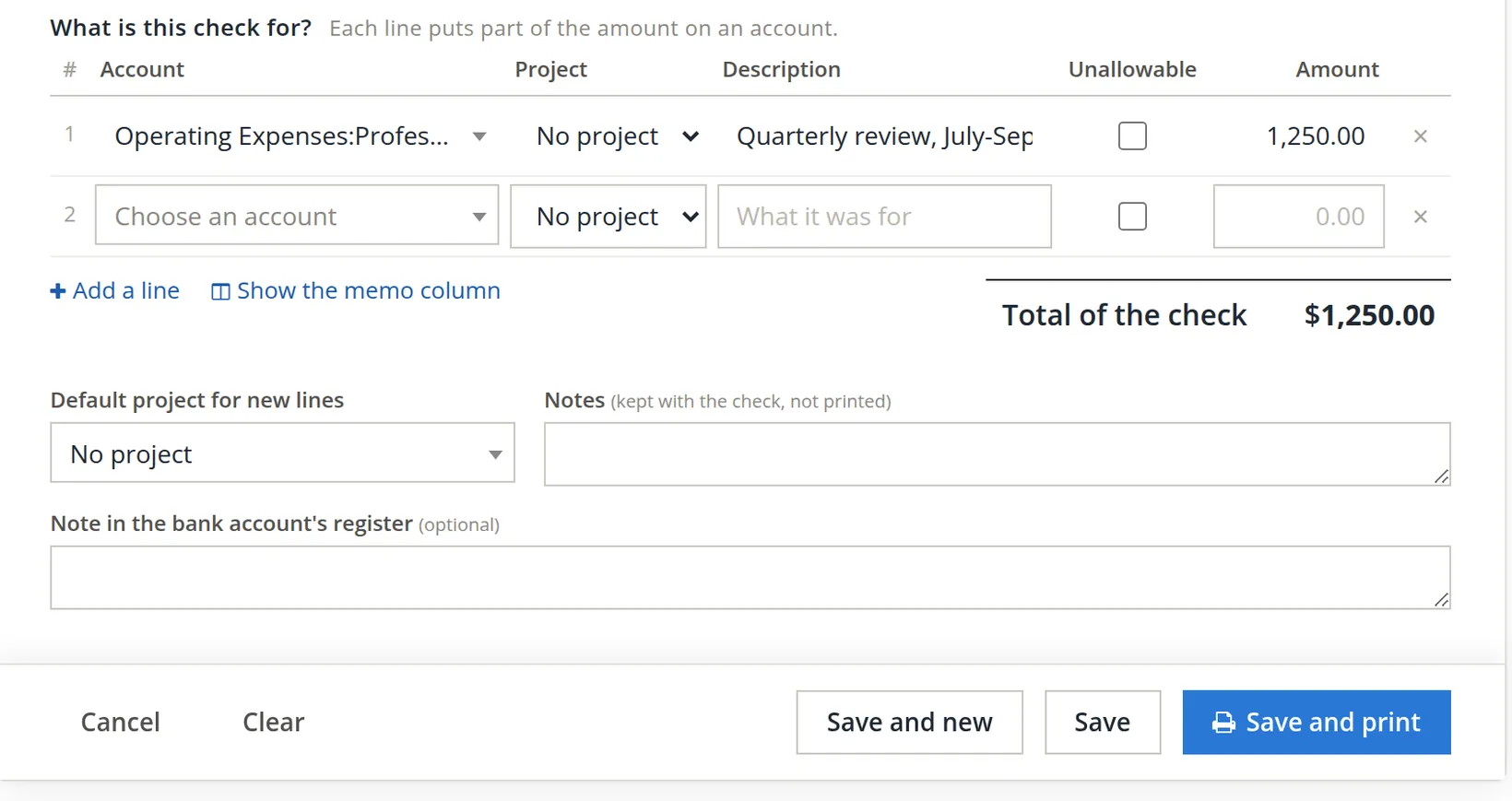
Say what the check is for 11
Fill the lines exactly as in step A5: account, project if any, description, the Unallowable tick if it applies, and amount. Here, one line to Operating Expenses:Professional Fees for $1,250.00, with no project. As you type, the check's Amount and the amount in words update by themselves. You never type the check amount directly.
- B8
Notes and attachments 12
Notes stay with the check in your books and are never printed. Attach the invoice the check pays in the Attachments panel.
- B9
Save and print 13
Load the check paper, then click Save and print (or press Ctrl+Alt+P). BizBooks360 saves the check, gives it the next number, and opens the check as a PDF in a new browser tab. Print that PDF at actual size.11 To print later, click Save instead; the check waits in the Check Register under To print.
- B10
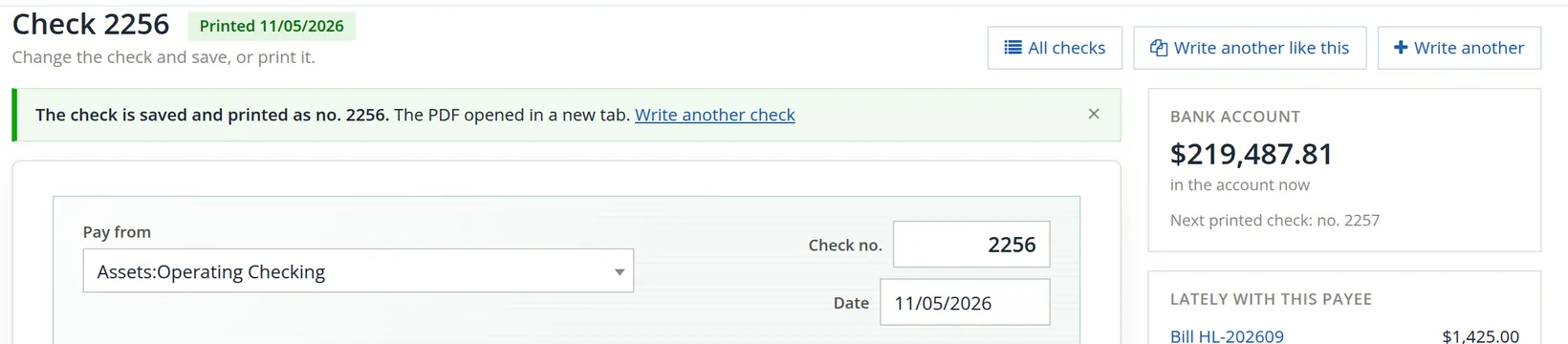
Confirm it printed, then sign
The page now reads Check 2256 with a green Printed tag and the message "The check is saved and printed as no. 2256" (Figure 12). Sign the paper check, unless a printed signature is on file. For a handwritten check, click Save, then write the paper check so it matches the screen exactly.
If you choose Written by hand and leave Check no. empty, BizBooks360 will not save. It asks you to type the number of the check you wrote, or to choose Print this check. This protects the unbroken number sequence your bank statement depends on.
Once a check is printed, the main button becomes Save changes, a Print again button appears, and BizBooks360 asks you to confirm before changing it. If the paper already went out, change the record only to match what the paper says.
If the owner has put payments under second-person approval, a new check is saved and posted, but its page says "Not approved yet: it cannot be printed until a second person approves it under Accounts > Approvals." Print it once someone else has approved it. In Summit Outfitters this rule is off, so the sample check printed at once.
After you save: the Check Register
Every check you write, on every bank account, is listed in one place: Bank Account → Check Register. The Expenses page also links to it at the right of its tabs. Use it to write and print checks in a batch and to see which checks the bank has not paid yet.
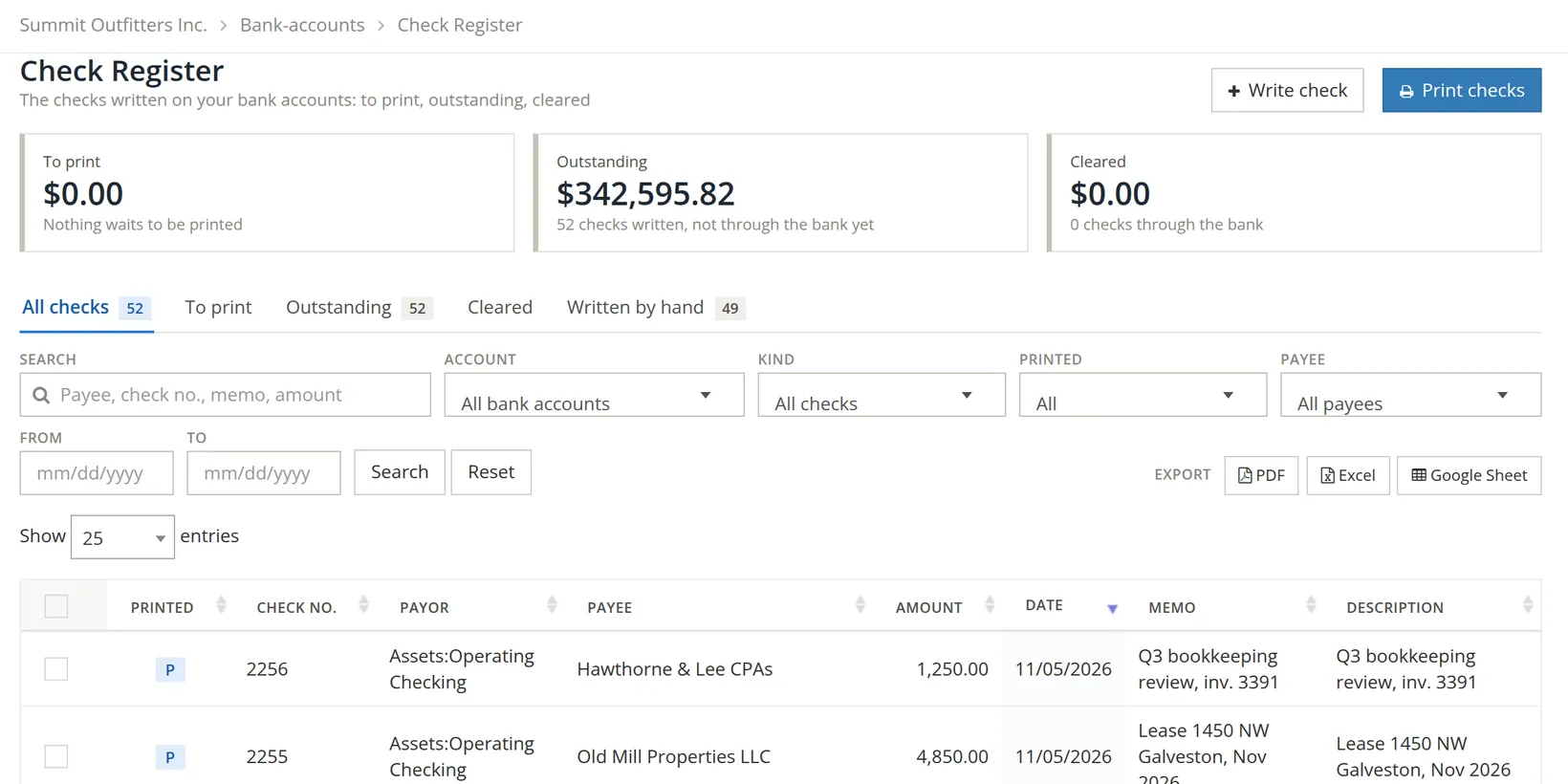
Outstanding checks are the ones you have written that the bank has not yet paid. A check moves to Cleared once it is matched to your bank statement during reconciliation.12 A check that stays outstanding for months deserves a phone call: the payee may have lost it.
The Check Register's search box accepts a payee, a check number, a memo or an amount: typing 1250 finds the sample check in a second. The Expenses page searches by payee, number or description. Use the Excel, PDF or Google Sheet buttons to hand a list to your accountant.
Common mistakes and how to fix them
To correct any saved expense or check, open it from the Expenses list with Edit, change it and click Save changes.13
| Mistake | What you will notice | The fix |
|---|---|---|
| A check or expense for a bill that was already entered | The bill still shows as unpaid; the cost appears twice on reports. | Delete the check or expense, then open the bill and click Pay. |
| Wrong "Paid from" account | A bank or card balance that does not match the statement. | Edit the entry and choose the account the money really left. |
| Today's date instead of the receipt date | A purchase in the wrong month on the profit and loss report. | Edit the date to the one on the receipt. |
| Whole receipt on one account | One category looks too high, another too low. | Edit the entry and split it into lines. |
| Check number mistyped | A gap or a duplicate in the Check Register numbers. | Search the register for the number, edit, and correct it. |
Deleting takes a right of its own. A member may delete a check, an expense, a bill or a vendor credit only if the owner has given them the delete permission for that kind of entry (Chapter 15.7); without it, the delete is refused with a message such as "You do not have permission to delete this check." Ask the owner of the books to delete it or to grant the right. Every add, change and delete of an expense or a check is also written to the books' Audit History (Chapter 6.7), with who did it and when.
Working faster with the keyboard
Both forms show a Quicker by keyboard panel at the bottom right (Figure 16). Learn the first three rows and you rarely need the mouse.
| Keys | What they do |
|---|---|
| Ctrl + S | Save the expense or check. |
| Ctrl + Alt + S | Save and start the next one. |
| Ctrl + Alt + P | Save and print (checks to be printed). |
| Tab in a list | Take the highlighted match and move on. |
| Enter on an amount | Go to the next line. ↑ ↓ move between lines. |
| t y + - in a date | Today, yesterday, one day on, one day back. 10/4 is enough for this year. |
Check your understanding
Answer each question in your head, then open the answer.
1. You pay $42 at the hardware store with the company debit card. Which form, and which Paid from account?
Answer
Record an Expense. Paid from the bank account the debit card draws on, such as Operating Checking; How it was paid: Debit card.
2. An invoice arrives from your accountant, due in 30 days. Which form?
Answer
Enter a Bill. It is not paid yet. When you pay it, pay it from the bill.
3. On the check form, where does the amount in words come from?
Answer
From the total of the lines under "What is this check for?". You never type it, so words and figures always agree.
4. You chose "Written by hand" and clicked Save with Check no. empty. What happens?
Answer
The check is not saved. BizBooks360 asks for the number of the check you wrote, or for you to choose "Print this check".
5. For the $109.55 Staples expense, which account is credited, and by how much?
Answer
Operating Checking, the Paid from account, is credited $109.55. Office Expenses ($86.40) and Repairs & Maintenance ($23.15) are debited.
Quick reference card
The whole manual on one screen. Keep it open beside BizBooks360 until the steps are habit.
Record an expense
- Expenses → + Expense
- Paid to: the vendor
- Paid from: the account the money left
- Date paid, How it was paid, Reference
- Lines: account, project if any, description, amount
- Total paid = the receipt
- Attach the receipt
- Save (Ctrl+S)
Write a check
- Once per account: Set it up for printing
- Expenses → + Check
- Pay from: the bank account
- Print this check (number blank) or Written by hand + number
- Date and Pay to the order of
- Memo: the payee's invoice number
- Lines: account, project if any, description, amount
- Save or Save and print
- Sign it. By hand? Copy it to paper first
Five-second review
- Right form? Not a bill already entered?
- Right payee?
- Right Paid from account?
- Date from the receipt?
- Total matches the paper?
Notes
- The pictures show the fictional practice company Summit Outfitters Inc. The sample expense and check were entered, saved and printed there. The routing and account numbers are made up. ↑
- Account names such as Operating Expenses:Office Expenses read from left to right, parent first. The colon separates a group (Operating Expenses) from the account inside it (Office Expenses). ↑
- A bill records the cost and the amount owed (accounts payable) when the invoice arrives; the payment comes later. An expense or check records the cost and the payment together. Your accountant may report on a cash or an accrual basis; using the right form keeps both views correct. ↑
- This is double-entry bookkeeping: every transaction is recorded as at least one debit and one credit of equal total. Expense accounts increase with a debit; asset accounts such as a bank account decrease with a credit. A credit card account is a liability, so a card purchase credits it and the balance you owe goes up. ↑
- The + Bill, + Expense and + Check buttons appear only if your sign-in is allowed to create those entries. If they are missing, ask the owner of the books to give you that permission. ↑
- The box's own help says it marks "an unallowable cost: kept apart from the project's direct cost and from the pools". The idea comes from US government contract cost rules (FAR Part 31), under which some costs, such as entertainment, may not be billed to the government. A ticked line can also name the cost principle that applies. Projects are covered in Chapter 7.1. This is a summary, not legal or accounting advice. ↑
- Keep the source document for every entry. The IRS generally expects business records to be kept for at least three years, and longer in some cases (IRS Publication 583). An attachment in BizBooks360 keeps the receipt with the entry it supports. ↑
- The last of the nine routing digits is a check digit computed from the other eight, so most typing mistakes produce a number that cannot be valid. BizBooks360 runs that test as you type. It cannot tell whether the number belongs to your bank, so compare it with a real check. ↑
- The line of numbers at the bottom of a check is printed in the MICR E-13B font so the bank's machines can read it. Some banks require it to be printed with magnetic (MICR) toner; ask your bank before printing on a plain office printer. ↑
- In the United States, when the words and the figures on a check disagree, the words prevail (Uniform Commercial Code, section 3-114). That is why the written amount matters. ↑
- If the browser blocks the new tab, BizBooks360 says so and gives an Open the PDF link. That link works once, for five minutes. Allowing pop-ups for BizBooks360 avoids the extra click. ↑
- Reconciliation means comparing your books with the bank statement, entry by entry, and marking each one that the bank shows. Outstanding checks are the usual reason the two balances differ at month end. ↑
- If the entry's date falls in a period whose books are closed, BizBooks360 says so on the form and keeps the date inside that period. A new entry cannot be dated there at all: the form says, for example, "The books are closed through 10/31/2026: a check cannot be dated 10/15/2026. Use 11/01/2026 or later." Since November 2026, changing or deleting an entry that is already in closed books first asks for a reason and your password; after the save, BizBooks360 asks you to close the books again (Chapter 15.5). ↑