
Chapter 2.8
Printing and Sending Invoices in Batches
How to print, pack and e-mail many invoices at once from the Invoices list, and how to use the "to print later" and "to send later" reminders to run a weekly billing day.
When you finish this chapter you will be able to:
- Print several invoices as one PDF, and print packing slips for them.
- E-mail several invoices at once, and handle customers without an address.
- Use the Delivery filter to find invoices waiting to be printed or sent.
Contents
Tick, then choose
On Sales → Invoice, tick the invoices you want. The toolbar above the list counts them and wakes three buttons.
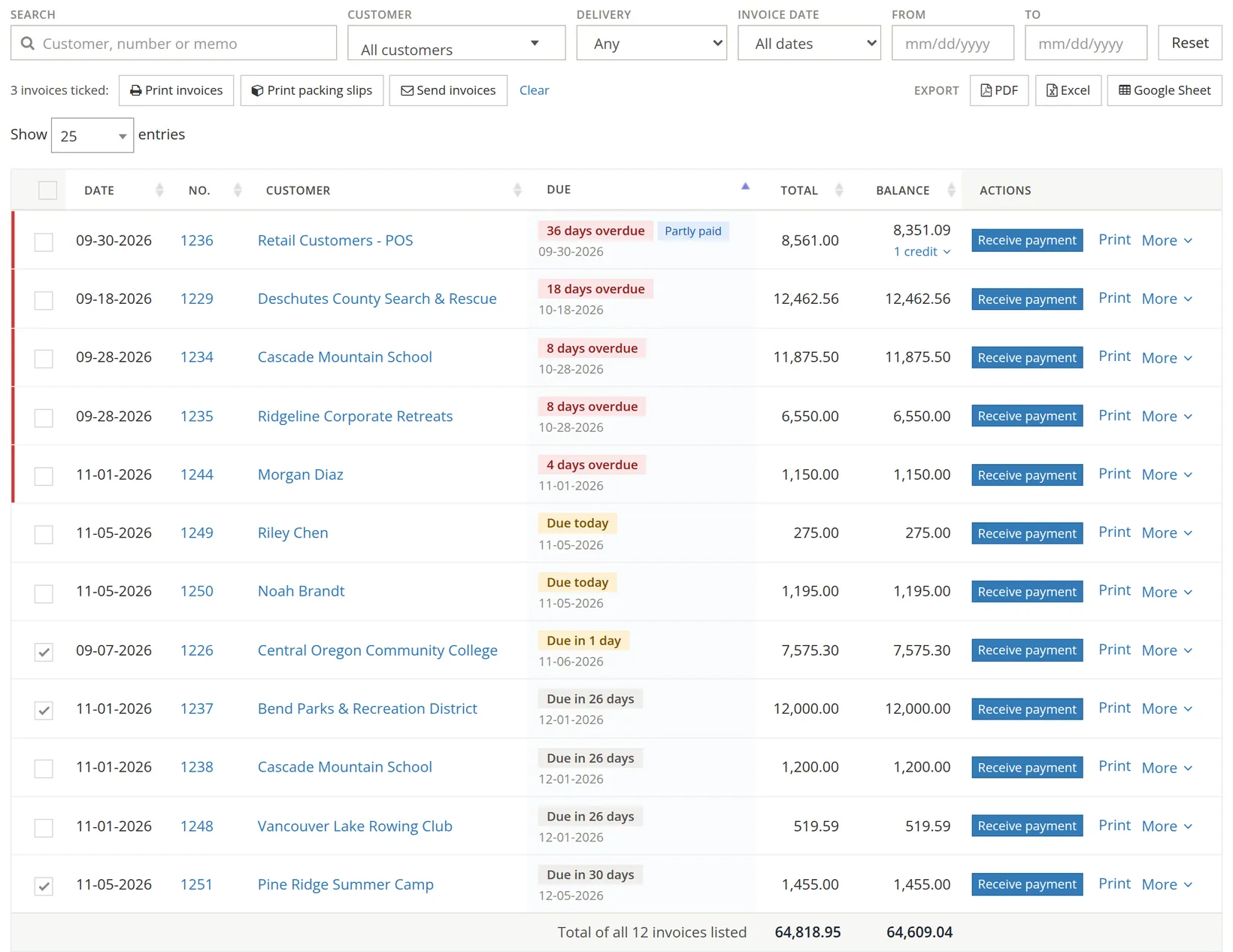
Narrow the list first (one customer, this week's dates, the Delivery filter), then tick the box in the heading row to tick every invoice showing.
Print invoices or packing slips
- 1
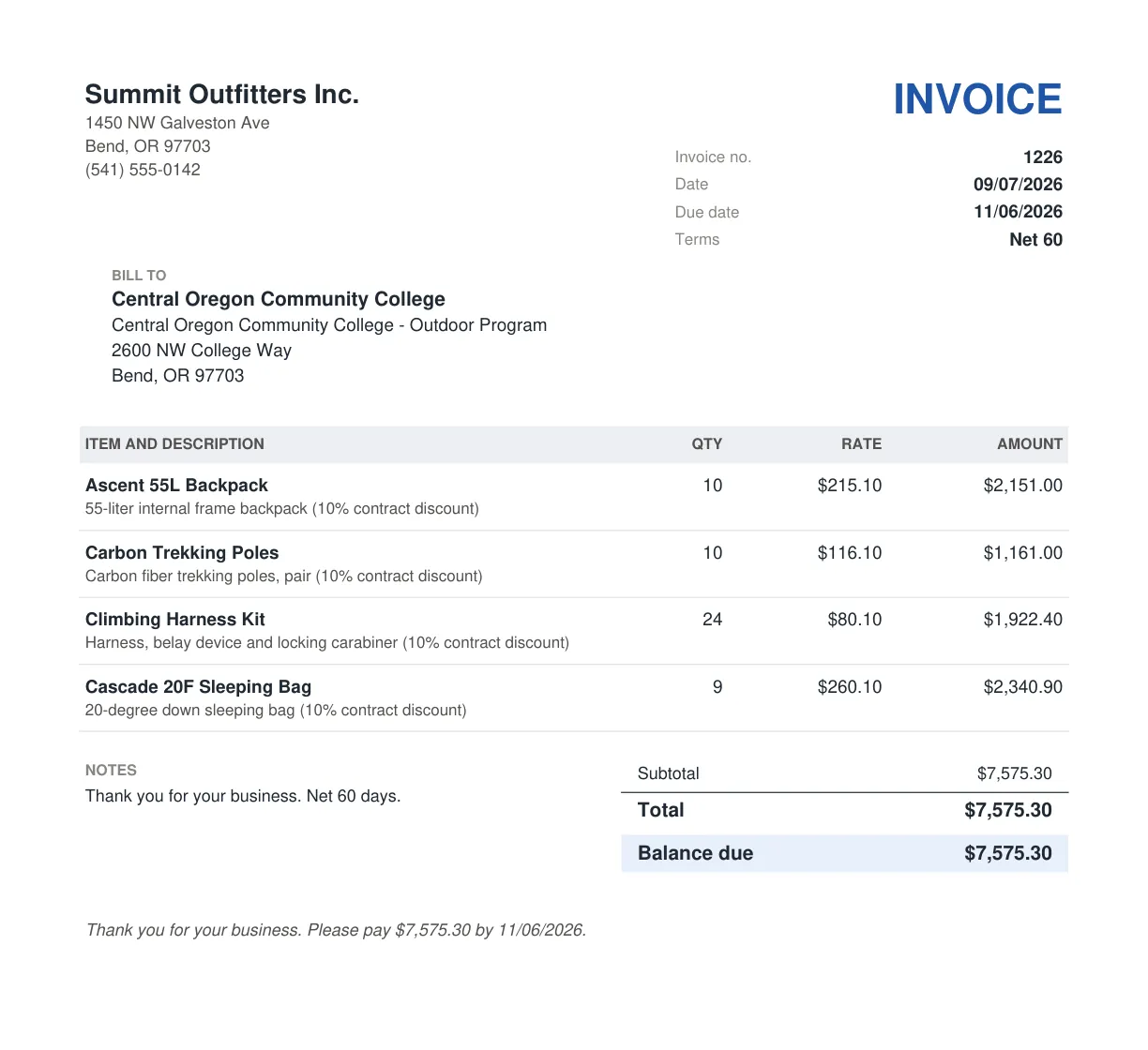
Tick the invoices and click Print invoices
One PDF opens in a new browser tab, one invoice per page, each with its own page footer ("Invoice 1226, page 1 of 1"). Print it, or save it.
- 2
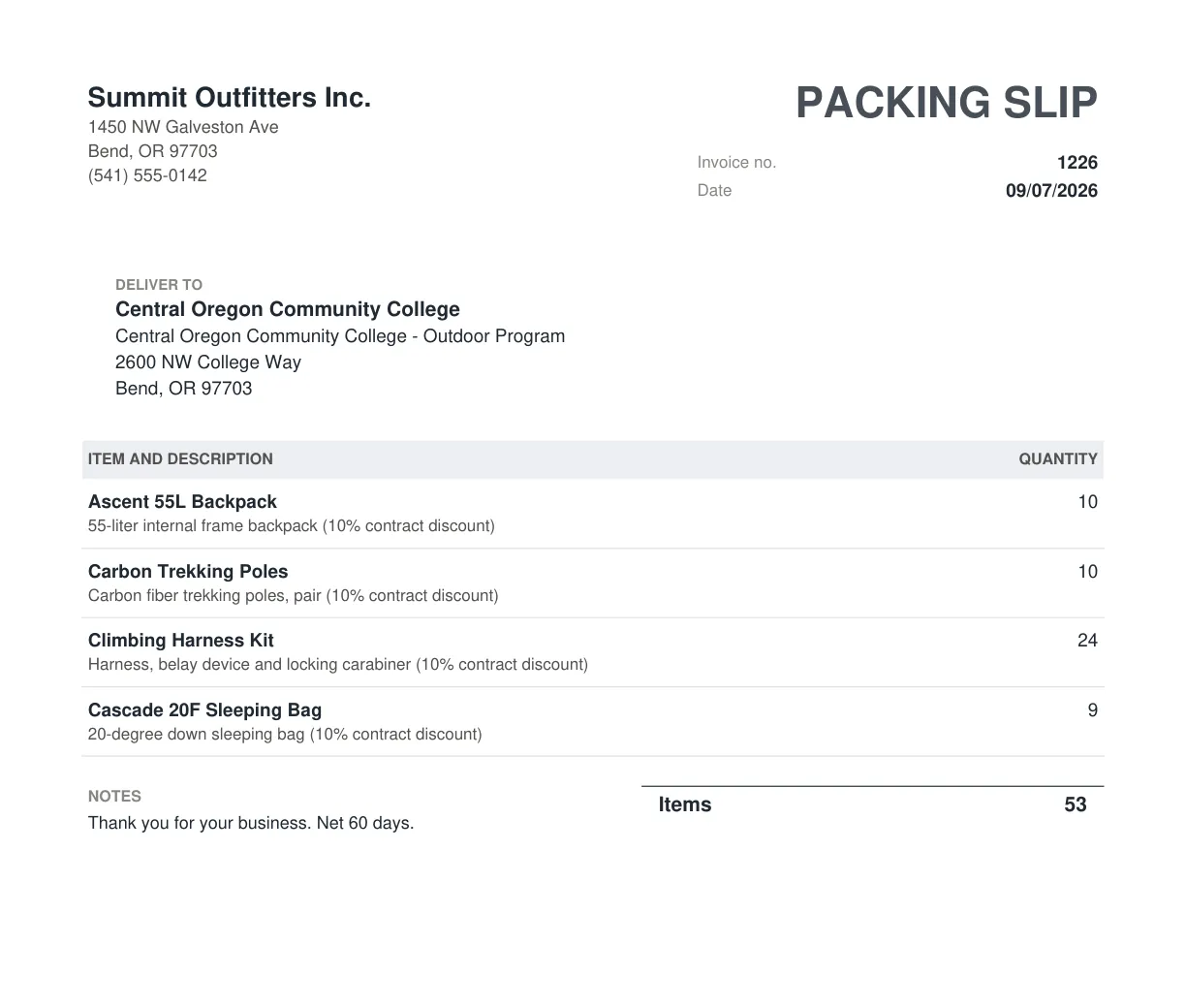
For the warehouse, click Print packing slips
The same invoices as packing slips: who to deliver to and how many of each item, with no prices, and an item count at the bottom.
Printing the invoices marks them as printed, so they drop out of the Not printed yet filter.
E-mail them
- 1
Tick the invoices and click Send invoices
Nothing is sent yet. A box opens that lists each customer whose invoices are ticked, with the address their e-mail will go to. Each customer gets their own e-mail with their invoice as a PDF, at the address written on the invoice.
- 2
If asked, fill in missing addresses
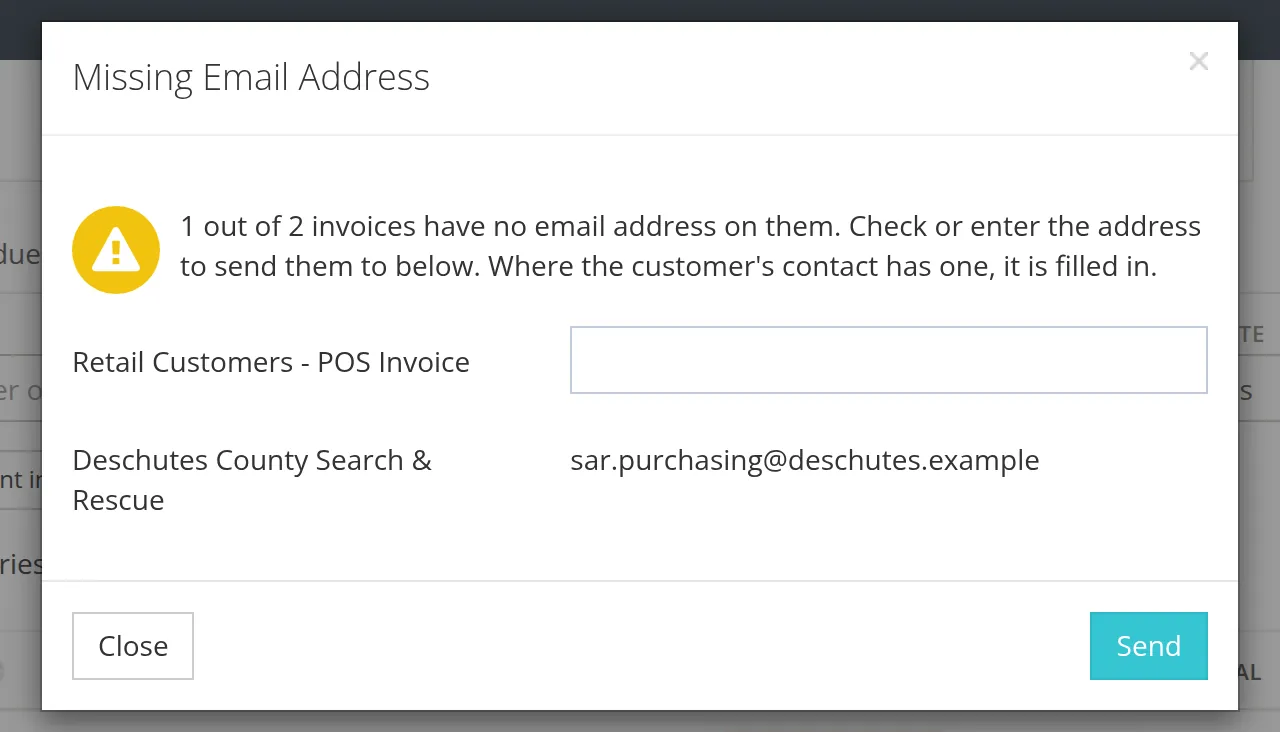
When a ticked invoice has no address, the box is titled Missing Email Address and gives that customer an empty address box. Where the customer's contact record has an address, it is already filled in. The customers that do have an address are listed below, for you to check. Every name starts at the left edge of the box, so a long name that wraps stays easy to read.
- 3
Check every address, then click Send
When every ticked invoice has an address, the box is titled Send 3 invoices? (with the number you ticked) and says the invoices "are e-mailed to the addresses below as soon as you click Send." Close sends nothing.1
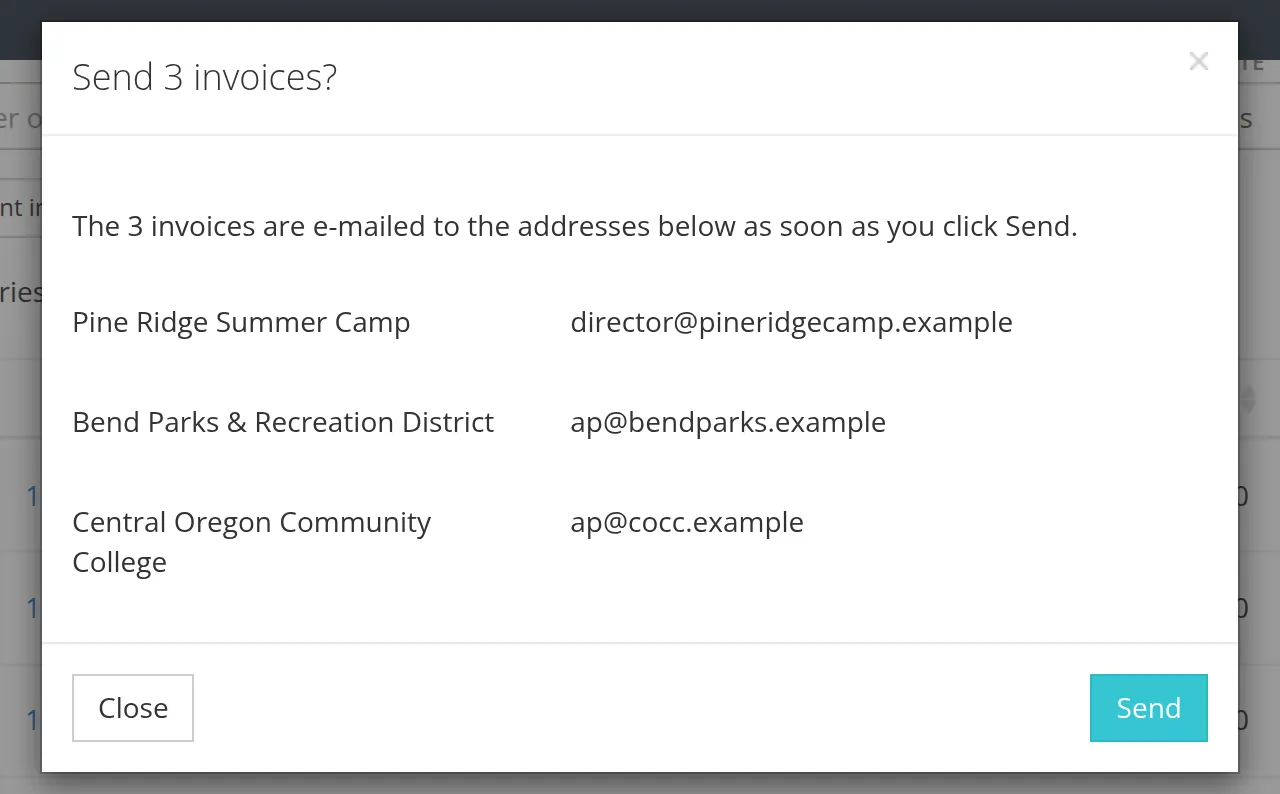
The box lets you check who receives what, but it does not show the e-mail itself, and once you click Send the messages cannot be called back. Check what is ticked and read every address. To read or change the message first, send invoices one at a time with Save and send... (Chapter 2.1).2
A weekly billing day with "later" reminders
Many businesses bill once a week rather than invoice by invoice. BizBooks360 supports that with two reminders on every invoice and a filter to find them.
- 1
During the week, save invoices with a reminder
At the bottom of the invoice, tick List it under To send or To print, with a date. Nothing is sent or printed by itself.
- 2
On billing day, set Delivery to To send later
Or To print later, or Not printed yet to catch everything never printed or sent.
- 3
Tick all, and send or print
Check your understanding
1. You tick five invoices, all with addresses, and click Send invoices. What happens?
Answer
Nothing is sent yet. A box titled Send 5 invoices? lists each customer and the address their invoice goes to. When you click Send, each is e-mailed to its customer and marked printed. The box shows no preview of the message.
2. What is different about a packing slip?
Answer
It shows the delivery address and quantities, but no prices or totals.
3. Which filter finds invoices that have never been printed or sent?
Answer
Delivery → Not printed yet.
Notes
- Since November 2026 the box always opens first. Before then, Send invoices sent at once, with no box, when every ticked invoice had an address, and the button of the missing-address box read Confirm. ↑
- After a batch send, a short banner says "An email has been sent." In this edition it fades after a few seconds; if you miss it, the invoices' printed mark confirms they went. ↑