
Chapter 2.2
Estimates: Quoting a Job and Winning It
How to write an estimate, send it to a customer, record their answer, and turn an accepted estimate into an invoice without typing anything twice.
When you finish this chapter you will be able to:
- Explain what an estimate is and why it does not touch your accounts.
- Write an estimate with a validity period, terms and lines.
- Send it, and record whether the customer accepted or rejected it.
- Make the invoice from an accepted estimate.
- Read the Estimates page: what is waiting, what is won, what expired.
Contents
Before you begin
An estimate (also called a quote or proposal) tells a customer what you would charge for something, and for how long that price holds. Gather:
- The customer, and the e-mail address the quote should go to.
- What is offered: each product or service, quantity and rate.
- How long the price holds. Thirty days is common; shorter if your costs move quickly.
- The payment terms the invoice will carry if the customer says yes.
Customers compare quotes. A message such as "Includes guides, kayaks, paddles and PFDs" answers the question the cheaper competitor will not, and saves a phone call.
The life of an estimate
An estimate is a promise, not a sale. Nothing in your accounts changes when you save or send one: no income, no receivable.2 Money enters the books only when the estimate becomes an invoice.
Write the estimate
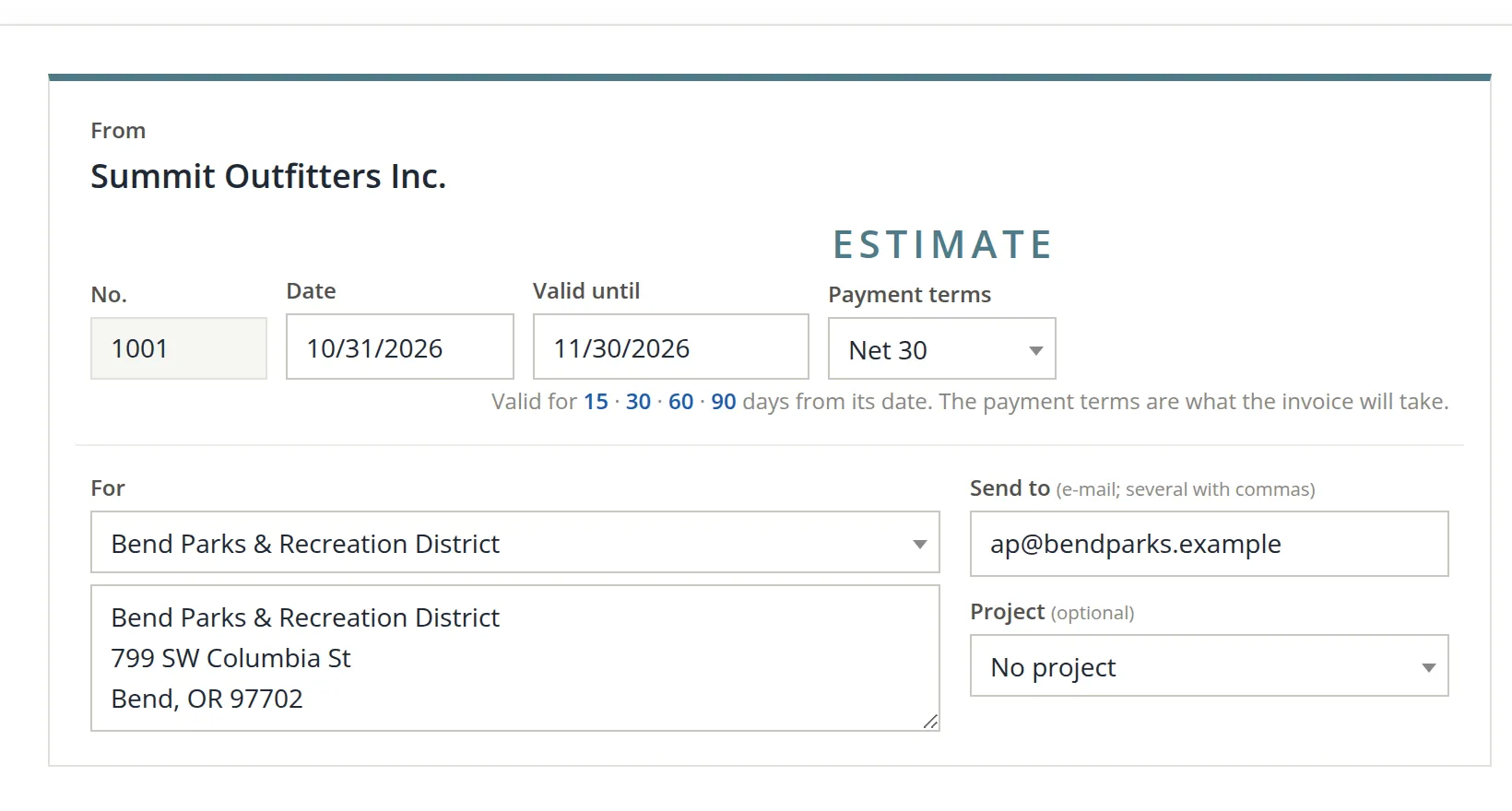
Go to Sales → Estimate and click + Estimate. The form looks like an invoice on purpose: what you write here becomes the invoice later.
- 1
Check the number 1 and date 2
Estimates have their own number series, separate from invoices; Summit's first is 1001. The date is today.
- 2
Set how long the price holds 3
Type a date in Valid until, or click one of the links underneath, 15 · 30 · 60 · 90, to set it that many days from the estimate date.
- 3
Choose the payment terms 4
These are not for the estimate itself. They are the terms the invoice will carry, so the customer knows from the start when payment will be due.
- 4
Choose the customer 5
The address 6 and e-mail 7 fill in from the customer's record. Change them here for this estimate only. A new customer can be added from the top of the list. Pick a project 8 if the work belongs to one (Volume 7).
- 5
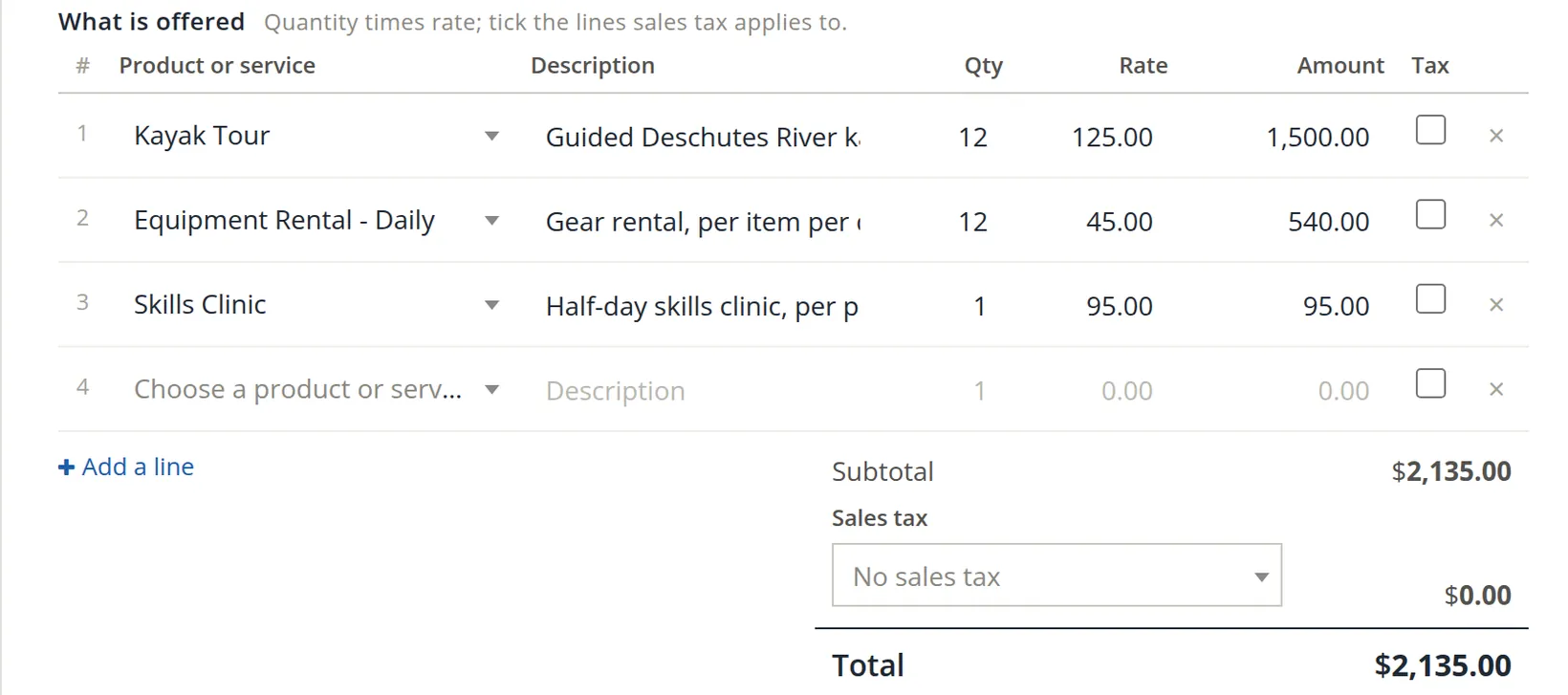
Add the lines 1
Choose a product or service; its description and rate fill in from your price list. Type the quantity. The amount is worked out for you. Tick 2 on each line that sales tax applies to. Add a line 3 adds more.
- 6
Choose the sales tax 4 and check the total 5
Summit's quote: 12 kayak tours at $125.00, 12 days of rental at $45.00, one skills clinic at $95.00. Total $2,135.00, with no sales tax in Oregon.
- 7
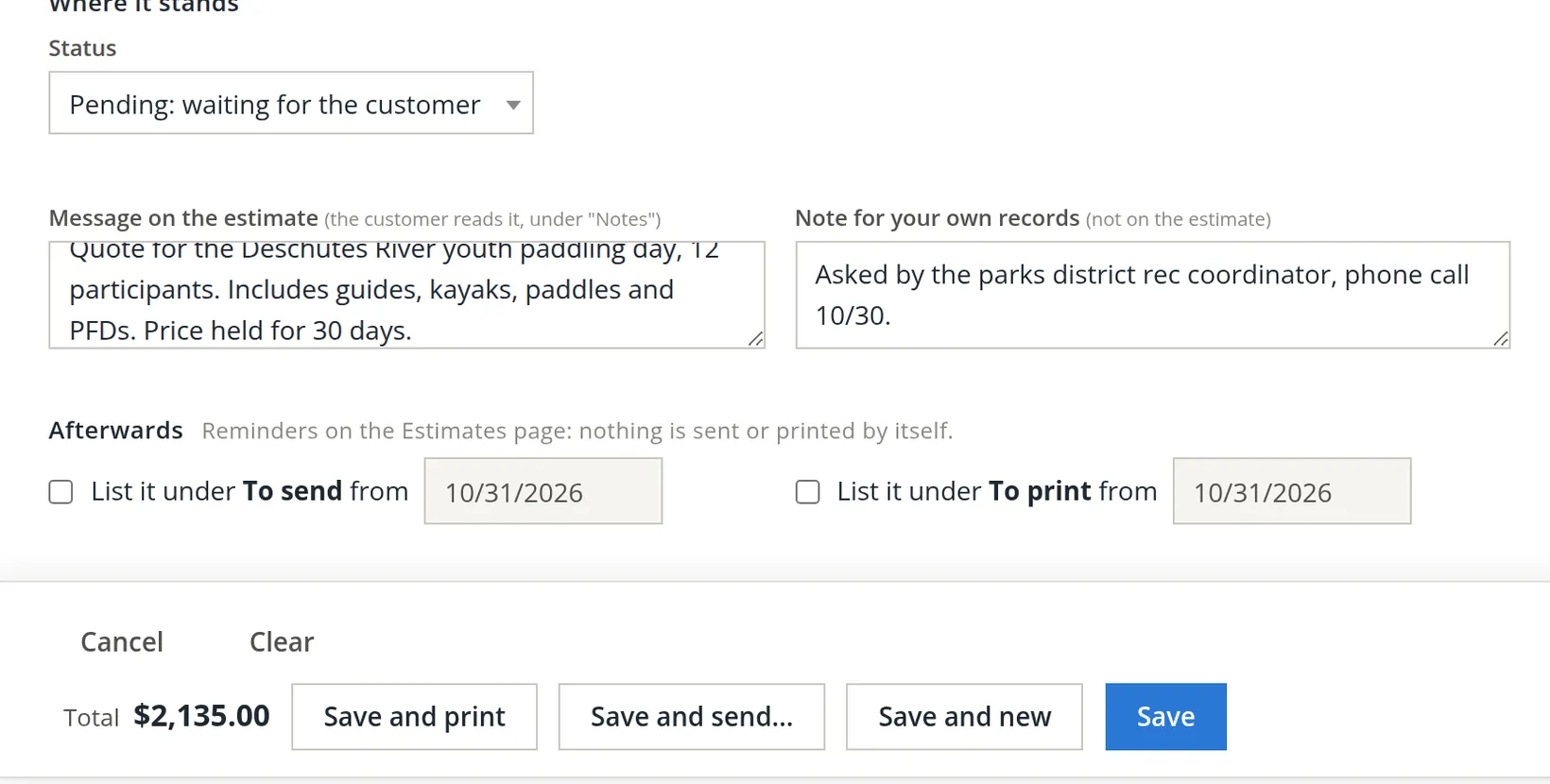
Leave the status at Pending 1
You change it when the customer answers (Procedure C).
- 8
Write the message 2 and a private note 3
The message prints on the estimate under "Notes". The private note never leaves BizBooks360: use it for who asked, and when.
- 9
Optionally, set a reminder 4 5
Tick List it under To send or To print to find it later with the Reminders filter on the Estimates page. Nothing is sent or printed by itself.
- 10
Save
Save and send... 7 saves and opens the e-mail page (Procedure B). Save and print 6 saves and opens the PDF. Save and new 8 starts another. Save 9 just saves.
Send it
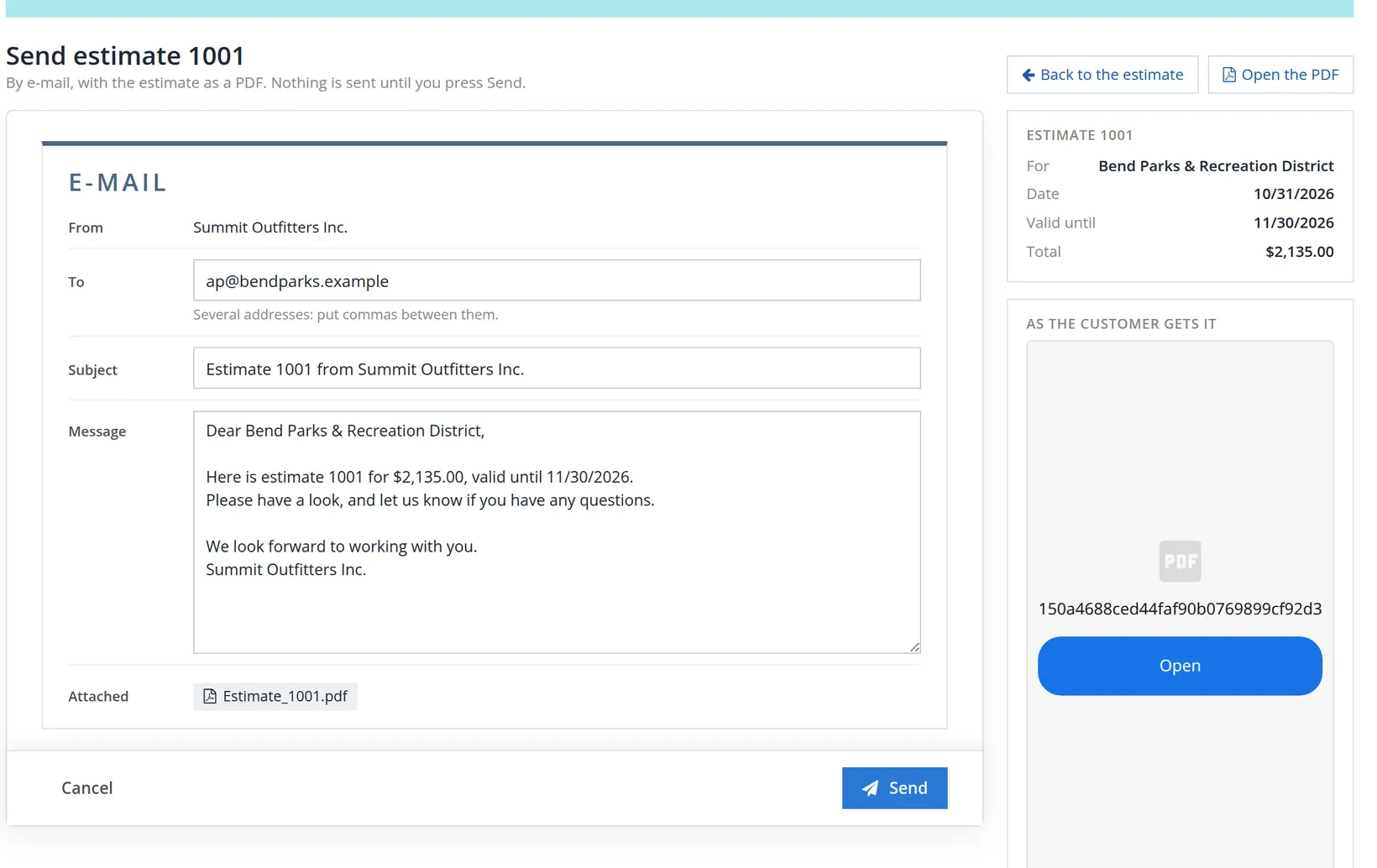
After Save and send..., a green banner confirms the save and the send page opens. Nothing is sent until you press Send.
- 1
Check the address 1
Several addresses can go in, separated by commas.
- 2
Read the subject 2 and message 3
Both are written for you, with the number, total and valid-until date. Change anything you like. The estimate goes as an attached PDF, Estimate_1001.pdf.
- 3
Click Send 4
The estimate reopens with "Estimate 1001 was sent to ap@bendparks.example." and its state, Pending, valid 30 more days.

Record the answer
When the customer replies, record it. This is what keeps the Estimates page honest.
- 1
Open the estimate
Click its number on the Estimates page.
- 2
Change Status to Accepted or Rejected
- 3
Click Save
The estimate moves to the Accepted tab, and the card Accepted, to invoice counts it.

When an estimate is rejected, add the reason to the private note: price, timing, went with someone else. Ten such notes tell you more about your pricing than any report.
Make the invoice
When the work is done, or when you bill the deposit, turn the estimate into an invoice.
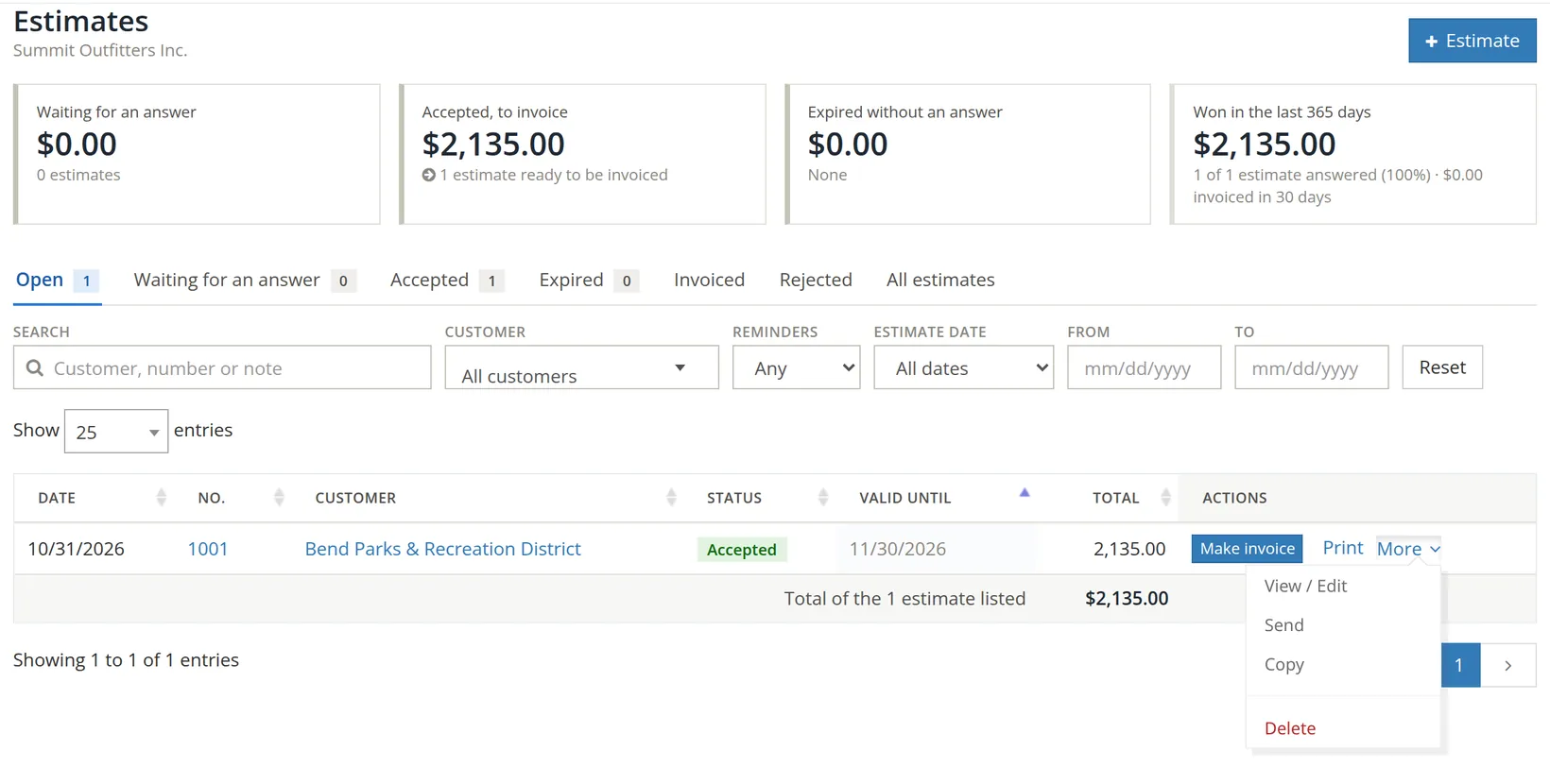
- 1
Click Make invoice
From the list 2, or Make the invoice on the estimate itself.
- 2
Check the new invoice
It is marked From estimate 1001 and carries the same customer, terms, lines and message. It takes the next invoice number and today's date; the due date follows the terms.
- 3
Change what really happened, then save
If the customer brought 10 paddlers instead of 12, change the quantity now: the invoice should bill what was delivered, not what was quoted. Then save or send it as in Chapter 2.1.
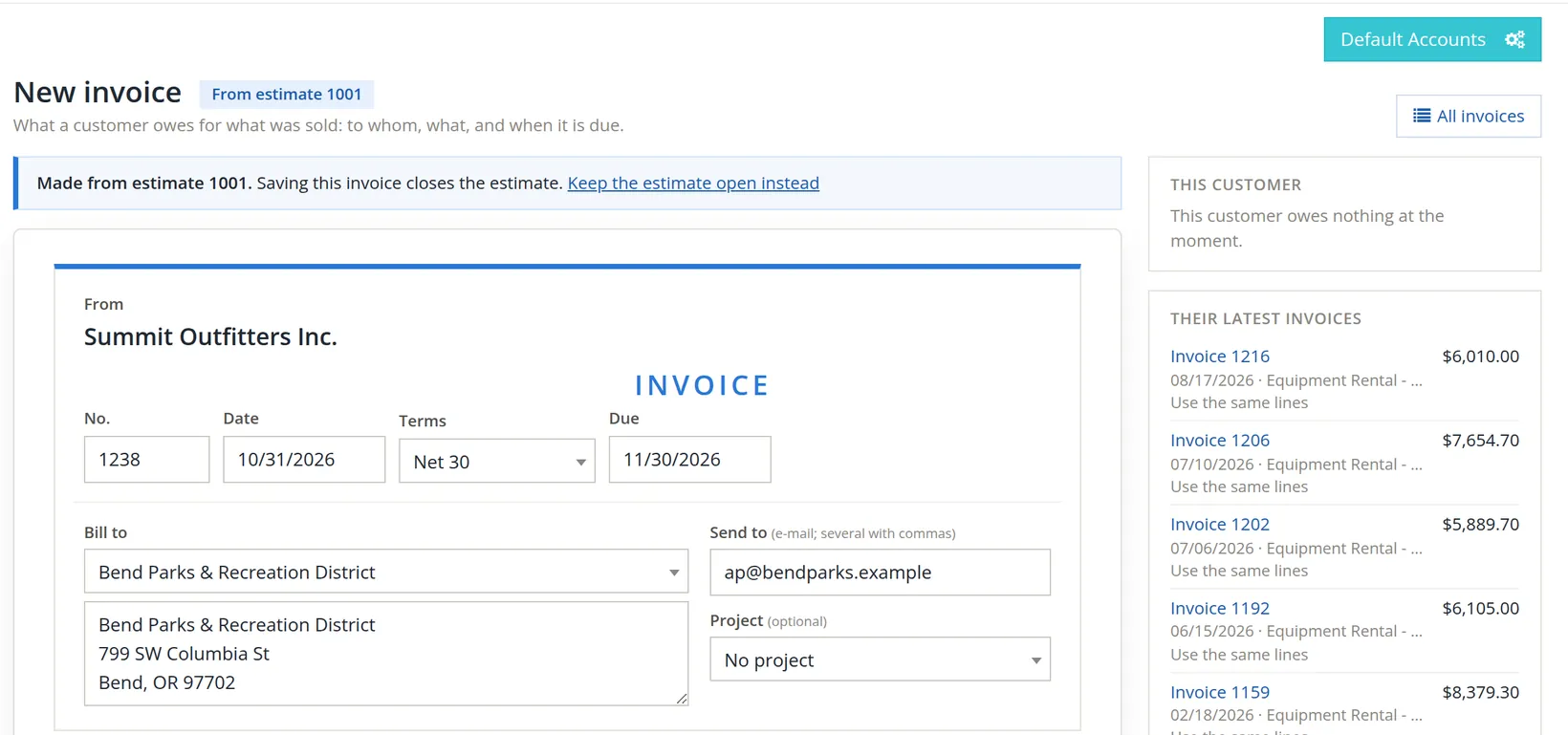
Saving the invoice closes the estimate. If you will bill this estimate in parts (a deposit now, the rest later), click Keep the estimate open instead 2 before saving, so the estimate stays available for the next invoice.
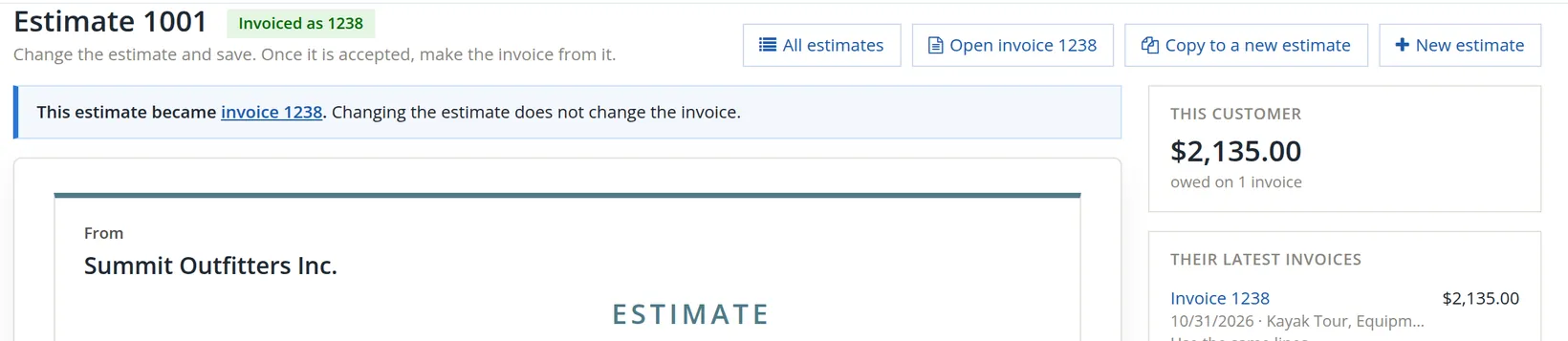
The two stay linked but independent: changing the estimate afterwards does not change the invoice.
Reading the Estimates page
Four cards across the top tell the state of your quoting.
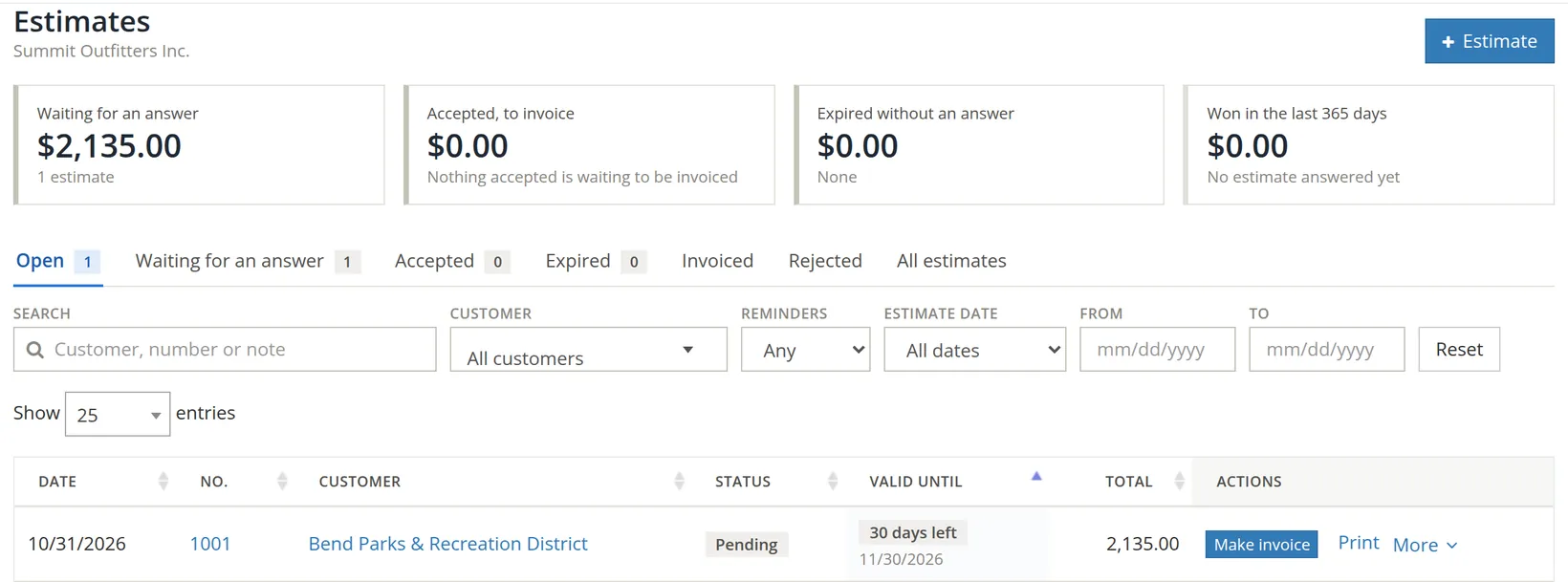
| Card | What it counts | What to do about it |
|---|---|---|
| Waiting for an answer | Pending estimates still within their dates | Follow up a few days before they expire. |
| Accepted, to invoice | Won work not yet billed | Invoice it as soon as it is delivered. |
| Expired without an answer | Pending estimates past their valid-until date | Call the customer, or mark them rejected. |
| Won in the last 365 days | Value invoiced from estimates, and the share of answered estimates you won | Watch the trend as you change prices. |

Below the cards, the tabs (Open, Waiting for an answer, Accepted, Expired, Invoiced, Rejected, All estimates) and the search and filter tools work as on every list (Chapter 1.3). The Reminders filter finds estimates you marked To send or To print.
Common mistakes and how to fix them
| Mistake | What happens | Fix |
|---|---|---|
| Invoicing from a pending estimate without marking it accepted | Your win rate never counts the answer. | Set the status to Accepted first; it takes ten seconds. |
| Invoicing the quoted quantities, not the delivered ones | The customer is billed for work not done. | Edit the lines on the new invoice before saving it. |
| Letting estimates expire silently | "Expired" piles up and the pipeline looks worse than it is. | Follow up before the date, then record the answer. |
| Saving the first invoice of a staged job | The estimate closes and cannot be billed again. | Use Keep the estimate open instead; or copy the estimate for the remaining work. |
| Changing the estimate to fix the invoice | The invoice does not change. | Edit the invoice itself (Chapter 2.1). |
Check your understanding
1. You send a $2,135.00 estimate. How much does your income go up?
Answer
Nothing. An estimate is an offer. Income is recorded only when the invoice is saved.
2. What are the payment terms on an estimate for?
Answer
They are the terms the invoice will take when the estimate becomes one, shown up front so the customer knows.
3. An estimate's valid-until date passes without an answer. Which tab and card show it?
Answer
The Expired tab and the Expired without an answer card.
4. You will bill a $10,000 estimate as two $5,000 invoices. What do you do on the first invoice?
Answer
Change the lines to the first $5,000 and click Keep the estimate open instead before saving.
5. After invoicing, you notice a typo in the estimate's message. Does fixing it change the invoice?
Answer
No. The two are linked but independent.
Quick reference card
Write and send
- Sales → Estimate → + Estimate.
- Valid until (15, 30, 60, 90), terms.
- Customer, lines, tax.
- Message and private note.
- Save and send... then Send.
Customer answers
- Open the estimate.
- Status: Accepted or Rejected.
- Save. Attach the customer's reply.
Make the invoice
- Make invoice.
- Bill what was delivered.
- Staged billing? Keep the estimate open.
- Save or send the invoice.
Notes
- Notes give background, exceptions and the reasons behind a rule. You can follow every procedure without them. ↑
- In accounting terms an estimate is a non-posting document. It is kept with the books but creates no debit or credit. The invoice is what debits Accounts Receivable and credits income (see Chapter 2.1, Section 3). ↑
- In this edition the preview box on the send page labels the PDF with a long internal code instead of its file name. The attachment itself is correctly named Estimate_1001.pdf, as shown beside Attached. ↑