
Chapter 2.7
Products and Services: Your Price List
How to build the list of everything you sell, choose between a service, a product, a stock item and a bundle, set the accounts each one posts to, and keep stock counted and costed.
When you finish this chapter you will be able to:
- Choose the right kind for each thing you sell.
- Add a service and a stock item with prices, descriptions and accounts.
- Enter opening stock and explain the entry it makes.
- Explain how average cost and cost of goods sold work.
- Use the Products page to spot items running low.
Contents
The four kinds of item
Every item is one of four kinds. The kind decides whether BizBooks360 counts it and costs it.
| Kind | Use it for | Counted? | Summit's examples |
|---|---|---|---|
| Service | Work or time you bill | No | Kayak tours, rental days, repairs, clinics |
| Product | Goods you sell but do not track: bought for one job, or too small to count | No | Parts bought for a single repair |
| Stock item | Goods you keep on a shelf and count | Yes, with cost | Jackets, boots, tents, dry bags |
| Bundle | Several items sold together at one price | Through its parts | A "beginner backpacking kit" |
Make an item a stock item if you would notice it going missing, or if it ties up real money. Count tents and jackets; do not count zip ties and stickers. Each stock item is a promise to count it at year-end.
The Products page
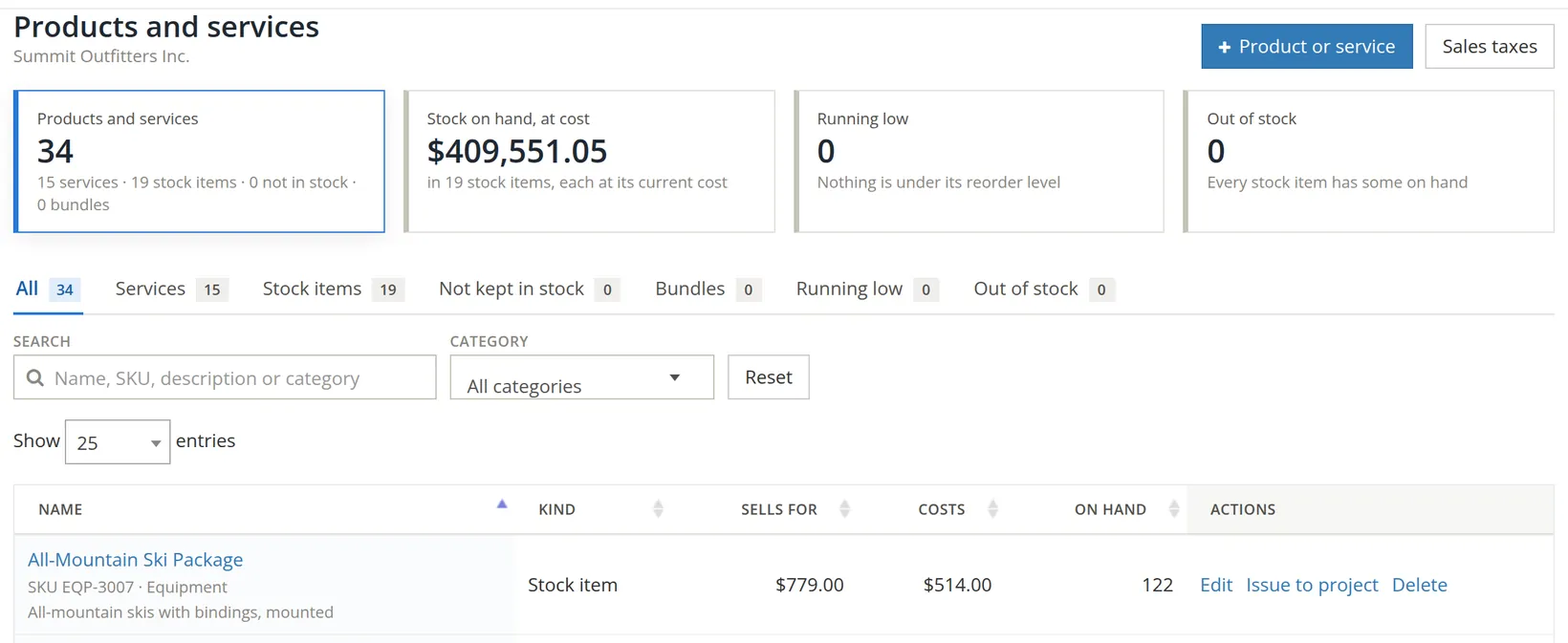
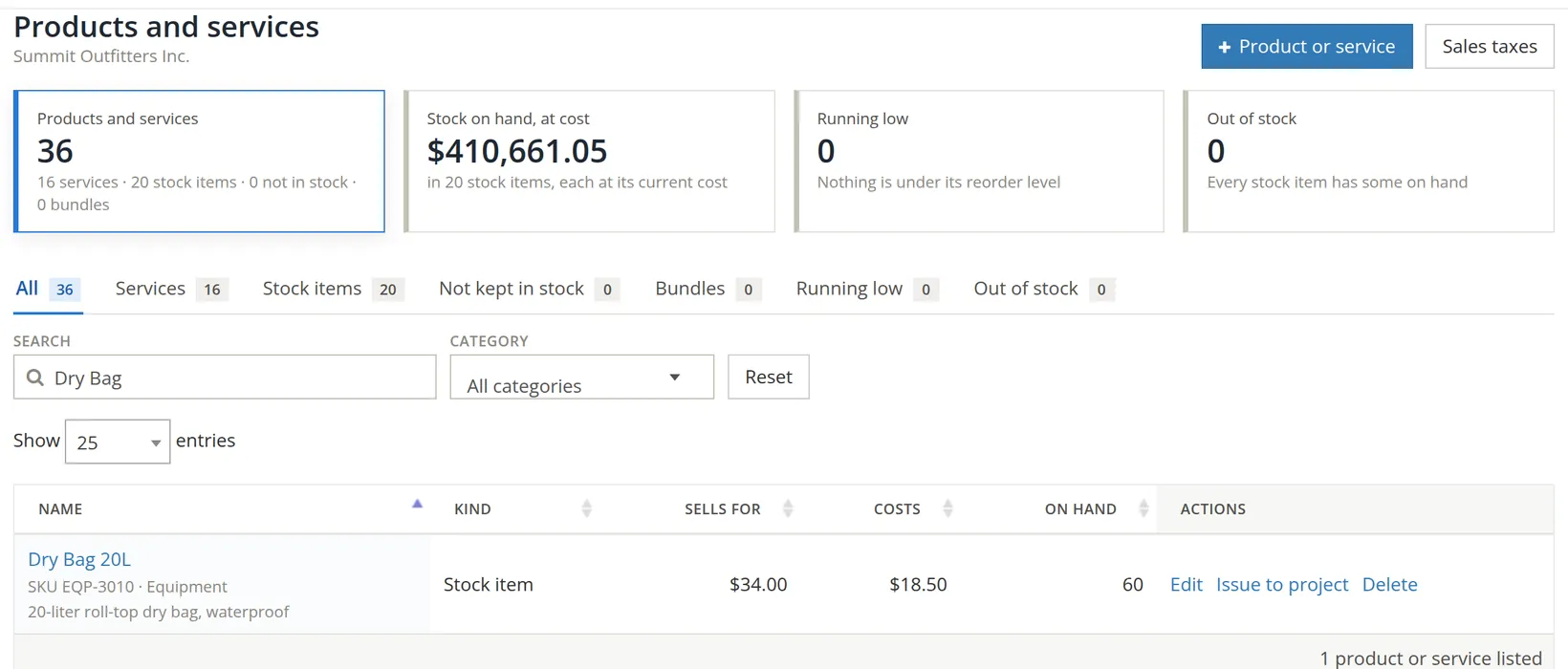
Sales → Products & Services. The cards count your items, value the stock on hand at cost, and flag items running low or out of stock. The tabs split the list by kind and by stock level. Each row ends with Edit and Delete; a stock item also has Issue to project, for stock used up on a job (Section 3).
Add a service
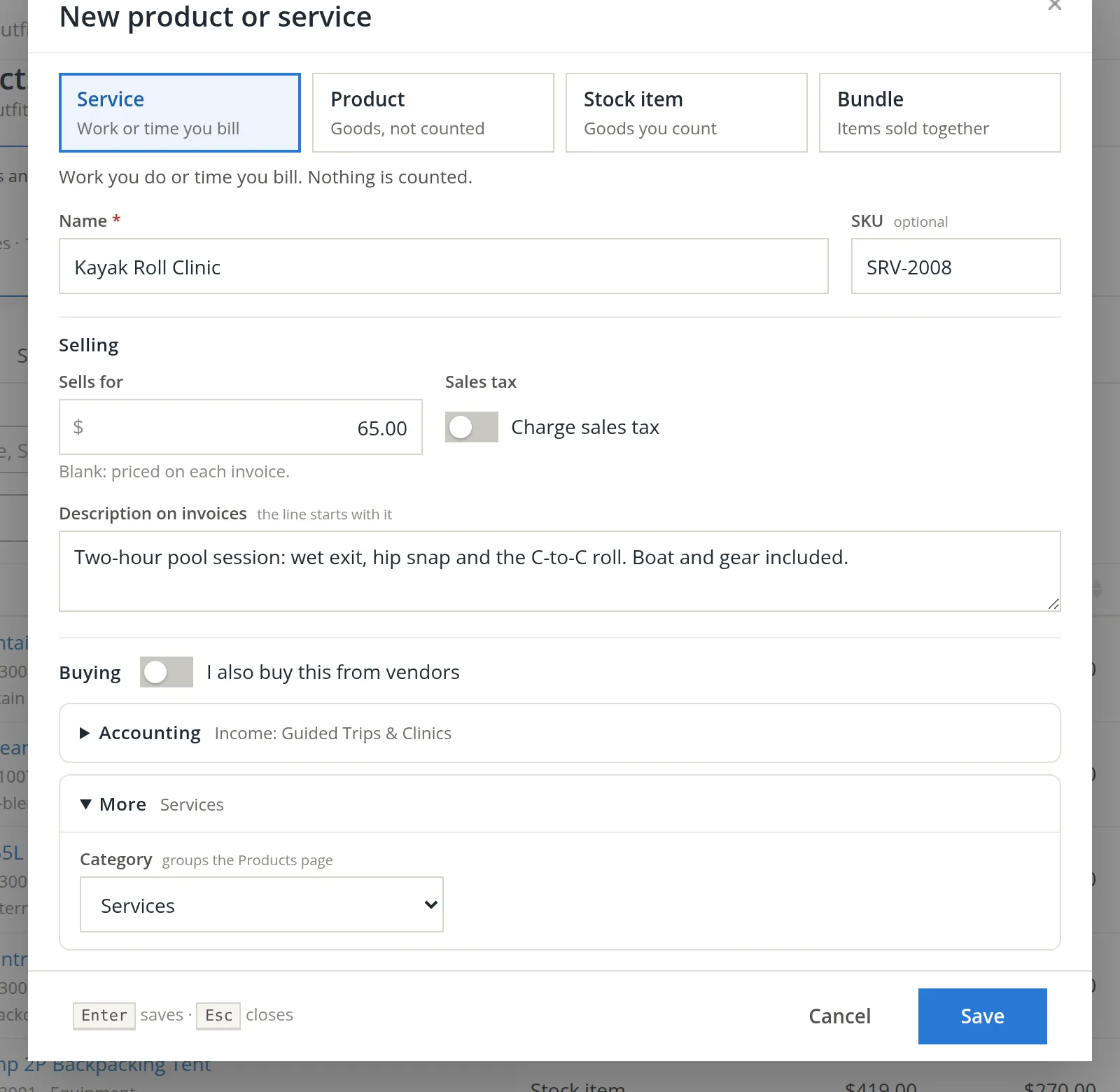
Click + Product or service. A dialog opens.
- 1
Choose Service 1
The line under the four buttons explains the choice: "Work you do or time you bill. Nothing is counted."
- 2
Name it 2, and give it a SKU if you use codes
The name is what invoices show. Keep it short; the description carries the detail.
- 3
Set the price 3 and sales tax 4
Leave the price blank for work priced job by job. Switch sales tax off for services your state does not tax.
- 4
Write the invoice description 5
Each invoice line starts with this text. Write it for the customer.
- 5
Switch on I also buy this from vendors 6 only if you do
For a service you resell, such as a subcontracted guide, it adds a cost and a vendor description.
- 6
Check the income account under Accounting 7
The summary line shows it without opening: "Income: Guided Trips & Clinics". Click to open and change it. Every sale of this item lands in that account on the Profit and Loss.
- 7
Give it a category under More 8, then Save 9
Categories group the Products page and its filter. Press Enter to save, Esc to close.
Add a stock item
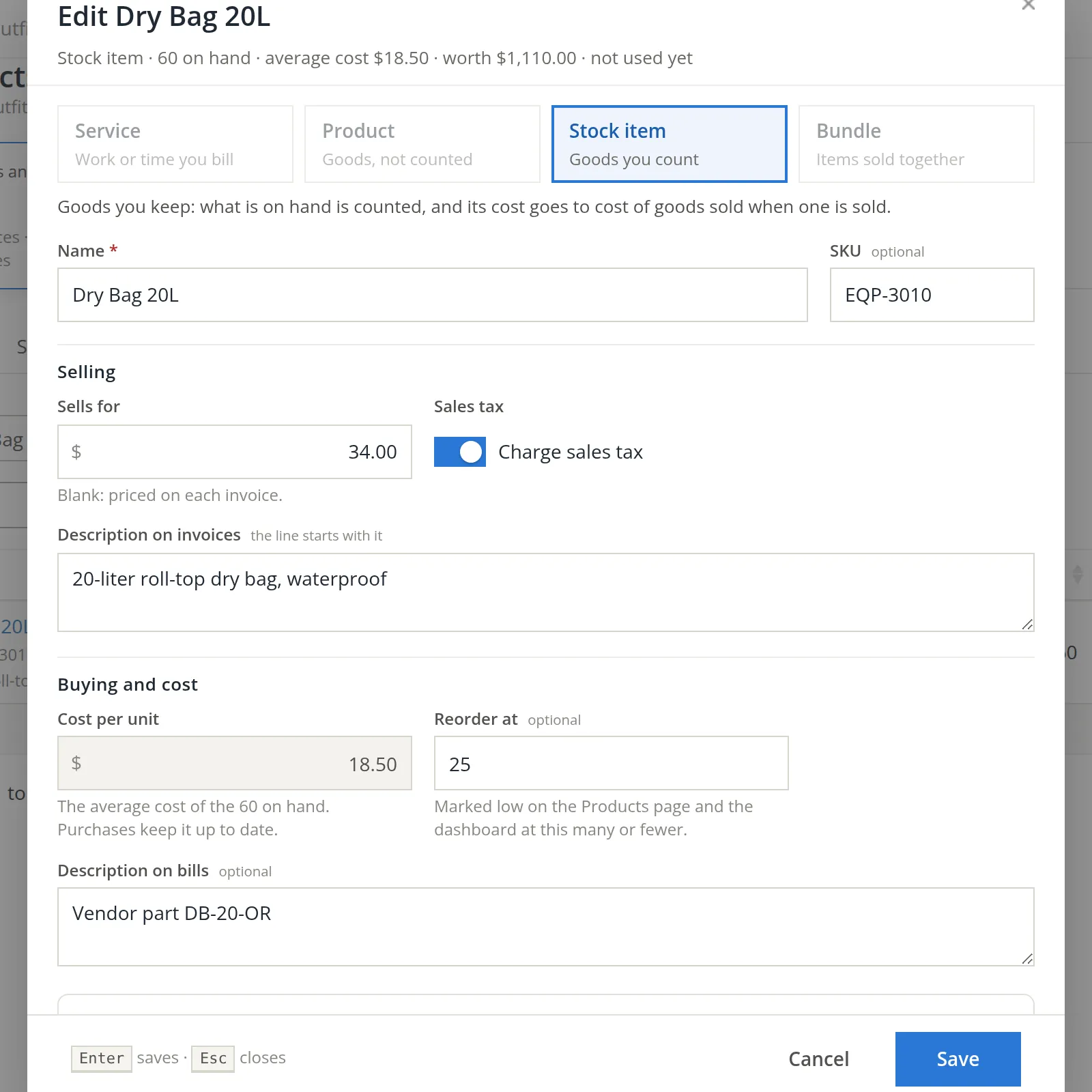
A stock item adds three things to a service: what it costs, how many you have, and the accounts that carry its cost.
- 1
Choose Stock item 1, then name, SKU and price 3
As for a service. Goods are usually taxable, so leave Charge sales tax on unless they are exempt.
- 2
Type the cost per unit 4
What one cost you. From then on, purchases keep the cost up to date as an average, and the box turns grey to show it is worked out for you.
- 3
Set a reorder level 5
At this many or fewer, the item is marked Running low on the Products page and the Dashboard.
- 4
Add a description for bills 6
What your vendor calls it, such as their part number, so bills read the way their invoices do.
- 5
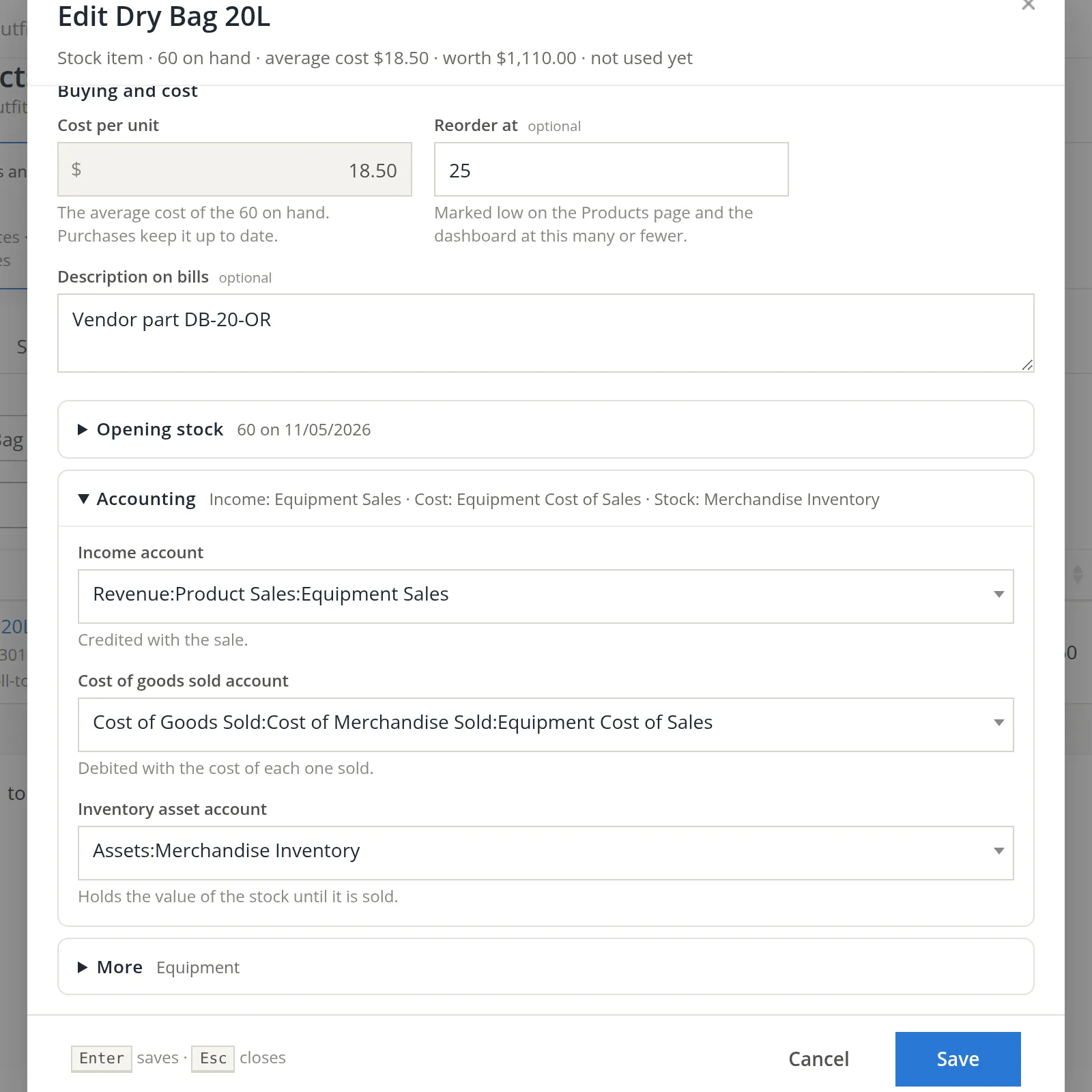
Enter the opening stock 1
Open Opening stock and type how many you have and the date you counted them. The dialog shows the entry it will make: "Opening value $1,110.00: debit the inventory asset account, credit Opening balances, on 11/05/2026" (60 × $18.50).
- 6
Check all three accounts 2
- Income 3: credited with each sale. Equipment Sales.
- Cost of goods sold 4: debited with the cost of each one sold. Equipment Cost of Sales.
- Inventory asset 5: holds the value of the stock until it is sold. Merchandise Inventory.
- 7
Set the category under More 6, and save
On a new stock item, the cost account follows the income account. The Dry Bag opened with the company's default, Apparel Cost of Sales; as soon as its income account was set to Equipment Sales, the cost account changed to Equipment Cost of Sales by itself. BizBooks360 takes the cost account your other items with that income account use, or else the one named like it, and leaves the default when it finds neither. So still open Accounting before you save and make sure the three accounts belong together, or your gross margin by product line will be wrong.2
How stock is costed
BizBooks360 uses the moving average cost. Each purchase recalculates the average; each sale takes its cost at the average of the moment.
| Event | On hand | Average cost | Value |
|---|---|---|---|
| Opening stock: 60 at $18.50 | 60 | $18.50 | $1,110.00 |
| Buy 40 at $20.00 ($800.00) | 100 | $19.10 | $1,910.00 |
| Sell 30 at $34.00 | 70 | $19.10 | $1,337.00 |
The sale of 30 records income of $1,020.00 (30 × $34.00) and moves $573.00 (30 × $19.10) from Merchandise Inventory to Equipment Cost of Sales. Gross profit on the sale: $447.00.3
Stock used on a project
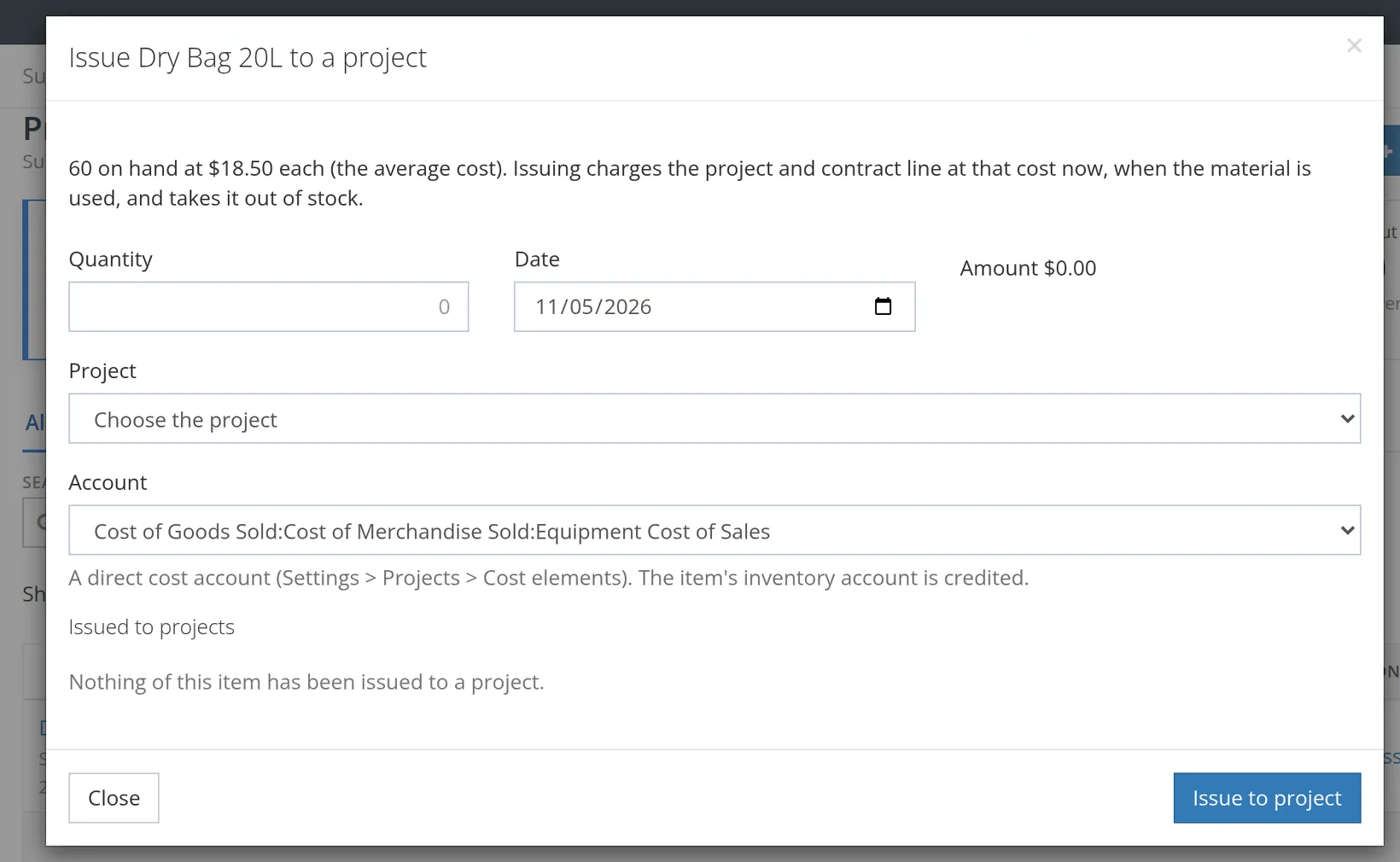
Some stock is never sold: it is used up on a job, such as dry bags handed out on a funded youth program. For that, each stock item's row has Issue to project.4 The dialog states how many are on hand and their average cost. Type the quantity 1 and the date 2, choose the project 3 (and its contract line, when the project's contract has lines) and a direct cost account 4; Amount shows the quantity times the average cost. Issue to project 6 takes the items out of stock and charges the project at that cost on the day they are used, not when anything is sold: the direct cost account is debited and the item's inventory account credited. Each issue is listed under Issued to projects 5, with Reverse to undo it (it asks why).
Common mistakes and how to fix them
| Mistake | What happens | Fix |
|---|---|---|
| Goods set up as a Service | No stock count and no cost of goods sold; margins look too high. | Edit the item and choose Stock item, with its cost and opening stock. |
| Opening stock skipped | The first sale drives on-hand below zero; the balance sheet misses the stock. | Edit the item and enter the opening stock as of your start date. |
| Accounts that do not belong together | Sales in one line, their cost in another; gross margin by line is wrong. | Open Accounting on the item and correct them. |
| Two items for one thing ("Dry bag", "Dry Bag 20L") | Stock is split and both counts are wrong. | Keep one; delete the other while it is unused. |
Check your understanding
1. You rent kayaks by the day. Which kind of item is "Kayak rental - daily"?
Answer
A service. You sell the use of the kayak, not the kayak; the kayaks themselves are fixed assets (Volume 10).
2. What entry does opening stock of 60 at $18.50 make?
Answer
Debit Merchandise Inventory $1,110.00, credit Opening balances $1,110.00.
3. You hold 100 at an average of $19.10 and buy 50 more at $22.00. What is the new average?
Answer
($1,910.00 + $1,100.00) ÷ 150 = $20.07.
4. Where would you look for items to reorder?
Answer
The Running low tab or card on the Products page, or the Dashboard.
Notes
- Notes give background, exceptions and the reasons behind a rule. ↑
- Since November 2026. Earlier, a new item kept the company's default cost account whatever its income account, so it had to be corrected by hand. The cost account follows the income account only for a new stock item or product, and only until you choose a cost account yourself; opening a saved item never changes it. ↑
- The figures for the purchase and the sale are a worked example, not entries in the sample books. ↑
- Only stock items have it, and only for a sign-in allowed to change both products and projects. The accounts offered are those mapped to a direct cost element under Settings → Projects → Cost elements (Chapter 7.1). An issue dated in closed books asks for a reason and your password. Nothing was issued in the sample books. ↑