
Chapter 5.3
Searching Every Transaction
How to find any entry in the books by words, numbers, amounts, accounts and dates, and how to fix many entries at once from the results.
When you finish this chapter you will be able to:
- Read the health figures at the top of the Search page.
- Search by words, numbers and amount ranges, and narrow by dates, account and side.
- Add conditions and read results as whole entries or matching lines.
- Move, re-date or delete many entries at once, and export what you found.
The Search page
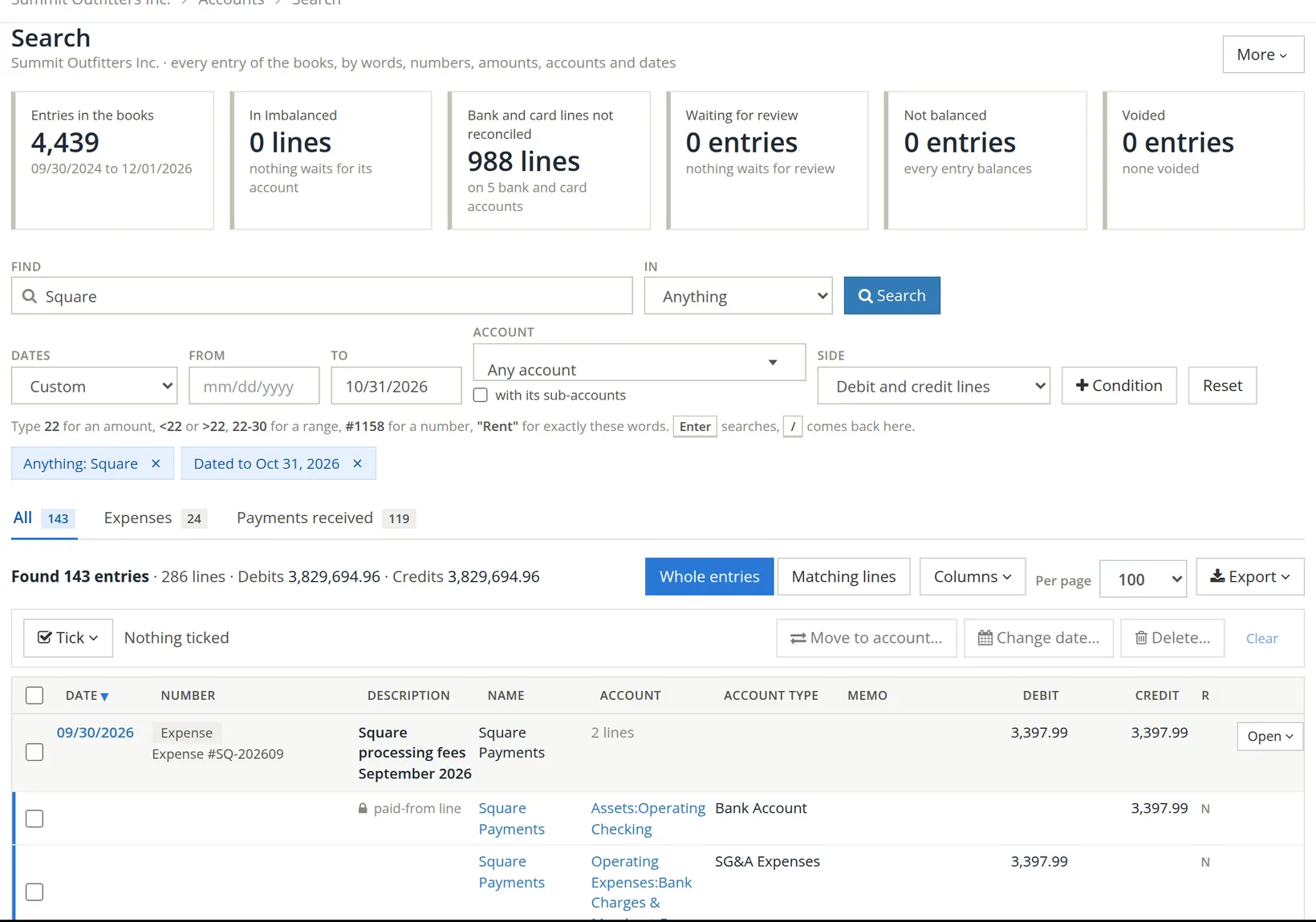
The health figures A count every entry, and what needs work: lines still in Imbalanced, bank and card lines not reconciled, entries waiting for review, entries that do not balance, and voided entries. The note under the boxes says they list what they count. A healthy set of books shows zero in the middle four. When the books require a second person to approve entries, a seventh figure, Waiting for approval, appears while any entry waits for that person; Summit does not use approvals, so it has six.
Searching
- 1
Type in Find 1 and press Enter
Words, a number or an amount. The small print under the boxes lists the shorthand:
Type Finds 22amounts of exactly 22 <22,>22amounts under or over 22 22-30amounts from 22 to 30 #1158entry or check number 1158 "Rent"exactly these words - 2
Narrow it 2 4 5 6
In limits the words to the description, memo, name, number, amount, or text inside attachments. Dates, an account (with or without its sub-accounts), and debit or credit lines narrow further. Each choice shows as a chip under the boxes; click its × to drop it.
- 3
Add conditions for anything else 7
Pick a field, how to compare and a value. Look at offers Description, Memo, Name, Number, Amount, Date posted, Account, Reconcile state, Text in attachments, Project, Contract line, Charge code, Unallowable, Lease, Property, Entered by and Changed by. For Charge code, Entered by and Changed by the value becomes a list to choose from: the books' charge codes, or the people of the books. Reset clears everything.
- 4
Read the results 8 9
Tabs split the results by kind of entry. Whole entries shows each entry with all its lines; Matching lines only the lines that matched. Columns chooses what to show; Export saves the results as a PDF or an Excel workbook, or prints the page.
Under each entry's description a small line says who entered it (Entered by Alex Morgan), and who changed it and when, if anyone did since. Lines show their charge code, and where their project or contract line came from (the line itself, the bill or invoice, the charge code, or the whole contract). An entry waiting for a second person's approval is tagged Waiting for approval, or Returned when it was sent back; the tag opens the Approvals page under Accounts. The Excel workbook always carries who entered and changed each entry.
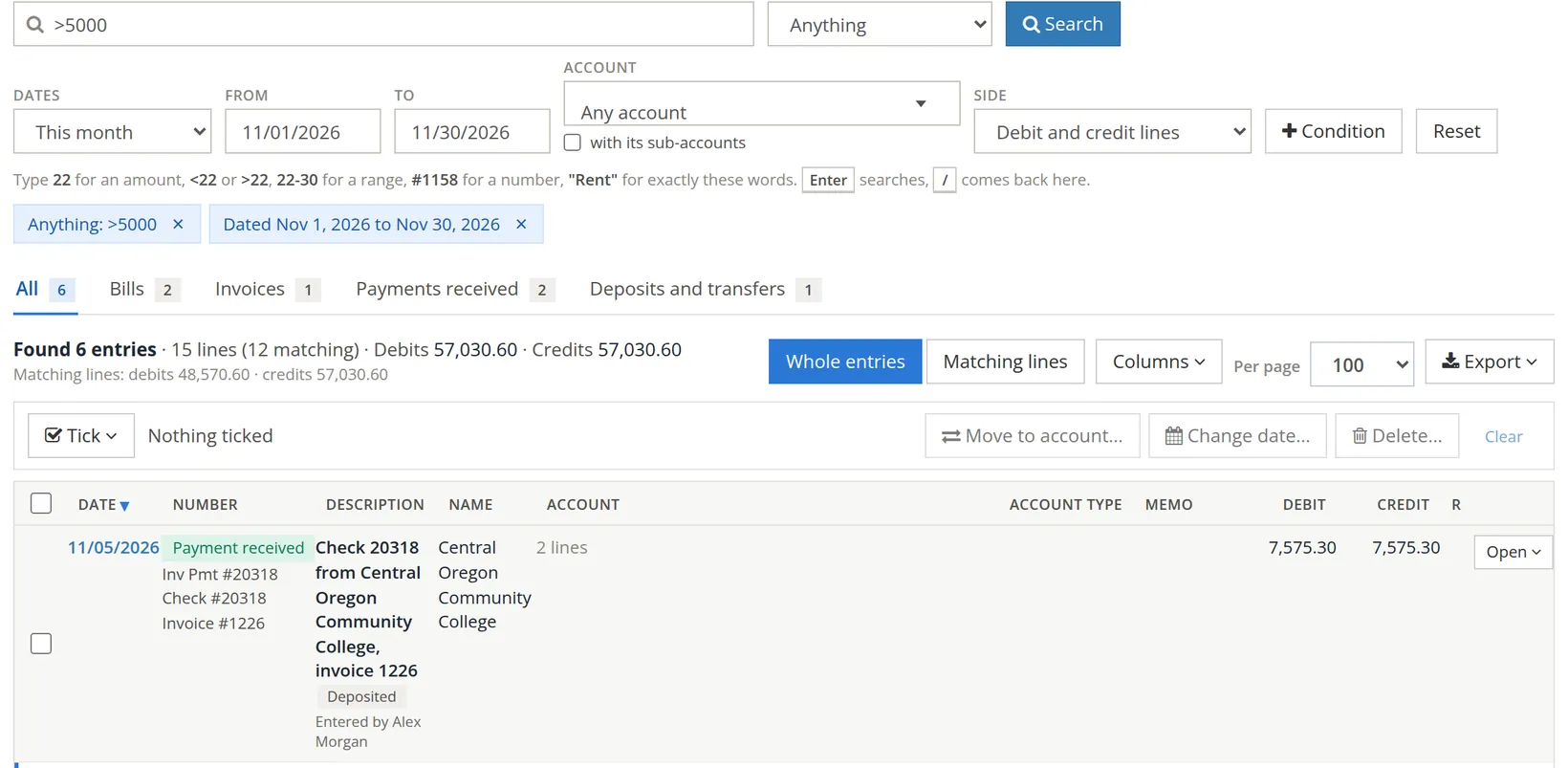 5000 and Dated Nov 1, 2026 to Nov 30, 2026; tabs All 6, Bills 2, Invoices 1, Payments received 2, Deposits and transfers 1; Found 6 entries, 15 lines (12 matching); the first result, a payment received on 11/05/2026, check 20318 from Central Oregon Community College for invoice 1226, 7,575.30, tagged Deposited, with the line Entered by Alex Morgan under its description" loading="lazy">
>5000 with This month: six entries, split into tabs 1 (bills, an invoice, payments received, a deposit). 2 Who entered the entry.Fixing many entries at once
Tick results 11, then use the buttons above the list 10:
- Move to account… moves the ticked lines' other side to another account, for example every "Adobe" line from Office Expenses to Software & Subscriptions.
- Change date… re-dates ticked entries, for an import made with the wrong date format.
- Delete… removes ticked entries, for a statement imported twice. The dialog first says how many entries it will delete and lists any it leaves out, with the reason: an entry made by a document such as a bill or invoice is deleted from that document, and the dialog links to it. Tick I understand the entries are deleted for good (the deletion is logged), and give a reason in Reason (optional); the reason goes with the entries to the Deleted entries page (Chapter 5.2). While the books' government contract controls are on, the reason is required (at least 10 characters).
Check the tick count before you click, and leave reconciled entries and closed periods alone. Documents such as invoices and bills are best corrected on their own forms.
Click In Imbalanced and give each line its account; then click Waiting for review and approve imported entries. When both show zero, the books are ready for reports.
Check your understanding
1. How do you find every entry between $100 and $200?
Answer
Type 100-200 in Find.
2. What is the difference between Whole entries and Matching lines?
Answer
Whole entries shows every line of each entry found; Matching lines shows only the lines that matched.
3. Which health figure should be zero before you run month-end reports?
Answer
In Imbalanced, Waiting for review and Not balanced.