
Chapter 11.1
Setting up payroll
Before the first paycheck, payroll needs to know who the business is to the tax agencies, when it pays, which bank account the checks come from, where the money lands in the ledger, and who is on the payroll. The Payroll overview turns all of that into a short checklist. This chapter works through it, line by line, for a two-person repair shop.
When you finish this chapter you will be able to:
- Read the Payroll overview checklist and say what each line needs.
- Record the employer's tax accounts and the bank account paychecks are drawn on.
- Set a pay schedule and read the three pay runs it proposes.
- Choose the five accounts payroll posts to, and explain why wages go to a clearing account in a business that keeps timesheets.
- Add an employee, enter their federal W-4 and check that they are ready to pay.
- Answer the two tax questions only the business can answer: its state unemployment rate and whether local taxes apply.
What payroll needs before the first paycheck
A paycheck is a small calculation with large consequences. Gross pay comes from hours and a rate. Taxes come from tables the agencies publish, from what the employee wrote on their W-4, and from the employer's own accounts and rates. Net pay is paid from a bank account. Every one of those figures is then posted to the ledger and reported to the government. If any input is missing, the paycheck is wrong, and the mistake travels into deposits and returns.
That is why BizBooks360 does not let you start with a pay run. It starts with a checklist. Payroll is a module that is switched on for each set of books; until it is on, the Payroll menu is not shown.2 Once it is on, Payroll → Overview lists what is still missing.
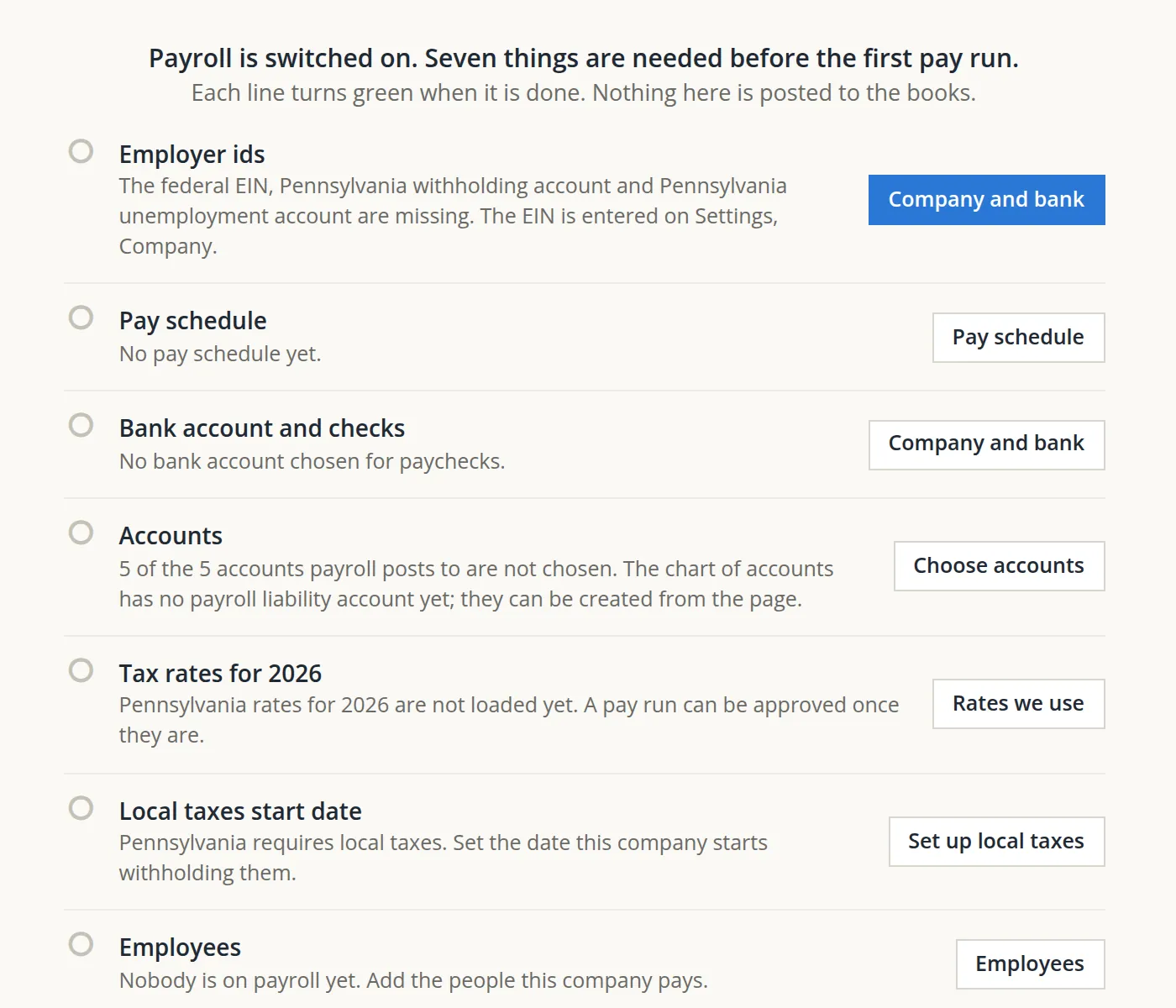
Notice the word Pennsylvania in the picture, although the shop is in Oregon. The picture was taken on the day payroll was switched on, when a book with nobody on payroll did not yet know where people work and named Pennsylvania. Today the checklist takes the state from where the employees work or, while nobody is on payroll, from the company's address, so an Oregon book reads Oregon from the first day. It also asks for a local tax start date only for a state whose local taxes BizBooks360 sets up, which is Pennsylvania, so an Oregon book sees six lines, not seven.3 The order in this chapter follows the order a careful bookkeeper would use: the business first, then the books, then the people.
Employer ids and the payroll bank account
- 1
Enter the EIN on the company
The federal Employer Identification Number belongs to the business, not to payroll, so it is typed once on Settings → Company information (Chapter 15.1). For the shop we also filled in the street address, city and ZIP code, which that page requires before it saves. The EIN used here, 92-5550199, is invented.
- 2
Open Company and bank
Payroll → Settings → Company and bank. Switching payroll on created two federal accounts already: withholding (deposits every month) and unemployment (every quarter). Each has a Change button. For the federal withholding account we changed the status from Applied for, the number has not come yet to Registered, with its number: the IRS has issued the EIN, and the account reads it from the company.
- 3
Add the state accounts
Once an employee who works in Oregon is on payroll (Section 4), the page asks for Oregon withholding account and Oregon unemployment account. Each Add the account dialog takes the account number from the agency's letter, a status, how often deposits are made and the first day it applies. Oregon gives one business identification number for its combined payroll taxes, so both lines carry the same number, 95558317, with quarterly deposits from 01/01/2026.
- 4
Choose the bank account and save
Under Payroll bank account, pick Checking in Paychecks are drawn on and press Save changes. The page answers Saved. Paychecks are drawn on Checking. Tax deposits default to the same account.
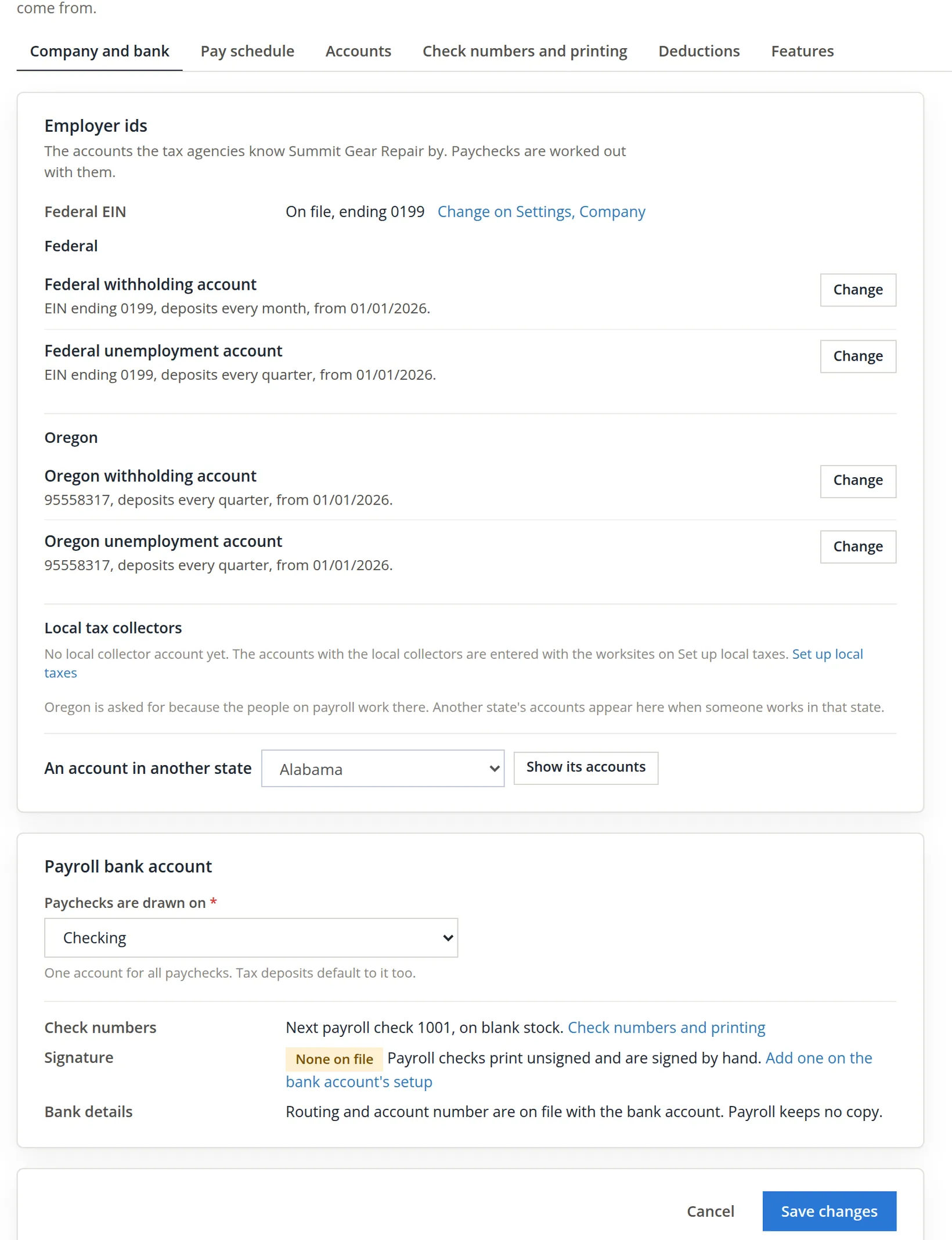
An account change dated the same day as the existing one corrects it; a later day starts a new period and ends the old one the day before. Use a later date when the agency actually changes your deposit schedule, so the paychecks before the change keep the schedule they were made under.
The pay schedule
The pay schedule tells payroll which pay run to propose next and which date to print on the checks. Summit Gear Repair keeps two-week timesheets running Sunday to Saturday, the first one starting October 18 (Chapter 12.1). Payroll should match them exactly, or hours would be split across two paychecks.
- 1
Set how often and where a period ends
Paid: Every two weeks. A pay period ends on: Saturday. A period that started on: 10/18/2026. With a two-week schedule this date tells the odd weeks from the even ones.
- 2
Set the run day and the check date
Pay run day: Wednesday, when hours are typed and approved. Checks dated: Friday after the period ends.
- 3
Read the preview, then save
The table The next three pay runs with this schedule updates as you choose. Check the first row against the calendar before saving: period 10/18/2026 to 10/31/2026, pay run Wednesday 11/04/2026, checks Friday 11/06/2026. Press Save changes.
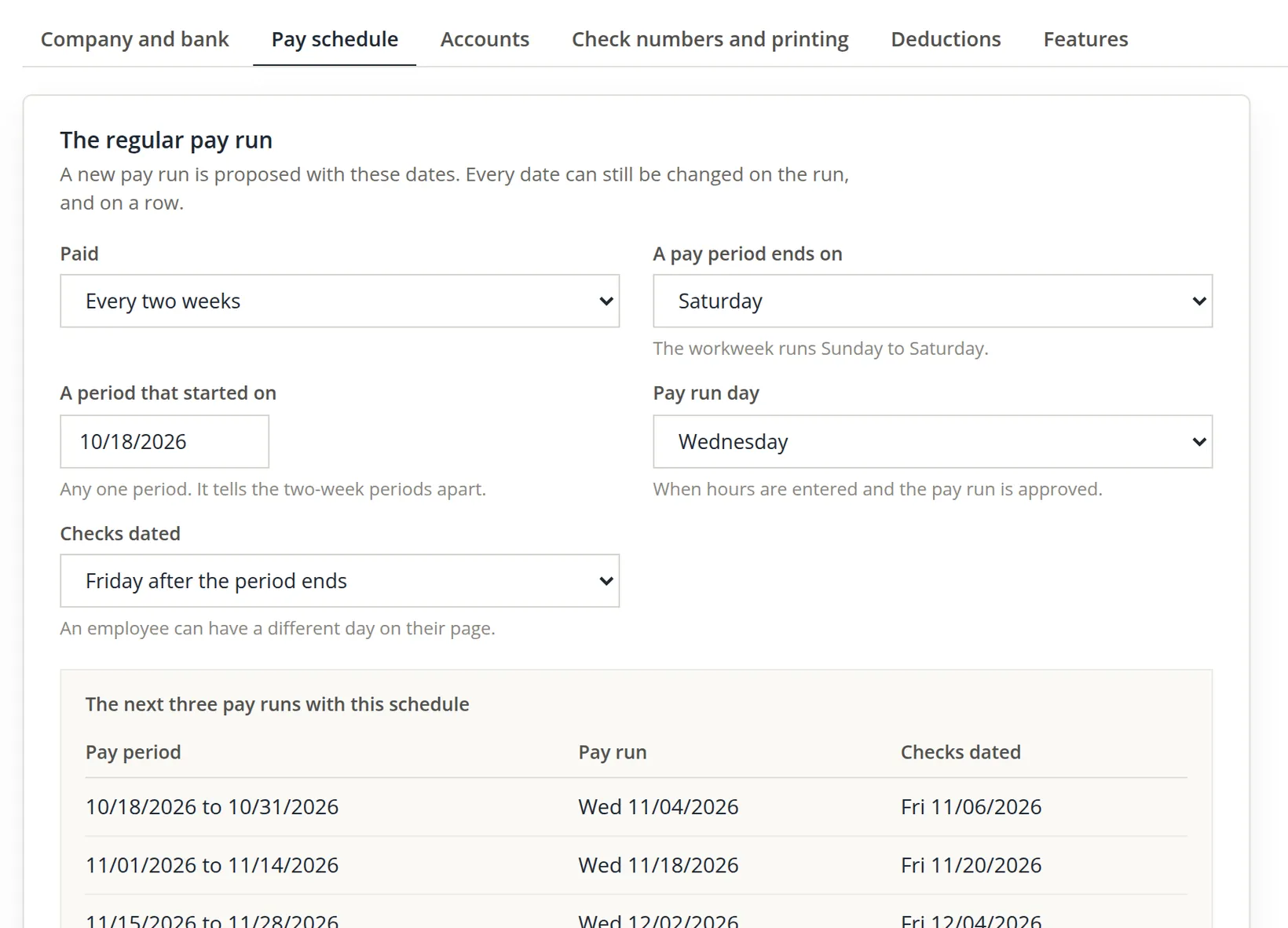
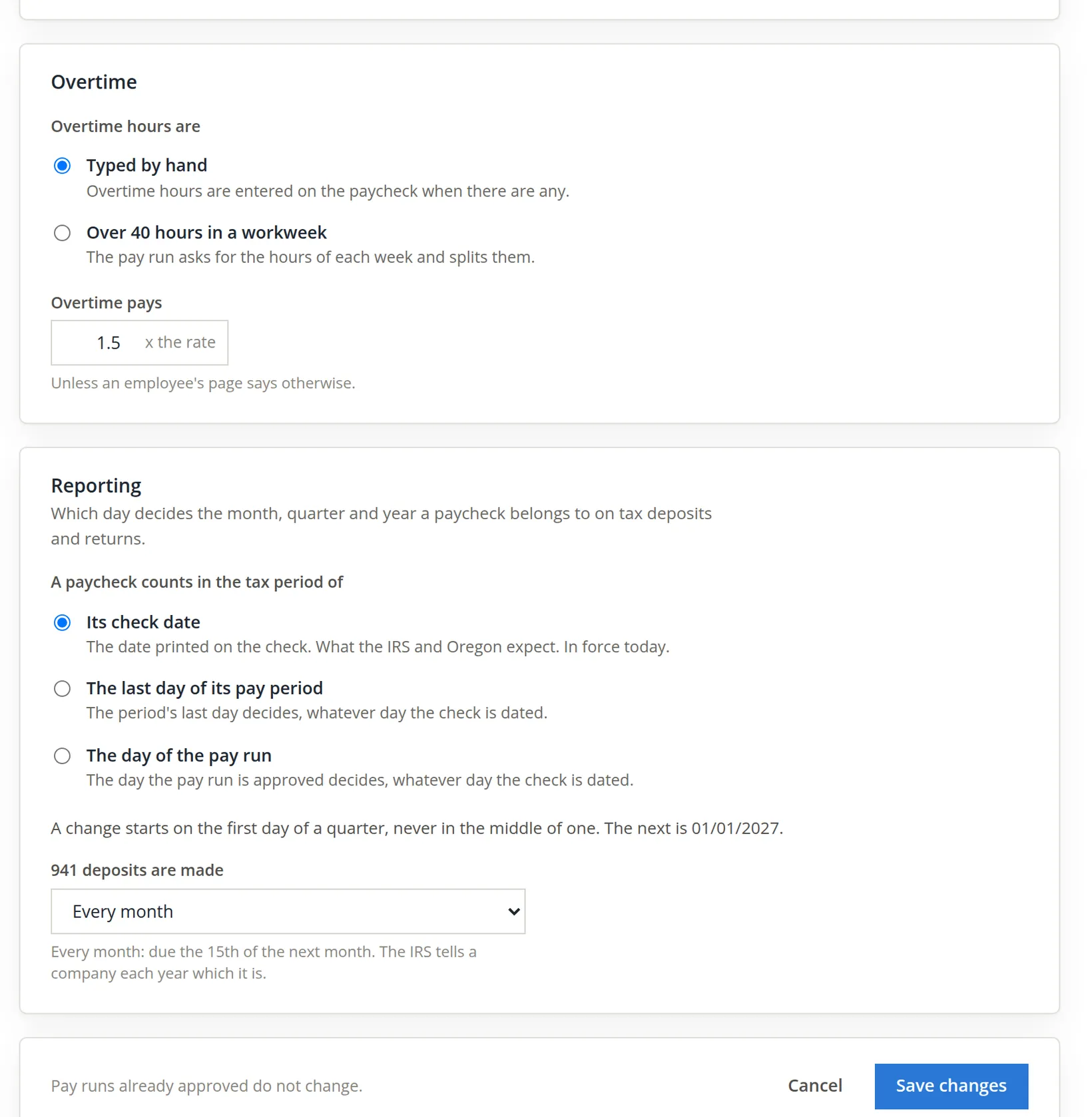
Reading the dates. Ten working days after October 18 is a Saturday, October 31: that is the end of the first period. The run day after it is Wednesday, November 4, and the Friday after the period ends is November 6. Because the paycheck counts on its check date, the October work is reported in November, in the fourth quarter. This is the rule the IRS uses, and the page says so.4
The accounts payroll posts to
An approved paycheck becomes a journal entry. Payroll needs one account for each kind of line on that entry. A new set of books usually has no payroll liability accounts, and the Accounts page says so in a banner with a button to make them.
- 1
Create the missing liability accounts
On Payroll → Settings → Accounts, press Create the 2 accounts. The page answers 2 accounts were made: Liabilities:Payroll Taxes Payable, Liabilities:Paychecks Payable. and proposes them in the table, marked Suggested.
- 2
Choose the wages account
For Wages, choose Expenses:Labor Clearing. The shop keeps timesheets: the month-end labor posting (Chapter 12.2) already moved Casey's time, at the standard rate, into Shop Labor and credited Labor Clearing. When payroll debits the same clearing account with the real gross wages, the two entries meet, and whatever is left in clearing is the difference between cost and pay.
- 3
Accept or change the rest, then save
Employer payroll taxes: Expenses:Taxes & Licenses, which the page suggests because its name fits. Taxes withheld and employer taxes owed share Liabilities:Payroll Taxes Payable. Paychecks Payable holds net pay between approval and the check. Deductions are not needed until the first deduction exists. Press Save changes.
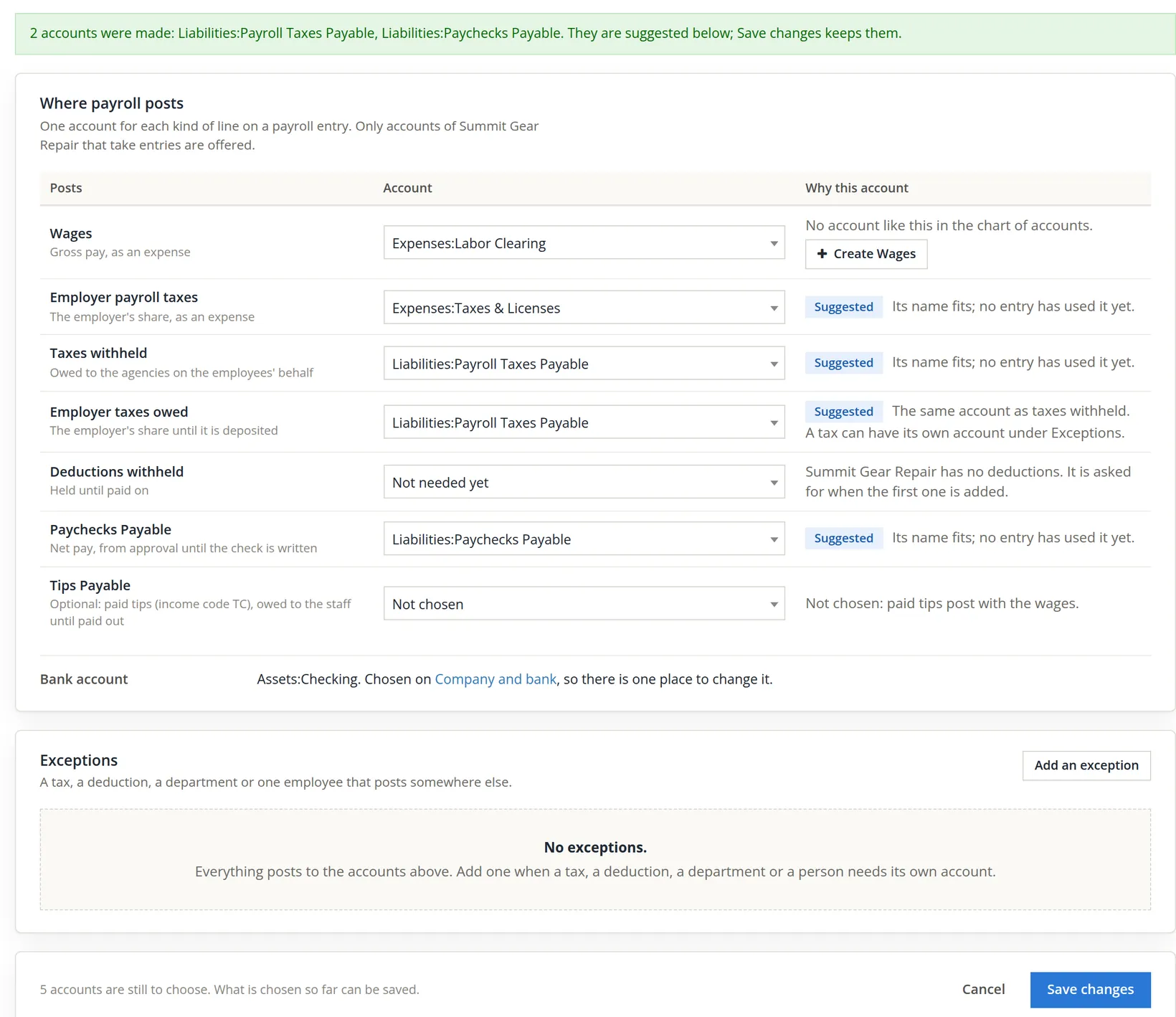
| Line on a payroll entry | Debit or credit | Account at Summit Gear Repair |
|---|---|---|
| Gross wages | Debit | Expenses:Labor Clearing |
| Employer's share of taxes | Debit | Expenses:Taxes & Licenses |
| Taxes withheld from the employee | Credit | Liabilities:Payroll Taxes Payable |
| Employer taxes not yet deposited | Credit | Liabilities:Payroll Taxes Payable |
| Net pay owed | Credit | Liabilities:Paychecks Payable |
Before you save, the Why this account column still describes the old choice, and the footer may still say accounts are left to choose. Save, and the page shows the real state.
Check numbers and printing
Payroll → Settings → Check numbers and printing sets the first payroll check number and says what kind of paper is in the printer. Type 1001 in Next check number, leave Payroll has its own numbers and Blank check paper, and press Save changes. The page answers Saved. The next payroll check is 1001.
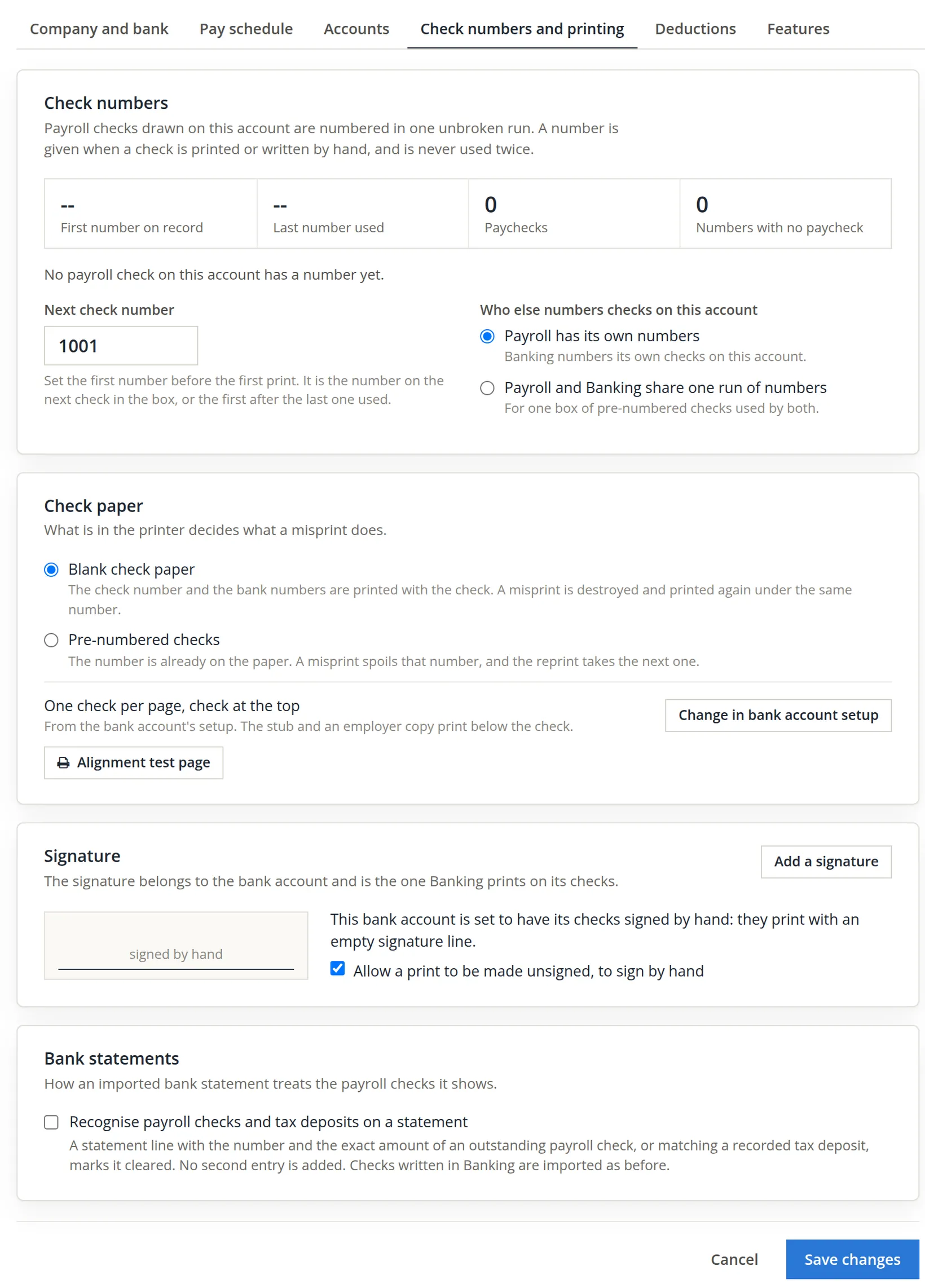
The paper choice decides what a misprint costs. On blank paper the number and the bank numbers are printed with the check, so a spoiled check is destroyed and printed again under the same number. On pre-numbered paper the spoiled number is gone and the reprint takes the next one. The bank's name, routing and account numbers come from the bank account's own setup (Chapter 4.5); Chapter 11.2 shows what happens when that setup is empty.
Adding an employee
- 1
Start with the name
Payroll → Employees → Add employee. Type the first and last name. Casey is already a contact (Timekeeping made one), so the page says Casey Lin is already known and offers Use the contact here only. Nothing is joined until you choose; keep that choice so the timesheets and the paychecks belong to the same person.
- 2
Type the Social Security number, the hire date and the rate
The number is kept encrypted; after saving, only the last four digits are shown. Date hired: 10/18/2026. Hourly rate: 24.00, the same rate Timekeeping costs Casey's hours at.
- 3
Check the pay and tax lines, and add
Paid follows the company schedule. First period to pay offers the period holding today and the next two. Works in defaults to the company's state, Oregon. Press Add employee.
If the contact is an hourly employee who already has approved timesheets, Add employee also hands those approved hours to payroll, from the first day of the first period to pay onward; days before that day, and days in periods already paid, are left out. Pick the first period to pay with that in mind. For Casey the form offers periods from November 1 only, so the October timesheet is not handed over.
For a person who is not yet a contact, the form asks for more, because there is no contact to read them from: Email (optional) and the home address, Street address, City, State and ZIP code, all required, with the note The home address decides local taxes. For Casey the page shows Lives in: As on the contact instead.
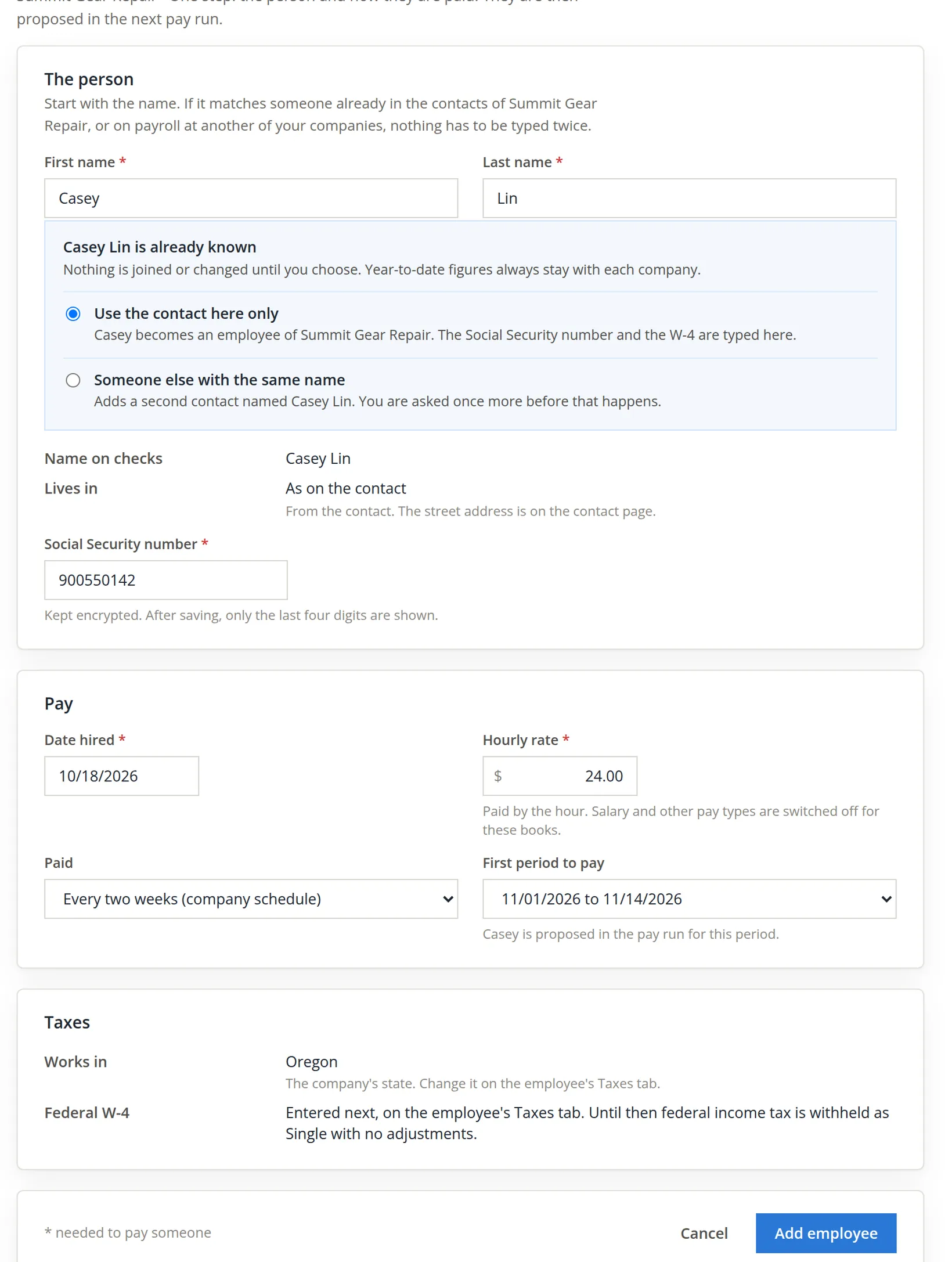
A mistake caught. The number in the picture starts with 9. Numbers that start with 9 are Individual Taxpayer Identification Numbers, not Social Security numbers, and an ITIN cannot be used to pay wages. BizBooks360 refuses it and keeps the rest of the form.
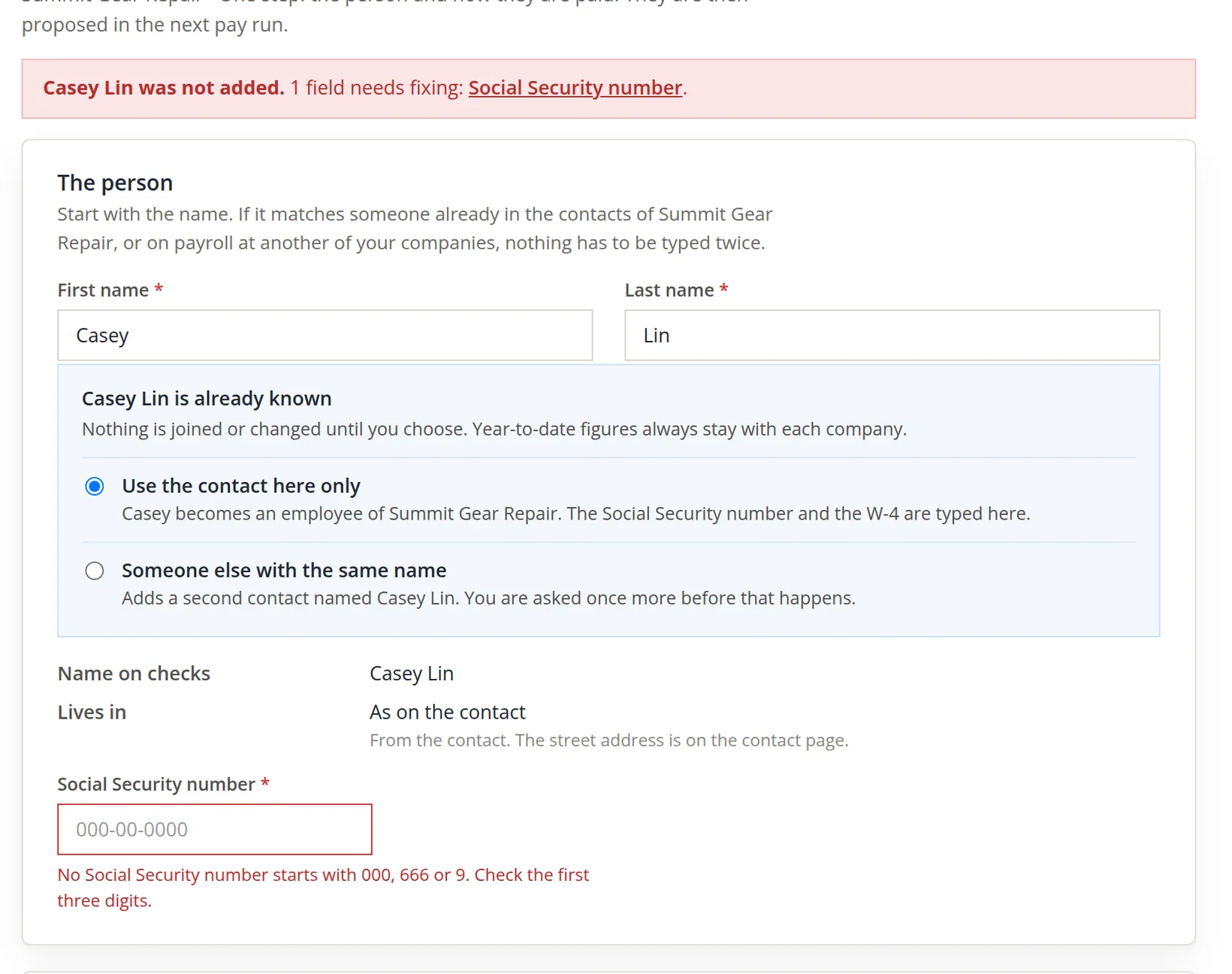
With the number from Casey's card typed again, Add employee opens Casey's page with Casey Lin was added and is proposed in the pay run for 11/01 to 11/14/2026. and a short list under Before Casey can be paid: no home address on the contact, and no W-4 on file.5
- 4
Add the home address on the contact
Change it on the contact opens the contact page (Chapter 9.1). We typed 2215 NW Juniper Ave, Bend, OR 97703 and saved. The address prints on the check and decides local taxes.
- 5
Enter the federal W-4
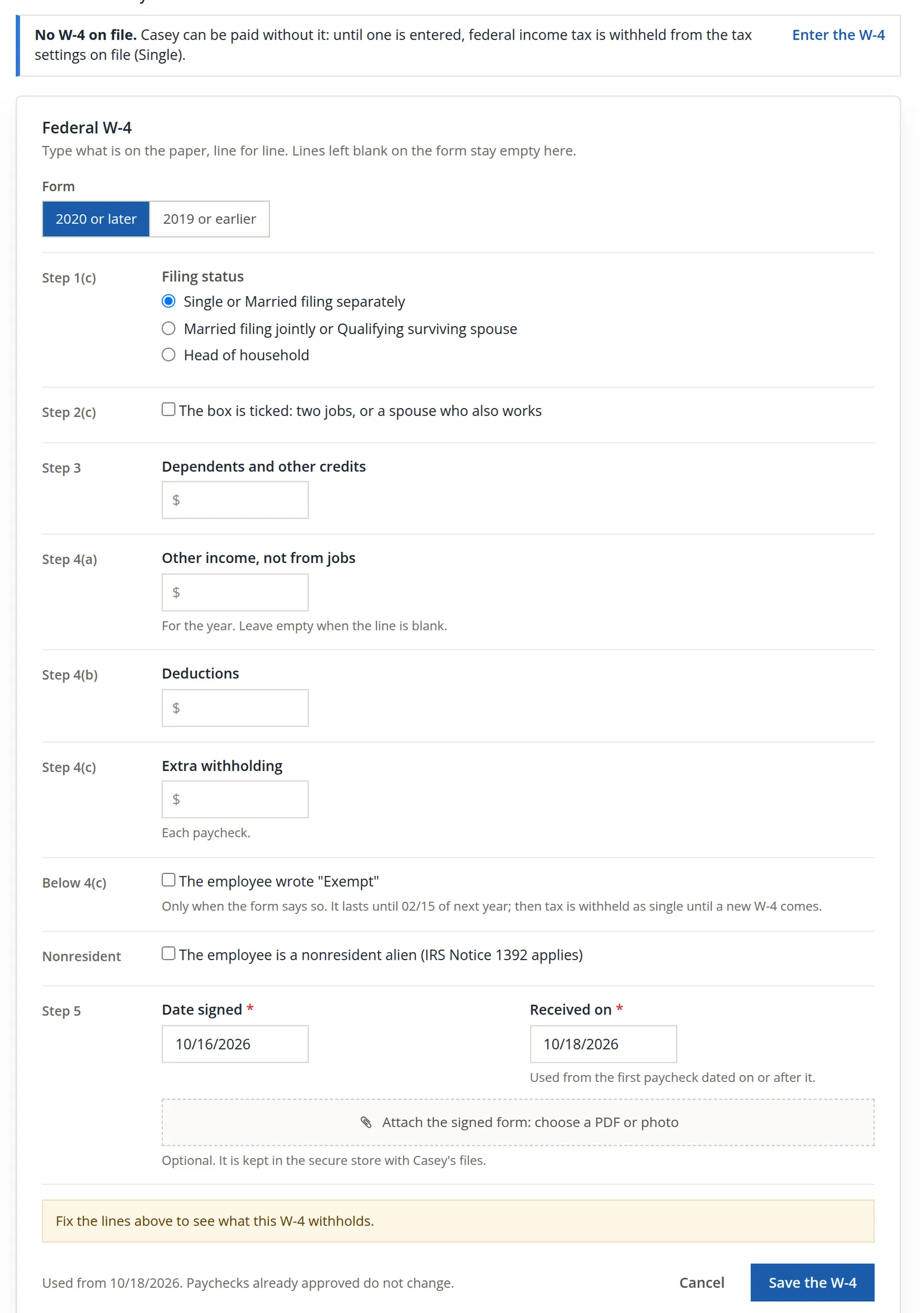
Enter the W-4 opens the form on the Taxes tab. Type what the paper says, line for line, and leave blank lines blank. Casey ticked Single and left Steps 2 to 4 empty, signed on 10/16/2026, and handed it in on 10/18/2026. Press Save the W-4. Until a W-4 is entered, federal tax is withheld as Single with no adjustments, which is what the law prescribes for an employee who has not given one.
- 6
Point the next period at the timesheet
Casey's first paycheck must cover the timesheet of October 18 to 31, but Add employee offered only periods from November 1. On the Pay tab, Next period to pay → Change lists earlier periods too; choose 10/18/2026 to 10/31/2026 and press Save. The page answers The next period to pay is changed. Moving the next period earlier does not hand over the older timesheet: the hand-over happens only when the employee is added, from the first period chosen there. The October hours are therefore typed on the pay run (Chapter 11.2).
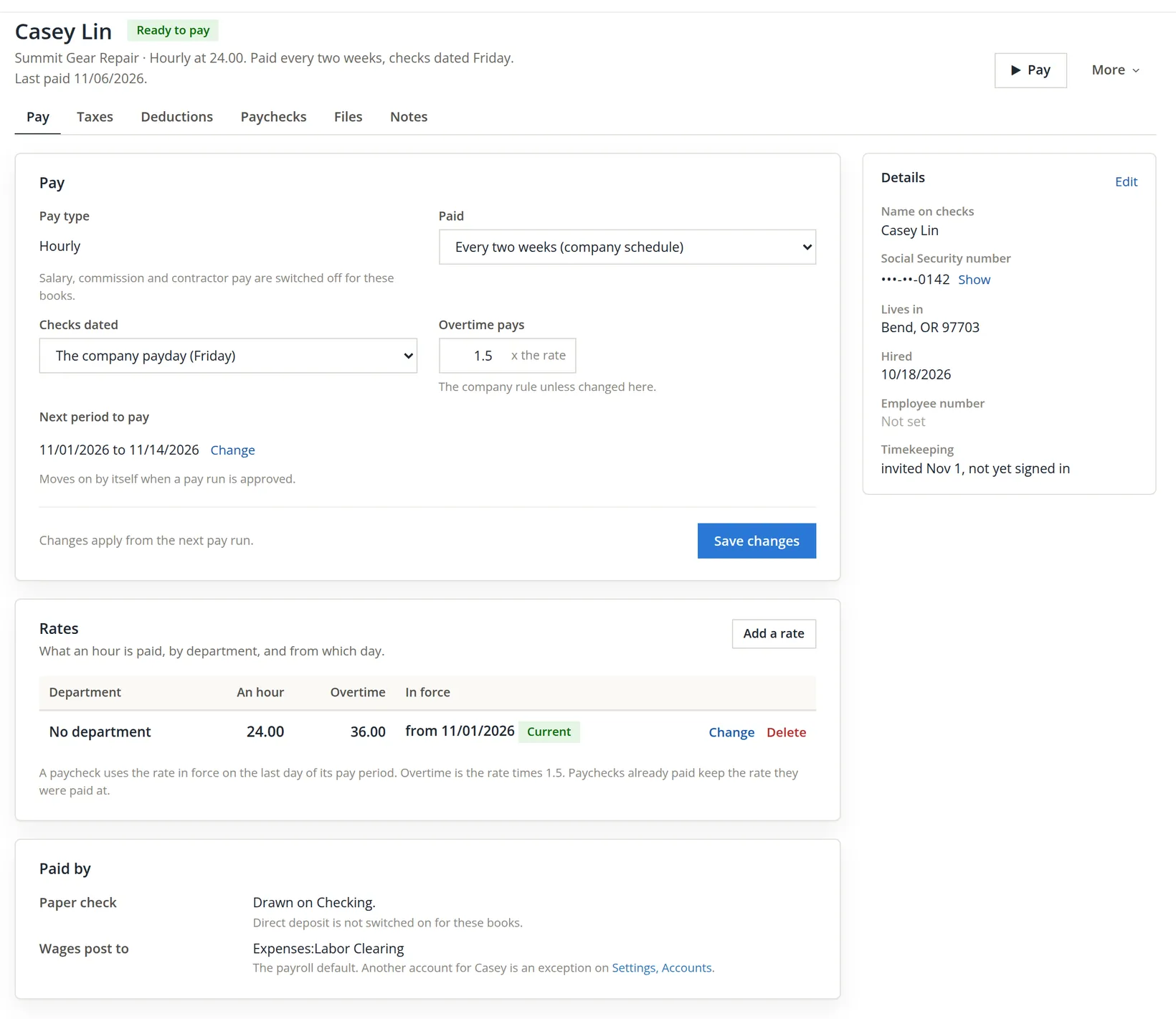
Add employee starts the hourly rate on the first day of the period chosen there, here 11/01/2026, not on the hire date. When you move the next period earlier, the rate does not move with it, and a paycheck for October 18 to 31 finds no rate in force on October 31.
- 7
Start the rate on the hire date
The cure is on the same page. In the Rates card press Add a rate, type 24.00 in New rate and replace the date already in From (the start of the next period to pay) with 10/18/2026. From takes any day, also one before the rates on record, and the dialog says in a sentence what will happen before anything is saved. Note is optional. Press Save the new rate.
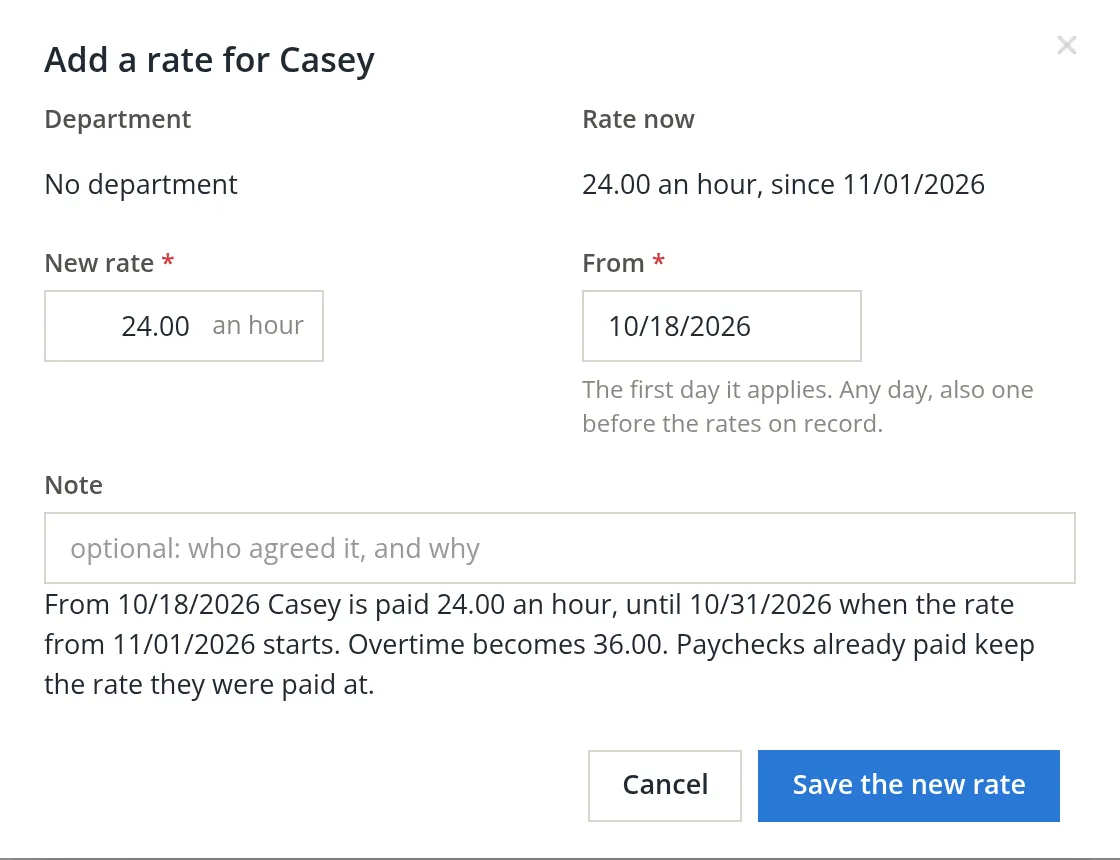
We pressed Cancel instead, on purpose: Chapter 11.2 shows the pay run catching the missing rate and how the first paycheck is paid anyway. A rate on record is corrected with Change or removed with Delete. Change asks Why it is changed and Delete asks Why it is deleted; the old rate stays listed with who changed it, when and why, and paychecks already paid keep the rate they were paid at.6
The two questions only the business can answer
With Casey on payroll the checklist was down to the tax lines. The standard rates are loaded by BizBooks360 from the agencies' publications; these two figures are the company's own.
- 1
Enter the state unemployment rate
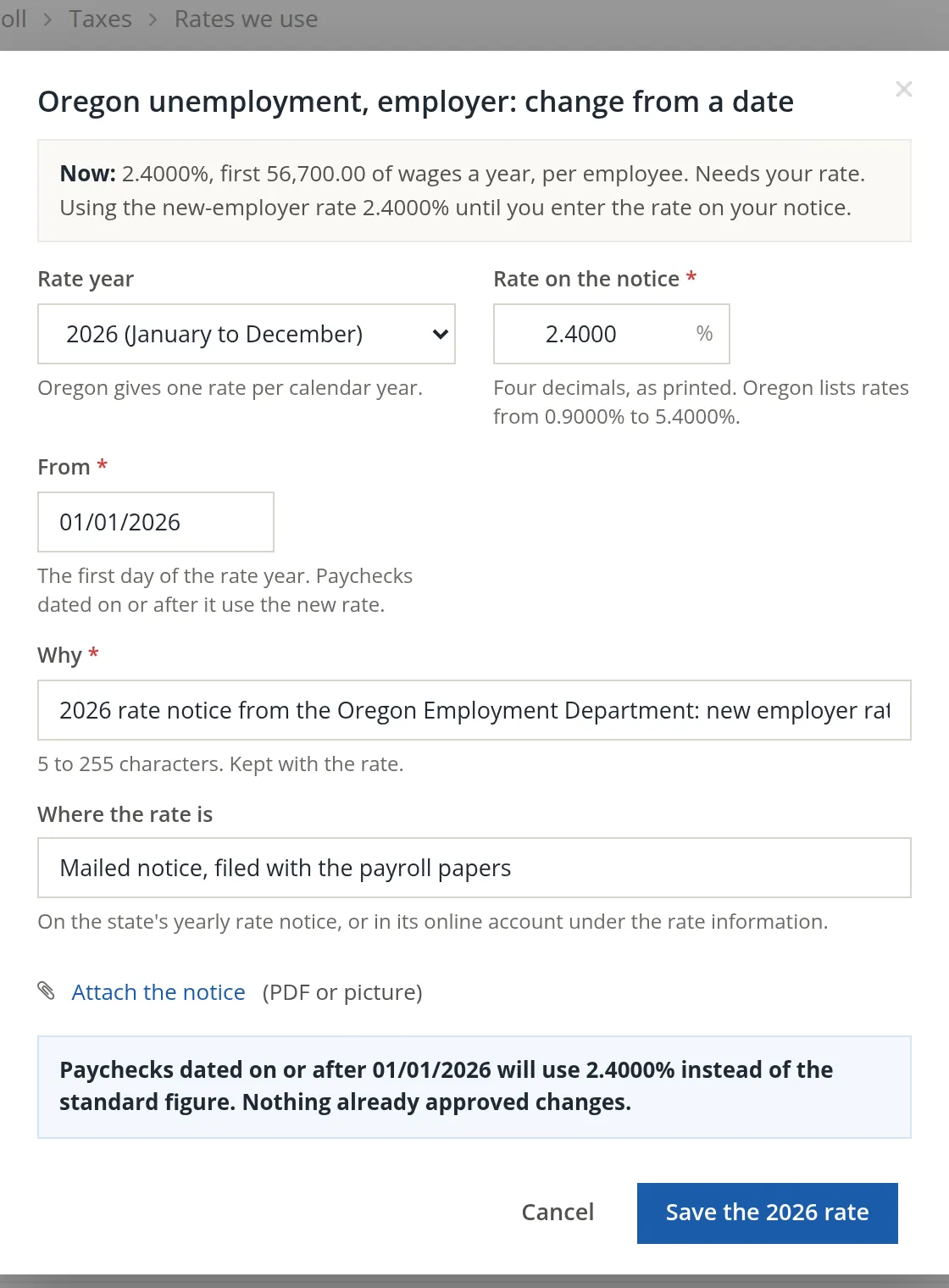
Each state tells each employer its unemployment rate once a year. Until you enter it, paychecks use the state's new-employer rate. On Payroll → Taxes → Rates we use, press Enter your rate. Choose the rate year, type the rate exactly as printed, give the first day and a reason, and press Save the 2026 rate. A new Oregon employer pays the new-employer rate in its first year, so the notice says 2.4000%, and the line becomes Your rate since 01/01/2026.
- 2
Decide about local taxes
The local tax setup BizBooks360 offers covers Pennsylvania's earned income and local services taxes and the Philadelphia and Pittsburgh taxes. For an Oregon book the Taxes card on Payroll → Settings says so plainly: BizBooks360 works out no local taxes for Oregon, so there is nothing to set up. The Set up local taxes page says the same and shows no form. Bend levies no local payroll tax, and Oregon's statewide transit tax is already one of the state lines. To settle the question for good, untick Local taxes in that card and press Save. The card then reads Off since 11/01/2026 (Alex Morgan): no local tax setup or PSD code is asked for, and paychecks carry no local tax.7
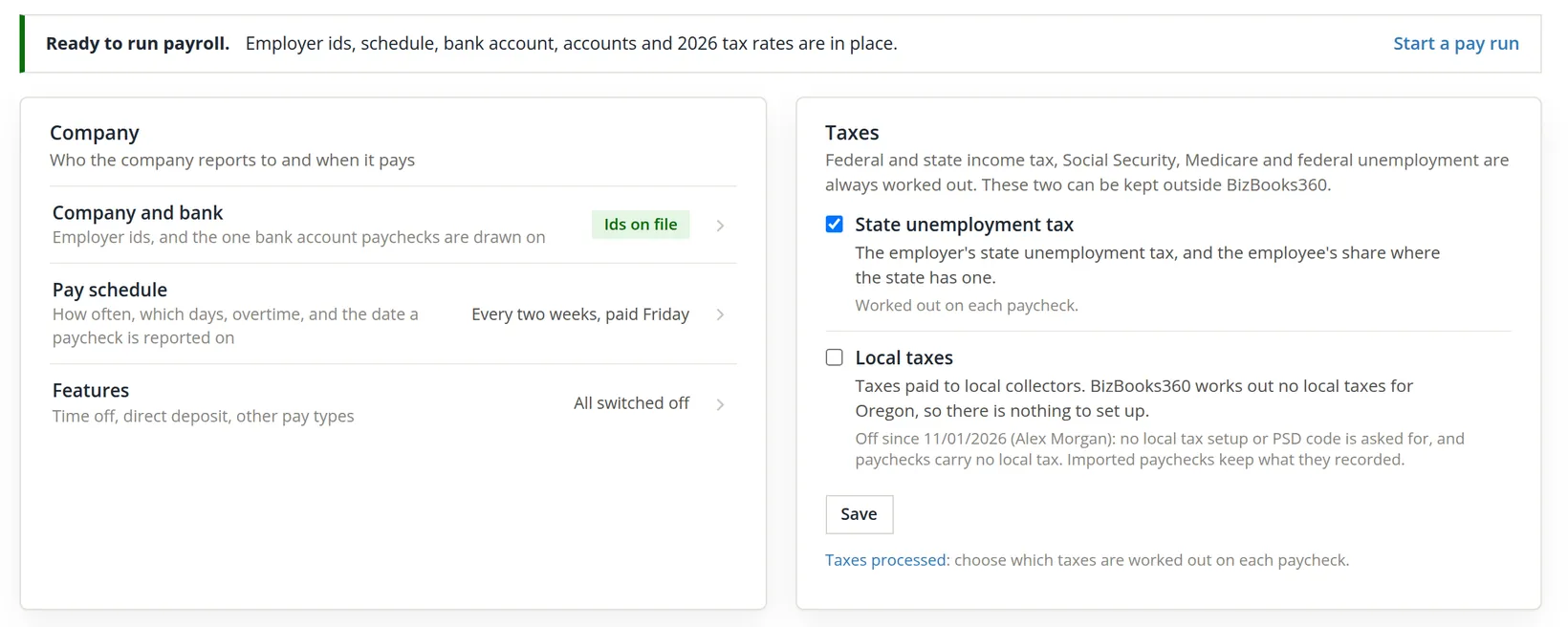
With both answered, the overview stops showing a checklist and shows the working dashboard instead: Pay run due 10/18 - 10/31, Casey Lin, hours not entered, run day Wed 11/04, with a Start pay run button. One note remains under Needs attention: nobody has confirmed the 2026 figures yet. Chapter 11.3 does that.
Both the rate dialog and the W-4 form accept an attachment. File the state's rate notice and the signed W-4 there. An auditor who asks why a rate or a withholding figure was used will find the source beside it.
Before the first pay run
- [x] EIN on Settings, Company; federal accounts registered; one withholding and one unemployment account for each state people work in.
- [x] Payroll bank account chosen.
- [x] Pay schedule matches the timesheet periods; the first proposed run checked against the calendar.
- [x] Five accounts chosen; wages to the labor clearing account when Timekeeping posts labor.
- [x] Next check number set; paper type matches the printer.
- [x] Each employee: real SSN, hire date, home address, W-4; next period to pay is the first unpaid period; a rate in force on the last day of that period (Add a rate from the hire date if needed).
- [x] State unemployment rate entered from the notice; local taxes answered.
Check your understanding
1. Why did the checklist name Pennsylvania for a shop in Oregon?
Answer
Nobody was on payroll yet, so payroll did not know where people work, and at the time it fell back to Pennsylvania. Once Casey, who works in Oregon, was added, the lines spoke of Oregon. Today the checklist falls back to the company's address instead, so an Oregon book reads Oregon from the start.
2. With checks dated the Friday after the period ends, in which quarter is Casey's October 18 to 31 work reported?
Answer
The fourth quarter. The check is dated Friday, November 6, and the paycheck counts on its check date.
3. Why do Summit Gear Repair's wages post to Labor Clearing rather than Shop Labor?
Answer
The Timekeeping labor posting already put the labor cost in Shop Labor and credited Labor Clearing. Payroll debits clearing with the real wages, so the two meet and the clearing balance shows any difference.
4. A new hire gives you a number starting with 9. What do you do?
Answer
It is an ITIN, not a Social Security number, and payroll refuses it. Ask the employee for their Social Security card, or for proof they have applied for a number.
5. What does federal withholding use until an employee hands in a W-4?
Answer
Single with no adjustments, as the app says on the employee's page.
Notes
- The pictures come from Summit Gear Repair, the practice books the demonstration user owns, because the timesheets of Volume 12 live there and the first paycheck pays them. All names, numbers and figures are made up. Nothing in this chapter is tax or legal advice; ask your accountant which accounts and rates apply to your business. ↑
- For these practice books the module was switched on by the BizBooks360 team, as it is for a customer. A user who opens a payroll address while payroll is off sees a page-not-found answer. ↑
- After Casey was added, the checklist's employer-ids line read Oregon withholding account and Oregon unemployment account are missing, and Company and bank showed Oregon's two accounts in place of Pennsylvania's. Since November 2026 the checklist names the books' own state from the start; the picture of the empty checklist could not be taken again, because Summit Gear Repair now has someone on payroll. ↑
- The page also offers the last day of the pay period, or the day of the pay run, as the basis, and says a change can start only on the first day of a quarter. ↑
- The Social Security number in the later pictures is invented as well; the app shows only its last four digits, 0142. ↑
- Since November 2026 the Rates card takes a rate from any day, and Change and Delete ask for a reason. Before, a rate could not start earlier than the one on record. ↑
- Switching local taxes off asked no confirmation. If your people work in a Pennsylvania town, leave it on and use Set up local taxes instead. ↑