
Chapter 12.2
Approving time and month-end
The manager's side of Timekeeping: entering time for someone who cannot, submitting it on their behalf, approving timesheets from the Review queue, the rule that nobody approves their own time, and the month-end labor posting that turns approved hours into a journal entry.
When you finish this chapter you will be able to:
- Explain segregation of duties and why the approver must be someone other than the worker.
- Open another person's time, enter it with a reason, and submit it on their behalf.
- Read the Review queue and approve a timesheet with the approver statement.
- Decide when the sole-approver exception is appropriate, and switch it on.
- Choose a labor cost method, set the labor accounts and cost rates, and post a month's labor.
- Say what locks a period and what that means for later changes.
Two people, every time
A timesheet is approved by someone who did not write it. Accountants call this segregation of duties: when one person records a transaction and another checks it, an error or a padded figure needs two people to slip through instead of one. BizBooks360 holds to it without exception for ordinary members: You cannot approve your own timesheet.
Who approves depends on Settings → Timekeeping → Rules and certification → Approvals for each timesheet:
| Setting | Tier 1 | Tier 2 | Tier 3 |
|---|---|---|---|
| One: the manager | The person's manager | - | - |
| Two | The manager | The charge code's approver | - |
| Three | The manager | The charge code's approver | A final reviewer |
Each tier must be a different person. A member whose permissions include Timesheet Review for everyone may also approve where nobody is named. Summit Gear Repair uses one tier, so Casey's timesheets go to Alex, Casey's manager.
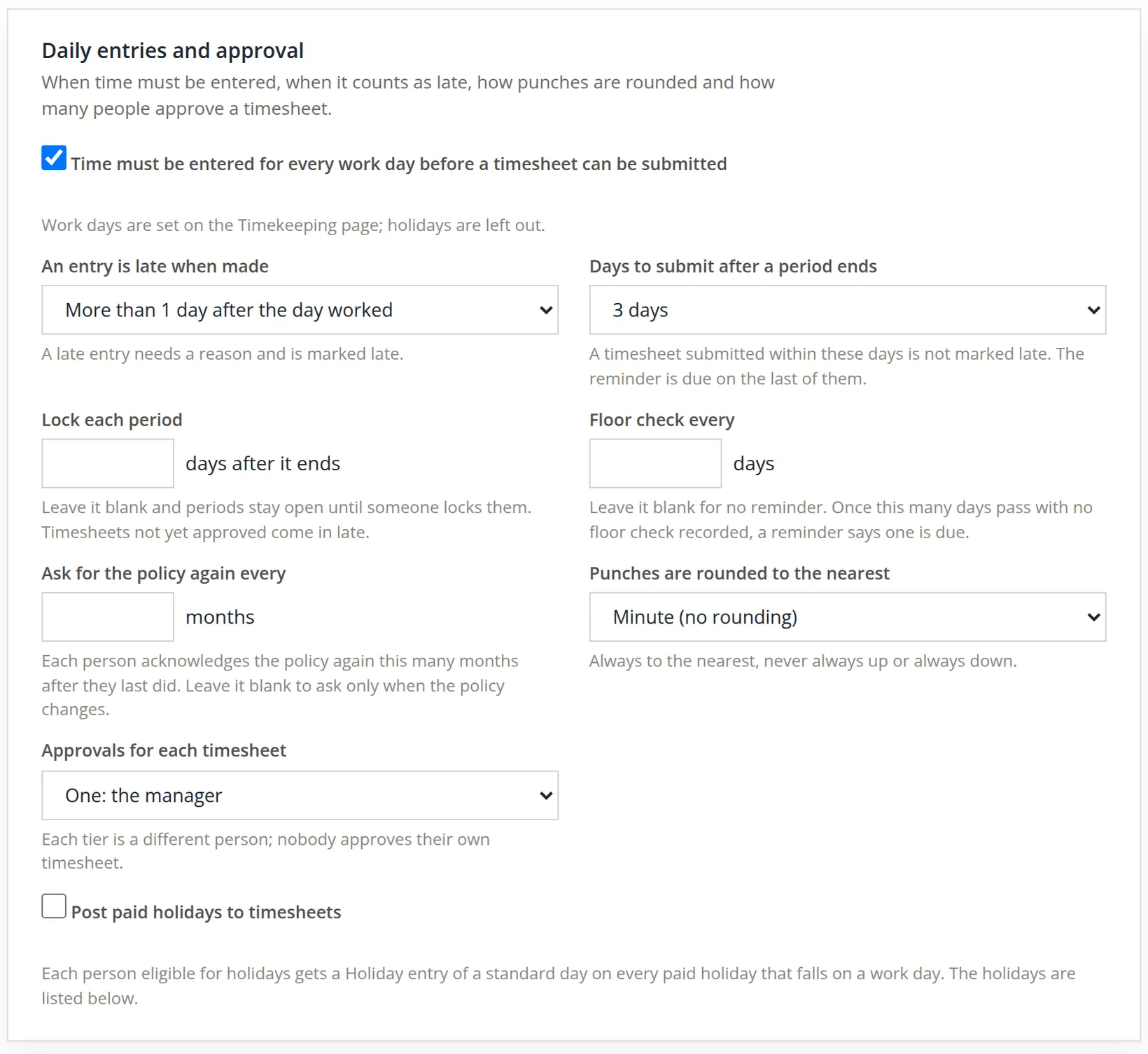
Three of the fields on that card are reminders and deadlines a manager should know about, and Summit Gear Repair leaves all three blank:
- Lock each period N days after it ends locks every period automatically. Leave it blank and periods stay open until someone locks them. Timesheets not yet approved come in late. Section 4 shows what a lock means.
- Floor check every N days: once that many days pass with no floor check recorded, a reminder says one is due (the Floor Check report, Chapter 12.4).
- Ask for the policy again every N months: each person acknowledges the timekeeping policy again that many months after they last did. Blank means they are asked only when the policy changes.
Where the books run under government contract controls, the lock and the floor check cannot be left open-ended: the page then says, for example, a period locks 10 days unless you set fewer.
Enter time for someone who cannot
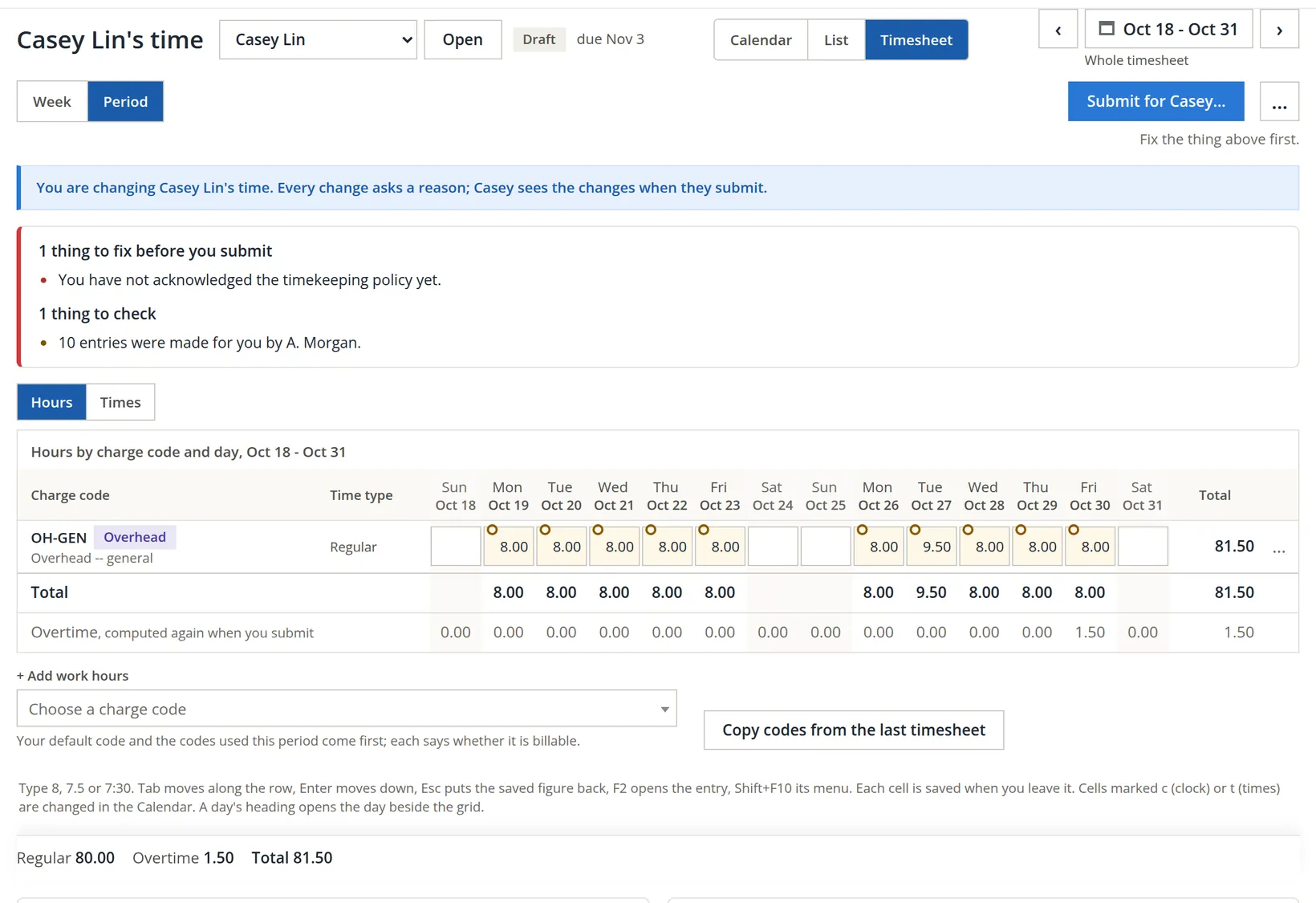
The task. Casey was invited in Chapter 12.1 but has not signed in yet. Casey filled in paper time cards for the period: eight hours a day, except Tuesday, October 27, when a rush repair kept them for nine and a half. Alex, as Casey's manager, will type the cards in.
- 1
Open Casey's time
My Time, then in Whose time pick Casey Lin and press Open. A blue band says whose time it is and that every change asks a reason.
- 2
Type each day, with a reason
The reason box opens for every cell, with Manager correction already chosen. Alex wrote "Casey's paper time card for Oct 19; Casey has no login yet, entered by their manager." and so on for each day. A manager's reason follows the same rule as the employee's: at least 10 characters in their own words (Chapter 12.1).
- 3
Look at the whole period
Press Period. The books worked out the overtime themselves: the second week holds 41.5 hours, and the 1.5 hours over 40 are moved to overtime on the last day worked.2
- 4
Submit for Casey
Casey cannot submit, so Alex used Submit for Casey Lin from the timesheet's review page. The dialog asks Why Casey cannot submit it; Casey reads this after the word "because" when they acknowledge. Alex wrote "Casey's paper time cards for Oct 19-30; Casey has not signed in yet." The answer: Submitted for Casey Lin. Casey will be asked to acknowledge it.
The policy says only the employee records their own time. Entering it for them is for absence or, as here, a person not yet set up. Every such entry is flagged on behalf in the queue and in the reports, and the timesheet waits for the person's acknowledgement. Casey's own policy acknowledgement is also still owed: it is asked when Casey first signs in.
The Review queue
Timekeeping → Review lists every timesheet of a period that you may see, with its status, hours, timeliness and flags. Use the arrows or Today to change period. This is how the queue looked just before Casey's submission:
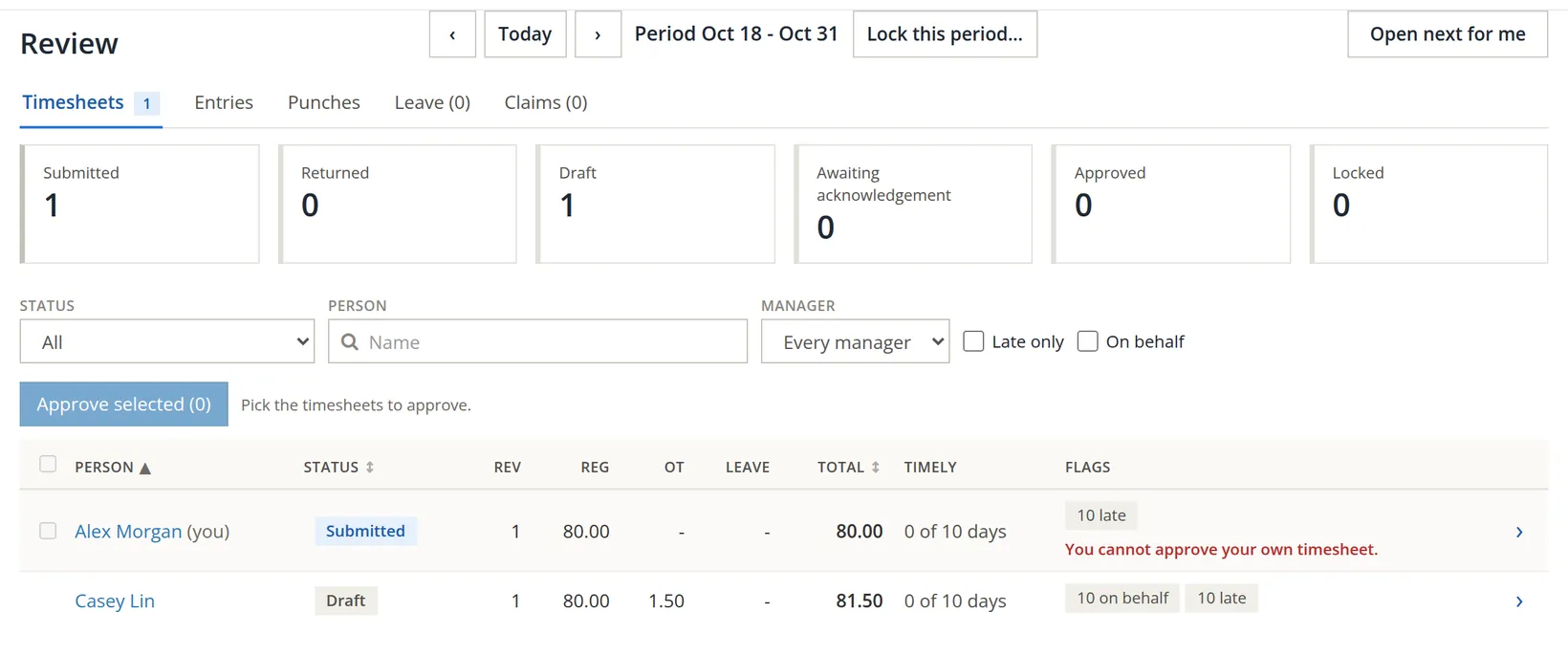
Pressing a row's arrow opens the timesheet's review page: a summary of what to decide, the hours read-only, the full change log, and the approver statement at the foot. Open next for me jumps to the next timesheet that waits for you.
The owner's own timesheet
Alex opened their own submitted timesheet. The review page shows everything a reviewer needs and, at the foot, refuses:
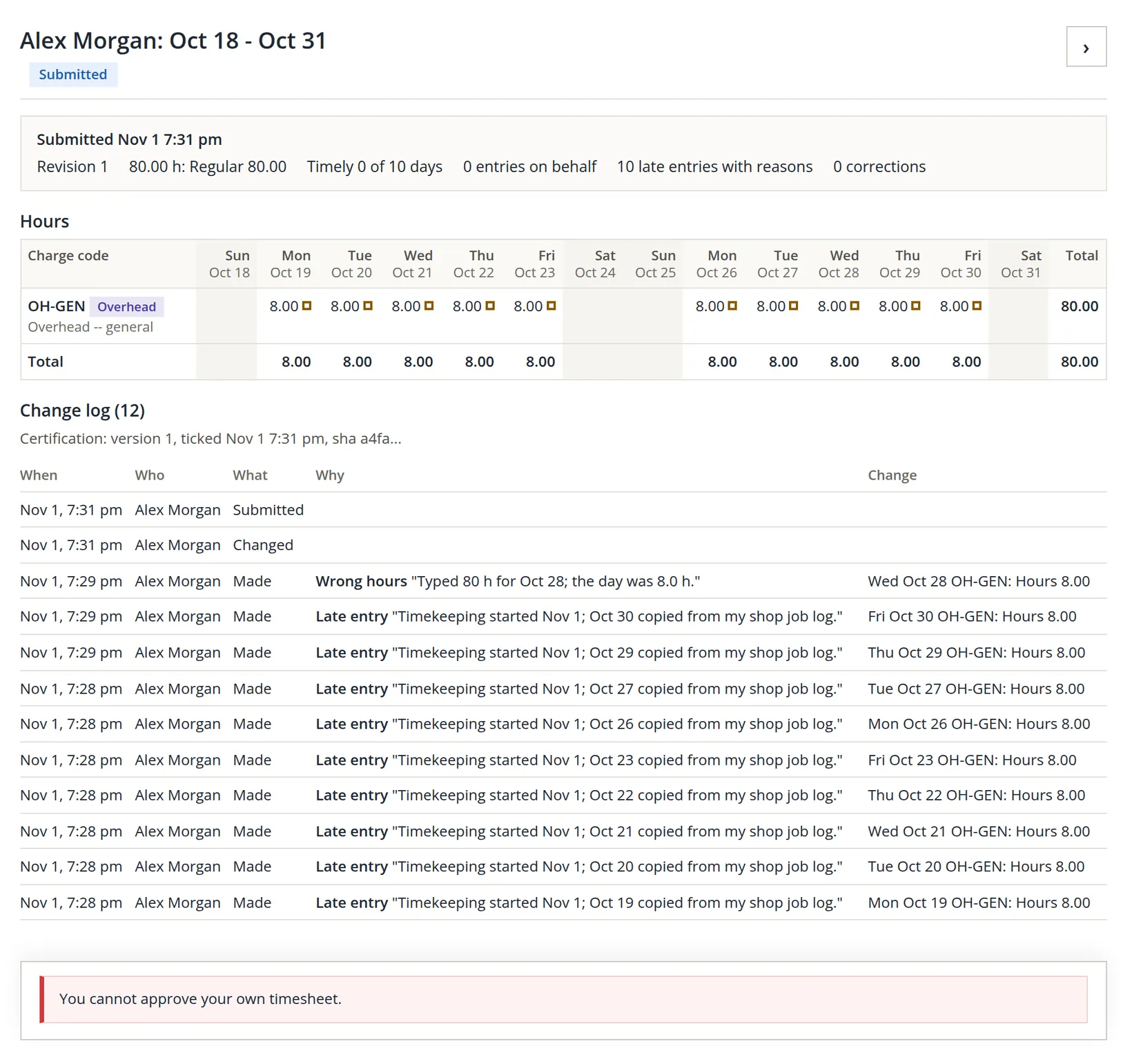
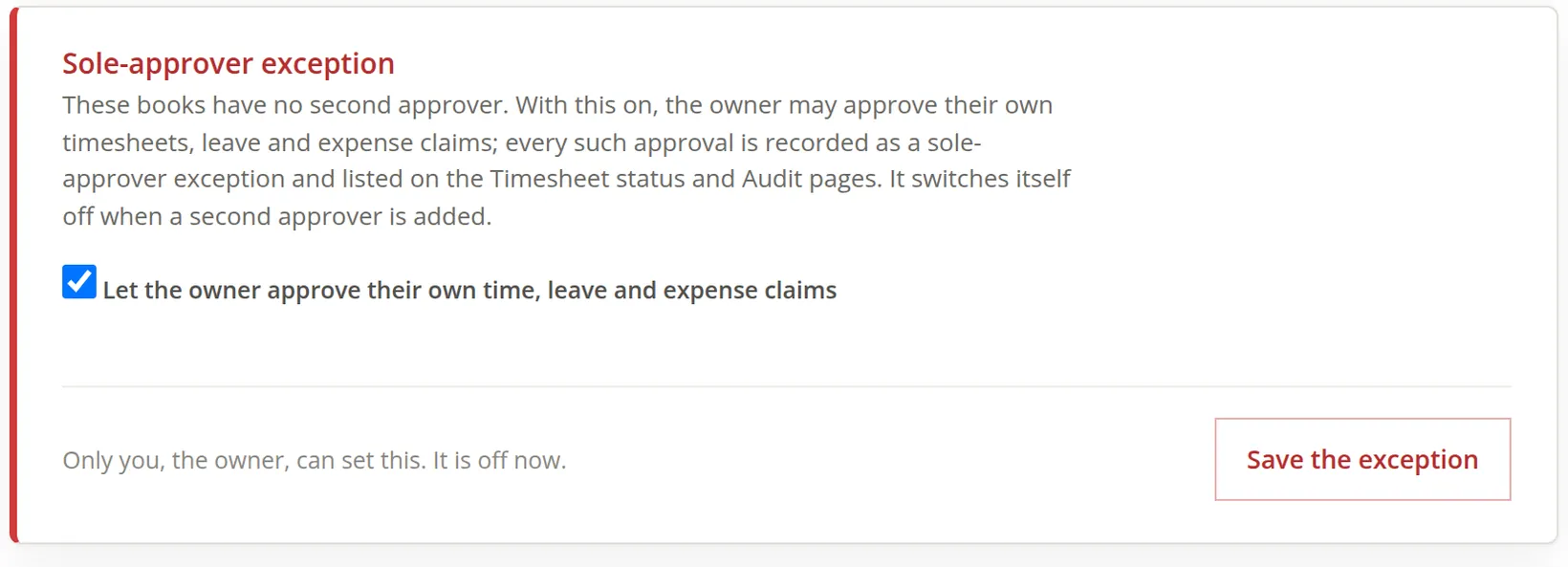
Alex has nobody above them. For a one-person office the books provide a narrow way out: the sole-approver exception. Only the owner can switch it on, it applies only to the owner's own timesheets, leave and expense claims, and every approval made under it is labeled and listed on the Timesheet Status report and the Audit pages.
- 1
Switch on the exception
Settings → Timekeeping → Rules and certification, the Sole-approver exception card. Tick the box and press Save the exception.
- 2
Approve with the statement
Back on the review page, read the approver statement, tick I have reviewed this timesheet and certify the statement above, and press Approve. Under the exception the foot adds a line saying the approval is recorded as a sole-approver exception.
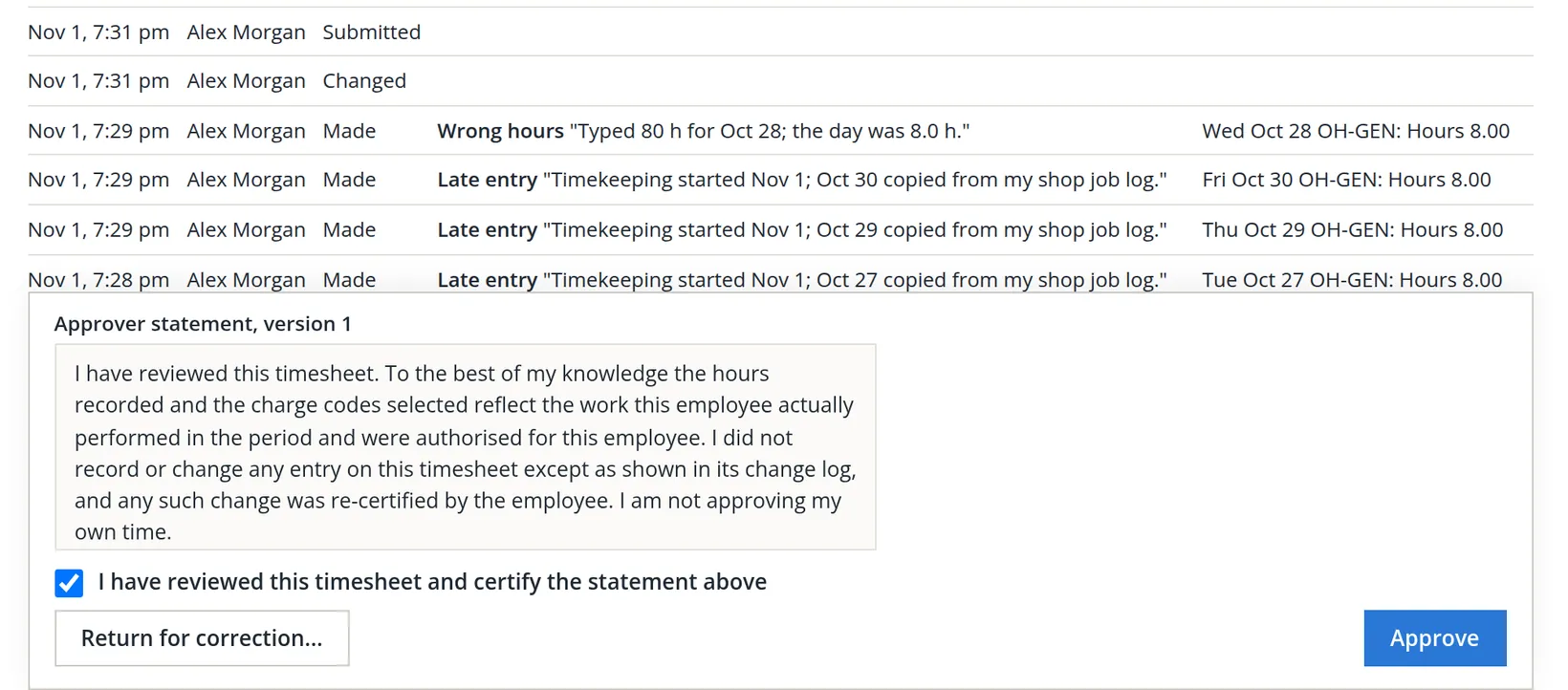
The exception is honest, but an auditor reads every one. If anyone else in the business can review time (a bookkeeper, a partner, an outside accountant), give them Timesheet Review permission (Chapter 15.7) and name them the owner's manager under Timekeeping people. The exception then switches itself off.
Approve an employee's timesheet
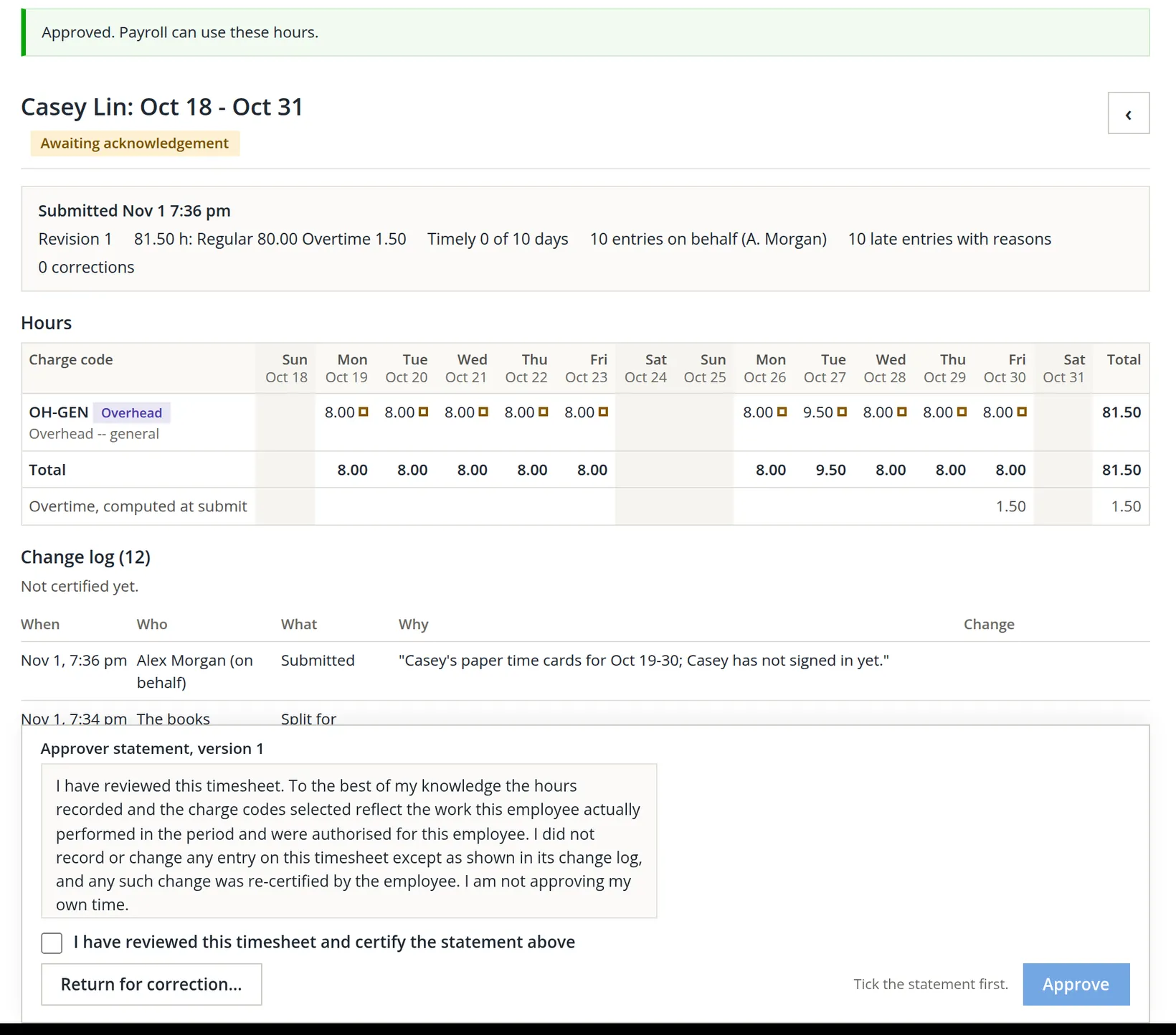
After approving, the page moves on to the next timesheet in the queue: Casey's. The green line at the top belongs to the approval just made; the chip shows Casey's own state.
- 1
Check, tick, approve
Alex compared the grid with Casey's paper cards (81.5 hours), ticked the statement and pressed Approve. As Casey's manager this is an ordinary tier-1 approval, not an exception. The page returned to the queue with Approved. Payroll can use these hours.
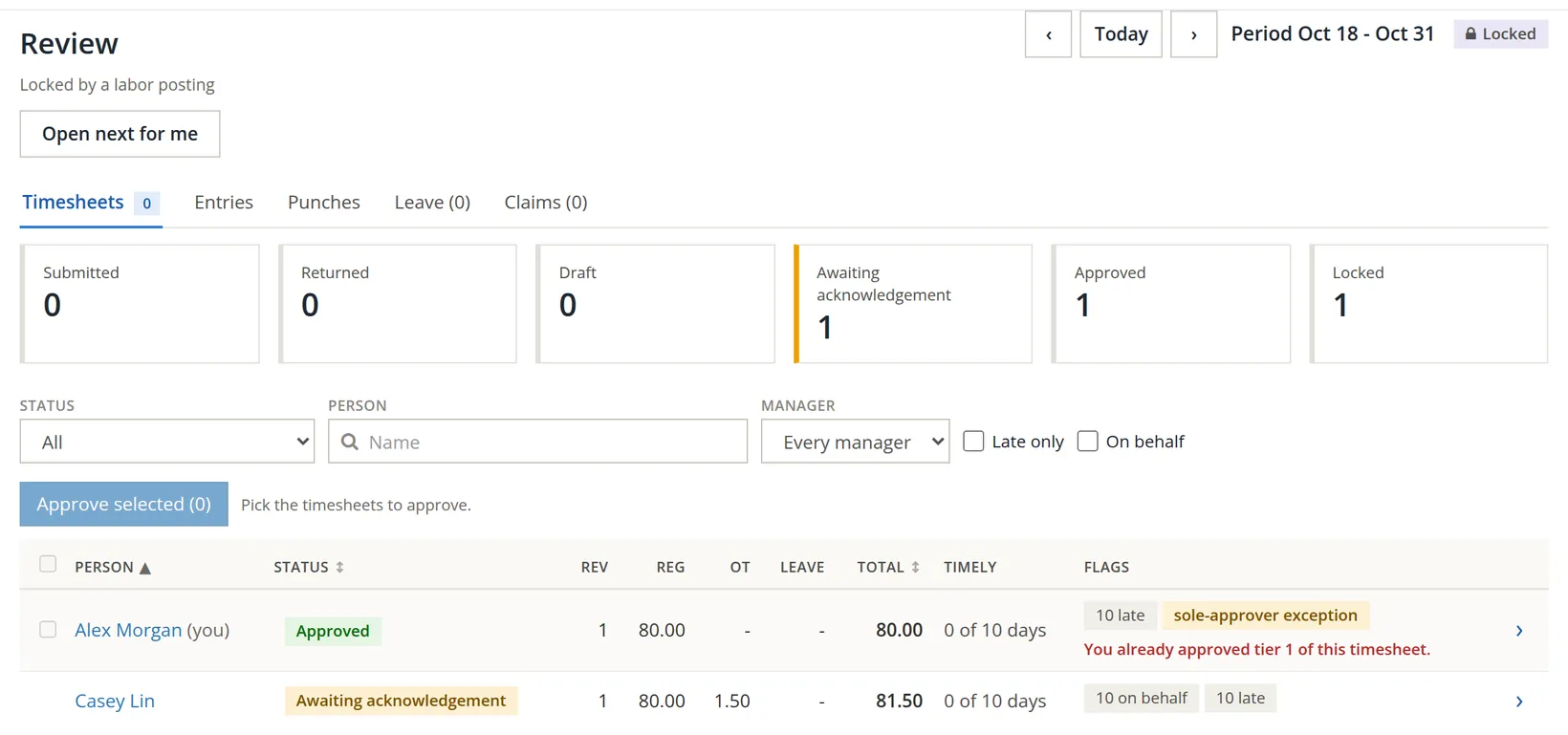
After the second approval Casey's row still reads Awaiting acknowledgement, and the counts stay at Approved 1 and Awaiting acknowledgement 1, as in the picture: Casey's timesheet is approved (the Timesheet Status report gives its approval date, Chapter 12.4) and still waits for Casey's acknowledgement. The approval is complete; the acknowledgement is Casey's confirmation that what was entered for them is right, and stays open until Casey signs in.3
Where government contract controls are on the acknowledgement is not a formality. A timesheet submitted for someone is held: its review page says Held: waiting for the employee to certify. Payroll and labor costing skip it until Casey acknowledges it. If the person truly cannot sign (they have left, or have no way to sign in), the owner of the books, and nobody else, may press Waive the acknowledgement... on that banner. The dialog asks Why the employee cannot acknowledge (Employee separated, No access to sign in or Other), a Reason of at least 20 characters and the day the waiver ends (Waive until); Waive and release to payroll sends every held timesheet of that person on, and the waiver is recorded in the audit trail. Summit Gear Repair does not use those controls, so Casey's approved timesheet is not held.4
An approved timesheet is not edited in place. A reviewer with edit rights uses Correct... on the Entries tab, which records signed adjustments on a new revision, or Reopen, which sends the timesheet back for the person's certification and approval again. Both ask a reason of at least 10 characters (20 for Other). Once labor has been posted, changes become adjustments in the current period.
Month-end: what an hour costs
Approved hours are a count. The general ledger needs dollars. Timekeeping → Labor costing turns approved hours into a journal entry, by class (direct, overhead, G&A and so on), project and person; by default one entry for each month. How an hour is priced is set once per fiscal year in Settings → Timekeeping → Accounting:
| Cost method | How an hour is priced | Needs |
|---|---|---|
| The wages actually paid | Each paycheck's straight-time wages are spread over the approved hours of its pay period. | Paychecks from the Payroll module (Volume 11). |
| Standard rates | Every approved hour at the person's standard cost rate, against Accrued labor; payroll later closes the difference to Labor rate variance. | A cost rate on each paid person. |
When Alex set this up on November 1, Summit Gear Repair did not yet run payroll in BizBooks360 (Volume 11 switches it on and pays Casey afterwards), so there were no paychecks to spread; under the first method the page would have had nothing to post. Alex chose Standard rates, which costs the hours now and lets payroll settle the difference later. The last procedure of this chapter shows that difference arriving.5
How often to post. Under standard rates the same Accounting page adds Post labor cost: Once a month (the default, which Summit Gear Repair keeps) or Each pay period, before the month ends. Under standard rates the hours can be posted as each pay period is approved; the batches still belong to their month. Under the wages-actually-paid method the choice is not shown and labor posts once a month (Posting by period is for the standard method.). The procedures below use the default: one Post October 2026 for the month, and one true-up when payroll has paid it.
Set the rates and the accounts
- 1
Mark the owner as unpaid for hours
Alex owns a sole proprietorship and takes draws, not wages. On Alex's own person page (Timekeeping people → Alex Morgan) Alex cleared Paid for their hours: Off for an unpaid owner or a volunteer: hours only, never dollars. Alex's 80 hours stay on record but cost nothing.
- 2
Give each paid person a cost rate
On Casey's page, Cost rate an hour 24.00, then Save.
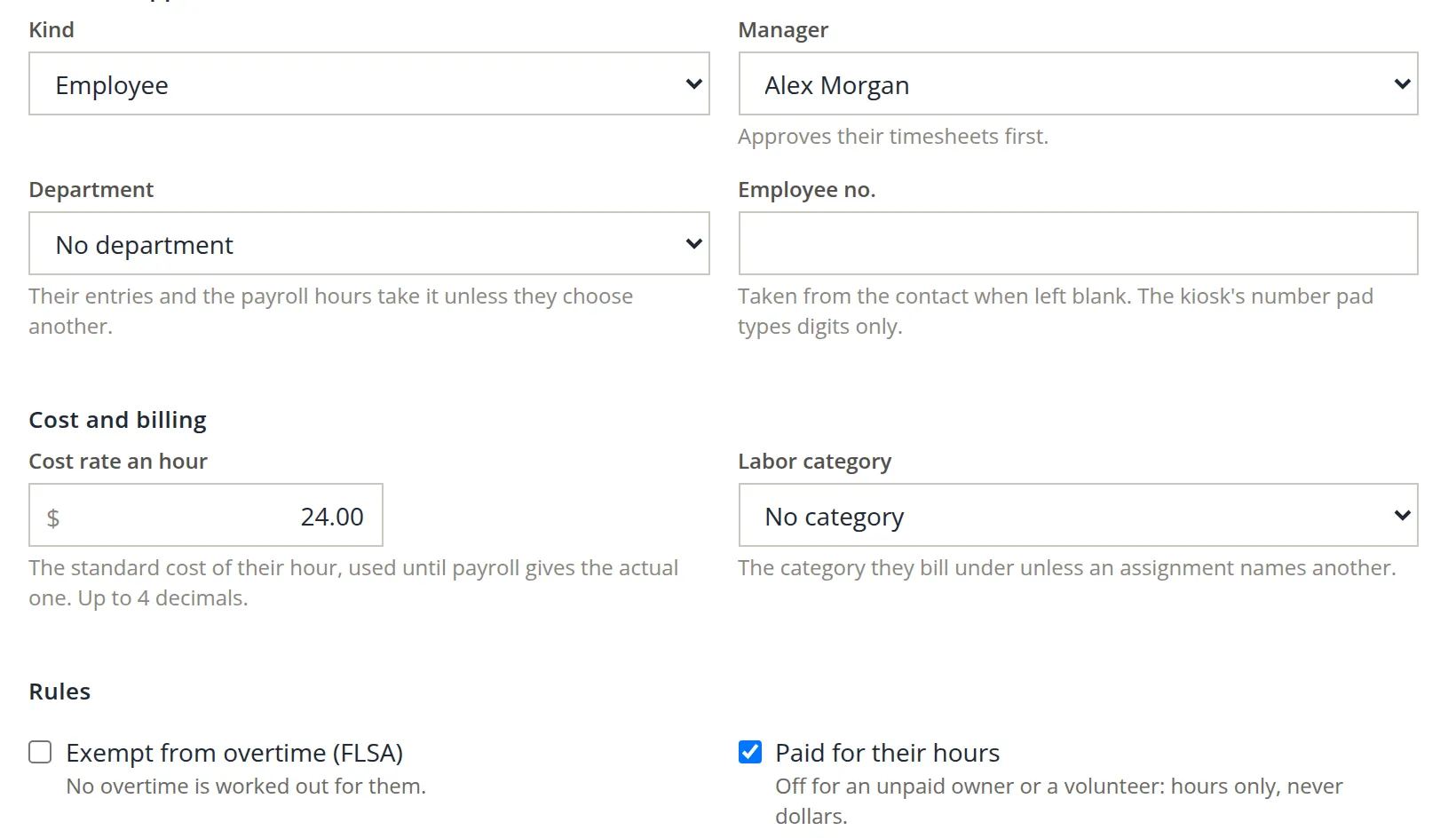
Changing a labor category. When a person moves to another category (from technician to senior technician, say), choosing it opens a Category from date: The first day worked under the new category. Hours before it keep the category they were worked under. Summit Gear Repair has no categories yet, so the field does not appear in these pictures.
Training. At the foot of the person page a Training card keeps the trainings the person attended on timekeeping and charging. Record training... asks the date, the topic, the trainer and a note; a record made in error is voided with a reason, never deleted. The records are evidence for an auditor and are listed on the Policy Acknowledgements report (Chapter 12.4).

- 3
Choose the method and the accounts
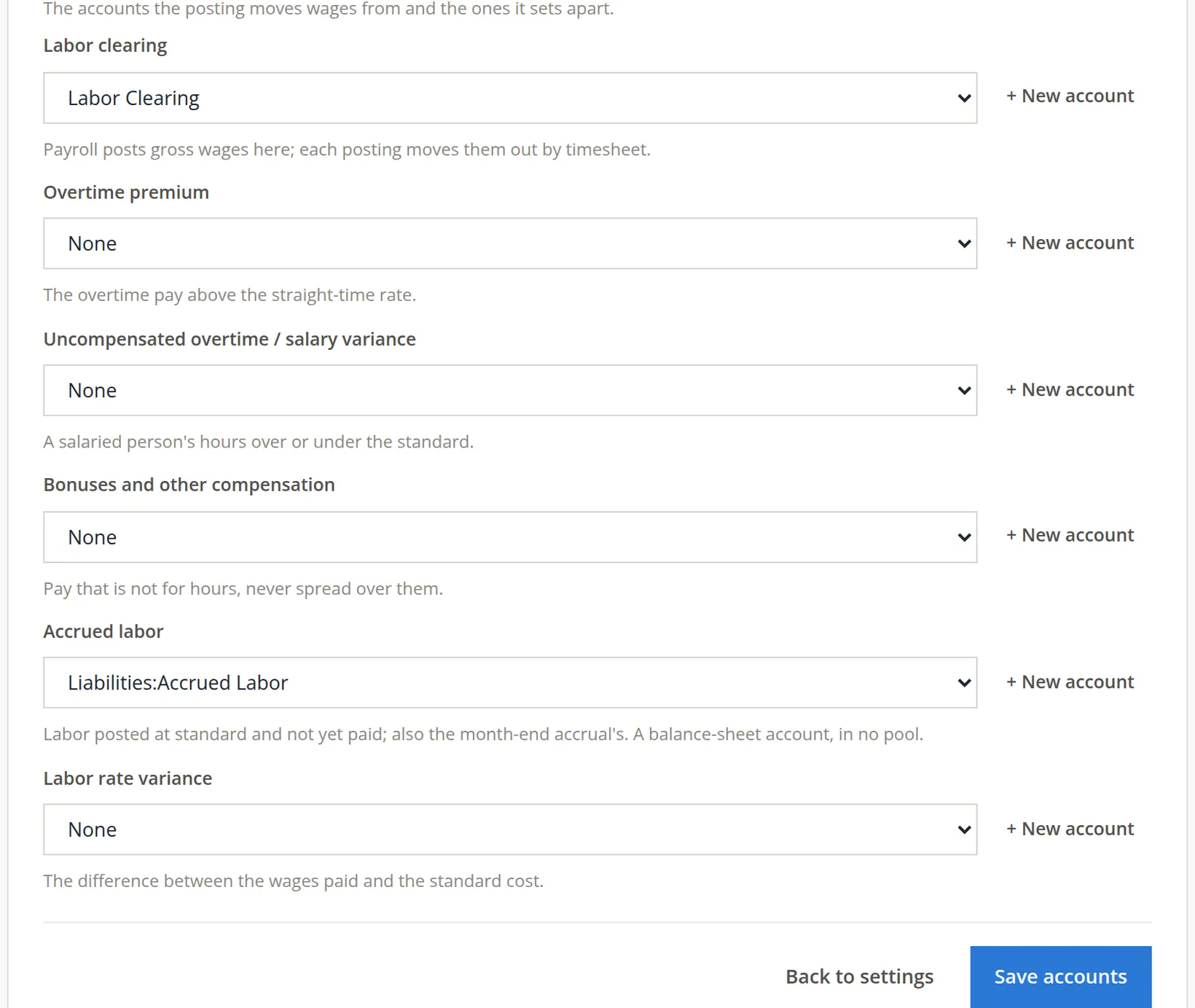
In Settings → Timekeeping → Accounting Alex chose Standard rates and pressed Change the method. Under Labor accounts, each picker has + New account, which opens the usual new-account dialog (Chapter 5.1). Alex made Shop Labor (an expense) for Overhead labor, because OH-GEN is an overhead code, and Accrued Labor (a liability) for Accrued labor, then pressed Save accounts.
The liability list in the new-account dialog starts with Long Term Debt, and that is what Accrued Labor was first saved as. Accrued wages are due within weeks, so Alex corrected the type to Other Current liability in the Chart of Accounts. A wrong type puts the balance in the wrong section of the Balance Sheet.
Post the month's labor
- 1
Open the month
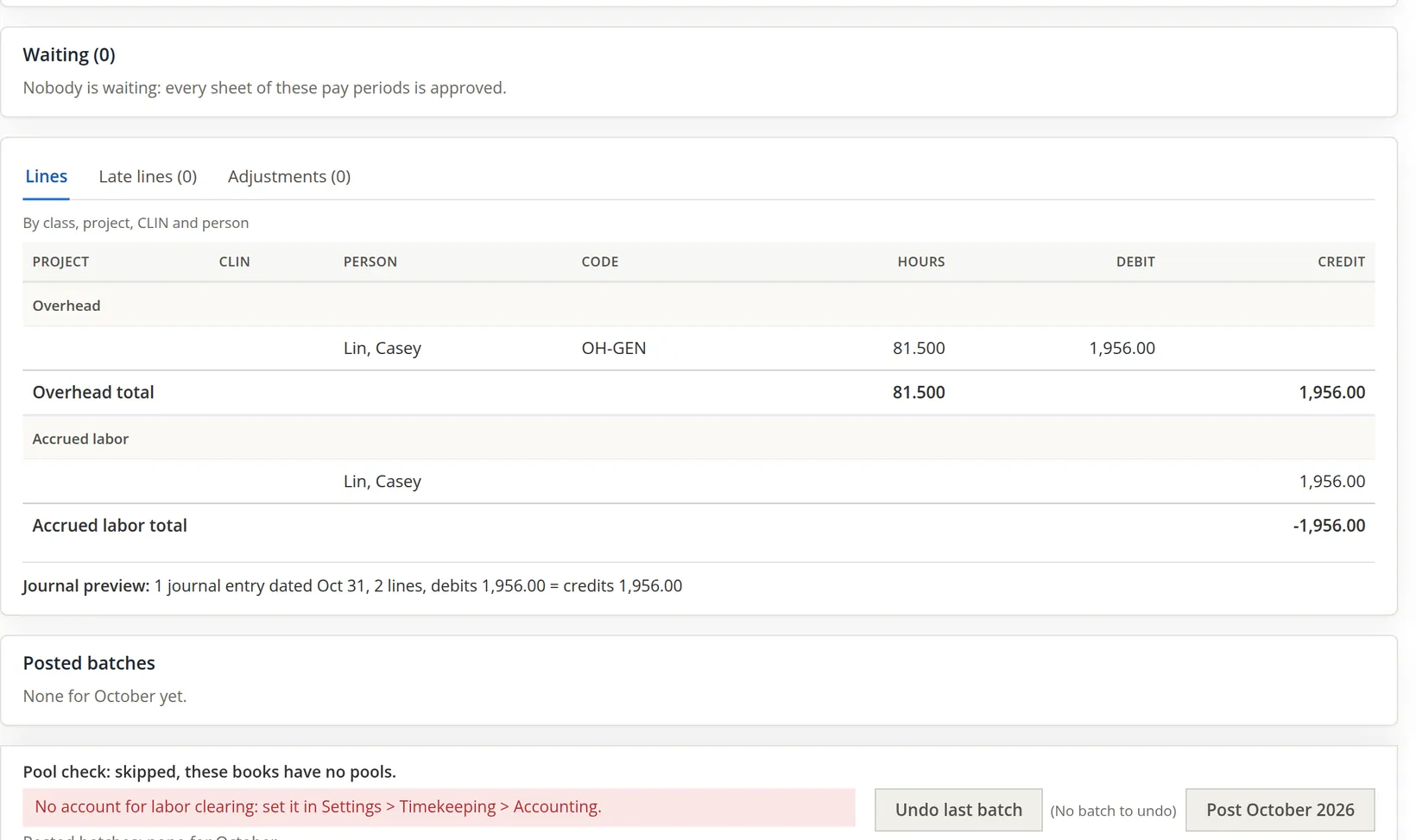
Timekeeping → Labor costing, Month Oct 2026, Show. Read it top to bottom: what payroll put into clearing, who is still waiting for approval, the lines the posting will make, and the journal preview.
 Timekeeping > Accounting, and the Post October 2026 button held back" loading="lazy">
Checking the figure. 81.5 hours × $24.00 = $1,956.00. Alex's 80 hours add nothing, because Alex is not paid for hours. The overtime hours are costed at the same standard rate; the premium for overtime has its own account (Overtime premium), left empty here.
The mistake caught. The post button did nothing: No account for labor clearing: set it in Settings > Timekeeping > Accounting. The books want the clearing account set even under standard rates, so that payroll can later close the difference against it.
- 2
Set the clearing account
Back in Accounting, Labor clearing → + New account: Labor Clearing. The picker for this line offers expense types. Save accounts.
- 3
Post
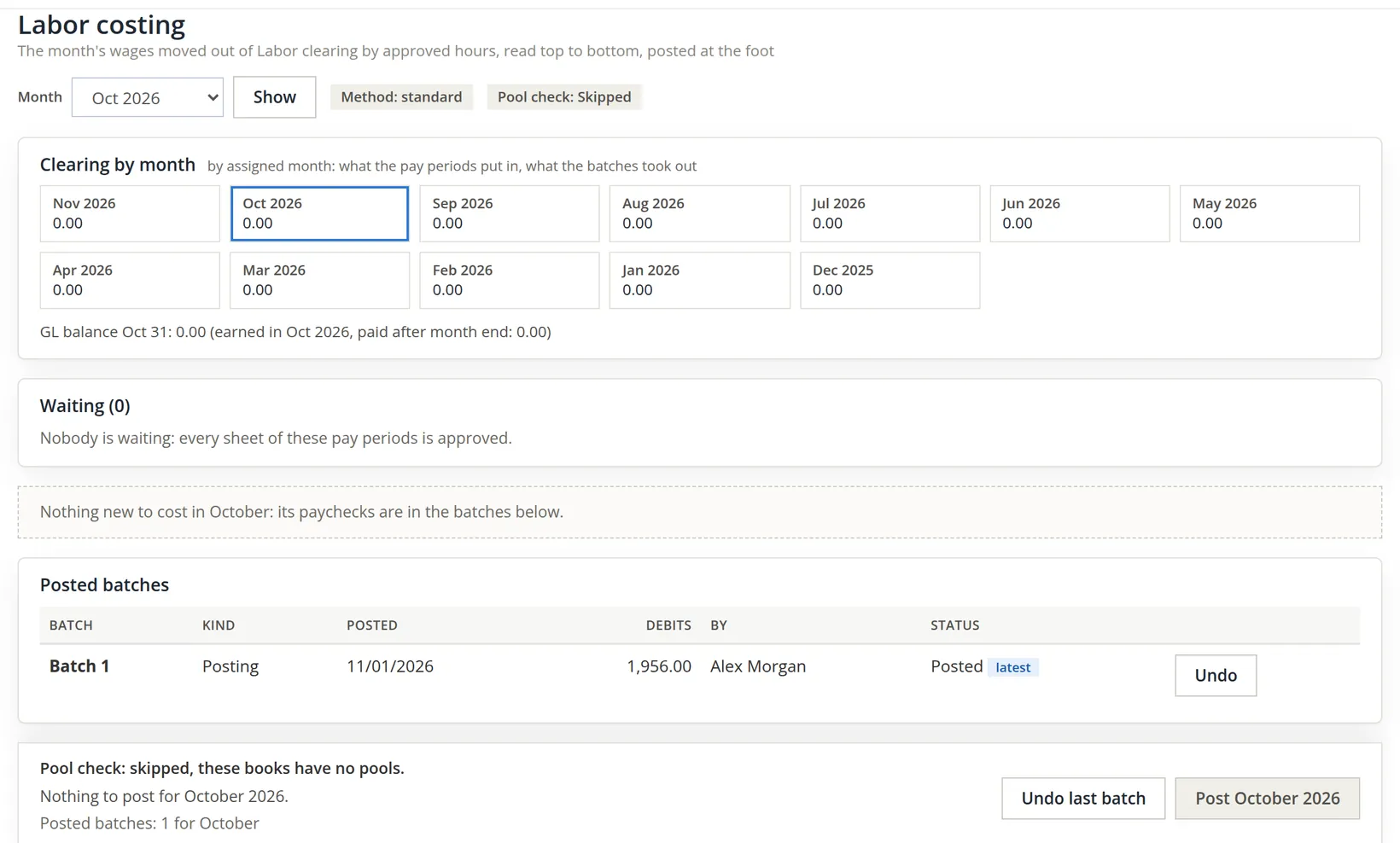
Return to Labor costing for October and press Post October 2026. The page reloads with the batch listed.
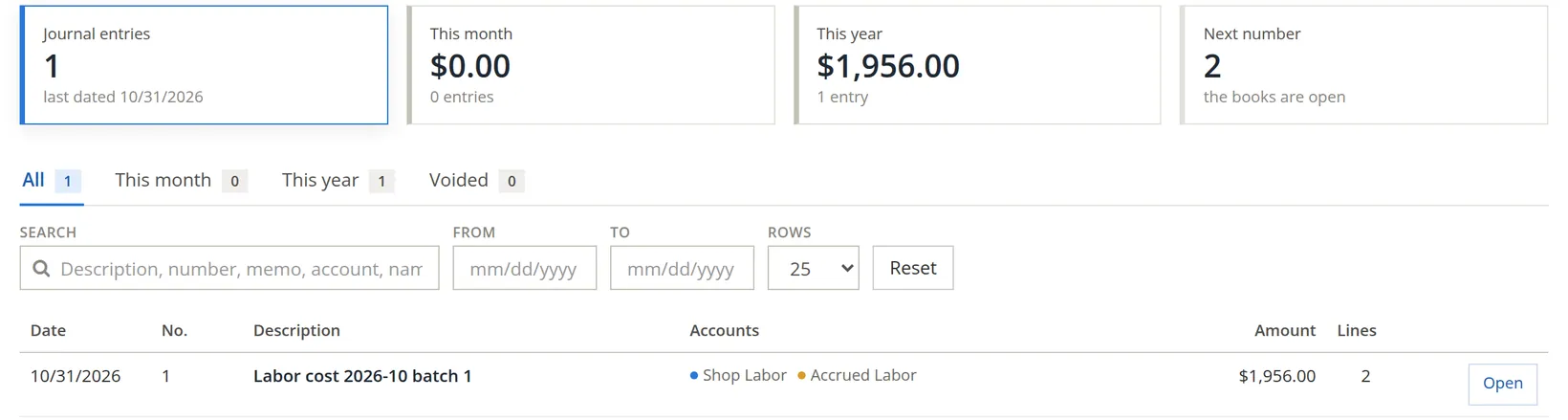
| Account | Debit | Credit |
|---|---|---|
| Expenses:Shop Labor (overhead labor) | 1,956.00 | |
| Liabilities:Accrued Labor | 1,956.00 |
Locked periods
Posting labor locked the period Oct 18 - Oct 31 at once. A manager can also lock a period by hand with Lock this period... on the Review page, giving a reason; a locked period can be unlocked the same way, also with a reason. If Lock each period is set in Rules and certification (Section 1), the books also lock each period that many days after it ends without anyone pressing a button.
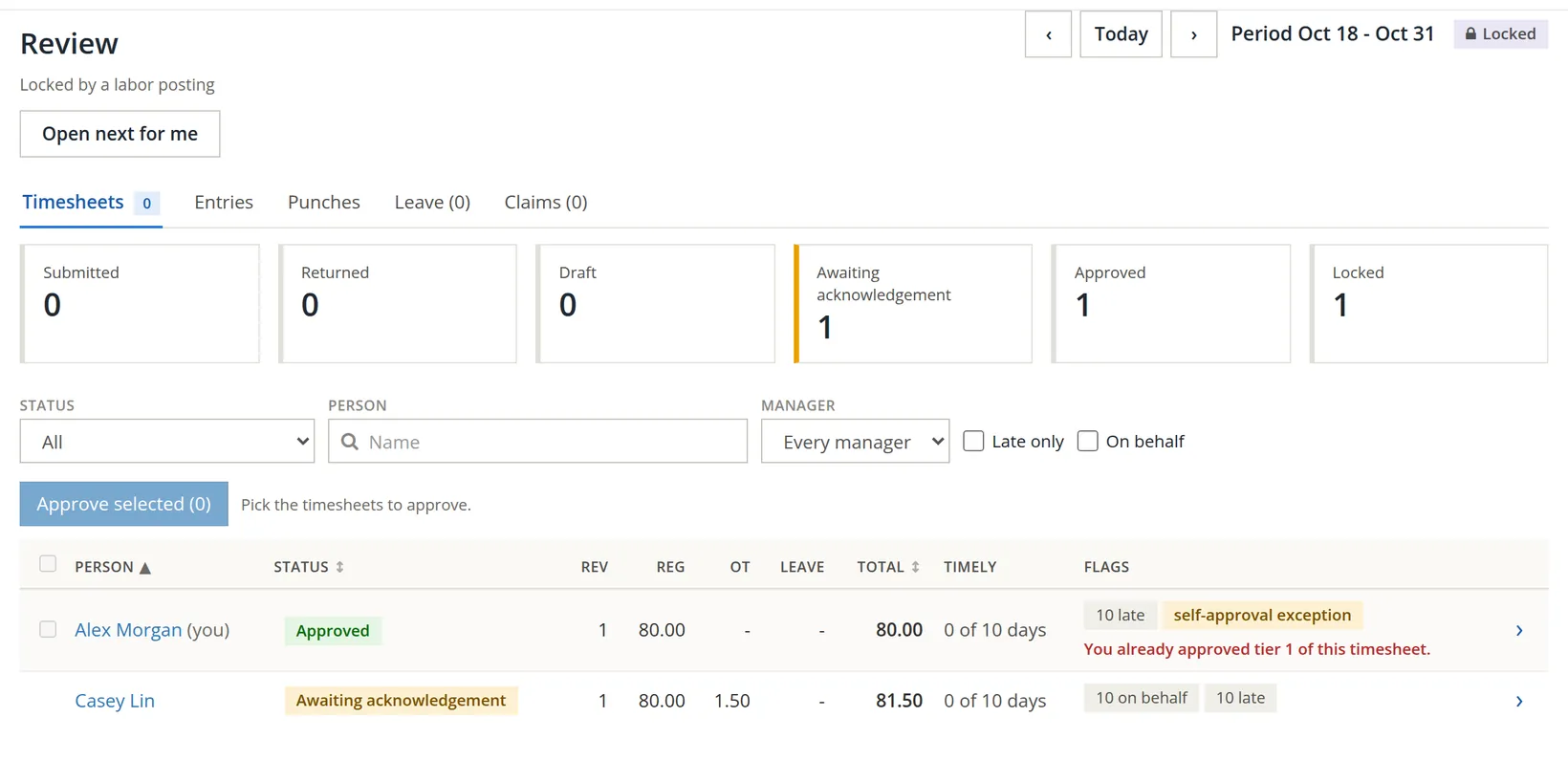
In a locked period nobody types into the timesheets. A later correction is recorded as an adjustment in the current period, so the posted October figures are never rewritten. If a posting itself was wrong, Undo last batch on Labor costing reverses it.
When payroll pays the month
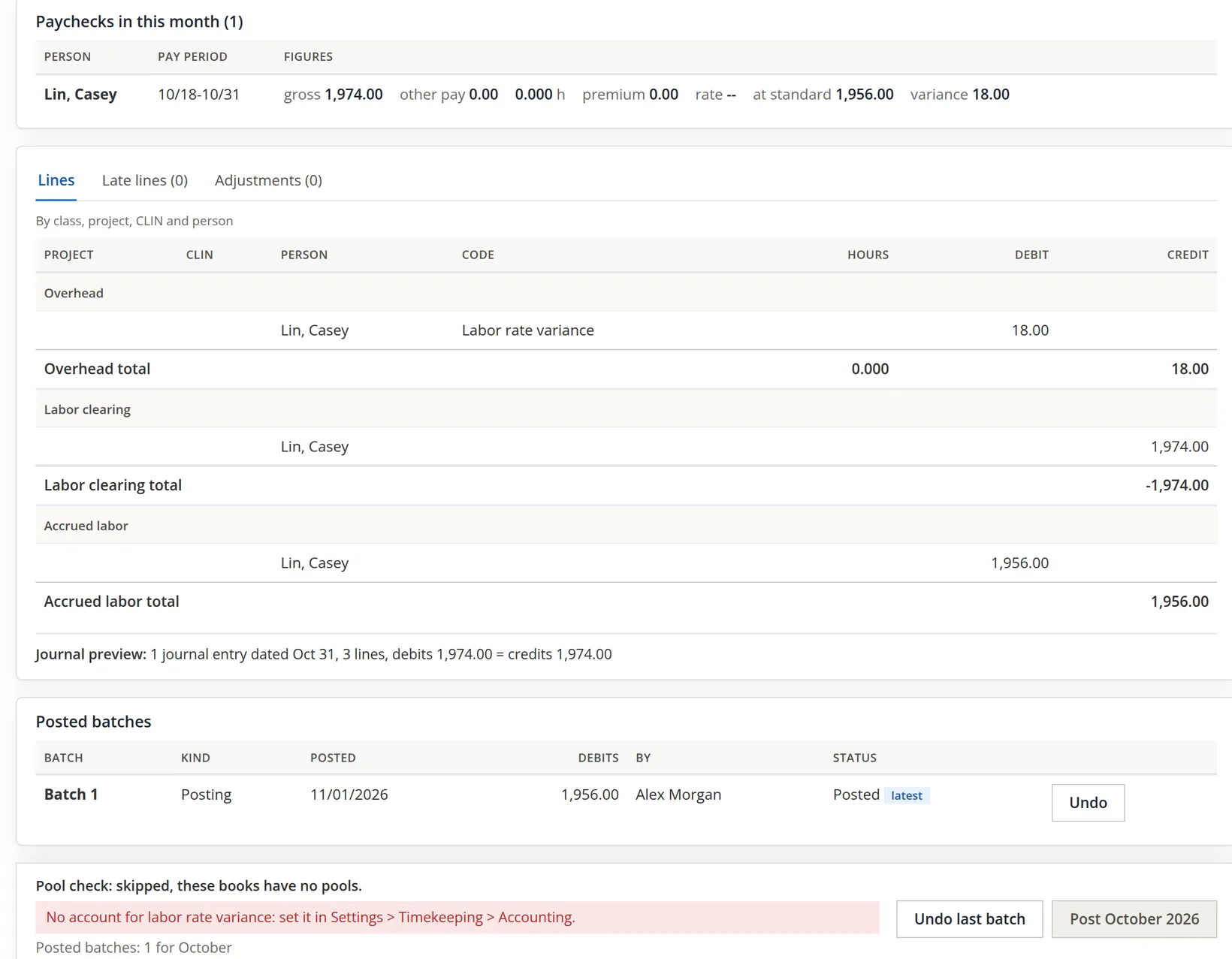
After the October posting, the shop ran its first payroll in BizBooks360 (Chapter 11.2): paycheck 1001 paid Casey for Oct 18 - Oct 31, dated 11/06/2026, gross wages $1,974.00. Under the standard method that paycheck does not replace the October posting; it settles it. Open Labor costing for Oct 2026 again.
 Timekeeping > Accounting; Undo last batch and Post October 2026" loading="lazy">
Where the 18.00 comes from. The paycheck paid Casey 80.00 regular hours at $24.00 and 1.50 overtime hours at $36.00, time and a half:
| Paycheck 1001 | October posting (standard) | Difference | |
|---|---|---|---|
| 80.00 regular hours | 80.00 × 24.00 = 1,920.00 | 80.00 × 24.00 = 1,920.00 | 0.00 |
| 1.50 overtime hours | 1.50 × 36.00 = 54.00 | 1.50 × 24.00 = 36.00 | 18.00 |
| Total | 1,974.00 | 1,956.00 | 18.00 |
The standard method costs every hour, overtime included, at the person's cost rate, and the Overtime premium account was left empty in Section 3. The extra half-rate on the overtime hours, 1.50 × $12.00 = $18.00, is therefore the whole difference between what Casey was paid and what October was charged. In these sample books the page books it to Labor rate variance, because of the way paycheck 1001 was made (Chapter 11.2, Problem 1).6
The mistake caught, again. The true-up entry moves the paycheck's $1,974.00 out of Labor clearing, reverses the $1,956.00 accrued in October, and debits the $18.00 difference. But Labor rate variance was also left at None in Settings → Timekeeping → Accounting, so the page holds the posting back: No account for labor rate variance: set it in Settings > Timekeeping > Accounting.
- 1
Set the variance account
In Accounting, under the special accounts, choose (or make with + New account) an expense account for Labor rate variance, and press Save accounts.
- 2
Post the month again
Back on Labor costing for Oct 2026, Post October 2026 posts the three-line entry shown in the preview. October's clearing tile, which now reads 1,974.00 in / 0.00 out / 1,974.00 open, then nets to zero.
In the sample books Alex has not taken these two steps yet, so the pictures in Chapter 12.4 still show October's clearing open and the difference unexplained.
Closing a month of time
- [x] Every timesheet of the month's periods is submitted; on-behalf ones carry a clear reason.
- [x] Every timesheet is approved by someone other than its owner, or under a labeled exception.
- [x] Each paid person has a cost rate (standard method) or payroll has run (actual method).
- [x] Labor costing shows Nobody is waiting and a balanced journal preview.
- [x] The month is posted, and the journal entry appears in Journal Entries.
- [x] Once payroll has paid the month, the variance is posted too: Labor rate variance (and Overtime premium, if used) are set, and October's clearing nets to zero.
- [x] Outstanding acknowledgements are followed up with the people concerned.
Check your understanding
1. Why could Alex approve Casey's timesheet but not, at first, their own?
Answer
Alex is Casey's manager, the named tier-1 approver. Nobody may approve their own timesheet; the owner may do so only under the sole-approver exception, and each such approval is labeled.
2. Casey worked 41.5 hours in the week of Oct 25. Who decided that 1.5 of them were overtime?
Answer
The books, at submission, under the weekly 40-hour rule. Overtime is computed, never typed.
3. How was the October labor cost of $1,956.00 worked out?
Answer
Standard method: 81.5 approved hours × Casey's $24.00 cost rate. Alex's hours cost nothing because Alex is not paid for hours.
4. What does the sole-approver exception do when a second approver is added?
Answer
It switches itself off.
5. Can you post labor under the "wages actually paid" method without payroll?
Answer
No: that method spreads paychecks over hours, and without the Payroll module there are no paychecks. Use standard rates until payroll runs.
Notes
- The pictures come from Summit Gear Repair, which the practice user owns: in Summit Outfitters Inc. the practice user is a member, and only the owner can add people to Timekeeping and change its settings. All names and figures are made up. ↑
- The overtime rule is set to weekly over 40 hours, at 1.5 times, in these books. The Timesheet report (Chapter 12.4) shows the derived overtime on its own row. This manual is not wage-and-hour legal advice. ↑
- Casey has no login in the sample books, so the acknowledgement stays open in every later picture. Real employees acknowledge from My Time when they next sign in. ↑
- The waiver and the held state arrived in November 2026. A held timesheet's hours do not reach payroll or labor costing, and billable time shows how many hours are held until the person acknowledges. ↑
- The method can change only at the next fiscal-year boundary once a labor batch is posted. Volume 11 covers the Payroll module; when it runs, the standard method closes each paycheck's difference to Labor rate variance. ↑
- The line for the paycheck also shows premium 0.00. With the overtime premium treated as overhead (the default), the books split the premium out of a paycheck's overtime line by comparing its rate with its base rate, and then also want an Overtime premium account. Casey's pay rate on record starts 11/01/2026, so in Chapter 11.2 (Problem 1) both lines of paycheck 1001 were typed with their rates; the overtime line of that paycheck records 36.00 as both its rate and its base rate, no premium is split out, and the full 18.00 appears as variance. That was a fault, and it is fixed for new paychecks: an overtime line typed at its own rate with no pay rate on file now takes the paycheck's Regular rate of the same department, 24.00, as its base, so a paycheck made today the same way carries premium 18.00, and the true-up books the 18.00 to Overtime premium (or names the account that is missing). Paycheck 1001 stays as it was; an owner in this position would reclass the 18.00 from Labor rate variance to Overtime premium after the true-up, and add the 18.00 to box 12 TT of Casey's W-2 at year end (Chapter 11.4). Either way the total is the same; only the account it lands in differs. Ask your accountant which account your contracts expect overtime premium in. This manual is not accounting advice. ↑