
Chapter 12.1
Entering your time
How a person who keeps time in BizBooks360 records it: acknowledging the policy, typing hours on the timesheet grid, giving a reason for anything late or changed, clocking in and out, and submitting the timesheet with a certification.
When you finish this chapter you will be able to:
- Explain why a timesheet is a signed record and not a scratch pad.
- Find your way around the Timekeeping landing and the three views of My Time.
- Enter hours on the grid, and answer the reason the books ask for a late or changed entry.
- Read the "things to fix" box and clear it before you submit.
- Clock in and out on a computer or on the phone's Punch screen.
- Submit a timesheet with its certification, and take it back if you must.
Why a timesheet is a signed record
An hour of work is the most common cost a small business has, and the easiest to get wrong. Payroll pays from it, jobs and contracts are costed from it, and a customer may be billed from it. For a company that works on government contracts, the timesheet is also evidence: an auditor may ask any employee about their time without warning.
BizBooks360 therefore treats each timesheet as a record that its owner certifies. Three rules follow, and the program keeps all three whatever the settings say:
- Time is recorded as it happens. You cannot enter time for a day still to come, and an entry made after the "late" line asks you why.
- Nothing is overwritten. Every change to a saved entry asks for a reason, and the old figure stays in the change log.
- The timesheet is submitted whole, with your certification, and then waits for someone else to approve it (Chapter 12.2).
| Word | What it means in BizBooks360 |
|---|---|
| Period | The span one timesheet covers. Summit Gear Repair uses two-week periods that start on a Sunday: Oct 18 - Oct 31, then Nov 1 - Nov 14. |
| Charge code | What the hour was spent on. A new book has overhead codes (OH-GEN, GA-LAB, TRAINING, UNALLOW) and leave codes (VACATION, SICK, HOLIDAY and others). Project codes come from Volume 7. |
| Time type | Regular, overtime, vacation and so on. Overtime is worked out by the books, not typed. |
| Entry | One amount of time on one code on one day: typed hours, typed start and end times, or a clock punch. |
Before you begin: the owner adds you
Nobody keeps time until the owner of the books says who does. Until then the Timekeeping page says Nothing to record: you do not keep time in these books. The owner opens People → Timekeeping people → Invite and chooses one of three options under Who:
- A contact of these books or a new contact: someone who does not sign in to the books yet. They receive an invitation by e-mail and are listed as Invited, not yet signed in until they accept.
- A member of these books: someone who already signs in (the owner included). No invitation is sent; they keep the role they have and keep time as an employee.
For a contact or a new contact the page also asks the Role, one of two cards. Employee: Keeps their own time, leave and expenses; sees nothing else. Stakeholder: Sees hours and spend on the projects they are named on. A stakeholder is usually a customer's contact who follows the hours on a project: the punch settings are not offered for them, and the page asks instead which Projects they see. Everyone in this chapter is an Employee. A member is not asked: A member keeps the role they have in these books. Here they keep time as an employee.
Alex is the owner, so Alex added themself as a member, and invited Casey Lin as a new contact, in the Employee role, with Alex as Casey's manager.2
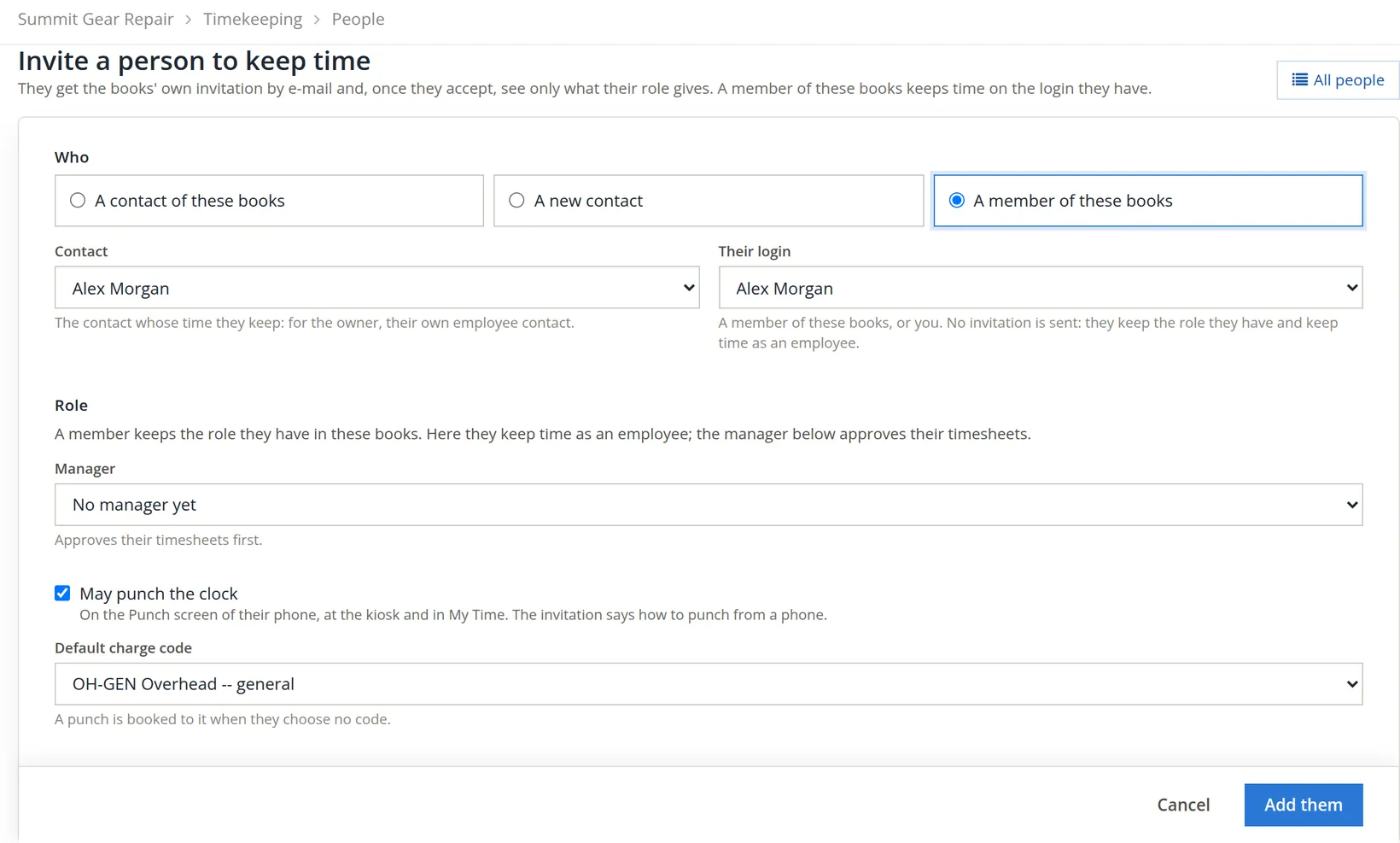
The answer reads Alex Morgan keeps time here, signed in as Alex Morgan. No invitation was sent. As soon as one person keeps time, the sidebar grows a Timekeeping menu: Punch, My Time, My Leave, My Expenses, My Pay, and for managers Review, Leave, Expense claims and the rest.
The period length and its first day live in Settings → Timekeeping → General. Choose them before anyone opens My Time: the program makes a period the first time someone looks at it, and a period already made keeps its dates even if the setting changes afterwards.3
Acknowledge the timekeeping policy
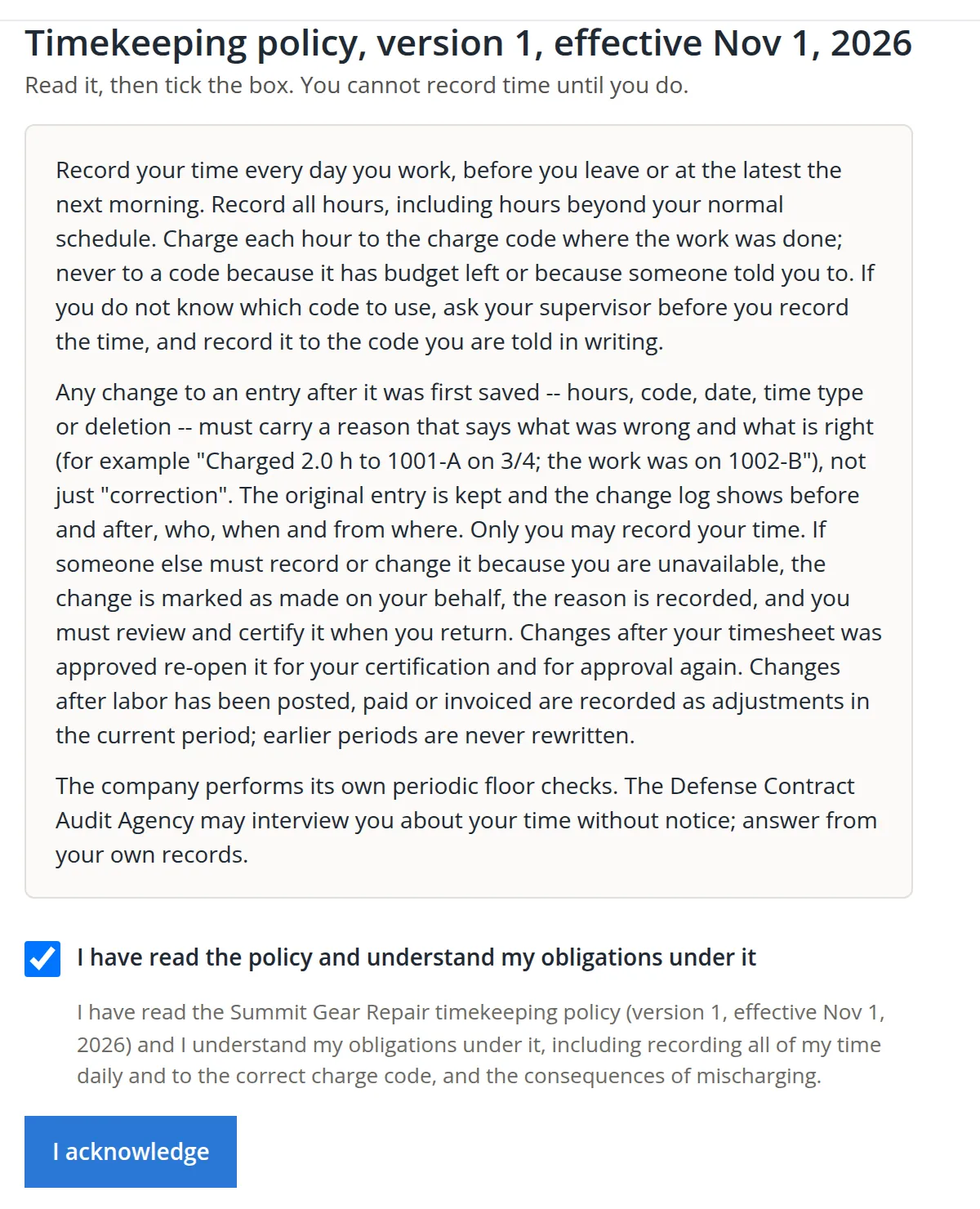
The first time you open Timekeeping, the books show their timekeeping policy instead of the landing. You cannot record time until you acknowledge it. Read it: it is short, and it is the rule your manager and any auditor will hold you to.
- 1
Open Timekeeping and read the policy
Its three paragraphs say: record every day, charge each hour where the work was done, give a reason for every change, and expect floor checks.
- 2
Tick the box and press I acknowledge
The acknowledgement is kept with the policy's version. If the owner later issues a new version, you are asked again.
The landing: today and this period
After the acknowledgement, Timekeeping opens on a landing page built around two questions: what am I doing today? and where does my timesheet stand?
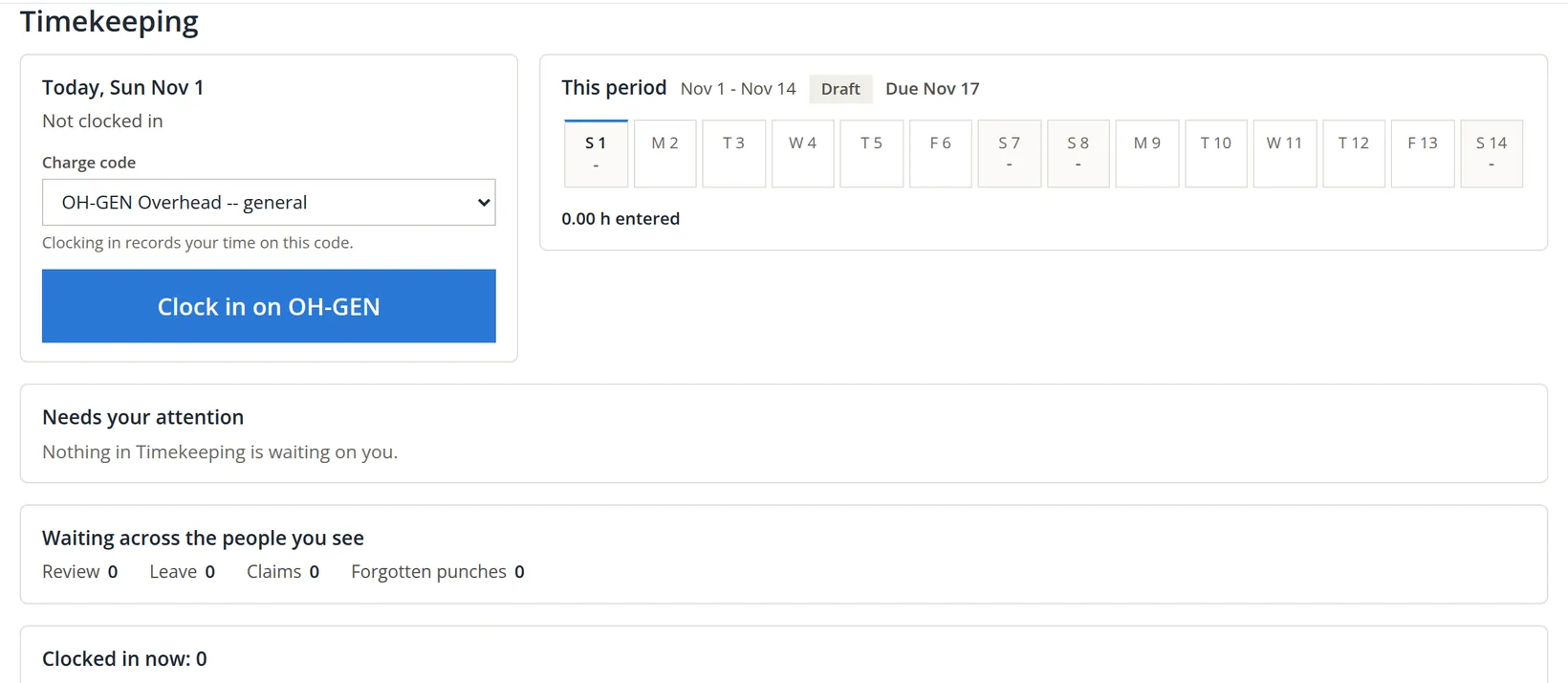
The landing fills in as the period goes on. Once you have used a charge code, the Today card lists it under Your codes, one press away. Each day chip shows the hours entered that day, and a past work day with nothing on it reads none in red; under the chips a red link counts them (3 work days without an entry). Needs your attention then lists each thing waiting on you with Open or View, such as a timesheet that was approved.
My Time: one timesheet, three views
Timekeeping → My Time shows the same timesheet in three ways. Use whichever suits the way you work; every view saves to the same entries.
| View | Best for | How you enter time |
|---|---|---|
| Calendar | People who think in clock times | Click an empty part of a day for an hour from there, or drag a start and an end. Each day's + adds time from the keyboard. |
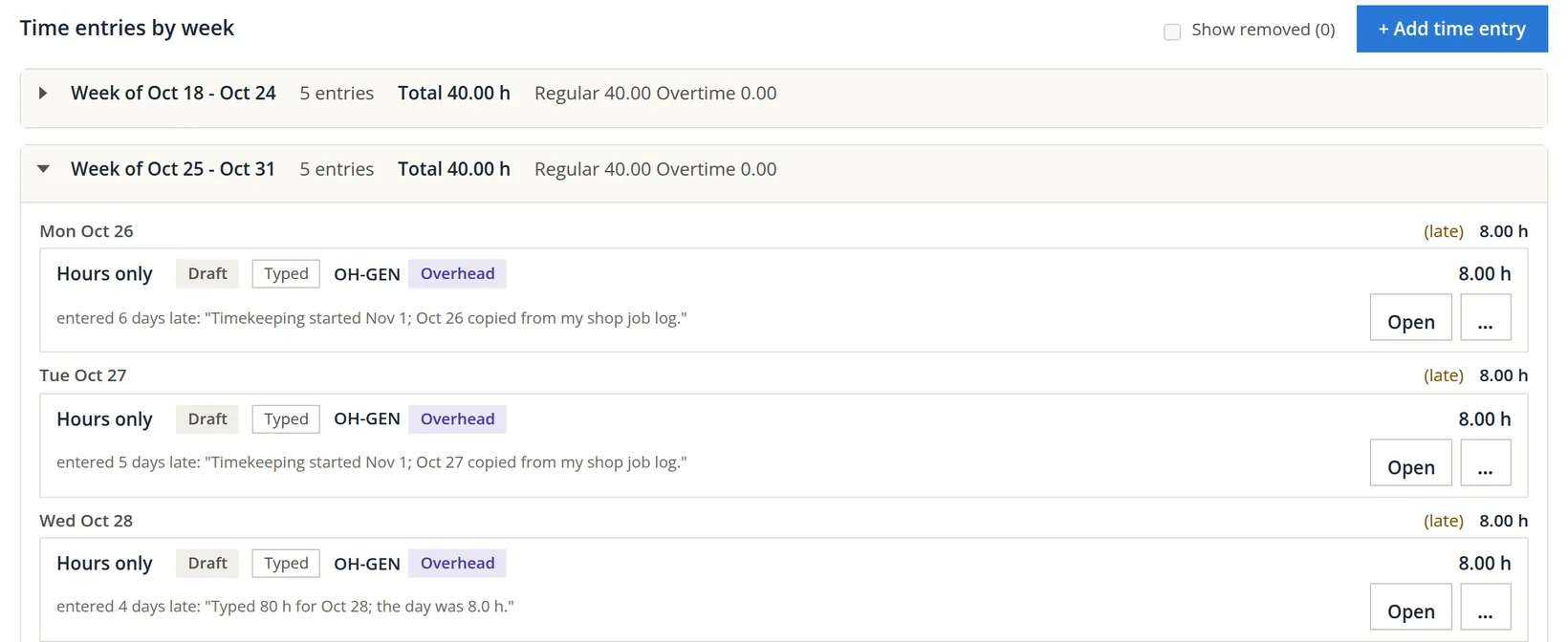
| List | Reviewing what you entered | + Add time entry opens the entry form; each card has Open and a menu. |
| Timesheet | Fast entry of hours by code and day | Type in a cell: 8, 7.5 or 7:30. Tab moves along the row, Enter moves down, Esc puts the saved figure back. |
Week and Period switch between one week and the whole timesheet. The arrows and the date button move between weeks.
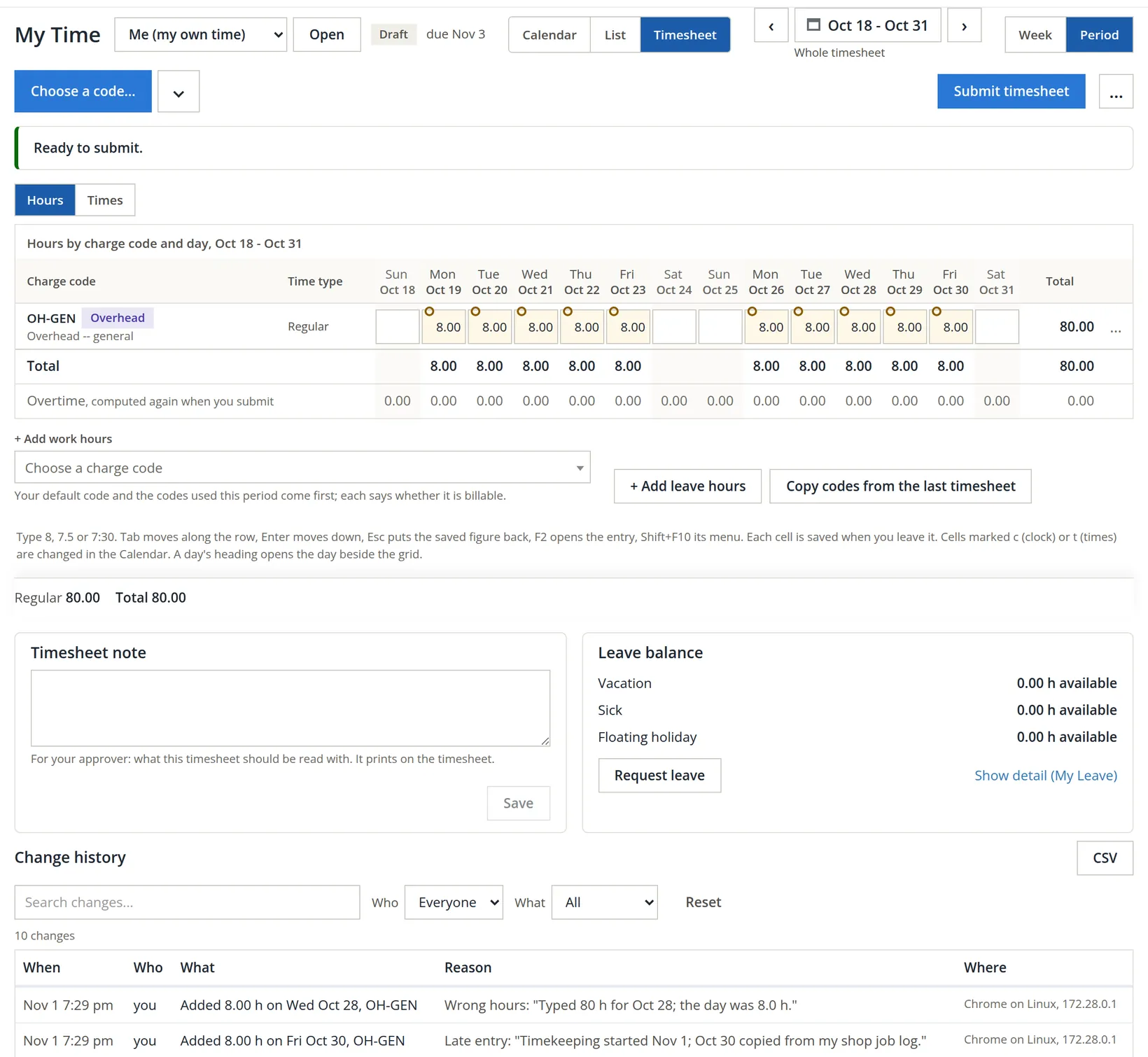
Enter a period's hours on the grid
The task. Timekeeping started at the shop on November 1, but the bookkeeper wants the previous period, Oct 18 - Oct 31, on record too. Alex kept a paper job log: eight hours of shop work every weekday, ten days in all. Every one of those days is now past the late line, so every entry will ask for a reason. That is exactly how it should be.
- 1
Open the period
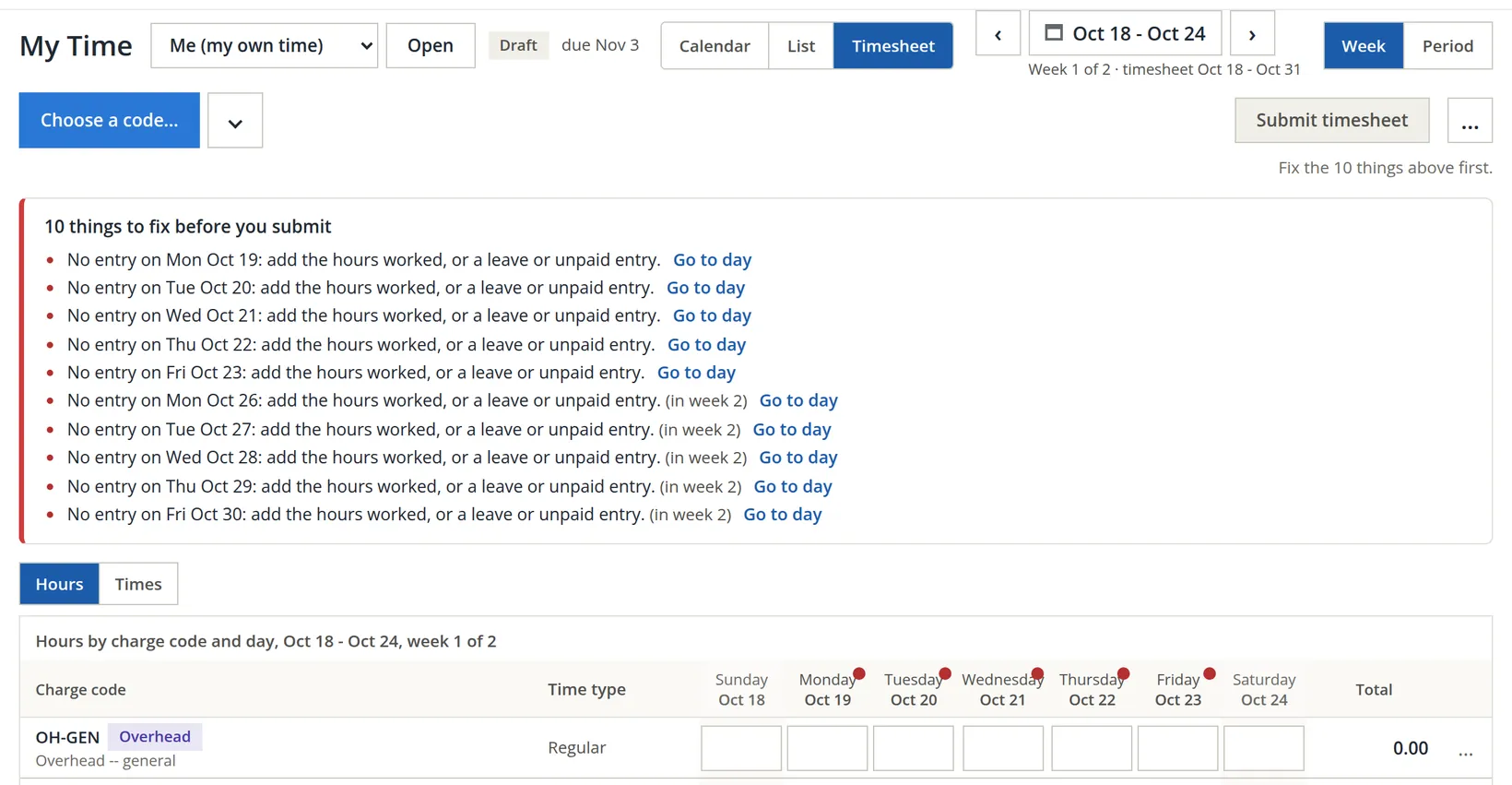
My Time → Timesheet, then the left arrow until the label reads Oct 18 - Oct 24. The box at the top lists ten missing days.
- 2
Type the hours and press Tab
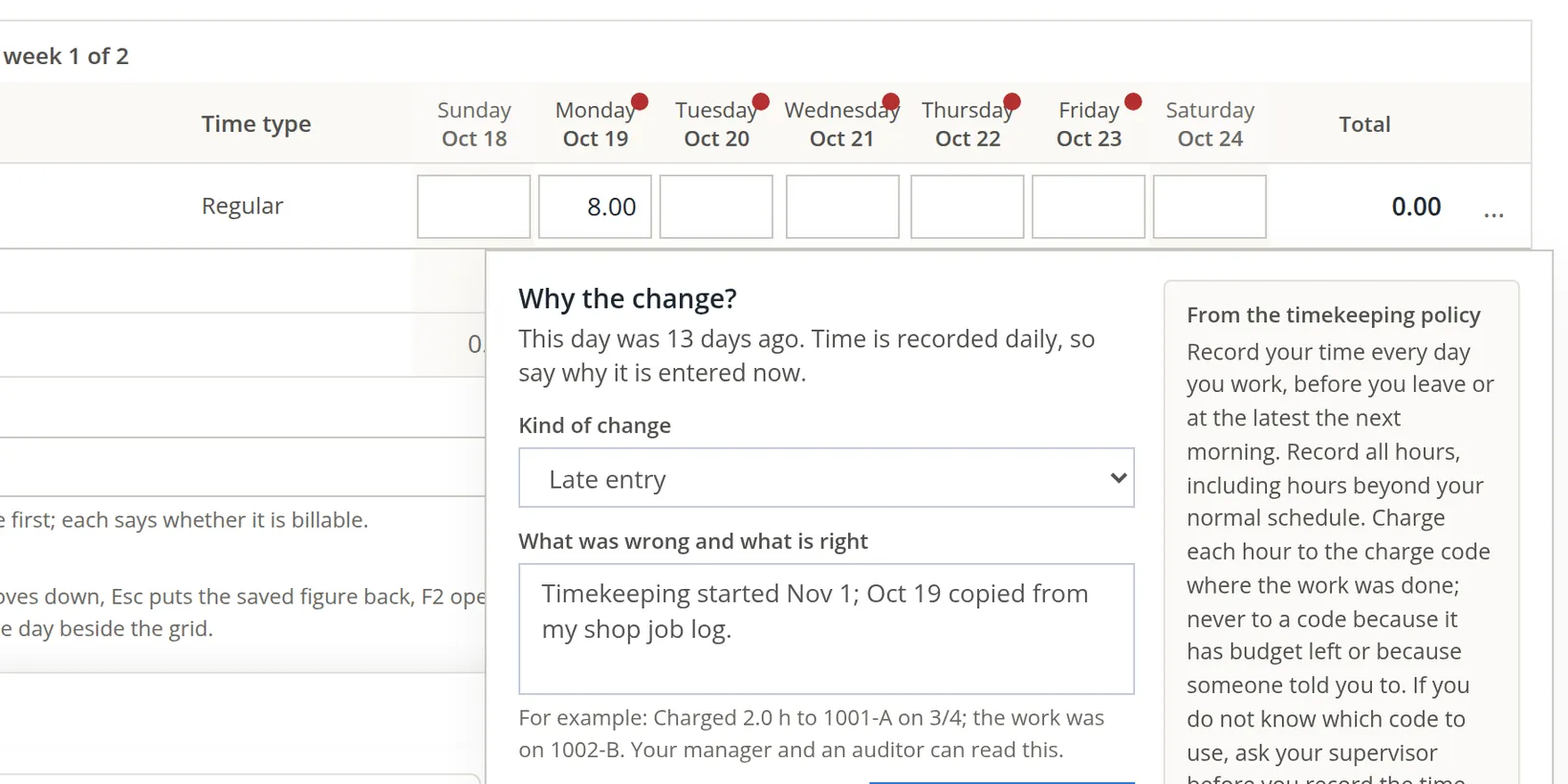
Alex typed 8 in the Monday cell and pressed Tab. Because Oct 19 is past the late line, the reason box opened beside the cell before the cell was saved.
- 3
Give the reason and save
Kind of change is already Late entry. In What was wrong and what is right say what happened in a way a stranger would understand. Press Save with reason.
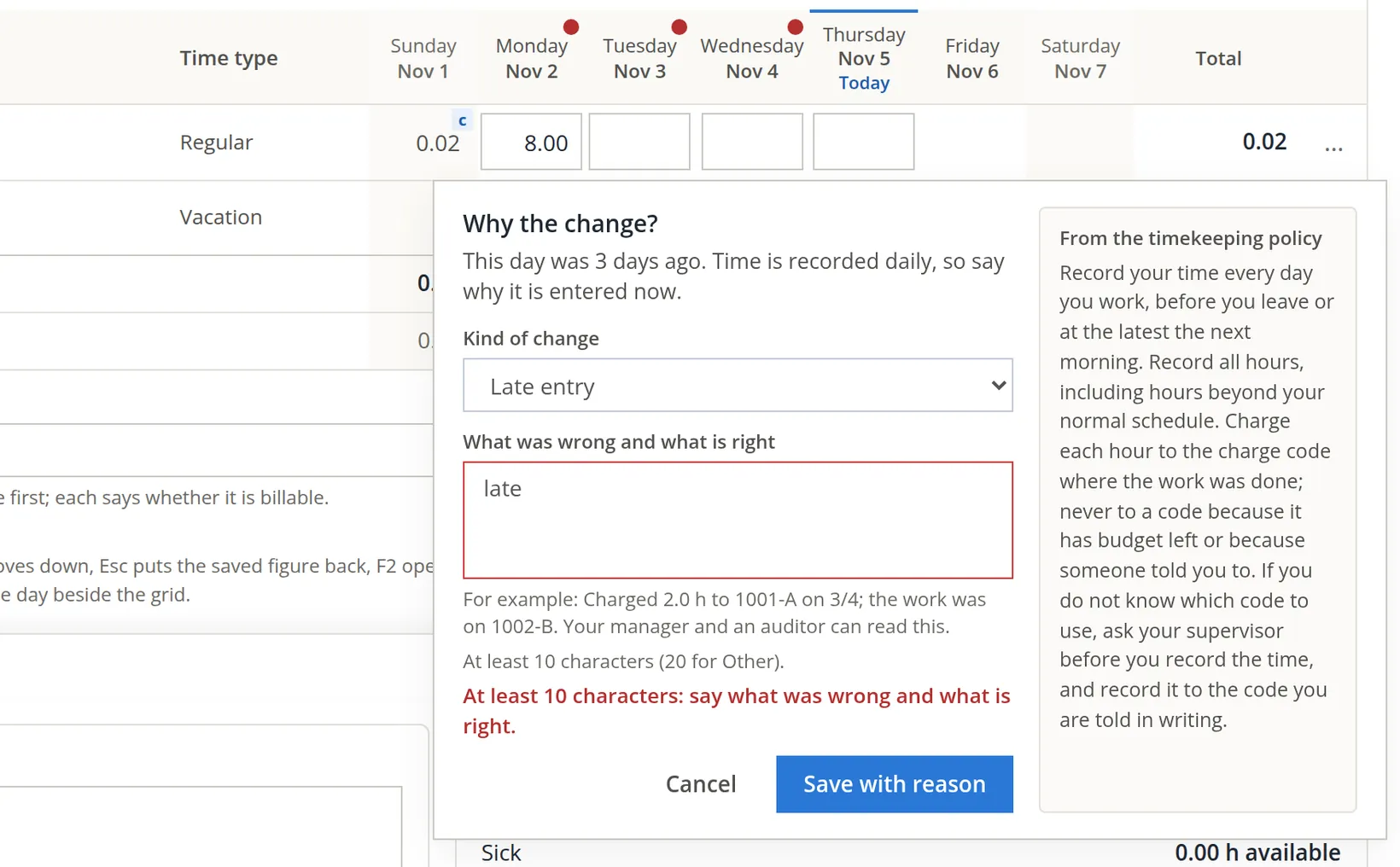
The mistake caught. On the Tuesday, Oct 20, Alex was in a hurry, wrote only late and pressed Save with reason. The box did not close. It outlined the text in red and answered: At least 10 characters: say what was wrong and what is right. Nothing was saved; the 8 waited in the cell until a real reason was given.4
Alex wrote the real reason, Timekeeping started Nov 1; Oct 20 copied from my shop job log., and repeated the steps for the other eight days. Each saved cell shows a small circle: the late mark.
The ten-character rule stops "late", and the books also refuse a reason that is only the name of its kind, such as "Late entry". But a count cannot judge sense: "Correction" has ten letters and still says nothing. "Timekeeping started Nov 1; Oct 19 copied from my shop job log" tells a reviewer where the figure came from and where to check it. The policy's example, "Charged 2.0 h to 1001-A on 3/4; the work was on 1002-B", is the model.
A mistake the grid catches
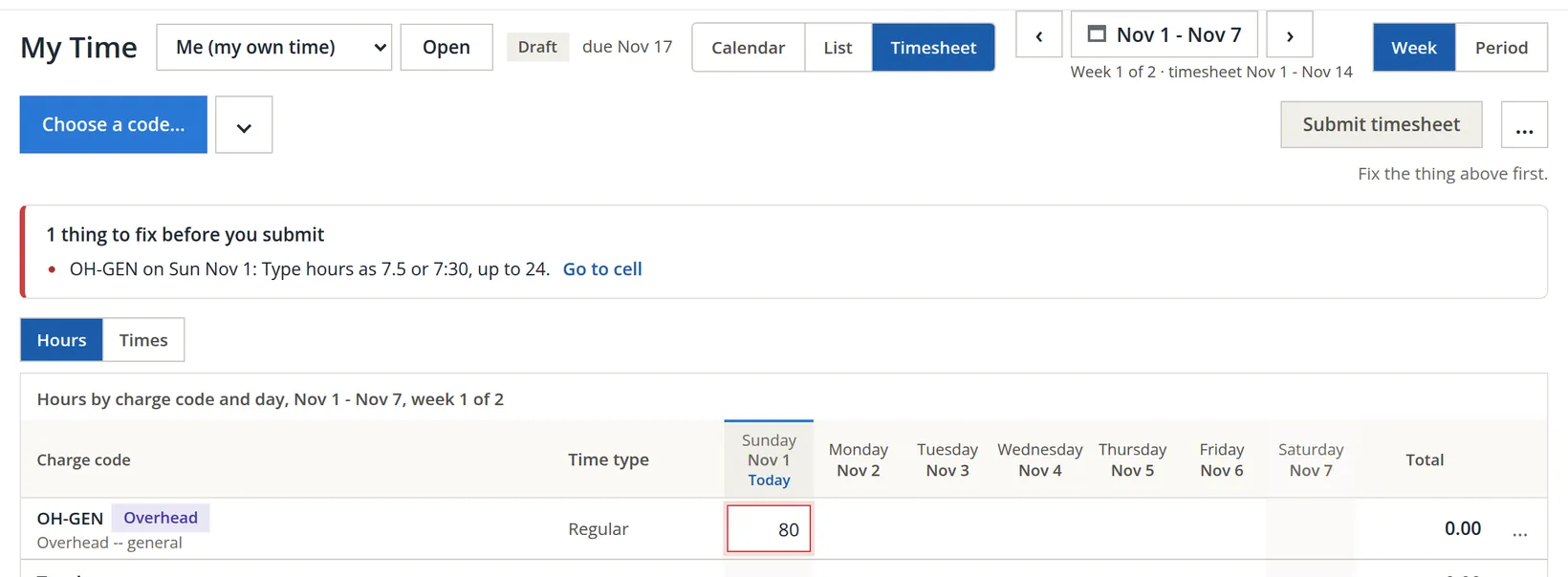
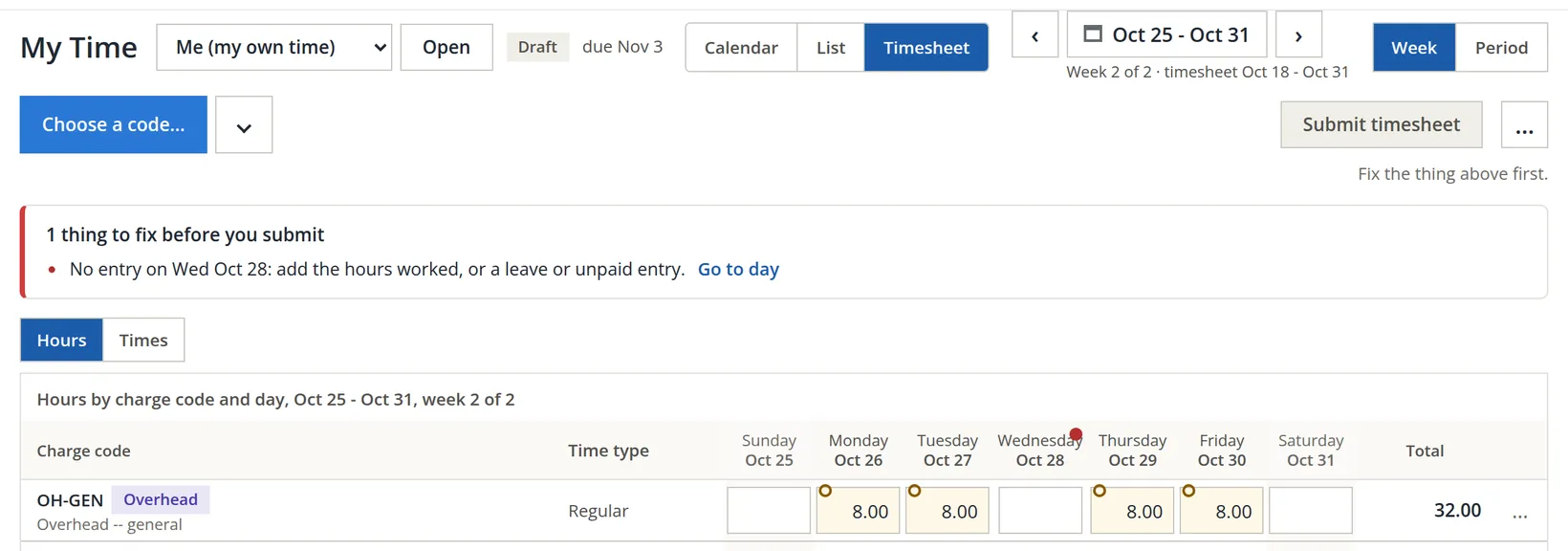
On the second week Alex's finger slipped and the Wednesday cell, Oct 28, received 80. The grid does not save a figure it cannot accept. The cell turns red and the things-to-fix box names it: Type hours as 7.5 or 7:30, up to 24.
Alex reloaded the page without noticing. The 80 was gone, because it was never saved, and the box had one line left:
- 1
Type the right figure
Alex typed 8 in the Wednesday cell and answered the reason box again.5
- 2
Check the whole period
Press Period. Ten days of 8.00 make 80.00 hours, and the box turns green: Ready to submit.
Reading your time in the List view
The List view shows the same entries as cards, grouped by week and day. It is the easiest place to read what you entered and why.
Clock in and out
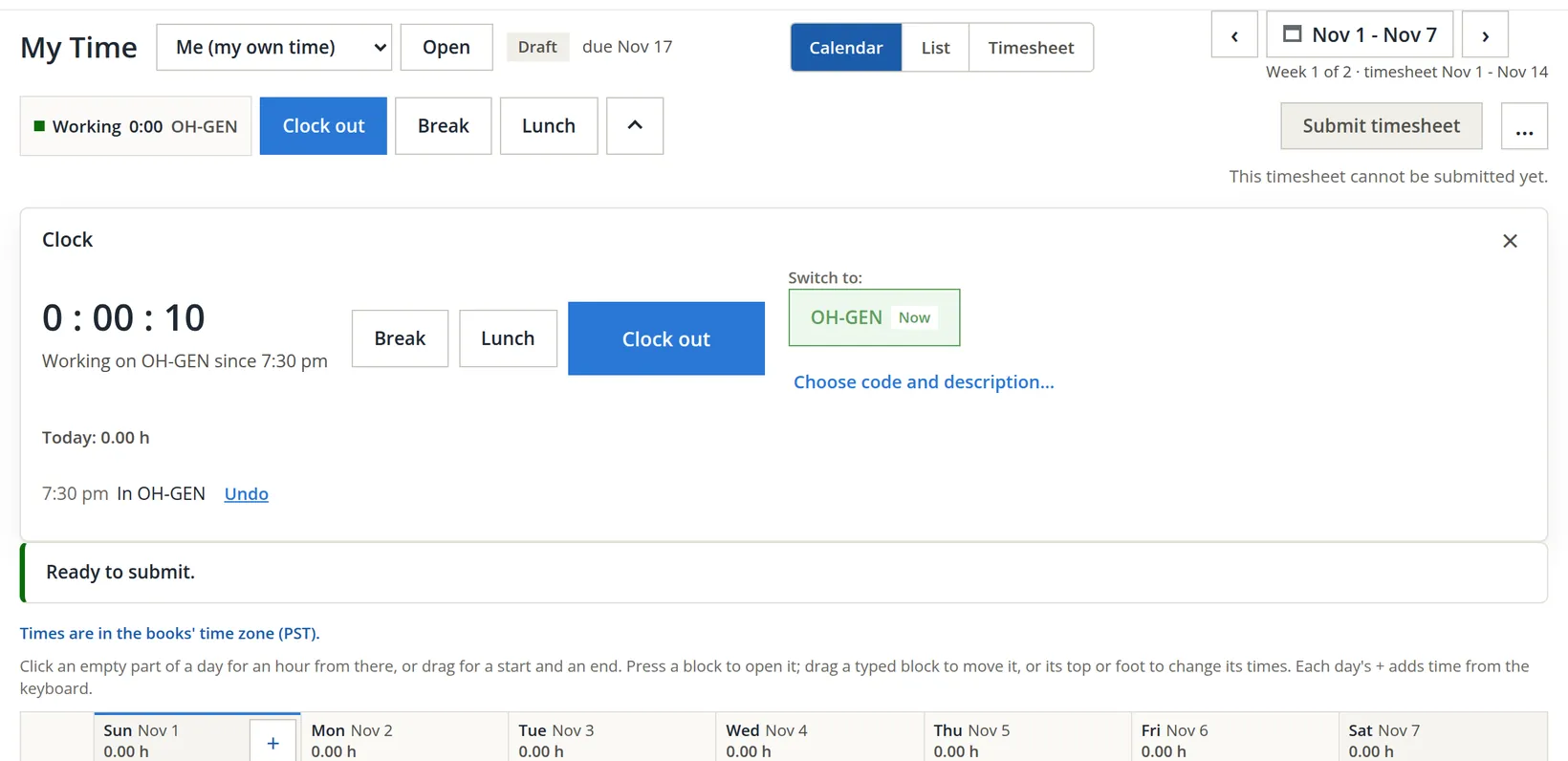
Typing hours suits people who record at the end of the day. People who work by the clock press a button instead, and the books write the entry with its times. Alex clocked in on the Sunday while setting up Timekeeping.
- 1
Clock in
On the landing, check the charge code and press Clock in on OH-GEN. The Today card changes to In since 7:30 pm with Clock out, Start break, Start lunch and an Undo for a press made by mistake.
- 2
Use the clock bar anywhere in My Time
While you are clocked in, every My Time view carries a clock bar. The arrow beside it opens the full clock.
On a phone. Timekeeping → Punch is a screen made for a phone held in one hand: large buttons, today's punches, and the week's hours against a 40-hour week. It offers to put itself on the phone's home screen.
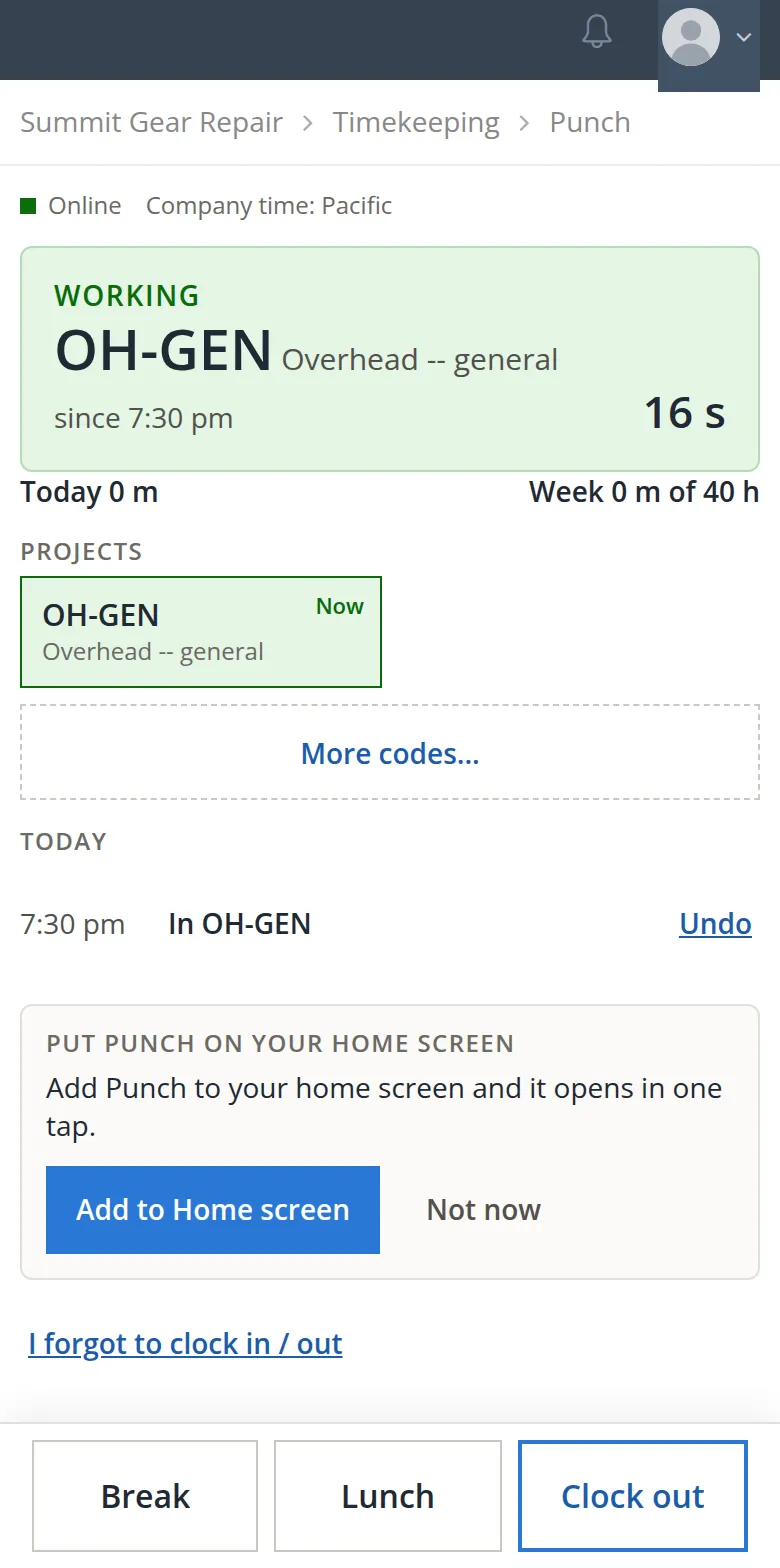
Alex clocked out a minute later. The landing then read Clocked out at 7:31 pm, and the punch pair became a timed entry of 0.02 hours on Nov 1.6
Use Forgot to clock out? on the landing (or I forgot to clock in / out on the phone) the next morning. It records a back-dated punch with a reason. The books allow this up to the number of days set in Settings → Timekeeping → General (seven by default).
Submit the timesheet
- 1
Write a timesheet note if the approver needs one
Alex wrote: Timekeeping started Nov 1, so every day of this sheet was entered late from my shop job log. and pressed Save under the note.
- 2
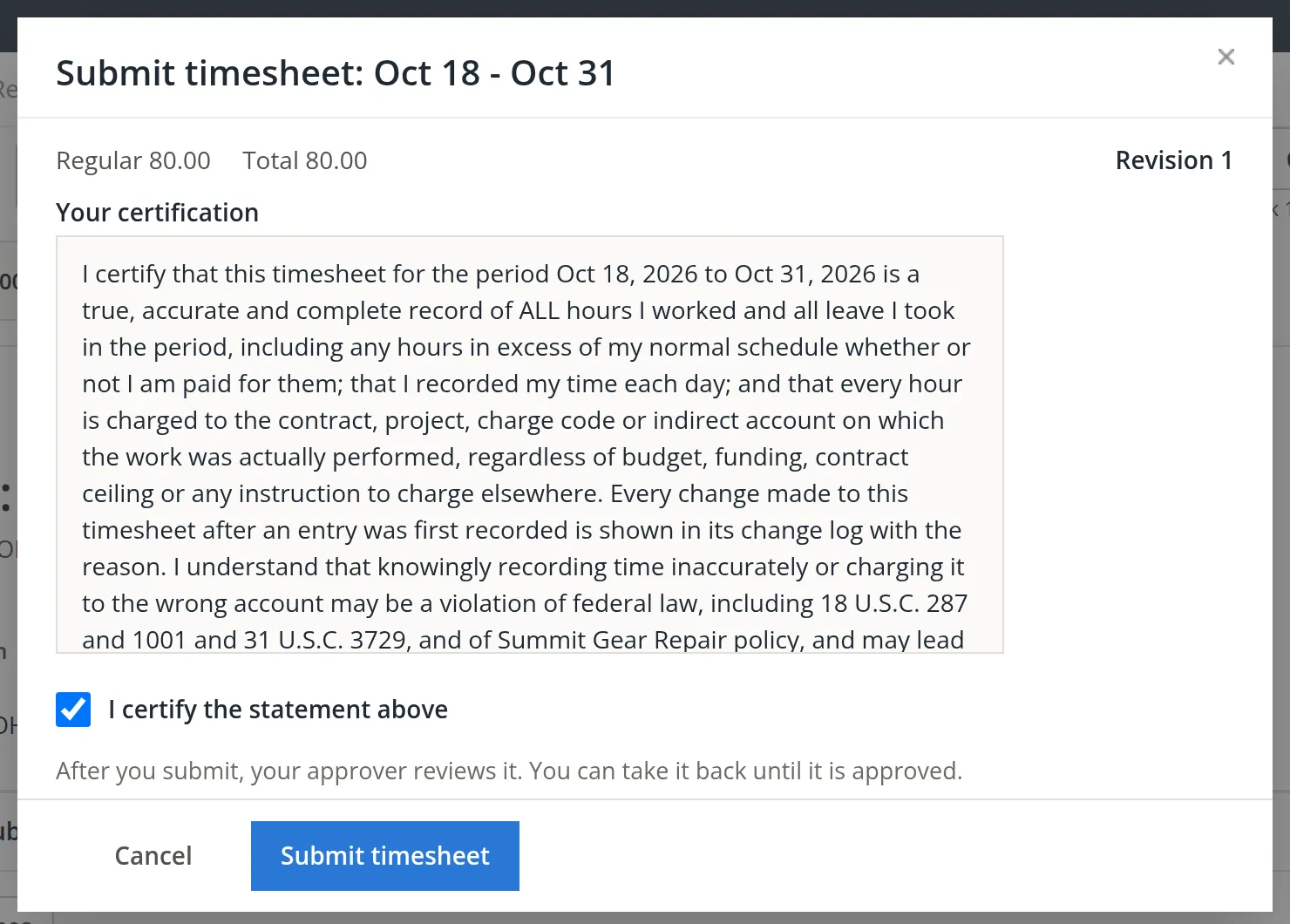
Press Submit timesheet
The dialog shows the totals, the revision and the certification in full.
- 3
Read the certification, tick it, and submit
The button stays inactive until the box is ticked: Tick the certification first.
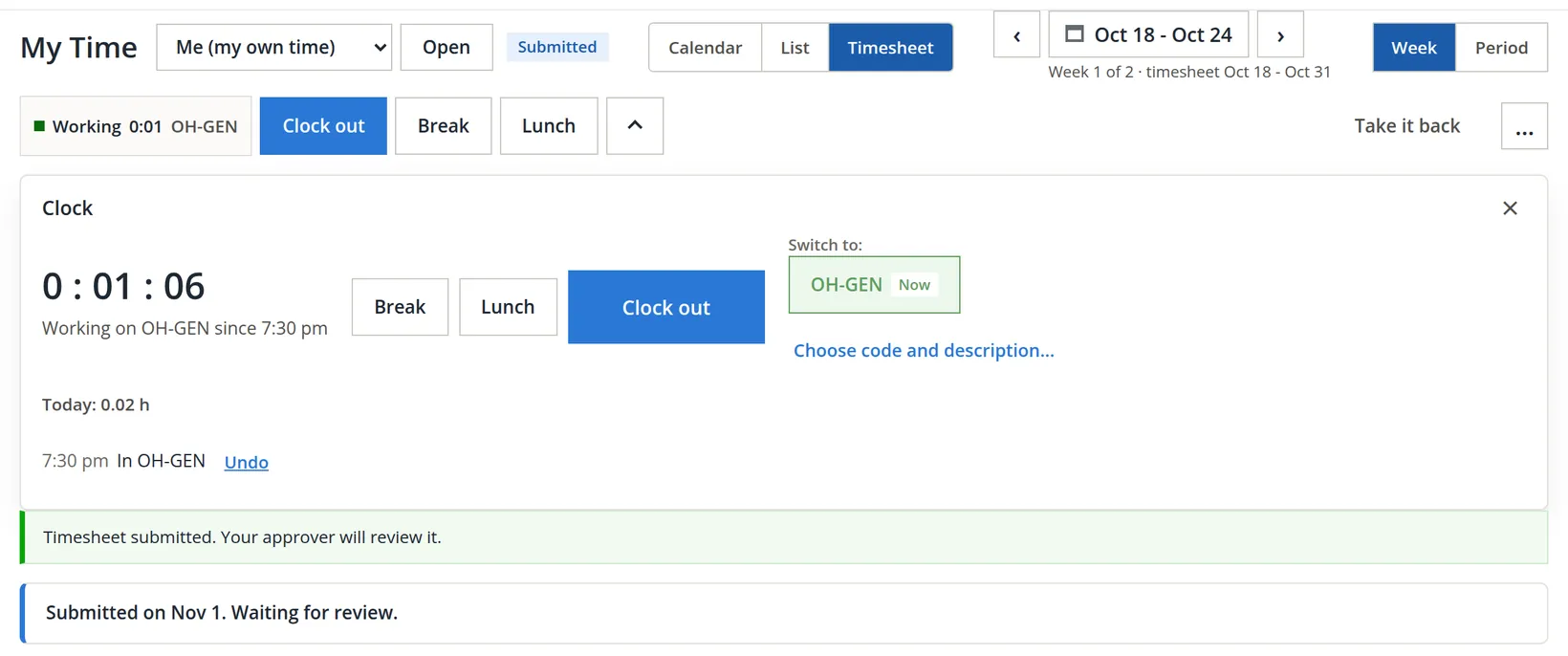
Taking it back. Until it is approved you can press Take it back. The timesheet returns to Draft with the words Timesheet taken back. Change what you need, then submit it again. After approval, a change goes through the manager instead (Chapter 12.2).
The message says an approver will review it, but Alex is the owner and has no manager, and nobody may approve their own timesheet. Chapter 12.2 shows what the books offer a one-person office: the sole-approver exception.
Every period
- [x] Each work day has an entry: hours worked, leave, or unpaid time.
- [x] Every hour is on the code where the work was done.
- [x] Every late or changed entry has a reason a stranger could follow.
- [x] No punch is left open; forgotten ones are fixed with a reason.
- [x] The things-to-fix box says Ready to submit.
- [x] The certification is read, ticked and submitted by the due day.
Check your understanding
1. You type 7:30 in a cell. How many hours is that?
Answer
7.50. The grid accepts decimal hours or hours and minutes.
2. Why did every one of Alex's October entries ask for a reason?
Answer
Each was saved more than one day after the day worked, which is past the books' late line; a late entry always needs a reason and is marked late.
3. You typed 80 by mistake and left the cell. Was 80 hours recorded?
Answer
No. The grid refuses any figure over 24, marks the cell red and lists it as a thing to fix; nothing is saved.
4. Can you enter tomorrow's hours today, to save time?
Answer
No. Time cannot be recorded for a day or a time still to come; this rule is always on.
5. You submitted and then noticed a wrong code. What do you do?
Answer
Press Take it back, fix the entry with a reason (kind Wrong code), and submit again. If it is already approved, ask your manager.
Notes
- In Summit Outfitters Inc. the practice user is a member, not the owner, and only the owner of the books may add people to Timekeeping (the invitation page answers anyone else with Only the owner of these books can manage their users.). The pictures therefore come from Summit Gear Repair, which the practice user owns. Casey Lin and every figure in this chapter are made up for the example. ↑
- Inviting yourself by your own e-mail address is refused with That is your own e-mail address. To keep time yourself, choose "A member of these books" above. ↑
- Summit Gear Repair's periods are two weeks long starting Sunday, October 18. The setting can be changed only until the first timesheet is submitted. ↑
- Since November 2026 every reason a person types needs at least 10 characters, and 20 for the kind Other (At least 20 characters.). A reason that only repeats the name of a kind, such as "Late entry" or "Wrong hours!!", is refused with Say it in your own words, not the reason's name. The same rule applies in the manager's Correct... and Reopen dialogs (Chapter 12.2). ↑
- Alex chose the kind Wrong hours and wrote "Typed 80 h for Oct 28; the day was 8.0 h." Strictly, the 80 was never saved, so this entry was simply late and Late entry would have been the better kind. The reason is still honest, and it stays in the change log as written. ↑
- The clock keeps time to the minute. Punches can be rounded to 6 or 15 minutes in Settings → Timekeeping → Rules and certification, always to the nearest, never always up or always down. ↑
- The certification names federal statutes because it is written for companies with government contracts. The owner can edit its text, which is versioned. This manual is not legal advice. ↑