
Chapter 14.3
Backup and restore
How to keep a complete copy of your books in a file you control, what the file holds and leaves out, and how to bring it back as a new company. With a test restore, start to finish, so you know it works before you need it.
When you finish this chapter you will be able to:
- Explain what a backup protects against, and why a restore always makes a new company.
- Make a backup, follow it, and download the file.
- Say what the file contains and which secrets it never contains.
- Restore a file as a new company, read its check, and avoid the name clash.
- Confirm that the restored books agree with the originals.
Why back up books that live online
BizBooks360 keeps your books on its servers and protects them there. A backup answers a different risk: the one that starts with you. A wrong bulk edit, a deleted customer, an employee who leaves with a grudge, a dispute in which you must show the books exactly as they stood on a date. A backup is a single file, made by you, that holds everything in one set of books on the day it was made. You keep it wherever you keep important documents.
A restore reads that file and builds a new company from it. It never writes into existing books: not the ones it came from, not the ones you have open. The page says it in one line, "Restoring creates a new company. Your current books are never changed." That rule makes a restore safe to try at any time, and it means a restore is also how you compare: the restored company shows the books as they were, beside the books as they are.
| Backup and restore | Copy books (Chapter 15.6) | |
|---|---|---|
| Result | A file you keep; later, new books from it | New books at once |
| Leaves BizBooks360 | Yes, the file is yours | No |
| Audit history | Carried; read-only in the restored books | Not carried; the copy starts its own |
| Numbers, logins and switches | Left behind; the restore's Details lists each one with the page to set it again | The same list, in the copy's Details |
| Good for | Safekeeping, a record as of a date, moving books between users | A sandbox, a what-if, a year split |
Who may back up, and who may restore
A backup holds every figure, contact, tax number and attachment of the books, so only their owner may make one, list the backups or download them. A member, even with the Backup & Restore permission, sees the page with the backup side switched off.
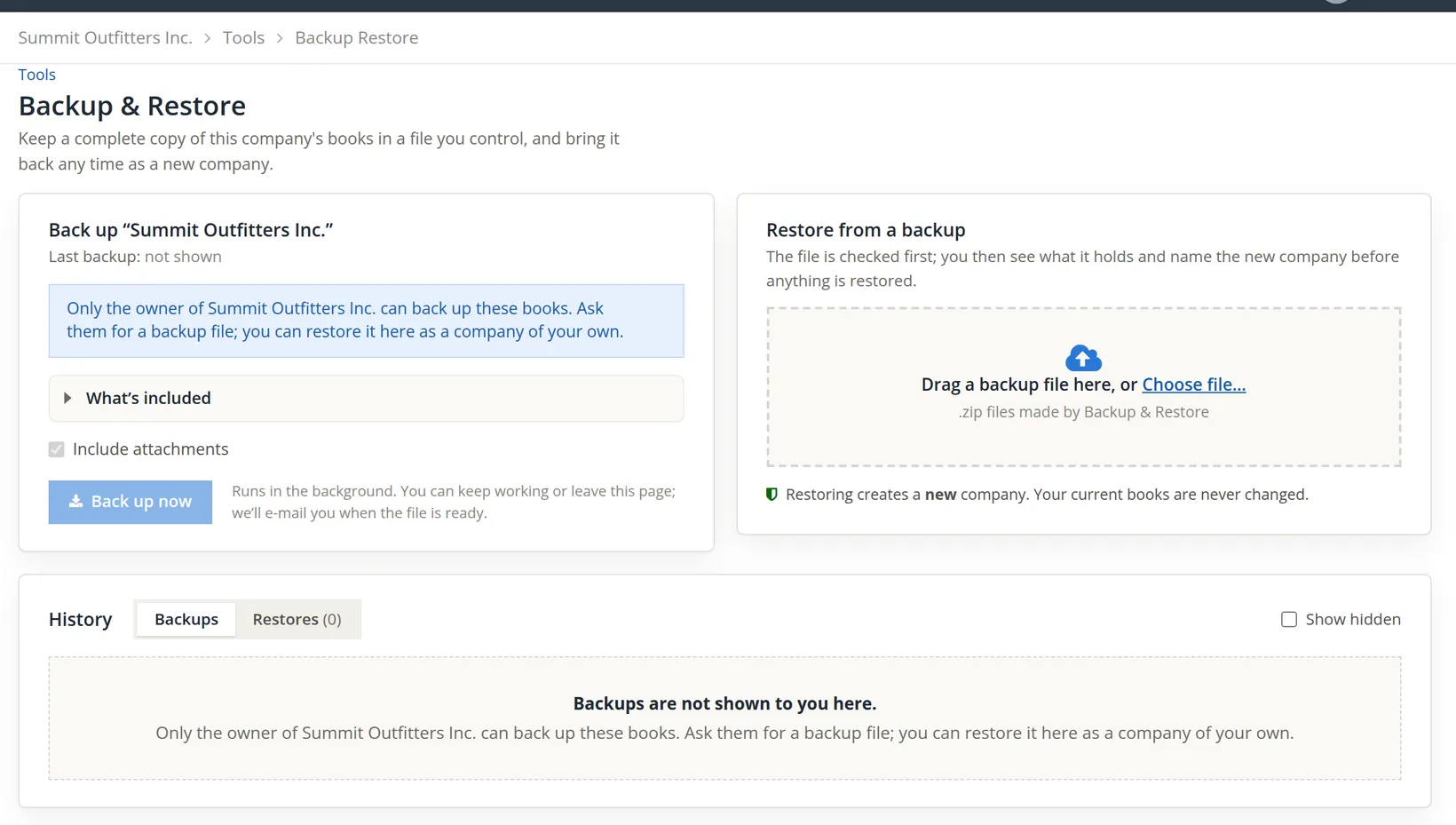
A restore is the other way round: it belongs to whoever uploads the file and makes a company that they own. The server accepts it only from a user who already owns at least one set of books.2
Make a backup
- 1
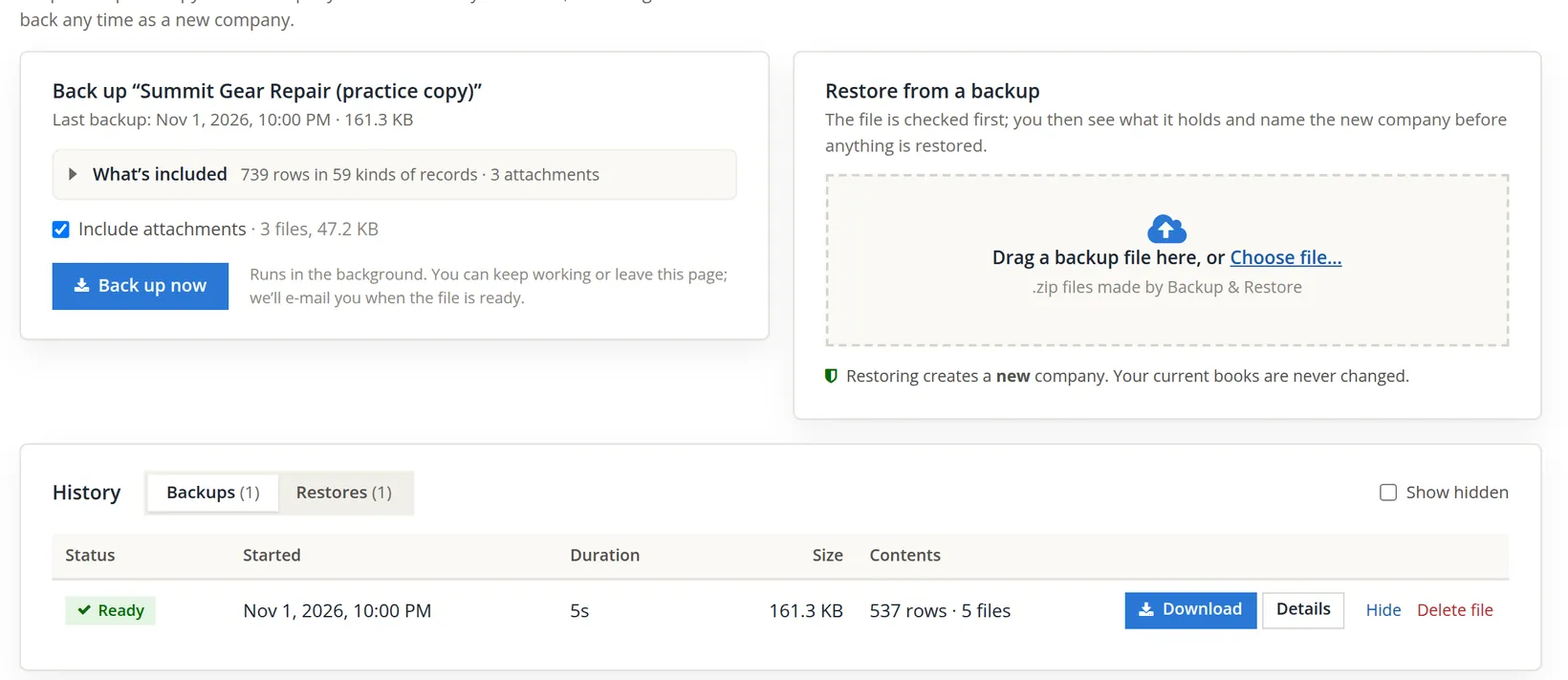
Open the books, then Tools → Backup & Restore
The backup is always of the books you have open; the card heading names them.
- 2
Decide about attachments
Leave Include attachments ticked for a complete record. Untick it only when the file must be small and the receipts are kept elsewhere: a restore from such a file has the records without their attached documents.
- 3
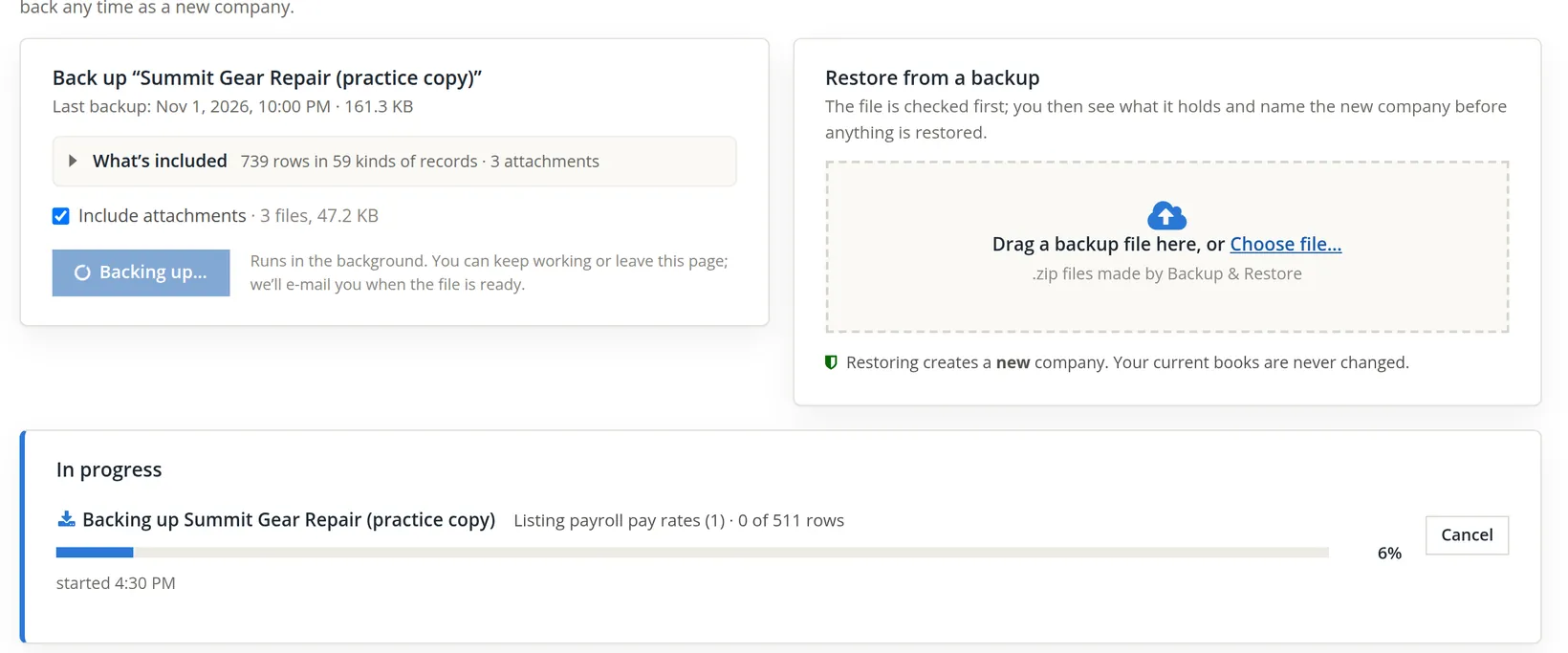
Click Back up now
The backup runs in the background. You can keep working or leave the page; an e-mail tells you when the file is ready.
- 4
Download the file from the history
This backup took six seconds. A large set of books takes longer; the work is done in short slices with a saved checkpoint, so a backup that is interrupted carries on from where it stopped.
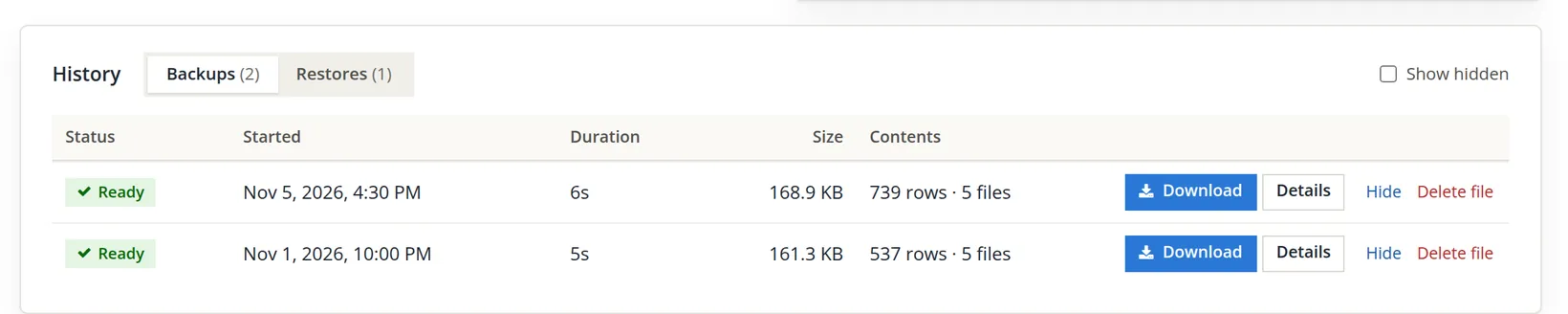
The file arrives as summit-gear-repair-practice-copy-2026-11-05-1630.backup.zip: the name of the books, then the date and time it was made on the books' clock (4:30 PM).3 Store it where you keep other records you cannot afford to lose.
A common rule for records: keep three copies, on two kinds of storage, with one away from the office. For a small business that can be as simple as the downloaded file on the office computer, a copy on an external drive, and a copy in a cloud folder. Make a backup after each month-end close (Chapter 15.5) and before any big change.
What the file holds
The .zip file is a readable export, not a copy of the database. Inside are a manifest that describes everything in it, a short read-me, one compressed file per kind of record (accounts, contacts, transactions, payroll, timekeeping and so on) and, if you ticked the box, the attachments themselves.
| In the file | Never in the file |
|---|---|
| Every record of the company: chart of accounts, contacts, invoices, bills, journal entries, closed periods, budgets, fixed assets, payroll and timekeeping records, projects, Property Management records, settings, the people who may open the books and their permissions | Sign-in secrets and password hashes |
| Attachments, when ticked | API keys |
| A manifest with a checksum for every part | Bank-feed connections |
| The books' audit history (Chapter 6.7) up to the moment the backup started, with its chain of checks | The technical details of each sign-in and request behind those events |
| How the books were set up: the setup choices and checklist, the accounts the setup made, and Menus and words (Chapter 15.2), so rental books still say "tenants" | Employees' full Social Security numbers (the last four digits come along) and direct deposit bank numbers |
| A count of each kind of value left behind, never the values | Tax payees' agency portal logins, rental owners' EFT bank details and Timekeeping kiosk PINs |
| QuickBooks connections, which come back disconnected | The QuickBooks login behind each connection |
| The list of payroll files | The contents of payroll files that hold a Social Security number or a check: the files are listed, and open only in the original books |
One kind of record is not in the file yet: under government contract controls, the runs of record of closed months, that is, the earned and billed figures a closed month's statement reported and the changes to them. Restored books start without them; their next statement of a closed month records the figures of that day.4
Because of the checksums, a restore can tell whether the file is the one this system made and whether anyone changed it since. A damaged part does not stop a restore: the rest is restored and the problem is reported.
The audit history is the newest part of the file. The backup and the test restore in this chapter's pictures were run by a build of the tool that did not yet include it, so they do not show it. A backup made now lists one more step while it runs, Copying the audit history. The history travels in two parts of its own, so that a restored company can still show who did what before the file was made. It is restored as a separate, read-only history, not mixed into the new company's own log: the events happened in the old books, and the new books keep a record of their own from the moment of the restore.5
Restore a backup as a new company
The owner tests a backup the only way that proves it: by restoring it. The pictures show the test of the November 1 file, the one made right after the October close, so its numbers (537 rows) are smaller than those of the November 5 backup above.
- 1
Drag the file onto Restore from a backup, or click Choose file…
The file is uploaded and checked first. Nothing is restored yet. When the check is done, the row under In progress reads Ready to restore, with Review and restore, and the confirm window opens.
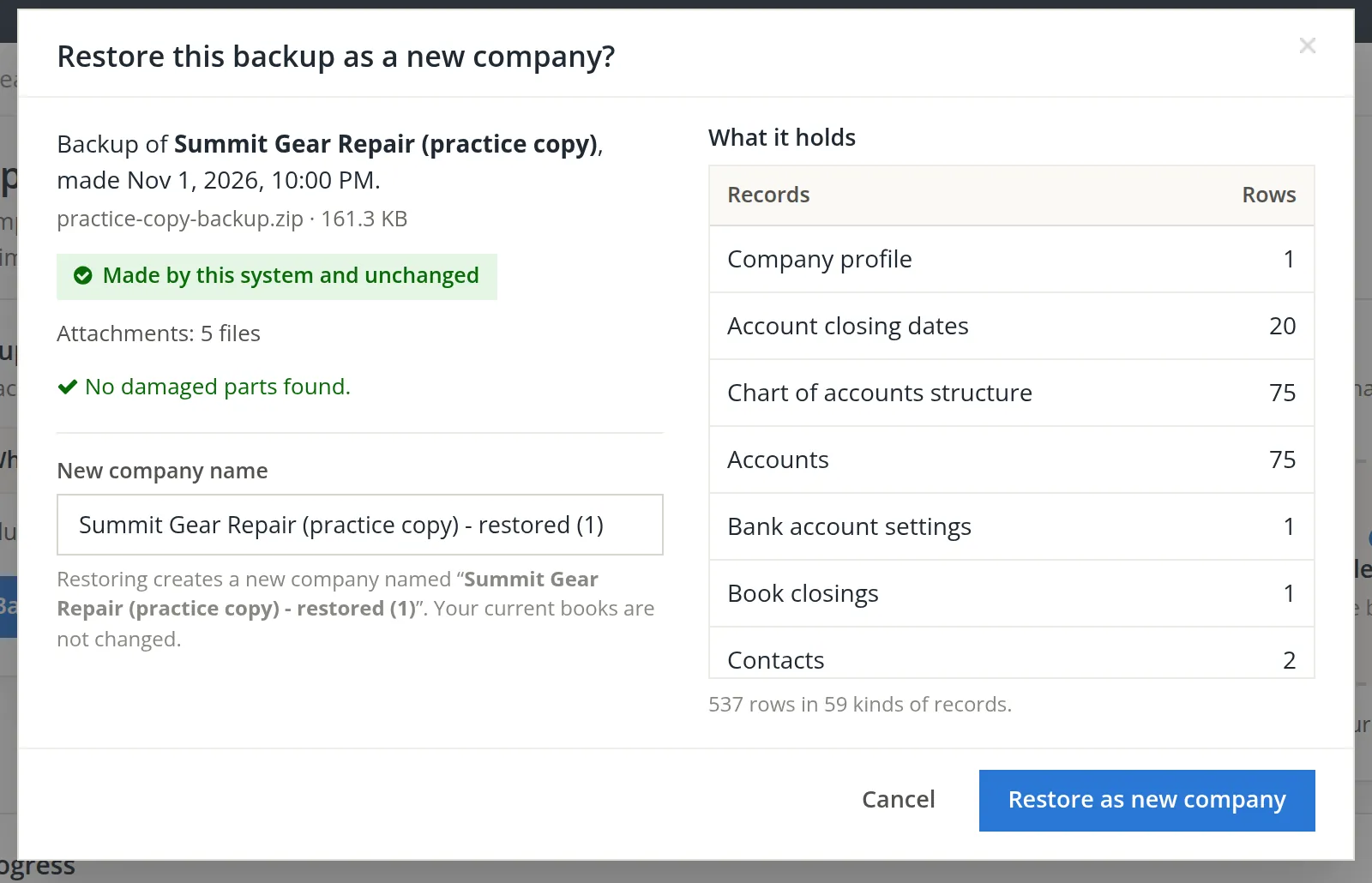
A name you already use
The suggested name is long, so the owner shortened it to Summit Gear Repair (practice copy) and clicked Restore as new company. That is the name of the books the backup came from, and the owner already has them.
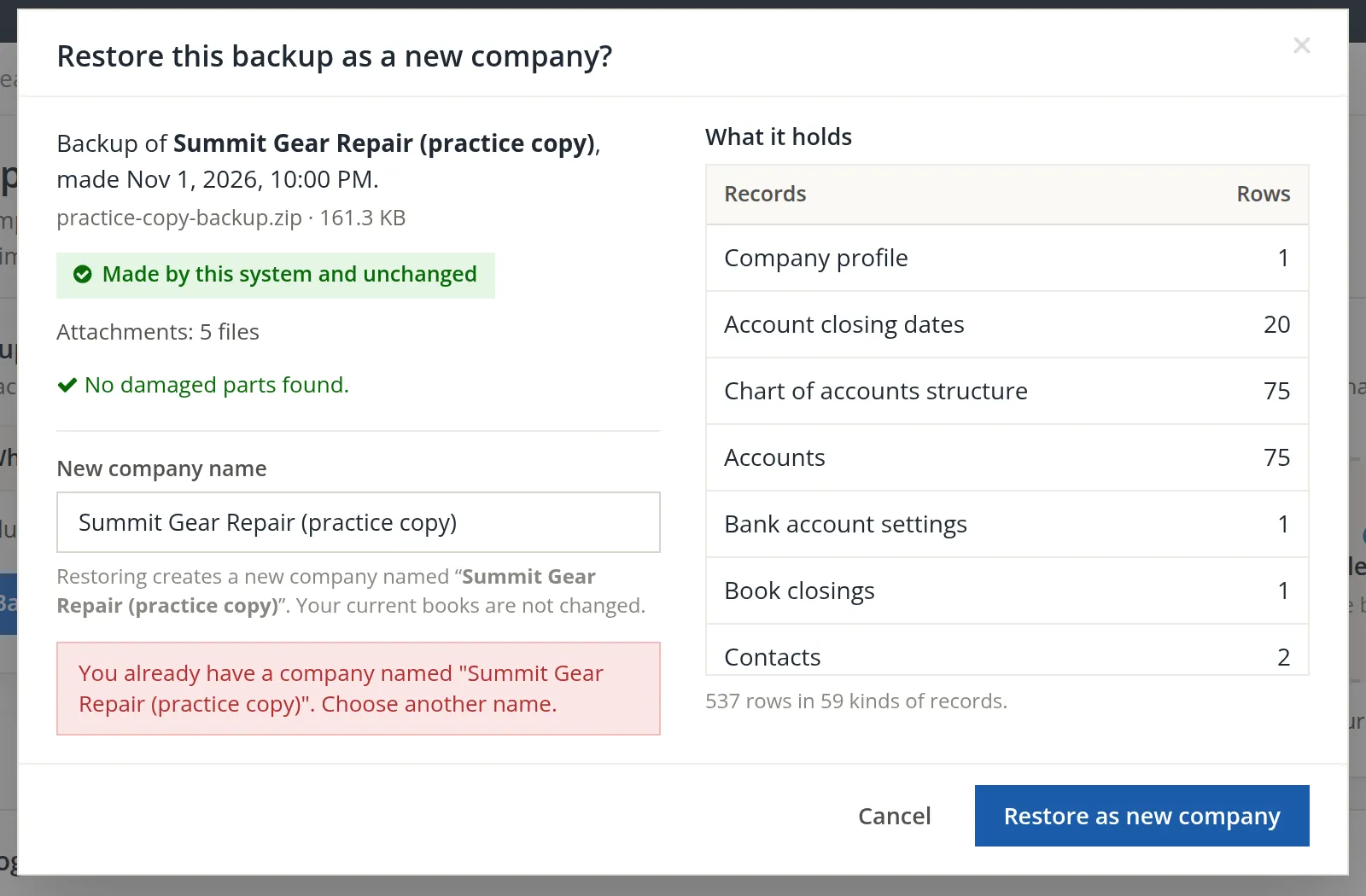
Two companies with one name would be a trap: the next person to open "Summit Gear Repair (practice copy)" might post into the restored test instead of the working copy. The owner named it Summit Gear Repair (restore test).
- 2
Give the new company a name that says what it is, and restore
Up to 70 characters. Good names carry the reason and the date: (restore test), (as of 2026-10-31).
- 3
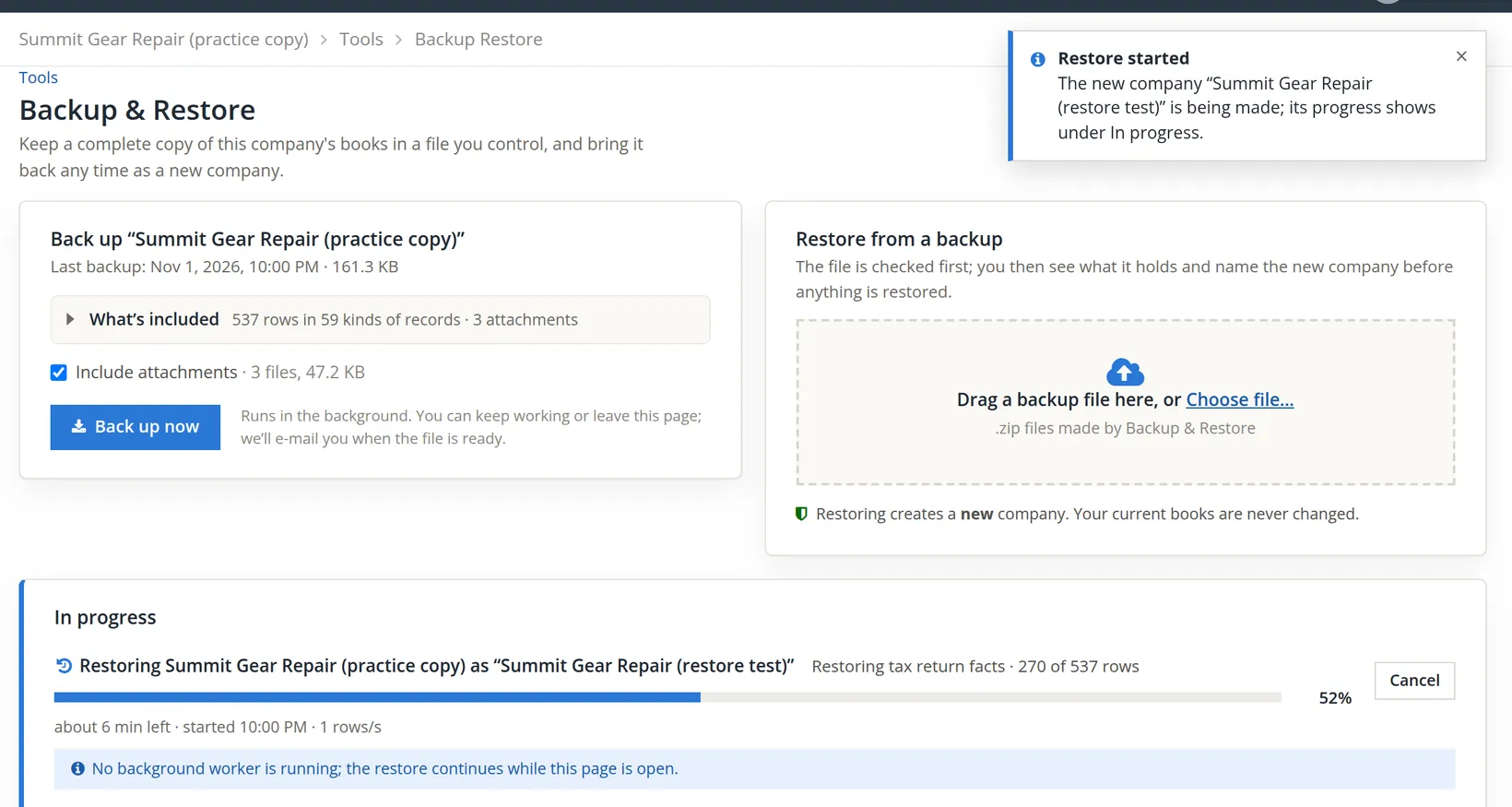
Keep the page open until the row moves to the history
When the note about the background worker shows, the page itself drives the restore. Here it took about three and a half minutes for 537 rows. The new company stays unusable until the very end, then is released in one step.

Check the restored books
- 4
Open the new company and compare
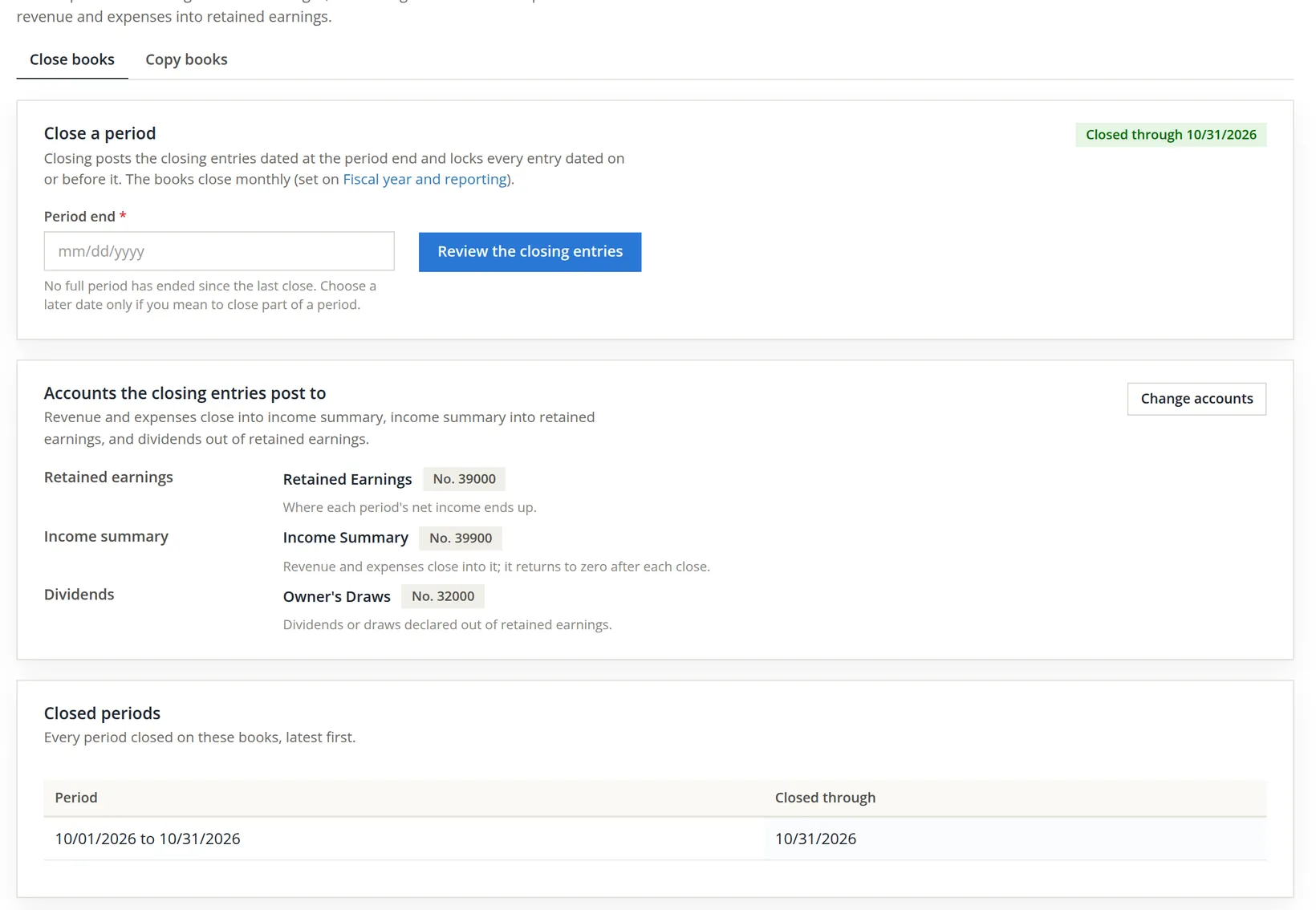
A restore recomputes the account balances in the new company and must match the backup to the cent. Still, look for yourself: run the Trial Balance (Chapter 6.5) in both sets of books for the same date, and check a feature you rely on. The owner opened Close books in the restored company.
Then set up what a backup never carries. Open Details on the restore's row and read its notes: the restore names each thing it left behind once, with the page where it is set again, for example "2 employees need their Social Security numbers typed again (Payroll > Employees, each employee's page)". In general: link the bank feeds again and make new API keys (Chapter 15.8) if other software needs them; type employees' Social Security and direct deposit numbers again; enter tax agency logins and owners' EFT details again; have each person set a kiosk PIN again; connect QuickBooks again. Some switches come back off: if the company should run payroll, ask support to switch it on, as Chapter 15.6 describes for copies; turn Property Management (with its e-mail sending, inspection app, outside services and listings feed) back on in Settings; once the books are entitled to the Assistant, the owner reads its data notice and turns it on in Settings → Assistant; Timekeeping stays off when the new books are not entitled to it. A restored company you only needed for a test can be deleted from Settings → Company (Chapter 15.1); the books it came from are not affected.
From a file made with the audit history, the history comes along too. (The restored company pictured above came from the November 1 file, which holds none, so it does not show this.) In the restored company, Reports → Audit History (Chapter 6.7) then shows a History choice, which appears only when the books hold imported events, with two entries: This books' history, which starts with the restore, and Imported from a backup, the events of the original books up to the backup. Each imported event says which backup it came from. They can be read, filtered and exported, but not changed, and the entries they name are the original books' entries, so they link to nothing in the new company.
The file carries the people who may open the books and their permissions. Look at Settings → Users and permissions (Chapter 15.7) in the restored company and remove anyone who should not see it.
If you upload a file and close the window without deciding, the restore waits under In progress with Review and restore. An uploaded file that is never confirmed expires after 48 hours.7
A backup you can trust
- [x] Made by the owner, from the right books, with attachments.
- [x] Downloaded and stored in at least two places.
- [x] Made after each month-end close and before big changes.
- [x] Test-restored at least once, under a name that says "test".
- [x] The test company's figures agree with the originals; then it is deleted.
Check your understanding
1. You restore last month's backup. What happens to the books you are working in today?
Answer
Nothing. A restore always creates a new company; existing books are never changed.
2. A member asks for a backup of the company. Who can make it?
Answer
Only the owner. The owner can give the member the file, and the member can restore it as a company of their own if they own a set of books.
3. Name three things that are never in a backup file.
Answer
Any three of: sign-in secrets, API keys, bank-feed connections, employees' full Social Security and direct deposit numbers, tax agency portal logins, owners' EFT details, kiosk PINs, QuickBooks logins and the contents of payroll files that hold a Social Security number or a check.
4. The restore page says no background worker is running. What must you do?
Answer
Keep the page open until the restore finishes; the page itself moves it forward.
5. Why was the name "Summit Gear Repair (practice copy)" refused?
Answer
The user already owns books with that name; two companies with one name could be confused.
Notes
- The practice user is a member of Summit Outfitters Inc., not its owner, so the first picture shows the member's view there. The backup and the restore were made on the practice copy, which the practice user owns; the restore made a new, separate company and changed nothing else. ↑
- From the page's own notice to a member: "A restore makes a company of your own, and the server takes one only from a user who already owns a set of books." ↑
- The books' clock is the company's time zone, Pacific for this Oregon shop. Inside the file the same moment is also written in Coordinated Universal Time, 00:30 on November 6. ↑
- From the backup engine's notes: the runs of record are left out "for now" because of how their lines are keyed; a restored or copied set of books "starts without them". They concern only projects kept under government contract controls (Volume 7). ↑
- Added to the tool on November 4, 2026. From the engine's notes: the history part holds "every Audit History event recorded up to the backup's start", with the user's display name and the redacted detail, "never the request's server variables". If the history cannot be read, the backup is still made, with a warning that it holds none. A copy made with Copy books (Chapter 15.6) never carries it. ↑
- On a server with a background worker the restore runs on its own and the page only shows its progress. A crash or a closed page loses at most one slice of work; the run resumes from its checkpoint, from the page or automatically. ↑
- From the engine's settings: uploaded but unconfirmed restores expire after 48 hours. A failed run can be resumed from the page. ↑