
Chapter 14.1
Recurring Transactions
Rent, retainers, subscriptions and month-end entries come around on a calendar. A recurring schedule enters them for you, on time and exactly once, and it never posts a pile of old entries without asking first.
When you finish this chapter you will be able to:
- Explain what a schedule is made of: a template, a repeat pattern and a posting rule.
- Set up a monthly bill that is created a few days before it is due and carries its paperwork.
- Recognise a backlog, explain why the software holds it back, and settle it correctly.
- Use "Ask me before posting" to review each entry, then post or skip it.
- Pause, skip, end or delete a schedule, and read its history.
What a schedule is
A recurring transaction is not a special kind of entry. It is an ordinary invoice, expense, bill, check, vendor credit or journal entry that BizBooks360 writes for you on dates you choose. Each schedule has three parts:
| Part | What it holds | Summit's rent |
|---|---|---|
| The template | The document as every entry should look: contact, accounts, products, amounts, description, attachments | A bill from Old Mill Properties LLC, $8,320.00 to Rent, with the lease summary attached |
| The repeat pattern | How often, on which day, from when, until when, and how many days early to create each entry | Monthly on day 1, created 5 days ahead, through 12/31/2027 |
| The posting rule | Post each entry on its own, or wait for you to approve it; journal entries and checks may also need a second person to approve the template | Post on its own |
Two promises shape everything else in this chapter. First, nothing is posted while you save: saving stores the template and the pattern, and the entries that are due are then made in the background. Second, each date is posted exactly once: every entry the schedule should make is written to the schedule's history with its result, so a second run, a retry or a crash never doubles an entry.2
Books that require a second person's approval for journal entries or payments (the Approvals tab of Close books, Chapter 15.5) add one more gate for those two types. A recurring journal entry or check is approved once, as its template, by someone other than the person who saved it (in books where nobody else may approve, it joins the owner's own review instead), under Accounts → Approvals. Until then its schedule shows the chip Waiting for approval, and its entries wait for review instead of posting. Once the template is approved, its entries post without waiting; a change to its lines or amount sends it back for approval. Invoices, bills, expenses and vendor credits are not affected.
The pattern can repeat daily (every N days), weekly (every N weeks on a weekday), monthly (every N months on a day, or on the first to fourth or last weekday) or yearly (a month and a day). If a month is shorter than the day you pick, its last day is used; February 29 falls on February 28 in other years.
The Recurring transactions page
Tools → Recurring Transactions. A company with no schedules sees "No recurring transactions yet" and a short invitation. Once you have schedules, each one is a row with its pattern, its contact and amount, its status, the next entry and the last one created. The picture below was taken at the end of this chapter, so you can see where we are going. The list opens sorted by Next entry; the picture was sorted by Type with the Sort by box, which puts this chapter's bill and invoice at the top.
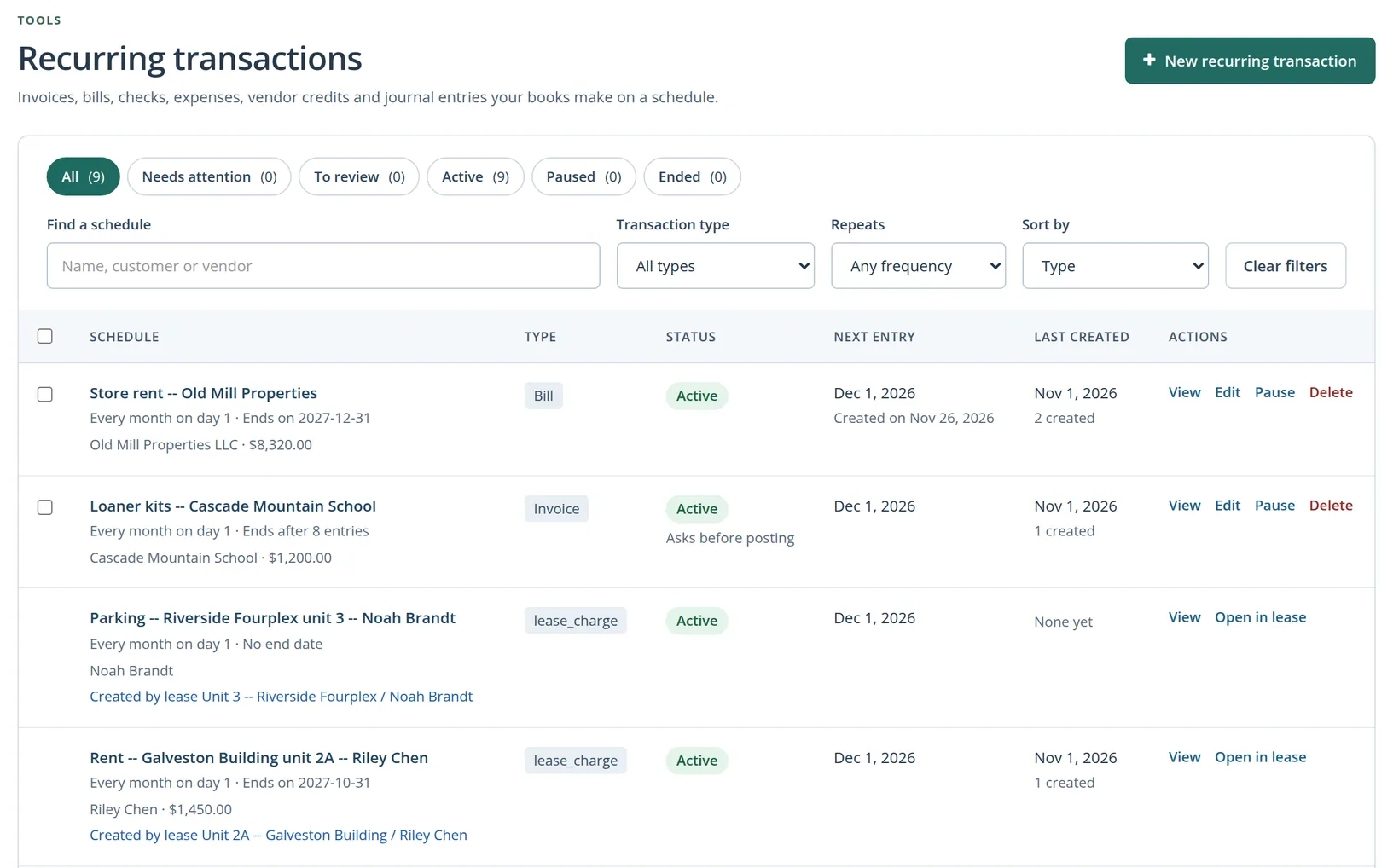
Tick the boxes at the left of several rows to pause or resume them together, for example every schedule of a closed season.
Books that use Property Management (Volume 13) also see the rent and other charges of each lease here. A lease makes and steers its own schedules: their rows say Created by lease with a link to it, have no tick box and offer only View and Open in lease. To change the rent or end the charge, open the lease; the schedule follows it.
Set up the monthly rent bill
Summit's lease runs from January 2026 to December 2027. The bookkeeper wants the rent bill to appear in Expenses five days before each 1st, so it can be paid on time (Chapter 3.3) with the lease summary attached for anyone who asks what the payment is.
- 1
Click New recurring transaction and choose the type
Step 1 of the editor offers six types. Choose Bill. The form in step 3 changes to a bill form, the same accounts, vendors and products as a one-time bill.
- 2
Name it and set the pattern
Use a name you will recognise in a list: Store rent -- Old Mill Properties. Set Repeat to Monthly, every 1 month, on Day of the month 1.
- 3
Choose the start, the lead time and the end
Start on or after is the first date the schedule may use. Create entries 5 days ahead makes each bill on the 27th or so of the month before, dated the 1st. End the schedule On a date, 12/31/2027, the end of the lease. Leave Ask me before posting each entry clear: rent does not change.
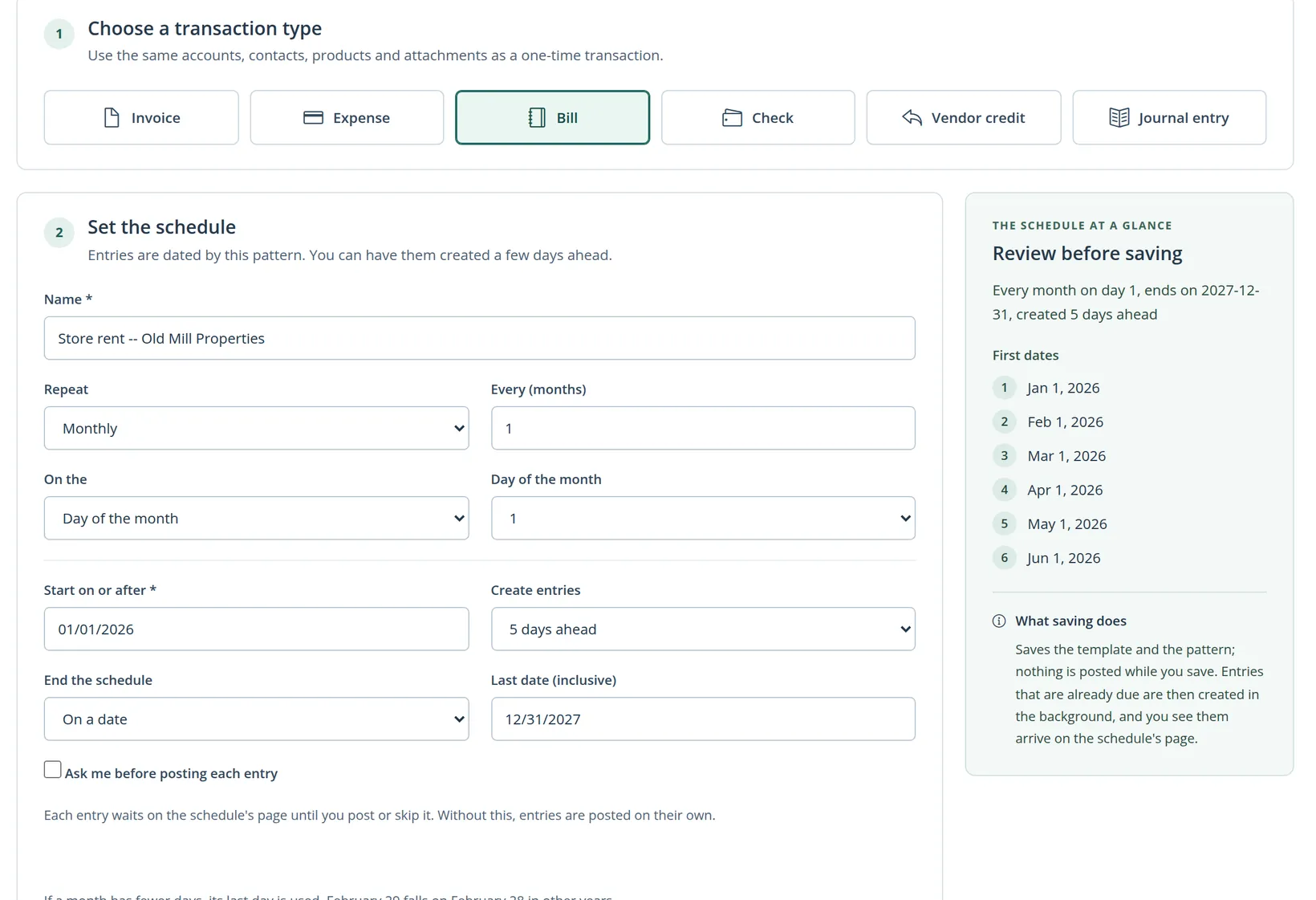
- 4
Fill in the bill
Choose the vendor, Old Mill Properties LLC, and the terms, Due on (receipt). Click the first line of Account Details to edit it: account Operating Expenses:Rent, description Monthly base rent, store lease, amount 8320.00. Add a description of the bill. Leave Bill No empty.3
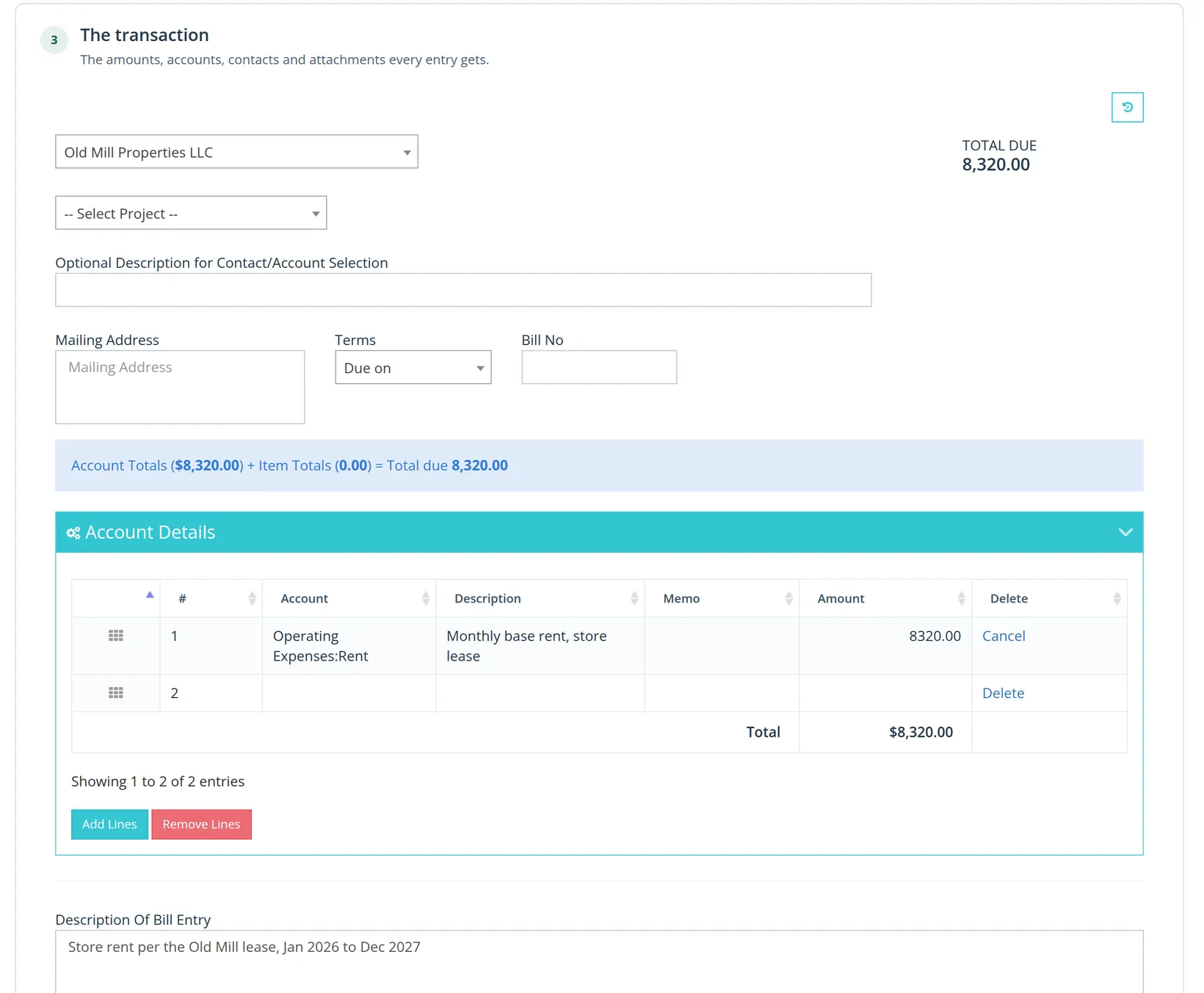
- 5
Attach the paperwork, then save
Drop the lease summary on Attachments. The file waits with the template; after each bill is made, a copy is attached to that bill, so deleting a bill never removes the template's file. Click Save the schedule.
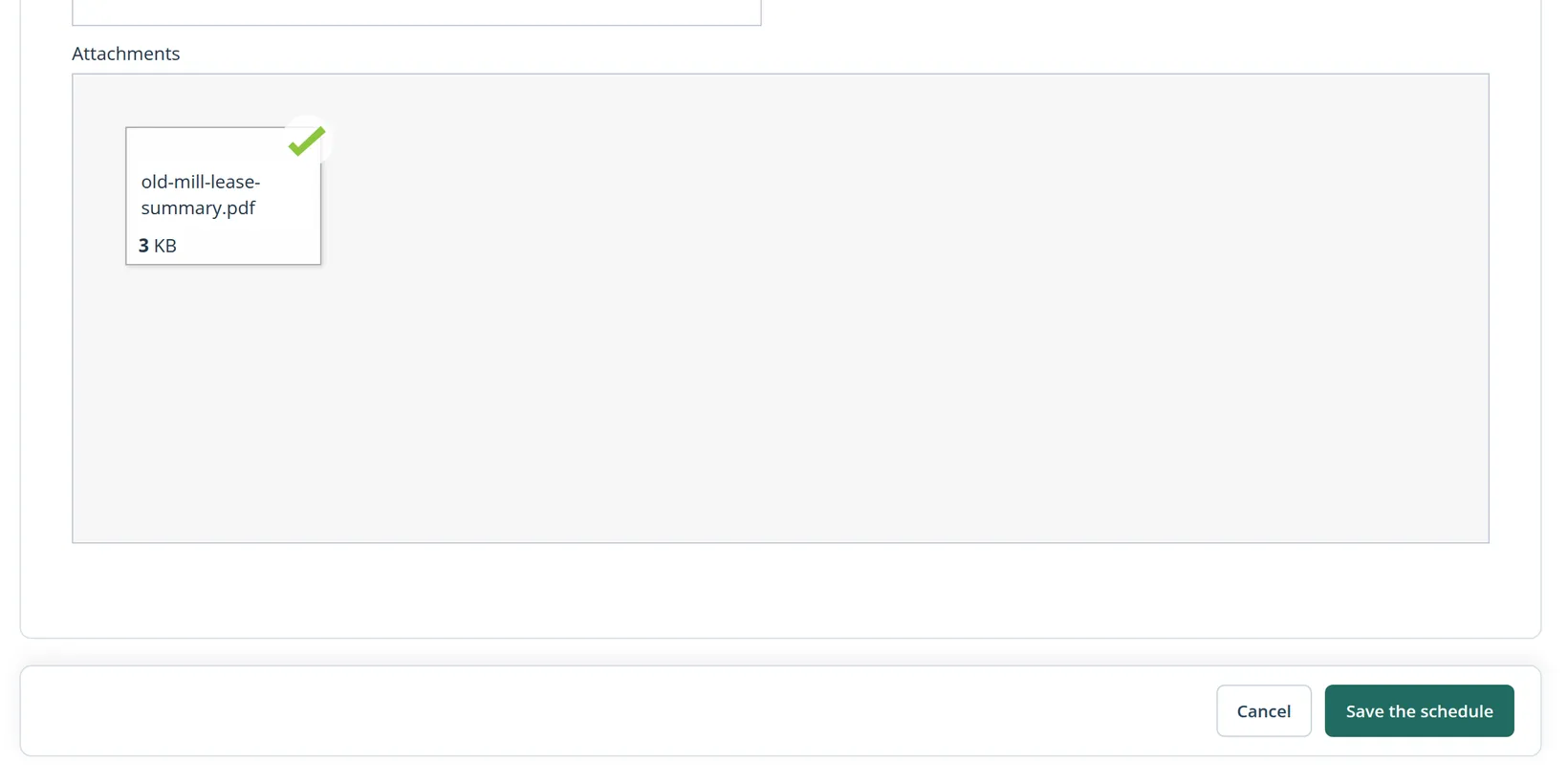
An entry made 5 days ahead is still dated on its own date, here the 1st. Creating ahead only gives you time to see the bill, approve it and pay it on its due date. For a journal entry you may prefer On the entry's date.
A mistake the software caught: the backlog
The bookkeeper typed the lease's start date, 01/01/2026, as the schedule's start. Today is November 1, 2026, so by the time the schedule was saved, eleven monthly dates had already passed: January 1 to November 1. A careless system would have posted eleven bills on the spot.
BizBooks360 does not. When more than three entries are due at once, or the oldest is more than 31 days old, the schedule stops with the status Needs attention and waits for you to decide.4
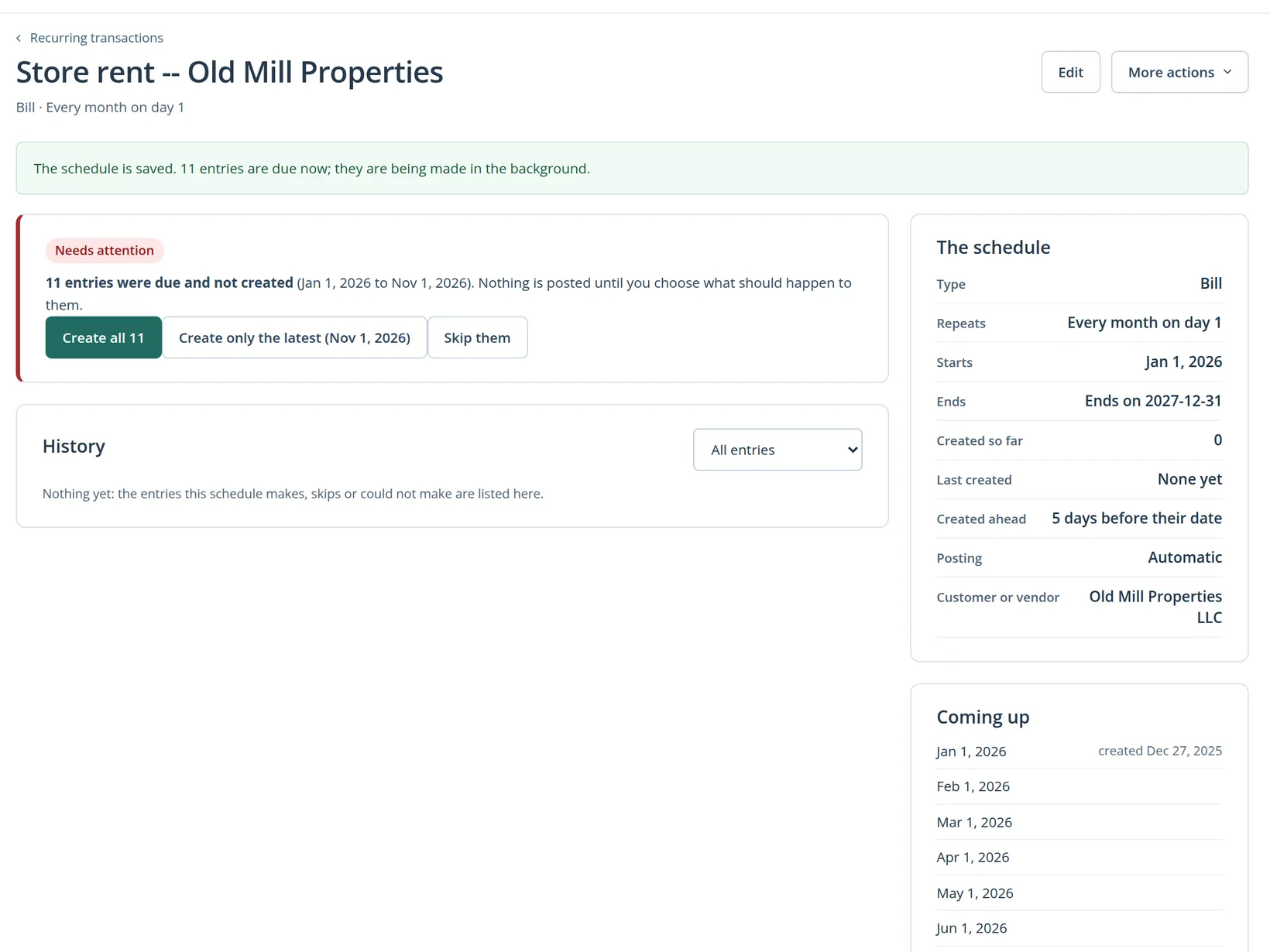
The green message at the top is written at the moment of saving and says the entries "are being made in the background". When there is a backlog they are not: the status card underneath is the truth. Nothing was posted.5
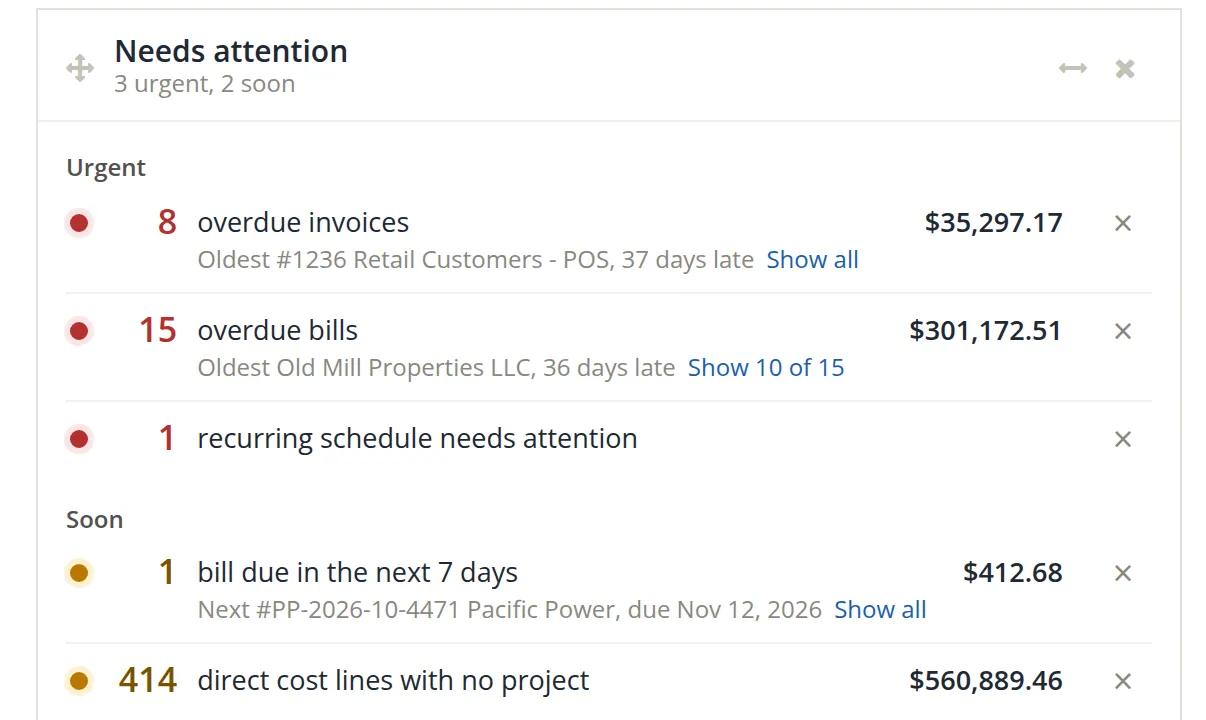
The same warning appears on the dashboard, in the Needs attention widget (Chapter 1.4), so a schedule that stopped is not forgotten.
Which button is right?
Look at the books before you choose. Summit's Rent account already holds nine checks for 2026, numbers 2116 to 2124, one for each month from January to September, $8,320.00 each. October and November have not been entered.
| Choice | Bills made | Result in the books |
|---|---|---|
| Create all 11 | Jan to Nov, 11 × $8,320.00 = $91,520.00 | Wrong: January to September counted twice. Rent and payables overstated by 9 × $8,320.00 = $74,880.00 |
| Create only the latest | Nov only, $8,320.00 | Incomplete: October is recorded as skipped and stays missing |
| Skip them | none | Incomplete: October and November both missing |
| Edit the start date to 10/01/2026 | Oct and Nov, 2 × $8,320.00 = $16,640.00 | Right: each month of 2026 entered once |
None of the three buttons gives the right answer here, because the real mistake is the start date, not the missed months. Fix the cause.
- 1
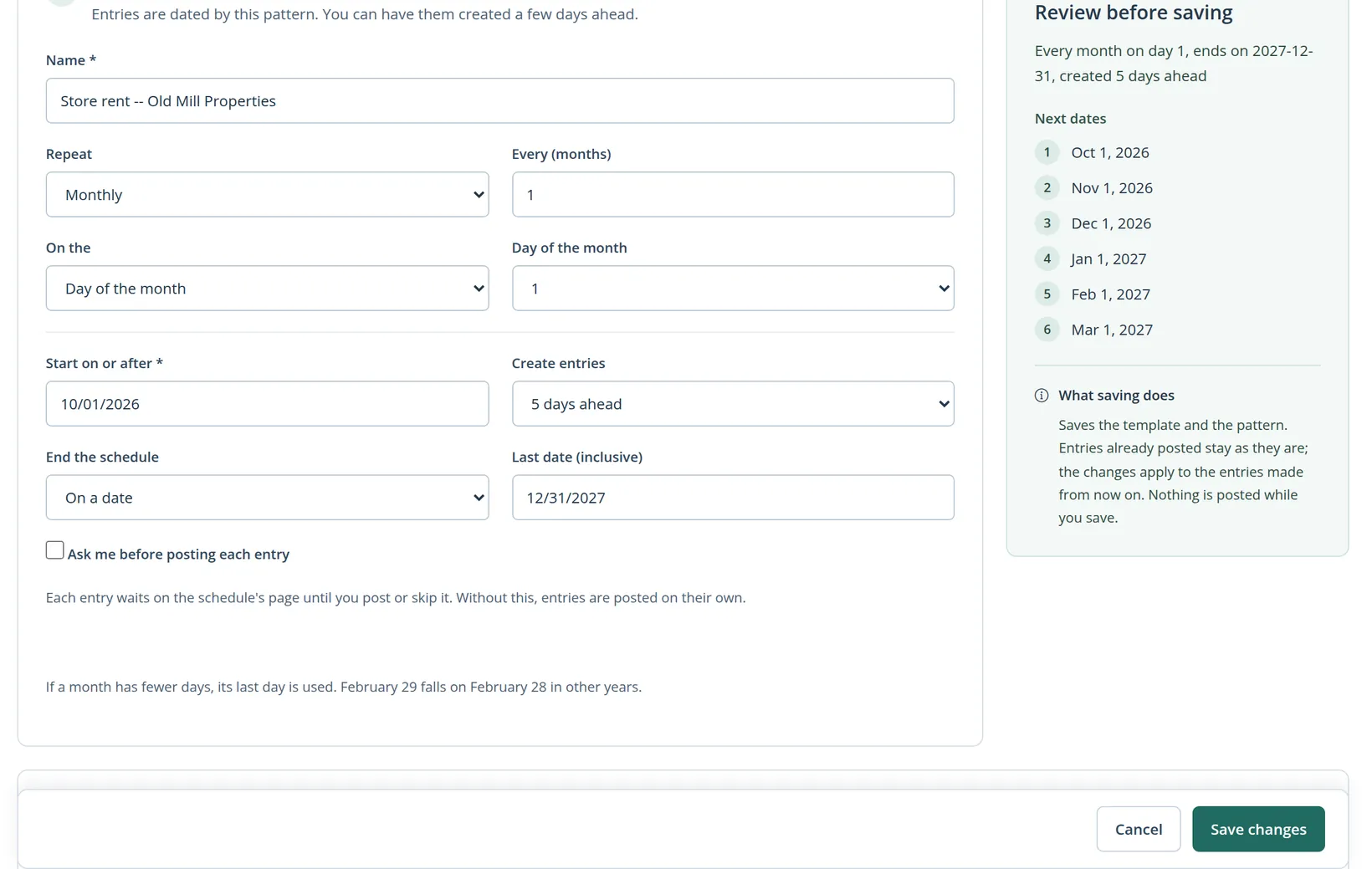
Click Edit and change Start on or after to 10/01/2026
The side panel now lists Next dates from Oct 1, 2026. In an edit its note reads: entries already posted stay as they are; the changes apply to the entries made from now on. Click Save changes.
- 2
Watch the two entries arrive
Two dates are due, October 1 and November 1. That is within the limit, so they are made at once, and the schedule's page fills in its history as they arrive.
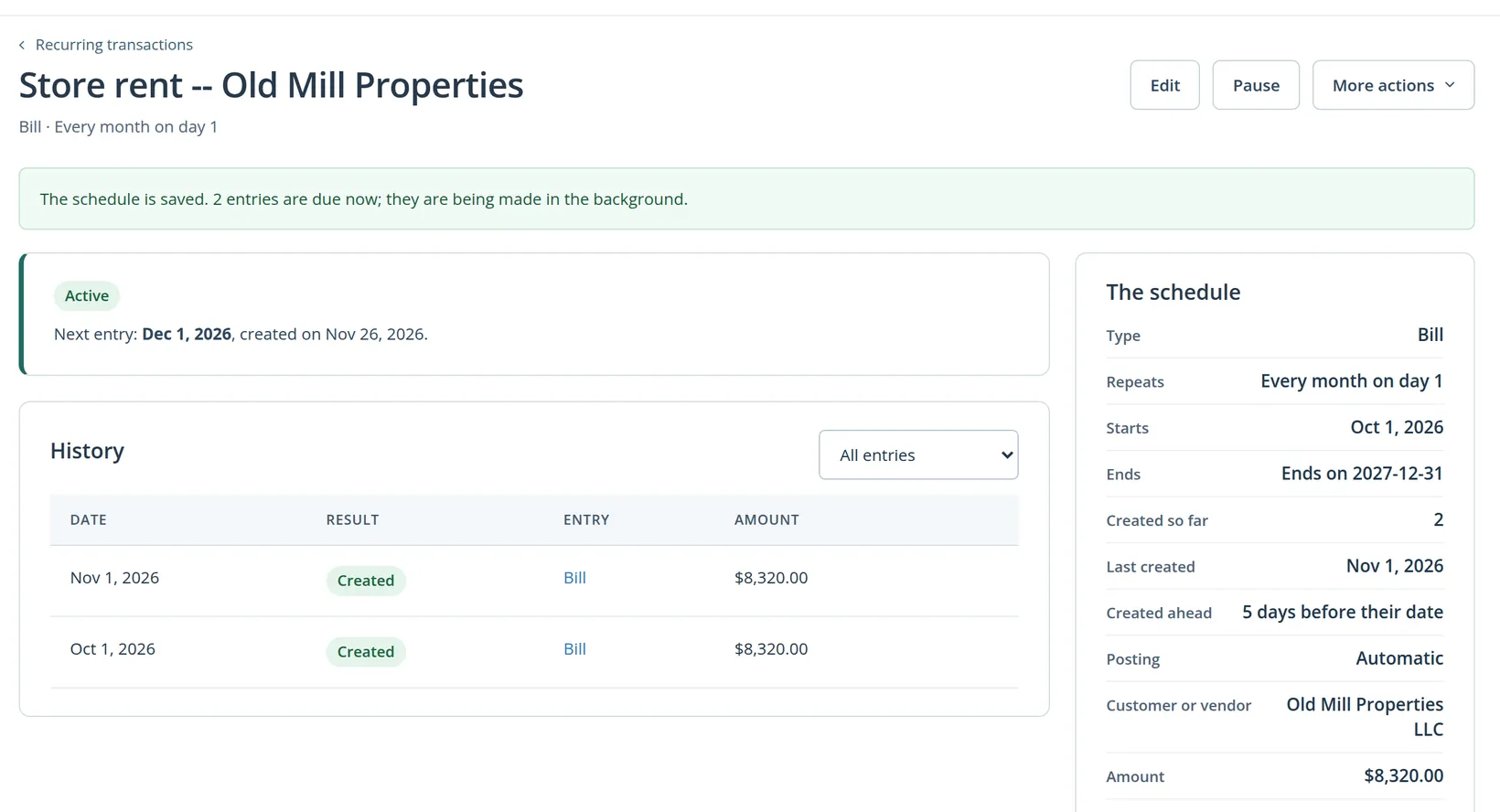
Open the November bill from its link. It is an ordinary bill: you can pay it, change it or delete it like any other (Chapters 3.2 and 3.3).
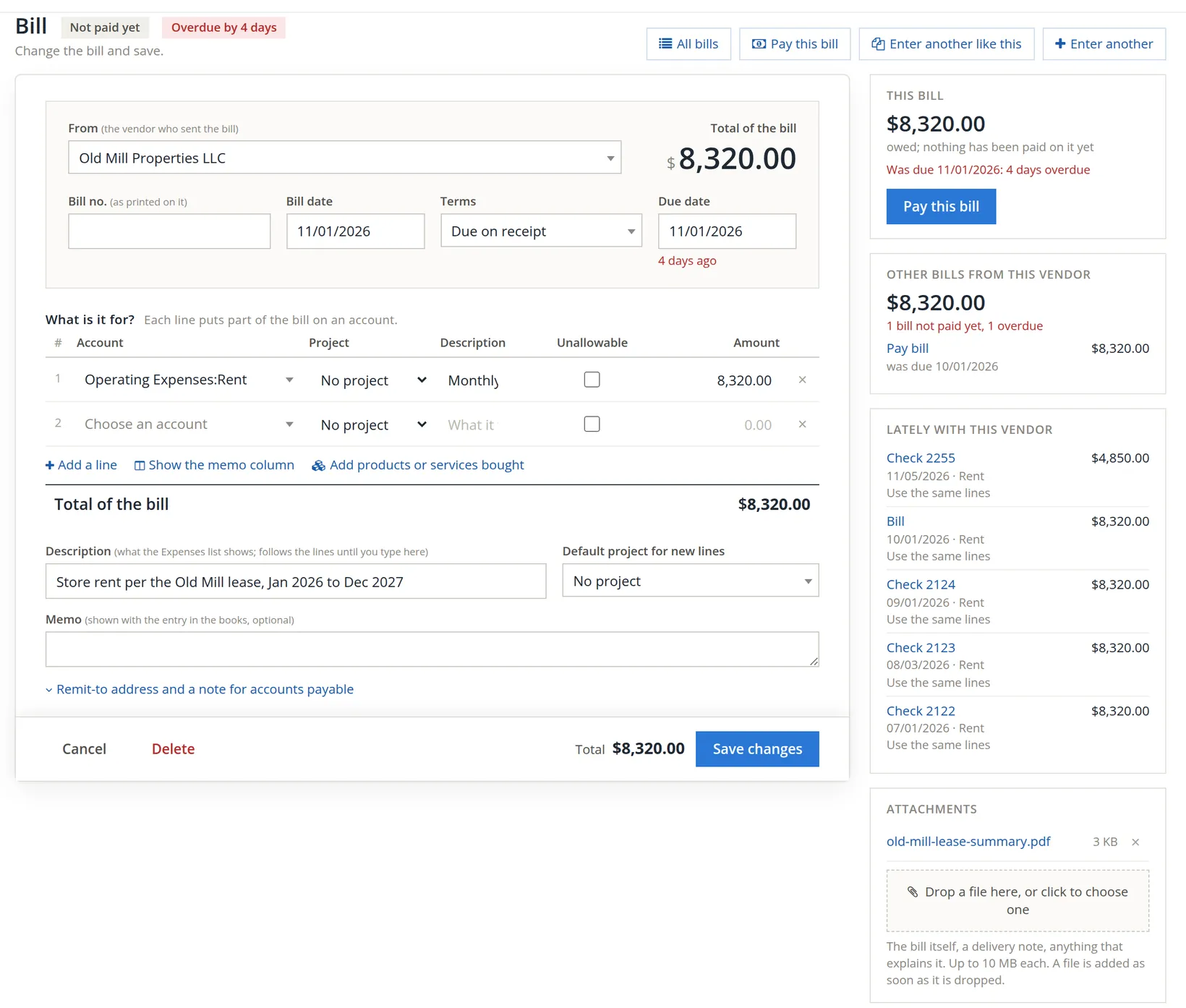
The arithmetic. From October 2026 to December 2027 the schedule makes 15 bills: 15 × $8,320.00 = $124,800.00. With the nine checks already in the books, 2026 rent totals 12 × $8,320.00 = $99,840.00, once each.
A schedule that asks first
Cascade Mountain School takes 4 loaner kits a month at $300.00 each, $1,200.00, for the eight months of its school year, November to June. In a month when the school is on a break, Summit bills nothing. That is a job for Ask me before posting each entry: each entry waits for a person to post it or skip it.
- 1
New recurring transaction, type Invoice
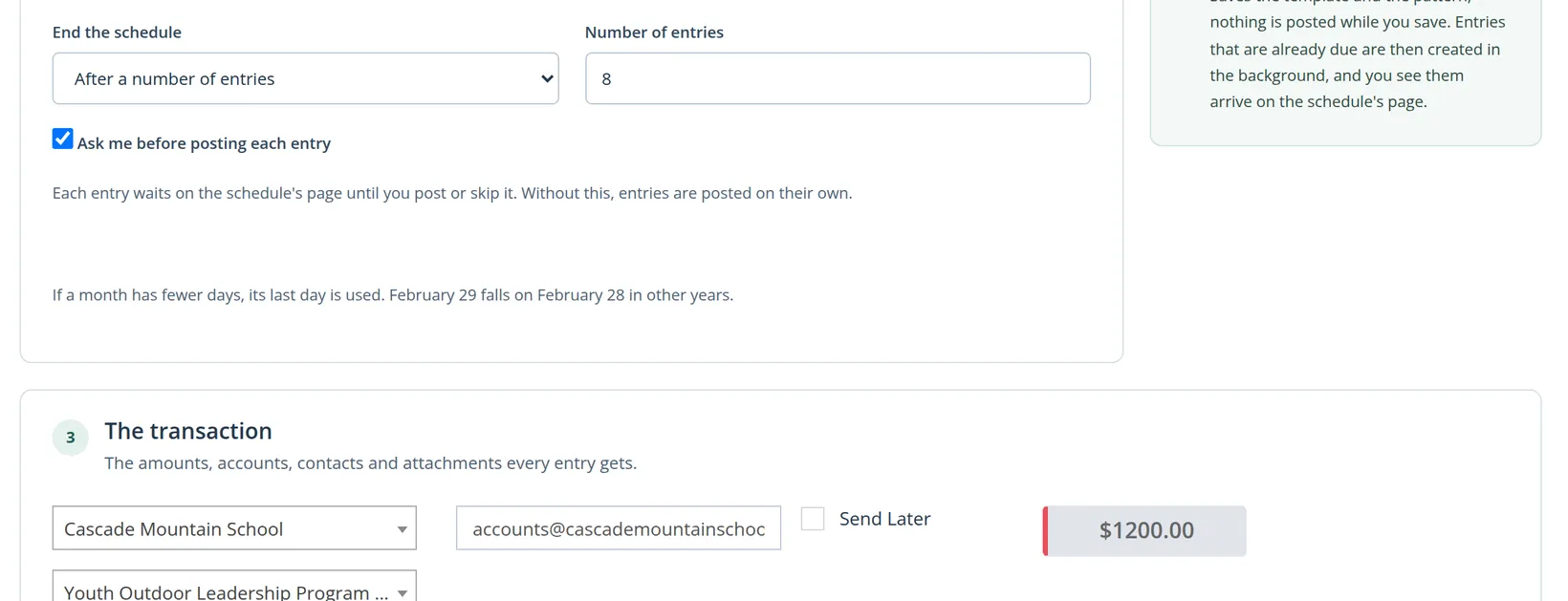
Name it Loaner kits -- Cascade Mountain School. Monthly, day 1, start 11/01/2026, created On the entry's date. End the schedule: After a number of entries, 8. Tick Ask me before posting each entry.
- 2
Fill in the invoice
Customer Cascade Mountain School, project Youth Outdoor Leadership Program 2026-27, terms Net 30, one line: Youth Program Loaner Kit, quantity 4, rate 300.00, amount 1,200.00.
- 3
Check the e-mail box
Choosing the customer copies its e-mail address into the box beside it, here accounts@cascademountainschool.example. Each invoice the schedule makes can be sent there (Chapter 2.8). The form checks the address as you leave the box: a malformed one, with no dot after the @ or a doubled @, is outlined in red and the schedule is not saved until it is corrected. The school's address is well formed and passes.6
- 4
Click Save the schedule
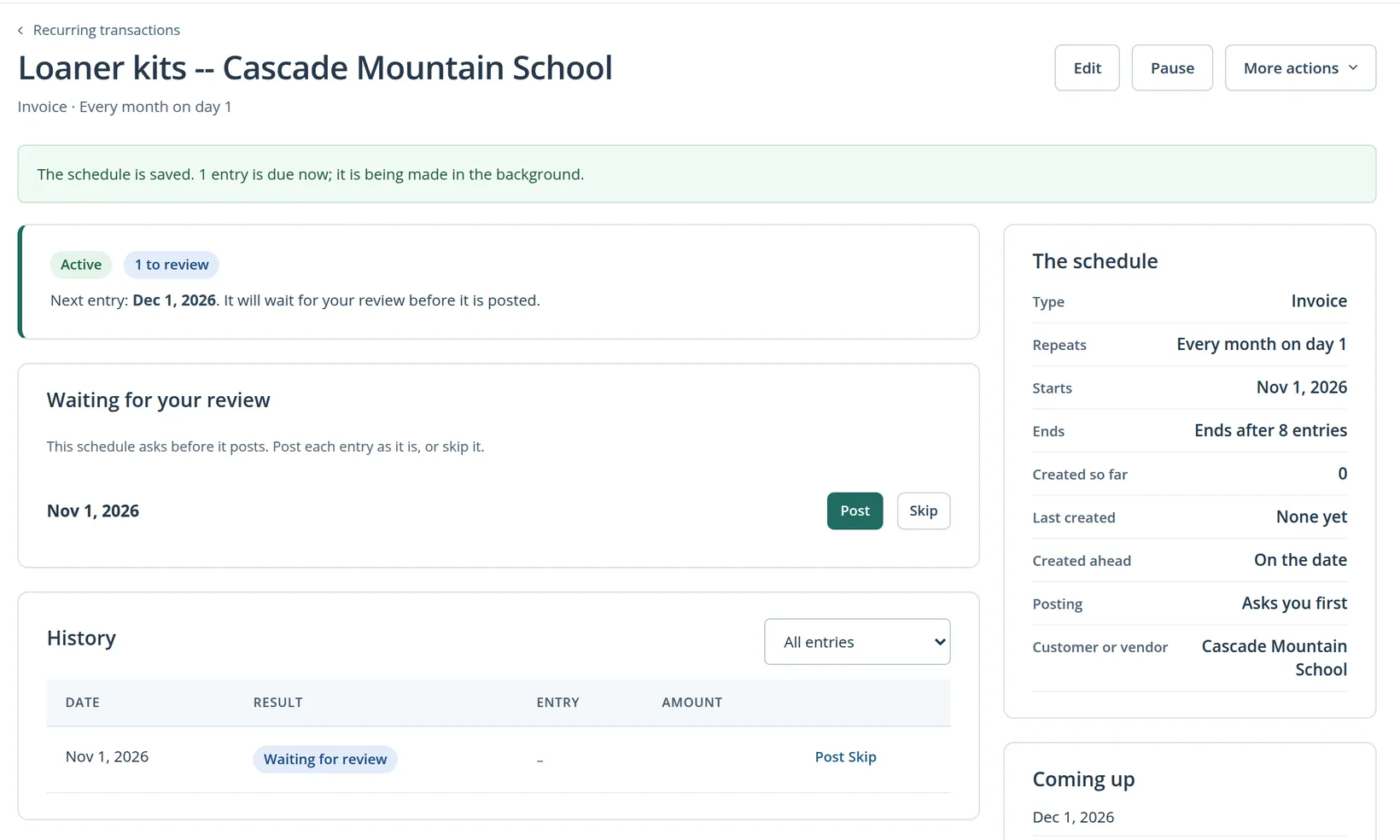
The schedule saved. With a start of today, one entry was due at once, and because the schedule asks first, it waits.
- 5
Review the waiting entry: Post or Skip
The school confirmed four students for November, so click Post. The invoice is made now, dated November 1, with the next invoice number.
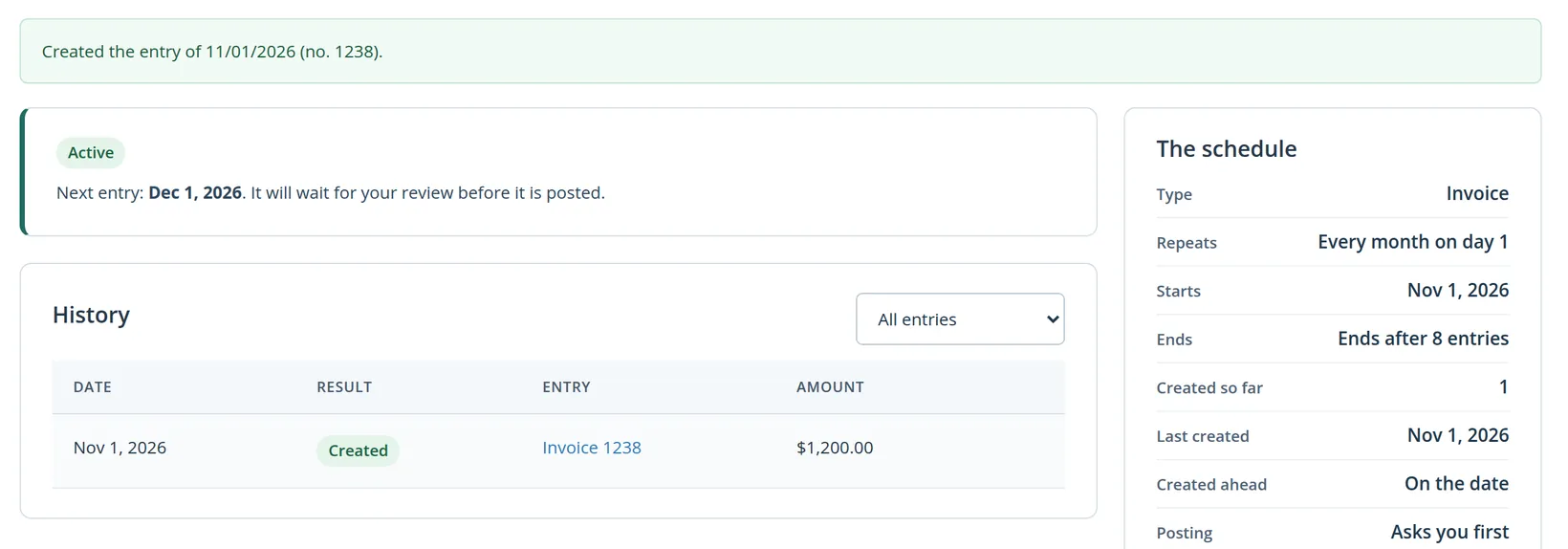
If the school takes the December break off, click Skip on December's entry. A skipped date still counts as one of the eight, so a schedule that ends "after 8 entries" ends after eight dates, posted or skipped.7 Over a full year with no skips the schedule bills 8 × $1,200.00 = $9,600.00.
The list's To review tab gathers every schedule with entries waiting. When two or more entries of one schedule wait, its review card adds Post all and Skip all.
Steering a schedule
Everything you can do to a schedule is on its page: Edit and Pause as buttons, the rest under More actions.
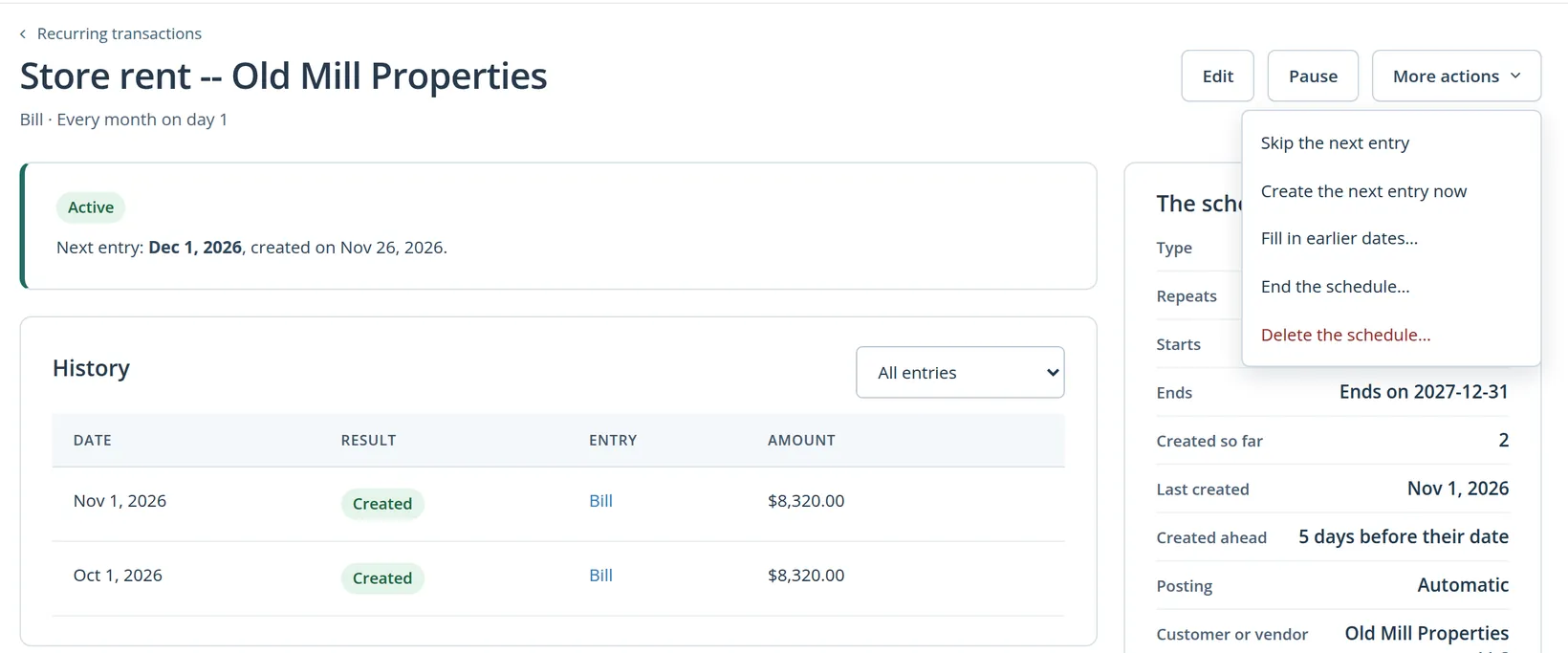
| Action | What it does | When to use it |
|---|---|---|
| Pause / Resume | No entries are created until you resume. Resuming also clears Needs attention once you have fixed the cause. | A season ends; a contract is on hold |
| Skip the next entry | Records the next date as skipped and moves on to the one after | The landlord waives one month |
| Create the next entry now | Makes the next entry at once, dated on its own date | You want to pay next month's rent early |
| Fill in earlier dates… | Shows the dates in a range before the schedule's start, then queues them; dates that already have an entry are left alone | You started a schedule late and want the earlier months on the same template |
| End the schedule… | No more entries; what it posted stays, and so does its history | The lease is terminated early |
| Delete the schedule… | Removes the schedule and its template's attachments; entries it posted stay in your books | A schedule made by mistake |
| Edit | Changes the template or the pattern for entries made from now on | The rent goes up |
When an entry fails. Before each entry the schedule checks its template against the books: the contact, accounts and products must still exist and be active, and, in books that refuse direct cost without a project (Chapter 7.1), every direct cost line must carry one. If a check fails, the entry is recorded as Failed with the reason, and the schedule stops with Needs attention. Fix the cause, for example show a hidden account again, then try the entry again or resume the schedule. A failed entry is never posted half-way.
A date in closed books (Chapter 15.5) fails the same way. The entry is recorded as Failed with the reason "Held: the books are closed through 10/31/2026. Re-open the period, or skip this entry.", and the schedule stops with Needs attention. Either skip that date and resume, or have the period re-opened, try the entry again, and close the period once more.8
Changing a bill the schedule made changes that bill only. To change every future bill, edit the schedule. Raise the rent there on the day the new rate starts.
Before you leave a new schedule
- [x] The first date in Review before saving is the first entry you actually want, not the start of the contract.
- [x] The months the books already hold (paid by check, entered by hand) are outside the schedule.
- [x] Number boxes such as Bill No are empty.
- [x] The end rule matches the contract: a date, or a number of entries.
- [x] Entries that vary from month to month ask first.
- [x] The status card says Active, and Needs attention on the list shows 0.
- [x] The paperwork is attached to the template, so every entry gets a copy (Chapter 14.2).
Check your understanding
1. A schedule is saved on November 1 with a start of January 1, monthly. How many entries does it post while you save?
Answer
None. Saving never posts. Here 11 dates are due, more than three, so the schedule stops with Needs attention and waits for your choice.
2. January to September rent was already paid by check. Why is Create all 11 wrong, and by how much?
Answer
It enters nine months a second time: 9 × $8,320.00 = $74,880.00 too much rent expense and accounts payable.
3. An entry is "created 5 days ahead". What date does the bill carry?
Answer
Its own date, the 1st. It is only made five days earlier.
4. You skip December on a schedule that ends after 8 entries. Does it now run nine months?
Answer
No. A skipped date counts as one of the eight.
5. You delete a schedule. What happens to the bills it made?
Answer
They stay in the books. Only the schedule and its template's attachments are removed.
Notes
- The practice user, a member of Summit Outfitters Inc., holds the Tools permission Add Recurring Transaction with its view, create, edit and delete switches; one permission governs the whole feature. The owner always has it. Permissions are covered in Chapter 15.7. ↑
- Each schedule and date can appear only once in the history. Entries are made in the background every 15 minutes or so; while a schedule's page is open, the page also moves due work along itself, which is why the pictures show entries arriving within seconds. ↑
- Numbers that belong to one document only are not repeated from the template: bill, check, expense and journal numbers are allotted fresh (a bill made by a schedule has an empty Bill no. for you to fill in from the landlord's invoice), as are credits used and prepayments. Due dates are recomputed from the terms for each entry. ↑
- The limits are three entries and 31 days, the defaults of this edition. When you choose Create all, entries are made one at a time, oldest first, each in its own step. ↑
- Observed in this edition: after saving a schedule with a backlog, the green notice says the entries "are being made in the background" while the status card says they were not created. The status card is correct. ↑
- Since November 2026 the box accepts addresses whose last part is longer than four letters, such as .example or .photography. Before that the form refused the school's address with "Please enter valid email address.", and the schedule in these pictures was saved, in the first edition, with the e-mail box cleared; its invoices are sent as described in Chapter 2.8. Clearing the box on a template never changes the address saved on the customer. ↑
- The count of entries "so far" includes skipped dates, because each one uses a slot of the end rule. The page's Created so far shows the entries actually made. ↑
- Since November 2026. A closed period can be passed only with the one-time permission that the reason-and-password window gives for one change. A scheduled run never has one, so the entry fails and the schedule stops until someone decides. ↑