
Chapter 13.13
Announcements, documents and the portals
A property office spends much of its day answering the same three questions: what do I owe, did you get my request, and when is my money coming. The tenant and owner portals let people read those answers for themselves. This chapter switches Summit's portal on, invites a tenant and an owner by hand, follows each of them through the claim page and into their own portal, carries a maintenance request from the tenant's phone to the office's task list and back, sends a water shut-off announcement to a whole building, and ends in the register where every document the module makes is numbered and kept.
When you finish this chapter you will be able to:
- Explain what the tenant and owner portals show, and what they deliberately do not do.
- Set the portal's pages, contact and wording, and switch the portal on and off.
- Invite a tenant or an owner, hand over the one-time link, and send a new link or revoke access.
- Describe the claim page and the sign-in rules a portal user meets.
- Follow a portal request onto the office's Tasks page and answer it.
- Write, publish and archive an announcement, and say why a letter channel can be refused.
- Read the documents register and its deliveries, put a document on a portal, and set how long documents are kept.
What a portal is, and what it is not
A portal is a small website, separate from the bookkeeping screens, where one person signs in and sees only their own part of the books. BizBooks360 has two: the tenant portal, for the people on a lease, and the owner portal, for the owners of a managed property. Both start at the same sign-in page, headed Tenant and owner portal; what a person sees after signing in depends on the access they were given.1
Three design decisions shape everything in this chapter.
- Nobody gets in without an invitation. There is no "sign up" button. The office invites a person, the person opens a one-time link and chooses a password, and only then can they sign in. A person decides every invitation: nothing invites anybody by itself.
- The portal reads; the office decides. A tenant can read a balance but not pay it on the site (the portal shows the office's own words on how to pay). An owner can ask for a draw, but the request is a task for the office and no money moves until the office pays it. A request from either portal becomes a task.
- One switch for the books. The portal is either on or off for the whole set of books. Off closes both portals at the next click and keeps every access, so switching it on again lets everyone back in.
| Tenant portal pages | Owner portal pages |
|---|---|
| Home: welcome text, balance owed, next charge, deposit held, open requests, announcements | Home: welcome text, per property the share, balance, what is available today, the last statement |
| Balance: charges and payments by date, and How to pay; Statements: past statements and Get my statement | Ledger and Statements: the owner's ledger and the owner statements, with PDF downloads |
| Requests: send a request with photos; follow it and the office's replies | Financials: income and expense by month, with a spreadsheet download; Rent roll; Work orders |
| Announcements, Documents, Contact us | Requests (including Request a draw), Announcements, Documents, Contact us, Tax forms, Renewals |
| Insurance: add a renters insurance policy; Sign: documents waiting for a signature | My account: sign-in e-mail and password (both portals) |
Set up the portal and switch it on
The portal's settings live on a card at the bottom of Settings → Property Management → Tasks and inspections → Inspections (the page's menu has two rows: six sections, then the pages of the chosen section), below the inspection lists and the inspection app switch. (The tab's own subtitle says so: "the inspection app switch, and what the tenant and owner portals show, with their on and off switch".) Before Summit's change the card read The portal is off, and Communication → Portal access answered "The portal is off: nobody can sign in, and every access is kept."
- 1
Choose the pages
Pages are the tenant's: Payments, Requests, Announcements, Documents, Contacts and Insurance, all ticked by default. Owner pages appear only on books with a managed property: Ledger, Statements, Financials, Rent roll, Work orders, Documents, Requests, Announcements, Contacts and Tax forms. Untick a page and it disappears from the portal's menu. Summit keeps them all.
- 2
Name the contact and write the wording
Contact is the member whose name the portal shows under Contact us; Summit picks Alex Morgan, the bookkeeper. Show the balance owed on the tenant's home page stays ticked. Welcome text greets every user on the home page; until you type your own, the box shows a grey example that names your books and speaks to tenants and owners. How to pay is shown on the tenant's Balance page, because "no payment is taken on the site".
- 3
Click Save portal settings, then Turn the portal on
The two buttons are separate: saving the wording does not open the portal. Before the switch the card reads The portal is off, "Off closes the portals at the next click and keeps every access.", with the button Turn the portal on. The switch answers "The portal is on. People with access can sign in." and the chip turns green. The same button, now labelled Turn the portal off, closes it again.
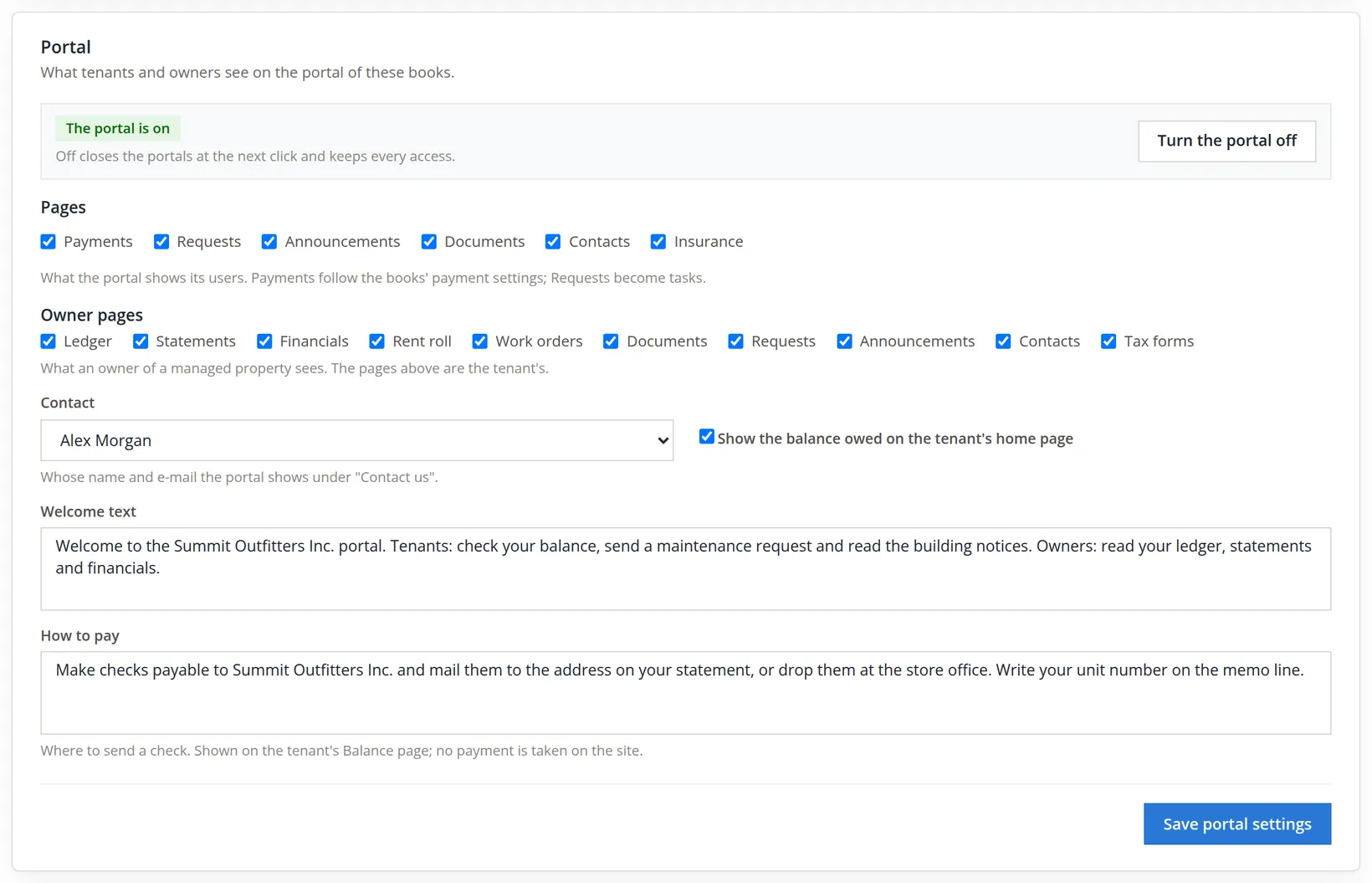
Only someone with edit access to both Property settings and Portals sees the switch; others read "Someone with edit access to Portals and Property settings can turn it on or off." Turning the portal off signs out every tenant and owner at their next click. Summit's portal is on from this chapter onward and is left on.
A property can differ from the books. Its own Settings tab has a Portal card with Use the books settings ticked; untick it to give that property its own pages, contact and welcome text. The on and off switch stays on the books' card.
Invite a tenant and an owner by hand
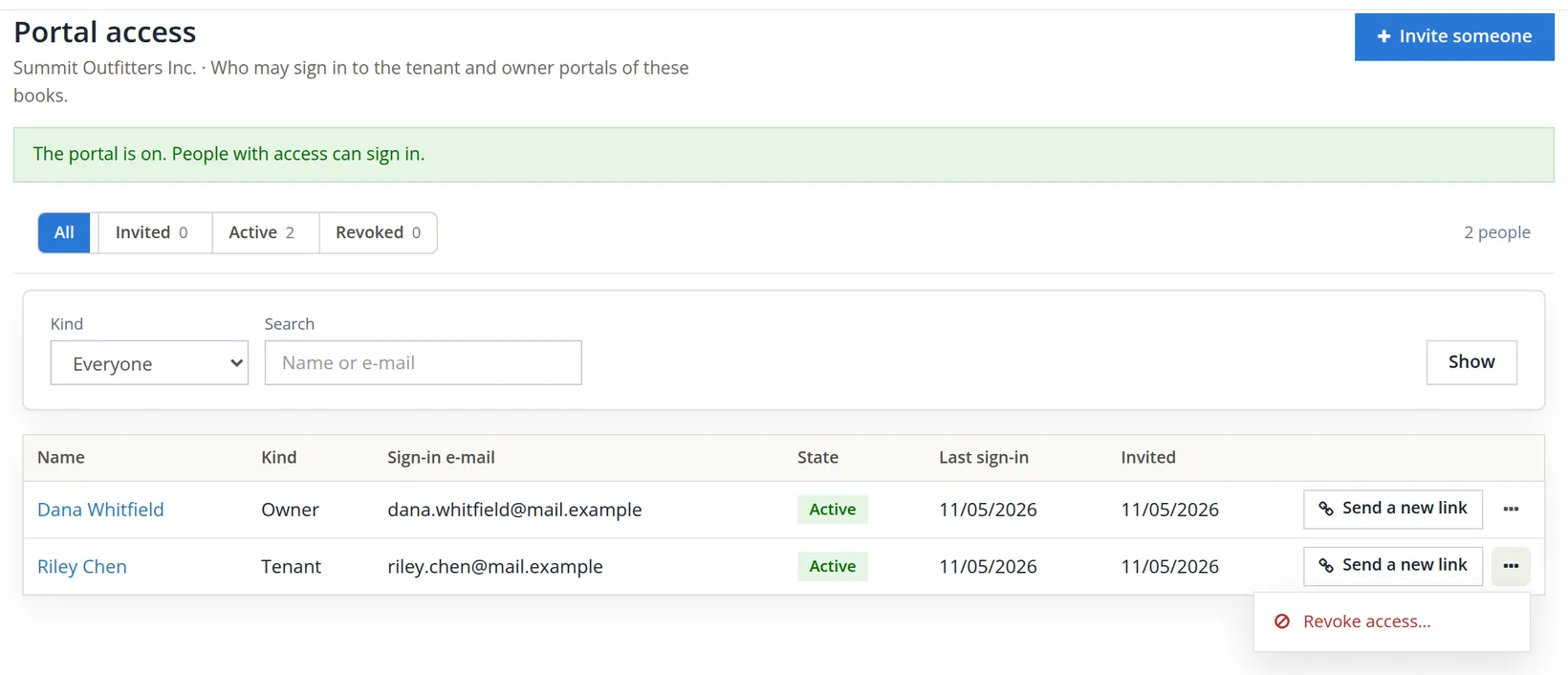
Communication → Portal access lists "who may sign in to the tenant and owner portals of these books", with chips for All, Invited, Active and Revoked, a Kind filter (Everyone, Tenants, Owners) and a search by name or e-mail. With the portal on, the page shows a green band and, at the top right, the blue button Invite someone.
- 1
Click Invite someone and choose who
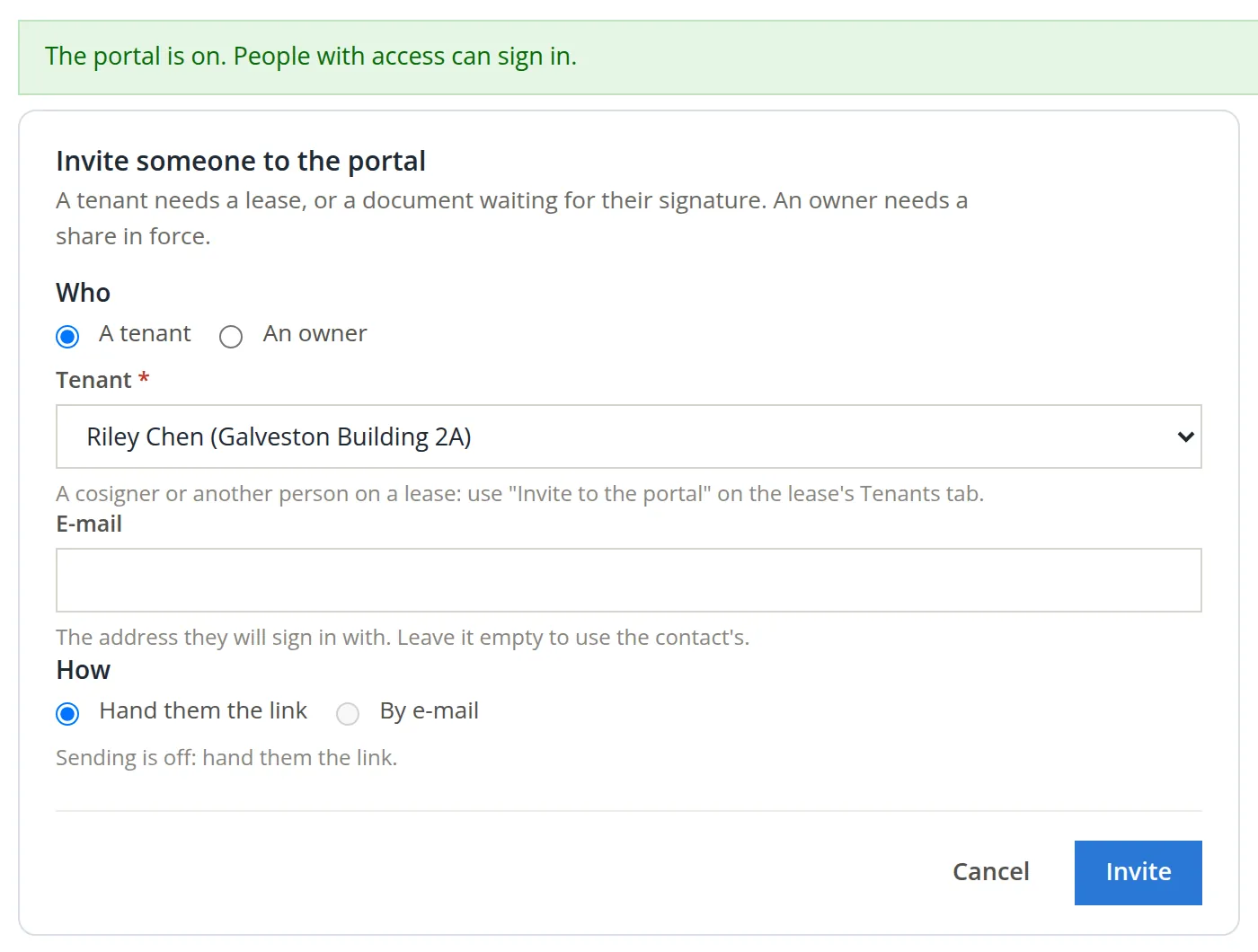
"A tenant needs a lease, or a document waiting for their signature. An owner needs a share in force." The Tenant list holds the primary tenant of each current lease, with the property and unit beside the name; a cosigner or another person on a lease is invited from the lease's Tenants tab instead. Summit chooses Riley Chen (Galveston Building 2A).
- 2
Leave E-mail empty, or type another address
This is "the address they will sign in with. Leave it empty to use the contact's." Riley's contact already holds riley.chen@mail.example, so Summit leaves the box empty. A different address here changes only the sign-in, not the contact.
- 3
Choose Hand them the link, then Invite
Summit's sending switch is off (Chapter 13.6), so By e-mail is greyed out and the dialog says "Sending is off: hand them the link." Invite is the blue button at the right, after Cancel.
- 4
Copy the link before you leave the page
The page answers with a card above the list, Hand this link: "It works once and for seven days. It is shown only now: copy it before you leave this page." The software keeps no copy you can bring back; reloading the list does not show it again. Summit texted the link to Riley's phone.

- 5
Invite the owner the same way
Choose An owner, then the owner. The list holds the active owners, and the dialog's rule applies: "An owner needs a share in force." At Summit that is Dana Whitfield alone. Summit invited Dana by hand to dana.whitfield@mail.example and handed over that link too. (Invite to the portal... in the More menu of the owner's page, Chapter 13.11, opens this same dialog; it leaves that menu once the owner has access.)
Each row of the list ends with a Send a new link button and a More button (...). Send a new link makes a new code: "The old link stops working. It also lets someone who forgot their password back in." Use it when a link expires (the row then says Link expired: send a new one) or is lost. Revoke access..., in the More menu, asks for a reason, such as Moved out, lease ended: the person is signed out at their next click, the record stays, and Restore on a revoked row invites them again with a new link. Each invitation also becomes a row on the Deliveries tab of the documents register (Section 5), recorded as a hand delivery with the event Portal invite, so the register shows who was given a link and when.
The claim page, and the first slip
Riley opened the link that evening on a phone. The claim page, Set up your portal account, proves the link before it shows anything, then names the person, the landlord and a masked e-mail, so Riley can tell the invitation is meant for them without the page revealing the whole address. Riley chooses a password: "At least 10 characters, and not your e-mail."
Riley's thumb slipped on the second box. The page refused: "The two passwords are not the same." Nothing was created and the link was not spent; both boxes were emptied so the passwords could be typed again from the start.
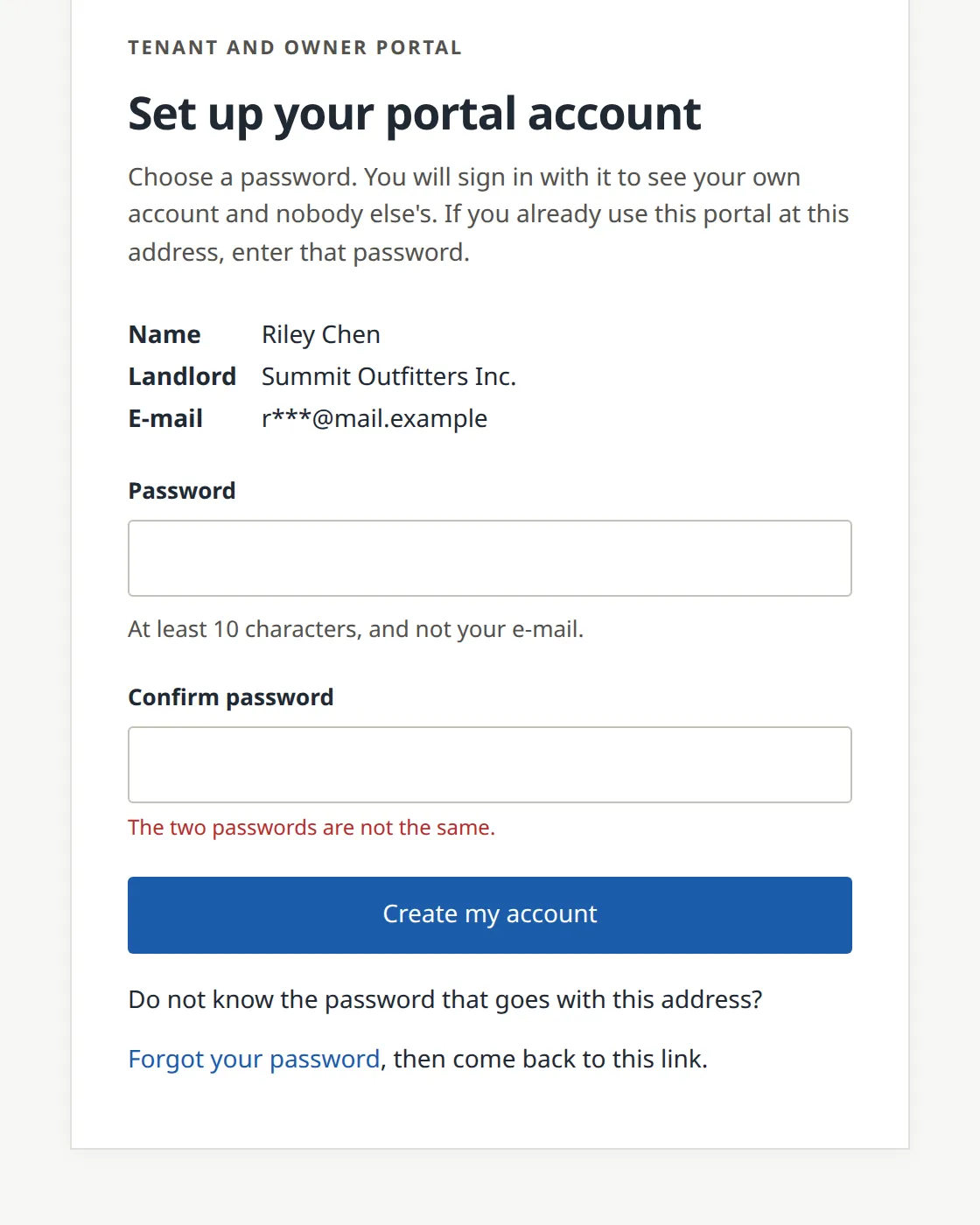
With the two passwords the same, the page answered "Your account is ready. Sign in below." on the sign-in page. A claim never signs a person in by itself: they sign in once with the new password, which proves they know it. On Portal access Riley's row turned Active with a last sign-in date.
If the same e-mail already has a portal account (a tenant in two of your buildings, or a tenant who is also an owner), the claim page asks for the password they already use and the button reads Add this account; after signing in they choose between their accounts. Five failed sign-ins from one browser stop the form for fifteen minutes.2
The link is shown once and opens an account. Giving it at the move-in meeting, or texting it while the tenant is standing in front of you, means you know who received it; a link in a forwarded message could be claimed by anyone who holds it. If you are ever unsure, Send a new link: the old one stops working.
The tenant portal
After signing in, Riley lands on Home. Its cards summarize the other pages, each with its own link at the right of the card's head, and the menu across the top reaches them. The figure shows Home as it read on November 6, after the rest of this chapter's story.
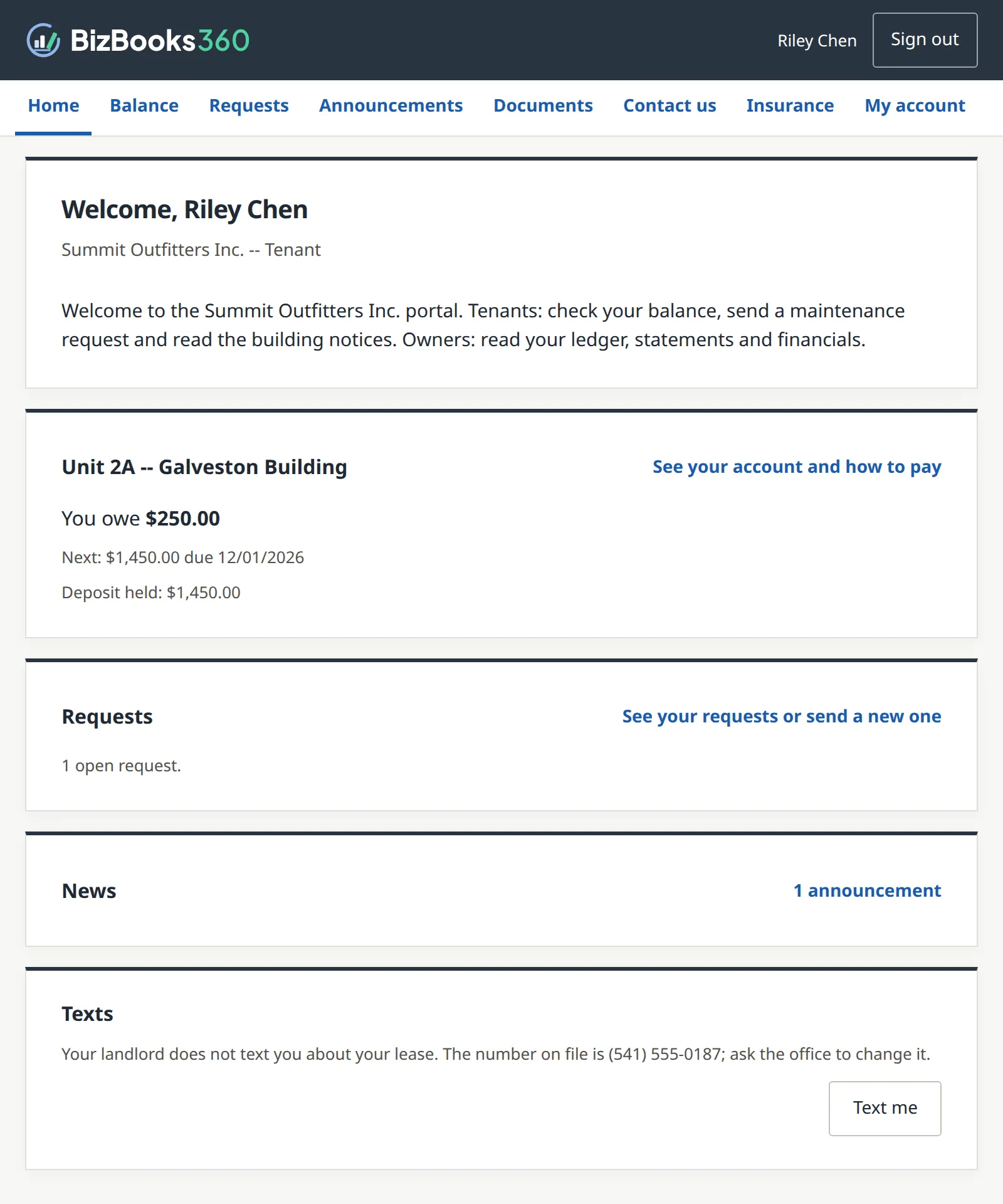
The $250.00 is the same figure the office sees on Riley's lease. The Balance page lists it line by line: the $275.00 roof repair chargeback (work order WO-0004, Chapter 13.8), the payment that came back from the bank, the $25.00 returned-payment fee, and the $50.00 service-inconvenience credit (both Chapter 13.5): $275.00 + $25.00 − $50.00 = $250.00. (On the evening of November 5, before the credit, Home read $300.00.) Under the lines sits Summit's How to pay text and the sentence "Payments are not taken on this site." The Texts card at the bottom of Home (pin 8) is the tenant's own consent to text messages about the lease: Text me, at the right of the card, records it ("We will text you about your lease."), Do not text me takes it back, and the number on file is changed only by the office.
| Page | What Riley can do there |
|---|---|
| Balance, Statements | Read every charge and payment between two dates. On Statements, Get my statement makes a numbered statement for a date range on the spot; Riley had none yet. |
| Requests | Send a request and follow it (Procedure C). |
| Announcements | Read the announcements published to Riley's building or to all tenants. |
| Documents | Open the documents the office sent to the portal and the files it shared ("Nothing is shared yet."). |
| Contact us | See the contact named on the Portal card, the office's name and its phone number. |
| Insurance | Add a renters insurance policy: company, policy number, dates and a proof of insurance up to 20 MB. "Your landlord will look at it. You cannot change it afterwards: ask the office to correct it." |
| Sign | Sign or decline documents sent for signature ("Nothing is waiting for your signature."). |
| My account | Change the sign-in e-mail (it moves only when a link sent to the new address is opened) or the password. |
A request, from the portal to Tasks and back
- 1
The tenant fills in New request
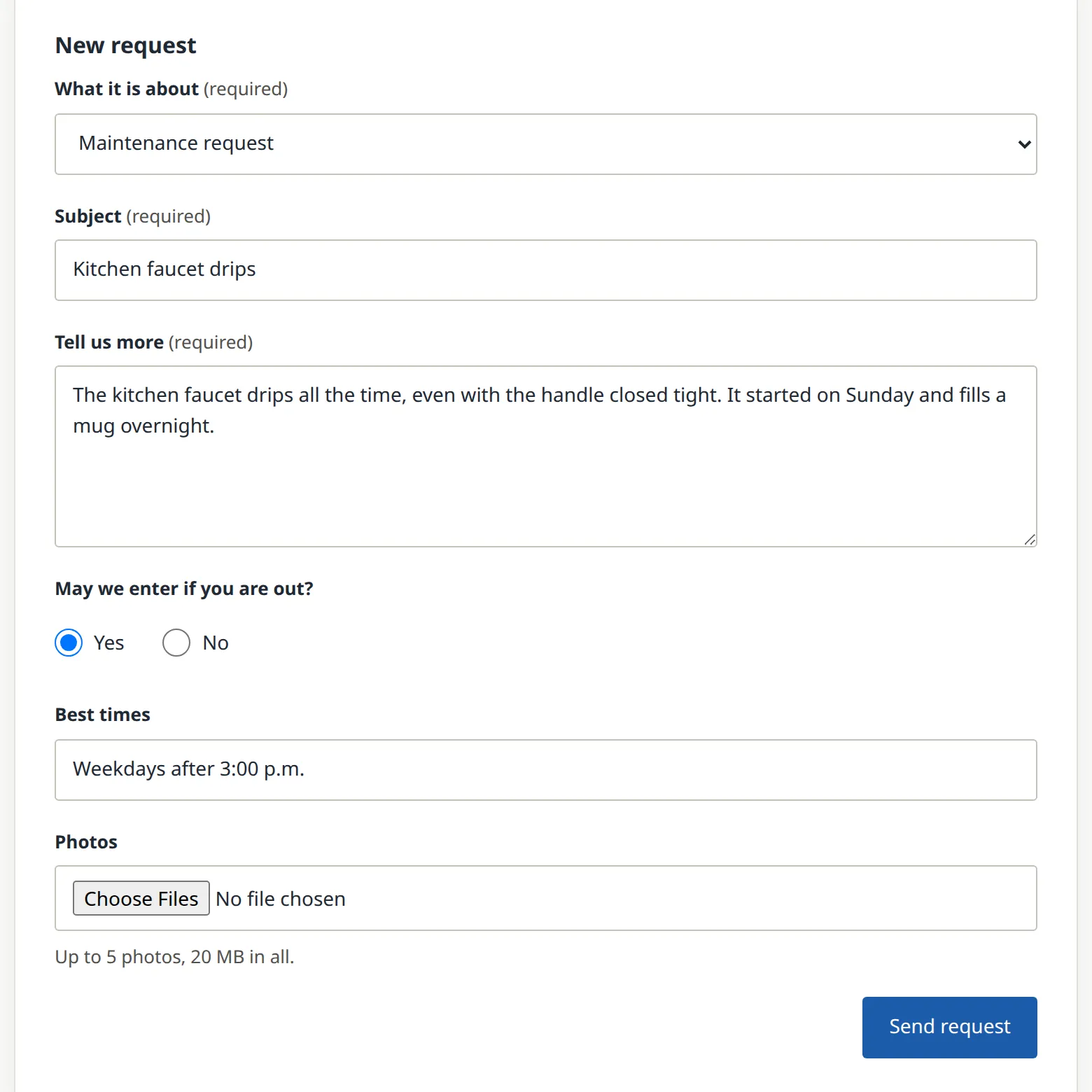
On Requests, Riley chooses what it is about. The list is the books' task categories offered on the portal (Settings → Property Management → Tasks, Chapter 13.10): General inquiry, Maintenance request, Complaint and Other. Subject and Tell us more are required. The tenant may also say whether the office may enter when nobody is home, give the best times, and attach up to five photos. Riley clicks Send request, the button at the right under the form; the page answers "Your request is sent. You can follow it here." and shows it as In progress.
- 2
The office finds it on Tasks
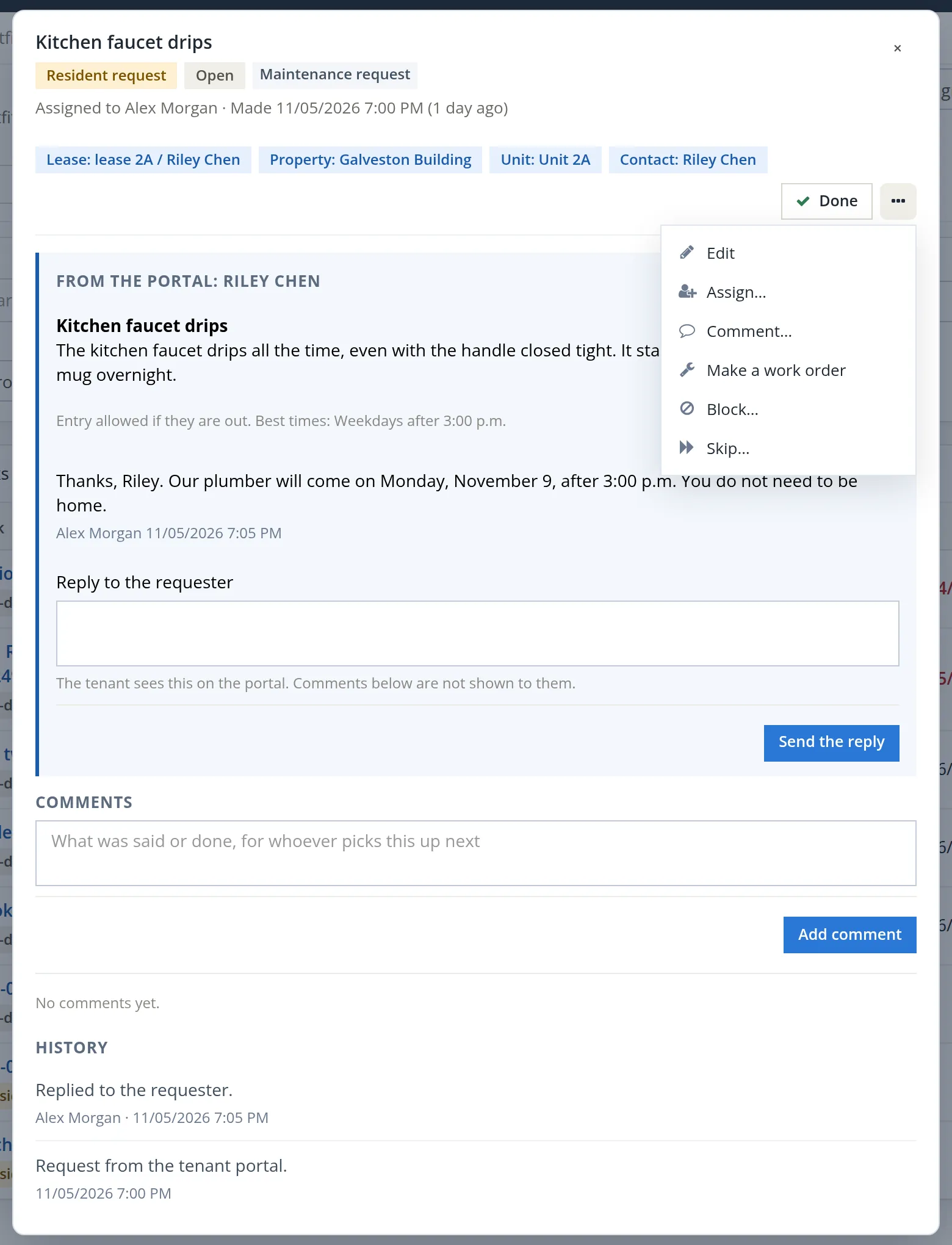
The request became a task at once: on Property Management → Tasks a row Kitchen faucet drips appears with the chips Resident request and Maintenance request, on Unit 2A, assigned here to Alex Morgan. The Kind filter separates Resident requests and Owner requests from the office's own to-dos. Open the row.
- 3
Answer in Reply to the requester
The box From the portal: Riley Chen repeats the request. A reply typed below it is shown to the tenant: "The tenant sees this on the portal. Comments below are not shown to them." Summit typed when the plumber would come and clicked Send the reply. The reply then sits in the box with the writer's name and time, the reply box is empty again for the next message, and the History records Replied to the requester. Above the box, the drawer's only button is Done; Edit, Assign..., Comment..., Make a work order, Block... and Skip... are in its More menu (...).
- 4
The tenant reads the reply
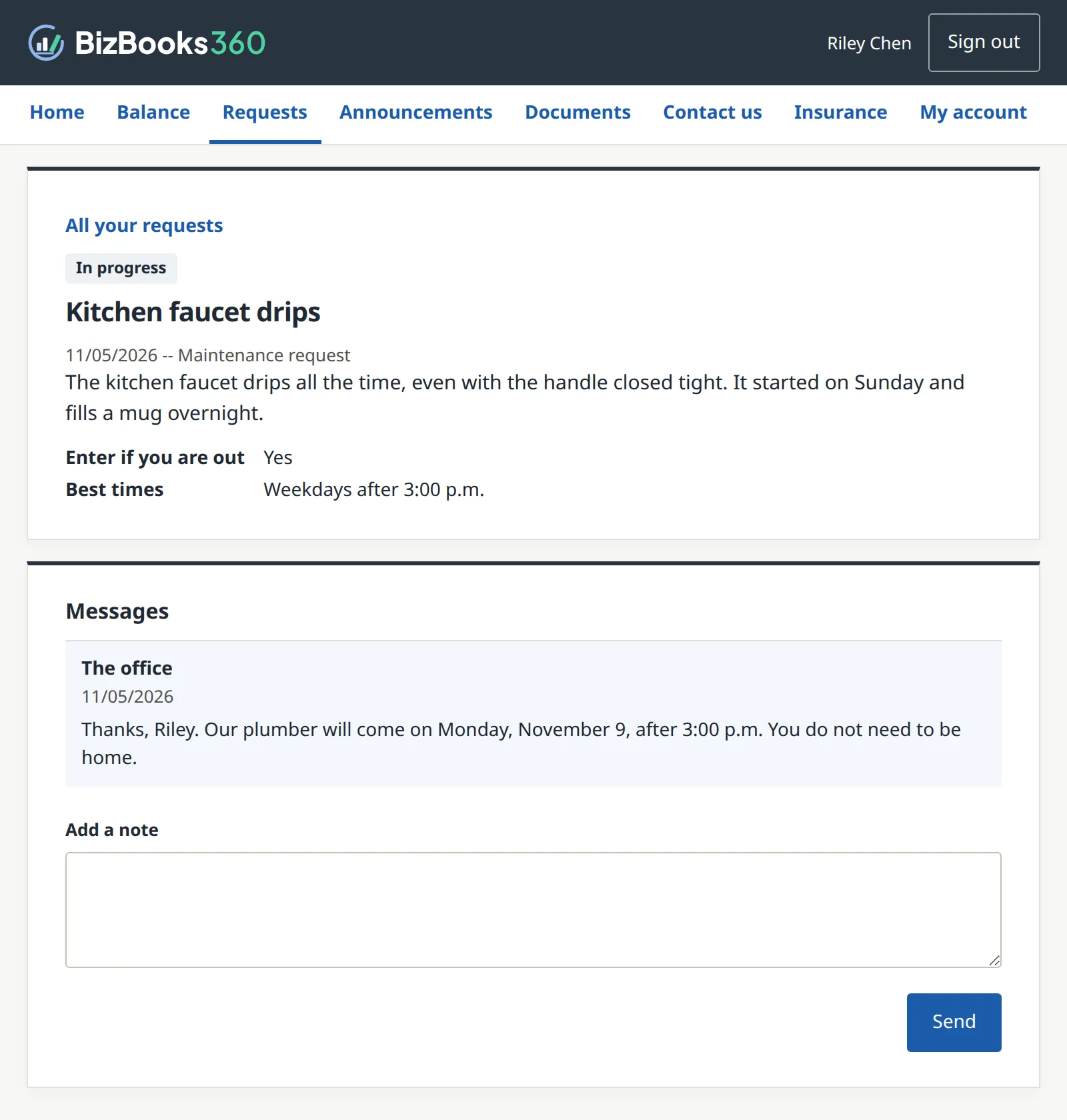
The next time Riley signed in, the request page showed the office's message under Messages. Riley can answer with Add a note, which lands on the same task.
Write to the tenant in Reply to the requester and to your colleagues in Comments. "Plumber Monday after 3" belongs in the reply; "second faucet call this year, check the supply line" belongs in a comment. When the job needs a vendor and a bill, use Make a work order in the task's More menu: the work order keeps the link to the request.
Announce the water shut-off
Communication → Announcements holds "one message to every tenant or owner of a property, a group or the books, with a delivery record per person", with Draft, Published and Archived tabs. Its empty page even suggests the example: "Write one for a water shut-off, a holiday schedule or anything everyone must know."
- 1
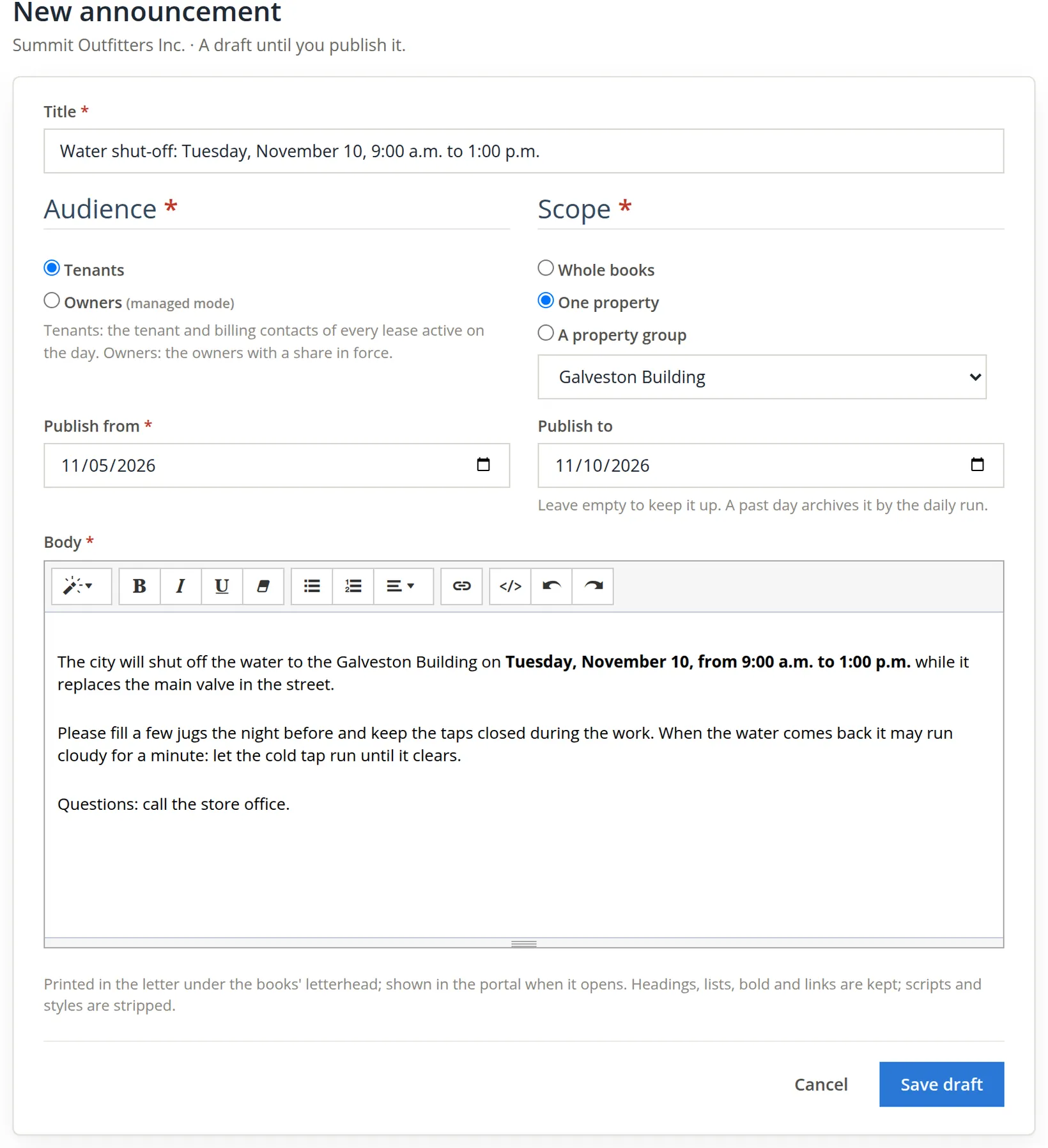
Click New announcement and fill in the form
Audience: Tenants, which means "the tenant and billing contacts of every lease active on the day"; Owners means the owners with a share in force. Scope: the whole books, one property or a property group; Summit picks One property, Galveston Building. Publish from 11/05/2026 and Publish to 11/10/2026, the day of the work: "A past day archives it by the daily run." The body keeps headings, lists, bold and links.
- 2
Click Save draft
An announcement is a draft until it is published: "Draft saved: Water shut-off ...". A draft can be edited; a published one cannot.
- 3
Click Publish and choose the channel
The dialog counts who it reaches: 2 people, Riley Chen (Unit 2A), Morgan Diaz (Unit 2B), with the reminder that holds and eviction cases are included, because "an announcement like a water shut-off must reach everyone." The channels are E-mail, Mail, Hand delivered and Portal only (no letter, no delivery). With sending off, the dialog opens on Mail and previews the letter under Summit's letterhead.
The mistake: a letter with no approved template
The bookkeeper wanted a letter in each door as well, kept Mail and clicked Publish. The software refused, and nothing was published:
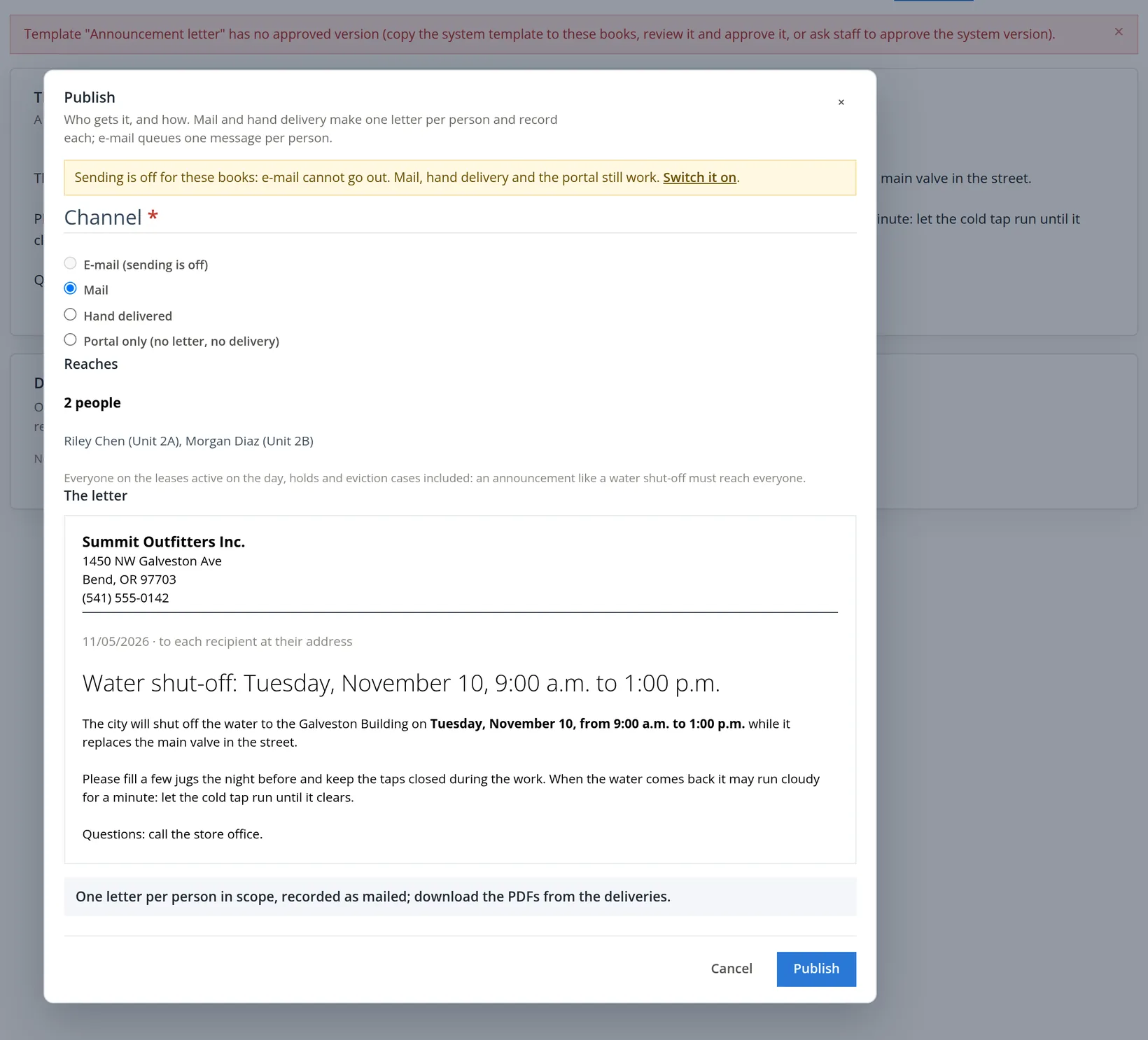
Mail and hand delivery make one letter per person from the template Announcement letter, and the module never prints a letter whose words nobody in the books has approved. Summit's books had no approved version of it. The check runs before anything is written, so no draft letter, no delivery and no half-published announcement was left behind.
The fix had two parts. For tonight, the bookkeeper published the announcement with Portal only; the dialog's summary changed to "Published for the portal only." and the page answered "Published for the portal only: no letter, no delivery." The announcement moved to the Published tab, with Deliveries 0, and appeared under News on Riley's home page and on the Announcements page of the tenant portal; Dana's owner portal, outside the audience, still says "There are no announcements right now." For the paper copy, approving the letter template belongs to Settings → Property Management → Templates (Chapter 13.6); once it is approved, Publish again by mail or by hand records one delivery per tenant, and "a second publish skips the people already delivered."
A portal announcement reaches only the people who sign in. Where a lease or the law requires written notice, for entry or for a shut-off of a service, give it by a channel that counts and keep the record.3 Summit also taped a printed copy to the Galveston Building's front door.
On the announcement's page the state chip sits beside the title, Publish (which reads Publish again once published) is the blue button, and Archive... is in the More menu (...). An announcement leaves the portal in two ways: Archive... ("Hides it from the lists and the portal. Its deliveries are kept."), or the daily run once its Publish to day has passed. Summit's will archive itself after November 10.
The owner portal
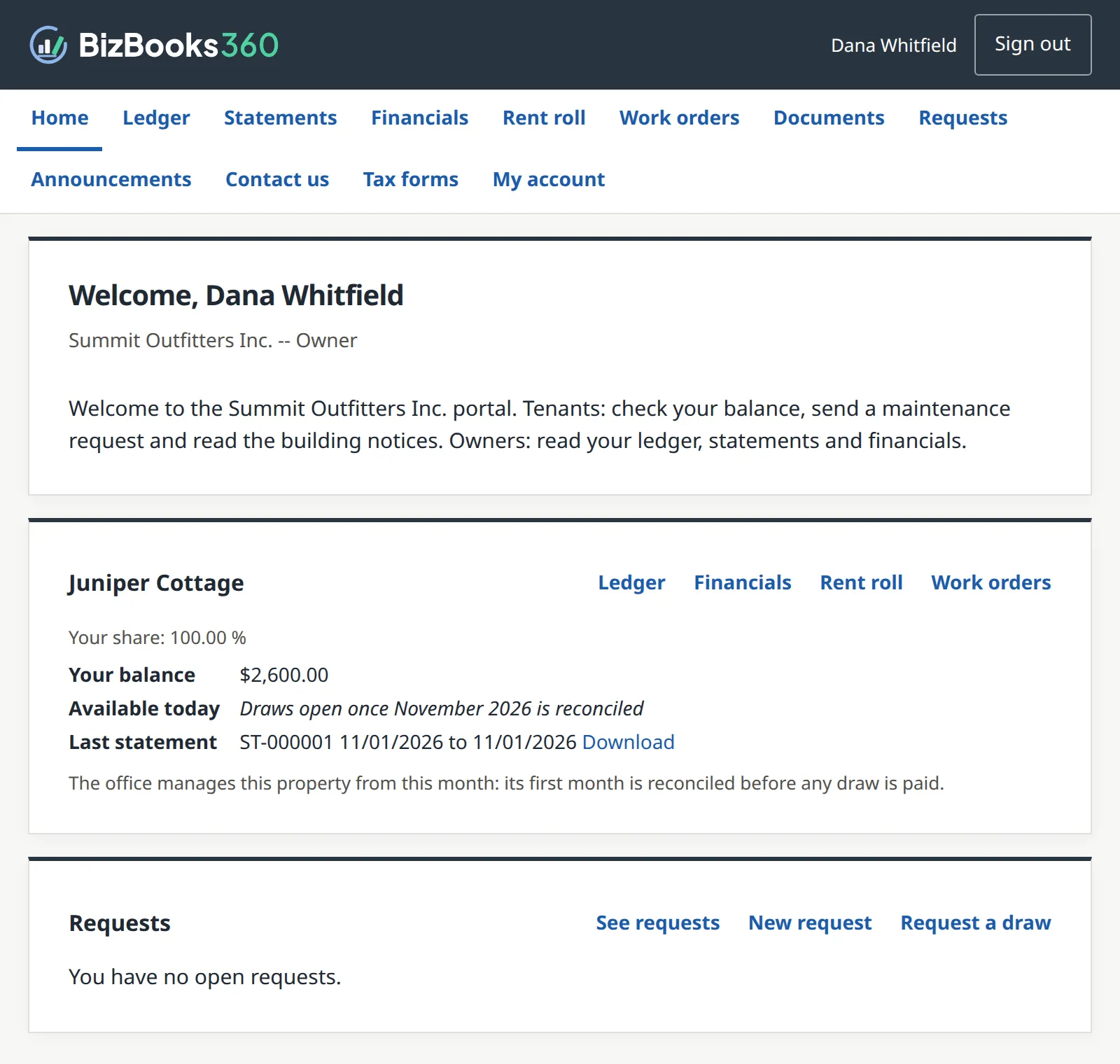
Dana claimed the owner link the same evening, in another browser, exactly as Riley had: the claim page named Dana Whitfield, landlord Summit Outfitters Inc., e-mail d***@mail.example. After signing in, Dana saw an owner's home page; the figure shows it with the welcome text as reworded below.
A second slip: one welcome text for two readers
On Dana's first visit the welcome card held Summit's first text, which spoke to residents and promised a maintenance request; the owner of a house read it too, because the Welcome text on the Portal card is shown on both portals. Nothing refused it: this is the kind of mistake only a reader catches. The bookkeeper reworded it for both readers and saved the card again: "Welcome to the Summit Outfitters Inc. portal. Tenants: check your balance, send a maintenance request and read the building notices. Owners: read your ledger, statements and financials." (A property with its own Portal card can carry its own text.)
The figures on Dana's pages are the same as on Dana's owner page in the office (Chapter 13.11), limited to Dana's share: "Figures are your share of the property."
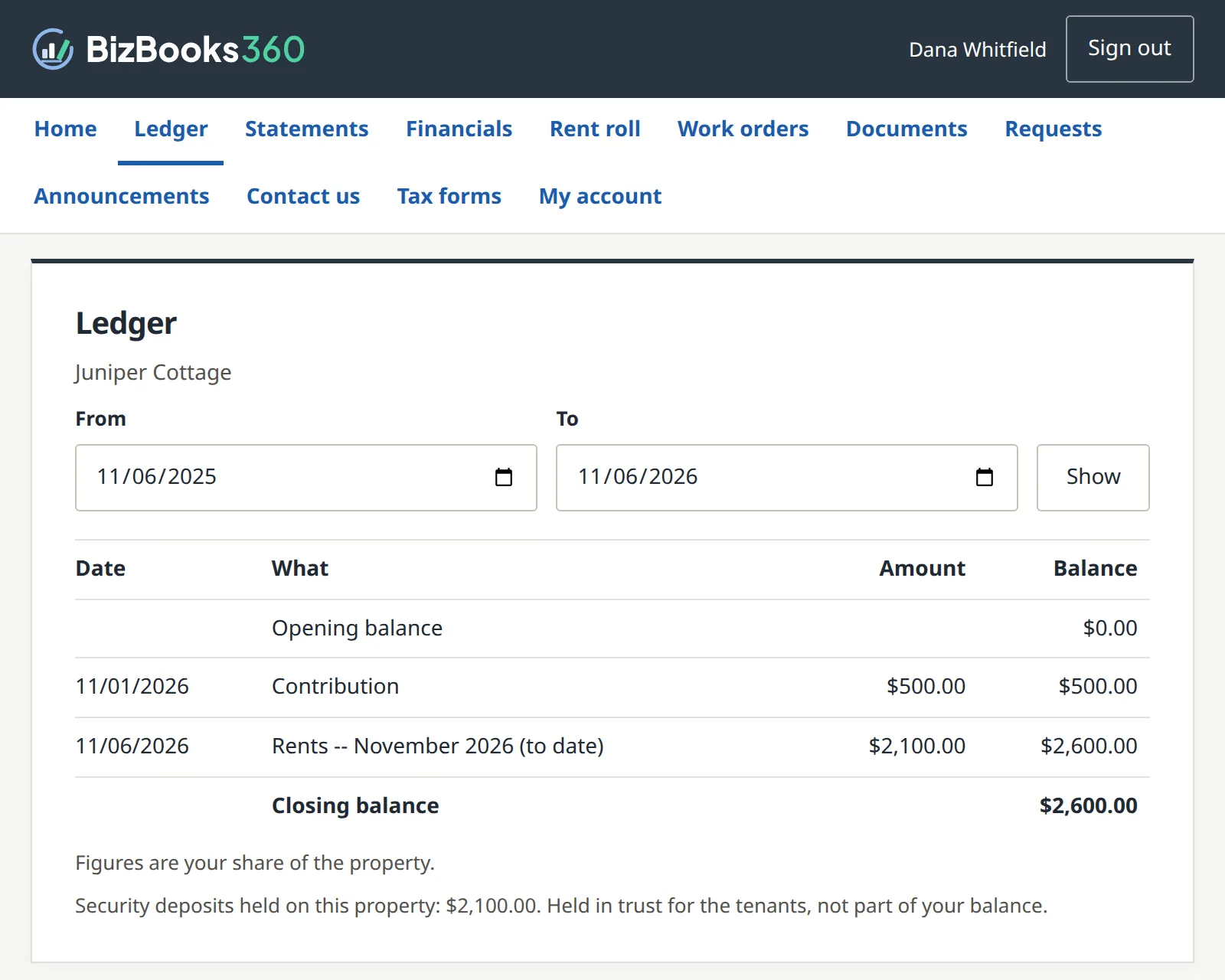
The ledger adds up: $0.00 + $500.00 + $2,100.00 = $2,600.00. The other owner pages, as Dana saw them on November 5:
| Page | What it shows | Dana on 11/05/2026 |
|---|---|---|
| Statements | Each owner statement with income, expenses and the ending balance, and a PDF download | ST-000001, 11/01/2026 to 11/01/2026: income $2,100.00, expenses $0.00, ending balance $2,600.00 |
| Financials | Income and expense by account, a column per month of the chosen year, and Download as a spreadsheet (a CSV with the columns Section, Account, each month and Total) | Rents $2,100.00 in November 2026; expenses $0.00; net $2,100.00 |
| Rent roll | Each unit, its tenant, lease dates, rent and whether the tenant is current | House, Jamie Ortiz, 11/01/2026 to 10/31/2027, $2,100.00, Current |
| Work orders | Repairs on the owner's properties, the vendor and what was charged to the owners | 11/01/2026, replace cracked storm window, Bend Glass & Door, Closed |
| Documents, Announcements | Documents sent to the owner's portal; announcements to owners | Nothing yet |
| Tax forms, Renewals | The owner's 1099 years, in the 1099 engine's words; leases waiting for the owner's answer on a renewal | No tax forms yet; no lease waiting |
Two figures on Dana's pages differ from what the office knows, by design. The $240.00 storm-window bill is not on the ledger, which is on the cash basis, because the bill is not paid yet (Chapter 13.11); and the Statements page shows the statement Summit made, not a live total.
The draw request, as far as it goes today
The home page's Requests card links to it, and at the bottom of Requests, below the ordinary request form (with the same categories as the tenant's), sits Request a draw: "A draw request tells the office. No money moves until they pay it, and it then shows on your ledger." For Dana it shows no form at all, only the rule from Chapter 13.11.
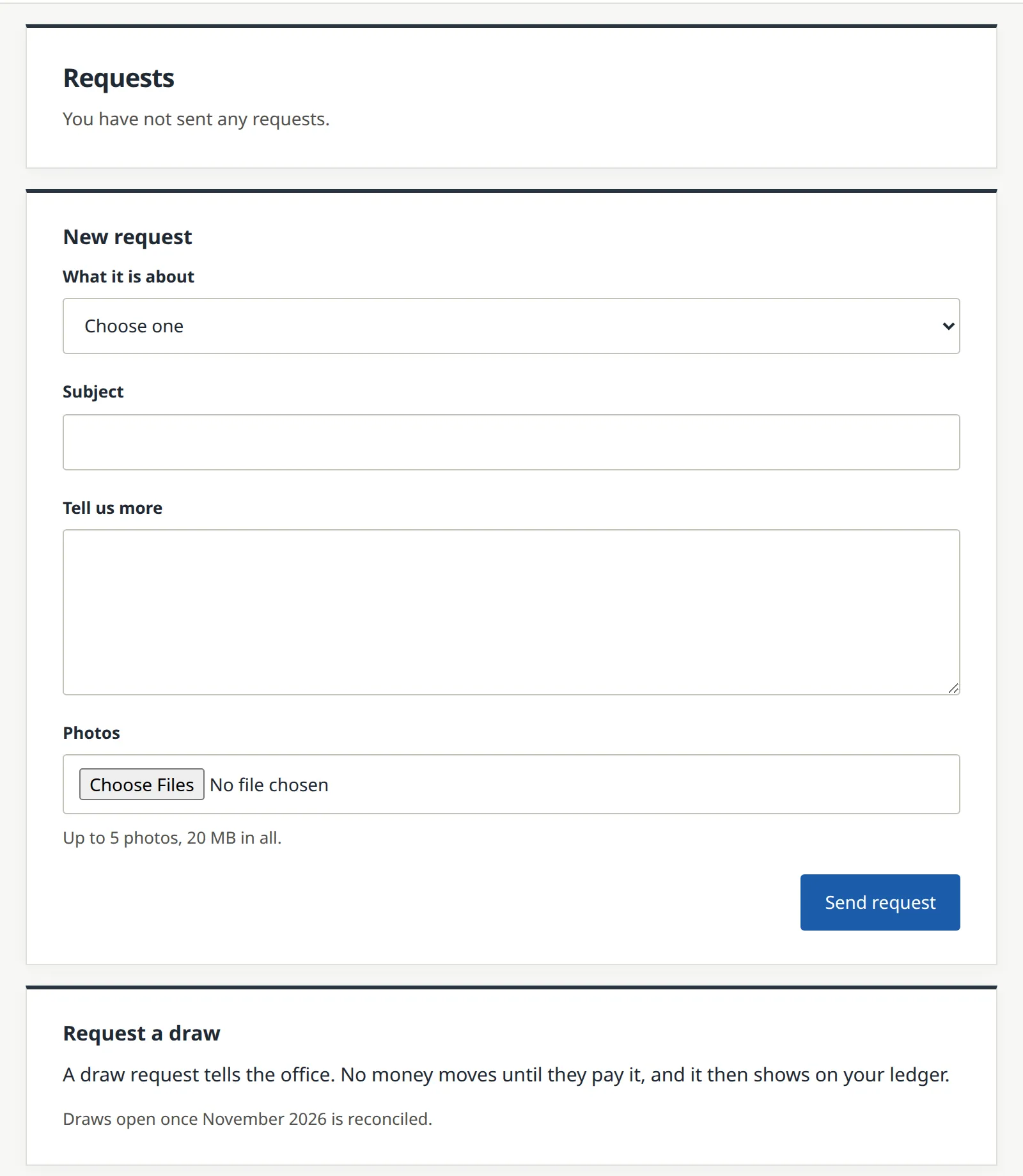
Once Summit has reconciled November's trust bank, on or after December 1 (Chapter 13.12), the card offers a form instead: each property with its amount available today, an amount and a note, and Send draw request. The request is a task for the office, like any other portal request; the portal compares the amount with what is available but pays nothing, and there is no bank field and no online payment.4 The office then pays it with the owner's Draw button (Chapter 13.11).
Documents and deliveries
Every statement, letter, notice and report the module generates is written into one register: Communication → Documents, "Every statement, letter and notice the module has generated: numbered, hashed, kept." Each document has a number (ST- for statements, N- for notices, D- for other documents), a kind, the unit or property it concerns, a state (Draft, Final, Sent, Signed, Superseded or Void), how many times it went out, the day it was generated and the day it is kept through. Its page holds a fingerprint, a hash of the PDF, so anyone can later prove that a copy is the document as it was made. On November 5 Summit's register already held documents from earlier chapters, among them ST-000001 for Dana (its row names Owner: Dana Whitfield) and D-000001, the condition report of Riley's unit. Each row ends with Send and Download buttons and a More menu (...).
The second tab, Deliveries, is "Every delivery: what went out, to whom, how, and what came back." E-mail is sent by the system; mail, hand delivery and texts are recorded, because they say what a person did. Summit's two invitations of this chapter are there, as hand deliveries with the event Portal invite. The Deliveries report (Chapter 13.15) prints the same list.
Putting a document on a portal
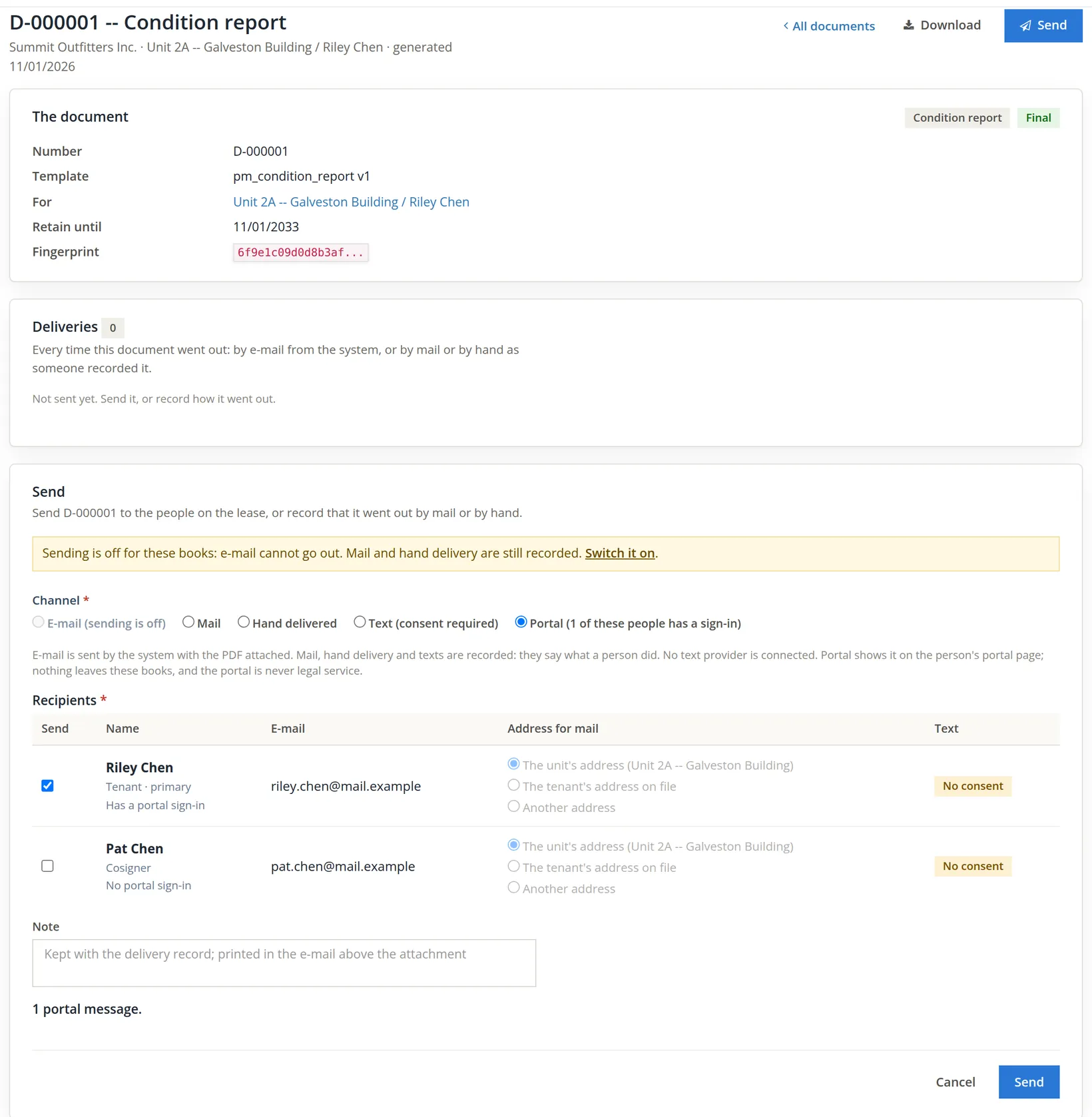
A document reaches a portal through its own Send card, on the document's page (the blue Send at the top right leads to it), with the channel Portal; the card opens on Mail, so click Portal. The card counts how many of the people on the lease have a sign-in and marks each recipient Has a portal sign-in or No portal sign-in. Sent this way, the document appears on the person's Documents page and the delivery is recorded like any other. The figure shows D-000001 set up for Riley; Summit left it unsent in this chapter.
Files are different from register documents. A file uploaded to a lease's or a property's Files tab (a photo, a signed addendum) has a Share control with Tenant and Owner boxes; a shared file appears on the matching portal's Documents page. The PDF of a register document cannot be shared that way, so that every copy that goes out has a delivery on record: its row says Share it from Documents. Screening reports and applications are never shared.
How long documents are kept
Settings → Property Management → Documents and messages → Documents sets the retention of each kind of document, in years after it is made. Every kind not set below is 7 years; each kind may differ, and a screening report is kept 2 years "counted from the decision on the application". The column beside each box turns the years into a date: a statement made on 11/06/2026, the day of the picture, is kept through 11/06/2033.
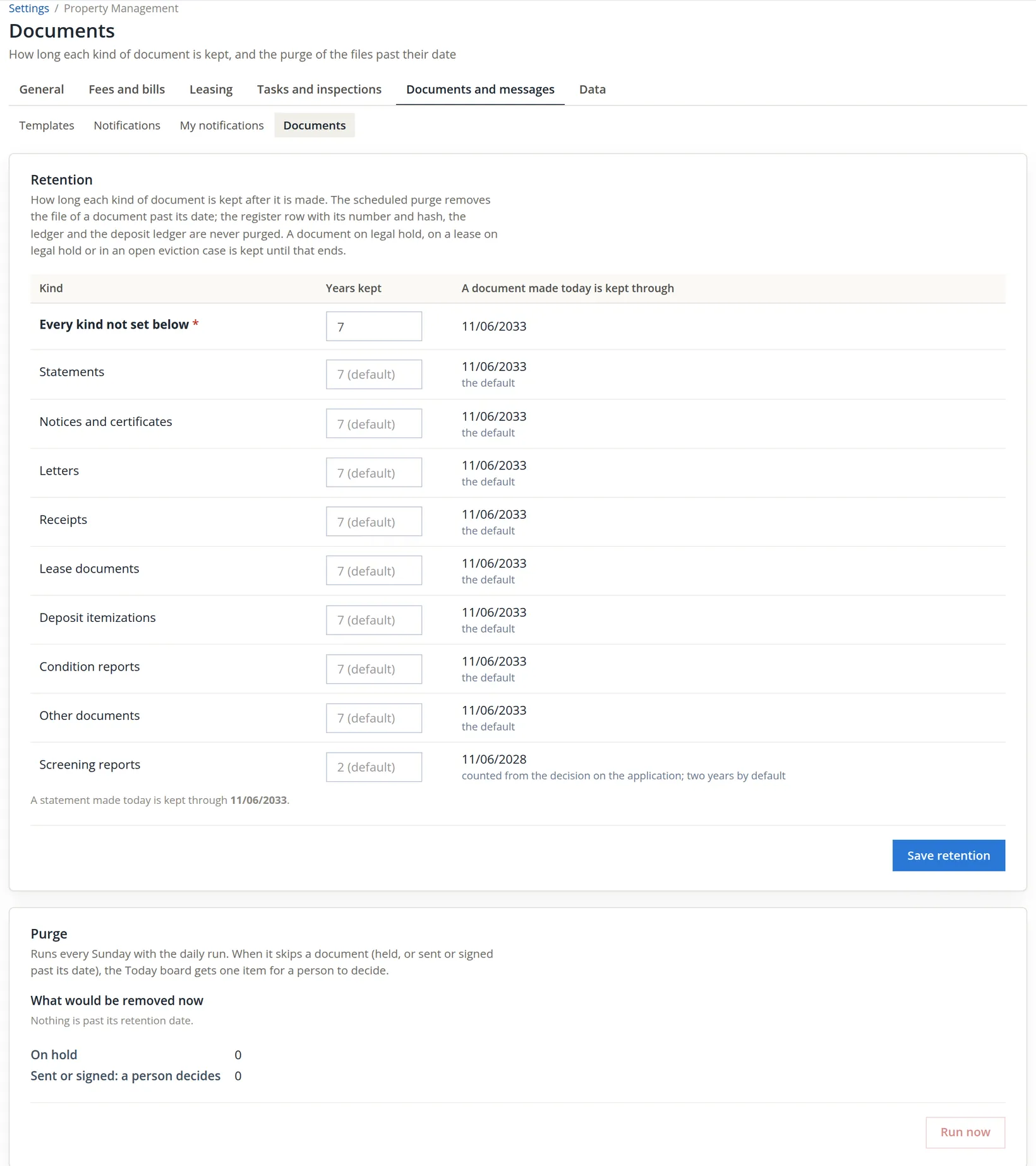
The purge runs every Sunday with the daily run. It removes only the file of a document past its date; "the register row with its number and hash, the ledger and the deposit ledger are never purged." A document on legal hold, on a lease on legal hold or in an open eviction case is kept until that ends, and a document that was sent or signed is not removed by the machine: the Today board (Chapter 13.10) gets one item for a person to decide. Hold..., in the More menu of each row of the register, puts a single document on hold, with a reason (Lift hold ends it). Summit keeps the defaults.5
Seven years outlasts most record-keeping rules for leases and tax papers. Lowering a kind's years makes the next Sunday's purge remove older files at once; check What would be removed now on this page before you save a shorter period.
Opening the portals
- [x] The Portal card's pages, contact, welcome text and how-to-pay text are set, and the welcome text reads well for tenants and owners alike.
- [x] The portal is switched on, by someone with edit access to Portals and Property settings.
- [x] Each invitation went to the right person and address; a hand link was copied before leaving the page and handed over directly.
- [x] Each new user's row on Portal access reads Active after their first sign-in; expired links were replaced with Send a new link.
- [x] Portal requests are found under Tasks (Kind: Resident requests, Owner requests) and answered with Reply to the requester; work that needs a vendor goes through Make a work order.
- [x] Announcements have the right audience, scope and window; anything that needs written notice also went by mail or by hand.
- [x] Documents meant for a portal user were sent with the Portal channel, so the delivery is on record.
- [x] Retention is set on purpose, and the purge list was read before shortening it.
- [x] When someone moves out or an owner leaves, their access is revoked with a reason.
Check your understanding
1. A tenant asks for "the sign-up page" of the portal. What do you tell them?
Answer
There is none. The office invites them from Communication → Portal access; they open the one-time link, choose a password and then sign in.
2. You invited a tenant by hand, clicked Done, and only then remembered you had not copied the link. Can you get it back?
Answer
No. The link is shown only once and is not kept where it can be shown again. Use Send a new link on the tenant's row: it makes a new link and the old one stops working.
3. Why was Riley's first try on the claim page refused, and what was created?
Answer
The two passwords were not the same. Nothing was created and the link was not spent; Riley typed both again and the account was made.
4. Riley's portal says "You owe $250.00". Where does that figure come from?
Answer
From Riley's lease ledger: the $275.00 roof chargeback, whose payment came back from the bank, plus the $25.00 returned-payment fee, less the $50.00 service-inconvenience credit. The portal shows the office's own figures; it does not keep figures of its own.
5. The water shut-off announcement could not be published by Mail. Why, and what did Summit do?
Answer
Mail and hand delivery print a letter from the Announcement letter template, which had no approved version in the books. Summit published it for the portal only, posted a paper notice on the door, and can approve the template (Chapter 13.6) and publish again by mail; people already delivered are skipped.
6. Dana asks for a $1,000.00 draw from the portal today. What happens?
Answer
Nothing can be asked yet: the Request a draw card shows only "Draws open once November 2026 is reconciled." After November is reconciled, a draw request becomes a task for the office; no money moves until the office pays it with the owner's Draw button.
7. You lower Letters from 7 years to 3. What will the next purge do, and what will it never remove?
Answer
It removes the files of letters made more than 3 years ago, except those on hold or in an open eviction case, and leaves sent or signed ones for a person to decide on the Today board. It never removes the register row (number and hash), the ledger or the deposit ledger.
Notes
- The portal's address is your BizBooks360 address followed by rental-portal; the claim links and the sign-in page all start there. Staff cannot preview a portal as a tenant or an owner would see it: to try it yourself, invite a test contact of your own and claim it in a separate browser. ↑
- A portal password has at least 10 characters and may not be the e-mail address. After five failed sign-ins from one browser the form stops accepting a password for fifteen minutes. A user who forgets the password uses Forgot your password on the sign-in page; while the books' sending is off no e-mail can go out, so the office uses Send a new link instead. ↑
- Notice rules for entry, repairs and interruptions of service are set by state law and by the lease, and they differ from state to state. The software's own words are that the portal is never legal service. This manual is not legal advice. ↑
- This chapter was written on November 5, 2026, before Juniper Cottage's first statement period ended. The draw request form, the owner's first period statement on the portal and a draw on the owner's ledger can be seen only after the November trust reconciliation; Chapter 13.12 follows that month-end. ↑
- How long leases, notices, screening reports and tax records must be kept is set by federal and state law and by your own policies. The defaults are the software's, not a legal requirement. This manual is not legal or tax advice. ↑